
My earliest lessons in focus and resilience actually came from watching Sachin Tendulkar at the crease. He had this incredible ability to block out a roaring stadium, ignore the immense pressure, and just play the ball. I try to bring that exact same focus to my daily work. But let’s be honest—our digital tools make that incredibly hard.
You sit down to research a project, click on one video, and suddenly you’re three hours deep into a rabbit hole. YouTube never forgets. Its algorithm tracks every single click, building a highly specific profile of your habits. When that profile becomes a noisy distraction, it’s time to intervene.
If you want to take back control of your screen time, you need a clean slate. You need to clear youtube history. Doing this resets your feed, hides your personal searches from shared devices, and helps you stay focused on what actually matters. Whether you use a smartphone, a laptop, or a living room TV, wiping your footprint is quick. Let’s break down exactly how to do it.
Why You Need to Hit the Reset Button
YouTube wants your attention. Google uses your search and watch habits to feed you more of what it thinks you want. Over time, this gets exhausting.
Maybe you watched a few DIY plumbing videos to fix a sink. Now, YouTube thinks you are a full-time plumber and floods your homepage with pipe-fitting tutorials. It completely buries the content you actually care about. Wiping your slate forces the platform to re-learn your current interests.
Then there is the privacy angle. If you hand your iPad to a friend or share a computer at home, your recent searches sit right in the open. You probably don’t want everyone seeing your late-night deep dives. Clearing out the junk keeps your personal life private.
|
Why Do It? |
The Real Benefit |
|
Beat the Algorithm |
Forces YouTube to stop showing you stale, repetitive content. |
|
Protect Your Privacy |
Hides your personal searches from anyone sharing your screen. |
|
Stay Focused |
Removes distracting recommendations so you can find what you actually need. |
How to Clear YouTube History on Your Phone
Most of us watch videos on our phones. Because screen space is tight, Google hides the data settings deep inside the account menu. The exact steps are the same whether you use an iPhone or an Android device.
When you clear youtube history on mobile, you get choices. You can delete one specific video, wipe out everything you watched today, or burn it all down to day one.
Follow these exact steps:
- Open the App: Launch YouTube on your phone and make sure you are logged in.
- Hit Your Profile: Tap your profile picture. You’ll find it in the bottom right or top right corner, depending on your app version.
- Find the Gear: Tap the Settings icon (the little gear) at the top right.
- Go to History: Tap Manage all history. This opens your specific YouTube activity dashboard.
- Delete It: Tap the Delete button. Choose Delete all time to wipe the slate completely clean. Confirm your choice, and you are done.
Read Also: How to Fix YouTube Not Working on Smart TV
How to Clear YouTube History on a Computer
Managing your digital life from a laptop or desktop browser is much faster. The bigger screen makes everything easier to see, and if you want to selectively delete specific searches without losing everything, a mouse and keyboard work best.
Any changes you make here instantly sync to your phone and TV.
|
The Desktop Method |
What You Need to Know |
|
Browsers |
Works instantly on Chrome, Safari, Firefox, or Edge. |
|
Speed |
This is the fastest way to manage your data in bulk. |
|
Syncing |
Deleting data here removes it from your phone and TV apps automatically. |
How to do it:
- Go to YouTube.com and sign in.
- Look at the left sidebar menu. Click on History. (If the sidebar is hidden, click the three horizontal lines in the top-left corner).
- On the right side of your screen, click Manage all history.
- A new tab opens. Click the Delete button above your list of videos.
- Select Delete all time, review the pop-up, and hit Delete again.
Tackling the Smart TV and Console Apps
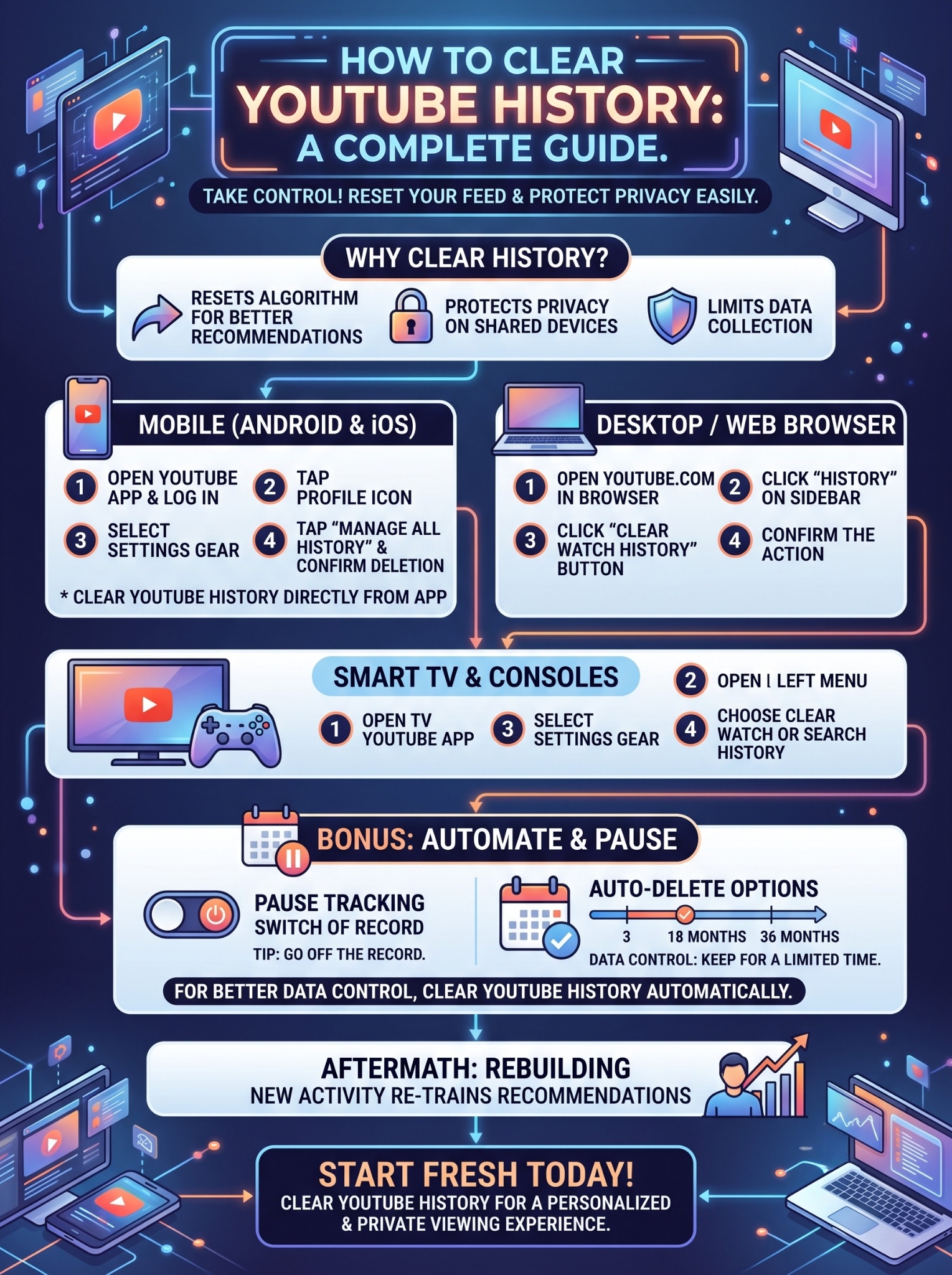
TV apps are notoriously annoying to navigate. Typing or scrolling with a remote takes forever. But if you share a TV in the living room, you absolutely need to clean up your searches so you don’t ruin the recommendations for everyone else.
Unlike your phone, the TV app separates your watch record from your search record. You can wipe one without touching the other.
How to clean up your TV:
- Open the YouTube app on your TV, PlayStation, or Xbox.
- Press the left button on your remote to open the main side menu.
- Scroll all the way down to the Settings gear.
- Scroll down until you see Clear watch history. Select it and hit confirm.
- Look right below that for Clear search history. Select it and confirm to wipe your typed searches.
Go Off the Grid: Pausing Your Activity
Sometimes you don’t need a massive purge. You just want to watch a few things off the record. Maybe you are researching a surprise gift, or you want to watch a video entirely outside your usual interests.
Instead of going back to clear youtube history later, just pause it right now. Pausing tells Google to stop tracking your clicks temporarily. When you finish, unpause it, and your feed returns to normal.
To do this on your phone, go to Settings > Manage all history. Tap the Controls tab, and uncheck the box that says “Include the YouTube videos you watch.”
Set It and Forget It: Auto-Delete
If you hate doing manual maintenance, let the system do the work for you. Google actually lets you set a rolling timer on your data.
You can tell the dashboard to automatically delete any data older than 3, 18, or 36 months. Setting a 3-month rolling window is my favorite trick. It gives the algorithm just enough data to recommend good videos, but prevents Google from hoarding years of your personal history.
|
Auto-Delete Timer |
What Happens |
Privacy Level |
|
Never (Default) |
Google keeps every search and view forever. |
Bad |
|
36 Months |
Deletes everything older than 3 years. |
Okay |
|
18 Months |
Deletes everything older than 1.5 years. |
Good |
|
3 Months |
Automatically scrubs data older than 90 days. |
Best |
How to set it up:
- Open your browser and go to myactivity.google.com (or tap Manage all history in the mobile app).
- Look for the Auto-delete button right above your recent videos.
- Choose the option to Auto-delete activity older than and select 3 months.
- Hit Next, review the changes, and click Confirm.
What Actually Happens When You Hit Delete?
You should know what to expect before you pull the trigger. Once you wipe your data, your homepage instantly changes.
Because YouTube no longer knows what you like, it defaults to whatever is currently trending in your country. Expect to see mainstream music videos, late-night talk shows, and viral clips. To fix this, just start searching for your favorite channels and watch a few full videos. The algorithm learns fast.
Also, you will lose your spot in any videos you haven’t finished yet. Those little red progress bars at the bottom of video thumbnails will vanish, and every video will start back at zero.
Quick FAQs
Can I get my history back after I delete it?
No. Once you delete it from your Google account, it is gone forever. There is no undo button.
Does Incognito mode delete my past searches?
No. Incognito mode just stops the app from recording what you are doing right now. It doesn’t touch anything you watched yesterday.
Will this delete my liked videos?
No. Hitting the thumbs-up button saves that video to a dedicated playlist. Wiping your passive watch tracking won’t touch your “Liked Videos” playlist.
Does this mess up YouTube Music?
Yes. Both apps run on the same brain. If you wipe your video data, your customized music mixes and discovery playlists will completely reset too.
Final Thoughts
Keeping your digital life organized doesn’t have to feel like a second job. Whether you just want to hide a quick, embarrassing search or you need to entirely rebuild a broken algorithm, you now have the exact steps to clear youtube history across all your devices.
If you want my advice? Take three minutes right now to set up the 3-month auto-delete timer. You get all the benefits of a personalized feed without giving up years of your privacy. Reclaim your focus, clear the clutter, and take control of your screen.