
You’re watching TikTok, and a video stops you mid-scroll.
Maybe it has a smooth beauty filter. Maybe the background changes in a funny way. Maybe the creator uses a weird face effect, green screen trick, or AI-style filter that makes the whole clip pop.
Then one thought hits you: “How do I get that filter?”
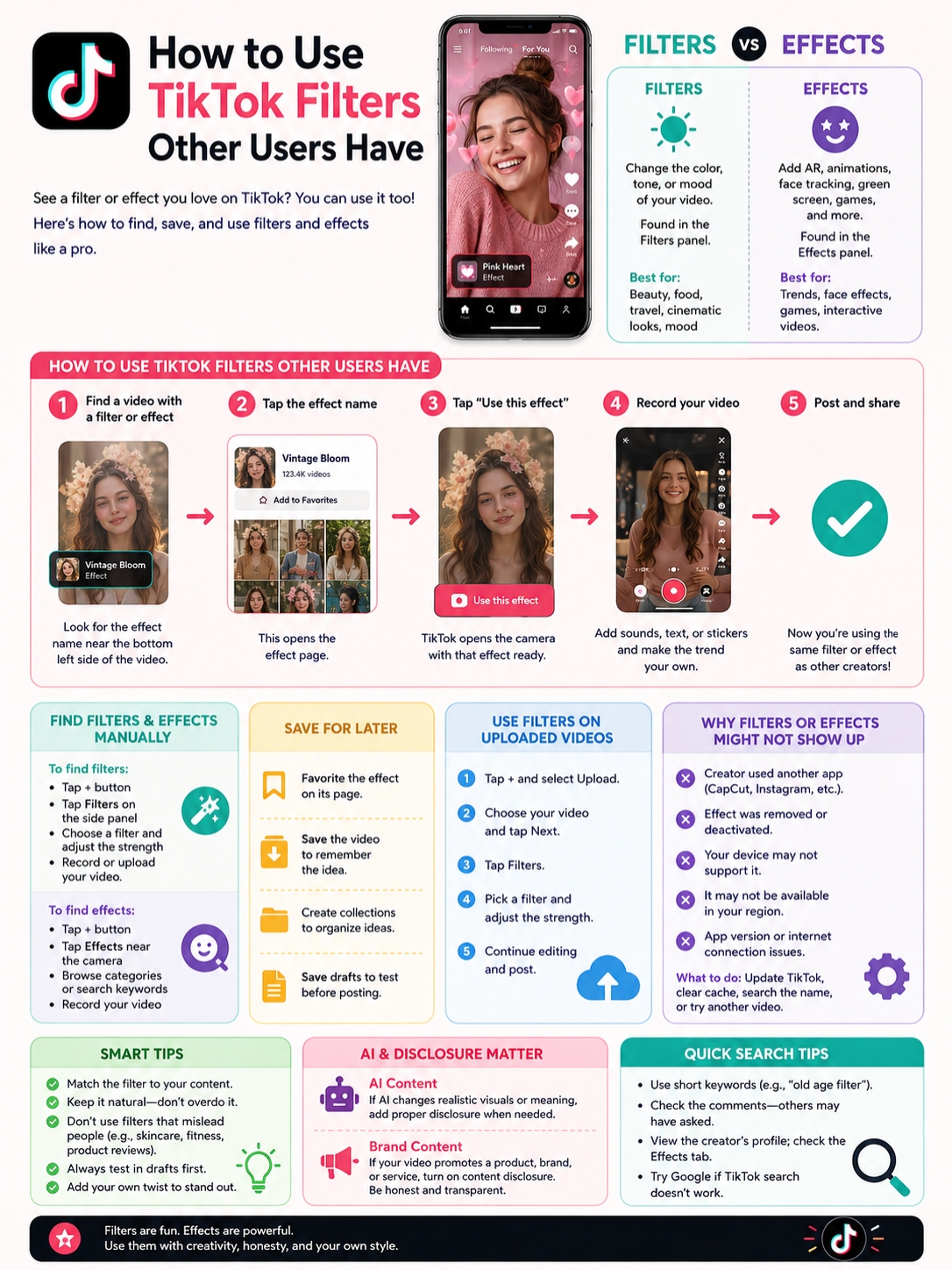
The good news is that it’s usually easy to use tiktok filters from other users’ videos. Most of the time, TikTok shows the effect name right on the video. You tap it, open the effect page, and record your own version.
But there’s one catch. People often call everything a “filter,” even when TikTok treats it as an effect. A filter changes the look of your video. An effect can add face tracking, AR objects, games, green screens, animations, or AI-style visuals.
That difference matters. It helps you know where to tap, what to search for, and why some filters don’t show up.
This guide breaks it all down in simple steps. You’ll learn how to use filters from someone else’s video, save them for later, search for missing ones, add them to uploaded clips, and fix the most common problems.
TikTok Filters vs TikTok Effects: What’s the Difference?
|
Feature |
What it does |
Where you find it |
Best for |
|
Filter |
Changes color, tone, or mood |
Filters panel |
Beauty, food, travel, cinematic looks |
|
Effect |
Adds visual or interactive elements |
Effects panel or effect page |
AR, green screen, face effects, games |
|
AI effect |
Uses AI to create or change visuals |
Effects panel or AI tools |
Style changes, image animation, creative edits |
|
Voice effect |
Changes your voice |
Editing tools |
Comedy, storytelling, character voices |
|
Template |
Gives you a ready-made edit format |
TikTok or editing apps |
Slideshows, trends, quick edits |
Before you try to copy a look, first figure out what the creator used.
A TikTok filter usually changes the visual style. It can make a video warmer, cooler, softer, brighter, darker, or more polished. Think of it as a color preset.
A TikTok effect does more. It can change your face, replace your background, add AR objects, create games, or react to movement.
So when you see a clickable name on a TikTok video, that is often an effect. If the creator only used a color filter, TikTok may not show a clickable label.
Why this matters
This saves you time.
If it’s an effect, you can usually tap the effect name and use it right away.
If it’s a simple filter, you may need to find it manually in the Filters panel.
And if the creator edited the video in another app, you may not find that exact look inside TikTok at all.
Many creators use apps like:
- CapCut
- Snapchat
- Lightroom
- Prequel
- Canva
- Beauty camera apps
So don’t panic if the filter name isn’t visible. There are still ways to track it down.
How to Use TikTok Filters Other Users Have
|
Step |
What to do |
Why it helps |
|
1 |
Open the video with the filter or effect |
Starts from the exact clip you liked |
|
2 |
Look for the effect name or icon |
TikTok often shows it on the video |
|
3 |
Tap the effect name |
Opens the effect page |
|
4 |
Tap the create/use button |
Opens the camera with that effect |
|
5 |
Record your own video |
Lets you join the trend your way |
The easiest way to use tiktok filters from another user is to start with their video.
Open the TikTok clip and look near the lower-left area of the screen. If the creator used a TikTok effect, you may see the effect name above the username or caption.
Tap that name.
TikTok should open the effect page. From there, you can usually see the effect name, the creator, other videos using the same effect, and a button to create your own video.
Step 1: Open the original video
Start with the video that caught your eye.
Look around the caption area. TikTok often places effect names near the username, caption, or sound section.
Sometimes it looks like a small label. Sometimes it appears as a clickable effect icon.
Step 2: Tap the effect name
Once you find the effect label, tap it.
This opens the effect page. It’s worth spending a few seconds here before recording. Watch how other people used the same effect. You may notice better angles, better lighting, or funnier ideas.
Tap the create or use button on the effect page.
TikTok will open the camera with that effect ready.
Now you can:
- Record a new video
- Add a sound
- Flip the camera
- Use the timer
- Change the clip length
- Add text or captions
- Save the video as a draft
Step 4: Make the trend your own
Here’s the key part: don’t copy the whole video.
Use the same filter or effect, but change the idea.
Try a different hook. Add your own reaction. Use a new sound. Change the setting. Make the joke sharper.
That’s how TikTok trends work. People reuse the same tools, but the best creators add something fresh.
How to Find TikTok Filters Manually
|
Tool |
Where it appears |
Best use |
|
Filters panel |
Side panel while creating |
Color, beauty, food, landscape, mood |
|
Effects panel |
Camera screen |
Green screen, AR, face effects, games |
|
TikTok search |
Main search bar |
Finding a filter by name |
|
Creator profile |
Effects tab, if available |
Finding effects made by that creator |
|
Comments |
Under the video |
Checking if others asked for the filter name |
Sometimes there’s no clickable effect label. That doesn’t mean you’re stuck.
You can search inside TikTok yourself.
Use the Filters panel
Use this when the video has a color style, beauty look, or soft visual tone.
Follow these steps:
- Open TikTok.
- Tap the + button.
- Tap Filters on the side panel.
- Browse the available filters.
- Tap a filter to preview it.
- Use the slider to adjust the strength.
- Record or upload your video.
This works well for food videos, travel clips, room tours, makeup videos, outfit videos, and product shots.
Use the Effects panel
Use this when the video has movement, animation, face changes, AR objects, or green screen features.
Try this:
- Tap the + button.
- Tap Effects near the camera screen.
- Browse effect categories.
- Search by keyword if the search option appears.
- Tap an effect to preview it.
- Record your clip.
Effects are better for trends, jokes, face filters, games, and interactive videos.
Read Also: How to Turn Off TikTok Restricted Mode in 2026
Search by simple keywords
Don’t overthink the search.
Use short terms like:
- “AI face filter”
- “old age filter”
- “crying face effect”
- “anime face filter”
- “green screen eyes”
- “celebrity look alike”
- “photo animation filter”
- “beauty filter”
Then open a few videos from the results and look for the effect label.
How to Save TikTok Filters and Effects for Later
|
Save method |
What it saves |
Best for |
|
Favorite the effect |
The actual effect |
Reusing it later |
|
Save the video |
The example clip |
Remembering the idea |
|
Create a collection |
Saved videos by topic |
Organizing content ideas |
|
Save a draft |
Your test video |
Checking before posting |
When you find a good filter, save it.
Don’t trust yourself to remember the name later. TikTok moves fast. One scroll session can bury a great idea.
Save the effect
Open the effect page and tap the save or favorite icon.
This saves the effect so you can find it later from the camera or Effects panel.
This is useful if you create content often. You can build your own creative toolkit with:
- Beauty filters
- Funny face effects
- Product video filters
- Green screen effects
- AI-style filters
- Travel filters
- Food video filters
Save the original video
Saving the effect is smart. Saving the original video is smarter.
Why? Because the effect alone doesn’t tell you how the creator made the video work.
Watch the original again and study:
- The hook
- The first three seconds
- The sound
- The lighting
- The caption
- The camera angle
- The creator’s timing
A filter can help. But the idea still carries the video.
Create filter collections
If you use TikTok for content planning, create collections like:
- Filters to Try
- Viral Effects
- Green Screen Ideas
- Product Video Ideas
- Funny TikTok Effects
- AI Filter Ideas
This keeps your saved videos clean and easy to use.
Can You Use TikTok Filters on Uploaded Videos?
|
Question |
Answer |
|
Can you add filters to uploaded videos? |
Yes, many filters work on uploaded clips |
|
Can every effect work on uploads? |
No, some need live camera input |
|
Can you edit a video after posting? |
Not fully; you may need to repost |
|
Can you save a filtered video as a draft? |
Yes |
|
Can you adjust filter strength? |
Yes, many filters have a strength slider |
Yes, you can use many TikTok filters on uploaded videos.
This is helpful when you record with your phone camera first and edit inside TikTok later.
How to add a filter to an uploaded video
Follow these steps:
- Open TikTok.
- Tap the + button.
- Tap Upload.
- Choose your video.
- Tap Next.
- Tap Filters.
- Pick your filter.
- Adjust the strength.
- Continue editing.
This works best for color filters and style filters.
Why some effects don’t work on uploaded videos
Some effects need your live camera.
For example, a face-tracking effect may need to detect your face in real time. A hand gesture game may need live movement. A background effect may need to read your body shape as you record.
If an effect won’t apply to an uploaded clip, record directly inside TikTok with the effect already turned on.
Start with a clean video
Filters work better when your original clip looks decent.
Try to avoid:
- Bad lighting
- Heavy blur
- Shaky footage
- Low resolution
- Cluttered backgrounds
- Poor framing
A filter can improve a video. It can’t fully rescue a messy clip.
Why Some TikTok Filters Don’t Show Up
|
Problem |
Likely reason |
What to try |
|
No effect label appears |
It may be a normal filter or outside-app edit |
Check comments or ask the creator |
|
Effect page won’t open |
The effect may be removed or unavailable |
Search the name manually |
|
Effect won’t work |
Your device may not support it |
Update TikTok or try another phone |
|
Friend has it, you don’t |
Region, device, or rollout differences |
Update the app and check again later |
|
Uploaded clip can’t use it |
The effect needs live camera access |
Record inside TikTok |
Missing filters are common.
It doesn’t always mean your app is broken.
The creator may have used another app
This happens a lot.
A creator may edit a video in CapCut, Snapchat, Instagram, Lightroom, or another app. Then they upload the finished video to TikTok.
If they did that, TikTok may not show a filter name because the filter wasn’t made inside TikTok.
The effect may be removed
Some effects disappear.
The creator may deactivate the effect. TikTok may also limit or remove effects that break platform rules.
If the effect is gone, older videos using it may still exist. But you may not be able to use the effect yourself.
Your phone may not support it
Some effects need more processing power.
Older phones, lower-end Android devices, outdated app versions, or weak connections may stop effects from loading properly.
Try this before giving up:
- Update TikTok.
- Restart the app.
- Clear TikTok cache.
- Check your internet connection.
- Update your phone system.
- Search the effect name manually.
- Try another video using the same effect.
How to Search for a TikTok Filter by Name
|
Search option |
Best when |
Tip |
|
TikTok search |
You know part of the name |
Use short keywords |
|
Effects tab |
You want the exact effect |
Try the full effect name |
|
Comments |
Other users already asked |
Look for “filter?” or “effect?” |
|
Creator profile |
The creator made the effect |
Check the Effects tab |
|
Google search |
TikTok search fails |
Add “TikTok filter” after the name |
If the effect name is hidden, cropped, or missing, search for it.
Start with TikTok search
Use simple phrases.
Try:
- “AI baby filter”
- “old face filter”
- “crying filter”
- “anime face effect”
- “green screen effect”
- “celebrity look alike filter”
- “photo moving filter”
- “big eyes filter”
Open the top videos. Look for one with the effect label visible.
Check the comments
The comments section can save you time.
Look for questions like:
- “What filter is this?”
- “Effect name?”
- “How did you do this?”
- “Which filter?”
- “Where can I find this?”
If many people ask the same question, the creator may answer or pin the answer.
Check the creator’s profile
Some creators make their own effects.
Open the creator’s profile and look for an Effects tab. If they published the effect, it may appear there.
This is useful for branded filters, creator-made games, AR effects, and trend filters.
Smart Ways to Use TikTok Filters Without Looking Fake
|
Content type |
Best filter choice |
What to avoid |
|
Beauty |
Light beauty filter |
Extreme skin smoothing |
|
Food |
Warm, natural color |
Too much saturation |
|
Travel |
Clean cinematic tone |
Heavy contrast |
|
Product review |
Bright, realistic filter |
Color-changing effects |
|
Comedy |
Funny face or AR effect |
Repeating the same joke |
|
Education |
Light filter only |
Distracting visuals |
A good filter should support your video. It shouldn’t take over.
Match the filter to the content
Use the filter that fits the job.
For food videos, a warm filter can make the dish look fresh.
For product reviews, keep colors accurate.
For skincare videos, avoid filters that hide texture.
For comedy, a silly face effect can work if it makes the joke stronger.
For educational videos, keep things simple. Viewers came for the information, not a distracting effect.
Don’t hide the truth
Be careful with filters when showing:
- Skincare results
- Makeup shades
- Fitness progress
- Product colors
- Before-and-after clips
- Health or wellness content
- News-style videos
A filter can make your video look better. But it shouldn’t mislead people.
For example, don’t use a skin-smoothing filter while reviewing a skincare product. Don’t use a slimming filter in a fitness update. Don’t use a color filter that changes how a product really looks.
Trust matters more than a perfect glow.
AI Filters, Disclosure, and Brand Safety
|
Situation |
What to do |
|
TikTok AI effect only |
Check if TikTok adds an AI label |
|
AI-edited realistic person |
Add proper disclosure when needed |
|
Paid product promotion |
Turn on content disclosure |
|
Product color review |
Avoid filters that change real colors |
|
Sensitive or realistic scene |
Add clear context |
AI-style filters are fun, but they need a little care.
If a filter creates or changes realistic visuals, don’t use it in a way that confuses people. This matters even more when the video shows a real person, product, event, or claim.
Be clear with AI-style content
If AI changes the meaning of the video, label it properly.
This is especially important when the content:
- Shows a realistic person
- Changes a face or body
- Creates a fake scene
- Makes something look real when it isn’t
- Alters a product result
- Shows a realistic event that didn’t happen
A funny AI filter is one thing. A misleading realistic edit is another.
Be honest with brand content
If you use filters in paid content, product reviews, affiliate posts, or TikTok Shop videos, don’t hide the commercial relationship.
Filters should not make a product look better than it is.
This matters for:
- Sponsored videos
- Paid partnerships
- Affiliate content
- Product reviews
- TikTok Shop demos
- Brand ambassador posts
A polished video is fine. A misleading one is not.
Final Thoughts
|
Key point |
Why it matters |
|
Tap the effect label first |
It’s the fastest way to find the same effect |
|
Know filter vs effect |
It helps you search in the right place |
|
Save useful effects |
It speeds up content creation |
|
Check device limits |
Some effects won’t work everywhere |
|
Avoid misleading edits |
It keeps your content honest |
|
Use drafts first |
It helps you catch problems before posting |
Learning how to use tiktok filters other users have is simple once you know where to look.
Start with the video you like. Tap the effect name if it appears. Open the effect page. Try the filter. Save it if it’s useful.
If the label is missing, search for the filter name, check the comments, or browse the Filters and Effects panels yourself.
The best TikTok creators don’t just copy filters. They use them with better hooks, cleaner lighting, sharper timing, and fresh ideas.
So use the filter. Test it in drafts. Keep your video honest. And make the trend feel like yours.
FAQs About Using TikTok Filters
|
Question |
Short answer |
|
Can I use a filter from another user’s video? |
Yes, if it is public and available |
|
Why is there no filter name? |
It may be a normal filter or outside-app edit |
|
Can I use filters on uploaded clips? |
Yes, many filters work on uploads |
|
Can I remove a filter after posting? |
Usually no; edit before posting |
|
Why does the filter look different on me? |
Lighting, device, angle, and app version matter |
Can I use TikTok filters from private accounts?
Only if you can view the video and the effect is available to your account. If the account is private and you don’t follow it, you may not be able to access the video.
Can I use a TikTok filter without following the creator?
Yes. If the effect is public, you can usually use it without following the creator.
Why does the same filter look better on someone else?
Lighting, camera quality, face angle, distance, background, and filter strength all change the result. The creator may also have edited the video before uploading it.
Does TikTok notify creators when I use their effect?
TikTok may show creators general effect analytics, such as views, posts, and shares. But creators don’t usually get a personal alert every time one person uses a public effect.
Why does TikTok say an effect doesn’t work on my device?
Some effects need stronger phones or newer software. Older devices may not support certain AR, AI, or interactive effects.
Can I add a TikTok filter after posting?
Not properly. Once a video is posted, you can’t fully re-edit it with a new filter the same way you can before posting. Save a draft first, check the result, then publish.
Are TikTok filters and CapCut filters the same?
No. TikTok and CapCut often work together, but they don’t use the exact same filters in every case. If a TikTok video has no effect label, the creator may have edited it in CapCut or another app first.
Can creators remove effects after people use them?
Yes. An effect creator may deactivate an effect. TikTok may also remove effects that break rules. Existing videos may stay up, but the effect may no longer be available.