
Then Windows 11 reconnects like nothing happened. Annoying, right?
The problem with windows 11 wifi disconnecting is that it often feels random. But in most cases, there’s a clear reason behind it. It could be a weak signal, a bad Wi-Fi driver, router trouble, power-saving settings, DNS errors, VPN conflicts, or a damaged saved network profile.
The good news? You can fix most of these problems without replacing your laptop or router.
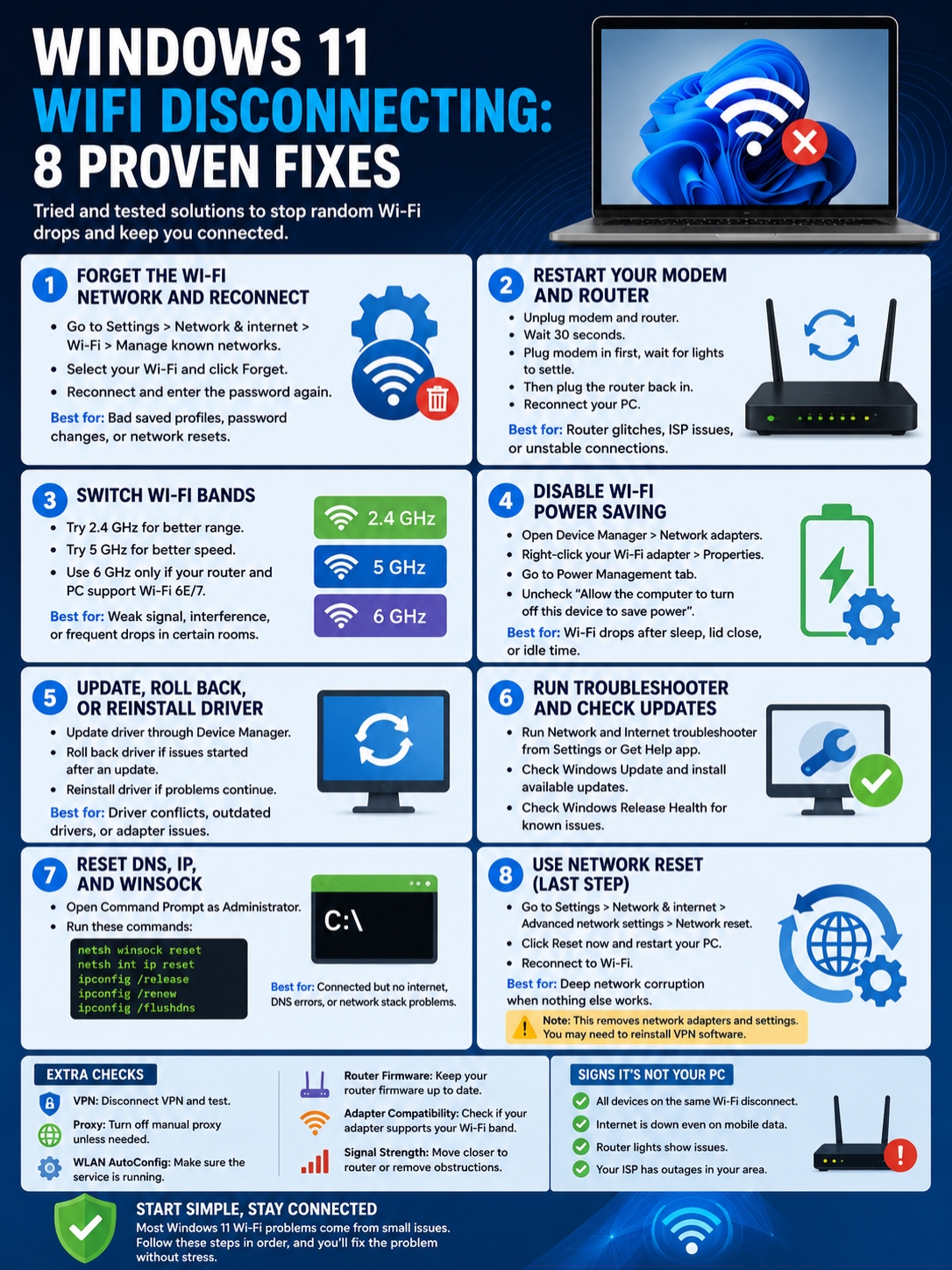
This guide walks you through 8 proven fixes. Start with the easy ones first. Don’t jump to network reset unless the simple steps fail.
Windows 11 is now widely used, too. StatCounter reported that Windows 11 held 71.69% of the worldwide desktop Windows version share in May 2026. So, this isn’t a rare problem. A lot of users face it.
Why Is Windows 11 WiFi Disconnecting?
Before changing anything, do one quick test.
Check whether other devices also disconnect from the same Wi-Fi. Use your phone, another laptop, or a smart TV.
If every device drops, your router or internet provider may be the problem. If only your Windows 11 PC disconnects, the issue is likely inside the laptop or desktop.
|
Problem You Notice |
Most Likely Cause |
Best First Fix |
|
Wi-Fi drops after sleep |
Power-saving setting |
Disable Wi-Fi power saving |
|
Only your PC disconnects |
Driver or adapter issue |
Update or reinstall the Wi-Fi driver |
|
All devices disconnect |
Router or ISP issue |
Restart modem and router |
|
Connected but no internet |
DNS, IP, or proxy issue |
Reset DNS and IP |
|
Wi-Fi option disappears |
Adapter or WLAN service problem |
Check Device Manager |
|
Drops in one room only |
Weak signal or wrong Wi-Fi band |
Try 2.4 GHz |
|
Started after an update |
Driver conflict |
Roll back or update driver |
|
Nothing works |
Damaged network settings |
Use network reset last |
Microsoft’s official Wi-Fi troubleshooting guide points to the same core fixes: forget and reconnect, restart the router, change Wi-Fi band, check drivers, run network commands, disable power saving, install updates, and use network reset only when needed.
Let’s go step by step.
Fix 1: Forget the Wi-Fi Network and Reconnect
Sometimes Windows saves bad Wi-Fi details.
Maybe your router was reset. Maybe the password changed. Maybe Windows kept an old security setting. When that happens, your PC may connect for a while, then drop again.
Forgetting the network gives Windows a clean start.
|
What It Fixes |
Time Needed |
Difficulty |
|
Bad saved Wi-Fi profile, old password cache, router security changes |
2 minutes |
Easy |
How to forget a Wi-Fi network in Windows 11
- Open Settings.
- Go to Network & internet.
- Click Wi-Fi.
- Open Manage known networks.
- Find your Wi-Fi name.
- Click Forget.
- Reconnect and enter the password again.
When this fix works best
Try this when your PC keeps connecting, dropping, and reconnecting.
It also helps after:
- Router password changes
- Router replacement
- Windows updates
- Network name changes
- Switching between private and public networks
This is a small fix, but it works more often than people expect.
Fix 2: Restart Your Modem and Router
Yes, the classic “turn it off and on again” advice still works.
Routers run nonstop for weeks or months. They can overheat, slow down, or fail to manage connected devices properly. A restart clears temporary issues and gives your connection a fresh start.
|
What It Fixes |
Time Needed |
Difficulty |
|
Router glitches, stale ISP connection, temporary modem errors |
5 minutes |
Easy |
How to restart your modem and router properly
- Turn off your Windows 11 Wi-Fi.
- Unplug the router.
- Unplug the modem if it’s separate.
- Wait at least 30 seconds.
- Plug the modem back in first.
- Wait until the lights settle.
- Plug the router back in.
- Wait a few minutes.
- Reconnect your PC.
Don’t rush this. Give the modem and router enough time to reconnect fully.
Check other devices
Now test your phone or another device.
If your phone also disconnects, the issue is probably not Windows 11. Look at the router, ISP, cable connection, or router firmware.
If your phone stays connected but your PC drops, move to the next fixes.
Fix 3: Switch Between 2.4 GHz, 5 GHz, and 6 GHz
Not all Wi-Fi bands work the same.
The 2.4 GHz band reaches farther, but it is slower and often crowded. The 5 GHz band is faster, but it does not travel through walls as well. The 6 GHz band can be even faster, but it needs Wi-Fi 6E or Wi-Fi 7 hardware.
If windows 11 wifi disconnecting happens in one room but not another, your PC may be struggling with signal strength.
|
Wi-Fi Band |
Strength |
Weakness |
Best For |
|
2.4 GHz |
Better range |
Slower, more crowded |
Far rooms and basic browsing |
|
5 GHz |
Faster speed |
Shorter range |
Streaming, gaming, video calls |
|
6 GHz |
Fast and less crowded |
Short range, newer hardware needed |
Same-room high-speed use |
What to try
If your router shows separate Wi-Fi names, you may see something like:
- HomeWiFi_2.4G
- HomeWiFi_5G
- HomeWiFi_6G
Try a different one.
Use 2.4 GHz if you’re far from the router or behind thick walls.
Use 5 GHz if you’re close to the router and need better speed.
Use 6 GHz only if your router and PC both support it.
Check your router settings
Log in to your router admin page and check:
- Firmware updates
- Channel settings
- Band steering
- Smart Connect
- WPA2/WPA3 mode
- Router placement
If the problem started after turning on WPA3-only mode, try WPA2/WPA3 mixed mode. Some older Wi-Fi adapters don’t behave well with newer security settings.
Also, don’t hide your router in a cabinet or behind a TV. Wi-Fi hates walls, metal, mirrors, and crowded corners.
Fix 4: Disable Wi-Fi Power Saving
This one is a big deal for laptops.
Windows 11 may turn off your wireless adapter to save battery. That sounds useful, but it can cause random drops, especially after sleep, lid close, or idle time.
|
What It Fixes |
Time Needed |
Difficulty |
|
Wi-Fi drops after sleep, lid close, idle time, or battery saver |
3 minutes |
Easy |
How to disable Wi-Fi power saving
- Right-click Start.
- Open Device Manager.
- Expand Network adapters.
- Right-click your Wi-Fi adapter.
- Select Properties.
- Open the Power Management tab.
- Uncheck Allow the computer to turn off this device to save power.
- Click OK.
- Restart your PC.
Also change wireless power mode
Now check your power plan.
Go to:
Control Panel > Hardware and Sound > Power Options > Change plan settings > Change advanced power settings
Then expand:
Wireless Adapter Settings > Power Saving Mode
Set it to:
Maximum Performance
Do this for both battery and plugged-in mode if you use a laptop.
What if the Power Management tab is missing?
Some laptops and drivers don’t show this tab. That’s normal. In that case, update the Wi-Fi driver and change the wireless power mode from Power Options instead.
Read Also: How to Use Local Account on Windows 11 in 2026
Fix 5: Update, Roll Back, or Reinstall the Wi-Fi Driver
Your Wi-Fi driver is the translator between Windows 11 and your wireless adapter.
If the driver is old, buggy, or mismatched, your connection can drop without warning. This is one of the most common causes of repeated Wi-Fi issues.
|
Driver Fix |
Use It When |
|
Update driver |
Wi-Fi drops randomly or the adapter is old |
|
Roll back driver |
The problem started after an update |
|
Reinstall driver |
The adapter disappears or keeps failing |
Update the Wi-Fi driver
- Right-click Start.
- Open Device Manager.
- Expand Network adapters.
- Right-click your Wi-Fi adapter.
- Select Update driver.
- Click Search automatically for drivers.
If Windows says the best driver is already installed, don’t stop there.
Visit your laptop maker’s official support page. For example:
- Dell Support
- HP Support
- Lenovo Support
- ASUS Support
- Acer Support
- Intel Driver & Support Assistant
Download drivers only from official sources. Avoid random driver websites.
Roll back the Wi-Fi driver
Use this if your Wi-Fi started dropping after a Windows update or driver update.
- Open Device Manager.
- Right-click your Wi-Fi adapter.
- Select Properties.
- Open the Driver tab.
- Click Roll Back Driver if the option is available.
- Restart your PC.
If the rollback button is greyed out, Windows does not have an older driver saved.
Reinstall the Wi-Fi driver
If updating does not help, reinstall the driver.
- Open Device Manager.
- Expand Network adapters.
- Right-click your Wi-Fi adapter.
- Select Uninstall device.
- Restart your PC.
Windows should reinstall the adapter after restart.
One smart move: download the correct Wi-Fi driver before uninstalling. Save it on your desktop or a USB drive, just in case Windows can’t reinstall it automatically.
Fix 6: Run the Network Troubleshooter and Check Windows Update
Windows 11 has built-in tools that can catch common network problems.
They won’t fix everything, but they’re worth running before you try deeper fixes.
|
Tool |
Best For |
Where to Find It |
|
Network and Internet troubleshooter |
Automatic checks |
Settings or Get Help app |
|
Windows Update |
Bug fixes and driver updates |
Settings |
|
Windows Release Health |
Known update issues |
Microsoft Learn |
Run the Network and Internet troubleshooter
- Open Settings.
- Go to System.
- Click Troubleshoot.
- Open Other troubleshooters.
- Run Network and Internet.
You can also open the Get Help app and search for Wi-Fi problems.
The troubleshooter may reset settings, restart services, or point out a driver issue.
Check Windows Update
Go to:
Settings > Windows Update > Check for updates
Install available updates and restart your PC.
Windows updates often include security fixes, stability improvements, and driver-related changes. Microsoft releases regular cumulative updates for Windows 11, so staying current can help with network bugs.
Check known Windows issues
If the problem started right after an update, check Microsoft’s Windows Release Health page. It lists known Windows issues, update blocks, and official fixes.
This is useful when many users report the same problem after a recent patch.
Fix 7: Reset DNS, IP, and Winsock
Sometimes your Wi-Fi is connected, but the internet still doesn’t work.
That usually means the signal is not the real issue. The problem may be DNS, IP address assignment, proxy settings, VPN routing, or the Windows network stack.
|
Command |
What It Does |
|
netsh winsock reset |
Resets Winsock network settings |
|
netsh int ip reset |
Resets TCP/IP settings |
|
ipconfig /release |
Releases your current IP address |
|
ipconfig /renew |
Requests a new IP address |
|
ipconfig /flushdns |
Clears the DNS cache |
How to run the commands
Search for Command Prompt.
Right-click it and select Run as administrator.
Then run these commands one by one:
netsh winsock reset
netsh int ip reset
ipconfig /release
ipconfig /renew
ipconfig /flushdns
Restart your PC after running them.
When this fix helps
Use this fix when:
- Wi-Fi says connected, but websites don’t load
- Apps say “No internet”
- Your browser shows DNS errors
- The issue started after using a VPN
- Other devices work on the same Wi-Fi
- Only your Windows 11 PC has internet trouble
Also check proxy settings
A wrong proxy setting can block internet access even when Wi-Fi is connected.
Go to:
Settings > Network & internet > Proxy
Turn off manual proxy unless you know you need it.
Also test with your VPN turned off. Some VPN apps change DNS and routing settings, then leave things messy after disconnecting.
Fix 8: Use Network Reset as the Last Step
Network reset is the heavy fix.
It can help when nothing else works, but don’t use it first. It removes and reinstalls network adapters and resets network settings.
|
What It Fixes |
What It Changes |
Use Carefully? |
|
Deep network corruption |
Removes/reinstalls network adapters and resets settings |
Yes |
How to use Network Reset in Windows 11
- Open Settings.
- Go to Network & internet.
- Click Advanced network settings.
- Open Network reset.
- Click Reset now.
- Confirm.
- Restart your PC.
- Reconnect to Wi-Fi.
Before you do this
Know what network reset can affect.
You may need to:
- Re-enter Wi-Fi passwords
- Reinstall VPN software
- Reconfigure virtual adapters
- Change your network from public to private again
- Set up custom DNS again
Use network reset only after you’ve tried the easier steps: router restart, forget network, power settings, driver fixes, Windows Update, and network commands.
Extra Checks If Wi-Fi Still Disconnects
If you’ve tried all 8 fixes and Wi-Fi still drops, dig a little deeper.
|
Extra Check |
Why It Matters |
|
VPN |
Can change DNS, routes, and virtual adapters |
|
Proxy |
Can block internet even when Wi-Fi is connected |
|
WLAN AutoConfig |
Controls wireless discovery and connection |
|
Router firmware |
Old firmware can cause drops |
|
Adapter compatibility |
Some adapters don’t support every band |
|
Signal strength |
Weak Wi-Fi causes unstable connections |
|
Security software |
Firewalls can block or interrupt traffic |
Check WLAN AutoConfig
WLAN AutoConfig is the Windows service that handles wireless connections.
To check it:
- Press Windows + R.
- Type services.msc.
- Press Enter.
- Find WLAN AutoConfig.
- Make sure it is running.
- Set Startup type to Automatic.
If this service stops, Wi-Fi may disappear or act strangely.
Check adapter compatibility
Older Wi-Fi adapters may not support newer bands or router settings.
For example, an older adapter may only support 2.4 GHz. If your router is pushing 5 GHz or 6 GHz only, your PC may struggle or fail to connect.
Check your adapter model in Device Manager, then search its official specs.
Check router firmware
Router firmware updates can fix stability and security problems.
Open your router admin page and look for:
- Firmware update
- System update
- Router software
- Maintenance
Use the official app or admin panel from your router brand. Don’t download router firmware from random websites.
FAQs About Windows 11 WiFi Disconnecting
|
Question |
Quick Answer |
|
Why does Wi-Fi drop after sleep? |
Usually power saving, driver, or sleep-state handling |
|
Why does only my laptop disconnect? |
Likely driver, adapter, profile, or power setting |
|
Should I disable IPv6? |
Only as a short test, not as a first fix |
|
Can VPN cause this? |
Yes, VPNs can affect DNS, routing, and adapters |
|
Is network reset safe? |
Yes, but it removes network settings |
Why does my Windows 11 Wi-Fi disconnect after sleep?
Your Wi-Fi adapter may be going into power-saving mode. Disable adapter power saving in Device Manager. Also set Wireless Adapter Settings to Maximum Performance in Power Options.
Why does only my Windows 11 laptop disconnect?
If your phone and other devices stay connected, the laptop is the likely problem. Check the Wi-Fi driver, power settings, saved network profile, adapter compatibility, VPN, and proxy settings.
Why does Wi-Fi say connected but there is no internet?
This usually points to DNS, IP, proxy, router, ISP, or firewall trouble. Try renewing your IP, flushing DNS, turning off proxy, and testing without VPN.
Can a VPN make Windows 11 Wi-Fi unstable?
Yes. VPN apps can add virtual adapters and change DNS or routing. Turn off the VPN and test again. If the problem goes away, update or reinstall the VPN app.
Should I disable IPv6 to fix Wi-Fi disconnecting?
Not right away. IPv6 is part of modern networking. Disable it only as a short test if nothing else works. If it does not fix the issue, turn it back on.
Why is the Wi-Fi option missing in Windows 11?
The adapter may be disabled, the driver may have failed, or WLAN AutoConfig may not be running. Check Device Manager first. Then check the WLAN AutoConfig service.
Does switching from 5 GHz to 2.4 GHz help?
Yes, especially if you’re far from the router. The 2.4 GHz band has better range. The 5 GHz and 6 GHz bands are faster, but they work best when you’re closer to the router.
Can a bad router cause Windows 11 Wi-Fi disconnecting?
Yes. If every device in your home drops, the router or ISP is probably the issue. Restart the router, check cables, update firmware, and contact your ISP if the problem continues.
Final Thoughts
|
Best Order |
What to Try |
|
1 |
Forget and reconnect Wi-Fi |
|
2 |
Restart modem and router |
|
3 |
Try another Wi-Fi band |
|
4 |
Disable Wi-Fi power saving |
|
5 |
Update, roll back, or reinstall driver |
|
6 |
Run troubleshooter and Windows Update |
|
7 |
Reset DNS, IP, and Winsock |
|
8 |
Use network reset last |
Windows 11 wifi disconnecting problems can be irritating, but they’re usually not mysterious.
Start with the basics. Forget the network. Restart your router. Try another Wi-Fi band. Then check power settings and drivers.
If Wi-Fi connects but the internet does not work, reset DNS and IP. If nothing helps, use network reset as the final option.
For most users, the best fixes are simple: clean the saved Wi-Fi profile, stop Windows from turning off the wireless adapter, and update or reinstall the Wi-Fi driver.
If every device in your home disconnects, don’t blame Windows 11 first. Check the router, ISP, cables, and firmware.