
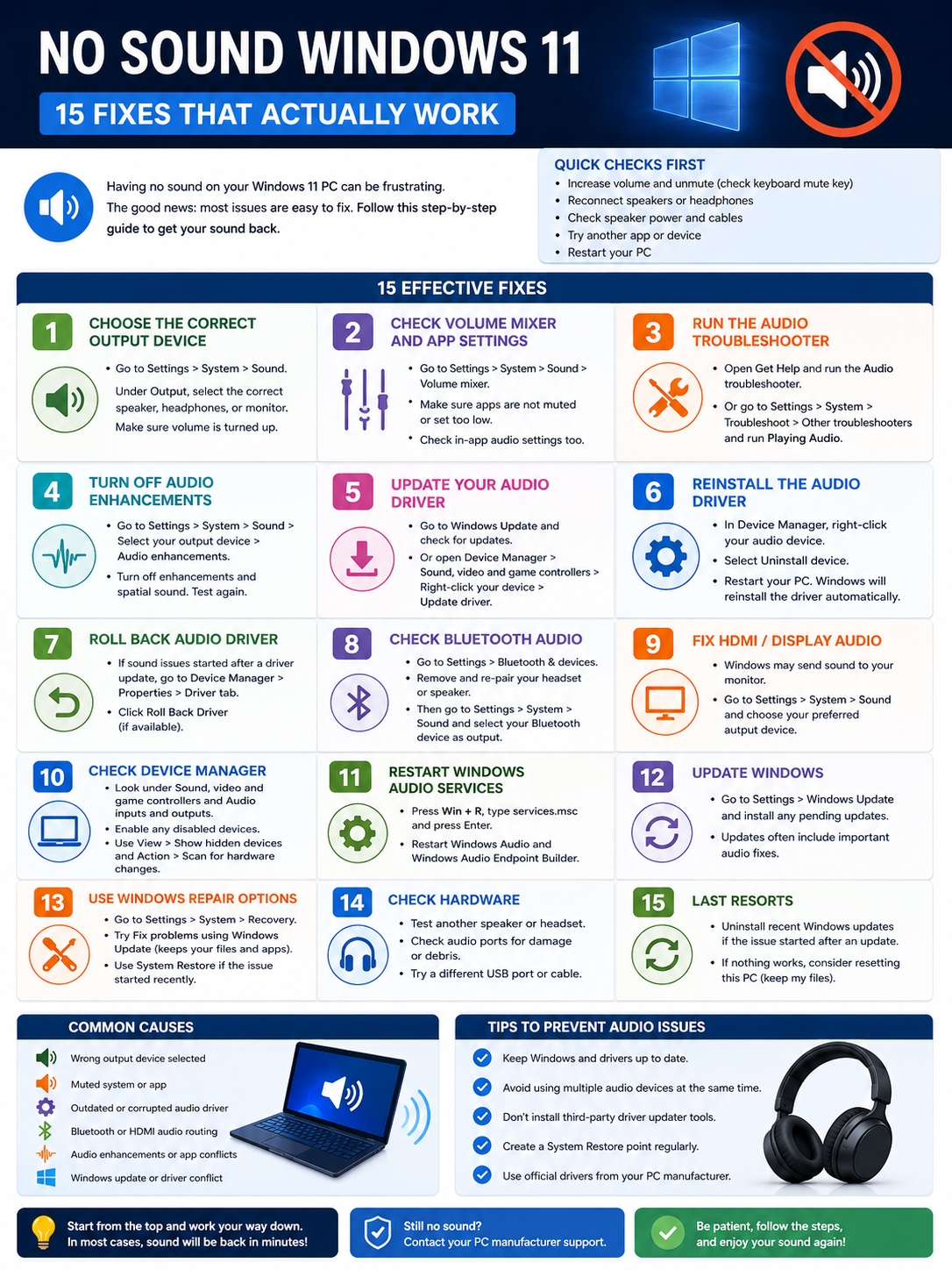
Your PC was fine yesterday. Today, it’s silent.
You open YouTube. Nothing. You join a Zoom call. Still nothing. You plug in your headphones, check the volume, and wonder if Windows has decided to ruin your day.
Relax. Most no sound windows 11 problems aren’t serious. In many cases, Windows picked the wrong speaker. Or one app got muted. Or Bluetooth connected, but audio still went somewhere else. Sometimes a driver update causes the mess. Sometimes it’s just a loose cable.
The trick is to fix it in the right order. Don’t start by resetting Windows. Don’t download random drivers from sketchy sites. Start with the simple stuff. Then move deeper only if you need to.
This guide walks you through the fixes that actually make sense.
Quick Diagnosis: What Kind of Sound Problem Do You Have?
|
Symptom |
Likely Cause |
Best First Fix |
|
No sound from any app |
Wrong output, mute, or driver issue |
Check volume and output device |
|
One app has no sound |
App is muted or routed wrong |
Check Volume Mixer |
|
Bluetooth headphones connect but stay silent |
Windows uses another device |
Select Bluetooth as output |
|
“No output device found” |
Missing or broken driver |
Check Device Manager |
|
Sound stopped after an update |
Driver or update conflict |
Update, reinstall, or roll back driver |
|
Headphones work, speakers don’t |
Speaker, jack, or driver issue |
Test hardware and speaker route |
First, find the pattern.
Does sound fail everywhere? Or only in one app? Do headphones work while laptop speakers stay quiet? Did the problem start after a Windows update? Does Windows even show an output device?
These answers matter. They tell you where to look.
Windows audio depends on several layers:
- the app
- the Volume Mixer
- the selected speaker or headset
- the audio driver
- Bluetooth or HDMI routing
- Windows audio services
- the speaker hardware itself
If one layer breaks, sound can disappear.
So don’t guess. Test step by step.
Check Volume, Cables, and Speaker Output First
|
What to Check |
What to Do |
Why It Matters |
|
Taskbar volume |
Click the speaker icon and raise volume |
Windows may be muted |
|
Keyboard mute key |
Press mute/unmute once |
Many laptops mute sound by shortcut |
|
Output selector |
Choose the right speaker or headset |
Windows may send sound elsewhere |
|
Speaker power |
Turn external speakers on |
Powered speakers need electricity |
|
Audio cable |
Unplug and reconnect |
Loose cables are common |
|
USB port |
Try another port |
USB audio can fail on one port |
This sounds too simple. But it fixes a lot of cases.
Click the speaker icon on the taskbar. Make sure the volume isn’t muted. If you see a small arrow beside the volume slider, click it and choose the correct audio device.
Pick the device you want:
- laptop speakers
- wired headphones
- USB headset
- HDMI monitor
- Bluetooth speaker
- Bluetooth earbuds
- external speakers
If you use desktop speakers, check the power switch and volume knob. If you use a 3.5mm plug, make sure it’s in the right jack. Many desktop PCs use the green jack for audio output and the pink one for microphone input.
Also try a restart. Yes, it’s boring advice. But Windows audio can get stuck after sleep mode, driver updates, Bluetooth pairing, or docking changes.
Try this order:
- Raise the Windows volume.
- Press the mute key once.
- Replug your headset or speaker.
- Try another app.
- Restart the PC.
- Test another speaker or headphone.
If the sound comes back here, stop. You don’t need deeper fixes.
No Sound Windows 11: Pick the Correct Output Device
|
Setting |
Where to Find It |
What to Do |
|
Main output |
Settings > System > Sound |
Choose the right device |
|
Sound output menu |
Taskbar speaker icon |
Switch speaker quickly |
|
More sound settings |
System > Sound > More sound settings |
Set default playback device |
|
HDMI audio |
Output list |
Avoid sending audio to monitor by mistake |
|
USB headset |
Output list |
Select the headset manually |
This is one of the most common no sound windows 11 fixes.
Windows 11 may switch your sound output without asking. It can happen after you connect a monitor, dock, HDMI cable, USB headset, Bluetooth speaker, or wireless earbuds.
You may think your laptop speakers are broken. But Windows may be sending audio to your monitor instead.
Here’s how to fix it:
- Press Windows + I.
- Go to System > Sound.
- Look under Output.
- Choose the speaker, headset, or monitor you want.
- Raise the volume.
- Play a test sound.
If you see several devices, test them one by one.
Common names include:
- Realtek Audio
- Speakers
- Headphones
- NVIDIA High Definition Audio
- AMD High Definition Audio
- Intel Display Audio
- Monitor model name
- Bluetooth headset name
- USB audio device
If you want laptop speakers, don’t choose your monitor. If you want headphones, don’t choose HDMI audio.
You can also open More sound settings, right-click your preferred device, and choose Set as Default Device.
This small change often fixes the whole problem.
Check Volume Mixer and App Audio Settings
|
Area |
Best For |
What to Check |
|
Volume Mixer |
One app has no sound |
App volume and output |
|
Browser tab |
YouTube or website sound missing |
Muted tab or muted site |
|
Zoom/Teams |
Meeting audio not working |
Speaker setting inside app |
|
Discord |
Voice chat problems |
Output device |
|
Games |
Game is silent |
In-game audio device |
|
Media players |
Video has no sound |
Audio track and app volume |
Sometimes Windows sound works. One app doesn’t.
That means your speaker probably isn’t broken. The app may be muted, too low, or using the wrong output.
Go here:
Settings > System > Sound > Volume mixer
Look for the app that has no sound. Make sure it isn’t muted. Raise the volume. Check whether it’s using the correct output device.
This matters for apps like:
- Chrome
- Edge
- VLC
- Spotify
- Zoom
- Microsoft Teams
- Discord
- OBS Studio
- Steam games
- video editing tools
Browsers can also mute tabs. Right-click the tab and look for Unmute site or Unmute tab.
For Zoom, Teams, and Discord, open the app’s own audio settings. Choose the right speaker there too. Windows may use your laptop speakers while Zoom tries to use a disconnected headset.
If only one app is silent, don’t reinstall drivers yet. Fix the app first.
Run the Windows Audio Troubleshooter
|
Tool |
Best For |
Where to Use It |
|
Get Help audio troubleshooter |
General sound issues |
Get Help app |
|
Sound troubleshooter |
Output device problems |
Settings > System > Sound |
|
Bluetooth troubleshooter |
Wireless audio issues |
Windows troubleshoot settings |
|
Windows Update troubleshooter |
Update-related sound problems |
Settings > System > Troubleshoot |
Windows troubleshooters aren’t magic. But they’re worth trying before driver surgery.
Microsoft now pushes many Windows 11 audio fixes through the Get Help app. It can check common audio problems and apply fixes automatically.
Try this:
- Open Start.
- Search for Get Help.
- Type audio troubleshooter.
- Follow the prompts.
- Apply any suggested fix.
- Restart if Windows asks.
You can also go through Settings:
- Open Settings.
- Go to System > Sound.
- Select your output device.
- Click Troubleshoot, if shown.
Or use:
Settings > System > Troubleshoot > Other troubleshooters
Run the audio troubleshooter from there.
This can help with problems like:
- muted audio endpoints
- wrong output selection
- disabled devices
- audio services not responding
- missing speaker configuration
- basic driver detection issues
If it works, great. If it doesn’t, keep going.
Turn Off Audio Enhancements and Spatial Sound
|
Feature |
What Can Go Wrong |
What to Do |
|
Audio enhancements |
Can cause silence or distortion |
Turn off |
|
Spatial sound |
May clash with some devices |
Disable for testing |
|
Sound effects |
Can change output behavior |
Turn off temporarily |
|
Exclusive mode |
One app can take control |
Disable if apps conflict |
|
Audio format |
Wrong format may break playback |
Try default settings |
Audio enhancements sound useful. Sometimes they are. But they can also break sound, lower volume, or create weird playback issues.
This is common with:
- Realtek audio
- gaming headsets
- USB audio devices
- Bluetooth headphones
- virtual surround software
- laptop audio control apps
Try this:
- Open Settings.
- Go to System > Sound.
- Select your output device.
- Find Audio enhancements.
- Set it to Off.
- Turn Spatial sound off too.
- Test audio again.
If you don’t see that option, open:
System > Sound > More sound settings
Then:
- Select your playback device.
- Click Properties.
- Check the Enhancements tab.
- Disable enhancements.
- Check the Advanced tab.
- Turn off exclusive mode if needed.
Exclusive mode lets one app take full control of your audio device. That can cause problems when multiple apps fight for sound.
This fix is worth trying if:
- sound crackles
- audio is too low
- sound works in one app but not another
- music sounds strange
- headset software changed the output
- audio stopped after installing a sound utility
On some laptops, AI noise cancellation can also cause strange behavior. It may filter out music or background sound because it thinks only voices matter. Turn it off and test again.
Update, Reinstall, or Roll Back Audio Drivers
|
Driver Fix |
Use It When |
Best Order |
|
Windows Update |
General audio driver issue |
Try first |
|
Device Manager update |
Driver looks outdated |
Try second |
|
Reinstall driver |
Device appears but sound fails |
Try third |
|
Manufacturer driver |
Windows driver doesn’t work |
Try fourth |
|
Roll back driver |
Sound broke after driver update |
Use if available |
Drivers are a big reason behind no sound windows 11 problems.
But don’t download drivers from random websites. Use Windows Update, Device Manager, or your PC maker’s official support page.
Start with Windows Update:
- Open Settings.
- Go to Windows Update.
- Click Check for updates.
- Install available updates.
- Restart your PC.
Then try Device Manager:
- Right-click Start.
- Open Device Manager.
- Expand Sound, video and game controllers.
- Right-click your audio device.
- Click Update driver.
- Restart.
Read Also: How to Fix High CPU Usage on Windows 11
If updating doesn’t help, reinstall the driver:
- Open Device Manager.
- Expand Sound, video and game controllers.
- Right-click the audio device.
- Choose Uninstall device.
- Restart your PC.
Windows will usually reinstall the driver after restart.
If that doesn’t work, go to your manufacturer’s website. Search by your exact laptop or desktop model. Download the official audio driver for Windows 11.
This matters for brands like:
- Dell
- HP
- Lenovo
- ASUS
- Acer
- MSI
- Samsung
- Microsoft Surface
Laptop makers often include special audio packages. A plain Windows driver may not support every speaker, microphone, amplifier, or audio console feature on your machine.
If sound broke right after a driver update, try a rollback:
- Open Device Manager.
- Right-click your audio device.
- Click Properties.
- Open the Driver tab.
- Click Roll Back Driver, if available.
- Restart.
If the rollback button is greyed out, Windows doesn’t have an older driver saved.
Fix Bluetooth, HDMI, USB, and External Speaker Audio
|
Device Type |
Common Issue |
Fix |
|
Bluetooth headphones |
Connected but silent |
Select them as output |
|
Bluetooth call audio |
Low quality or mono sound |
Check Bluetooth LE Audio support |
|
HDMI monitor |
Sound plays through monitor |
Change output device |
|
USB headset |
Not detected |
Try another USB port |
|
External speakers |
No sound |
Check power, cable, and volume |
|
Docking station |
Audio route changes |
Reconnect and reselect output |
Bluetooth audio can be frustrating because “connected” doesn’t always mean “selected.”
Your headphones may connect to Windows, but Windows may still play sound through laptop speakers or a monitor.
Try this:
- Open Settings.
- Go to Bluetooth & devices.
- Remove the Bluetooth headset.
- Restart your PC.
- Pair the headset again.
- Go to System > Sound.
- Select the headset under Output.
If Bluetooth audio gets worse during calls, that may be a Bluetooth profile issue. Some headsets switch to a lower-quality hands-free mode when the microphone is active. Newer Bluetooth LE Audio can improve this, but your PC, headset, drivers, and Windows version all need to support it.
For HDMI or DisplayPort, check the output device. Windows may select your monitor because HDMI can carry audio. If your monitor has no speakers, you’ll hear nothing.
For USB headsets, try another USB port. Avoid unpowered USB hubs during testing.
For external speakers, check:
- power cable
- physical volume knob
- 3.5mm jack
- USB connection
- HDMI monitor volume
- speaker cable damage
- dust or debris in the port
Also test the speaker on another device. If it fails there too, Windows isn’t the problem.
Check Device Manager and Windows Audio Services
|
Area |
What to Check |
Fix |
|
Sound, video and game controllers |
Audio driver appears |
Update, enable, or reinstall |
|
Audio inputs and outputs |
Speaker device appears |
Enable or reinstall |
|
Hidden devices |
Missing audio device |
Show hidden devices |
|
Hardware scan |
Device not detected |
Scan for changes |
|
Windows Audio service |
Service stuck or stopped |
Restart service |
|
Audio Endpoint Builder |
Endpoint issue |
Restart service |
If Windows says No output device found, go to Device Manager.
Here’s what to do:
- Right-click Start.
- Open Device Manager.
- Expand Sound, video and game controllers.
- Expand Audio inputs and outputs too.
- Look for your speaker, headset, or audio device.
If the device is disabled, right-click it and choose Enable device.
If you don’t see it:
- Click View.
- Choose Show hidden devices.
- Click Action.
- Select Scan for hardware changes.
This can bring back missing audio devices after driver glitches.
You can also restart Windows audio services:
- Press Windows + R.
- Type services.msc.
- Press Enter.
- Find Windows Audio.
- Right-click it.
- Click Restart.
- Do the same for Windows Audio Endpoint Builder.
Restarting these services can help when Windows detects the speaker but refuses to play sound.
If Sound Stopped After a Windows Update
|
Situation |
Best Fix |
Notes |
|
Audio stopped after update |
Check for newer updates |
Microsoft may have released a fix |
|
Driver changed |
Reinstall or roll back driver |
Use Device Manager |
|
Update failed |
Run Windows Update troubleshooter |
Fix update components |
|
System files are damaged |
Use Windows Update repair |
Keeps files and apps |
|
Bad update suspected |
Uninstall latest update |
Use only if timing is clear |
|
Restore point exists |
Use System Restore |
Good for recent problems |
Windows updates can fix audio. They can also break it.
If sound stopped right after an update, don’t rush to reset your PC. Start with updates and drivers.
First:
- Open Settings.
- Go to Windows Update.
- Click Check for updates.
- Install anything available.
- Restart.
If that doesn’t help, reinstall the audio driver. If the issue started after a driver update, roll it back if Windows allows it.
You can also try Windows repair:
Settings > System > Recovery > Fix problems using Windows Update
This reinstalls the current Windows version through Windows Update while keeping your files, apps, and settings. It’s much safer than a full reset.
If the issue started very recently and you have a restore point, use System Restore. It can roll system settings back to an earlier state without deleting personal files.
Only uninstall a Windows update if the timing is obvious. For example, sound worked before the update and failed immediately after it. Even then, check for newer fixes first.
When It Might Be a Hardware Problem
|
Test |
Result |
What It Means |
|
Headphones work, speakers don’t |
Laptop speaker issue possible |
Test internal speaker route |
|
Speakers fail on another PC |
Speaker may be faulty |
Replace or repair speaker |
|
USB headset works |
Built-in audio path may be broken |
Check driver or hardware |
|
Audio jack looks damaged |
Port may need repair |
Contact support |
|
Sound failed after liquid damage |
Hardware issue likely |
Stop testing and get repair help |
Not every audio issue comes from Windows.
If you’ve tried output settings, Volume Mixer, troubleshooters, enhancements, drivers, Bluetooth fixes, Device Manager, services, and updates, test the hardware.
Try:
- another headset
- another speaker
- another USB port
- another HDMI cable
- Bluetooth headphones on a phone
- wired headphones on another device
If your speaker fails everywhere, the speaker is probably the problem. If every audio device fails only on your Windows 11 PC, keep looking at drivers, ports, firmware, or internal audio hardware.
If your laptop is under warranty, contact the manufacturer before opening it. Laptop speakers, audio jacks, and internal boards aren’t easy beginner repairs.
Extra Fixes Worth Trying
|
Fix |
When to Use It |
Why It Helps |
|
Restart after unplugging devices |
Dock or HDMI audio is stuck |
Resets audio routing |
|
Disconnect unused audio devices |
Too many outputs appear |
Reduces confusion |
|
Update BIOS/firmware |
Laptop audio keeps failing |
Can fix hardware-level issues |
|
Remove virtual audio tools |
OBS or recording apps changed sound |
Restores normal routing |
|
Check privacy settings |
Microphone works badly in calls |
Apps may lack permission |
Some sound problems come from messy setups.
If you use OBS, virtual audio cables, screen recorders, voice changers, or audio routing tools, temporarily disable them. These tools can change default devices or create fake outputs.
Also disconnect devices you’re not using. If Windows shows 10 audio outputs, it’s easy to pick the wrong one.
For stubborn laptop issues, check your manufacturer’s support page for BIOS, chipset, and audio firmware updates. Don’t do this first. But it’s worth checking when audio keeps breaking after sleep, dock use, or Windows updates.
Final Thoughts
|
Final Step |
Why It Helps |
|
Check output and volume first |
Most issues are simple routing problems |
|
Test one app at a time |
Prevents unnecessary driver changes |
|
Turn off enhancements |
Removes a common conflict |
|
Update or reinstall drivers |
Fixes broken audio setups |
|
Use OEM drivers if needed |
Better for laptop-specific hardware |
|
Use recovery tools last |
Avoids unnecessary resets |
Most no sound windows 11 problems don’t need a reset. Start with the basics. Check the volume. Pick the right output device. Look at Volume Mixer. Test another app. Replug your headset or speaker.
If that doesn’t work, move deeper. Run the audio troubleshooter. Turn off enhancements. Update or reinstall the audio driver. Check Bluetooth, HDMI, Device Manager, and Windows audio services.
Use System Restore, update removal, or Windows repair only when normal fixes fail or the issue clearly started after an update.
The main rule is simple: don’t guess. Test one layer at a time.
If one app is silent, fix the app. If headphones work but speakers don’t, check the speaker route. If Windows can’t find any output device, focus on drivers and Device Manager.
That order gives you the best chance to bring sound back without wasting hours or breaking settings that already work.
Uncommon FAQs About No Sound on Windows 11
|
Question |
Quick Answer |
|
Why does sound work on YouTube but not in games? |
The game may use a different output |
|
Why do Bluetooth headphones sound bad during calls? |
They may switch to hands-free audio |
|
Why does sound come from my monitor? |
HDMI or DisplayPort became the default |
|
Why does Windows say no output device found? |
The driver may be missing or disabled |
|
Should I reset Windows 11? |
Only after safer fixes fail |
Why does only one app have no sound?
Check Settings > System > Sound > Volume mixer. The app may be muted, set too low, or routed to the wrong output. Also check the app’s own speaker settings.
Why do my Bluetooth headphones connect but play no sound?
Windows may not be using them as the output device. Select them from the taskbar sound menu or under Settings > System > Sound. If that fails, remove and pair the headphones again.
Why does Windows 11 say “No output device found”?
The audio driver may be missing, disabled, corrupted, or not detected. Open Device Manager, show hidden devices, scan for hardware changes, and reinstall the audio driver if needed.
Why does sound play from my monitor instead of laptop speakers?
HDMI and DisplayPort can carry audio. Windows may set your monitor as the default playback device. Go to Settings > System > Sound and select your laptop speakers or headphones.
Can audio enhancements cause no sound?
Yes. Audio enhancements can clash with drivers, headsets, or apps. Turn them off and test again.
Should I install Realtek drivers from random websites?
No. Use Windows Update, Device Manager, or your PC maker’s official support page. Random driver sites can install the wrong driver and make things worse.
Why does my headset sound fine until I turn on the microphone?
Bluetooth headsets may switch to a lower-quality hands-free mode when the microphone is active. Newer Bluetooth LE Audio can help, but your headset, PC, drivers, and Windows version must support it.
Why does sound disappear after sleep mode?
Windows may fail to wake the audio device properly. Restart the PC, unplug and reconnect the device, update the driver, and check for BIOS or firmware updates from your PC maker.