
Deleted an important photo on your iPhone? Take a breath. You may still get it back.
If you want to recover deleted photos iphone users often lose by mistake, the first rule is simple: don’t rush into a full restore. Most deleted photos are easier to recover than people think, especially if you act within the first 30 days.
Apple keeps deleted photos and videos in the Recently Deleted collection for 30 days. During that time, you can bring them back with a few taps. But once that window closes, things get harder.
There’s another detail many users miss. If you use iCloud Photos, deletion syncs across your Apple devices. So if you delete a photo on your iPhone, it may also disappear from your iPad, Mac, and iCloud.com.
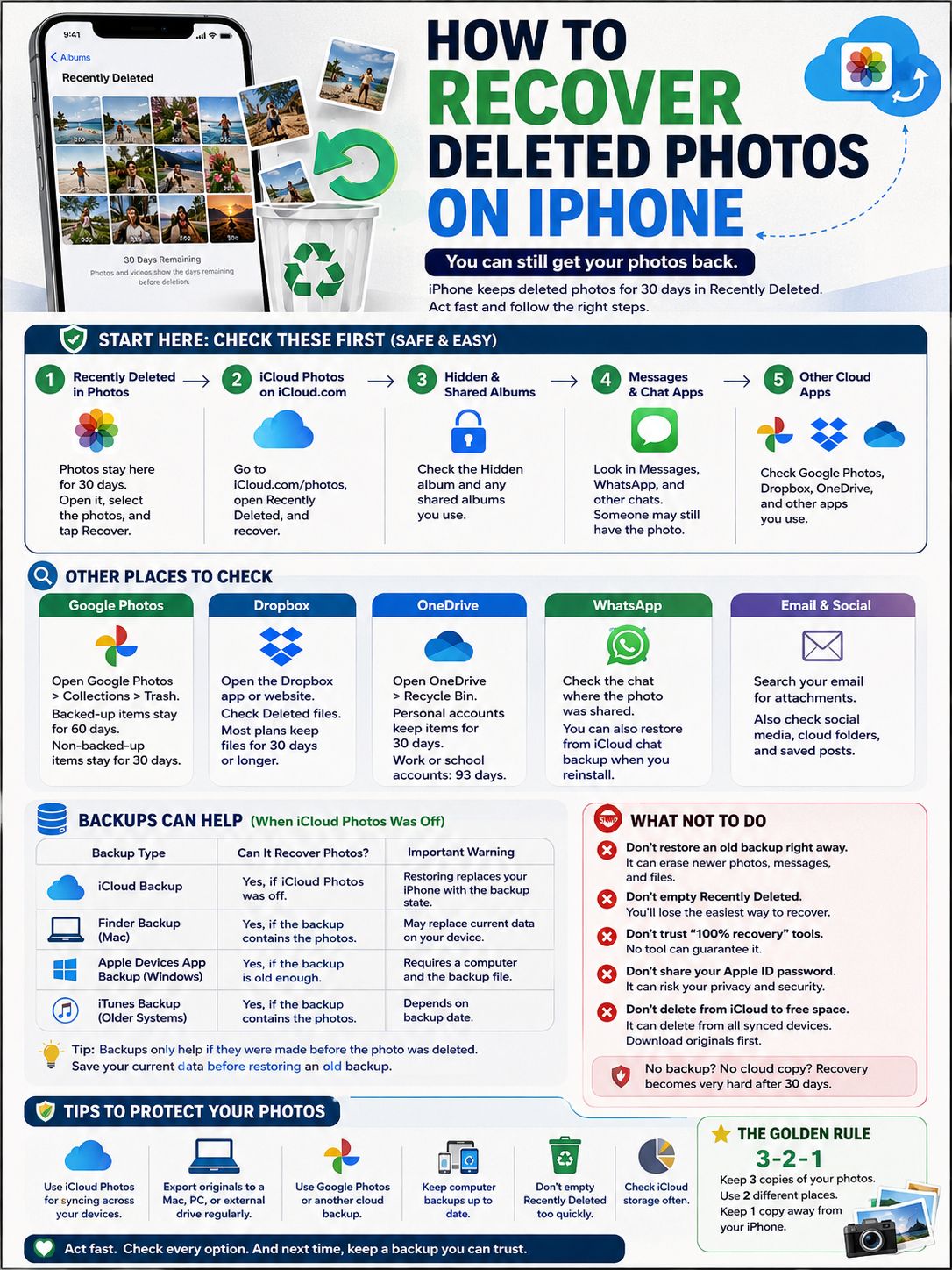
That sounds scary, but don’t give up yet. Your photo may still be in Recently Deleted, iCloud.com, Google Photos, WhatsApp, Messages, Dropbox, OneDrive, or an old backup.
Let’s go through the safest recovery steps first.
Recover Deleted Photos iPhone: Start with the Safest Places
Don’t reset your iPhone first. Don’t install random recovery software first. And don’t panic-delete more files to “fix” storage.
Start with the low-risk places. These options won’t wipe your phone or replace your current data.
Follow this order:
- Check Recently Deleted in the Photos app.
- Check iCloud Photos on iCloud.com.
- Check Hidden, shared albums, and Messages.
- Check Google Photos, Dropbox, OneDrive, and WhatsApp.
- Review iCloud Backup or computer backups.
- Try third-party recovery tools only as a last option.
|
Recovery option |
Best for |
Recovery window |
Risk level |
|
Recently Deleted in Photos |
Photos deleted recently |
30 days |
Low |
|
iCloud.com Photos |
iCloud Photos users |
30 days |
Low |
|
Google Photos Trash |
Google Photos backup users |
30 or 60 days |
Low |
|
Dropbox deleted files |
Synced Dropbox uploads |
30 days or more by plan |
Low |
|
OneDrive Recycle Bin |
OneDrive photo uploads |
30 days personal, 93 days work/school |
Low |
|
iCloud Backup restore |
Photos not using iCloud Photos |
Depends on backup date |
Medium |
|
Computer backup restore |
Mac or PC backup users |
Depends on backup date |
Medium |
If the missing photo matters a lot, avoid heavy phone use for now. Don’t record long videos. Don’t install big apps. Don’t fill your storage. New data can reduce your chances if you later need to work from an older backup.
Recover Photos from Recently Deleted on iPhone
This is the first place to check. It’s fast, safe, and built into the iPhone.
When you delete a photo or video from the Photos app, Apple moves it to Recently Deleted. It stays there for 30 days unless you remove it manually. After that, Apple deletes it permanently from the Photos app and synced iCloud Photos library.
|
Step |
Action |
Why it matters |
|
1 |
Open the Photos app |
This is where deleted Apple Photos go first |
|
2 |
Tap Collections |
Newer iOS versions use this layout |
|
3 |
Scroll to Utilities |
Recently Deleted usually appears there |
|
4 |
Open Recently Deleted |
This is your main recovery folder |
|
5 |
Unlock it |
You may need Face ID, Touch ID, or passcode |
|
6 |
Select your photos or videos |
You can recover one item or many |
|
7 |
Tap Recover |
The files return to your photo library |
How to recover one deleted photo
- Open Photos.
- Tap Collections.
- Scroll down to Utilities.
- Tap Recently Deleted.
- Unlock it with Face ID, Touch ID, or your passcode.
- Open the photo you want.
- Tap Recover.
- Confirm your choice.
The photo should return to your main library.
How to recover several deleted photos
- Open Recently Deleted.
- Tap Select.
- Choose the photos and videos you want back.
- Tap Recover.
If you want everything back, tap Recover All if that option appears.
Why the photo may not appear there
Sometimes the photo isn’t in Recently Deleted. That usually means one of these things happened:
- You deleted it more than 30 days ago.
- You emptied Recently Deleted manually.
- You deleted it from another synced Apple device.
- The photo was never saved in Apple Photos.
- You’re using a different Apple Account.
- The photo came from another app, such as WhatsApp or Google Photos.
This is still the easiest way to recover deleted photos iphone users delete by accident. Always check here before trying anything more serious.
Check iCloud Photos and iCloud.com
iCloud Photos can save you. It can also confuse you.
Here’s the simple version: iCloud Photos syncs your photo library across Apple devices. If you take a photo on your iPhone, it can appear on your iPad, Mac, and iCloud.com. If you delete that photo, the deletion can sync too.
So iCloud Photos is not a separate backup box where deleted photos always stay safe. It’s a synced library.
|
iCloud Photos situation |
What it means |
What to do |
|
iCloud Photos is on |
Your library syncs across Apple devices |
Check iCloud.com Recently Deleted |
|
Photo deleted on iPhone |
It may also disappear from iPad and Mac |
Recover it within 30 days |
|
Photo deleted on iCloud.com |
It may delete from synced devices |
Check Recently Deleted quickly |
|
iCloud Photos is off |
Photos may be only on the device or in a backup |
Check iPhone and backups |
|
iCloud storage is full |
Sync or backup may fail |
Check storage status |
How to recover photos from iCloud.com
- Open a browser and go to iCloud.com/photos.
- Sign in with your Apple Account.
- Open Recently Deleted from the sidebar.
- Select the photos or videos you want.
- Click Recover.
This helps if your iPhone isn’t nearby, your Photos app is not showing the item, or you want to check iCloud directly.
Read Also: How to Use Action Button Shortcuts on iPhone in 2026
Check whether iCloud Photos is on
On your iPhone, go to:
Settings > [your name] > iCloud > Photos
Look for Sync this iPhone.
If it’s on, your iPhone Photos library connects to iCloud Photos. That means additions, edits, and deletions can sync across devices.
Don’t make this iCloud mistake
Don’t delete photos from your iPhone thinking they’ll stay safely in iCloud. If iCloud Photos is on, that deletion can sync.
If you want to save space, download or export your original photos first. Then delete only after you know you have a separate copy.
Restore Deleted Photos from iCloud Backup or Computer Backup
Backups can help, but they don’t work the way many people expect.
Here’s the key point: if iCloud Photos was turned on, your photos and videos were syncing to iCloud. In that case, they usually were not included in your normal daily iCloud Backup.
If iCloud Photos was off, your iCloud Backup may include photos and videos from the device.
That one setting changes everything.
|
Backup type |
Can it recover photos? |
Important warning |
|
iCloud Backup |
Yes, if iCloud Photos was off |
Requires restoring the iPhone |
|
Finder backup on Mac |
Yes, if the backup contains the photos |
May replace current data |
|
Apple Devices app backup on Windows |
Yes, if the backup is old enough |
Needs a computer |
|
iTunes backup |
Yes, on older Windows or macOS setups |
Depends on backup date |
|
iCloud Photos |
Not a normal backup |
Syncs changes and deletions |
When backup restore makes sense
Use this option only if:
- The photo is gone from Recently Deleted.
- The backup was made before you deleted the photo.
- iCloud Photos was off when the photo existed.
- You’re ready to restore your iPhone to an older state.
That last point matters. A restore can bring back old data, but it can also remove newer data.
Backup restore warning
Restoring an old backup may replace what’s currently on your iPhone. That can affect new photos, messages, app data, settings, and files created after the backup date.
Before you restore anything, save your current important data.
Export recent photos. Save key documents. Check recent messages. Back up files you don’t want to lose.
A rushed restore can create a second problem.
Check Google Photos, Dropbox, OneDrive, WhatsApp, and Messages
Many iPhone users have copies of their photos in more places than they realize.
A photo may be gone from Apple Photos but still available in Google Photos, WhatsApp, Messages, Dropbox, OneDrive, email, or social media.
That’s why you should check these apps before restoring your phone.
|
Service or app |
Where to check |
Recovery note |
|
Google Photos |
Trash |
Backed-up items may stay for 60 days |
|
Dropbox |
Deleted files |
Usually 30 days on basic plans; longer on some plans |
|
OneDrive |
Recycle Bin |
30 days personal; 93 days work or school |
|
|
Chat media or iCloud chat backup |
Depends on chat backup and media settings |
|
Messages |
Shared photos in conversations |
Sender may still have the original |
|
|
Attachments |
Search by sender, date, or file name |
|
Social media |
Posts, archives, drafts |
Image quality may be compressed |
Check Google Photos Trash
- Open Google Photos.
- Go to Collections or Library, depending on the app layout.
- Open Trash.
- Touch and hold the photo or video.
- Tap Restore.
Google Photos often gives you a longer window than Apple Photos if the item was backed up. Backed-up deleted items may stay in Trash for 60 days. Items that were not backed up may have a shorter window.
Check WhatsApp and chat apps
Open WhatsApp, Messenger, Telegram, Instagram, or Messages.
Find the chat where the photo was shared.
Tap the contact or group name.
Look for Media, Photos, or Shared Content.
This works more often than people expect. If you sent the photo to someone else, they may still have it.
Ask them to send the original file back. Don’t ask for a screenshot if quality matters. Screenshots usually lose detail.
Search your email for words like:
- photo
- image
- attachment
- IMG
- iPhone
- the person’s name
- the event name
Also check Instagram, Facebook, X, LinkedIn, and cloud folders. If you posted the image before, you may be able to download it again. Just remember that social media often compresses photos, so the quality may not match the original.
What Not to Do When Trying to Recover Deleted Photos
When people panic, they often make the wrong move first.
That can turn a simple recovery into a bigger mess.
|
Mistake |
Why it’s risky |
Better move |
|
Restoring an old backup right away |
It may erase newer data |
Check simple recovery options first |
|
Emptying Recently Deleted |
It removes the easiest recovery path |
Recover first, clean later |
|
Trusting “100% recovery” claims |
No tool can promise that |
Use official options first |
|
Sharing Apple Account details with unknown tools |
It can risk your privacy |
Avoid tools that ask for too much access |
|
Deleting from iCloud to free space |
It can delete from synced devices |
Download originals first |
Be careful with third-party recovery tools
Some desktop tools can read iPhone backups and help extract photos from them. That can be useful if you have a backup but don’t want to restore the whole phone.
But be cautious.
Any tool that promises to recover every permanently deleted iPhone photo should raise a red flag. Modern iPhones use strong security and encryption. If a photo is permanently deleted, removed from Recently Deleted, and missing from all backups, recovery may not be possible.
Also, never give your Apple Account password to unknown software. A photo is important, but your account security matters too.
Don’t confuse Hidden with Deleted
Sometimes the photo isn’t deleted. It’s hidden.
- Open Photos.
- Go to Collections.
- Scroll to Utilities.
- Open Hidden.
Unlock it with Face ID, Touch ID, or your passcode.
If the photo is there, select it and unhide it.
This takes less than a minute and can save you from unnecessary backup restores.
How to Protect iPhone Photos from Future Loss
Photo recovery is stressful because most people think about backups after something goes wrong.
The better plan is simple: keep more than one copy.
iCloud Photos is helpful, but it’s still a synced library. If you delete a photo from that synced library, the deletion can spread across your Apple devices.
So don’t treat iCloud Photos as your only safety net.
|
Protection step |
Why it helps |
How often |
|
Use iCloud Photos for syncing |
Keeps photos available across Apple devices |
Always |
|
Export originals to a Mac, PC, or drive |
Creates a separate copy |
Monthly |
|
Use Google Photos or another cloud backup |
Adds another recovery path |
Automatic |
|
Keep computer backups |
Helps when sync or storage fails |
Monthly |
|
Avoid emptying Recently Deleted too fast |
Keeps the 30-day safety window |
As needed |
|
Check iCloud storage |
Prevents failed sync and backup issues |
Monthly |
Use a simple 3-copy habit
For important photos, keep three copies:
- One on your iPhone.
- One in iCloud Photos or another cloud service.
- One on a computer, external drive, or separate archive.
That third copy matters most. It gives you a real fallback if synced deletion removes the photo everywhere else.
Download originals before a big cleanup
Before deleting hundreds or thousands of photos to free storage, download the original files.
You can export them to a Mac, PC, external drive, or another cloud service.
Don’t rely on memory. Don’t assume everything is backed up. Check first, then delete.
A few minutes of preparation can save years of photos.
Final Thoughts
The best way to recover deleted photos iphone users lose is to start simple.
Check Recently Deleted first. Then check iCloud.com, Hidden, Google Photos Trash, Dropbox, OneDrive, WhatsApp, Messages, and email. Most recoveries happen there.
Only move to backups if those options fail. And before you restore an old backup, save your current data. A backup restore can bring back old photos, but it can also replace newer files.
The biggest lesson is this: iCloud Photos is great for syncing, but it isn’t a separate archive. If a photo matters, keep another copy outside your synced Apple Photos library.
That one habit can save you from a lot of stress the next time something gets deleted.
FAQs About iPhone Photo Recovery
These questions come up often because iPhone photo recovery depends on iCloud, backups, apps, and sync settings.
|
Question |
Quick answer |
|
Can I recover photos after 30 days? |
Only if another backup or copy exists |
|
Does iCloud Backup include my photos? |
Not when iCloud Photos is enabled |
|
Can Apple recover permanently deleted photos? |
Not through normal user tools |
|
Can Google Photos help? |
Yes, if the item is still in Trash |
|
Are Hidden photos deleted? |
No, they are only hidden |
|
Will recovery keep image quality? |
Usually yes from Apple, iCloud, or Google; maybe not from social apps |
Can I recover permanently deleted photos on iPhone without backup?
Usually, no.
If the photo is gone from Recently Deleted, iCloud.com, Google Photos Trash, chat apps, cloud drives, and all backups, recovery is unlikely.
Some third-party tools may claim they can recover it. Be careful with those claims.
Why did my photo disappear from my iPad and Mac too?
iCloud Photos syncs your library. If you delete a photo on your iPhone, the same deletion can appear on your iPad, Mac, and iCloud.com.
That’s why Recently Deleted is so important. It gives you a short window to undo the mistake.
Does turning off iCloud Photos bring deleted photos back?
No.
Turning off iCloud Photos stops future syncing on that device. It does not restore photos already deleted from iCloud Photos.
Check Recently Deleted first.
Can I recover photos from an iPhone backup without restoring the whole phone?
Sometimes.
Some trusted desktop tools can scan local iPhone backups and extract files. This only works if the backup actually contains the missing photos.
This can be safer than restoring the whole iPhone, but choose software carefully.
Why can’t I see Recently Deleted?
On newer iOS versions, open:
Photos > Collections > Utilities > Recently Deleted
You may need Face ID, Touch ID, or your passcode to open it.
Also make sure you’re checking Apple Photos, not Google Photos or another gallery app.
Can Google Takeout recover deleted Google Photos?
No.
Google Takeout exports data that still exists in your Google account. It does not bring back photos that were already permanently deleted from Google Photos Trash.
Will recovered photos lose quality?
Photos recovered from Apple Photos, iCloud Photos, or Google Photos usually return in the saved quality.
Photos recovered from social media, chat previews, or screenshots may be compressed. If quality matters, ask the sender for the original file.