
Some apps need access to work well. Maps needs your location. A video app needs your camera and microphone. A food delivery app may need your address. That’s fair.
But many apps ask for more than they need. Some want to follow what you do across other apps and websites. Others collect location, contacts, photos, or device data for ads, analytics, or data sharing.
That’s where things get uncomfortable.
The good news? You can stop iphone app tracking with settings already built into your iPhone. You don’t need to install a shady “privacy booster” app. You don’t need to reset your phone. And you don’t need to be a tech expert.
You just need to know which settings matter.
Apple’s App Tracking Transparency feature makes apps ask before they track your activity across apps and websites owned by other companies. Your iPhone also lets you control location access, photo access, camera use, microphone use, local network access, and personalized ads.
This guide walks you through the settings step by step.
What iPhone App Tracking Really Means
App tracking does not always mean an app is watching everything you do.
On iPhone, tracking has a more specific meaning. Apple uses the term for apps that link your data with data from other companies’ apps, websites, or offline sources. Companies often use this for targeted ads, ad measurement, or data broker sharing.
Here’s a simple example.
You look at running shoes in one shopping app. Later, you see shoe ads in another app. That can happen because your activity was linked across services.
That is the kind of tracking Apple’s App Tracking Transparency system tries to control.
|
Term |
What It Means |
Why It Matters |
|
App Tracking Transparency |
Apple’s permission system for cross-app tracking |
Lets you allow or block tracking |
|
IDFA |
Apple’s advertising identifier |
Helps advertisers track activity when allowed |
|
Data broker |
A company that collects or shares personal data |
Can build detailed user profiles |
|
Device fingerprinting |
Using device signals to identify a phone |
Can track users without clear consent |
|
App permissions |
Access to location, camera, photos, contacts, and more |
Can expose private data |
Tracking and Permissions Are Not the Same
This part matters.
Tracking is about linking your activity across other apps and websites.
Permissions are about what an app can access on your iPhone. That includes your location, photos, contacts, camera, microphone, Bluetooth, and local network.
You need to check both.
Turning off tracking is a strong first move. But it won’t stop an app from using your location if you already gave it location access.
How to Stop iPhone App Tracking
Start with the main tracking switch.
Go to:
Settings > Privacy & Security > Tracking
Then turn off:
Allow Apps to Request to Track
That’s the fastest way to stop iphone app tracking on your device.
This stops apps from asking to track you across other companies’ apps and websites. You can also use the same screen to review apps you allowed in the past.
|
Step |
What to Do |
What It Does |
|
1 |
Open Settings |
Starts the privacy check |
|
2 |
Tap Privacy & Security |
Opens privacy controls |
|
3 |
Tap Tracking |
Shows apps that asked to track you |
|
4 |
Turn off Allow Apps to Request to Track |
Blocks future tracking prompts |
|
5 |
Review listed apps |
Removes old tracking permissions |
What Happens After You Turn It Off?
Apps should stop asking for tracking permission.
If an app already asked before, you can review it on the Tracking screen. If you allowed it earlier, turn it off now.
This does not remove ads. You’ll still see ads in apps. They just should not rely on the same cross-app tracking.
Also, apps should not punish you for saying no. Apple’s rules say apps should not block core features just because you denied tracking.
Why the Tracking Setting May Be Greyed Out
Sometimes the tracking switch is greyed out.
That can happen if:
- The iPhone belongs to a child account.
- The Apple Account is managed by a school or workplace.
- A device management profile controls the phone.
- The Apple Account was created very recently.
- Age or account rules limit the setting.
Check here:
Settings > General > VPN & Device Management
If you see a management profile, your school, company, or organization may control some settings.
Limit Location Access Before It Reveals Too Much
Location is one of the most sensitive things your phone can share.
It can show where you live. Where you work. Which doctor you visit. Which gym you use. Where your child goes to school. Where you spend your weekends.
That’s why you should treat location access carefully.
Go to:
Settings > Privacy & Security > Location Services
Then review each app.
|
Location Setting |
Best For |
Privacy Level |
|
Never |
Apps that don’t need location |
Strongest |
|
Ask Next Time or When I Share |
Apps you use rarely |
Strong |
|
While Using the App |
Maps, ride apps, delivery apps |
Balanced |
|
Always |
Safety, navigation, or automation apps |
Weakest |
|
Precise Location Off |
Weather, local news, shopping apps |
Better privacy |
Turn Off Precise Location
Many apps do not need your exact location.
A weather app can work with your general area. A shopping app may only need your city. A local news app does not need your street-level location.
To turn off exact location:
Settings > Privacy & Security > Location Services > Choose App > Precise Location > Off
Use this for apps that only need rough location.
Be Careful With “Always”
“Always” means an app can use your location even when you are not using it.
That may make sense for a safety app, family location app, or navigation app. It usually does not make sense for games, shopping apps, coupon apps, photo editors, or most social apps.
For most apps, choose:
While Using the App
That gives the app location only when you open it.
Review App Permissions That Expose Personal Data
Tracking is only one privacy issue.
Apps may also ask for camera access, microphone access, contacts, photos, Bluetooth, local network access, motion data, health data, and more.
Read Also: How to Fix iPhone Not Charging Past 80%
You can review all of this here:
Settings > Privacy & Security
Tap each category and check which apps have access.
|
Permission |
Why Apps Ask |
What You Should Do |
|
Camera |
Photos, video calls, QR scanning |
Allow only when needed |
|
Microphone |
Calls, voice notes, recordings |
Remove from apps with no audio feature |
|
Photos |
Uploading, editing, sharing images |
Use limited access when possible |
|
Contacts |
Finding friends or syncing people |
Avoid full access unless necessary |
|
Bluetooth |
Connecting accessories |
Disable when the reason is unclear |
|
Local Network |
Finding devices on your Wi-Fi |
Allow only for smart devices, printing, or casting |
|
Motion & Fitness |
Step count and movement tracking |
Keep for fitness apps only |
Camera and Microphone
A video call app needs your camera and microphone.
A calculator app does not.
A photo editor may need camera access. But it probably does not need microphone access unless it records video or voice.
Check both settings often:
Settings > Privacy & Security > Camera
Settings > Privacy & Security > Microphone
Remove access from apps that don’t clearly need it.
Photos
Do not give every app full photo library access.
If an app only needs one image, give it limited access. This works well for social apps, printing apps, editing apps, and shopping apps.
Limited access lets you choose which photos the app can see. The rest stay private.
That’s a simple but powerful privacy habit.
Contacts
Contacts access is easy to approve and easy to regret.
Your address book may include family numbers, business contacts, client emails, saved addresses, and private notes.
A messaging app may need contacts. A random game or coupon app probably does not.
Be strict here.
Local Network
Local Network access lets an app find devices on your Wi-Fi network.
This makes sense for apps that connect to:
- Smart TVs
- Speakers
- Printers
- Routers
- Smart home devices
- Casting tools
But many apps do not need it.
Check it here:
Settings > Privacy & Security > Local Network
If the reason is not clear, turn it off.
Use App Privacy Report to See What Apps Are Doing
App Privacy Report is one of the best iPhone privacy tools, but many people never open it.
It shows how apps use the permissions you gave them. It also shows which web domains apps contact in the background.
Go to:
Settings > Privacy & Security > App Privacy Report
Turn it on if it is off.
|
Report Section |
What It Shows |
Why It Helps |
|
Data & Sensor Access |
Location, camera, mic, photos, contacts |
Shows permission use |
|
App Network Activity |
Domains contacted by apps |
Reveals background connections |
|
Website Network Activity |
Domains contacted by websites inside apps |
Shows web tracking behavior |
|
Most Contacted Domains |
Domains contacted most often |
Helps spot patterns |
|
Recent Activity |
When apps accessed data |
Shows odd timing |
What Should You Look For?
Look for behavior that does not match the app.
A weather app using location makes sense.
A photo editor using your microphone looks strange.
A flashlight app contacting many unknown domains deserves a second look.
App Privacy Report does not block anything by itself. It gives you evidence. If something feels off, remove the permission or delete the app.
Check It After Installing New Apps
A smart habit: install a new app, use it for a day or two, then check App Privacy Report.
You may find that the app contacts far more domains than expected. Or uses a sensor you forgot you allowed.
That’s when you decide whether the app deserves a place on your phone.
Check App Store Privacy Labels Before Installing Apps
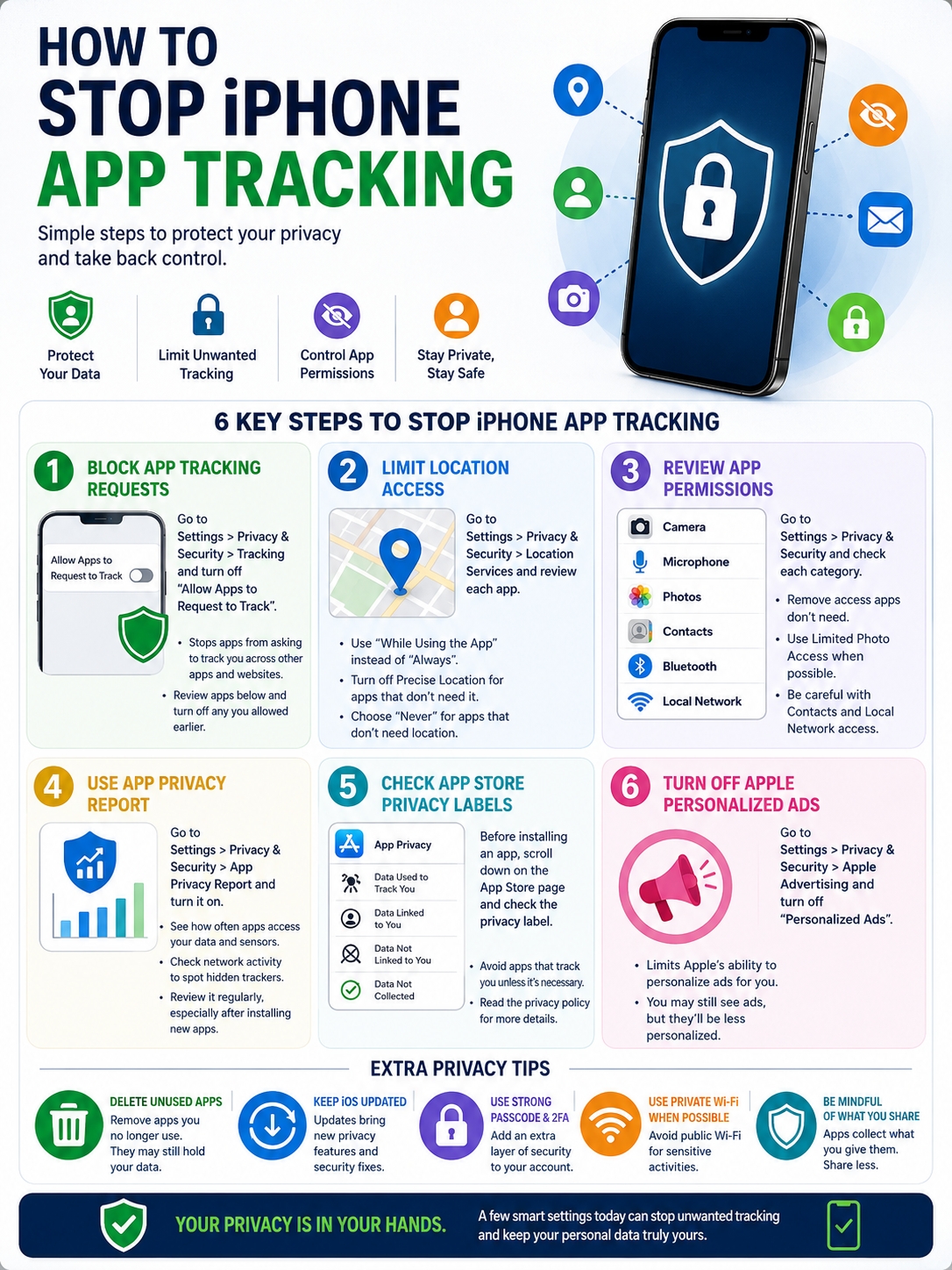
Before you download an app, scroll down on its App Store page.
Look for the privacy label.
Apple requires developers to disclose the types of data their apps may collect. The label may show whether data is used to track you, linked to you, or not linked to you.
|
App Store Label |
What It Means |
What to Prefer |
|
Data Used to Track You |
Data may be linked across other apps or websites |
Avoid when possible |
|
Data Linked to You |
Data may be tied to your identity |
Keep low |
|
Data Not Linked to You |
Data is collected but not tied directly to you |
Better, but still review |
|
Data Not Collected |
Developer says no data is collected |
Best, if accurate |
|
Privacy Policy |
Full privacy details from the developer |
Read for sensitive apps |
Privacy Labels Help, But Don’t Trust Them Blindly
Privacy labels are useful. But they are not perfect.
Developers provide the information. Apple requires accuracy, but the labels still depend on what developers report.
Independent research has found gaps and confusion in some privacy labels. In one large study of App Store apps, 70.1% of studied apps had privacy labels nearly two years after Apple launched the feature. Among labeled apps, 18.1% reported data used to track users, 38.1% reported data linked to users, and 42.0% reported data not linked to users.
So use labels as a warning sign.
If a simple flashlight, wallpaper, calculator, or scanner app collects too much data, skip it. There is almost always a cleaner option.
Turn Off Apple Personalized Ads
Stopping third-party tracking does not automatically turn off Apple’s own ad personalization.
To limit Apple’s personalized ads, go to:
Settings > Privacy & Security > Apple Advertising
Then turn off:
Personalized Ads
|
Setting |
Where to Find It |
What It Does |
|
Personalized Ads |
Privacy & Security > Apple Advertising |
Limits Apple ad personalization |
|
App Tracking |
Privacy & Security > Tracking |
Blocks third-party tracking requests |
|
Location Services |
Privacy & Security > Location Services |
Controls location access |
|
App Privacy Report |
Privacy & Security > App Privacy Report |
Shows app behavior |
|
Analytics & Improvements |
Privacy & Security > Analytics & Improvements |
Controls data shared with Apple |
Will This Remove Ads?
No.
You may still see ads in the App Store, Apple News, Stocks, or other Apple services where ads appear.
Turning off Personalized Ads only limits how Apple uses your information to make those ads more relevant to you.
That’s still worth doing if you want a cleaner privacy setup.
Also Check Analytics & Improvements
Open:
Settings > Privacy & Security > Analytics & Improvements
Turn off sharing options you do not want.
This is not the same as app tracking. But it reduces extra diagnostic and usage data sharing.
Know What App Tracking Transparency Cannot Do
App Tracking Transparency is helpful. But it is not magic.
It limits apps from tracking you across other companies’ apps and websites without permission. It also blocks access to Apple’s advertising identifier when you deny tracking.
But apps may still collect data for their own service. They may still use data you enter into the app. They may still use permissions you granted.
That’s why you should not stop at the tracking switch.
|
Common Belief |
Reality |
Better Move |
|
“Tracking is off, so no app collects data.” |
Apps can still collect allowed or necessary data |
Review permissions |
|
“A VPN stops app tracking.” |
A VPN does not control app permissions |
Use iPhone privacy settings |
|
“Private Browsing protects apps.” |
It mainly affects browser activity |
Manage app settings separately |
|
“Privacy labels are always correct.” |
They are developer-reported |
Use them with caution |
|
“Deleting an app deletes all data.” |
Account data may stay on company servers |
Delete the account if needed |
Does a VPN Stop iPhone App Tracking?
No.
A VPN can hide your IP address from some websites and protect traffic on public Wi-Fi. That can help with network privacy.
But it does not stop an app from using your camera, contacts, location, or account data if you already allowed access.
A VPN is useful. It is not a replacement for iPhone privacy settings.
Does Private Browsing Stop App Tracking?
No.
Private Browsing mostly affects browser history and some website behavior. It does not control what separate apps can access.
If you want to stop iphone app tracking, use:
Settings > Privacy & Security > Tracking
Then review app permissions too.
Does Deleting an App Delete Your Data?
Not always.
Deleting an app removes it from your iPhone. But the company may still keep your account data on its servers.
For sensitive apps, open the app or website first and look for account deletion options. Then remove the app.
Build a Simple iPhone Privacy Routine
You do not need to check privacy settings every day.
A five-minute monthly check is enough for most people.
Do it after installing several new apps, updating iOS, or noticing strange battery drain, location prompts, or background activity.
|
Privacy Check |
How Often |
What to Look For |
|
Tracking permissions |
Monthly |
Apps still allowed to track |
|
Location access |
Monthly |
Apps set to Always or Precise Location |
|
Photos and Contacts |
Monthly |
Apps with full access |
|
Camera and Microphone |
Monthly |
Apps that do not need recording tools |
|
Local Network |
Monthly |
Apps scanning Wi-Fi devices |
|
App Privacy Report |
After installing new apps |
Odd sensor or network activity |
|
Unused apps |
Monthly |
Apps you no longer use |
Delete Apps You Don’t Use
Unused apps are privacy clutter.
They may still have permissions. They may still hold account data. They may still send notifications. They may still run background tasks.
If you have not opened an app in months, delete it.
You can reinstall it later if you need it.
Keep iOS Updated
Apple often adds privacy tools and patches security issues through iOS updates.
Check here:
Settings > General > Software Update
Install available updates from Apple. It is one of the simplest ways to keep your phone safer.
Final Thoughts
The best way to stop iphone app tracking is to use a few iPhone settings together.
Start here:
Settings > Privacy & Security > Tracking
Turn off:
Allow Apps to Request to Track
Then review Location Services, Photos, Contacts, Camera, Microphone, Bluetooth, and Local Network access. Turn on App Privacy Report. Check privacy labels before installing new apps. Turn off Apple Personalized Ads if you want less ad personalization from Apple too.
You do not need to make your iPhone painful to use.
You just need to stop giving apps access they do not need.
A maps app can have location. A video call app can have camera and microphone. A random game does not need your contacts. A shopping app probably does not need precise location. A simple photo editor does not need your whole photo library.
That’s the real privacy move.
Less silent tracking. Fewer loose permissions. More control over your phone.
Uncommon FAQs About iPhone App Tracking
These questions come up because iPhone privacy settings overlap. Tracking, location, ads, VPNs, and permissions are connected, but they are not the same thing.
|
Question |
Quick Answer |
|
Can an app force me to allow tracking? |
No. Apps should not block core features because you denied tracking. |
|
Does “Ask App Not to Track” block location? |
No. Location has a separate setting. |
|
Can apps still show ads? |
Yes. Ads may still appear. |
|
Does deleting an app erase all data? |
Not always. Server-side data may remain. |
|
Are privacy labels always accurate? |
No. They are developer-reported. |
Can an App Make Tracking Required?
Apps should not force you to allow tracking just to use basic features.
If an app acts like tracking is required, that is a red flag. You may want to report it or choose a different app.
Why Do I Still See Ads After Turning Tracking Off?
Because tracking and ads are not the same thing.
Turning off tracking does not block all ads. It mainly limits cross-app and cross-site tracking.
Apps can still show ads based on the app you are using, your search terms, your account activity inside that app, or general context.
Should I Turn Off Background App Refresh?
For many apps, yes.
Go to:
Settings > General > Background App Refresh
Turn it off for apps that do not need updates in the background.
Keep it on for apps where fresh information matters, such as messaging, weather, delivery, maps, or health apps.
Is Safari Better Than Installing Apps?
Sometimes.
If you only need to use a service once, the website may be better than installing another app. Many apps ask for tracking, notifications, location, photos, and other permissions.
Use apps when they give real value. Use Safari when you only need quick access.
Can Apps Track Me Through My Email Address?
They should not use your email or other identifiers to track you across companies’ apps and websites after you deny tracking.
But apps may still use your email for account login, receipts, support, fraud prevention, or service messages. That is different from cross-app tracking.