
You don’t need another complicated keyboard shortcut to work faster on a Mac. Sometimes, all it takes is moving the pointer into a corner of the screen.
That’s exactly what mac hot corners do. Each corner can trigger a useful action, such as opening Mission Control, revealing the desktop, locking the screen, or starting a Quick Note.
The feature takes less than a minute to set up. The real challenge is choosing actions that genuinely save time without constantly opening by mistake.
A good setup feels almost invisible. You move the pointer, the right tool appears, and you get back to work. A bad setup makes the screen jump around every time you aim for a menu or scroll bar.
This guide covers how Hot Corners work, how to configure them, which actions are worth using, and how to stop accidental triggers.
What Are Hot Corners on a Mac?
Hot Corners turn the four corners of your display into hidden shortcuts.
Move your mouse or trackpad pointer into a configured corner, and macOS starts the action assigned to it. You don’t normally need to click.
For example, you could use:
- The top-left corner for Mission Control
- The bottom-left corner to show the desktop
- The top-right corner to lock the Mac
- The bottom-right corner for Quick Note
You don’t have to activate all four. In fact, starting with one or two corners usually works better.
Apple assigns Quick Note to the bottom-right corner by default on many supported Macs. Moving the pointer there reveals a small Quick Note control. You then click it to open the note.
Other actions, such as Mission Control, Desktop, and Lock Screen, usually activate as soon as the pointer reaches the corner.
|
Feature |
How It Works |
|
Available corners |
Top-left, top-right, bottom-left, and bottom-right |
|
Activation |
Move the pointer into the assigned corner |
|
Click required |
Usually no, although Quick Note requires a click |
|
Default action |
Quick Note often uses the bottom-right corner |
|
Customization |
Each corner can use a different action |
|
Modifier support |
Command, Shift, Option, Control, or combinations |
How to Set Up Mac Hot Corners
The current settings path is simple on recent macOS versions.
- Click the Apple menu in the top-left corner.
- Open System Settings.
- Select Desktop & Dock from the sidebar.
- Scroll to the bottom.
- Click Hot Corners.
- Open the menu beside the corner you want to change.
- Choose an action.
- Repeat the process for any other corners.
- Click Done.
Each corner has its own menu. Choose the dash or inactive option when you want to leave a corner unused.
Once you close the settings window, test each corner. Move the pointer firmly into the edge of the screen. The assigned action should respond straight away.
|
Step |
Action |
|
1 |
Open System Settings |
|
2 |
Select Desktop & Dock |
|
3 |
Scroll down to Hot Corners |
|
4 |
Choose an action for each corner |
|
5 |
Add a modifier key where needed |
|
6 |
Click Done and test the setup |
Add a Modifier Key
Modifier keys make Hot Corners far less annoying.
You can require Command, Shift, Option, or Control before a corner works. This stops an action from opening every time the pointer accidentally touches the edge of the display.
To add one:
- Open the Hot Corners panel.
- Press and hold your chosen modifier key.
- Keep holding it while opening the corner menu.
- Select the action.
- Release the key.
- Click Done.
The modifier symbol will appear beside the selected action.
From then on, you must hold that key while moving the pointer into the corner.
You can also combine modifier keys, although one is normally enough. Requiring Command and Option together may prevent accidents, but it also makes the shortcut harder to remember.
Lock Screen is the clearest case for using a modifier. Accidentally showing the desktop is mildly irritating. Accidentally locking the Mac in the middle of a call is much worse.
|
Action |
Modifier Recommendation |
|
Mission Control |
Usually not needed |
|
Desktop |
Usually not needed |
|
Quick Note |
Optional |
|
Notification Center |
Optional |
|
Lock Screen |
Strongly recommended |
|
Start Screen Saver |
Recommended for presentations or media use |
What Each Hot Corner Action Does
The Hot Corners menu can look slightly different depending on your macOS version.
On macOS Tahoe 26, you may see Apps, which opens the app-browsing section of Spotlight. On macOS Sequoia 15 and Sonoma 14, the comparable option appears as Launchpad.
That is separate from Application Windows, which manages open windows from the app you are currently using.
|
Action |
What It Does |
Useful For |
|
Mission Control |
Shows open windows and desktop spaces |
Multitasking |
|
Application Windows |
Shows windows from the active app |
Managing several windows in one app |
|
Desktop |
Moves open windows aside |
Reaching files and folders |
|
Notification Center |
Opens alerts and widgets |
Checking updates |
|
Apps |
Opens Spotlight’s app browser on macOS Tahoe 26 |
Finding apps |
|
Launchpad |
Displays installed apps on older macOS versions |
Opening apps |
|
Lock Screen |
Locks the current session |
Privacy |
|
Start Screen Saver |
Starts the chosen screen saver |
Hiding the desktop |
|
Quick Note |
Shows a control for opening a note |
Capturing ideas |
Mission Control
Mission Control gives you a bird’s-eye view of your open windows.
It also shows full-screen apps, Split View spaces, and separate desktops along the top of the screen. This makes it much easier to find a buried window without clicking through the Dock.
You can also open Mission Control with the F3 key, Control-Up Arrow, or a trackpad gesture. Still, assigning it to a corner often feels faster when your hand is already on the mouse.
This is one of the safest actions to use without a modifier. If it opens by mistake, nothing closes or changes.
Application Windows
Application Windows shows every open window from the app you are currently using.
Imagine you have four Safari windows open. Activating this view displays those Safari windows without mixing in Finder, Mail, Notes, or other apps.
It works well for browsers, design software, document editors, and Finder-heavy workflows.
Do not confuse it with Apps. They serve different purposes.
- Application Windows shows windows you already have open.
- Apps or Launchpad helps you find and launch applications.
Apps or Launchpad
On macOS Tahoe 26, the Apps action opens Spotlight’s app browser. You can search by name, browse categories, and switch between grid and list views.
On macOS Sequoia 15 and Sonoma 14, Hot Corners use Launchpad instead. Launchpad shows installed apps in a familiar grid.
This version difference explains why some online guides use different labels. The setting on your Mac depends on the version of macOS you have installed.
Desktop
The Desktop action pushes open windows aside so you can reach files, folders, screenshots, mounted drives, and desktop widgets.
Move the pointer into the same corner again to bring the windows back.
This is especially helpful when you need to drag a file from the desktop into an email, browser, or messaging app. It removes the need to minimize several windows one by one.
Notification Center
Notification Center shows recent alerts and widgets.
You can already open it from the date and time area in the menu bar, but a Hot Corner may feel quicker on a large display.
Think carefully before assigning it to the top-right corner. That area sits close to Control Center, Spotlight, and other menu bar buttons. Accidental activation can become frustrating.
Lock Screen
Lock Screen protects your Mac without closing your apps or documents.
Once activated, macOS requires your password, Touch ID, Apple Watch, or another approved method before returning to the desktop.
This is a strong choice for office workers, students, or anyone who shares a workspace.
Use a modifier key. It makes the shortcut fast when you need it and much harder to trigger by accident.
You should also open System Settings > Lock Screen and set your Mac to require a password immediately after the display turns off or the screen saver begins.
Start Screen Saver
This action starts your selected screen saver immediately.
It works well when you want to hide what is on the screen without waiting for the normal inactivity timer.
However, a screen saver does not always mean the Mac is locked. If your password settings allow immediate access, moving the mouse or pressing a key may return straight to the desktop.
Use Lock Screen when security matters. Use Start Screen Saver when you simply want to hide the display.
Quick Note
Quick Note lets you capture an idea without leaving the app you are using.
Move the pointer into the assigned corner, then click the small Quick Note control that appears. The note opens above your current window.
Quick Notes are stored in the Quick Notes folder inside Apple Notes. You can also open one with Fn-Q or Globe-Q.
The feature works particularly well for:
- Saving a link while browsing
- Copying a short quote
- Recording a task
- Writing down an idea before you forget it
- Taking notes during a video call
If you never use Apple Notes, disable this corner. A default shortcut only helps when it matches your workflow.
Read Also: How to Fix a Mac Running Slow in 2026
Best Mac Hot Corners Setups for Daily Use
There is no perfect setup for everyone.
The best mac hot corners arrangement depends on what you do most often. Still, a few combinations work well for most people.
A balanced starting setup looks like this:
- Top-left: Mission Control
- Bottom-left: Desktop
- Top-right: Lock Screen with a modifier
- Bottom-right: Quick Note or disabled
This gives you two easy navigation tools, one protected security action, and one optional note shortcut.
|
User Type |
Suggested Actions |
|
General Mac user |
Mission Control and Desktop |
|
Office worker |
Mission Control and Lock Screen |
|
Writer |
Quick Note and Desktop |
|
Researcher |
Quick Note and Mission Control |
|
Designer |
Mission Control and Application Windows |
|
New Mac user |
Start with one or two corners |
For Everyday Multitasking
Mission Control is the most useful place to start.
It helps you find open windows, move between spaces, and switch out of full-screen apps. It also causes very little disruption if you trigger it by mistake.
Add Desktop as your second corner if you often work with screenshots, downloads, or files stored on the desktop.
Assign Lock Screen to a corner and require a modifier key.
That gives you a fast way to protect the Mac when you step away from your desk. It is quicker than opening the Apple menu, but still deliberate enough to avoid most mistakes.
For Writers and Researchers
Quick Note makes sense when you regularly collect ideas, links, and quotes.
Pair it with Mission Control if you switch between research sources, documents, and browser windows. Pair it with Desktop if you often work with downloaded files.
For Designers and Editors
Mission Control and Application Windows make a strong combination.
Mission Control helps you move between editing software, reference images, browsers, and Finder. Application Windows helps when one creative app has several projects or document windows open.
How to Stop Accidental Hot Corner Triggers
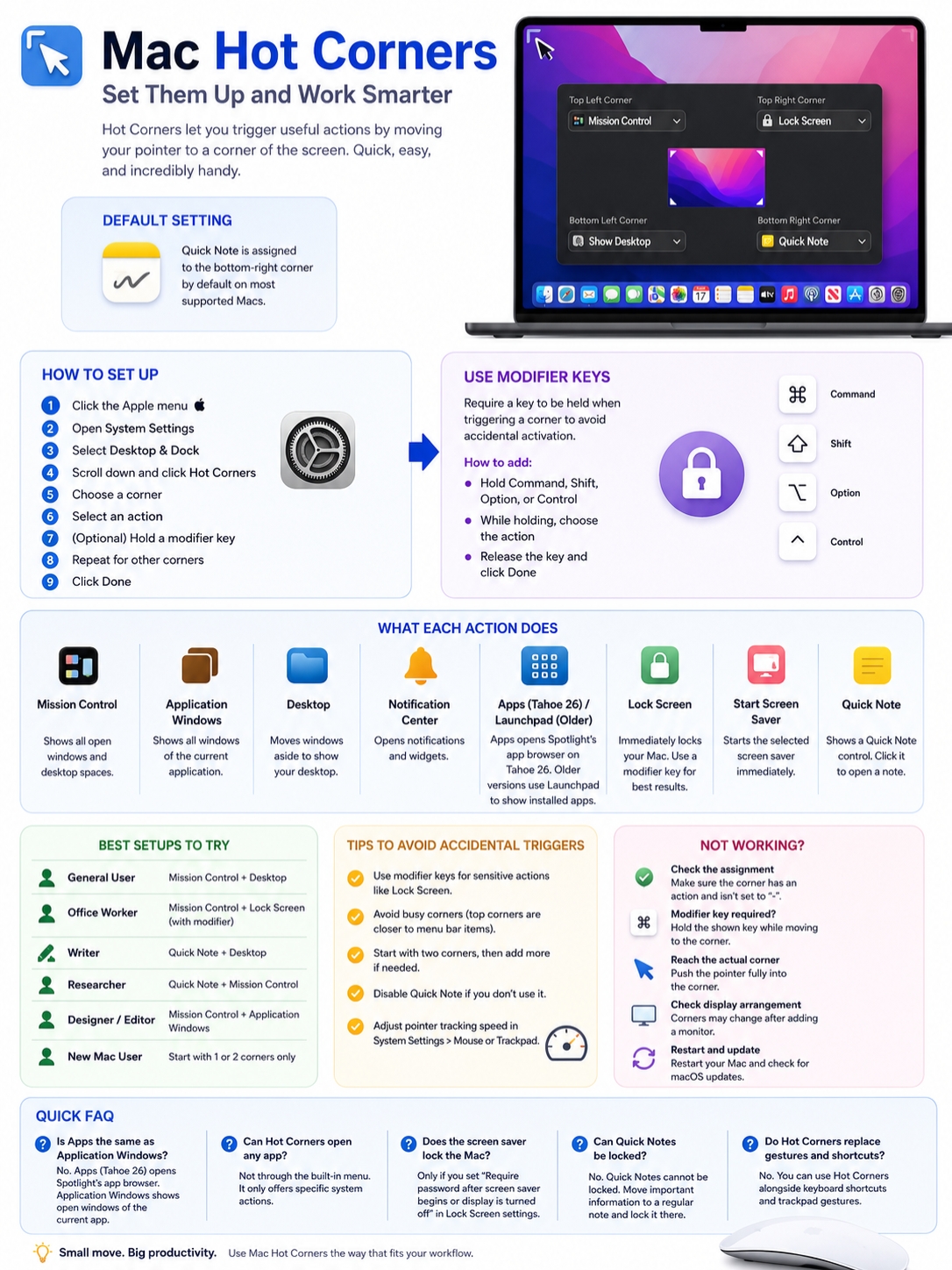
Accidental triggers are the main reason people disable Hot Corners.
The pointer may reach a corner while you are closing a window, opening a menu, moving between displays, or trying to use the Dock.
You can usually fix the problem without abandoning the feature.
|
Problem |
Best Fix |
|
Lock Screen activates by mistake |
Add Command, Control, or Option |
|
Quick Note keeps appearing |
Disable or move the bottom-right action |
|
Top corner opens while using menus |
Move the action to a bottom corner |
|
Bottom corner conflicts with the Dock |
Use a top corner or modifier |
|
Too many actions feel confusing |
Keep only one or two corners active |
|
Pointer moves too quickly |
Lower tracking speed |
Use Modifier Keys for Sensitive Actions
This is the simplest fix.
Lock Screen and Start Screen Saver are good candidates for a modifier. Mission Control and Desktop are normally safe without one.
Use the easiest key combination you can remember. A shortcut that feels awkward will eventually be ignored.
Avoid Busy Corners
Some corners are naturally busier than others.
The top-left corner sits close to the Apple menu and window controls. The top-right corner sits near Control Center, Spotlight, and menu bar icons.
The bottom corners may conflict with the Dock, especially when it is set to hide automatically.
Watch how you move the pointer during a normal day. Leave your busiest corner inactive.
Start With Two Corners
You do not need four shortcuts.
Start with Mission Control and Desktop. Use them for a few days. Add another action only when you know it will save time.
A simple setup is easier to remember and less likely to interrupt your work.
Adjust Mouse or Trackpad Speed
If your pointer constantly overshoots buttons and lands in corners, reduce the tracking speed.
Open System Settings > Mouse or Trackpad, then adjust the tracking-speed slider under Point & Click.
A small change can make the whole interface feel more controlled.
Using Hot Corners With Multiple Displays
Hot Corners also work with external monitors, but the screen arrangement changes which corners are easiest to reach.
Open System Settings > Displays and check the position of each display. The virtual layout should match how the monitors sit on your desk.
When two displays touch in the settings layout, the pointer can move between them. That means some corners no longer act as firm stopping points.
The easiest Hot Corners are usually on the outer edges of the complete display setup.
|
Multi-Display Problem |
What to Check |
|
Pointer moves to another screen |
Display arrangement |
|
A corner became difficult to reach |
Test the outer display edges |
|
Mission Control shows different windows |
Check which display triggered it |
|
Split View fails on another monitor |
Enable Displays Have Separate Spaces |
|
Setup changed after disconnecting a monitor |
Recheck and test each corner |
Mission Control can show different windows depending on the display where you trigger it.
You should also review Displays Have Separate Spaces under Desktop & Dock settings. Apple requires this setting for features such as Stage Manager and Split View across additional displays.
Whenever you connect or disconnect a monitor, test your Hot Corners again. A shortcut that worked perfectly on one screen may feel awkward on a new layout.
How to Fix Mac Hot Corners That Aren’t Working
Hot Corners are built into macOS, so they usually work without much attention.
When one stops responding, the cause is often simple: the action is disabled, a modifier key is required, or the display arrangement has changed.
|
Symptom |
Likely Fix |
|
Nothing happens |
Check that the corner has an assigned action |
|
It works only while holding a key |
Look for a modifier symbol |
|
Quick Note control appears but no note opens |
Click the control |
|
The issue started after adding a display |
Review the display arrangement |
|
One corner behaves strangely |
Disable and reassign it |
|
Several interface features feel unstable |
Restart and update macOS |
Check the Assigned Action
Go back to:
System Settings > Desktop & Dock > Hot Corners
Make sure the corner is not set to the inactive option.
Look for a modifier symbol beside the action. If one appears, you must hold that key while moving the pointer into the corner.
Push the Pointer Fully Into the Corner
Stopping close to the edge may not be enough.
Move the pointer as far as it can go. This matters more with high-resolution monitors, drawing tablets, remote desktop tools, or unusual display scaling.
Remove and Reassign the Corner
Set the corner to inactive and click Done.
Open Hot Corners again, assign the action, and test it. This often fixes a single corner without affecting anything else.
Check Your Display Arrangement
If the issue started after connecting a monitor, projector, television, or Sidecar display, open Displays settings.
The corner may now connect directly to another screen instead of sitting at the edge of the desktop.
Restart the Mac
Restarting clears many temporary issues involving the Dock, Mission Control, displays, and pointer controls.
Save your work first, then restart normally from the Apple menu.
Check for macOS Updates
Open System Settings > General > Software Update.
Install any available updates after saving your work. Apple regularly fixes display and interface problems through macOS updates.
Avoid deleting preference files or running Terminal commands unless you have a clear, verified reason. Most Hot Corner issues can be fixed through normal settings.
Final Thoughts
Mac hot corners work best when they solve a real problem.
Start with Mission Control. Add Desktop if you often need quick access to files. Use Lock Screen with a modifier when you work around other people. Keep Quick Note only if you actually use it.
A simple setup is usually the strongest one.
|
Corner |
Recommended Starting Action |
|
Top-left |
Mission Control |
|
Bottom-left |
Desktop |
|
Top-right |
Lock Screen with a modifier |
|
Bottom-right |
Quick Note or inactive |
Remember that action names can differ between macOS versions. macOS Tahoe 26 uses Apps for Spotlight’s app browser. Older versions such as Sequoia 15 and Sonoma 14 use Launchpad. Application Windows remains a separate feature.
You don’t need to fill all four corners. Two well-chosen shortcuts will often save more time than four actions that keep opening when you don’t want them.
Frequently Asked Questions
|
Question |
Quick Answer |
|
Is Apps the same as Application Windows? |
No |
|
Can Hot Corners open any app? |
Not through the built-in menu |
|
Can you add an activation delay? |
No standard delay setting exists |
|
Does the screen saver lock the Mac? |
Only when password settings require it |
|
Can Quick Notes be locked? |
No |
|
Do Hot Corners replace gestures? |
No, both can remain active |
Is Apps the Same as Application Windows?
No.
Apps opens the app-browsing section of Spotlight on macOS Tahoe 26. Application Windows shows the open windows belonging to the app you are currently using.
On macOS Sequoia 15 and Sonoma 14, you may see Launchpad instead of Apps.
Can a Hot Corner Open Any App I Choose?
Not through Apple’s standard Hot Corners menu.
The built-in menu limits you to specific system actions. It does not let you select any application, file, folder, or personal Shortcut.
Third-party automation tools may offer more options, but they are separate from macOS Hot Corners.
Can I Add a Delay Before a Corner Activates?
macOS does not include a normal delay slider for Hot Corners.
A modifier key is the closest built-in alternative. It keeps the action fast but prevents it from starting until you hold Command, Shift, Option, or Control.
Does Start Screen Saver Lock the Mac?
Not automatically.
Open System Settings > Lock Screen and check the option that requires a password after the screen saver begins or the display turns off.
Set it to immediately when privacy matters.
Why Does Quick Note Keep Appearing?
Quick Note often uses the bottom-right corner by default.
Open Hot Corners and disable that corner or assign a different action. You can still open Quick Note with Fn-Q or Globe-Q.
Can I Lock a Quick Note?
No. Apple does not allow Quick Notes to be locked.
Move sensitive information into a standard note and use the locking options available there.
Can I Use Hot Corners and Trackpad Gestures Together?
Yes.
You can open Mission Control with a corner while keeping the three-finger swipe enabled. The methods do not cancel each other out.
Use whichever feels faster at the time.