
Merging cells in Excel looks simple enough. Select a few cells, click Merge & Center, and you’re done.
Until those cells contain data.
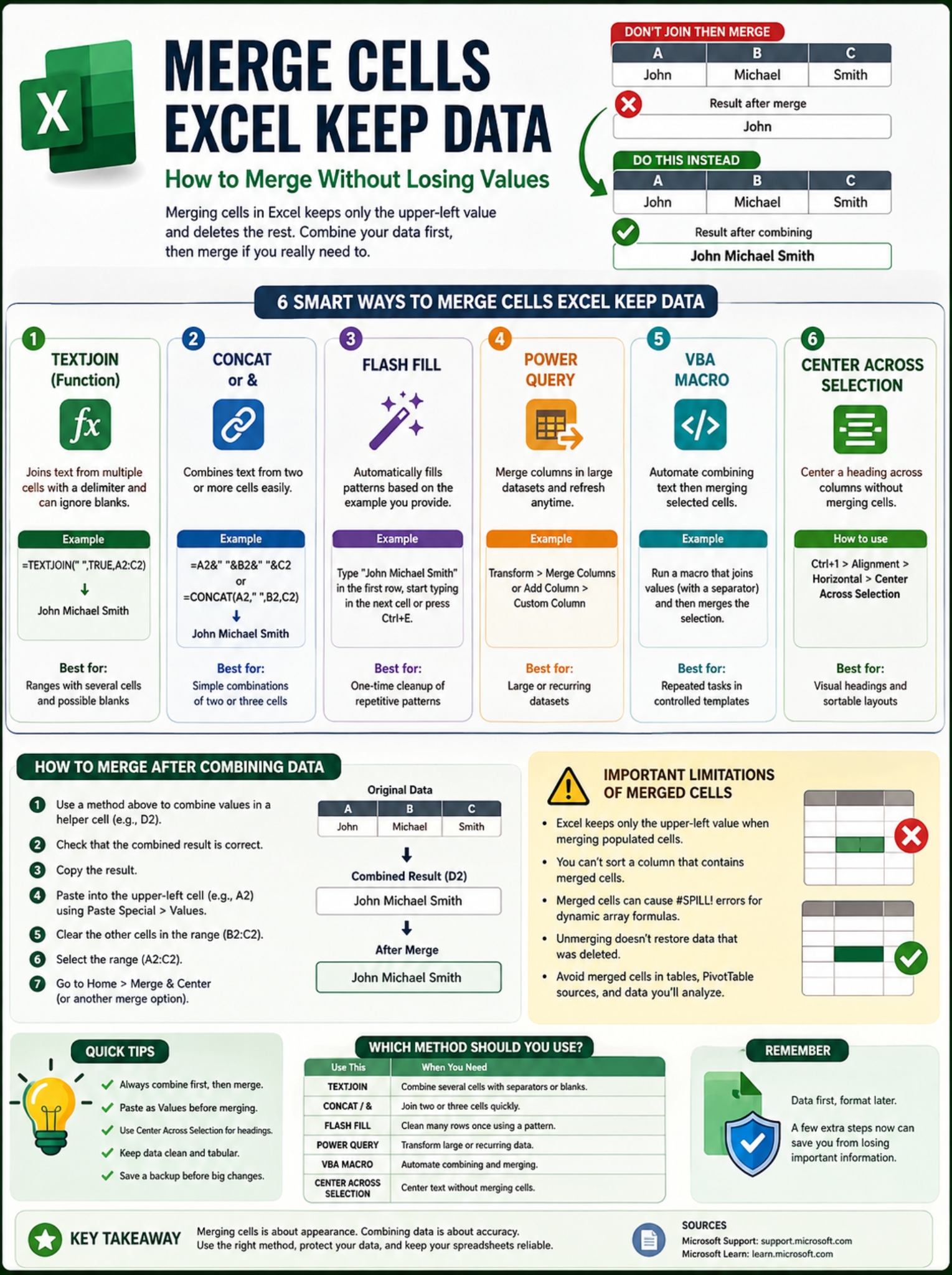
That’s where people get caught out. Excel doesn’t take the text from every selected cell and neatly combine it for you. It keeps the value in the upper-left cell and removes the contents of the other cells.
So if you’re trying to merge cells excel keep data, don’t start with the Merge button.
Start by combining the values.
Once you’ve saved everything in one cell, you can merge the range if the design really calls for it. And in plenty of spreadsheets, you may find that you don’t need merged cells at all.
Here’s how to do it without losing information.
What Happens When You Merge Cells That Already Contain Data?
Excel treats merging as a layout tool, not a data-combining tool.
That’s an important distinction.
Say you have this:
|
A2 |
B2 |
C2 |
|
Maria |
Elena |
Garcia |
Select A2:C2 and click Merge & Center.
Excel keeps:
Maria
It doesn’t turn the three cells into:
Maria Elena Garcia
The contents of B2 and C2 are removed.
Microsoft warns about this directly in its Excel documentation. The information you want to keep needs to be in the upper-left cell before you merge the range.
|
What You Do |
What Happens |
Safe for Existing Data? |
|
Merge & Center populated cells |
Keeps the upper-left value |
No |
|
Merge Cells populated cells |
Keeps the upper-left value |
No |
|
Combine values first |
Creates one complete value |
Yes |
|
Paste the combined result, then merge |
Keeps the final text |
Yes |
|
Center Across Selection |
Leaves cells separate |
Yes |
A good rule to remember is:
Join the data first. Merge the cells second.
If you’re working with an important workbook, make a backup before changing large sections of it. One accidental click can wipe out values you meant to keep.
Merge Cells Excel Keep Data With TEXTJOIN
For most people, TEXTJOIN is the easiest way to handle this.
It lets you combine several cells while adding a separator such as a space, comma, slash, or another character.
It can also ignore blank cells, which saves you from awkward double spaces and extra punctuation.
A Simple TEXTJOIN Example
Suppose you have:
- A2: John
- B2: Michael
- C2: Smith
Enter this formula in D2:
=TEXTJOIN(” “,TRUE,A2:C2)
You’ll get:
John Michael Smith
Nothing has been merged yet. That’s good.
You’ve created one complete value without deleting any of the source data.
|
Goal |
Formula |
|
Join names with spaces |
=TEXTJOIN(” “,TRUE,A2:C2) |
|
Join items with commas |
=TEXTJOIN(“, “,TRUE,A2:C2) |
|
Join values with slashes |
=TEXTJOIN(“/”,TRUE,A2:C2) |
|
Ignore blank cells |
Set the second argument to TRUE |
|
Keep empty positions |
Set the second argument to FALSE |
Now Merge the Cells Safely
If you still need A2:C2 to become one merged cell, do this:
- Put the TEXTJOIN formula in a helper cell such as D2.
- Check the result carefully.
- Copy D2.
- Paste it into A2 using Paste Special > Values.
- Confirm that A2 contains the full text.
- Clear B2 and C2.
- Select A2:C2.
- Choose Home > Merge & Center or another merge option.
The Paste as Values step matters.
If A2 still contains a formula that depends on B2 and C2, clearing or merging those cells can break the result. Pasting the final text as a fixed value removes that dependency.
One TEXTJOIN Limit Worth Knowing
Excel cells can hold up to 32,767 characters.
If TEXTJOIN creates a string beyond that limit, Excel returns a #VALUE! error.
That’s rarely an issue with names or short labels, but it can matter if you’re joining long notes, imported text, or large lists.
CONCAT and & Work Well for Smaller Jobs
You don’t need TEXTJOIN every time.
If you’re only joining two cells, using & is often quicker.
For example:
=A2&” “&B2
If A2 contains Sarah and B2 contains Khan, the result is:
Sarah Khan
Need a comma?
=A2&”, “&B2
That works well for something like:
Dhaka, Bangladesh
You can also use CONCAT:
=CONCAT(A2,” “,B2)
Both approaches get the job done.
|
Method |
Example |
Best For |
|
& |
=A2&” “&B2 |
Quick, simple combinations |
|
CONCAT |
=CONCAT(A2,” “,B2) |
Straightforward text joining |
|
TEXTJOIN |
=TEXTJOIN(” “,TRUE,A2:C2) |
Multiple cells and blanks |
Why TEXTJOIN Is Often Easier
CONCAT doesn’t have a built-in delimiter setting.
That means you have to add spaces, commas, or other separators yourself.
TEXTJOIN handles those separators in one place, which makes longer formulas much easier to read.
Be Careful With Dates and Numbers
Combining numbers with text can change how Excel treats the result.
For example, joining a date with another piece of text doesn’t necessarily preserve the date’s display format.
The TEXT function helps here.
Suppose A2 contains a date. You could use:
=TEXT(A2,”dd-mmm-yyyy”)&” – “&B2
That lets you control exactly how the date appears inside the combined text.
The same idea applies to currencies, percentages, and other formatted numbers.
Flash Fill Is Great for One-Time Cleanup
Sometimes formulas feel like overkill.
If you’ve got hundreds of names, IDs, or addresses that follow the same pattern, Flash Fill can save a lot of typing.
Suppose you have:
|
First Name |
Last Name |
Full Name |
|
Anna |
Rahman |
Anna Rahman |
|
Peter |
Wong |
|
|
Sofia |
Martin |
Type Anna Rahman manually in the first Full Name cell.
Then start typing Peter Wong in the next row.
Excel may spot the pattern and show a preview for the rest of the column.
You can also trigger Flash Fill from the Data tab or press Ctrl+E in Windows Excel.
|
Flash Fill Works Well For |
Less Suitable For |
|
Combining first and last names |
Values that must update automatically |
|
Reformatting IDs |
Complicated conditional logic |
|
Splitting or joining predictable text |
Data with inconsistent patterns |
|
One-time data cleanup |
Ongoing linked calculations |
There’s one catch.
Flash Fill creates results based on the pattern it sees. It doesn’t create a live formula linked to your source cells.
If Peter later changes to Patrick, the filled Full Name value won’t automatically update the way a formula would.
For a one-off cleanup, that’s fine.
For a workbook that changes every day, formulas are usually a better fit.
Power Query Makes More Sense for Large Datasets
If you’re cleaning thousands of rows every week, manually merging text in worksheet cells gets old fast.
That’s where Power Query earns its keep.
Power Query lets you combine columns as part of a repeatable data-cleaning process. You can refresh the query later instead of rebuilding the same formulas every time new data arrives.
Merge Existing Columns in Power Query
A typical workflow looks like this:
- Load your data into Power Query.
- Select the columns you want to combine.
- Choose Transform > Merge Columns.
- Pick a separator.
- Give the new column a name.
- Load the result back into Excel.
The order in which you select the columns matters because Power Query uses that order when building the combined result.
|
Power Query Option |
What It Does |
|
Transform > Merge Columns |
Combines selected columns |
|
Add Column > Custom Column |
Creates a new combined field |
|
Separator |
Adds spaces, commas, custom characters, and more |
|
Refresh |
Repeats the transformation on updated data |
Want to Keep the Original Columns?
Don’t overwrite them.
Use Add Column > Custom Column instead.
That gives you a new combined field while leaving the original columns in place.
This is often the safer approach for customer data, CRM exports, order files, and other records you may need to audit later.
One thing to keep clear: Power Query combines data, not physical worksheet cells.
For business spreadsheets, that’s usually exactly what you want.
You May Not Need to Merge Cells at All
A lot of merged cells exist for one reason: someone wanted a heading centered across several columns.
If that’s all you’re trying to do, there’s a cleaner option.
Use Center Across Selection.
It makes the text look centered across a range without actually merging the cells.
|
Feature |
Merge & Center |
Center Across Selection |
|
Physically merges cells |
Yes |
No |
|
Keeps cells separate |
No |
Yes |
|
Centers a heading |
Yes |
Yes |
|
Better for sortable data |
No |
Yes |
|
Less likely to cause formula problems |
No |
Yes |
How to Use Center Across Selection
In desktop Excel:
- Type the heading in the leftmost cell.
- Select the range you want it centered across.
- Press Ctrl+1.
- Open the Alignment tab.
- Find the Horizontal dropdown.
- Choose Center Across Selection.
- Click OK.
The result looks similar to a merged heading, but the cells stay separate underneath.
That’s useful because merged cells can cause headaches later.
Excel may refuse to sort data properly when a column contains merged cells. Merged ranges can also block dynamic-array formulas from spilling into neighboring cells.
If the merge is only cosmetic, keeping the cells separate usually makes the workbook easier to work with.
VBA Can Automate Repeated Merge Jobs
What if you constantly need to combine text and merge cells?
A small VBA macro can do it for you.
This works best in controlled spreadsheets where you’re merging adjacent cells that contain plain text.
Here’s a simple example:
Sub MergeKeepText()
Dim rng As Range
Dim cell As Range
Dim combinedText As String
Set rng = Selection
For Each cell In rng.Cells
If Len(cell.Value2) > 0 Then
If Len(combinedText) > 0 Then
combinedText = combinedText & ” “
End If
combinedText = combinedText & CStr(cell.Value2)
End If
Next cell
Application.DisplayAlerts = False
rng.Merge
Application.DisplayAlerts = True
rng.Cells(1, 1).Value = combinedText
End Sub
Select a range, run the macro, and it collects the non-empty values before merging the cells.
|
VBA Can Help With |
Keep in Mind |
|
Repeated merge jobs |
Macros must be enabled |
|
Joining text automatically |
Original formulas aren’t preserved |
|
Adding custom separators |
Cell-specific rules may be lost |
|
Standard templates |
Not ideal for raw datasets |
Don’t treat this as a universal “save everything” button.
The macro keeps the text values it collects. It doesn’t preserve each original cell’s formula, comment, data validation, or other cell-specific properties as separate items.
Use VBA when the final goal really is one combined text value.
Common Mistakes That Cause Data Loss
Most problems come from merging too early.
People see the Excel warning, click OK, and then realize the missing data actually mattered.
A few habits prevent most of those mistakes.
|
Common Mistake |
Better Move |
|
Clicking through the merge warning |
Stop and combine the values first |
|
Merging rows in a data table |
Keep one value per cell |
|
Leaving formulas linked to cells you’ll merge |
Paste the result as values |
|
Merging headers in sortable lists |
Use Center Across Selection |
|
Using merged cells around dynamic arrays |
Keep the spill area unmerged |
|
Assuming Unmerge restores deleted data |
Undo immediately if possible |
Why Is Merge & Center Greyed Out?
Two common reasons are:
- You’re currently editing a cell.
- The selected cells are inside an Excel table.
Finish editing first.
If the cells belong to a formatted Excel table, you’ll usually need to rethink the layout rather than forcing a merge into the table.
Does Unmerge Bring Deleted Values Back?
No.
This catches plenty of users.
If Excel removed the contents of B2 and C2 when you merged A2:C2, choosing Unmerge Cells later won’t recreate those values.
The merged content stays in the upper-left cell.
If you just made the mistake, use Ctrl+Z straight away.
If you’ve already saved and continued working, recovery may depend on an earlier copy or version history.
Can Merged Cells Cause #SPILL! Errors?
Yes.
Dynamic-array formulas need open cells around them so Excel can spill the results into the required range.
If a merged cell sits in the way, the formula can return #SPILL!.
Unmerge the blocking cells or move the formula.
When Merged Cells Are More Trouble Than They’re Worth
Merged cells aren’t automatically bad.
They can be perfectly reasonable in a report title, printable form, or invoice heading.
Problems start when they’re mixed into real datasets.
|
Workbook Area |
Merge Cells? |
|
Report title |
Usually fine |
|
Invoice heading |
Usually fine |
|
Dashboard label |
Sometimes |
|
Customer database |
Avoid |
|
PivotTable source data |
Avoid |
|
Sortable list |
Avoid |
|
Dynamic-array area |
Avoid |
|
Structured Excel table |
Avoid |
If people will sort, filter, calculate, import, export, or analyze the data later, keep the cells separate.
That applies especially to PivotTable source data.
Excel works best when source data follows a simple table structure:
- one row of headers;
- one record per row;
- one field per column;
- no unnecessary blank rows;
- no merged cells in the dataset.
It’s not glamorous, but clean spreadsheet structure saves hours later.
Accessibility Matters Too
Merged cells can also make spreadsheets harder to navigate with screen readers.
Assistive tools often rely on a predictable row-and-column structure. Merge several cells together and that structure becomes less clear.
For decorative headings, this may not be a major issue.
Inside data tables, it’s another strong reason to avoid merging.
FAQs About Merging Cells Without Losing Data
Can I Merge Cells Without Centering the Text?
Yes.
Open the dropdown next to Merge & Center and choose Merge Cells instead.
Excel also offers Merge Across for layouts where you want to merge cells separately across multiple rows.
Just remember: changing the merge option doesn’t change the data-loss rule. If several selected cells contain values, you still need to combine those values first.
How Do I Find Merged Cells in a Large Workbook?
In desktop Excel, you can search for merged formatting.
Go to:
Home > Find & Select > Find > Format > Alignment
Select the merged-cell option, then choose Find All.
Excel will list the matching cells.
This is handy when an old workbook won’t sort properly and you can’t immediately see where the merged cells are hiding.
Is TEXTJOIN Better Than CONCAT?
For several cells, usually.
TEXTJOIN handles separators and blank cells more neatly.
For two simple values, CONCAT or & can be faster.
A practical rule:
- Two cells? Use &.
- Several cells with possible blanks? Use TEXTJOIN.
- Large repeatable transformation? Use Power Query.
Can I Merge Cells Inside an Excel Table?
Not with the normal Merge & Center command.
Excel tables are built around a consistent row-and-column structure, so merged cells don’t fit well inside them.
If the Merge button is disabled and your selection sits inside an Excel table, that’s likely the reason.
Does Merge Across Keep All the Values?
No.
Merge Across changes how Excel creates merged ranges across rows. It doesn’t automatically concatenate the contents of every cell.
Combine the data first.
Can I Merge Non-Adjacent Cells and Keep Their Text?
Not with the normal Merge command.
Merged ranges need adjacent cells.
If the information comes from cells scattered around the worksheet, use TEXTJOIN, CONCAT, &, or another formula to collect the values into one destination cell first.
What’s the Fastest Way to Merge Names Without Losing Data?
For one or two rows, use:
=TEXTJOIN(” “,TRUE,A2:C2)
For hundreds of similar rows where you only need a one-time result, Flash Fill may be faster.
For recurring imported data, Power Query is a better long-term choice.
Final Thoughts
The trick behind merge cells excel keep data isn’t really a trick.
It’s about doing things in the right order.
Don’t merge first and hope Excel figures out what to keep.
Combine the values first. Check the result. Paste it as a fixed value when needed. Then merge the cells only if the layout genuinely benefits from it.
|
If You Need To… |
Use |
|
Join several cells |
TEXTJOIN |
|
Join two simple values |
& or CONCAT |
|
Clean up repeated patterns once |
Flash Fill |
|
Process recurring datasets |
Power Query |
|
Automate repeated text merging |
VBA |
|
Center a heading visually |
Center Across Selection |
For most everyday work, TEXTJOIN is the easiest place to start.
And if you’re only merging cells to make a heading look better, skip the merge altogether. Center Across Selection gives you the same visual effect without creating many of the problems that merged cells can bring.
The main thing to remember is simple:
Merging cells isn’t the same as merging their data.
If your goal is to merge cells excel keep data, protect the data first. The formatting can come afterward.