
Creating a separate user space on Android can make life much easier when more than one person uses the same device. But before you start adding profiles, it helps to know what happens after setup, what problems you might face, and whether this feature is the right choice for your situation.
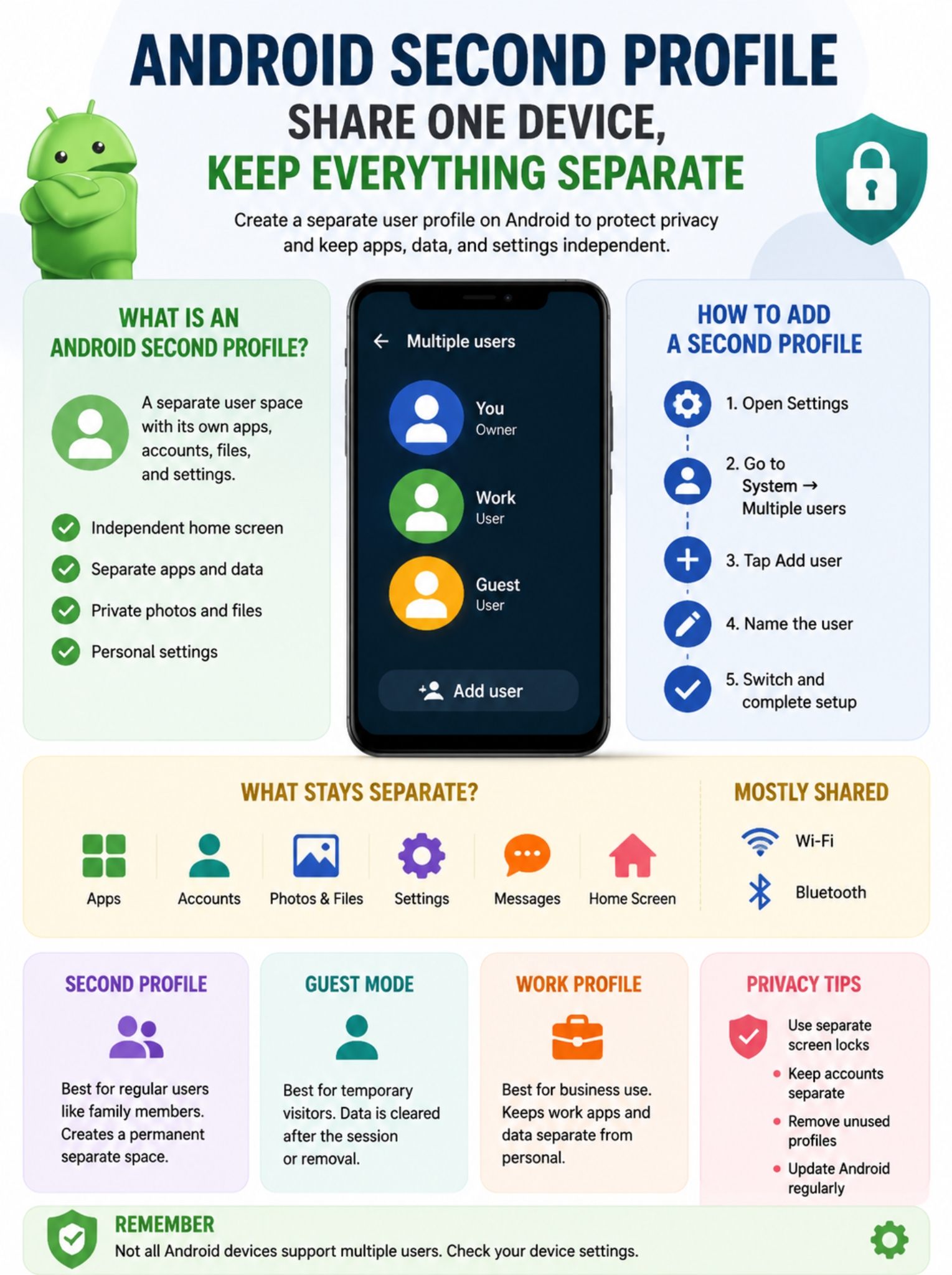
Android’s multi-user system keeps each user’s apps, accounts, and personal data separate. However, the feature depends on the device manufacturer and Android version. Some phones support it fully, while others offer different privacy tools instead.
How to Remove an Android Second Profile
|
Step |
What to Do |
|
1 |
Open Settings |
|
2 |
Go to System → Multiple users |
|
3 |
Select the profile |
|
4 |
Tap Delete user |
A second profile is useful until you no longer need it. When that happens, you can remove it from the device.
To delete a user profile:
- Open Settings.
- Go to System → Multiple users.
- Tap the user profile you want to remove.
- Select Delete user.
Android will permanently remove that user’s:
- Installed apps
- Account information
- Files
- Personal settings
This action cannot be undone, so make sure the user saves anything important before deletion.
For example, if a family member created a profile and stored photos or documents there, those files should be backed up before removing the account.
Common Problems When Creating an Android Second Profile
|
Problem |
Possible Reason |
Solution |
|
No Multiple Users option |
Device does not support it |
Check device settings and manufacturer support |
|
Cannot add a new user |
You are not using the main device account |
Switch to the primary user account |
|
Profile feels slow |
Too many apps or limited storage |
Remove unused apps and files |
|
Apps missing in second profile |
Profiles have separate app environments |
Install and configure apps again |
Even though Android makes user profiles simple, some users run into problems during setup.
The Multiple Users Option Is Missing
This is the most common issue.
If you cannot find:
Settings → System → Multiple users
try searching:
Users
inside the Settings app.
If nothing appears, your phone may not support secondary users.
Some manufacturers customize Android heavily and may remove this option.
For example:
- Google Pixel devices commonly support multiple users.
- Many Android tablets support multiple users.
- Some smartphone brands limit or replace the feature with their own privacy solutions.
Android Second Profile on Samsung, Pixel, and Other Phones
|
Brand |
Multiple User Support |
Alternative Features |
|
Google Pixel |
Usually available |
Standard Android user profiles |
|
Android tablets |
Commonly available |
Multiple users and guest mode |
|
Samsung Galaxy |
Depends on model and software version |
Secure Folder and privacy tools |
|
Other brands |
Varies |
Manufacturer privacy features |
Android is an open operating system, so phone makers can adjust how certain features work.
The Android version includes multiple users, but manufacturers decide whether to enable the feature on their devices.
Read Also: How to Fix Android Touch Screen Not Responding
Samsung Phones
Many Samsung Galaxy phones do not offer the traditional Android multi-user option on regular smartphones.
Instead, Samsung provides features such as:
- Secure Folder
- App cloning options
- Privacy settings
Secure Folder creates a protected space for apps and files, but it is not the same as creating a completely separate Android user.
Google Pixel Phones
Pixel devices generally offer the standard Android user experience, including multiple users on supported versions.
The setup process usually follows:
Settings → System → Multiple users
Android Second Profile for Work: Is It the Right Choice?
|
Need |
Better Option |
|
Family member uses your device |
Secondary user profile |
|
Temporary visitor |
Guest mode |
|
Company apps and data |
Work profile |
|
Private apps and files |
Device privacy tools |
Many people create a second profile because they want to separate work and personal life. That can work, but it is not always the best option.
Android also has a separate feature called Work Profile, which is designed specifically for business use.
A Work Profile separates:
Personal apps
- Photos
- Social media
- Personal email
from:
Work apps
- Company email
- Business tools
- Workplace documents
Unlike a regular second user, a Work Profile is often managed by an organization.
For someone who only wants fewer distractions or better organization, a Work Profile may be a better choice than creating a full second user.
Privacy Tips for Using Multiple Android Profiles
|
Tip |
Why It Matters |
|
Use separate screen locks |
Prevents unauthorized access |
|
Keep accounts separate |
Avoids mixing personal data |
|
Remove unused profiles |
Saves storage |
|
Update Android regularly |
Improves security |
A second profile adds privacy, but it does not replace basic phone security.
Follow these simple habits:
Use Different Screen Locks
Each user should protect their own profile with:
- PIN
- Password
- Fingerprint
- Face unlock (if supported)
Without a separate lock method, another person could access the profile.
Avoid Sharing Your Main Google Account
A secondary profile works best when each user signs in with their own Google account.
Sharing one Google account removes much of the privacy benefit.
Check Storage Regularly
Every profile stores its own apps and files.
If your phone starts running out of space:
- Delete unused apps.
- Remove old downloads.
- Remove profiles you no longer need.
Frequently Asked Questions About Android Second Profile
Can I create an Android second profile without another Google account?
Yes. You can create a secondary user profile first, but the new user will usually need a Google account to access services such as Play Store, Gmail, and backups.
Will my apps appear automatically in the second Android profile?
No. Each user has a separate app environment. The second profile may need to download and configure apps again.
The app itself may already exist on the device, but personal data and settings remain separate between users.
Can two users use the same Android phone at the same time?
No. Android switches between users instead of running two full user sessions at once.
Only the active profile appears on the screen.
Can the second profile see my photos?
No. Photos stored inside one user profile are not normally visible from another profile.
Each user has separate storage space for personal files.
Does Android second profile work on tablets?
Yes. Multiple users are especially common on Android tablets because families often share one device.
Supported tablets can provide separate spaces for apps, files, and settings.
Can I use an Android second profile for children?
Yes, but parents should consider parental control tools for managing children’s accounts, screen time, and app permissions.
A child profile and parental controls solve different problems:
- User profile = separate device space
- Parental controls = supervision and safety management
Does creating another Android profile use more storage?
Yes.
Each profile can install different apps and store different files, so available storage decreases as more users add content.
Final Thoughts
An android second profile is a practical solution for anyone who wants to share one device without mixing personal information.
It gives each user their own apps, accounts, files, and settings. For families sharing tablets or people who want a clear separation between different activities, it can make a single device feel much more personal.
However, it is not available on every Android phone. Before setting it up, check whether your device supports Multiple Users. If it does not, alternatives like Guest Mode, Work Profile, or manufacturer privacy tools may solve the same problem.
When available, an android second profile is one of the easiest ways to protect privacy and keep multiple users organized on the same Android device.