
Your phone is clearly on. Notifications keep arriving. The screen looks normal. But tapping an icon does nothing, swiping gets you nowhere, and typing is impossible.
It’s an annoying problem, but it doesn’t always mean the display is dead.
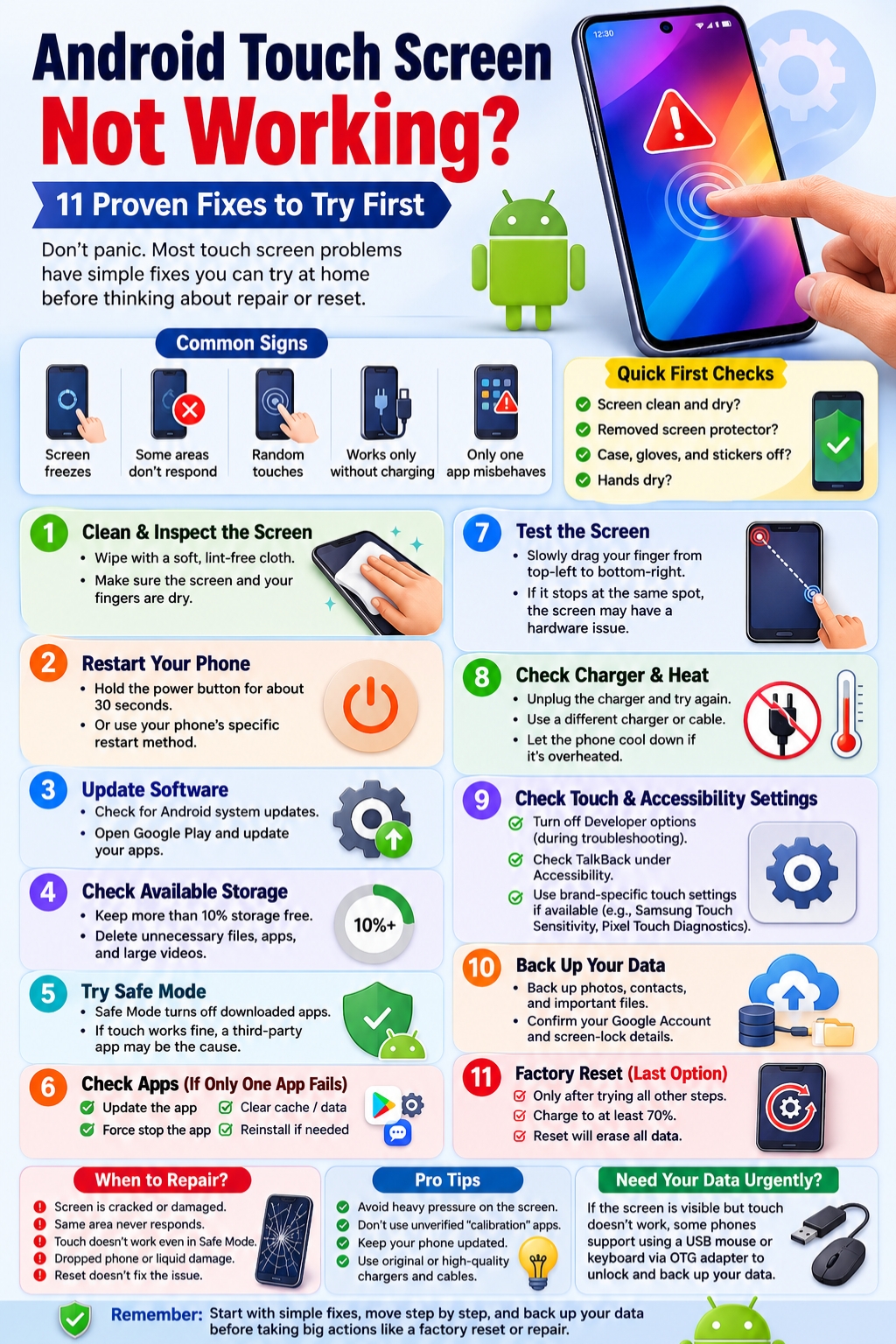
If your android touch screen not working problem appeared out of nowhere, start with the simple stuff. A wet screen, badly fitted protector, frozen app, almost-full storage, software glitch, or even a charger can sometimes mess with touch response.
Physical damage is another possibility, of course. If the phone recently hit the floor or got wet, hardware moves much higher up the suspect list.
The important thing is not to jump straight to a factory reset. Work through the easy, non-destructive checks first. You’ll often learn what’s wrong long before you need to erase anything.
Why Does an Android Touchscreen Stop Responding?
Touchscreen problems don’t all look the same.
Sometimes the whole screen freezes. Sometimes only one strip stops responding. You may notice ghost touches, where the phone seems to tap things by itself. Or everything may work normally until you plug in the charger.
Those differences matter because they point toward different causes.
Start by thinking about what happened just before the problem appeared. Did you install an app? Drop the phone? Replace the screen protector? Install an Android update? Use the phone with wet hands?
That little bit of context can save a lot of unnecessary troubleshooting.
|
What you see |
Possible cause |
First thing to try |
|
Entire screen suddenly freezes |
Temporary software freeze |
Restart the phone |
|
One area never responds |
Touch-layer or display issue |
Test that part of the screen |
|
Only one app freezes |
App problem |
Update or reinstall the app |
|
Problem began after a new protector |
Poor touch sensitivity |
Remove the protector |
|
Screen misbehaves when wet |
Moisture interference |
Dry the phone and your hands |
|
Touch fails while charging |
Charger or power issue |
Unplug and test again |
|
Problem started after a drop |
Physical damage |
Back up data and inspect hardware |
A phone can also show a perfectly good picture even when touch input has failed. The display and touch-sensing layer work together, but one can fail while the other keeps working.
Android Touch Screen Not Working? Check the Screen First
Before digging into Android settings, inspect the obvious things.
They’re obvious for a reason: they often work.
1. Clean and dry the screen
Wipe the display with a clean, soft cloth. Make sure both the screen and your fingers are dry.
Water, sweat, grease, and dirt can affect capacitive touchscreens. Even phones with water resistance may respond badly while the display is wet.
Don’t spray cleaning liquid directly onto the phone. Put a small amount on the cloth if the manufacturer allows it.
2. Remove the screen protector
If you use tempered glass or a protective film, take it off temporarily.
I’d pay particular attention to this if the problem started soon after installing a new protector. Thick glass, air bubbles, peeling adhesive, dust underneath, or a poor-quality protector can all interfere with touch sensitivity.
Test the phone without it before buying parts or resetting anything.
3. Take off the case
Some tight cases press against the edges of the display. Others interfere with gestures near the bezel.
Remove the case and use the phone bare for a few minutes.
Read Also: How to Recover Deleted Text Messages on Android
4. Take off gloves and remove screen stickers
Ordinary gloves may stop a capacitive screen from detecting your finger properly.
Stickers or accessories near the display can also cause trouble on some devices. Strip things back to the bare phone while testing.
|
Quick check |
What it helps rule out |
|
Clean the display |
Dirt and grease |
|
Dry screen and fingers |
Moisture |
|
Remove protector |
Reduced touch sensitivity |
|
Remove case |
Edge pressure or interference |
|
Remove gloves |
Poor touch detection |
|
Remove stickers |
Obstruction around the display |
Test the screen after each change. If you remove everything at once, you won’t know what actually fixed it.
Restart the Phone, Then Check Updates and Storage
If the screen itself looks fine, move on to software.
5. Restart or force-restart the phone
A frozen Android interface can look exactly like a broken touchscreen.
On many Android phones, holding the power button for around 30 seconds can force a restart. The exact method varies by brand.
Samsung, for example, commonly uses a combination of the Side/Power button and Volume Down on current Galaxy devices.
If you’re unsure, use the instructions for your exact model rather than guessing at button combinations.
A restart doesn’t erase your files. It simply reloads the system and clears temporary processes.
Update Android
Once you can navigate the phone again, check for system updates.
Manufacturers regularly ship bug fixes and stability improvements through Android updates. If your touch trouble began after a software problem rather than physical damage, an update may help.
Update your apps too
Open Google Play and install pending app updates.
This matters most when the problem appears inside one or two apps rather than across the entire phone.
Check your free storage
This one catches people off guard.
Google says Android devices can start having problems when less than roughly 10% of storage is free.
That doesn’t mean low storage physically breaks the touchscreen. It can, however, make Android slow, unstable, or prone to freezes. When the interface stops responding, it can easily feel like a touch problem.
If your phone is nearly full, delete:
- old downloads;
- large videos you no longer need;
- unused apps;
- duplicate files;
- offline media you can download again later.
|
What to check |
Why it matters |
|
Restart phone |
Clears temporary freezes |
|
Android updates |
May fix software bugs |
|
App updates |
Helps with app-specific issues |
|
Free storage |
Reduces system lag and instability |
See If a Downloaded App Is Causing the Trouble
If your android touch screen not working problem started after installing an app, Safe Mode is worth trying.
6. Start the phone in Safe Mode
Safe Mode temporarily disables downloaded third-party apps while keeping the core Android system running.
If the touchscreen suddenly works normally in Safe Mode, that’s a strong clue that one of your downloaded apps is involved.
Restart the phone normally and uninstall recently added apps one at a time. Test the screen after each removal.
Safe Mode steps vary between manufacturers, so check the instructions for your device.
What if only one app won’t respond?
If the rest of the phone works normally, don’t treat it like a hardware failure.
Try this:
- Force stop the app.
- Update it.
- Restart your phone.
- Clear the app cache if needed.
- Reinstall the app.
- Contact the developer if the problem continues.
Be careful with Clear data. It can remove locally stored information, logins, settings, or downloads.
|
What happens |
What it probably means |
|
Screen works in Safe Mode |
Downloaded app may be causing the issue |
|
Screen still fails in Safe Mode |
Third-party app is less likely |
|
Only one app freezes |
Troubleshoot that app |
|
Problem began after a new installation |
Remove recent apps first |
Check for Dead Zones and Ghost Touches
A touchscreen doesn’t always fail all at once.
Sometimes one strip or corner goes dead while everything else keeps working.
7. Test the whole display
Try slowly dragging your finger across the screen without lifting it.
Google suggests starting near the upper-left corner and dragging toward the lower-right. Move slowly and watch whether the gesture repeatedly breaks at the same spot.
If touch stops in the same physical area every time, that’s much more suspicious than random lag.
A damaged digitizer or display assembly may be responsible.
Watch for these signs:
- one fixed strip never responds;
- typing fails on the same keyboard keys;
- gestures stop at the same place;
- the phone was recently dropped;
- the glass is cracked;
- the display is lifting away from the frame;
- the phone taps things by itself.
Ghost touches can also come from moisture, a protector, charger interference, or damaged hardware, so test those possibilities before deciding the screen needs replacing.
|
Symptom |
What it points toward |
|
Same dead strip every time |
Localized touch failure |
|
Random ghost touches |
Moisture, protector, charging, or hardware |
|
Cracked screen plus lost touch |
Physical damage |
|
Problem continues in Safe Mode |
Hardware or system issue becomes more likely |
Does the Problem Happen Only While Charging?
This is worth checking because it’s surprisingly easy to miss.
8. Unplug the charger and try again
If the android touch screen not working issue appears mainly while the phone is charging, disconnect it.
Does the touchscreen immediately behave normally?
If yes, test another compatible charger, cable, and wall outlet.
Samsung and Xiaomi both document cases where charging equipment or unstable electrical conditions can affect touchscreen behavior. That doesn’t mean the charger is always to blame, but it’s a useful clue.
Don’t keep using a damaged cable or charger simply because it still supplies power.
What about heat?
Touch response may also become sluggish when a phone gets unusually hot.
Stop gaming, navigation, video recording, or other heavy tasks for a while. Disconnect the charger and let the phone cool naturally.
Don’t put it in a freezer or against ice. Sudden temperature changes can create other problems.
|
When it happens |
What to try |
|
Only while charging |
Disconnect charger |
|
Different charger fixes it |
Replace suspect charger/cable |
|
Phone feels very hot |
Stop heavy use and let it cool |
|
Screen is wet |
Dry it before testing again |
Check Touch Settings and Developer Options
Android brands don’t all use the same menus, so this section depends on your phone.
9. Turn off Developer options temporarily
Google includes disabling Developer options in its general Android touchscreen troubleshooting advice.
If you’ve enabled Developer options, switch them off while testing.
That doesn’t mean Developer options are a common cause of touchscreen failure. It’s simply another variable worth removing when you’re trying to find the source of a stubborn problem.
Samsung: Touch sensitivity
Many Galaxy devices include a Touch sensitivity setting under Display.
It can help when you use a screen protector, although availability depends on the model.
Google Pixel: Touch diagnostics
Some newer Pixel phones include built-in Touch diagnostics under Display & touch settings.
Pixel models may also offer features such as Adaptive Touch or Screen Protector Mode.
Xiaomi: Built-in diagnostics
Some Xiaomi phones include manufacturer diagnostic tools for testing touchscreen input.
Use built-in manufacturer tools when possible. I wouldn’t rely on random “touch calibration” apps from the Play Store to diagnose damaged hardware.
|
Device family |
Useful option |
|
General Android |
Temporarily disable Developer options |
|
Samsung Galaxy |
Touch sensitivity on supported models |
|
Google Pixel |
Touch diagnostics on supported models |
|
Google Pixel |
Adaptive Touch or Screen Protector Mode |
|
Xiaomi |
Manufacturer hardware diagnostics |
Make Sure TalkBack Isn’t Changing How Touch Works
A touchscreen can feel broken when it’s actually responding in a different way.
10. Check TalkBack
TalkBack is Android’s screen reader. When enabled, it changes normal touch gestures.
For example, one tap may only select an item. You then double-tap to open it. Scrolling can require two fingers.
If your phone suddenly starts reading screen elements aloud and normal taps don’t behave as expected, check:
Settings > Accessibility > TalkBack
The exact path can vary.
|
What you notice |
Possible cause |
|
Phone reads items aloud |
TalkBack may be on |
|
One tap highlights an icon |
TalkBack navigation |
|
Double-tap opens selected item |
Normal TalkBack behavior |
|
Two fingers scroll |
TalkBack may be active |
That’s very different from a display that doesn’t register touch at all.
Back Up Before You Factory-Reset the Phone
11. Save the factory reset for last
A factory reset is one of the most overused troubleshooting steps.
It removes apps and local data. And if the problem is a broken digitizer or damaged display assembly, it won’t help anyway.
Before resetting, make sure you’ve tried:
- cleaning the screen;
- removing accessories;
- restarting;
- installing updates;
- freeing storage;
- Safe Mode;
- checking dead zones;
- testing without the charger;
- checking touch and accessibility settings.
Then back up anything you care about.
Google recommends confirming your Google Account credentials before resetting. You should also know your screen-lock PIN, pattern, or password.
Google’s current reset guidance recommends charging the device to at least 70% first.
Also check that your backup has actually finished. Don’t assume that seeing “Backup enabled” means every recent photo or file is already safe.
|
Before resetting |
Why |
|
Confirm Google Account password |
You may need it during setup |
|
Check backup status |
Prevents unexpected data loss |
|
Copy critical files separately |
Not every app restores everything |
|
Charge to at least 70% |
Helps avoid interruption |
|
Follow model-specific reset steps |
Android brands differ |
What If Touch Is Completely Dead but You Need Your Files?
This depends heavily on the phone.
If the display still shows an image, some devices let you connect a USB mouse through an OTG adapter.
Samsung officially documents this option for compatible Galaxy phones. On supported devices, you may be able to move a pointer, unlock the phone, and copy or back up files.
A USB keyboard may also help with PIN entry on some models.
External display output is another possibility on certain phones, but support varies widely. Not every USB-C Android phone can send video to a monitor.
Check your exact model before buying adapters.
|
Situation |
Possible workaround |
|
Picture works, touch doesn’t |
USB mouse on supported models |
|
Need to enter a PIN |
USB keyboard may work |
|
Phone supports video output |
External display may help |
|
No accessory support |
Manufacturer repair may be needed |
If you manage to regain control, back up your important files first. Troubleshooting can come afterward.
When Should You Stop Troubleshooting and Get the Phone Repaired?
Software fixes can only go so far.
Professional inspection makes more sense when:
- the phone was badly dropped;
- the display is cracked;
- the phone has known liquid damage;
- one section of the screen is permanently dead;
- touch doesn’t work in Safe Mode;
- the screen separates from the frame;
- touch remains dead after a reset;
- the device powers on normally but never accepts touch input.
A repeated failure in exactly the same part of the screen is particularly suspicious.
And remember: resetting Android can’t repair broken glass, a failed digitizer, damaged display cables, or other physical faults.
|
Strong sign of hardware trouble |
Why |
|
Visible crack and dead touch |
Physical damage is likely |
|
Same dead area every time |
Localized hardware fault possible |
|
Liquid exposure |
Internal components may be affected |
|
Safe Mode changes nothing |
Downloaded apps become less likely |
|
Reset doesn’t help |
Hardware becomes a stronger suspect |
Final Thoughts
If your android touch screen not working problem appears suddenly, start small.
Clean and dry the display. Remove the protector and case. Restart the phone. Install updates. Make sure the device isn’t nearly full.
Then dig a little deeper.
Try Safe Mode. Test whether the same part of the screen always fails. Unplug the charger. Check accessibility settings. Use your phone maker’s diagnostic tools if they’re available.
And don’t rush into a factory reset.
Back up your data first, and save the reset for the point where simpler software fixes have failed.
If the touchscreen remains dead after all of that—especially after a fall, liquid exposure, or visible screen damage—you’re probably past the point where another setting will help. Protect your data and get the phone inspected.
|
Best order to try |
Action |
|
1 |
Clean and dry the screen |
|
2 |
Remove case and screen protector |
|
3 |
Restart the phone |
|
4 |
Update Android and apps |
|
5 |
Free up storage |
|
6 |
Test Safe Mode |
|
7 |
Check for dead areas |
|
8 |
Unplug the charger and retest |
|
9 |
Check touch and accessibility settings |
|
10 |
Back up important data |
|
11 |
Factory-reset only if needed |
|
12 |
Seek repair if hardware looks damaged |
Frequently Asked Questions
Can low storage make an Android touchscreen stop responding?
Low storage doesn’t physically damage the touchscreen.
But Google says Android phones can start having problems when free space drops below roughly 10%. Severe lag or freezing can make the screen feel unresponsive even when the touch hardware itself is fine.
Can a wet screen stop working even on a water-resistant phone?
Yes.
Water resistance and touchscreen performance are two different things. A wet display can struggle to read your finger accurately. Dry the screen and your hands before assuming something is broken.
Why does my phone work after I remove the screen protector?
The protector may be too thick, poorly fitted, damaged, or lifting away from the glass.
Some phones also offer a touch-sensitivity setting specifically for use with protectors.
Why does one tap highlight icons instead of opening them?
Check TalkBack.
When TalkBack is enabled, one tap commonly selects an item and a double-tap activates it. The screen isn’t necessarily broken.
Can I control an Android phone with a mouse if the screen is dead?
Sometimes.
Phones that support USB OTG can often accept a USB mouse through an adapter. Samsung officially supports this method on compatible Galaxy devices.
Support varies, so check your model before buying accessories.
Should I use a touchscreen calibration app?
Usually not as a first step.
Modern Android troubleshooting relies more on built-in diagnostics, system settings, Safe Mode, and manufacturer tools. An app can’t repair a physically damaged touch layer.