
Sometimes Chrome flashes on the screen and closes. In other cases, it shows up in Task Manager but never opens a usable window.
The chrome not opening problem can come from several places. A frozen background process may be blocking the launch. Your Chrome profile may be damaged. An extension could be causing trouble. The installation itself may be incomplete.
In rarer cases, the problem sits deeper in Windows.
The best approach is simple: start with the safest fixes and work your way down. Don’t delete profile folders, disable security software, or run system repair tools before checking the obvious causes.
Google’s own troubleshooting guidance follows the same basic path. Close Chrome fully, restart the computer, check for conflicting software, and reinstall the browser if needed.
Why Is Chrome Not Opening?
Chrome doesn’t run as one single process.
It may use separate processes for tabs, extensions, graphics, background services, and the browser itself. If one of those processes freezes, Chrome can fail before the main window appears.
A damaged browser profile can also stop Chrome during startup. Your profile stores extensions, preferences, cookies, browsing history, session data, and other local information. If Chrome works with a fresh profile but fails with the old one, the problem probably sits inside that profile.
Other possible causes include:
- An incomplete Chrome update
- Missing or damaged program files
- A broken extension
- Graphics acceleration problems
- Display driver conflicts
- Antivirus or security software interference
- Corrupted Windows system files
- A damaged Windows user account
- An unsupported version of Windows
Chrome currently requires Windows 10 or later on supported Intel-based computers. ARM-based Windows devices need Windows 11 or later. Google also requires an SSE3-capable Intel Pentium 4 processor or newer for Intel systems.
|
Symptom |
Likely cause |
First thing to try |
|
Nothing happens when you click Chrome |
Frozen process or bad shortcut |
End Chrome tasks |
|
Chrome flashes and closes |
Profile, extension, or installation issue |
Test a clean launch |
|
A blank or transparent window appears |
Graphics or driver problem |
Disable GPU acceleration |
|
Chrome works only in another account |
Profile or permission issue |
Test user data |
|
Chrome opens but websites don’t load |
Network, proxy, or security filter |
Check connectivity |
|
Other apps also fail |
Wider Windows problem |
Repair Windows |
Start With These Quick Fixes
Before changing files or digging into Windows settings, try these basic checks.
1. End Every Chrome Process
Chrome may still be running in the background even when no window is visible.
To close it fully:
- Press Ctrl + Shift + Esc.
- Open the Processes or Details tab.
- Look for Google Chrome or chrome.exe.
- Select each Chrome process.
- Click End task.
- Wait a few seconds.
- Open Chrome again.
Google recommends fully closing Chrome before reopening it. Task Manager is the quickest way to do that when the browser won’t close normally.
You can also force Chrome to close from Command Prompt:
taskkill /F /IM chrome.exe
This command shuts down every process named chrome.exe.
Use it carefully. Any unsaved work in Chrome will be lost.
Read Also: How to Import Passwords Into Chrome in 2026
2. Restart Windows
This sounds basic, but it works more often than people expect.
A restart clears frozen processes, reloads services, and removes temporary conflicts that may be blocking Chrome.
Go to:
Start > Power > Restart
Choose Restart instead of repeatedly clicking the Chrome icon.
Google also recommends restarting the computer because another app may be interfering with Chrome.
3. Open Chrome From Another Location
Sometimes Chrome itself is fine, but the shortcut is broken.
Try opening it from:
- The Start menu
- Windows Search
- The taskbar
- The desktop
- The Chrome installation folder
A common installation path is:
C:\Program Files\Google\Chrome\Application\chrome.exe
Some systems may use a different path, especially when Chrome was installed for one Windows account only.
If chrome.exe opens but your usual shortcut doesn’t, delete the shortcut and create a new one.
|
Quick fix |
What it checks |
Risk |
|
End Chrome tasks |
Frozen background process |
None |
|
Restart Windows |
Temporary software conflict |
None |
|
Try Windows Search |
Broken shortcut |
None |
|
Open chrome.exe directly |
Shortcut or installation issue |
None |
Fix Chrome Not Opening by Testing Extensions and Graphics
If Chrome still won’t launch, the next step is to start it with a few temporary switches.
These switches don’t delete anything. They only change how Chrome opens for that session.
Open Chrome Without Extensions
Press Windows + R and enter:
chrome.exe –disable-extensions
If Windows can’t find Chrome, use the full path:
“C:\Program Files\Google\Chrome\Application\chrome.exe” –disable-extensions
If Chrome opens, an extension may be causing the problem.
Open:
chrome://extensions
Turn off every extension. Restart Chrome normally, then switch the extensions back on one at a time.
When the problem returns, you’ve probably found the faulty extension.
Google’s crash guidance recommends removing extensions when Chrome keeps failing. Chrome Help Community answers also commonly use the –disable-extensions switch as a startup test.
Open Chrome Without GPU Acceleration
This test is useful when Chrome opens as a black, white, transparent, or flashing window.
Press Windows + R and run:
chrome.exe –disable-gpu
If Chrome opens, go to:
Chrome Settings > System
Turn off Use graphics acceleration when available.
Restart Chrome normally.
This doesn’t necessarily mean your graphics card is failing. The issue may come from a display driver, remote desktop software, a Chrome graphics bug, or another app that interacts with the screen.
Check Windows Update and your PC or graphics manufacturer’s support page for a newer driver.
|
Test |
What it changes |
What a successful launch suggests |
|
–disable-extensions |
Stops extensions from loading |
Extension conflict |
|
–disable-gpu |
Turns off GPU acceleration |
Graphics or display issue |
|
Fresh profile test |
Starts with clean profile data |
Damaged Chrome profile |
Check for a Damaged Chrome Profile
Your Chrome profile may be the reason the browser won’t start.
The safest way to test this is to rename the profile folder instead of deleting it. That keeps the old data intact while Chrome creates a fresh folder.
Rename the Default Profile
- Close Chrome.
- End every Chrome process in Task Manager.
- Press Windows + R.
- Enter:
%LOCALAPPDATA%\Google\Chrome\User Data
- Find the folder named Default.
- Rename it to:
Default Backup
- Open Chrome again.
Chrome should create a new Default folder automatically.
If Chrome now opens, the old profile probably contained damaged files or settings.
A recommended answer in Google’s Chrome Help Community also uses this profile-renaming method for startup problems. It’s a useful test, though it won’t fix every possible cause.
Don’t Delete the Backup Yet
Your old profile may contain:
- Bookmarks
- Saved passwords
- Cookies
- Browsing history
- Extension data
- Download records
- Site permissions
- Signed-in sessions
Keep the backup folder until you know everything important has been restored.
If Chrome Sync was enabled, signing back into your Google Account may restore synced bookmarks, passwords, extensions, and settings.
It won’t always restore data that existed only on the computer.
Avoid copying the entire old profile into the new one. That can bring the damaged file right back.
|
Profile action |
What it does |
Risk |
|
Rename Default |
Tests the main Chrome profile |
Low |
|
Rename the whole User Data folder |
Tests all Chrome profile data |
Moderate |
|
Delete profile folders |
Removes local data permanently |
High |
|
Sign in again |
Restores available synced data |
Low |
Check Chrome Compatibility and Windows Requirements
Chrome can also fail when Windows forces it to use the wrong compatibility settings.
Turn Off Compatibility Mode
- Right-click the Chrome shortcut.
- Select Properties.
- Open the Compatibility tab.
- Clear Run this program in compatibility mode for.
- Click Apply.
- Click OK.
Google recommends turning off compatibility mode when Chrome incorrectly says the operating system is no longer supported.
Check Your Windows Version
Google’s current Windows requirements are:
- Intel systems: Windows 10 or later
- ARM systems: Windows 11 or later
- Intel processor: Pentium 4 or later with SSE3 support
Chrome may still run on an eligible Windows 10 computer. However, Microsoft ended standard free support and security updates for Windows 10 on October 14, 2025.
That doesn’t always mean Chrome will stop opening immediately. It does mean the operating system carries a growing security risk.
Check for Windows S Mode
Windows 11 in S mode allows apps only from the Microsoft Store.
You can’t install the normal desktop version of Chrome until you switch out of S mode.
Microsoft warns that switching out of S mode is permanent. Review the change before you proceed.
|
Check |
What you need |
|
Compatibility mode |
Turned off |
|
Intel system |
Windows 10 or later |
|
ARM system |
Windows 11 or later |
|
Windows S mode |
Must be disabled for desktop Chrome |
|
Installer source |
Google’s official website |
Reinstall Chrome Without Losing Important Data
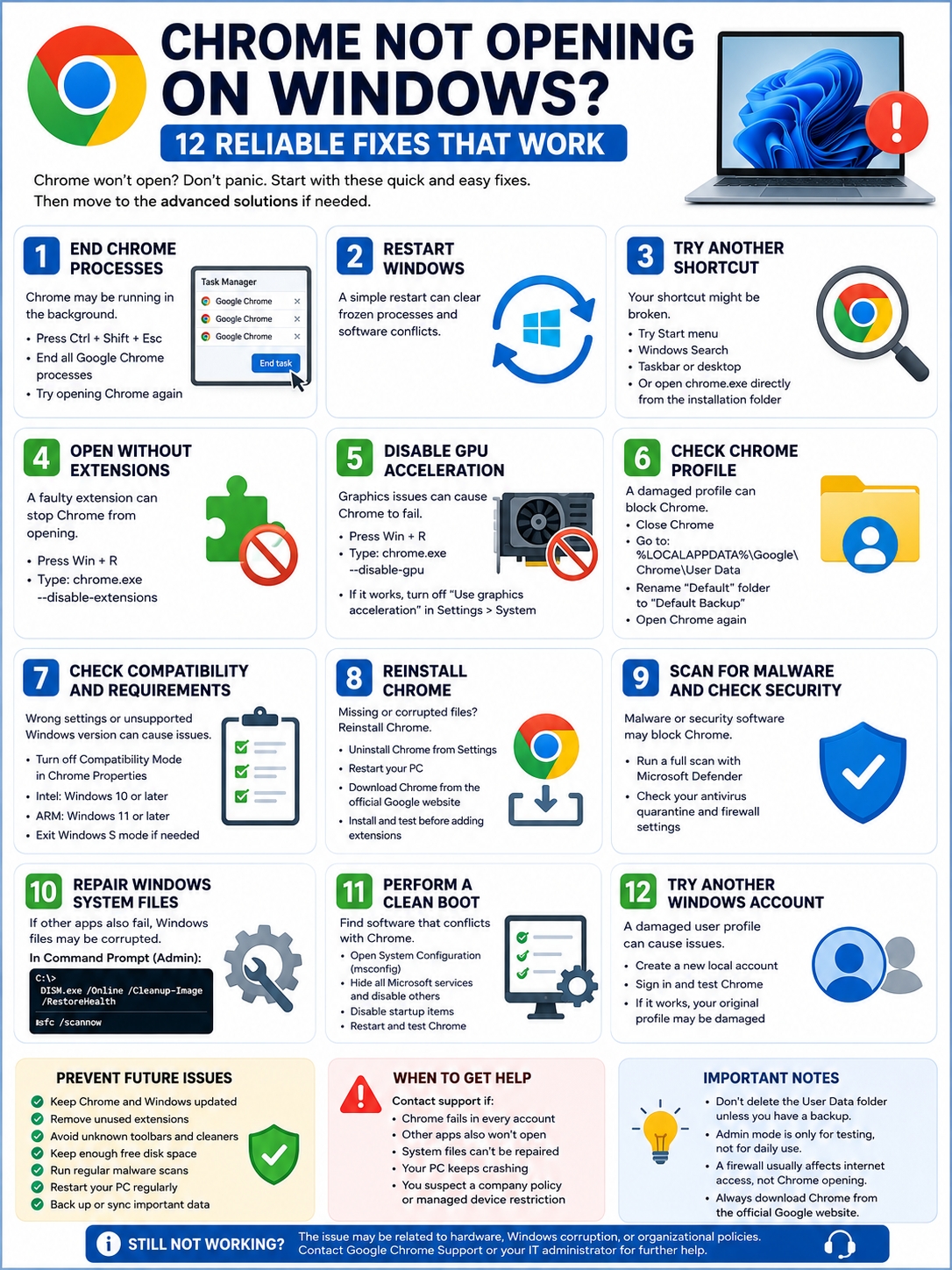
If Chrome’s program files are missing or damaged, a clean reinstall may be the fastest fix.
Google recommends uninstalling Chrome, checking the system requirements, downloading a fresh installer, and trying the standalone installer if the normal setup fails.
Before You Uninstall Chrome
Take a moment to protect your data.
When possible:
- Confirm that bookmarks and passwords are synced.
- Back up the Chrome User Data folder.
- Write down the names of important extensions.
- Close Chrome completely.
- End all remaining Chrome processes.
The Chrome profile folder is usually here:
%LOCALAPPDATA%\Google\Chrome\User Data
A normal uninstall may ask whether you also want to remove browsing data. Don’t choose that option unless you’re sure you no longer need the local files.
Uninstall Chrome
In Windows 11:
- Open Settings.
- Go to Apps > Installed apps.
- Find Google Chrome.
- Click the three-dot menu.
- Select Uninstall.
Microsoft confirms that Windows apps can be removed through Settings, the Start menu, or Control Panel.
Restart Windows after the uninstall.
Install a Fresh Copy
Download Chrome only from Google’s official website.
Avoid third-party download sites. Some bundle extra software, use outdated installers, or wrap the download in their own setup tool.
After installation:
- Open Chrome before signing in.
- Test a few websites.
- Sign in only after Chrome appears stable.
- Reinstall extensions slowly.
If Chrome works until an old extension or profile comes back, that restored item is probably the real cause.
|
Reinstall step |
Why it matters |
|
Back up local data |
Prevents accidental loss |
|
Uninstall through Windows |
Removes the registered installation |
|
Restart the PC |
Clears locked files |
|
Download from Google |
Reduces installer risk |
|
Test before restoring everything |
Helps identify the cause |
Check Security Software and Scan for Malware
Antivirus or security tools can interfere with Chrome, but don’t blame the firewall just because the browser won’t open.
A firewall mainly controls network traffic. It becomes more relevant when Chrome opens but can’t access websites.
Microsoft recommends allowing a trusted app through the firewall instead of turning the firewall off. It also warns that firewall exceptions can create security risks.
Check your security software when:
- It shows a Chrome warning
- Chrome appears in quarantine
- chrome.exe is blocked
- Chrome opens but has no internet access
- The problem started after a security update
Don’t permanently disable antivirus protection just to test Chrome.
Run a Microsoft Defender Scan
- Open Windows Security.
- Select Virus & threat protection.
- Run a Quick scan.
- Choose Scan options for a deeper check.
- Run a Full scan, Custom scan, or Microsoft Defender Offline scan if needed.
The offline scan restarts the PC and checks the system from the Windows Recovery Environment. That makes it harder for persistent malware to hide.
Save your work before running it.
Microsoft also recommends removing unwanted software, updating security intelligence, and using a full or offline scan when suspicious software keeps returning.
|
Security check |
Use it when |
|
Review quarantine |
Chrome was flagged |
|
Quick scan |
You want a basic malware check |
|
Full scan |
Suspicious behavior continues |
|
Defender Offline |
Persistent malware is suspected |
|
Firewall review |
Chrome opens but can’t connect |
Repair Windows System Files
Don’t jump to DISM or System File Checker unless there are signs that Windows itself is damaged.
These tools make more sense when:
- Other apps also fail to open
- Windows Update keeps failing
- System features behave strangely
- Chrome still fails after browser-level fixes
Microsoft recommends running DISM first, followed by System File Checker. DISM repairs the Windows image that SFC uses during the repair process.
Run DISM
Open Terminal as administrator or Command Prompt as administrator.
Run:
DISM.exe /Online /Cleanup-Image /RestoreHealth
Wait for it to finish.
Run System File Checker
Next, run:
sfc /scannow
Leave the window open until the scan reaches 100%.
Restart Windows when it finishes, then test Chrome again.
SFC checks protected Windows files. It won’t repair bookmarks, extensions, cookies, or Chrome profile data.
|
Tool |
What it repairs |
What it won’t repair |
|
DISM |
Windows component image |
Chrome profile data |
|
SFC |
Protected Windows files |
Extensions or bookmarks |
|
Chrome reinstall |
Chrome program files |
Wider Windows corruption |
Use a Clean Boot to Find Software Conflicts
A clean boot starts Windows with only essential drivers and a limited number of startup services.
It helps you find software that may be blocking Chrome in the background.
Microsoft describes clean boot as a controlled way to isolate startup conflicts. It gives you more control than Safe Mode because you can choose which services stay enabled.
Start Windows in a Clean-Boot State
- Sign in with an administrator account.
- Search for System Configuration.
- Open the Services tab.
- Check Hide all Microsoft services.
- Click Disable all.
- Click Apply.
- Open the Startup tab.
- Select Open Task Manager.
- Disable enabled startup apps.
- Restart the PC.
- Test Chrome.
The Hide all Microsoft services step is important. Skipping it may disable services Windows needs.
If Chrome opens during the clean boot, re-enable services and startup apps in small groups.
Restart after each group. When Chrome stops opening again, the conflicting app is probably in the last group you enabled.
Return Windows to normal startup after testing. Microsoft includes those steps in its clean-boot guide.
|
Result |
What it suggests |
|
Chrome opens |
A startup app or service may be interfering |
|
Chrome still fails |
A startup conflict is less likely |
|
Other apps improve too |
The conflict may affect the whole system |
|
The problem returns after one group |
The cause is probably in that group |
Test Chrome in Another Windows Account
A second Windows account can tell you whether the problem affects the whole computer or only your current profile.
Create a temporary local account through:
Settings > Accounts > Other users > Add account
To create a local account, Microsoft says to choose:
I don’t have this person’s sign-in information
Then choose:
Add a user without a Microsoft account
Sign into the new account and open Chrome.
If Chrome works there, the original Windows profile may contain damaged permissions, local Chrome files, or conflicting settings.
If Chrome fails in both accounts, the problem is more likely tied to the installation, Windows, security software, or a system-wide setting.
Don’t delete the old Windows account until you’ve safely moved personal files and browser data.
Final Thoughts
When you’re dealing with Chrome not opening on Windows, don’t start with the most aggressive fix.
Close stuck processes. Restart the computer. Test another shortcut. Then try Chrome without extensions or GPU acceleration.
If that doesn’t work, check the browser profile and reinstall Chrome carefully.
Save DISM, SFC, clean boot, and a second Windows account for the stubborn cases that survive the basic fixes.
Most Chrome startup problems come down to a frozen process, damaged profile, faulty extension, or broken installation. Work through the steps in order, and you’ll have a much better chance of fixing the browser without losing your data or creating a new problem.
Frequently Asked Questions
Why does Chrome appear in Task Manager but not open?
A Chrome process may have frozen before the window appeared.
End every Chrome process in Task Manager, wait a few seconds, and try again. Restart Windows if the processes keep returning.
Why does Chrome open and close right away?
A damaged profile, broken extension, graphics issue, or incomplete installation may be causing Chrome to crash during startup.
Test the browser without extensions first. Then try a fresh profile and reinstall Chrome if needed.
Can an extension stop Chrome from opening?
Yes.
Start Chrome with:
chrome.exe –disable-extensions
If it opens, disable all extensions and turn them back on one by one.
Will reinstalling Chrome delete my bookmarks?
Not always.
Your bookmarks may return if they were synced to your Google Account. Local data can still be lost if you remove browsing data or delete the profile folders.
Back up important information before uninstalling.