
Face ID is easy to forget about when it works. You pick up your iPhone, glance at the screen, and boom — it unlocks. No typing. No waiting. No second thought.
Then one day, it stops.
Your iPhone keeps asking for the passcode. Face ID fails in your banking app. Apple Pay won’t approve. Or worse, you see a message saying Face ID is not available.
That is frustrating. But it does not always mean something is broken inside your phone.
If your iphone face id not working issue started suddenly, the cause may be simple. A dirty camera area, a thick screen protector, sunglasses, a scarf, a high face mask, or a small iOS glitch can all confuse Face ID.
Face ID uses Apple’s TrueDepth camera system. It does more than take a normal selfie. It reads depth, infrared light, and facial details. So your front camera may still work while Face ID fails.
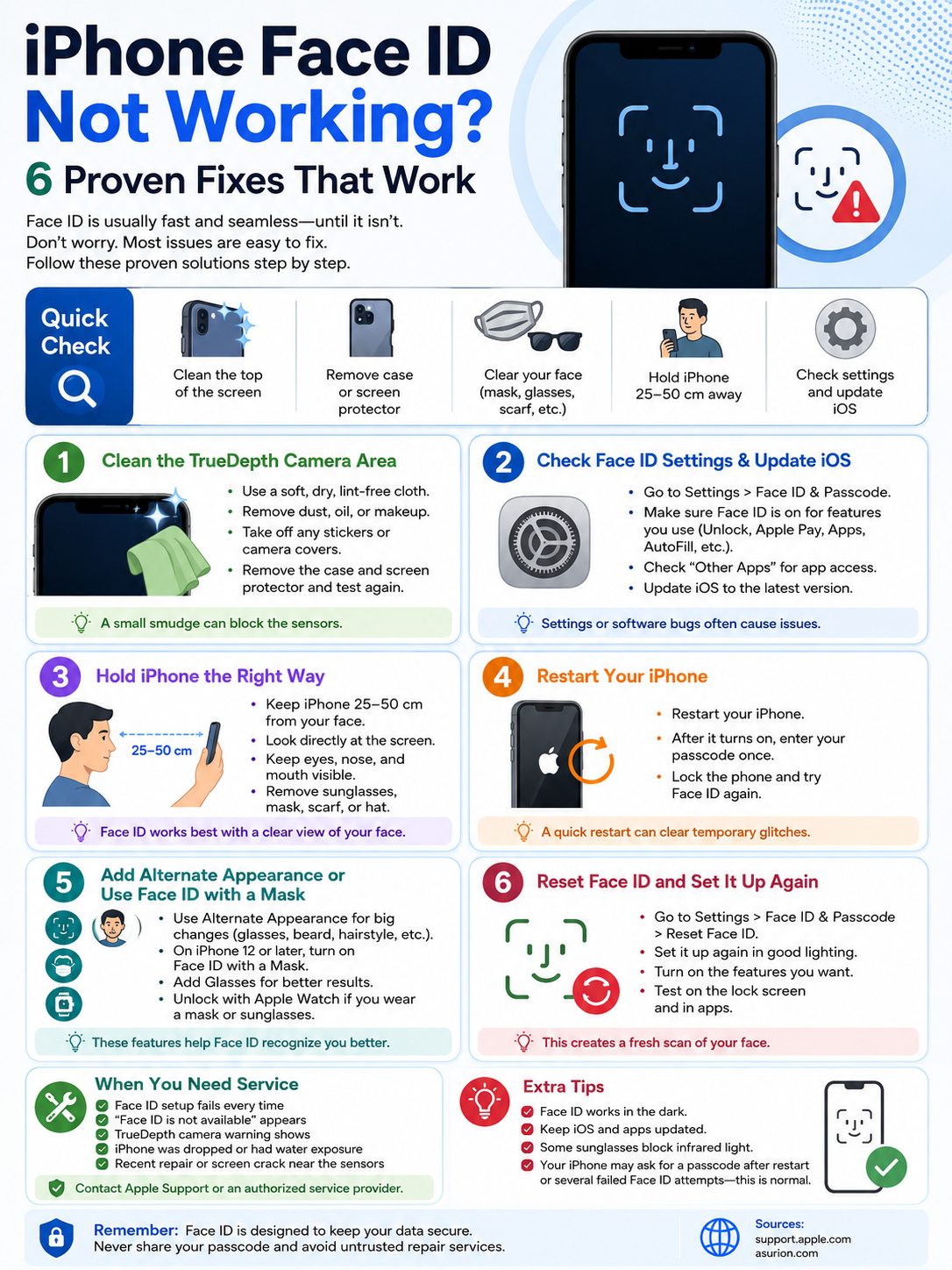
Before you rush to a repair shop, try these six proven fixes. Most take only a few minutes.
Why iPhone Face ID Stops Working
|
Possible Cause |
What You May Notice |
Best First Step |
|
Dirty camera area |
Face ID works sometimes, then fails |
Clean the top of the screen |
|
Bad screen protector |
Face ID fails after installing it |
Remove it and test again |
|
Bulky case |
Camera area looks blocked |
Try without the case |
|
Face is covered |
Face ID fails with mask or sunglasses |
Clear your eyes and face |
|
Wrong distance |
Phone does not scan properly |
Hold it 25–50 cm away |
|
Face ID setting is off |
Works for unlock, not apps |
Check Face ID settings |
|
iOS glitch |
Face ID suddenly stops |
Restart and update iOS |
|
Hardware damage |
Face ID setup fails |
Contact Apple Support |
Face ID usually fails for one of two reasons: software or hardware.
Software problems are common. They include disabled settings, app permission issues, outdated iOS, and temporary bugs. These are the easiest to fix.
Hardware problems are more serious. They may involve the TrueDepth camera, screen damage, water exposure, or a bad repair.
Also, don’t panic every time your iPhone asks for the passcode. That can be normal. Your iPhone may require a passcode after a restart, after several failed Face ID attempts, or for security checks.
The trick is to start with the simple fixes first.
Fix 1: Clean the TrueDepth Camera Area
|
What to Check |
Why It Matters |
What to Do |
|
Fingerprints |
Oil can block the sensor view |
Wipe the screen gently |
|
Dust or makeup |
Dirt can cover the camera area |
Clean around the notch or Dynamic Island |
|
Screen protector |
Poor fit can block Face ID |
Remove it and test |
|
Phone case |
Raised edges can interfere |
Try Face ID without the case |
|
Stickers or camera covers |
They block sensors |
Remove them fully |
|
Cracked glass |
Damage can affect Face ID |
Get it checked |
Start with the easiest fix.
Look at the top part of your iPhone screen. On older Face ID models, the TrueDepth camera sits in the notch. On newer models, it sits around the Dynamic Island area.
That area needs to stay clear.
Use a soft, dry, lint-free cloth. Wipe the top of the screen. Don’t spray liquid straight onto the iPhone. Don’t scrape the camera area with anything sharp.
Now remove anything that may get in the way:
- Thick tempered glass
- Privacy screen protector
- Misaligned screen guard
- Dust around the camera cutout
- Bulky phone case
- Decorative sticker
- Camera cover
Then lock your iPhone and try Face ID again.
This fix is especially useful if Face ID stopped working after you added a new screen protector. Some protectors look fine but still cover part of the TrueDepth camera area.
If Face ID works after removing it, buy a protector made for your exact iPhone model.
Fix 2: Check Face ID Settings and iOS Updates
|
Setting or Update |
Where to Check |
Why It Matters |
|
Face ID setup |
Settings > Face ID & Passcode |
Confirms Face ID is active |
|
iPhone Unlock |
Face ID & Passcode |
Lets Face ID unlock the phone |
|
Wallet & Apple Pay |
Face ID & Passcode |
Enables payment approval |
|
Password AutoFill |
Face ID & Passcode |
Helps with saved passwords |
|
Other Apps |
Face ID & Passcode > Other Apps |
Fixes app-specific issues |
|
iOS update |
Settings > General > Software Update |
Fixes system bugs |
Sometimes Face ID is fine. The setting is the problem.
Go to:
Settings > Face ID & Passcode
Enter your passcode. Make sure Face ID is set up. Then check the options under Use Face ID For.
Turn on the features you need:
- iPhone Unlock
- Wallet & Apple Pay
- iTunes & App Store
- Password AutoFill
- Other Apps
This matters if Face ID works in one place but not another.
For example, your iPhone may unlock just fine, but Face ID may fail inside your banking app. In that case, tap Other Apps and check whether that app has Face ID permission.
Next, update iOS.
Go to:
Settings > General > Software Update
Install any available update. Apple often fixes bugs through iOS updates. If Face ID started acting weird after an update, a newer update may clean it up.
Also update the app if Face ID fails only inside one app. Open the App Store, update that app, then log in manually once. Some apps need one fresh login before Face ID works again.
If your iphone face id not working problem is tied to one app, this fix may be all you need.
Fix 3: Hold Your iPhone the Right Way
|
Face ID Factor |
Best Practice |
Common Mistake |
|
Distance |
Hold iPhone 25–50 cm from your face |
Holding it too close |
|
Angle |
Face the TrueDepth camera |
Looking from the side |
|
Eyes |
Keep your eyes visible |
Hair, glasses, or mask blocks them |
|
Nose and mouth |
Keep them visible unless mask mode is on |
Scarf or mask sits too high |
|
Sunglasses |
Remove them if Face ID fails |
Some lenses block infrared light |
|
Orientation |
Use portrait mode for safest testing |
Landscape on older models |
Face ID needs a clean view of your face. That sounds obvious, but daily habits can mess it up.
Maybe your phone is lying flat on a desk. Maybe you’re unlocking it from a sharp angle. Maybe your scarf is covering half your face. Maybe your sunglasses block infrared light.
Hold your iPhone like you would for a selfie. Apple says Face ID works best when the phone is around 25–50 cm from your face.
Keep the phone pointed toward you. Look at the screen.
For a quick test, remove anything that may block your face:
- Sunglasses
- Face mask
- Scarf
- Helmet
- Hair over your eyes
- Thick hat brim
- High collar
Face ID works with many glasses and sunglasses. But some sunglasses block the infrared light used by the TrueDepth camera. If Face ID fails with one pair, try without them.
Orientation also matters.
If you use iPhone 13 or later with iOS 16 or later, Face ID can work in portrait and landscape. Older Face ID iPhones work best in portrait mode. For troubleshooting, portrait is the safest choice.
Try this:
- Remove your mask and sunglasses.
- Hold the iPhone upright.
- Keep it 25–50 cm away.
- Look straight at the screen.
- Wake the iPhone and wait a second.
If Face ID works now, your issue is likely angle, distance, or face coverage — not hardware.
Fix 4: Restart Your iPhone and Enter the Passcode Once
|
Step |
What to Do |
Why It Helps |
|
1 |
Restart your iPhone |
Clears temporary glitches |
|
2 |
Enter your passcode |
Required after restart |
|
3 |
Lock the phone again |
Resets the unlock flow |
|
4 |
Try Face ID |
Checks if it works now |
|
5 |
Test apps and payments |
Confirms wider Face ID use |
Restarting sounds too simple. Still, it often works.
A small system glitch can stop Face ID from behaving normally. Restarting clears that temporary mess.
To restart most Face ID iPhones:
- Press and hold the side button and either volume button.
- Drag the power slider.
- Wait about 30 seconds.
- Hold the side button again until the Apple logo appears.
- Enter your passcode.
- Lock the phone and try Face ID.
One thing to remember: Face ID will not unlock your iPhone right after a restart. You must enter the passcode once. That is normal.
After that, Face ID should work again.
Restarting can help when:
- Face ID suddenly stops
- Face ID fails after an iOS update
- Apps stop accepting Face ID
- The phone keeps asking for passcode
- Your iPhone feels slow or buggy
If the iPhone is frozen, force restart it. On many newer models, press volume up, press volume down, then hold the side button until the Apple logo appears.
Don’t skip this step. It takes a minute and can save you from resetting Face ID for no reason.
Fix 5: Add an Alternate Appearance or Use Face ID With a Mask
|
Feature |
Best For |
Where to Find It |
|
Alternate Appearance |
Big look changes |
Settings > Face ID & Passcode |
|
Face ID with a Mask |
Mask users on supported iPhones |
Face ID & Passcode |
|
Add Glasses |
Glasses with mask unlock |
Face ID & Passcode |
|
Unlock with Apple Watch |
Mask or sunglasses convenience |
Face ID & Passcode |
|
Reset Face ID |
Bad original scan |
Face ID & Passcode |
Face ID learns small changes over time. A haircut, light makeup, glasses, or facial hair should not break it right away.
But big changes can confuse it.
Use Alternate Appearance if your look changes often.
Go to:
Settings > Face ID & Passcode > Set Up an Alternate Appearance
This can help if you often switch between:
- Glasses and no glasses
- Beard and clean shave
- Heavy makeup and no makeup
- Work headwear and normal look
- Different hairstyles that cover part of your face
Set it up in normal light. Hold your iPhone at a natural distance. Move your head slowly during the scan. Don’t rush it.
If you wear a mask often, check whether your iPhone supports Face ID with a Mask. This feature works on iPhone 12 and later with iOS 15.4 or later.
Go to:
Settings > Face ID & Passcode > Face ID with a Mask
This feature focuses more on the area around your eyes. So keep your mask low enough that it does not cover your eyes or sit too high on your nose.
If you wear glasses, tap Add Glasses after setting up mask unlock. This helps Face ID recognize you with different frames.
One warning: Face ID with a Mask is not designed to work with sunglasses. If you wear sunglasses and a mask, use your passcode or Unlock with Apple Watch if you have a supported Apple Watch.
This fix helps when your iphone face id not working issue happens only in certain situations, like commuting, wearing a mask, or switching glasses.
Fix 6: Reset Face ID and Set It Up Again
|
Reset Step |
What It Does |
Important Note |
|
Reset Face ID |
Deletes saved Face ID data |
Does not erase your iPhone |
|
Set Up Face ID |
Creates a fresh scan |
Use normal light |
|
Turn features back on |
Enables unlock, apps, and payments |
Check all toggles |
|
Test lock screen |
Confirms basic Face ID works |
Try this first |
|
Test apps |
Checks app-level Face ID |
Review app settings if needed |
If nothing else works, reset Face ID.
This sounds scary, but it is safe. It does not delete your photos, apps, messages, or contacts. It only removes your saved Face ID scan.
Go to:
Settings > Face ID & Passcode > Reset Face ID
Then tap:
Set Up Face ID
Before you scan again:
- Clean the TrueDepth camera area
- Remove sunglasses
- Remove your mask
- Use normal indoor light
- Hold the phone 25–50 cm away
- Keep your face fully visible
- Move your head slowly
After setup, return to Face ID & Passcode and turn on the features you use:
- iPhone Unlock
- Wallet & Apple Pay
- iTunes & App Store
- Password AutoFill
- Other Apps
Now test Face ID on the lock screen first. Then try apps and payments.
If Face ID setup fails, read the warning carefully. If your iPhone says Face ID is not available or mentions the TrueDepth camera, the issue may not be software.
That is when you should stop resetting and start thinking about service.
When Face ID Needs Service
|
Warning Sign |
What It May Mean |
Best Action |
|
Face ID setup fails every time |
TrueDepth camera issue |
Contact Apple Support |
|
“Face ID is not available” appears |
Software or hardware issue |
Restart, then seek service if it stays |
|
Camera covered alert stays |
Sensor is blocked or damaged |
Remove accessories, then inspect |
|
iPhone was dropped |
Sensor damage is possible |
Book a diagnosis |
|
Phone had water exposure |
Internal damage is possible |
Get professional service |
|
Recent front camera repair |
Calibration may be incomplete |
Check parts/service history |
|
Face ID disabled after repair |
Repair issue possible |
Use Apple or authorized service |
A working selfie camera does not always mean Face ID hardware is fine.
Face ID uses the TrueDepth camera system. That system includes more than the front camera you use for selfies. So your camera app may work while Face ID still fails.
You should get help if:
- Face ID cannot be set up
- Face ID reset does not help
- A TrueDepth camera warning appears
- The screen is cracked near the notch or Dynamic Island
- The issue started after a drop
- The issue started after water exposure
- The front camera was recently repaired
- Face ID stopped after a non-authorized repair
You can also check parts and service history on supported iPhones.
Go to:
Settings > General > About
If your iPhone shows a Face ID or camera-related repair issue, contact Apple or an authorized service provider.
Avoid random “Face ID repair” apps. They cannot fix damaged Face ID hardware. Also avoid risky repair tricks from unknown sources. Face ID is tied to secure hardware, so poor repair can make things worse.
Quick Troubleshooting Checklist
|
Order |
Try This |
Why It Helps |
|
1 |
Clean the top screen area |
Removes smudges and dust |
|
2 |
Remove the case and screen protector |
Checks for blocked sensors |
|
3 |
Hold iPhone 25–50 cm away |
Gives Face ID a better view |
|
4 |
Remove sunglasses, scarf, or mask |
Clears your face |
|
5 |
Check Face ID settings |
Fixes disabled features |
|
6 |
Update iOS |
Fixes software bugs |
|
7 |
Restart and enter passcode |
Clears temporary glitches |
|
8 |
Add alternate appearance |
Helps with major look changes |
|
9 |
Set up Face ID with a Mask |
Helps supported iPhones with masks |
|
10 |
Reset Face ID |
Creates a fresh scan |
|
11 |
Get service |
Handles hardware problems |
Follow this order.
Do not reset Face ID before checking for a dirty camera or a bad screen protector. And don’t keep resetting Face ID if setup fails every time. That usually points to something deeper.
Here is the simple way to think about it:
If Face ID works sometimes, check cleaning, settings, angle, masks, sunglasses, and appearance changes.
If Face ID never sets up, check for hardware damage or repair issues.
Final Thoughts
|
Best Fix |
Try It When |
|
Clean the camera area |
Face ID fails randomly |
|
Remove case or screen protector |
Problem started after adding accessories |
|
Check settings |
Face ID fails in apps or payments |
|
Update and restart |
Issue started after iOS changes |
|
Adjust angle and distance |
Face ID fails from desk or odd angles |
|
Add alternate appearance |
Your look changes often |
|
Reset Face ID |
Nothing else works |
|
Get service |
Setup fails or TrueDepth warning appears |
When iphone face id not working becomes a daily headache, don’t jump straight to repair.
Start with the simple stuff. Clean the TrueDepth camera area. Remove the case or screen protector. Hold the phone at the right distance. Check Face ID settings. Restart the iPhone and enter your passcode once.
If Face ID works sometimes, the issue is usually angle, obstruction, mask use, sunglasses, settings, or appearance changes.
If Face ID refuses to set up at all, the TrueDepth camera may need service.
Take it step by step. Try the easy fixes first. Reset Face ID only after that. And if your iPhone shows a TrueDepth camera warning, contact Apple or an authorized repair provider.
Face ID should feel fast and effortless. With the right fix, it usually gets back to normal.
Uncommon FAQs About iPhone Face ID Not Working
|
Question |
Quick Answer |
|
Can Face ID stop working after an iOS update? |
Yes. Restart first, then install any newer update. |
|
Can Face ID fail only in one app? |
Yes. Check app permission under Other Apps. |
|
Can a screen protector break Face ID? |
Yes, especially if it covers the TrueDepth area. |
|
Does Face ID work in total darkness? |
Yes. It uses infrared technology. |
|
Why does Face ID fail with sunglasses? |
Some sunglasses block infrared light. |
|
Can Face ID work with a mask? |
Yes, on iPhone 12 or later with iOS 15.4 or later. |
|
Does Face ID with a Mask work with sunglasses? |
No, it is not designed for sunglasses. |
|
Can water damage break only Face ID? |
Yes. TrueDepth parts can fail separately. |
|
Does resetting Face ID erase the phone? |
No. It only removes Face ID data. |
|
Can apps see my Face ID data? |
No. Apps only know whether authentication worked. |
Why does my iPhone keep asking for the passcode?
This can be normal. Your iPhone may ask for the passcode after a restart, after several failed Face ID attempts, or during extra security checks.
Why does Face ID work on the lock screen but not with Apple Pay?
Check Settings > Face ID & Passcode and make sure Wallet & Apple Pay is turned on. You may also need to verify your card again.
Why does Face ID fail when my iPhone is flat on a table?
The TrueDepth camera may not see your face clearly. Lift the phone, tilt it toward you, or lean into view.
Can shaving a beard affect Face ID?
Yes, if the change is big. Enter your passcode when asked. If Face ID still struggles, add an alternate appearance or reset Face ID.
Should I turn off Require Attention for Face ID?
Most people should keep it on. It adds a safety check by making sure your eyes are open and looking at the device. Some users turn it off for accessibility reasons.
Can a repaired front camera affect Face ID?
Yes. If the TrueDepth camera repair is incomplete or not calibrated properly, Face ID may stop working for unlock, payments, and app sign-ins.