
Safari can get messy fast. One minute you are checking work email, then you are comparing flight prices, reading news, logging into a bank account, opening a school document, and saving a recipe for later. Everything lands in the same browser history, the same tabs, and the same favorites bar.
Safari Profiles let you separate browsing into different spaces, such as Personal, Work, School, Research, Shopping, or Travel. Each profile can keep its own history, tabs, cookies, website data, Tab Groups, favorites, and extension settings. So your work dashboard does not have to sit beside your weekend hotel search. Your personal YouTube searches do not have to mix with client research. Your study tabs do not have to disappear under random shopping links.
This guide explains how Safari Profiles work on Mac and iPhone, how to create and switch between them, what syncs across devices, what stays shared, and how to fix common problems. The goal is simple: help you make Safari cleaner without turning your browser into another complicated system.
What Are Safari Profiles?
Safari Profiles are separate browsing spaces inside Safari. They are not separate Apple Accounts, and they are not the same as Private Browsing. Think of them as organized rooms inside the same browser.
You can create one profile for work, another for personal browsing, and another for research or school. Each profile can keep its own tabs, history, cookies, website data, Tab Groups, favorites setup, and extension choices. This makes Safari much easier to manage if you use one Mac or iPhone for different parts of your day.
The best part is that you do not need to install another browser. If you already prefer Safari because it works well with Apple devices, profiles give you more control without leaving Apple’s browser.
Why Safari Profiles Matter
Safari Profiles are useful because modern browsing is no longer simple. Many people use the same device for work, banking, entertainment, study, content research, and shopping.
Without profiles, all of that activity gets mixed together. That can lead to too many tabs, confusing search history, account mix-ups, and messy bookmarks.
With profiles, you can separate tasks more clearly. A Work profile can keep office tools and company logins together. A Personal profile can handle everyday browsing. A Research profile can hold sources, notes, and long reading sessions.
|
Feature |
What It Means |
Why It Helps |
|
Separate history |
Each profile keeps its own browsing history |
Work and personal searches stay apart |
|
Separate cookies |
Websites treat profiles as different sessions |
Useful for different logins |
|
Separate tabs |
Open tabs stay within their own profile |
Less clutter |
|
Separate Tab Groups |
Projects can stay grouped by profile |
Better research flow |
|
Separate extensions control |
Extensions can be managed by profile |
Cleaner and safer browsing setup |
Who Should Use Safari Profiles?
Safari Profiles are not only for advanced users. They are useful for anyone who feels Safari has become too crowded.
If you work from home, study online, run a small business, create content, manage multiple accounts, or research topics regularly, profiles can save time. They reduce the need to constantly close tabs, clear history, or switch browsers.
They are also helpful if you use the same Apple Account across Mac and iPhone. A profile you create on one supported device can appear on other supported Apple devices when Safari syncing is turned on.
Best Use Cases for Safari Profiles
A simple two-profile setup works for many users. Start with Personal and Work. Add more only when you truly need them.
Students may prefer School and Personal. Freelancers may use Work, Client Research, and Finance. Content writers may create Research, Writing, and Social Media profiles.
Avoid creating too many profiles at the beginning. If every small task gets its own profile, Safari may become harder to manage, not easier.
|
User Type |
Recommended Profiles |
Main Benefit |
|
Office worker |
Work, Personal |
Keeps company tools away from daily browsing |
|
Student |
School, Research, Personal |
Organizes study tabs and sources |
|
Freelancer |
Work, Client Research, Finance |
Reduces account and project confusion |
|
Content creator |
Research, Social Media, Personal |
Keeps sources and publishing tools organized |
|
Casual user |
Personal, Shopping |
Helps with cleaner browsing and order tracking |
Safari Profiles Requirements Before You Start
Before creating a profile, check your device and software. Safari Profiles require a supported Safari version. On Mac, Apple introduced profiles starting with Safari 17. On iPhone, the feature arrived with iOS 17.
If you do not see the Profiles option, your software may be outdated. Updating macOS, iOS, or Safari is usually the first fix.
You should also check iCloud Safari settings if you want profiles to appear across devices. Syncing works best when your Mac and iPhone use the same Apple Account and Safari is enabled in iCloud.
Basic Requirements
You need a supported Apple device and updated software. If you are using an older iPhone, Mac, or operating system, profiles may not be available.
For the smoothest experience, update your Mac and iPhone before setting up profiles. Also make sure Safari is turned on in iCloud if you want profile-related browsing data to appear across devices.
|
Requirement |
Needed For |
What to Check |
|
Safari 17 or later |
Safari Profiles on Mac |
Update Safari or macOS |
|
iOS 17 or later |
Safari Profiles on iPhone |
Update iPhone software |
|
Same Apple Account |
Syncing across devices |
Check Apple Account settings |
|
Safari enabled in iCloud |
Cross-device Safari data |
Turn on Safari in iCloud |
|
Internet connection |
Syncing changes |
Connect both devices online |
How to Create Safari Profiles on Mac
Creating Safari Profiles on Mac is simple once you know where the setting lives. The Profiles option is inside Safari settings, not the main macOS System Settings app.
When you create your first profile, your current Safari browsing data becomes part of the default profile. New profiles are added separately. This means Safari does not wipe your existing setup just because you start using profiles.
A clean naming system helps. Use simple labels like Work, Personal, School, Research, Shopping, or Travel. Clear names reduce mistakes later.
Read Also: macOS Bluetooth Not Working: 9 Solutions
Steps to Create a Safari Profile on Mac
- Open Safari on your Mac.
- Click Safari in the menu bar.
- Choose Settings.
- Click the Profiles tab.
- Click Start Using Profiles if this is your first time.
- Click the add button if needed.
- Enter a profile name.
- Choose an icon and color.
- Choose a favorites folder or create a new one.
- Click Create Profile.
After this, Safari will show a profile button in the toolbar. That button helps you know which profile you are using.
Choosing the Right Name, Icon, and Color
Profile names should be practical. Do not use vague names like Profile 1 or Main 2. You will forget what they mean.
Use color as a quick visual signal. For example, choose one color for Work and another for Personal. If you manage sensitive logins, this small visual clue can prevent mistakes.
|
Setup Option |
Good Choice |
Why It Works |
|
Profile name |
Work, Personal, Research |
Easy to recognize |
|
Icon |
Briefcase, person, book |
Matches the profile purpose |
|
Color |
Different color for each profile |
Prevents confusion |
|
Favorites folder |
Separate folder per profile |
Keeps bookmarks cleaner |
|
New window behavior |
Start page or blank page |
Reduces distraction |
How to Create Safari Profiles on iPhone
On iPhone, Safari Profiles are created from the Settings app. The steps are slightly different from Mac, but the idea is the same.
You can create profiles such as Personal, Work, School, Shopping, or Travel. Each profile can have its own favorites, history, tabs, and Tab Groups. You can also choose what page new tabs should open with.
This is useful because iPhone browsing is often quick and scattered. You may open links from Mail, Messages, social apps, work chats, or search results. Profiles help keep those sessions from mixing too much.
Steps to Create a Safari Profile on iPhone
- Open the Settings app.
- Tap Apps.
- Tap Safari.
- Tap New Profile.
- Tap Name and enter the profile name.
- Choose an icon and color.
- Choose a Favorites folder.
- Tap Open New Tabs and select the new tab behavior.
- Tap Done.
Once created, the profile becomes available inside Safari. If you use the same Apple Account on other supported Apple devices, that profile may also appear there.
Best iPhone Profile Ideas
iPhone profiles should match how you actually browse. Do not copy your Mac setup blindly if your iPhone habits are different.
A Travel profile can be useful for hotel pages, flight searches, maps, and tickets. A Shopping profile can help keep order tracking, store accounts, and price comparisons separate. A Work profile can hold business links opened from Mail or Slack.
|
iPhone Profile |
Useful For |
Example Sites or Tasks |
|
Personal |
Daily browsing |
News, reading, social links |
|
Work |
Office tasks |
Email, dashboards, docs |
|
Travel |
Trip planning |
Hotels, flights, maps |
|
Shopping |
Buying and tracking |
Stores, orders, price checks |
|
Study |
Learning |
Notes, research pages, school links |
How to Switch Between Safari Profiles on Mac
After creating profiles, switching between them becomes part of your browsing habit. On Mac, Safari adds a profile button to the toolbar. The button shows the current profile name, icon, or color.
You can use that button to open a new window in a different profile. You can also use the File menu to open a new profile window. This is helpful when you want Work and Personal windows open at the same time without mixing their browsing data.
Be careful when logging into important accounts. Check the profile color or name before signing in, especially if you manage several Google, Microsoft, WordPress, Shopify, or client accounts.
Steps to Switch Profiles on Mac
- Open Safari.
- Look for the profile button in the toolbar.
- Click the profile button.
- Choose New Work Window, New Personal Window, or another available profile.
- Browse inside that profile window.
You can keep multiple profile windows open at the same time. For example, you can keep a Work window on one side of the screen and a Personal window on another.
|
Action |
Best Use |
Helpful Tip |
|
Open new profile window |
Start a new browsing task |
Use before logging into accounts |
|
Check toolbar color |
Confirm active profile |
Prevents account mix-ups |
|
Keep profiles in separate windows |
Work and personal multitasking |
Easier on larger screens |
|
Use clear profile names |
Fast switching |
Avoid vague names |
|
Close old windows |
Reduce clutter |
Keep only active tasks open |
How to Switch Between Safari Profiles on iPhone
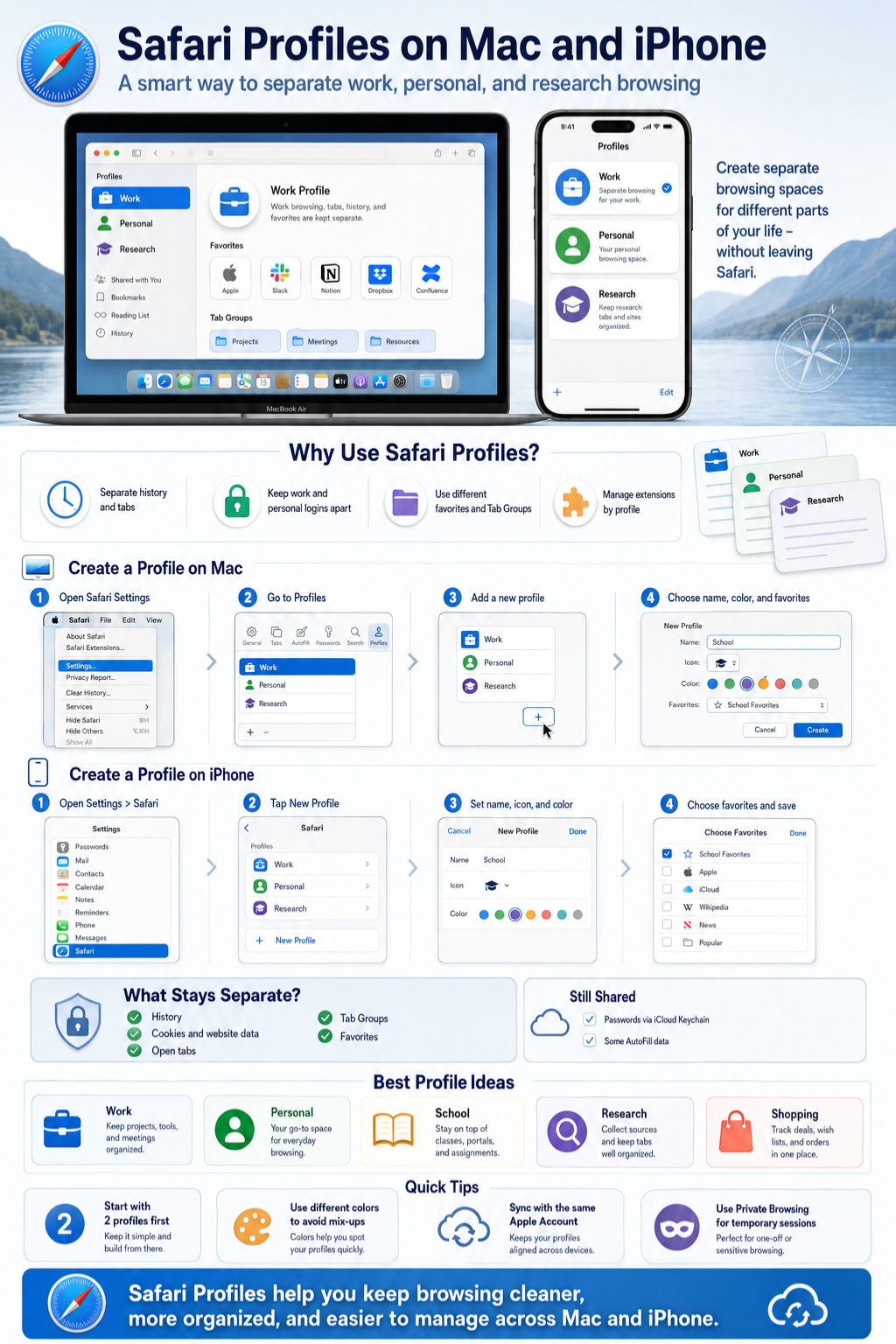
Switching Safari Profiles on iPhone is not as obvious as it is on Mac. The option sits inside Safari’s tab view.
Once you know the path, it becomes easy. You open Safari, go to the tabs area, open the profile menu, and choose the profile you want. The selected profile controls which tabs, history, and browsing session you are using.
This matters when opening links from apps. If you are about to open a work link from Mail or a personal shopping page from Messages, switch profiles first.
Steps to Switch Profiles on iPhone
- Open Safari.
- Tap the Tabs button.
- Tap the profile or tabs menu area.
- Tap Profile.
- Choose the profile you want.
- Continue browsing.
If your Safari tab layout is different, the button position may vary slightly. The main idea is the same: open the tab overview, then choose the active profile.
|
iPhone Action |
When to Use It |
Why It Helps |
|
Switch to Work |
Before opening office links |
Keeps work browsing separate |
|
Switch to Personal |
Before casual browsing |
Keeps daily browsing simple |
|
Switch to Shopping |
Before buying online |
Helps track orders and stores |
|
Switch to Travel |
Before trip planning |
Keeps booking tabs together |
|
Check active profile |
Before logging in |
Avoids wrong-account confusion |
This is where many readers get confused. Safari Profiles separate a lot of browsing data, but not everything.
They can separate history, cookies, website data, tabs, Tab Groups, start page behavior, and profile-based extension settings. This is why a website may ask you to sign in again when you open it from a new profile.
At the same time, profiles do not create a completely separate user identity. Saved passwords and some AutoFill information may still be available through iCloud Keychain. Safari privacy, security, and website settings may also apply across profiles.
Separate Data in Safari Profiles
Separate cookies are especially useful. They allow the same website to treat each profile as a different session. For example, you might stay signed in to one Google account in Work and another in Personal.
Separate history also makes searching your past browsing easier. You do not need to dig through a mix of work reports, shopping pages, and personal searches.
Do not treat profiles like separate macOS user accounts. If multiple people use the same Mac, Safari Profiles are not enough for strong separation.
For shared family computers or workplace devices, separate macOS accounts are usually safer and cleaner.
|
Item |
Separate or Shared? |
Note |
|
Browsing history |
Separate |
Each profile keeps its own history |
|
Cookies |
Separate |
Sites may ask you to sign in again |
|
Website data |
Separate |
Useful for different sessions |
|
Tabs |
Separate |
Each profile has its own tabs |
|
Tab Groups |
Separate |
Good for project organization |
|
Passwords |
Generally shared |
iCloud Keychain can work across profiles |
|
AutoFill |
Often shared |
Profiles are not separate users |
|
Privacy settings |
Often shared |
Check Safari settings carefully |
Safari Profiles vs Tab Groups vs Private Browsing
Safari Profiles, Tab Groups, and Private Browsing solve different problems. Mixing them up can make Safari harder to use.
Safari Profiles separate browsing environments. Tab Groups organize tabs inside a browsing environment. Private Browsing is for temporary sessions where Safari should not save the same kind of browsing history.
A Work profile can contain multiple Tab Groups. For example, your Work profile might have Tab Groups for Reports, Meetings, Client Research, and Admin Tools.
Safari Profiles vs Tab Groups
Use Safari Profiles when you want separation between life areas. Use Tab Groups when you want to organize tabs inside one area.
For example, create a Research profile for article research. Inside that profile, create Tab Groups for different articles or projects.
Safari Profiles vs Private Browsing
Private Browsing is not meant for long-term organization. It is better for temporary browsing.
Safari Profiles are better when you regularly return to the same kind of browsing. Work, school, shopping, and research are good examples.
|
Feature |
Best For |
Main Limitation |
|
Safari Profiles |
Long-term browsing separation |
Not a separate Apple Account |
|
Tab Groups |
Organizing tabs by project |
Does not separate cookies like profiles |
|
Private Browsing |
Temporary private sessions |
Not ideal for saved workflows |
|
Separate browser |
Browser-specific work needs |
More apps to manage |
|
Separate macOS account |
Multiple people using one Mac |
Heavier setup |
How to Customize Safari Profiles for Better Workflow
Creating a profile is only the first step. The real value comes from customizing each profile so it fits the task.
A Work profile should not look exactly like a Personal profile. It should show the tools you actually use for work. A Research profile should make it easy to reopen sources and organize reading. A Shopping profile should not be crowded with unrelated bookmarks.
Keep the setup lean. The more you add, the harder the profile becomes to maintain.
Set Different Favorites for Each Profile
Favorites are one of the easiest ways to make profiles useful. In a Work profile, add email, project management tools, company dashboards, documents, and meeting links.
In a Personal profile, keep personal finance, reading sites, entertainment, and daily browsing links. In a Research profile, save reference sites, note tools, and reading sources.
Use Extensions Carefully
Safari extensions can be managed by profile. This is useful because not every extension needs to run everywhere.
A grammar tool may belong in Work or Writing. A coupon extension may belong only in Shopping. A research extension may belong only in Research.
|
Profile |
Useful Favorites |
Useful Extensions |
|
Work |
Email, docs, dashboards |
Password manager, writing tool |
|
Personal |
News, banking, reading |
Minimal extensions |
|
Research |
Sources, notes, libraries |
Read-later or citation tool |
|
Shopping |
Stores, order pages |
Price or coupon tools |
|
Travel |
Flights, hotels, maps |
Translation or travel tools |
How Safari Profiles Sync Between Mac and iPhone
Safari Profiles can sync across supported Apple devices. For this to work, your devices should use the same Apple Account, run supported software, and have Safari enabled in iCloud.
Syncing is useful if you create a Work profile on Mac and want to use the same profile on iPhone. It can make your browsing setup feel more consistent across devices.
Still, syncing is not magic. If a profile does not appear immediately, check iCloud settings first. Then update both devices and restart Safari.
How to Check iCloud Safari Sync
On iPhone, go to Settings, tap your name, open iCloud, and make sure Safari is turned on.
On Mac, open System Settings, click your name, open iCloud, and make sure Safari is enabled. The exact wording may vary slightly depending on your macOS version.
If everything is turned on and profiles still do not sync, wait a few minutes. Then restart Safari on both devices.
|
Sync Requirement |
iPhone Check |
Mac Check |
|
Same Apple Account |
Settings > your name |
System Settings > your name |
|
Safari in iCloud |
iCloud > Safari on |
iCloud > Safari on |
|
Updated software |
Settings > General > Software Update |
System Settings > Software Update |
|
Internet connection |
Wi-Fi or mobile data |
Wi-Fi or Ethernet |
|
Safari restart |
Close and reopen Safari |
Quit and reopen Safari |
How to Edit or Delete Safari Profiles
You can edit Safari Profiles if your setup changes. This is useful if you want to rename a profile, change its color, choose a different favorites folder, or adjust extension settings.
You can also delete a profile, but be careful. Deleting a profile can remove data tied to that profile, including history, favorites, Tab Groups, and open websites. On iPhone, Apple warns that deleting a profile cannot be undone.
Before deleting anything, review open tabs and bookmarks. Save important pages somewhere safe.
Editing a Profile on Mac
Open Safari, go to Settings, and choose Profiles. Select the profile you want to edit. From there, you can adjust profile details and extension settings.
Editing a Profile on iPhone
Open Settings, tap Apps, tap Safari, and choose the profile you want to change. You can edit the name, icon, color, favorites, and related settings.
|
Action |
Mac Path |
iPhone Path |
|
Rename profile |
Safari > Settings > Profiles |
Settings > Apps > Safari > Profile |
|
Change icon or color |
Profiles settings |
Profile settings |
|
Change favorites folder |
Profiles settings |
Profile settings |
|
Manage extensions |
Profiles > Extensions |
Safari > Extensions |
|
Delete profile |
Profiles settings |
Profile > Delete Profile |
Common Safari Profiles Problems and Fixes
Safari Profiles are easy to use, but small issues can happen. Most problems come from outdated software, iCloud sync settings, extension settings, or browsing in the wrong profile.
If Safari Profiles are missing, update your device first. If profiles do not sync, check Apple Account and iCloud Safari settings. If a website asks you to sign in again, that may be normal because cookies are separate by profile.
The key is to understand what is a bug and what is expected behavior.
Safari Profiles Option Not Showing
Update Safari, macOS, or iOS. Then restart Safari and check again.
On Mac, look under Safari settings. On iPhone, look inside Settings, then Apps, then Safari.
Safari Profiles Not Syncing
Check whether both devices use the same Apple Account. Then check whether Safari is enabled in iCloud on both devices.
If everything looks correct, restart Safari. If needed, restart both devices.
Extensions Missing in a New Profile
Extensions are often turned off by default for new profiles. Open the profile’s extension settings and enable only the extensions you need.
|
Problem |
Likely Cause |
Simple Fix |
|
Profiles option missing |
Outdated software |
Update iOS, macOS, or Safari |
|
Profile not syncing |
iCloud Safari off |
Turn Safari on in iCloud |
|
Website asks for login |
Separate cookies |
Sign in again in that profile |
|
Extension missing |
Extension off for profile |
Enable it in profile settings |
|
Wrong account opens |
Wrong profile active |
Check toolbar or profile menu |
|
Too many tabs again |
Too many profiles or groups |
Simplify setup |
Best Ways to Use Safari Profiles in Real Life
The best Safari setup is not the most complicated one. It is the one you will actually use.
Most people should start with two profiles: Work and Personal. If that feels helpful, add Research, School, Travel, or Shopping later. This slow approach keeps the system clean.
Safari Profiles work best when each profile has a clear job. If two profiles feel almost the same, you probably do not need both.
Work and Personal Setup
Use Work for office profiles feel almost the same, you probably do not need both.
Work and Personal Setup
Use Work for office email, dashboards, cloud documents, business tools, and client portals. Use Personal for reading, shopping, banking, streaming, and daily searches.
This setup helps reduce account confusion and keeps work history away from casual browsing.
Student Setup
Students can use School for class pages, learning platforms, and assignment research. A separate Personal profile keeps entertainment and social browsing away from study tabs.
Freelancer Setup
Freelancers can use Work for general business, Client Research for research-heavy tasks, and Finance for invoices, accounting, and payment tools.
|
Setup |
Profiles to Use |
Best For |
|
Basic setup |
Work, Personal |
Most users |
|
Student setup |
School, Research, Personal |
Study and assignments |
|
Freelancer setup |
Work, Client Research, Finance |
Client and admin work |
|
Writer setup |
Research, Writing, Social Media |
Content workflow |
|
Travel setup |
Personal, Travel |
Booking and itinerary planning |
Privacy and Security Notes About Safari Profiles
Safari Profiles can make browsing cleaner, but they are not a full privacy system. They separate browsing data inside Safari, but they do not create separate Apple identities.
This matters if you share a Mac with another person. A profile may keep history and cookies separate, but saved passwords, AutoFill, and some settings may still be available. For real multi-user separation, separate macOS user accounts are usually better.
Also remember that Private Browsing still has a place. If you want a temporary session that does not behave like normal browsing, use a Private Browsing window instead of creating another profile.
What Safari Profiles Can Do
They can keep browsing sessions cleaner. They can separate website cookies. They can reduce account confusion. They can make tabs and bookmarks easier to manage.
What Safari Profiles Cannot Do
They cannot replace strong privacy tools, separate user accounts, or careful password management. They also cannot stop every form of tracking by themselves.
|
Privacy Question |
Short Answer |
Better Option When Needed |
|
Do profiles hide browsing from everyone? |
No |
Use separate user accounts for shared Macs |
|
Do profiles separate cookies? |
Yes |
Useful for separate logins |
|
Do profiles replace Private Browsing? |
No |
Use Private Browsing for temporary sessions |
|
Do profiles create separate Apple Accounts? |
No |
Use different Apple Accounts if needed |
|
Do profiles manage passwords separately? |
Not fully |
Use a password manager carefully |
Final Thoughts on Safari Profiles
Safari Profiles are a practical way to clean up Safari without switching browsers. They are especially useful if you use one Mac or iPhone for work, personal browsing, study, shopping, travel planning, and research.
Start small. Create a Work profile and a Personal profile first. Use them for a few days before adding more. If a profile does not solve a real problem, do not create it.
The strongest benefit of safari profiles is separation without extra effort. Your tabs feel cleaner. Your history makes more sense. Your website logins are easier to manage. Your favorites can match the task in front of you.
They are not perfect, and they are not a replacement for Private Browsing or separate macOS user accounts. But for everyday organization, they are one of the most useful Safari features Apple has added in recent years.
Frequently Asked Questions About Safari Profiles
Can Safari Profiles use different Google accounts?
Yes, in many cases. Since Safari Profiles keep cookies and website data separate, you can sign in to different Google accounts in different profiles. This is helpful if you use one Google account for work and another for personal browsing.
Do Safari Profiles slow down Safari?
Profiles themselves should not noticeably slow down Safari. Too many open tabs, too many extensions, or heavy websites are more likely to affect performance. Keep each profile clean and enable only the extensions you need.
Can I move tabs from one Safari Profile to another?
Safari does not make profile movement as simple as dragging every tab between profiles in all cases. The easiest method is often to copy the link, open the correct profile, and paste it there. For important pages, bookmark them in the right profile folder.
Can I have a different start page for each Safari Profile?
Yes, Safari Profiles can have separate start page behavior and new tab settings. This helps each profile feel more focused. For example, Work can open with Favorites, while Research can open with a blank page or relevant links.
Are Safari Profiles available on iPad?
Yes, Safari Profiles are also available on supported iPads running iPadOS 17 or later. The setup is similar to iPhone because profile settings are managed through the Settings app.
Will deleting a Safari Profile delete my passwords?
Deleting a profile removes profile-related browsing data, but saved passwords are generally handled through iCloud Keychain or password settings. Still, check carefully before deleting a profile, especially if you are unsure where important data is stored.
Can I create a Safari Profile for only one website?
You can create a profile for a specific purpose, such as Banking or Client Work, but creating a profile for one website is usually unnecessary. It may be useful only if that website uses a separate login or needs a cleaner browsing session.
Why do links open in the wrong Safari Profile?
This can happen if you recently used another profile or if Safari opens external links in the active browsing context. Before opening sensitive work or personal links, switch to the correct profile first.