
Ever tried watching a video while replying to messages, or checking a map while taking notes, and wished your Samsung Galaxy could do both at once? That’s where split screen Samsung features come in handy. With this feature, you can run two apps at the same time, resizing them as needed, saving time and improving productivity.
In this guide, I’ll walk you through every way to use split screen on Galaxy phones and tablets—from the Recents menu to Edge Panels and App pairs—so you can multitask like a pro without struggling with menus or hidden settings.
What Is Split Screen on Samsung Galaxy?
Split screen Samsung is essentially Samsung’s way of letting you open two apps simultaneously. One app takes the top (or left) portion of your screen, while the other occupies the bottom (or right) portion. On larger devices, like Galaxy Tabs and Foldables, split screen offers a near-desktop experience, giving more room to type, browse, and compare apps side by side. Some apps even support pop-up view, letting one app float over another for extra flexibility.
Key Facts About Split Screen
|
Feature |
Details |
|
Layout |
Top/Bottom in portrait, Side-by-side in landscape |
|
Supported Devices |
Most Galaxy phones, Galaxy Tabs, Z Fold/Flip |
|
App Support |
Most productivity, social, browser, media apps |
|
Additional Options |
Pop-up view, App pairs, Edge Panel shortcuts |
Why Use Split Screen on Samsung?
Multitasking on your phone doesn’t have to be a hassle. Split screen Samsung allows you to do more without constantly switching apps. Whether it’s work, study, or entertainment, the feature can save time and boost productivity.
Common Everyday Uses
- Watch YouTube while replying to messages.
- Browse Chrome while jotting notes in Samsung Notes.
- Compare prices between shopping apps.
- Keep Maps open while checking bookings.
- Read an article while drafting social media posts.
Who Benefits Most
- Students needing references while taking notes.
- Remote workers handling email and documents simultaneously.
- Content creators managing social media and assets.
- Shoppers comparing deals.
- Travelers navigating maps while messaging companions.
Use Case Table
|
Scenario |
App Combination |
Benefit |
|
Work |
Gmail + Calendar |
Efficient scheduling |
|
Study |
YouTube + Samsung Notes |
Learn while taking notes |
|
Travel |
Maps + WhatsApp |
Navigation & communication |
|
Shopping |
Chrome + Amazon |
Price comparison |
|
Entertainment |
YouTube + Messages |
Watch while chatting |
Before You Start: Things to Check First
Device and Software Compatibility
Split screen availability depends on your Galaxy model, One UI version, and Android update. Some carriers may tweak settings too. Tablets and Foldables often have larger screens that make multitasking smoother.
App Support
Not all apps allow split screen. For example, some banking, camera, or video streaming apps may block it. Test common apps like Chrome, YouTube, Gmail, or Samsung Notes first.
Software Updates
Keep your apps and system updated. Many glitches, like missing split screen options, can be resolved by updating through Google Play Store, Galaxy Store, or System Settings.
|
Step |
Action |
|
1 |
Check One UI version in Settings > About Phone |
|
2 |
Update apps from Play Store / Galaxy Store |
|
3 |
Restart phone after updates |
How to Use Split Screen Samsung From Recent Apps
The simplest way to start split screen is via the Recent Apps menu.
Step-by-Step
- Open the first app you want.
- Open Recent Apps: Tap Recents button or swipe up (gesture navigation).
- Tap the app icon above the app preview.
- Select Open in split screen view.
- Choose the second app from Recents or app list.
- Drag the divider to adjust screen space.
|
Step |
Action |
Tip |
|
1 |
Open first app |
Any productivity or media app works |
|
2 |
Open Recents |
Tap or swipe depending on navigation |
|
3 |
Tap app icon |
Top of app preview |
|
4 |
Open in split screen view |
Moves app to top/side |
|
5 |
Select second app |
Any supported app |
|
6 |
Adjust divider |
Customize screen ratio |
Using Edge Panel for Split Screen
Samsung Edge Panel offers quick multitasking shortcuts.
Read Also: How to Block Spam Calls on Samsung Galaxy
Enable Edge Panel
- Go to Settings > Display > Edge Panels.
- Turn it on and choose apps to include.
Open Split Screen From Edge Panel
- Open first app.
- Swipe Edge Panel handle.
- Press and hold the second app.
- Drag to top/bottom of screen and release.
|
Feature |
Benefit |
|
Edge Panel |
Fast access to favorite apps |
|
Drag & Drop |
Instant split screen |
|
App Combos |
Frequent workflows saved |
Creating App Pairs on Samsung Galaxy
App Pairs save two apps together for one-tap split screen access.
Creating an App Pair
- Open two apps in split screen.
- Tap the divider or menu.
- Save as App Pair to Home or Edge Panel.
Best App Pair Ideas
- Notes + Browser
- Gmail + Calendar
- YouTube + Messages
- Maps + Booking app
- Gallery + Instagram
|
App Pair |
Use Case |
|
Notes + Browser |
Research & note-taking |
|
Gmail + Calendar |
Scheduling & email |
|
YouTube + Messages |
Entertainment + chat |
|
Maps + Booking |
Travel planning |
|
Gallery + Instagram |
Content posting |
Resizing Apps in Split Screen
Drag the divider to give one app more space. Useful for watching video while typing, taking notes beside a reference, or using Maps with another app.
|
Action |
Example |
|
Drag divider |
Give Notes 70%, Chrome 30% |
|
Landscape mode |
More room side-by-side |
|
Resize on tablets |
Both apps fully visible |
Switching Apps While in Split Screen
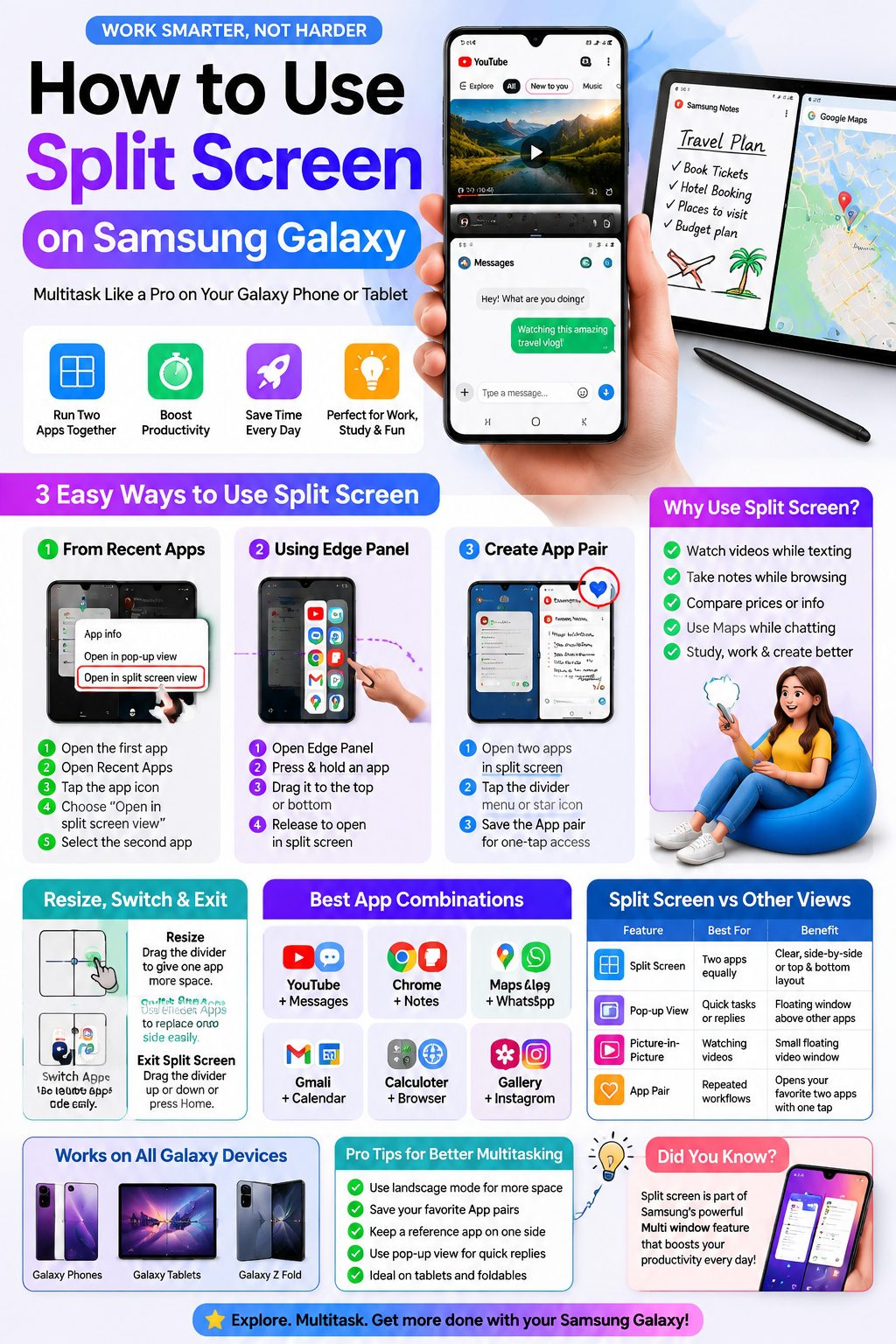
Replace one app without closing split screen.
|
Action |
Example |
|
Open Recents |
Keep Chrome open, switch WhatsApp to Gmail |
|
Tap new app |
Replace existing app instantly |
|
Maintain layout |
Continue multitasking efficiently |
Exiting Split Screen
- Drag the divider fully up/down.
- Tap Home to return to a single app.
- Close one app via window controls.
|
Method |
Outcome |
|
Drag divider |
Exit split screen |
|
Tap Home |
Close split view |
|
Window controls |
Close one app only |
Using Pop-Up View Instead
Pop-up view allows floating apps over other apps.
|
Feature |
When to Use |
|
Pop-Up View |
Quick calculator, message reply, video floating |
|
Split Screen |
Equal focus on two apps |
|
App Pair |
Repeat workflow with one tap |
Split Screen on Tablets
Tablets give more space for productive multitasking.
|
App Combo |
Benefit |
|
Notes + Browser |
Research |
|
Word + PDF reader |
Document editing |
|
YouTube + Notes |
Study while watching |
|
Email + Calendar |
Work scheduling |
|
Google Meet + Doc viewer |
Video calls |
Split Screen on Galaxy Z Fold and Flip
Foldable phones offer unique layouts. Z Fold has large inner display, perfect for side-by-side apps. Z Flip may feel cramped; use landscape mode or pop-up view for flexibility.
Common Issues and Fixes
|
Problem |
Solution |
|
App doesn’t support split screen |
Try a supported app |
|
Missing menu |
Check One UI / software updates |
|
Divider stuck |
Restart phone |
|
Edge Panel off |
Enable Edge Panel |
|
Small screen issues |
Use pop-up view |
Tips for Better Multitasking
- Use landscape mode.
- Save frequent workflows as App pairs.
- Keep one reference app open.
- Avoid two keyboard-heavy apps.
- Prefer larger screens for multitasking.
Privacy & Security Tips
- Sensitive apps may block split screen.
- Avoid split screen during screen sharing.
- Use Secure Folder for private apps.
Final Thoughts
Split screen Samsung features are practical for anyone juggling apps, from students and remote workers to travelers and content creators. With Recents, Edge Panels, App pairs, resizing, and pop-up view, multitasking becomes simple and efficient. Learn how to combine apps wisely, adjust layouts, and use larger devices to get the most out of your Galaxy.
FAQs
Can I use split screen on any Samsung phone?
Most modern Galaxy devices support it; app support may vary.
Why is “Open in Split Screen View” missing?
App restrictions, device version, or navigation method changes.
Can I use three apps at once?
Rarely, only on large tablets or foldables with Multi window.
Does split screen affect battery?
Using two apps may increase battery use, especially media apps.
Can I use split screen with banking apps?
Some restrict it for security; it may not be available.