
We have all been there. You are scrolling through your gallery, trying to clean up some clutter, and suddenly your finger slips. A second later, that one perfect photo of your kid’s first steps or your best friend’s wedding is gone. Your stomach drops. You might think it is gone forever, but in 2026, technology is on your side. Whether you use a Google Pixel, a Samsung Galaxy, or a OnePlus, the system has built-in safety nets that make it much easier to recover deleted photos on Android than it used to be years ago.
The most important thing you can do right now is stop. Do not take new photos, do not download new apps, and do not restart your phone yet. When you delete a photo, the physical data usually stays on your phone’s storage chip for a little while. The phone just marks that space as “empty” and ready for something new. If you keep using the phone, you might save a new file over that “empty” space, making the old photo impossible to get back. Take a deep breath and follow the steps below to find your missing files.
Immediate Steps to Protect Your Data
The window for data recovery is often short. As soon as you realize a file is missing, you should minimize all background activity on your device. Modern Android versions are constantly writing small system logs and cache files, and any one of these could potentially overwrite the memory blocks where your deleted photo used to live.
Put Your Phone in Airplane Mode
Turning on Airplane Mode is a smart first move. It stops the phone from downloading background updates, emails, or app data that could fill up the storage. This keeps the internal memory as “static” as possible while you figure out which recovery method to use first.
Avoid Using the Camera
It might be tempting to test if the gallery is working by taking a new photo, but please don’t. High-resolution photos in 2026 are massive files. A single new 50-megapixel shot could land right on top of the data for ten of your old deleted photos. Leave the camera alone until the recovery process is finished.
Quick Action Checklist
|
Action |
Purpose |
Importance |
|
Enable Airplane Mode |
Prevents data overwrites from background downloads |
High |
|
Stop taking photos |
Keeps storage sectors from being occupied by new files |
Critical |
|
Check Trash folders |
Most photos are hidden here for 30 days |
High |
|
Avoid Factory Reset |
A reset wipes the encryption keys needed for recovery |
Critical |
Check Your Trash and Recently Deleted Folders
The easiest way to recover deleted photos on Android is to look in the trash. Almost every gallery app now acts like a computer’s recycle bin. Instead of deleting a file immediately, the system moves it to a hidden folder for a cooling-off period. This gives you a chance to change your mind before the file is gone for good.
Google Photos Trash Bin
If you use a Google Pixel or any phone that uses Google Photos as the main gallery, your photos are likely in the Trash. Open the app and tap on “Collections” or “Library” at the bottom. You will see a “Trash” icon at the top. Photos stay here for 60 days if they were backed up to your account, or 30 days if they were only on your device. Just tap the photo you want and hit “Restore.”
Read Also: The Best Smartphones for Taking Professional-Quality Photos
Samsung Gallery and Native Apps
Samsung users have a slightly different path. Open the Samsung Gallery app and tap the three-line menu icon in the bottom right corner. Select “Trash” from the list. Samsung usually keeps these files for 30 days. If you see your photo, select it and tap the circular arrow icon to put it back in your main album. Other brands like Xiaomi or OnePlus have similar folders usually labeled “Recently Deleted” within their own gallery apps.
Trash Retention Periods
|
App Name |
Retention Period |
Recovery Difficulty |
|
Google Photos (Backed up) |
60 Days |
Very Easy |
|
Google Photos (Local only) |
30 Days |
Very Easy |
|
Samsung Gallery |
30 Days |
Easy |
|
OnePlus Gallery |
30 Days |
Easy |
|
Xiaomi Mi Gallery |
30 Days |
Easy |
Recover Deleted Photos Android Using Cloud Backups
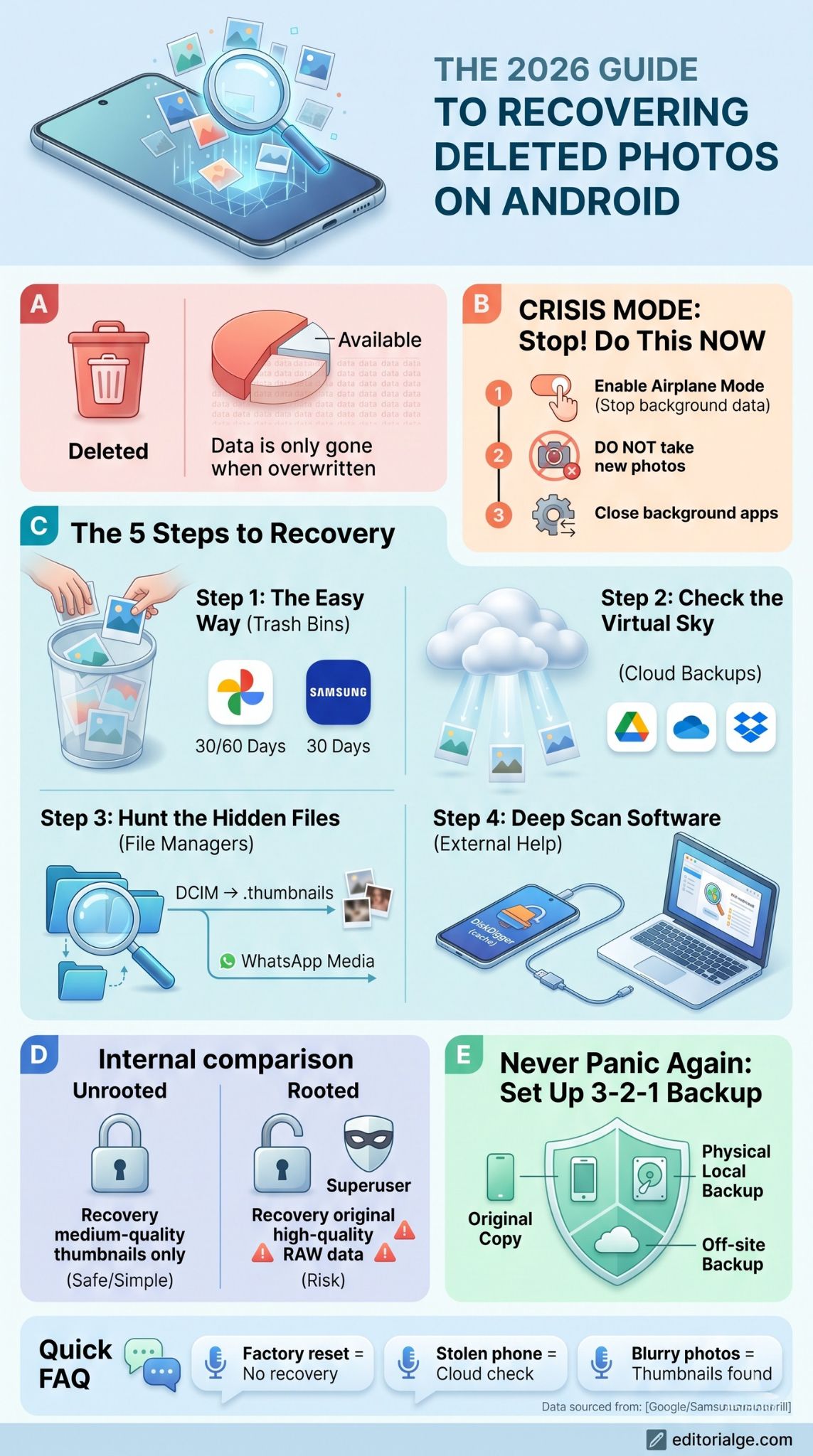
Cloud storage is the ultimate hero of data recovery. Most people have cloud syncing turned on without even realizing it. Even if you emptied the trash on your physical phone, the cloud version might still be sitting on a server somewhere, untouched by your local mistake.
Google Drive and Google One
Google Drive is separate from Google Photos, though they share storage space. Sometimes photos that were sent to you as attachments or saved from documents end up in Drive instead of your gallery. Check the “Recent” tab in the Google Drive app. If the file was deleted from Drive, check the separate Drive Trash bin. Google One subscribers also have access to dedicated support agents who can sometimes help recover files if they were deleted very recently.
Microsoft OneDrive and Dropbox
Many people use OneDrive for work or Dropbox for personal file sharing. Both of these apps have a “Camera Upload” feature. If you have ever logged into these on your phone, there is a high chance they were quietly saving your photos in the background. Open these apps on a computer to get a better view of your folder history. They also have their own trash bins that act as a second layer of protection.
Samsung Cloud Web Recovery
Samsung Cloud has changed over the years, often moving its gallery sync to OneDrive. However, some older settings or specific regional versions still use Samsung’s own servers. If you cannot find your photos in the Gallery trash, log into your Samsung Account on a web browser. Check the “Sync” settings to see if there is a cloud-only copy of your gallery that hasn’t updated to match your phone’s current state yet.
Cloud Service Comparison
|
Service |
Best Feature |
Trash Policy |
|
Google Photos |
Automatic AI sorting |
60 days for synced files |
|
Microsoft OneDrive |
Windows integration |
30 days in bin |
|
Dropbox |
File versioning |
30 days (Free) / 180 days (Pro) |
|
Samsung Cloud |
Deep device integration |
Varies by region |
Advanced Internal Storage and File Management
Sometimes a photo is not actually deleted; it is just lost in the file system. This happens often when moving photos from an SD card to internal storage or when third-party apps like WhatsApp move photos to their own private folders. You can use a file manager to hunt down these “lost” images.
Using Files by Google
Every modern Android phone comes with an app called “Files” or “Files by Google.” Open it and go to the “Internal Storage” section. Look for a folder called “DCIM.” This is where your camera stores every photo you take. Check the “Camera” subfolder, but also look for a folder called “.thumbnails.” This folder is usually hidden, but it contains small versions of every photo your phone has ever processed. If the original is gone, a thumbnail might be the next best thing.
Checking Third-Party App Folders
Apps like WhatsApp, Telegram, and Instagram do not always put photos in your main gallery. They often keep them in their own folders. In your file manager, go to Android > Media > com.whatsapp > WhatsApp > Media > WhatsApp Images. You might find a “Sent” folder here that contains copies of photos you shared with others, even if you deleted the original from your main camera roll.
Common File Path Locations
|
Folder Name |
Typical Content |
Why it is useful |
|
DCIM/Camera |
Main camera photos |
The primary storage spot |
|
Pictures/Screenshots |
Screen captures |
Often ignored during recovery |
|
WhatsApp/Media |
Shared images |
Stores copies of sent/received files |
|
.thumbnails |
Small previews |
Good for “last resort” recovery |
Best Recovery Software for Android in 2026
If the trash bins are empty and the cloud has nothing, it is time to bring out the heavy hitters. Data recovery software works by scanning the raw bits and bytes of your phone’s storage. These tools are much more powerful than the standard gallery app and can often find “ghost” data that the system no longer sees.
DiskDigger for Mobile
DiskDigger is one of the most famous names in the world to recover deleted photos on Android. You can download it directly from the Play Store. The “Basic Scan” is free and works without rooting your phone. It scans your cache and thumbnails to find fragments of deleted photos. While the quality might be slightly lower than the original, it is often enough to save the memory. If your phone is rooted, DiskDigger can perform a “Full Scan” which searches the entire memory for the original high-resolution files.
Disk Drill for Desktop
If the mobile apps are not finding anything, your best bet is a desktop-class tool like Disk Drill. You will need a USB cable to connect your phone to a PC or Mac. You will also need to enable “USB Debugging” in your Android developer settings. Disk Drill is excellent because it has advanced algorithms that can reconstruct image files that have been partially damaged. It is a more professional approach and usually has a higher success rate than mobile-only apps.
PhotoRec (Open Source)
For those who are tech-savvy and want a completely free option, PhotoRec is a powerful open-source tool. It does not have a pretty interface; it looks like a command-line window from the 90s. However, it is incredible at carving data out of digital storage. It ignores the file system and looks for the “headers” of image files. This is particularly effective if you are trying to recover photos from a physical SD card that you used in your Android phone.
Top Recovery Software 2026
|
Software |
Platform |
Price |
Best For |
|
DiskDigger |
Android App |
Free / Paid |
Quick mobile scans |
|
Disk Drill |
Windows / Mac |
Paid (Trial available) |
Deep internal scans |
|
PhotoRec |
Windows / Mac / Linux |
Free |
SD card recovery |
|
Dr.Fone |
Windows / Mac |
Paid |
Beginners / All-in-one |
Recovering Permanently Deleted Photos Without Root
Can you recover permanently deleted photos on Android without root? This is the million-dollar question. In 2026, Android security is tighter than ever. Encryption is standard, which means that once a file is truly wiped and the encryption key is discarded, the data looks like random gibberish. However, “permanently deleted” does not always mean what you think it means.
Without root, software cannot access the deepest layers of your phone’s memory. But it can still access your app caches. Every time you view a photo, Android creates a temporary cache file so it can load the image faster next time. Recovery apps like DiskDigger specialize in finding these cached versions. You might not get a 20MB RAW file back, but you will likely get a very clear JPEG that looks perfect on a phone screen. This is the most reliable way to get photos back without risking your phone’s security by rooting it.
Root vs. Non-Root Recovery
|
Feature |
Non-Root Recovery |
Root Recovery |
|
Success Rate |
Moderate (Cache based) |
High (Sector based) |
|
File Quality |
Good / Medium |
Original Quality |
|
Risk Level |
Completely Safe |
High (Warranty / Security) |
|
Ease of Use |
Very Simple |
Complex |
Prevention Strategies for the Future
Once you have gone through the stress of losing photos, you never want to do it again. The best recovery strategy is making sure you never need one in the first place. Setting up a solid backup system takes ten minutes but saves hours of heartbreak later.
The 3-2-1 backup rule is still the gold standard in 2026. You should have three copies of your photos. Two should be on different types of media (like your phone and an external hard drive). One should be off-site, which usually means the cloud. If your house burns down or you lose your phone in a lake, your photos stay safe because they exist in more than one place.
You should also check your “Smart Storage” settings. Some Android phones have a feature that automatically deletes photos from your device once they have been backed up to the cloud for 30 days. While this saves space, it can be confusing if you expect to see your photos in your local gallery. Make sure you understand how your phone handles “Free Up Space” commands so you don’t panic when your local copies disappear.
Prevention Tools and Methods
|
Method |
Tool |
Frequency |
|
Cloud Sync |
Google Photos / OneDrive |
Real-time |
|
Physical Backup |
Portable SSD / Computer |
Monthly |
|
Automated Cleanup |
Files by Google |
Weekly |
|
Account Security |
2FA / Strong Passwords |
Always |
Final Thought
Losing photos is a nightmare, but it is a nightmare you can usually wake up from. Between the trash bins built into your apps and the automatic backups running in the cloud, most deleted pictures are just a few taps away. If you act quickly, avoid writing new data to your phone, and use reliable software, you have a very high chance to recover deleted photos on Android. Technology in 2026 is designed to forgive our mistakes—you just have to know where to look.
Frequently Asked Questions
Can I recover photos after a factory reset?
Generally, no. A factory reset on a modern Android phone wipes the encryption keys. Even if the data is physically still on the chip, it cannot be read. Your only hope after a reset is a cloud backup that was made before the wipe happened.
What if my phone is physically broken?
If the screen is broken but the phone still turns on, you can plug it into a computer and use Disk Drill to pull the data. If the phone won’t turn on at all, you might need a professional data recovery service that can physically remove the storage chip, though this is very expensive.
Why do some recovered photos look blurry?
When recovery apps find “deleted” photos without root access, they are often finding the thumbnail or cache version. These are smaller, lower-resolution versions of the original file. While they are not perfect, they are often the only version left after the original high-quality data has been overwritten.
Is there a “Recycle Bin” on Android like on Windows?
There is no single “Recycle Bin” for the whole phone, but each app has its own. Google Photos, Samsung Gallery, and File Manager apps each have their own trash folders that hold files for 30 to 60 days before deleting them forever.
Can I recover photos from a stolen phone?
You cannot recover photos from the physical device if you do not have it. However, you can log into your Google Photos or cloud account from any computer to see if the phone synced the photos before it was stolen. This is why keeping “Background Sync” turned on is so important.