
We have all been there. You are typing a message in a hurry, your thumb slips, or your emotions get the better of you, and you hit that blue arrow. The second the message leaves your phone, your stomach drops. Maybe you sent a complaint about your partner to your partner by mistake, or perhaps a work email draft ended up in a group chat with your friends. In the past, that was it—the damage was done. But as we move through 2026, Apple has refined the panic button we all needed.
Learning how to unsend imessage is now a basic survival skill for anyone with an iPhone. It is not just about hiding a mistake; it is about managing your digital presence in a world where everything is permanent. Apple introduced this feature a few years ago, but with the latest iOS updates in 2026, the rules around timing, notifications, and cross-platform messaging with Android have changed. This guide will show you how to take back those words before they cause a headache.
What Does It Mean to Unsend an iMessage?
When you choose to retract a message on your iPhone, you are telling Apple’s servers to reach out to the recipient’s device and pull that specific piece of data back. It is like a digital eraser for your chat history. It is important to know that this is different from just deleting a message on your own phone. If you just “delete” a text, it stays on their phone but disappears from yours. When you unsend, it disappears from both.
The Vanishing Act
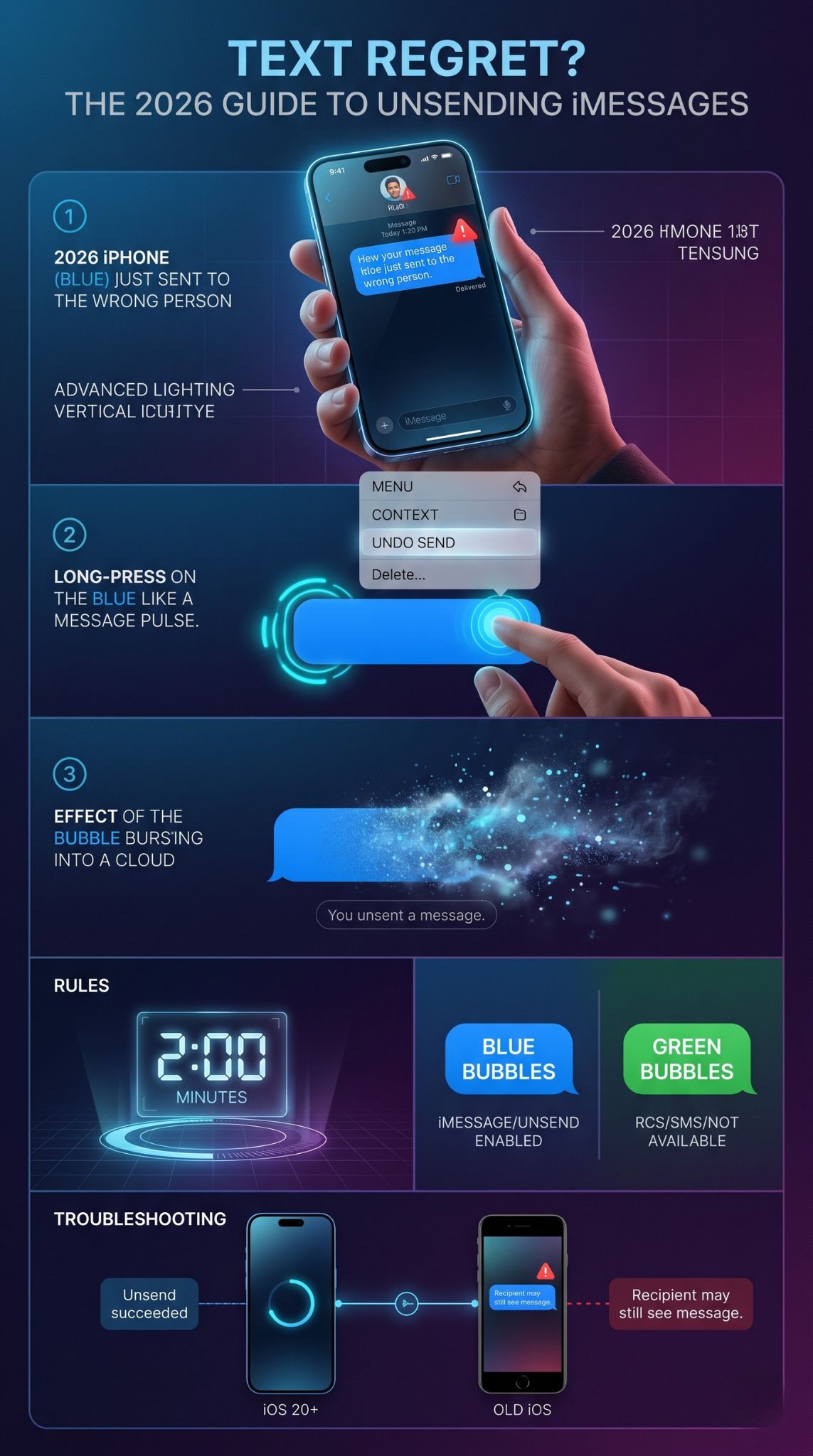
Once you trigger the unsend command, the message bubble literally bursts on the screen. It is replaced by a small note that tells everyone in the chat that a message was pulled back. This means you cannot do it completely in secret. The person on the other end will know you sent something and then changed your mind, but they will not be able to see what the original text said.
Retraction vs. Editing
You also have the option to edit. Editing is better for typos, while unsending is better for total regrets. If you edit, the original text stays but changes its form. If you unsend, the content is gone for good. In 2026, Apple has kept these two features distinct to give users more control over how they fix their mistakes.
|
Feature Aspect |
Unsending iMessage |
Editing iMessage |
|
Primary Goal |
Completely remove the message |
Fix a typo or small error |
|
Visibility |
Message disappears entirely |
Message remains but shows “Edited” |
|
History |
No history of what was said |
Recipient can see previous versions |
|
Notification |
Shows a “Message Unsent” alert |
Shows a small “Edited” tag |
Requirements for Unsending iMessages in 2026
You cannot just unsend any text to anyone at any time. There are some ground rules you have to follow, or the option simply won’t be there when you long-press that bubble. The most important thing to remember is that this feature is built into the iMessage ecosystem. It relies on Apple’s end-to-end encryption and server control to work properly.
The Ecosystem Lock
This only works for blue bubbles. If you are texting someone and the bubbles are green, you are using SMS or RCS. While RCS has improved a lot by 2026, the specific “undo send” feature is still largely an Apple-to-Apple perk. You, the sender, and the person receiving the text both need to be using Apple devices for the message to actually vanish from their screen.
Software Versions Matter
By now, almost everyone is on a modern version of iOS, but if you happen to be texting someone with an ancient iPhone that cannot run iOS 16 or later, the unsend might fail. In those cases, the message stays on their screen even if it disappears from yours. Your iPhone will usually give you a warning if this happens, so pay attention to the small text that pops up after you try to retract something.
|
Requirement Type |
Specification for 2026 |
|
Device Type |
iPhone, iPad, or Mac |
|
Message Type |
iMessage (Blue Bubbles only) |
|
Operating System |
iOS 16, 17, 18, or the current 2026 version |
|
Connectivity |
Active internet connection (Wi-Fi or Data) |
Step-by-Step Guide: How to Unsend iMessage
If you have made a mistake and the clock is ticking, you need to move fast. The process is designed to be intuitive, but when you are panicking, your fingers might feel like sausages. Here is the exact flow you need to follow to make that blue bubble go away before the other person sees it.
Step 1: Find the Message
Open the Messages app and go directly to the conversation where the mistake happened. Do not waste time scrolling through other chats. Locate the specific blue bubble you want to pull back.
Step 2: The Long Press
Instead of tapping the message like you are going to reply, press your finger down on the bubble and hold it there for a second. You will feel a tiny vibration (haptic feedback), and a menu will pop up over the message.
Step 3: Choose Undo Send
In that pop-up menu, look for the option that says “Undo Send.” In the 2026 interface, it is usually located near the top of the list for quick access. Tap it once.
Step 4: Confirm the Poof
You will see a cool little animation where the message bubble explodes into dots and disappears. A gray line of text will appear in its place saying, “You unsent a message.” This is your confirmation that the command was sent to the other person’s phone.
Read Also: How to Hide Apps on iPhone Without Deleting Them
|
Action Step |
What to Do |
Visual Indicator |
|
1. Locate |
Find the specific blue bubble |
Blue text bubble |
|
2. Press |
Long-press the bubble |
Context menu appears |
|
3. Select |
Tap “Undo Send” |
Menu closes |
|
4. Verify |
Watch the bubble vanish |
“You unsent a message” text |
The 2026 Time Limit: Why Speed is Everything
The biggest hurdle to a successful unsend imessage is the timer. Apple does not let you go back in time and delete texts from last week or even an hour ago. The feature is meant for “oops” moments, not for rewriting history. If you wait too long, the option simply disappears from the menu, and you are stuck with what you wrote.
The Two-Minute Rule
As of 2026, you have exactly two minutes to unsend a message. Once those 120 seconds are up, the “Undo Send” button vanishes. This timeframe is a compromise between giving users a safety net and ensuring that conversations remain honest. If you miss this window, your only remaining option for the next several minutes is the “Edit” feature, which lets you change the words but leaves a record that you did so.
Read Receipts and the Race
Even if you unsend within ten seconds, if the other person has their phone in their hand and read receipts turned on, they might see it before you can kill it. Unsending does not “un-read” a message in someone’s brain. If they saw the notification on their lock screen or were looking at the chat, the damage might already be done. Speed is your only friend here.
|
Time Elapsed |
Available Action |
Result |
|
0 – 120 Seconds |
Undo Send |
Message is completely removed |
|
2 – 15 Minutes |
Edit Only |
Content changes, but stays in chat |
|
Over 15 Minutes |
No Changes |
Message is permanent |
What Happens After You Retract a Message?
Once you hit that button, the digital gears start turning. But what does it actually look like for the person on the other end? It is not a silent process. Apple values transparency, so they make sure both parties know that something was altered in the conversation. This prevents people from sending something abusive and then pretending it never happened.
The Notification Trail
When you pull a message back, a notification appears in the chat transcript for both people. It says “[Name] unsent a message.” If the person had a notification on their lock screen, that notification will usually disappear or change to show the retraction. However, if they have a Mac or an iPad synced to their account that was offline at the time, the message might stay on those devices until they reconnect to the internet.
Handling the Social Awkwardness
Since the recipient sees that you unsent something, they might ask, “What did that say?” It is often a good idea to follow up with a quick “Sorry, wrong person!” or “Fixed a huge typo!” This removes the mystery and keeps the conversation flowing. The unsend feature is a technical fix, but it often requires a small social fix to go along with it.
|
User Device |
What they see before unsend |
What they see after unsend |
|
iPhone (Active) |
The original text |
A “burst” animation and a gray note |
|
Lock Screen |
A notification with a preview |
The notification disappears |
|
Apple Watch |
A mirrored notification |
The notification cleared |
|
Offline Mac |
The original text |
Text stays until Mac goes online |
RCS vs. iMessage: Can You Pull Back Green Bubbles?
In 2026, the line between iPhone and Android messaging has blurred thanks to the widespread adoption of RCS (Rich Communication Services). We now have high-res photos and typing bubbles when texting our Android friends. However, the ability to unsend imessage remains a bit of a walled garden.
The Green Bubble Limitation
When you see a green bubble, you are using a protocol that involves your cellular carrier. Unlike iMessage, which stays within Apple’s private servers, an RCS or SMS message is handed off to a third party. Because of this, Apple does not have the “authority” to reach into an Android phone and delete a message once it has been delivered.
Future Compatibility
There are rumors that the RCS standard might eventually include a universal “undo send” feature that works across all phones, but as of right now, if you send a green bubble mistake, you are out of luck. You cannot unsend it, and you cannot edit it. This makes the distinction between blue and green bubbles just as important in 2026 as it was a decade ago.
|
Message Type |
Bubble Color |
Unsend Available? |
|
iMessage |
Blue |
Yes (within 2 mins) |
|
RCS (Android) |
Green |
No |
|
SMS (Old Tech) |
Green |
No |
|
WhatsApp/Signal |
Various |
Yes (separate app rules) |
Troubleshooting: Why Can’t I Unsend My Message?
Sometimes you follow the steps perfectly, but the “Undo Send” button just isn’t there. This can be incredibly frustrating when you are in a rush to fix a mistake. Usually, the reason is simple, but there are a few technical glitches that can pop up in 2026 that you should be aware of.
The Most Common Culprits
The number one reason is simply the timer. If you are at the two-minute and one-second mark, the option is gone. Another common issue is network lag. If your phone is struggling to connect to 5G or Wi-Fi, it might not be able to send the “unsend” command to the server quickly enough. Sometimes, toggling your Airplane Mode on and off can reset your connection and give you a last-second chance to hit that button.
Group Chat Complications
In group chats, things get a bit more complex. If there is even one person in the group who is using an Android phone, the entire chat usually reverts to RCS or SMS (green bubbles). In these mixed groups, the unsend feature is disabled for everyone. You can only retract messages in groups where every single member is using an Apple device with iMessage active.
|
Issue |
Potential Reason |
Solution |
|
Menu Option Missing |
Two-minute window expired |
Use the “Edit” feature instead |
|
Button Won’t Work |
Poor internet connection |
Move to better Wi-Fi/Signal |
|
Green Bubbles |
Recipient is on Android |
Send a follow-up correction |
|
Warning Message |
Recipient on old iOS version |
Assume they can still see it |
Advanced Privacy Tips for iMessage in 2026
If you are someone who values privacy, knowing how to unsend imessage is just the tip of the iceberg. Apple has added several layers to the Messages app to help you keep your conversations secure and clean. One of the best things to pair with the unsend feature is the “Disappearing Messages” or “Check In” features that have become more robust this year.
Using Self-Destructing Media
If you are sending a photo that you don’t want to live forever on someone else’s phone, you can use the “expire” setting. This is different from unsending because it is automated. You can set audio messages or certain photos to disappear two minutes after they are viewed. This saves you the trouble of having to manually retract them later.
Digital Legacy and Safety
Apple also allows you to manage your “Digital Legacy,” which determines what happens to your messages after you are gone. While this is a heavy topic, it shows how seriously the company takes message data. In 2026, you have more control than ever over who sees your chat history, but the “unsend” tool remains the most immediate way to protect your reputation and your privacy in daily life.
|
Privacy Tool |
What it Does |
Why use it? |
|
Undo Send |
Immediate manual removal |
To fix instant mistakes |
|
Edit Message |
Changes content |
To fix small typos |
|
Expiring Audio |
Deletes after listening |
To save storage and privacy |
|
Contact Key Verification |
Verifies you are talking to the right person |
To prevent spoofing |
Final Thoughts
Having the power to unsend imessage is a massive relief for anyone who uses their iPhone for work or personal life. It takes the pressure off every single tap and gives us a moment to breathe when we realize a mistake has happened. Just remember that the two-minute window is strict, and it only works for those blue bubbles we all know and love.
As we move forward, messaging tech will likely keep getting smarter, but the human element of making mistakes will never go away. Use the unsend tool wisely, be aware of the notifications it leaves behind, and always double-check the name at the top of the chat before you hit send. A little bit of caution goes a long way, but it’s nice to know that in 2026, your iPhone has your back when things go wrong.
FAQs
Can I unsend a message if the other person already read it?
Yes, you can still unsend it within the two-minute window even if they have read it. It will disappear from their conversation history, but obviously, you cannot erase the memory of them reading it.
Does unsending a message delete it from the Apple Watch?
Yes. If the Apple Watch is synced with the iPhone and is currently online, the message will be removed from the Watch’s display as well.
Is there a limit to how many messages I can unsend in a day?
No, Apple does not currently limit the number of times you can use the “Undo Send” feature. However, using it excessively in a single conversation might look a bit suspicious to the person you are chatting with.
Can I unsend a message on my Mac?
Yes, if you are using a Mac running a modern version of macOS (like Sequoia or newer in 2026), you can right-click a message bubble and select “Undo Send” just like you do on an iPhone.
What happens if I unsend a message while in Airplane Mode?
The command will be queued. Once your phone reconnects to the internet, it will attempt to unsend the message. However, if the two-minute window expires before you get back online, the request may fail.