
Always-On Display is one of those Samsung features people either ignore completely or quietly depend on every day. It lets you check the time, battery, notifications, music, and sometimes even widgets without fully waking your Galaxy phone.
But the settings can feel confusing. One person sees a separate clock style option. Another person only sees Lock screen controls. Someone else gets wallpaper on AOD, while an older Galaxy phone only shows a black screen with a clock.
That is why this guide is built for normal users, not just tech-heavy Samsung fans. If you want to customize AOD Samsung settings properly, you need to know where the options are, what each setting does, and why some features may be missing on your phone.
Samsung has changed the AOD experience across One UI versions. Newer Galaxy phones connect the Lock screen and AOD more closely. Good Lock adds even more control, but not every user needs it. This guide explains the simple setup first, then moves into advanced customization, battery tips, privacy settings, and fixes for common problems.
What Samsung Always-On Display Actually Does
Always-On Display, or AOD, keeps useful information visible while your phone is locked. On Samsung Galaxy phones, it usually shows the clock, date, battery status, missed calls, and notification icons. On newer models, it may also show Lock screen wallpaper, widgets, music details, or the Now bar.
The main benefit is simple. You do not have to press the power button every time you want to check the time or see whether a notification matters. This can make the phone feel faster and less distracting.
AOD works best on AMOLED screens because black pixels can stay off while selected parts of the screen remain visible. Still, AOD is not completely free for battery life. It uses some power, especially if you keep it always visible or use wallpaper.
Why people customize AOD
Most users customize AOD for three reasons: better looks, easier checking, and more control. A clean clock can make the phone feel more personal. Notification icons can help you avoid unlocking the phone for every alert. A scheduled AOD can reduce screen glow at night.
The best setup depends on your habits. Someone working at a desk may want AOD always visible. A student or heavy phone user may prefer Tap to show. A privacy-focused user may only want icons, not message previews.
Key AOD features at a glance
|
Feature |
What it does |
Best for |
|
Clock and date |
Shows time and date on the locked screen |
Everyday use |
|
Notification icons |
Shows app alerts without full previews |
Quick checking |
|
Music information |
Shows current music app and track details |
Music listeners |
|
Lock screen wallpaper |
Shows wallpaper on supported AOD screens |
Visual customization |
|
Widgets |
Adds quick information like weather or calendar |
Productivity |
|
When to show |
Controls when AOD appears |
Battery and privacy |
Before You Customize: Check Your Samsung Model and One UI Version
Samsung AOD settings are not identical on every Galaxy phone. A Galaxy S24 or S25 may have options that a Galaxy A-series phone does not. A phone running One UI 7 may also show different settings from one running One UI 5 or One UI 6.
This matters because many online tutorials are based on one phone model. If your screen does not match the screenshots, your phone is not necessarily broken. Samsung simply changes menu names and features across models and software versions.
Before you customize anything, check your One UI version. Open Settings, tap About phone, then tap Software information. Look for One UI version. This gives you a better idea of which AOD features your phone should support.
Samsung has been moving more Lock screen and AOD controls into one connected experience. On many newer phones, the AOD clock follows the Lock screen clock. That means you may need to edit the Lock screen clock instead of searching for a separate AOD clock style menu.
Some newer phones also support Lock screen wallpaper on AOD. Older phones may not show that option. Good Lock may add extra design control, but it also depends on region, device support, and software version.
Quick compatibility checklist
|
Check |
Where to look |
Why it matters |
|
One UI version |
Settings > About phone > Software information |
Features vary by software |
|
AOD support |
Search Always On Display in Settings |
Not all Samsung phones support it |
|
Power saving |
Settings > Battery > Power saving |
Power saving can disable AOD |
|
Good Lock availability |
Galaxy Store or Google Play |
Advanced tools vary by region |
|
Wallpaper AOD |
Lock screen and AOD settings |
Supported mainly on newer models |
How to Customize AOD Samsung Settings Step by Step
The easiest way to customize AOD Samsung settings is through the main Settings app. Start there before downloading Good Lock or changing themes. Most people can get a clean, useful AOD setup using Samsung’s built-in options.
Open Settings, tap Lock screen and AOD, then tap Always On Display. Turn the feature on. If your phone uses a slightly older layout, the menu may only say Lock screen. You can also use the Settings search bar and type Always On Display.
Once AOD is enabled, look for the main controls: When to show, Show Lock screen wallpaper, Show music information, and other options available on your phone. Some settings may appear only after you switch AOD on.
Turn AOD on or off
Use these steps:
- Open Settings.
- Tap Lock screen and AOD.
- Tap Always On Display.
- Turn on the switch at the top.
- Choose when AOD should appear.
If the option is grayed out, check Power saving mode first. Samsung phones can turn off AOD when battery-saving settings are active.
Choose when AOD appears
The When to show setting is one of the most important parts of AOD. It controls how often the display stays visible.
Tap to show is best for battery life. Always is best for desk use. Auto is a good middle option on supported phones. As scheduled is useful if you only want AOD during work hours or daytime. For new notifications is good if you want fewer distractions.
AOD display modes compared
|
Mode |
What happens |
Best choice for |
|
Tap to show |
AOD appears briefly after tapping |
Battery saving |
|
Always |
AOD stays visible while locked |
Desk and office use |
|
Auto |
Phone decides when to show AOD |
Balanced use |
|
As scheduled |
AOD appears during selected hours |
Daytime-only use |
|
For new notifications |
AOD appears after alerts |
Privacy-focused users |
Change the AOD Clock, Wallpaper, Widgets, and Music Info
After you turn AOD on, the next step is making it useful. The clock should be readable. Notifications should be private. Widgets should help, not clutter the screen. Wallpaper should look good without hurting battery too much.
On newer Samsung phones, clock customization often happens through the Lock screen editor. Touch and hold an empty area on the Lock screen, unlock the phone if asked, then tap the clock. From there, you can change the clock style, size, color, and layout if your model supports those options.
If you want to customize AOD Samsung clock settings but cannot find a separate AOD clock menu, edit the Lock screen clock instead. On many recent One UI versions, Samsung links the two designs.
Change the clock style
A good AOD clock is easy to read at a glance. Avoid colors that blend into the wallpaper. If you use AOD in dark rooms, pick a soft, visible color instead of a bright one.
Simple digital clocks work best for most users. Analog clocks look stylish but may be harder to read quickly. Large clocks are useful for desk setups, older users, or anyone who checks the time from a distance.
Show or hide Lock screen wallpaper
Some newer Galaxy phones can show the Lock screen wallpaper on AOD. Go to Settings, tap Lock screen and AOD, then tap Always On Display. If your phone supports it, turn on Show Lock screen wallpaper.
This makes AOD look more premium. But it can also make the clock harder to read if the wallpaper is busy. It may also use more battery than a plain black AOD.
Read Also: How to Use Split Screen on Samsung Galaxy
Add widgets to AOD
Samsung lets supported Lock screen widgets appear with AOD. Useful widgets include weather, calendar, alarm, music, and battery information. Keep this simple. AOD is not meant to become a second home screen.
To manage widgets, open Settings, tap Lock screen and AOD, then look for Widgets. Turn on the ones you actually check. One or two useful widgets are better than five that you ignore.
Show music information
If you listen to music often, turn on music information for AOD. It can show the music app and track details while the phone is locked. This is useful when your phone is on a desk, charger, or stand.
If music details do not appear, check app notification permissions. Some media controls depend on the music app, Lock screen notification settings, and One UI version.
Customization options summary
|
Area |
Recommended setting |
Why it helps |
|
Clock |
Clean digital style |
Easy to read quickly |
|
Clock color |
High contrast |
Better visibility |
|
Wallpaper |
Off for battery, on for style |
Depends on user priority |
|
Widgets |
Music, weather, calendar |
Useful without clutter |
|
Notifications |
Icons only |
Better privacy |
|
Music info |
On for music users |
Quick media checking |
Use Good Lock for Deeper Samsung AOD Customization
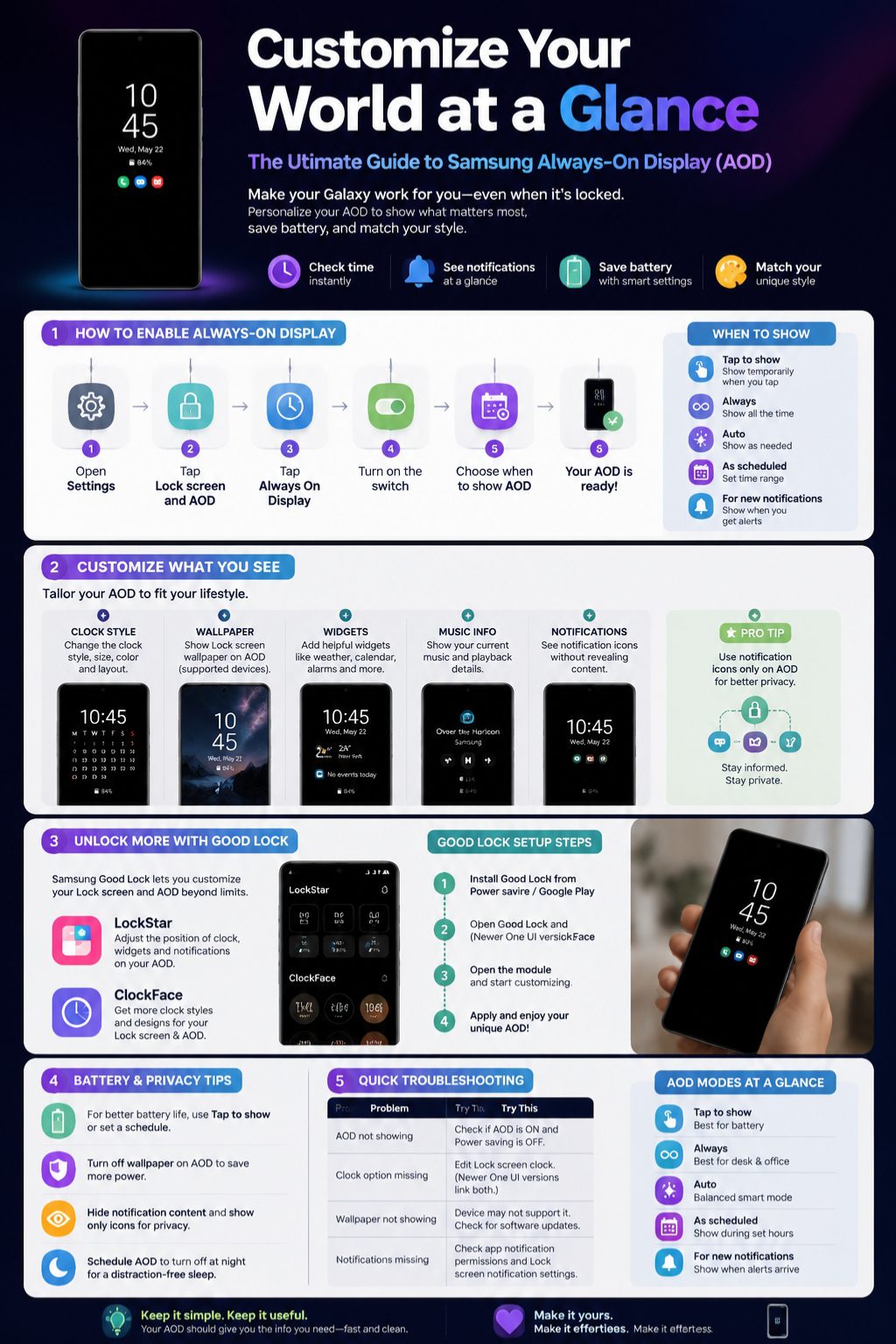
Built-in settings are enough for most users. But if you want more control over the Lock screen and AOD layout, Samsung Good Lock is worth trying. It is Samsung’s customization app, and it works through smaller modules.
The two most useful modules for AOD are LockStar and ClockFace. LockStar helps with Lock screen and AOD layout. ClockFace adds more clock styles for the Lock screen and AOD. Together, they give more design freedom than the standard Settings app.
To customize AOD Samsung layouts beyond the normal menu, install Good Lock from Galaxy Store or Google Play if it is available in your region. Then install LockStar or ClockFace from inside Good Lock.
What LockStar does
LockStar gives you more control over the Lock screen layout. Depending on your device and software version, it may let you adjust clock placement, widget layout, and AOD style. This is useful if the default Samsung layout feels too limited.
Use it carefully. A layout that looks stylish in editing mode may not be easy to read during daily use. Test it outdoors, in a dark room, and on your desk.
What ClockFace does
ClockFace focuses on clock design. It gives you more clock styles than the default Samsung options. If you like changing the look of your phone often, this is the module to try first.
Still, readability matters. A creative clock is not useful if you need three seconds to understand the time.
Good Lock notes
|
Tool |
Main use |
Who should use it |
|
Good Lock |
Main Samsung customization app |
Advanced users |
|
LockStar |
Lock screen and AOD layout |
Users who want layout control |
|
ClockFace |
Extra clock styles |
Users who want more clock designs |
|
Galaxy Themes |
Download AOD themes |
Style-focused users |
|
Built-in Settings |
Basic AOD control |
Most users |
Battery, Privacy, and Screen-Friendly AOD Tips
Always-On Display is convenient, but it should not hurt the way you use your phone. If your battery is already weak by evening, do not keep AOD always visible all day. If you work around other people, do not show full notification content on the Lock screen.
AOD uses less power than fully turning on the screen, but it still uses battery. The exact amount depends on your phone, brightness, wallpaper, widgets, and how long AOD stays active. A plain clock on a black background is usually lighter than wallpaper with widgets.
After you customize AOD Samsung settings, use your phone normally for a day. If battery life drops more than expected, switch from Always to Tap to show or As scheduled.
Best battery settings
Use Tap to show if battery life is your top priority. Use As scheduled if you only need AOD during the day. Turn off Lock screen wallpaper if your phone drains faster than usual.
Also check Power saving mode. If Power saving is on, AOD may not work unless you allow it in battery settings.
Best privacy settings
Use notification icons only. This lets you know which app sent an alert without showing message content. It is safer for banking apps, email, work chats, and private messages.
If your phone sits on a desk, meeting table, or shared room, avoid detailed Lock screen notifications. AOD should inform you, not expose your private life.
Screen-friendly habits
Modern phones are designed to manage AOD safely, but it is still smart to avoid very bright, static designs for long periods. Use Samsung’s default behavior, avoid third-party AOD apps from unknown sources, and keep your phone updated.
Battery and privacy guide
|
Goal |
Best setting |
Avoid |
|
Save battery |
Tap to show |
Always with wallpaper |
|
Better privacy |
Icons only |
Full message previews |
|
Clean design |
Simple clock |
Too many widgets |
|
Night use |
Scheduled AOD |
Bright always-on screen |
|
Desk use |
Auto or Always |
Tiny clock styles |
|
Older phone |
Wallpaper off |
Heavy themes |
Best Samsung AOD Setups for Different Users
There is no single perfect AOD setup. The best choice depends on where you use the phone, how much battery you need, and how much information you want visible.
Office users usually need time, calendar, and notification icons. Students often need alarms and battery-friendly settings. Creators may care more about wallpaper, clock style, and visual identity. Heavy users should keep AOD simple.
The goal is not to turn on every feature. The goal is to make the locked screen useful in one glance.
Best setup for office users
Use Auto or Always if your phone sits on a desk. Keep notification icons on but hide content. Add calendar or weather widgets if you check them often.
A simple digital clock works best here. It is easy to read during calls, meetings, or focused work.
Best setup for students and commuters
Use Tap to show. It saves battery and avoids glowing all day in a bag or pocket. Keep alarm and battery widgets if available.
Hide detailed notifications. Public transport, classrooms, and shared spaces are not ideal places for message previews.
Best setup for creators
Use Lock screen wallpaper on AOD if your phone supports it. Match the clock color with your wallpaper. Try Good Lock and ClockFace for a more branded look.
Keep it tasteful. Too much decoration can make the phone look messy instead of premium.
Setup recommendations
|
User type |
When to show |
Widgets |
Wallpaper |
Notification style |
|
Office user |
Auto or Always |
Calendar, weather |
Optional |
Icons only |
|
Student |
Tap to show |
Alarm, battery |
Off |
Icons only |
|
Commuter |
Tap to show |
Music |
Off |
Icons only |
|
Creator |
Auto |
Music, calendar |
On if supported |
Icons only |
|
Battery saver |
Scheduled |
Minimal |
Off |
Icons only |
Common Samsung AOD Problems and Fixes
AOD problems are common, but most are easy to fix. The first thing to check is whether AOD is turned on. The second thing is Power saving mode. Many users miss this and think the phone has a bug.
If AOD does not show, open Settings and search for Always On Display. Turn it on, then check When to show. If it is set to Tap to show, it will not stay visible all the time. That is normal.
If your AOD clock cannot be changed separately, edit the Lock screen clock. On newer One UI versions, this is often the correct method.
AOD not showing
Check these first:
- Turn on Always On Display.
- Turn off Power saving or allow AOD in Power saving settings.
- Change When to show from Tap to show to Auto or Always.
- Remove any case or screen protector blocking the proximity sensor.
- Restart the phone.
- Update your phone software.
AOD wallpaper option missing
This usually means your phone or One UI version does not support the feature. It may not be a fault. Some Samsung models show wallpaper on AOD, while others keep the simpler black AOD screen.
You can check Good Lock for alternatives, but do not force risky system changes just to enable wallpaper.
Notifications not appearing
Check app notification permissions first. Then check Lock screen notification settings. Also make sure Do Not Disturb is not hiding alerts.
If only one app is missing, the issue is probably with that app’s notification settings, not AOD itself.
Quick troubleshooting table
|
Problem |
Likely reason |
Fix |
|
AOD not showing |
AOD off or wrong show mode |
Turn it on and check When to show |
|
AOD grayed out |
Power saving active |
Change battery settings |
|
Clock option missing |
Newer One UI behavior |
Edit Lock screen clock |
|
Wallpaper missing |
Unsupported model or software |
Check updates or Good Lock |
|
Notifications missing |
Lock screen alerts disabled |
Check notification permissions |
|
AOD too dim |
Auto brightness behavior |
Change clock color or wallpaper |
Final Thoughts
Always-On Display is not just a decorative Samsung feature. Used well, it saves taps, keeps key information visible, and makes your Galaxy phone feel more personal. Used badly, it can drain battery, clutter the Lock screen, or show more notification detail than you want.
Start simple. Turn on AOD, choose when it appears, set a readable clock, keep notification content private, and add only the widgets you actually use. Then try wallpaper or Good Lock if you want more style.
The best way to customize AOD Samsung settings is to balance three things: visibility, privacy, and battery life. If your phone supports newer One UI features, use them. If it does not, the classic black AOD with a clean clock is still useful and often better for battery.
Final setup checklist
|
Step |
Recommended choice |
|
Main mode |
Auto or Tap to show |
|
Clock |
Clean digital clock |
|
Notifications |
Icons only |
|
Wallpaper |
Off for battery, on for style |
|
Widgets |
One or two useful widgets |
|
Good Lock |
Optional for advanced users |
|
Battery test |
Use for one full day and adjust |
FAQs
Can I make Samsung AOD show only when I tap the screen?
Yes. Open Always On Display settings and choose Tap to show under When to show. This makes AOD appear briefly after you tap the locked screen. It is one of the best choices for battery life.
Why does my Samsung AOD turn off in my pocket?
On supported modes, your phone may stop showing AOD when it detects darkness, a pocket, a bag, or a covered sensor. This helps prevent battery waste and accidental screen activity.
Can I use different clock styles for Lock screen and AOD?
On some older versions, separate styling may be available. On many newer One UI versions, the AOD clock follows the Lock screen clock. If you cannot find a separate AOD clock option, edit the Lock screen clock instead.
Is Samsung Good Lock safe for AOD customization?
Good Lock is Samsung’s own customization app. It is safer than random third-party AOD apps. Still, install it only from trusted stores such as Galaxy Store or Google Play, and keep the modules updated.
Why is my AOD darker after an update?
Samsung has changed some AOD brightness behavior across One UI updates. On some newer versions, AOD brightness is handled automatically instead of through a manual brightness slider. Changing clock color or wallpaper may improve readability.
Can AOD show weather all the time?
AOD can show weather through supported Lock screen widgets on some Samsung phones. If the weather widget does not appear, check Lock screen widget settings, location permission, and One UI support.
Does AOD work while charging?
Yes, AOD can work while charging if it is enabled and not blocked by Power saving settings. If you want a charging-only display, also check Samsung’s Screen saver setting under Display, because that is a separate feature.
Why does my AOD look different from YouTube tutorials?
The tutorial may use a different Galaxy model, region, or One UI version. Samsung changes AOD menus often, so always check your own Settings app and software version first.
Can I remove notifications from AOD but keep the clock?
Yes. Keep Always On Display turned on, then adjust Lock screen notification settings. Choose to hide notification content or disable Lock screen notifications while keeping the AOD clock visible.
What is the best AOD setup for battery life?
Use Tap to show, keep wallpaper off, choose a simple clock, and limit widgets. If you still want AOD during work hours, use As scheduled instead of Always.