
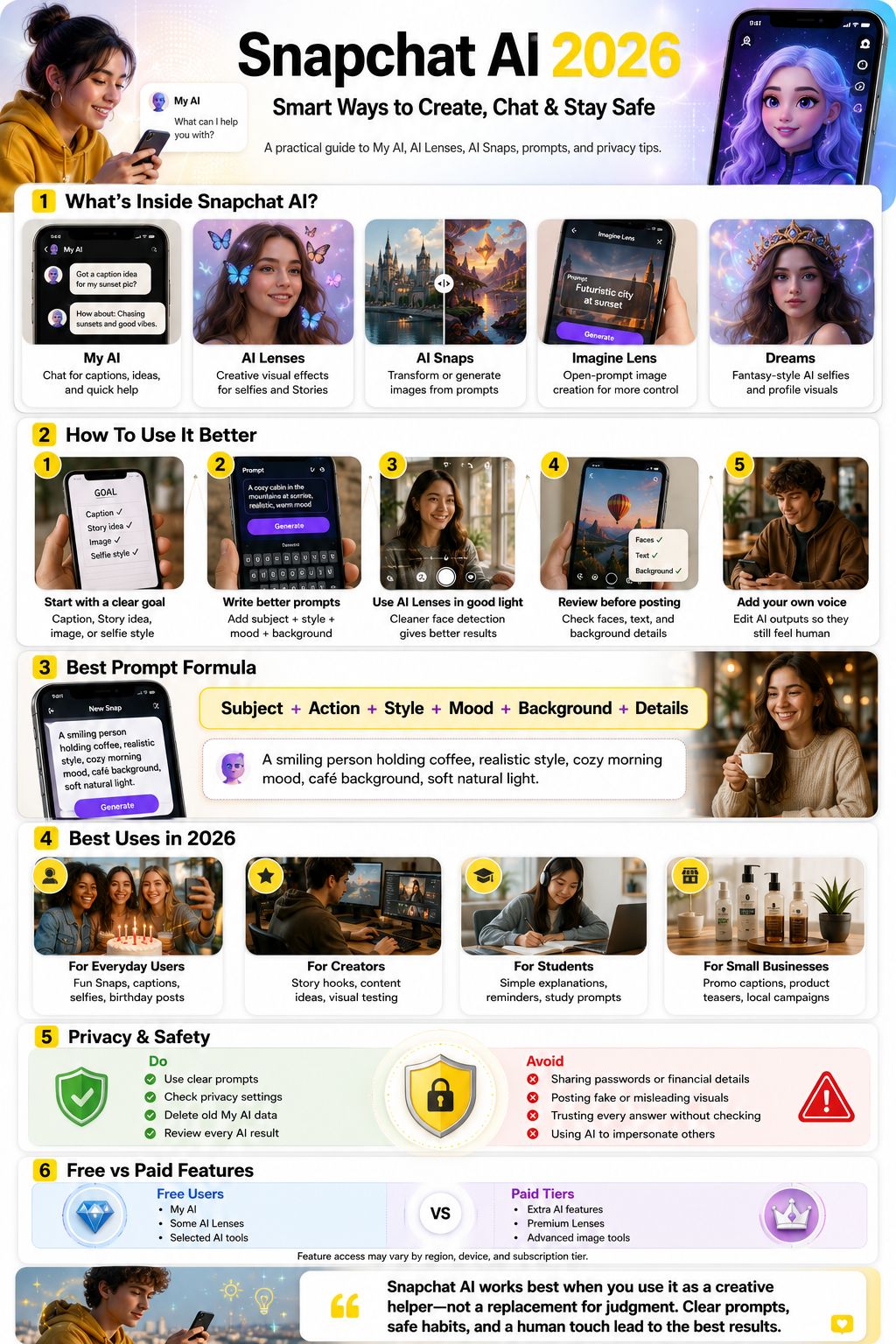
Snapchat AI 2026 is not just about funny filters anymore. It is now part chatbot, part camera tool, part image generator, and part creative assistant. You can use it to write captions, create AI Snaps, test AI Lenses, brainstorm Story ideas, make playful selfies, and even get quick suggestions inside chats.
But here is the thing. Many users open these tools, try one random prompt, get an average result, and then say the feature is useless. Most of the time, the problem is not the tool. It is the way people use it.
Snapchat has been adding more generative AI features across the app, including AI Lenses, My AI, AI Snaps in Memories, and AI creative tools. Snap also reported 956 million monthly active users and 483 million daily active users in Q1 2026, which shows why these AI tools matter for regular users, creators, and brands.
This guide explains how to use Snapchat AI in a practical way. No hype. No scare tactics. Just clear steps, real use cases, privacy tips, and prompt ideas that can help you get better results.
What Is Snapchat AI in 2026?
Snapchat AI is the group of artificial intelligence features built into Snapchat. These tools help users chat, edit images, generate creative Snaps, use AI-powered Lenses, and create playful visual content.
In simple words, Snapchat AI works best when you use it for quick, visual, social tasks. It is not built to replace professional design software or deep research tools. It is better for fast ideas, fun edits, camera-based creativity, and casual help inside the app.
Snapchat says many newer features use generative AI, including AI Lenses, My AI, AI Snaps in Memories, and AI Snaps in creative tools.
|
Snapchat AI Feature |
What It Does |
Best Use |
|
My AI |
Chatbot inside Snapchat |
Captions, ideas, simple help |
|
AI Lenses |
AI-powered visual effects |
Selfies, creative Snaps, Stories |
|
AI Snaps |
Generates or transforms Snaps |
Image ideas and visual edits |
|
Imagine Lens |
Creates or edits Snaps using prompts |
More flexible AI image creation |
|
Dreams |
AI selfie-style images |
Fantasy selfies and fun profile content |
|
AI in Memories |
Adds AI help to saved content |
Reworking older Snaps |
How Snapchat AI Is Different From Normal Filters
Regular Snapchat filters usually apply a fixed effect. AI features can respond to prompts, images, faces, scenes, or creative direction. That means the result can change depending on what you type, what you capture, or which Lens you choose.
For example, a normal filter may add sunglasses. An AI Lens may turn your selfie into a fantasy portrait, a cartoon-style image, or a themed visual based on the Lens design.
Who Should Use Snapchat AI?
Snapchat AI is useful for casual users, students, creators, small businesses, social media managers, and anyone who posts visual content often. It is especially helpful when you want quick ideas but do not want to open five different apps.
A student may use My AI for simple study prompts. A creator may use AI Lenses for Story concepts. A local business may use it for quick promo captions.
Why Snapchat AI 2026 Matters More Than Before
Snapchat AI 2026 matters because AI is no longer hidden in one feature. It is spreading across the camera, chat, Memories, Lenses, and subscription tools. That makes Snapchat more than a place to send quick photos.
For users, this means more creative control. For creators, it means faster content testing. For brands, it means easier short-form visual promotion. But it also means users need to understand safety, privacy, and authenticity.
Snapchat’s scale also makes this topic important. With 956 million monthly active users in Q1 2026, even small AI changes inside the app can affect a huge audience.
|
Why It Matters |
What It Means For Users |
|
AI is built into more tools |
Users meet AI inside normal Snapchat actions |
|
Camera-first AI feels natural |
Visual creation becomes faster |
|
Creators need fresh content |
AI helps with ideas and quick testing |
|
Privacy questions are rising |
Users need safer habits |
|
Paid features are expanding |
Users must know what is worth paying for |
Snapchat Is Becoming A Creative AI App
Snapchat has always been camera-first. That gives its AI features a different feel from text-heavy AI apps. Instead of starting with a blank document, users start with a face, a Snap, a Lens, a Memory, or a Story idea.
This is why Snapchat AI works well for visual expression. It helps users create things they can instantly send, save, or post.
What People Usually Search For
Most users do not search for Snapchat AI because they want a technical explanation. They search because they want to do something.
Common search intent includes:
- How to use My AI on Snapchat
- How to use Snapchat AI Lenses
- How to create AI Snaps
- Is Snapchat AI free?
- Is Snapchat AI safe?
- How to delete My AI data
- Best Snapchat AI prompts
- How to remove My AI from Chat feed
How to Use My AI on Snapchat
My AI is Snapchat’s chatbot-style feature. You can ask it questions, request ideas, create captions, plan small activities, or get quick explanations. It works best when your prompt is clear and simple.
Do not treat My AI as a private diary or a professional adviser. Treat it like a casual helper. It can be useful, but it can also misunderstand context or give weak answers if your prompt is too vague.
Snapchat says content shared with My AI is stored until users delete it, and My AI can read messages in a group chat where it is included so it can participate.
|
Use Case |
Example Prompt |
|
Caption help |
Give me 5 short captions for a coffee Snap |
|
Story ideas |
Suggest 10 Snapchat Story ideas for a rainy day |
|
Event planning |
Help me plan a low-budget birthday surprise |
|
Messaging |
Make this message sound friendly but not too formal |
|
Study help |
Explain this topic in simple words |
|
Creator help |
Give me 5 hooks for a behind-the-scenes Snap |
Best Ways To Use My AI
Use My AI for small, quick tasks. It is good for brainstorming, rewriting, simple planning, and casual suggestions. You can ask it to make a caption shorter, funnier, warmer, or more natural.
For better results, give context. Instead of writing “caption,” write “Give me 5 funny captions for a blurry concert selfie with friends.” That one extra detail can change the quality of the answer.
Read Also: How to See Best Friends on Snapchat in 2026
Do not share passwords, financial details, private addresses, ID numbers, confidential business information, or sensitive personal problems. Snapchat’s own help pages make it clear that My AI conversations are retained until deleted, so users should be careful with what they type.
You should also avoid asking My AI for serious medical, legal, or financial decisions. It can explain general ideas, but it should not replace a qualified expert.
How to Use AI Lenses on Snapchat
AI Lenses are one of the easiest ways to enjoy Snapchat AI. They can transform your Snaps in creative ways without needing much technical skill. You open the camera, choose or search for a Lens, and test how it changes your image.
Snapchat says AI Lenses can be unlocked through Snapcodes, deep links, or Lens Explorer.
|
Step |
What To Do |
|
1 |
Open Snapchat camera |
|
2 |
Tap the Lens icon |
|
3 |
Search for AI Lenses or browse Lens Explorer |
|
4 |
Pick a Lens and test it |
|
5 |
Adjust lighting and angle |
|
6 |
Save, send, or post the result |
How To Get Better AI Lens Results
Good lighting matters. AI Lenses usually work better when your face or subject is clear. A dark room, messy background, or extreme angle may produce strange results.
Try two or three versions before posting. Move closer to the light. Change the background. Keep your face visible if the Lens is selfie-based.
Best Uses For AI Lenses
AI Lenses are great for fun selfies, birthday posts, seasonal Stories, profile-style images, event Snaps, and creative reactions. Creators can also use them to test a visual style before making a more polished post.
For brands or small businesses, AI Lenses can help make casual content feel less boring. A coffee shop, for example, could use a playful Lens for a weekend Story instead of posting the same product photo again.
How to Use AI Snaps in Snapchat AI 2026
AI Snaps let users transform existing Snaps or create new ones with AI. This is where Snapchat AI 2026 becomes more useful for visual content. You can start with a photo, use a prompt or preset, and let Snapchat create a new version.
Snapchat’s help page says Snapchat+ users can transform a Snap by taking a Snap, tapping the AI button, choosing a preset or typing a prompt, waiting for generation, and then using the result. The same tool can also create a Snap from the Camera screen by selecting or typing a prompt.
|
AI Snap Action |
How It Helps |
|
Transform a Snap |
Reworks an image you already captured |
|
Create a Snap |
Builds a new visual from a prompt |
|
Use presets |
Faster results with less typing |
|
Type prompts |
More control over the final image |
|
Review before sharing |
Helps avoid awkward or wrong outputs |
How To Write Better AI Snap Prompts
A good AI Snap prompt should include the subject, style, mood, background, and important details. Short prompts can work, but detailed prompts usually give better results.
Weak prompt: Make it cool.
Better prompt: Turn this selfie into a cozy winter portrait with soft lighting, a snowy background, and a natural smile.
When AI Snaps Are Most Useful
AI Snaps are useful when you do not have the perfect scene in front of you. Maybe you want a birthday-themed Snap, a travel-style visual, a fun pet image, or a playful Story post. Instead of searching for stock images or editing for twenty minutes, you can create something quickly inside Snapchat.
Still, review the result carefully. AI can distort faces, hands, text, backgrounds, or objects.
How to Use Imagine Lens for Prompt-Based AI Images
Imagine Lens is Snapchat’s open-prompt image generation Lens. It gives users more freedom because they can create, edit, and recreate Snaps by entering prompts. Snap introduced it as its first Open Prompt Image Generation Lens, and official support pages describe it as available to Lens+ and Snapchat+ Platinum subscribers.
This feature is useful when you want more control than a fixed Lens can offer. Instead of only choosing a preset look, you describe the image you want.
|
Prompt Element |
Example |
|
Subject |
A person holding a camera |
|
Style |
Realistic, cinematic, cartoon, vintage |
|
Mood |
Cozy, funny, dreamy, bold |
|
Background |
City street, beach, cafe, classroom |
|
Detail |
Warm light, soft colors, natural pose |
Best Prompt Formula For Imagine Lens
Use this simple structure:
Subject + action + style + mood + background + details
Example: A smiling person holding a coffee cup, realistic style, warm morning mood, cozy cafe background, soft natural light.
This gives the AI enough direction without making the prompt too messy.
What To Avoid With Prompt-Based Images
Avoid prompts that can mislead people, impersonate real people, or create fake situations that look like real events. If you are making content for a business, do not show products doing things they cannot actually do.
Also avoid putting too much text inside image prompts. AI-generated text in images can still come out wrong or distorted.
How to Use Snapchat Dreams and AI Selfie Features
Snapchat Dreams is a generative AI selfie feature that creates imaginative versions of users in different scenes and styles. Snap introduced Dreams as a way to create fantasy images of yourself using AI.
Dreams works best for playful and personal content. It is not meant for official headshots or serious identity photos. Think of it as a fun visual experiment.
|
Use Case |
Good For |
|
Fantasy selfies |
Fun personal posts |
|
Friend images |
Playful shared content |
|
Seasonal looks |
Holiday or event posts |
|
Profile-style images |
Casual visual updates |
|
Creative experiments |
Testing styles and moods |
How To Get Better AI Selfie Results
Use clear photos. Avoid blurry selfies, heavy shadows, and group images when the tool needs your face. Natural lighting usually helps the AI understand facial features better.
Do not expect every image to look exactly like you. AI selfie tools can change facial details, skin texture, hair, or expression.
Privacy Reminder For AI Selfies
AI selfie features use your face, so check the related settings before using them. Snap’s privacy pages say users can control some information and settings, but users should still review what they agree to before creating AI images.
How Creators Can Use Snapchat AI
Creators can use Snapchat AI to speed up the boring parts of content creation. It can help with hooks, captions, Story prompts, visual themes, and quick experiments. The real value is not letting AI replace your voice. The value is using it to get unstuck.
A creator who posts daily can ask My AI for Story ideas, test AI Lenses for visual direction, and use AI Snaps to create quick concepts. Then they can edit the final output to match their own style.
|
Creator Task |
Snapchat AI Use |
|
Caption writing |
Generate and rewrite short captions |
|
Story planning |
Create daily or weekly Story ideas |
|
Visual testing |
Try AI Lenses before posting |
|
Engagement |
Create polls, questions, and replies |
|
Branding |
Test colors, moods, and themes |
Use AI For Drafts, Not Final Personality
If every caption sounds like it came from a chatbot, people notice. Use Snapchat AI for the first draft, then add your own voice.
Change words. Add your real mood. Mention what actually happened. Keep the parts that feel natural and remove anything that sounds too polished.
Avoid Generic AI Content
Generic AI content usually has the same look: perfect lighting, fake smiles, glossy backgrounds, and no real story. To avoid that, add real context.
Mention the place, the moment, the emotion, or the reason behind the Snap. That is what makes content feel human.
How Small Businesses Can Use Snapchat AI
Small businesses can use Snapchat AI for casual marketing. It can help create quick captions, weekend promo ideas, Story concepts, product teasers, and simple customer engagement posts.
This is helpful for businesses that do not have a full content team. A local bakery, gym, clothing shop, cafe, or salon can use AI to create faster ideas without sounding too corporate.
|
Business Need |
Snapchat AI Example |
|
Weekend sale |
Write a friendly Snap caption for a weekend offer |
|
Product launch |
Suggest 5 Story ideas for a new product |
|
Local event |
Create a casual event announcement |
|
Customer engagement |
Give me 5 poll ideas for our followers |
|
Visual promotion |
Create a fun Snap concept for this product |
Good Business Prompts
Try prompts like:
- Write a short Snapchat caption for a new coffee flavor.
- Give me 5 fun Story ideas for a small clothing store.
- Create a friendly message for a weekend discount.
- Suggest a playful product teaser for a bakery.
Business Mistakes To Avoid
Do not use AI-generated visuals to misrepresent your product. If the burger looks twice as big in the AI image, customers may feel cheated. If a salon shows an unrealistic hair result, people may lose trust.
AI can help with creativity, but honesty still matters.
Snapchat AI Privacy and Safety Tips
Privacy is one of the most important parts of using Snapchat AI. The fun side is obvious. The data side needs more attention.
Snap says it retains the content users send to and receive from My AI until they delete it in-app or delete their account. Snap also says it may use content shared with My AI and location data, if location sharing is enabled, to improve products and personalize experiences.
|
Safety Habit |
Why It Matters |
|
Avoid private details |
AI chats may be retained until deleted |
|
Review images before posting |
AI can distort or mislead |
|
Check privacy settings |
Some controls are easy to miss |
|
Delete old My AI data |
Reduces stored conversation history |
|
Avoid impersonation |
Prevents harm and confusion |
|
Teach younger users |
Teens may overshare without thinking |
How To Delete My AI Data
Snapchat says users can delete past content shared with My AI through Settings. On iOS, users can go to Profile, Settings, Privacy Controls, Delete Data, and Delete My AI Data. On Android, users can go to Profile, Settings, Account Actions, and Delete My AI Data. Snapchat notes that deletion can take up to 30 days from its servers.
How To Remove My AI From Chat Feed
Snapchat says users can clear My AI from the Chat feed by swiping right to Chat, pressing and holding My AI, opening Chat and Notification Settings, and choosing Clear from Chat Feed. Snapchat also notes that clearing the chat feed does not delete past My AI data.
Free vs Paid Snapchat AI Features
Some Snapchat AI features are available broadly, while others may sit behind Snapchat+, Lens+, Snapchat+ Platinum, regional access, or limited rollouts. This can change over time, so users should check the app directly before assuming a feature is free.
For example, official Snapchat pages describe Imagine Lens as exclusive to Lens+ and Snapchat+ Platinum subscribers. AI Snaps creative tools are also described in Snapchat’s help section in connection with Snapchat+.
|
Access Type |
Possible Features |
|
Free users |
My AI, some AI Lenses, selected AI experiences |
|
Snapchat+ |
Extra or early AI features depending on rollout |
|
Lens+ |
Premium Lens access and selected AI Lens tools |
|
Snapchat+ Platinum |
Higher-tier access to selected features |
|
Regional rollout |
Some features may appear later in certain countries |
Should You Pay For Snapchat AI?
Paying makes sense if you use Snapchat for content creation, daily posting, brand work, or frequent AI image experiments. If you only send casual Snaps, free tools may be enough.
Before subscribing, ask yourself one question: will this feature save time or improve the content I already make? If not, wait.
Why Feature Availability Can Be Confusing
Snapchat tests and rolls out features often. Some users may see a tool before others. Some features may also depend on country, device, app version, subscription tier, or account status.
That is why a 2026 guide should avoid saying every user has every feature.
Best Snapchat AI Prompts To Try
Prompt quality decides output quality. A clear prompt gives Snapchat AI better direction. A vague prompt usually gives a generic result.
The best prompts are short but specific. You do not need to write a novel. Just give the tool enough context to understand the subject, mood, and purpose.
|
Prompt Type |
Example |
|
Caption |
Give me 5 casual captions for a beach sunset Snap |
|
Funny Story |
Suggest a funny Story idea for a boring Monday |
|
Visual AI |
Create a cozy cafe scene with warm light |
|
Creator Hook |
Give me 5 hooks for a behind-the-scenes Snap |
|
Business |
Write a friendly Snap caption for a weekend sale |
|
Student |
Explain this topic like I am new to it |
Prompts For Regular Users
Try these:
- Give me a funny caption for a sleepy dog photo.
- Make this birthday message sound warmer.
- Suggest a creative Snap idea for a road trip.
- Give me 5 short captions for a rainy day selfie.
Prompts For Creators And Brands
Try these:
- Give me 10 Snapchat Story ideas for a fitness creator.
- Create 5 casual captions for a new product teaser.
- Suggest a fun poll idea for my followers.
- Make this caption less salesy and more friendly.
Common Mistakes To Avoid With Snapchat AI
Snapchat AI is easy to use, but easy tools can still produce weak content. Most bad results come from lazy prompts, oversharing, poor review habits, or posting AI output without editing.
The goal is not to use every AI feature. The goal is to use the right feature for the right moment.
|
Mistake |
Better Habit |
|
Writing vague prompts |
Add subject, mood, style, and context |
|
Posting without checking |
Review faces, text, and background |
|
Sharing private details |
Keep sensitive data out of AI chats |
|
Using AI for every caption |
Edit with your own voice |
|
Trusting every answer |
Fact-check important information |
|
Overusing effects |
Keep some content natural |
Do Not Post The First Result Every Time
The first AI result is not always the best one. Try a second prompt. Change the mood. Add a detail. Remove extra words.
Small prompt changes can make the image or caption much better.
Do Not Let AI Flatten Your Voice
AI can make everyone sound the same. If you are naturally funny, keep the humor. If your audience likes simple posts, keep them simple.
AI should support your style, not replace it.
Final Thoughts
Snapchat AI 2026 is worth using when you treat it like a creative helper, not a magic button. It can make captions easier, improve Story ideas, create playful images, transform Snaps, and help creators test visual concepts faster.
The best results come from clear prompts, good lighting, careful review, and a little human editing. The safest results come from knowing what not to share, checking privacy settings, and deleting old My AI data when needed.
For regular users, Snapchat AI can make everyday Snaps more fun. For creators and small businesses, it can speed up content planning without needing a big team. Just do not let AI make everything look fake, glossy, and forgettable.
Use the tools. Keep your judgment. Add your own voice. That is the real way to use Snapchat AI 2026 effectively.
Frequently Asked Questions About Snapchat AI 2026
Can Snapchat AI See My Private Chats?
My AI can read messages in a group chat where it is included so it can participate. Normal private chats with friends are different from My AI conversations, but users should still avoid sharing sensitive information with AI tools.
Does Snapchat Save My AI Conversations?
Yes. Snapchat says content shared with My AI is retained until users delete it. Users can delete individual messages within 24 hours or clear past My AI data from Settings.
Can I Use Snapchat AI For Business Marketing?
Yes, but use it carefully. Snapchat AI can help with captions, Story ideas, product teasers, and casual promotions. Do not use AI images to exaggerate products or make false claims.
Is Snapchat AI Good For Students?
It can help with simple explanations, reminders, quiz ideas, and study prompts. Students should not use it to cheat or rely on it for serious academic work without checking the information.
Why Does My Snapchat AI Result Look Weird?
AI results can look odd when the image is blurry, the lighting is poor, the prompt is vague, or the background is too crowded. Try better lighting, a clearer subject, and a more specific prompt.
Is Imagine Lens Available To Everyone?
Official Snapchat support describes Imagine Lens as exclusive to Lens+ and Snapchat+ Platinum subscribers. Availability can change by region, subscription tier, and rollout stage.
Can I Remove My AI From My Chat Feed?
Snapchat says users can clear My AI from the Chat feed through Chat and Notification Settings. However, clearing it from the feed does not delete the past data shared with My AI.
What Is The Best Way To Use Snapchat AI Safely?
Use clear prompts, avoid sensitive information, review AI results before posting, check privacy settings, and delete My AI data when needed.