
Using whatsapp on two phones used to feel like a small tech headache. You had one phone for personal life, another for work, or maybe an old backup phone lying around. But WhatsApp did not always make it easy to use the same account on both devices.
That has changed.
WhatsApp now lets users link another phone as a companion device. That means you can use the same WhatsApp account on a second phone without moving your account, deleting chats, or relying on risky third-party apps. The main phone still holds your registered account, while the second phone works as a linked device.
This guide explains the official way to set it up, what works, what may not work perfectly, and how to keep your account safe. It also covers Android-to-iPhone linking, WhatsApp Business use, common problems, and privacy settings you should check after setup.
What Does WhatsApp on Two Phones Actually Mean?
Using WhatsApp on two phones means one WhatsApp account works on two separate smartphones at the same time. The second phone does not become a new WhatsApp account. It becomes a linked companion device connected to your main account.
This is different from transferring WhatsApp to a new phone. When you transfer WhatsApp, you move your account from one device to another. With linked devices, your primary phone stays active, and the second phone gets access to the same chats.
It is also different from using two WhatsApp accounts on one phone. That setup needs two numbers or two accounts. Here, you are using one number and one WhatsApp account across multiple devices.
The feature is useful for people who carry a work phone, travel often, manage a backup phone, or need WhatsApp Business access on more than one device.
|
Setup Type |
What It Means |
Best For |
|
One WhatsApp account on two phones |
Same number works on primary and linked phone |
Personal and work device users |
|
Two WhatsApp accounts on one phone |
Two different accounts run on one device |
People with two SIMs or two numbers |
|
WhatsApp transfer |
Moves account from old phone to new phone |
Phone upgrade or replacement |
|
WhatsApp Web/Desktop |
Uses WhatsApp on computer or browser |
Office use and long typing |
Same Account, Not a Second Number
The important thing to understand is this: your WhatsApp account can still be verified with only one registered phone number. The second phone does not get a new number inside the same account.
When you link a second phone, it connects to your existing account through the Linked Devices feature. You do not need to enter a second phone number. You also do not need to restore a backup on the second phone.
This makes the setup cleaner. You keep your main account, but you can reply from another phone when needed.
Can You Officially Use WhatsApp on Two Phones?
Yes, WhatsApp officially supports using the same account on multiple phones through linked devices. The feature is often called companion mode, although WhatsApp’s own menus usually use phrases like Link as companion device or Linked devices.
The safest way to use whatsapp on two phones is through the official WhatsApp app. You should avoid clone apps, modified WhatsApp APKs, and random tools that promise “dual WhatsApp” access. Many of those tools can expose your messages, login details, contacts, or device data.
WhatsApp’s official linked device system works by scanning a QR code from your primary phone. Once linked, the second phone connects independently. That means your second phone does not need the primary phone to be online every minute just to send or receive messages.
Still, your primary phone remains important. It is the phone where your account is registered. It also lets you manage linked devices and log out any device you no longer trust.
|
Official Feature |
What It Does |
Why It Matters |
|
Linked devices |
Connects extra devices to your account |
Lets you use WhatsApp across devices |
|
Companion phone |
Adds another smartphone to same account |
Useful for second phones |
|
QR code linking |
Verifies the second phone from primary phone |
Safer than password sharing |
|
Remote logout |
Removes access from old or unknown devices |
Helps protect privacy |
How Many Devices Can You Link?
WhatsApp allows users to link additional devices to the same account. A linked phone can be one of those additional devices. The exact experience may vary slightly by app version, device type, and region, so always check your Linked Devices screen for the latest device list.
If you already use WhatsApp Web, WhatsApp Desktop, or a tablet, those may count toward your linked device limit. If you hit the limit, remove a device you no longer use.
Do not treat linked devices as permanent access forever. If your account has security changes, long inactivity, or device issues, you may need to link the second phone again.
Requirements Before You Link WhatsApp to a Second Phone
Before you start, make sure both phones are ready. Most setup problems happen because the app is outdated, the second phone is set up the wrong way, or the QR code scan fails.
You need WhatsApp installed on both phones. The primary phone must already have your active WhatsApp account. The second phone should have WhatsApp installed, but you should not register your number there like a normal login.
Both phones need a working internet connection during setup. Wi-Fi is usually better, especially if you have a lot of chats or media. You should also check that the primary phone camera works because it needs to scan the QR code shown on the second phone.
For security, WhatsApp may ask you to unlock your primary phone with fingerprint, Face ID, or passcode before linking. That is normal.
|
Requirement |
Why It Matters |
|
Updated WhatsApp app |
Newer versions support companion linking better |
|
Primary phone access |
Needed to approve and scan the second phone |
|
Stable internet |
Helps QR linking and chat sync work smoothly |
|
Camera permission |
Required to scan the QR code |
|
Phone lock enabled |
Adds security before device linking |
|
Enough storage |
Helps the second phone receive chats and media |
Primary Phone vs Companion Phone
The primary phone is the phone where your WhatsApp account is registered with your number. This is your main device. You use it to control account settings, linked devices, and security options.
The companion phone is the second phone you want to use with the same account. It does not replace your primary phone. It simply gets linked to your existing WhatsApp account.
This distinction matters because many users accidentally enter their phone number on the second phone and start a transfer process. If your goal is to use the same account on both phones, choose the companion device option instead.
How to Use WhatsApp on Two Phones Step by Step
The setup is simple once you know where to look. The menu names may change slightly between Android and iPhone, but the basic process is the same.
You install WhatsApp on the second phone, choose the companion device option, and scan the QR code using your primary phone. After that, WhatsApp syncs your account to the second phone.
Do this from the official WhatsApp app only. Do not use browser tricks, third-party clone apps, or apps that ask for your WhatsApp code.
|
Step |
Action |
Device Used |
|
1 |
Update WhatsApp |
Both phones |
|
2 |
Open WhatsApp setup screen |
Second phone |
|
3 |
Choose companion linking |
Second phone |
|
4 |
Open Linked Devices |
Primary phone |
|
5 |
Scan QR code |
Primary phone |
|
6 |
Wait for sync |
Second phone |
Step 1: Update WhatsApp on Both Phones
Open Google Play Store or Apple App Store and update WhatsApp on both devices. This is a small step, but it saves time.
Older app versions may not show the companion device option. They may also fail during QR scanning or chat syncing. If your second phone is old, check that it still supports the current WhatsApp version.
Read Also: How to Schedule WhatsApp Messages Without Apps
Step 2: Open WhatsApp on the Second Phone
Install and open WhatsApp on the second phone. This is the device where you want to use the same account.
When the setup screen appears, do not rush to enter your phone number. If you enter your number and verify it normally, WhatsApp may treat it like an account move. That is not what you want here.
Look for the menu option that allows companion linking.
Step 3: Choose Link as Companion Device
On the second phone, choose Link as companion device or a similar option. Depending on your phone and app version, this option may appear under a menu on the setup screen.
Once you select it, WhatsApp should show a QR code. Keep this screen open. You will scan this QR code from your primary phone.
If you do not see the option, update WhatsApp, restart the app, and check the setup menu again.
Step 4: Open Linked Devices on the Primary Phone
Now pick up your primary phone.
On Android, open WhatsApp, tap the three-dot menu, choose Linked devices, then tap Link a device.
On iPhone, open WhatsApp, go to Settings, tap Linked Devices, then choose Link a Device.
WhatsApp may ask you to unlock your phone before scanning. This can be done with fingerprint, Face ID, or passcode, depending on your device.
Step 5: Scan the QR Code
Use the primary phone to scan the QR code shown on the second phone. Keep both phones steady. Increase the brightness of the second phone if the QR code is hard to scan.
After scanning, the second phone will begin connecting to your account. Chat syncing may take a little time. If you have years of chats, media-heavy groups, or slow internet, be patient and keep the app open for a while.
Step 6: Test Messages and Notifications
Send a test message from the second phone. Then check whether it appears on your primary phone. Also ask someone to send you a message and check whether both phones receive it.
After setup, review notification settings on the second phone. Each device has its own system-level notification controls, so WhatsApp alerts may work on one phone but stay silent on the other unless you allow them.
Using WhatsApp on Android and iPhone Together
Many users want this feature because they use Android and iPhone together. Maybe your main phone is an iPhone, but your work phone is Android. Or maybe you switched phones but still want WhatsApp on both for a while.
The good news is that WhatsApp linked devices can work across phone types. The setup path is slightly different, but the idea is the same. Keep one phone as the primary account phone and link the other as the companion phone.
This is also helpful when you are testing a new phone before fully moving over. You can keep your primary account safe while using WhatsApp on the second phone.
Just remember that some settings and media behavior may look different between iOS and Android.
|
Primary Phone |
Second Phone |
What to Do |
|
Android |
iPhone |
Open Linked devices on Android and scan iPhone QR code |
|
iPhone |
Android |
Open Linked Devices on iPhone and scan Android QR code |
|
Android |
Android |
Use companion option on second Android phone |
|
iPhone |
iPhone |
Use companion option on second iPhone |
Android Primary Phone and iPhone Second Phone
Install WhatsApp on the iPhone. Open the setup screen and choose the companion device option. The iPhone should show a QR code.
Now open WhatsApp on your Android phone. Tap the three-dot menu, go to Linked devices, and tap Link a device. Scan the QR code on the iPhone.
Once linked, check message syncing and notifications. iPhone notification permissions may need separate approval from iOS settings.
iPhone Primary Phone and Android Second Phone
Install WhatsApp on the Android phone. From the setup screen, choose Link as companion device. A QR code should appear.
On your iPhone, open WhatsApp, go to Settings, then Linked Devices. Tap Link a Device and scan the QR code shown on Android.
After linking, test a message, check media downloads, and make sure Android battery optimization is not stopping WhatsApp in the background.
What Works on the Second Phone?
A linked second phone can handle most normal WhatsApp activity. You can send and receive messages, reply in groups, share photos, send documents, record voice notes, and manage everyday conversations.
For most users, it feels close to using WhatsApp normally. That is why the feature is useful. You do not need to carry your main phone all the time just to reply to a message.
Still, some settings may remain tied to your primary phone. Some old chat history may take time to sync, and media files may not appear instantly on the second phone. If your account has a large chat history, give the device time.
Using whatsapp on two phones works best when both devices are updated, connected, and secured with screen locks.
|
Feature |
Usually Works on Second Phone? |
Notes |
|
Text messages |
Yes |
New messages sync across devices |
|
Group chats |
Yes |
Group replies work normally |
|
Photos and videos |
Yes |
Media sync may take time |
|
Voice notes |
Yes |
Check microphone permission |
|
Documents |
Yes |
Storage permission may be needed |
|
Calls |
Usually yes |
Depends on app version and device support |
|
Notifications |
Yes |
Must be allowed separately |
|
Some account settings |
Limited |
Primary phone may control key settings |
Messages, Groups, Media, and Calls
The second phone is useful for day-to-day messaging. You can reply to personal chats, business chats, and groups. You can send photos, videos, voice notes, documents, stickers, and emojis.
Voice and video calling may work on linked phones, but device support and app version can matter. After setup, make a quick test call to confirm everything works on your second phone.
If media does not show right away, do not panic. Chat history and media can take time to sync, especially on slow networks.
What May Not Feel Exactly the Same
The second phone is a linked device, not a separate registered account. Because of that, some actions may behave differently from the primary phone.
For example, notifications are controlled separately by each phone. Media auto-download settings may also need separate adjustment. Some account-level settings may still be easier to manage from the primary phone.
If you unlink the second phone, uninstall WhatsApp there, or reset your main account, the second phone may lose access.
Is It Safe to Use the Same WhatsApp Account on Two Phones?
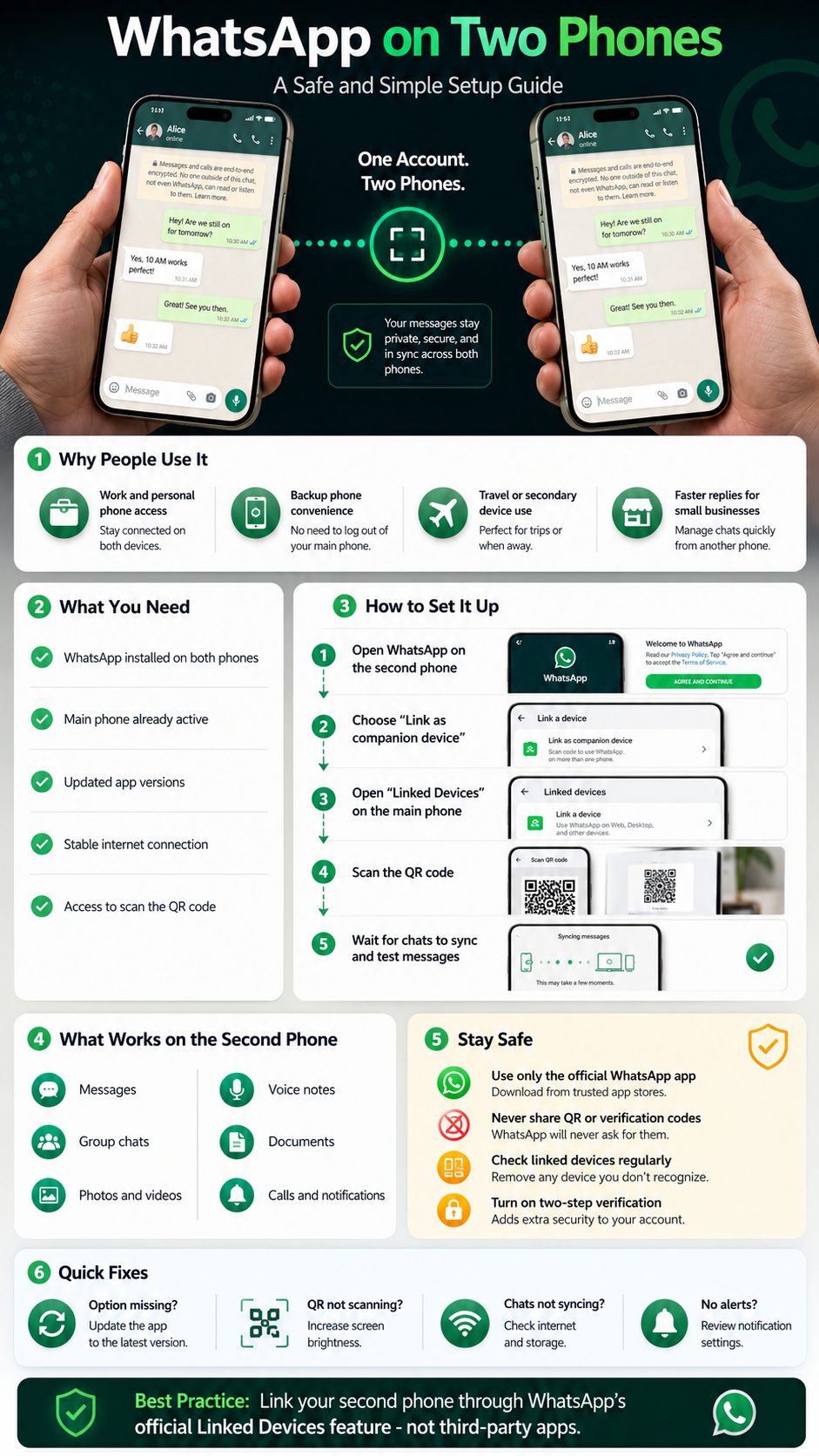
Using the official linked device feature is the safe route. WhatsApp says linked phones connect independently, and personal messages, media, and calls remain end-to-end encrypted.
The bigger security risk comes from careless linking. If someone tricks you into scanning a QR code, they may gain access to your WhatsApp account on their device. This is why you should never scan a QR code unless you are setting up your own device.
You should also check your Linked Devices screen from time to time. If you see a device you do not recognize, log it out immediately.
For extra protection, turn on two-step verification in WhatsApp. Also keep both phones locked with a PIN, fingerprint, or Face ID.
|
Safety Action |
Why It Helps |
|
Use official WhatsApp only |
Avoids fake or modified apps |
|
Check Linked Devices |
Helps spot unknown access |
|
Enable two-step verification |
Adds account protection |
|
Use phone screen lock |
Stops casual access |
|
Log out unused devices |
Reduces privacy risk |
|
Avoid shared QR codes |
Prevents unauthorized linking |
A WhatsApp QR code for device linking is not something to share. Treat it like a login key.
If someone asks you to scan a QR code to “verify” your account, claim a reward, join a support session, or fix a fake problem, stop. That can be a scam.
The same rule applies to SMS verification codes and two-step verification PINs. WhatsApp will never need you to send those codes to another person.
Review Linked Devices Regularly
Open WhatsApp on your primary phone and check Linked devices. You should see the devices connected to your account.
If a device looks unfamiliar, log it out. If you recently sold, repaired, or gave away a phone, remove it from the list too.
This habit takes less than a minute, but it can prevent a serious privacy problem.
WhatsApp on Two Phones for Business Users
Small business owners may benefit the most from this feature. A shop owner, delivery manager, freelancer, or support person may need access to the same WhatsApp Business account from another phone.
This can make customer replies faster. One person can handle orders from the counter, while another answers delivery questions or follow-ups. It also helps when the main phone is charging, misplaced, or being used by someone else in the business.
Still, business users should be more careful. A WhatsApp Business account may contain customer names, addresses, payment discussions, order notes, and private complaints. Do not link staff devices casually.
If your team is growing, consider whether a more formal customer support tool or WhatsApp Business Platform setup is better than sharing one app account across phones.
|
Business Use Case |
Benefit |
Safety Note |
|
Shop counter and delivery phone |
Faster customer replies |
Remove old staff devices |
|
Freelancer main and backup phone |
Less missed communication |
Keep both phones locked |
|
Small support team |
Shared customer access |
Limit who can link devices |
|
Travel or field service team |
Replies on the move |
Review linked devices often |
When It Makes Sense for a Business
Using a second phone makes sense when the account is managed by a trusted person or a small team. For example, a restaurant can keep one phone at the counter and another with the delivery coordinator.
A freelancer can link WhatsApp Business to a backup phone while traveling. A small ecommerce seller can use one device for product questions and another for order updates.
The setup should make communication easier, not messier. If too many people use the same account without rules, replies can become confusing.
Business Safety Rules
Only link devices owned by the business or trusted team members. Do not let temporary workers, freelancers, or unknown support agents link personal phones to the account.
Review linked devices weekly. If an employee leaves, remove their phone immediately. If the account mixes personal and business chats, think twice before linking it to another person’s phone.
For serious customer support, keep a written rule for who can reply, what tone to use, and when to escalate a sensitive message.
Common Problems and Fixes
Most WhatsApp linking problems are easy to fix. The issue is usually an old app version, weak internet, camera trouble, battery settings, or choosing the wrong setup option.
Start with the basics. Update WhatsApp. Restart both phones. Check the internet connection. Make sure you selected the companion device option instead of normal phone number registration.
If the second phone links successfully but messages do not appear right away, give it time. Chat syncing is not always instant, especially if your account has many groups or large media files.
|
Problem |
Likely Cause |
Quick Fix |
|
Companion option missing |
Old app or wrong setup screen |
Update WhatsApp and restart |
|
QR code not scanning |
Camera, glare, brightness, expired QR |
Refresh QR and improve lighting |
|
Messages not syncing |
Slow internet or background restriction |
Keep app open and check connection |
|
No notifications |
System notification blocked |
Allow notifications in phone settings |
|
Second phone logged out |
Security change or removed device |
Link it again from primary phone |
The Companion Device Option Is Missing
If you cannot find Link as companion device, update WhatsApp first. Then close and reopen the app.
On some phones, the option appears in the menu on the setup screen. Do not enter your number before checking that menu. If you already started normal registration, go back and look for the companion option.
If the option still does not show, reinstall WhatsApp on the second phone and try again.
The QR Code Will Not Scan
Increase the brightness on the second phone. Clean the camera lens on the primary phone. Keep both devices steady and avoid glare.
QR codes can expire, so refresh the code if it has been sitting for too long. Also check that WhatsApp has camera permission on the primary phone.
If scanning still fails, switch to a stronger Wi-Fi network or mobile data connection.
Messages Are Not Syncing
Keep WhatsApp open on the second phone for a few minutes. If your chat history is large, the first sync can take time.
Check storage space on the second phone. Also disable aggressive battery saver settings for WhatsApp, especially on Android. Some phones stop background activity too aggressively, which can delay syncing and notifications.
Restarting both phones can also help.
Notifications Are Not Showing
Open your phone’s settings and make sure WhatsApp notifications are allowed. Then open WhatsApp and check notification settings inside the app.
Also check Do Not Disturb, Focus Mode, muted chats, and battery restrictions. If only group chats are silent, the group may be muted.
Send a test message from another phone to confirm whether the notification problem is fixed.
WhatsApp on Two Phones vs WhatsApp Web
WhatsApp on two phones is not the same as WhatsApp Web. Both use linked devices, but they serve different habits.
WhatsApp Web is best when you sit at a computer and want to type faster. It is useful for office work, long replies, file sharing, and customer support from a desk.
A linked second phone is better when you need mobile access. You can move around, take calls, reply quickly, and carry the second phone like a normal messaging device.
If you work mostly from a laptop, WhatsApp Web may be enough. If you carry two phones daily, companion phone linking is more practical.
|
Option |
Best For |
Main Strength |
Main Limitation |
|
WhatsApp on two phones |
Mobile users with two phones |
Works on another smartphone |
Needs careful device management |
|
WhatsApp Web |
Desktop and laptop users |
Easier typing and file access |
Browser or desktop dependent |
|
WhatsApp Desktop |
Office work |
Better desktop experience |
Not a phone replacement |
|
Account transfer |
New phone setup |
Moves account fully |
Does not keep both phones active |
Which Option Should You Choose?
Choose the second-phone setup if you want WhatsApp on a work phone, backup phone, travel phone, or second personal device.
Choose WhatsApp Web or Desktop if you mostly need WhatsApp while working on a computer.
Choose account transfer only when you are replacing your phone and no longer want to use WhatsApp on the old one.
Should You Use Third-Party Apps for Dual WhatsApp?
No. Avoid third-party clone apps, unofficial APKs, and tools that promise hidden WhatsApp access. They are not worth the risk.
Some of these apps ask for permissions they do not need. Others may show too many ads, collect data, break suddenly, or expose your account to scams. Modified WhatsApp apps can also create account safety problems.
The official method is already available. There is no good reason to trust an unknown app with your private messages, customer chats, media, or verification codes.
If your goal is to use whatsapp on two phones, use WhatsApp’s built-in linked device feature.
|
Third-Party App Risk |
Why It Matters |
|
Privacy loss |
Chats and contacts may be exposed |
|
Malware risk |
Unknown apps can harm your device |
|
Account issues |
Modified apps may violate rules |
|
Poor stability |
Apps may stop working after updates |
|
Scam exposure |
Fake login pages can steal access |
Why Official Linking Is Better
Official linking is built into WhatsApp. It uses your primary phone to approve the second device. You can also remove linked devices from your main phone anytime.
That control matters. With unofficial apps, you may not know what is happening behind the scenes.
When private messages are involved, convenience should not beat safety.
Final Thoughts
Using whatsapp on two phones is now much easier than it used to be. You do not need to transfer your account, install shady apps, or keep switching phones all day.
The official linked device method is the best option. Install WhatsApp on the second phone, choose the companion device option, open Linked Devices on your primary phone, and scan the QR code. Once linked, test messages, calls, media, and notifications.
The setup is useful for personal users, business owners, freelancers, travelers, and anyone who carries more than one phone. But do not treat linked access casually. Check your linked devices, log out phones you no longer use, and never share QR codes or verification codes.
If you follow the official method and basic safety habits, WhatsApp on two phones can be simple, practical, and secure enough for everyday use.
Frequently Asked Questions About WhatsApp on Two Phones
Can I Use the Same WhatsApp Account on Two Phones Without Logging Out?
Yes. You can link the second phone as a companion device and keep using the same account on both phones. Do not register the number normally on the second phone unless you want to move the account.
Can I Use WhatsApp on Two Phones With One SIM Card?
Yes. The SIM card does not need to be inside the second phone after linking. Your account is still registered to one phone number, while the second phone works as a linked device.
Will My Old Chats Show on the Second Phone?
Recent chats should sync after linking, but the process may take time. Very old media or large chat histories may not appear instantly, depending on device storage, network speed, and app behavior.
Can I Use WhatsApp on Two Phones If My Main Phone Is Offline?
Linked devices can connect independently, so they do not need your main phone to be online every second. Still, your primary phone remains important for account control and device management.
Can Someone Else Read My WhatsApp If They Link Their Phone?
Yes, if someone tricks you into linking their device, they may access your WhatsApp on that device. Check Linked Devices often and log out any device you do not recognize.
Can I Link WhatsApp to a Tablet Instead of a Phone?
Yes, WhatsApp supports linked devices beyond phones, including tablets and computers. The setup process is similar and usually depends on QR code linking.
Can I Use WhatsApp Business on Two Phones?
Yes, WhatsApp Business can be used with linked devices. This is useful for small teams, but access should be limited to trusted staff only.
Why Did WhatsApp Log Me Out of the Second Phone?
This can happen because of security checks, app reinstallations, device removal, inactivity, or account changes. Open Linked Devices on your primary phone and link the second phone again if needed.
Can I Use Two Different WhatsApp Accounts on the Same Phone?
That is a different setup. Some phones and WhatsApp versions support multiple accounts, but you need separate numbers. This guide is about using one account across two phones.
Is Companion Mode Better Than WhatsApp Web?
It depends on your use. Companion mode is better for another smartphone. WhatsApp Web is better when you work from a laptop or desktop.