
Instagram has changed a lot over the years, but one thing stays the same: we all find videos we want to keep forever. Whether it is a recipe you want to cook later or a workout routine for the gym, having a local copy is just easier. By 2026, the platform has become even more integrated into our daily lives, making the need to download instagram reels a common task for almost everyone. You do not need to clutter your phone with sketchy apps that track your data just to save a ten-second clip.
Most people think they need a specialized app from the store, but that is a myth that needs to be busted. There are plenty of ways to get those videos using tools you already have on your phone or computer. This guide is going to show you exactly how to bypass the middleman and keep your device clean. We are looking at methods that are fast, free, and, most importantly, secure for your personal information.
Introduction to Instagram Reels in 2026
In 2026, Reels are not just about dancing or funny pets anymore; they are the primary way we consume news, education, and entertainment. The algorithm has become incredibly good at showing us exactly what we like, which means your “Saved” folder inside the app is probably overflowing. While that in-app folder is great, it does not help if the creator deletes the video or if you find yourself without an internet connection. This is why knowing how to download instagram reels to your actual device storage is a game-changer for content lovers.
|
Feature |
In-App Saving |
Downloading to Device |
|
Accessibility |
Needs Internet |
Offline Access |
|
Permanent |
Can be deleted by creator |
Yours forever |
|
Sharing |
Only within Instagram |
Share on any platform |
|
Storage |
Uses Cloud |
Uses local memory |
Why People Prefer Offline Access
Having a video on your camera roll means you can edit it, loop it, or send it to your grandma who refuses to join social media. It also saves you from the frustration of a video disappearing because a creator changed their mind or their account got flagged.
The Evolution of Short-Form Video
Short videos have moved from 15 seconds to several minutes, often containing high-definition 4K footage. As the quality goes up, the methods we use to save them have to be more robust to handle those larger file sizes without losing clarity.
Why You Should Skip Third-Party Apps
It is tempting to just search the App Store and hit the first “Insta-Saver” you see, but that is usually a mistake. Most of these apps are just wrappers for websites, and they often come with aggressive trackers or hidden subscriptions. Worse, some ask you to log in with your Instagram credentials, which is a massive security risk that could lead to your account being hacked. Staying away from these apps keeps your phone running faster and your data safer.
|
Risk Factor |
Third-Party Apps |
Web-Based Tools |
|
Security |
High (Account theft risk) |
Low (No login needed) |
|
Storage |
Heavy (MBs of space) |
Zero (Runs in browser) |
|
Privacy |
Tracks your activity |
Minimal tracking |
|
Cost |
Often has “Pro” fees |
Usually free |
Protecting Your Login Credentials
If an app ever asks for your password to download a public video, run the other way. There is absolutely no technical reason a public video should require your personal login info to be saved.
Saving Battery and Storage Space
Background processes from “helper” apps drain your battery and hog your RAM. By using a browser-based method, you only use resources when you are actually downloading something.
The Legal Side of Saving Content
Before you start filling up your hard drive, we should talk about the rules of the road. Downloading a video for your own personal use, like watching a tutorial while you are offline, is generally fine. However, taking someone else’s hard work and reposting it as your own is where people get into trouble. In 2026, copyright detection is faster than ever, and platforms are very strict about content theft.
|
Activity |
Legal Status |
Recommendation |
|
Personal Viewing |
Safe/Fair Use |
Go for it |
|
Reposting |
Risky |
Get permission first |
|
Commercial Use |
Illegal without license |
Avoid entirely |
|
Remixing/Reaction |
Fair Use (Transformative) |
Credit the creator |
Understanding Fair Use
Fair use allows you to use snippets of content for things like criticism, news reporting, or teaching. If you are just saving a Reel to remember a travel spot, you are well within the “personal use” bubble.
Respecting Creator Privacy
If a creator has a private account, it means they only want their friends to see their life. Respect that boundary. The methods discussed here are intended for public content that is already out in the open.
Read Also: How to Hide Likes on Instagram Posts in 2026
Method 1: Using Online Web Tools to Download Instagram Reels
The most reliable way to download instagram reels today is through web-based downloaders. These are sites that do the heavy lifting for you by finding the direct link to the video file. You just give them the URL, and they give you the MP4 file. It takes about thirty seconds and works on literally any device with a web browser, from an iPhone to a Chromebook.
|
Website Name |
Speed |
Reliability |
Best Feature |
|
SnapInsta |
Fast |
High |
4K Support |
|
SaveInsta |
Average |
Very High |
Clean Interface |
|
Inflact |
Fast |
High |
Batch Downloading |
|
IGDownloader |
Average |
Medium |
No Pop-ups |
Step-by-Step Guide for Web Tools
To start, open Instagram and find the video you want. Tap the share button (the little airplane icon) and hit “Copy Link.” This puts the secret address of that video onto your clipboard so the website knows what to look for.
Choosing the Right Site
Open your browser and head to a site like SnapInsta. Paste your link into the big box you see on the homepage. Most of these sites are free because they show ads, so just ignore the “Your PC is infected” fake warnings and look for the actual download button.
Saving to Your Camera Roll
Once the site processes the link, you will see a preview of the Reel and a button that says “Download Video.” Tap it, and the file will start downloading. On an iPhone, you might need to check your “Files” app to move it to your photos.
Method 2: The Desktop Browser Developer Trick
For those who spend a lot of time on a laptop or desktop, there is a “hacker” way to do this that requires no websites at all. It uses the built-in Developer Tools that come with every modern browser like Chrome or Edge. It sounds technical, but it is actually just looking at the “receipt” of the website to find where the video file is hidden.
|
Browser Tool |
Shortcut (Windows) |
Shortcut (Mac) |
Key Tab |
|
Chrome |
F12 / Ctrl+Shift+I |
Cmd+Option+I |
Network |
|
Firefox |
F12 / Ctrl+Shift+I |
Cmd+Option+I |
Media |
|
Edge |
F12 |
Cmd+Option+I |
Network |
|
Safari |
N/A |
Cmd+Option+I |
Sources |
Finding the Source Code
Open Instagram on your computer and click on the Reel you want. Once it is playing, right-click anywhere on the page and select “Inspect.” A panel will open up on the side with a bunch of code that looks like a foreign language.
Extracting the MP4 File
In that side panel, look for the “Network” tab at the top. You might need to refresh the page (press F5) to see the data start moving. Look for a sub-tab called “Media.” This filters out all the text and images, leaving only the video files.
Saving the Direct Link
You will see a file pop up that ends in “.mp4.” Right-click that file name and select “Open in new tab.” The video will open all by itself. Now you can right-click the video and select “Save Video As” to put it directly on your desktop.
Method 3: Using Instagram’s Built-in Features
By 2026, Instagram finally got the hint and added a native download button for many Reels. This is the absolute easiest way to download instagram reels because it is built right into the interface. However, it does not work for every single video because creators have the option to turn this feature off if they want to keep their content locked down.
|
Feature Type |
Native Download |
Third-Party Web |
|
Ease of Use |
10/10 |
7/10 |
|
Availability |
Limited by Creator |
Always works for public |
|
Watermark |
Yes (Username included) |
No (Usually clean) |
|
Quality |
Standard |
High/Original |
How to Check for the Button
When you are watching a Reel, tap the share icon. If the creator allows it, you will see a “Download” button at the very bottom of the menu. Just tap it, and the app will save it straight to your gallery.
Understanding the Watermark
The native download feature almost always adds a watermark with the Instagram logo and the creator’s username. This is actually a good thing for giving credit, but if you need a clean video for a presentation, this might not be your favorite method.
Why Some Buttons are Missing
If you don’t see the download option, don’t worry. It just means the person who posted it has a private account or went into their settings to disable downloads. In that case, you will have to use one of the other methods in this guide.
Method 4: Screen Recording on iOS and Android
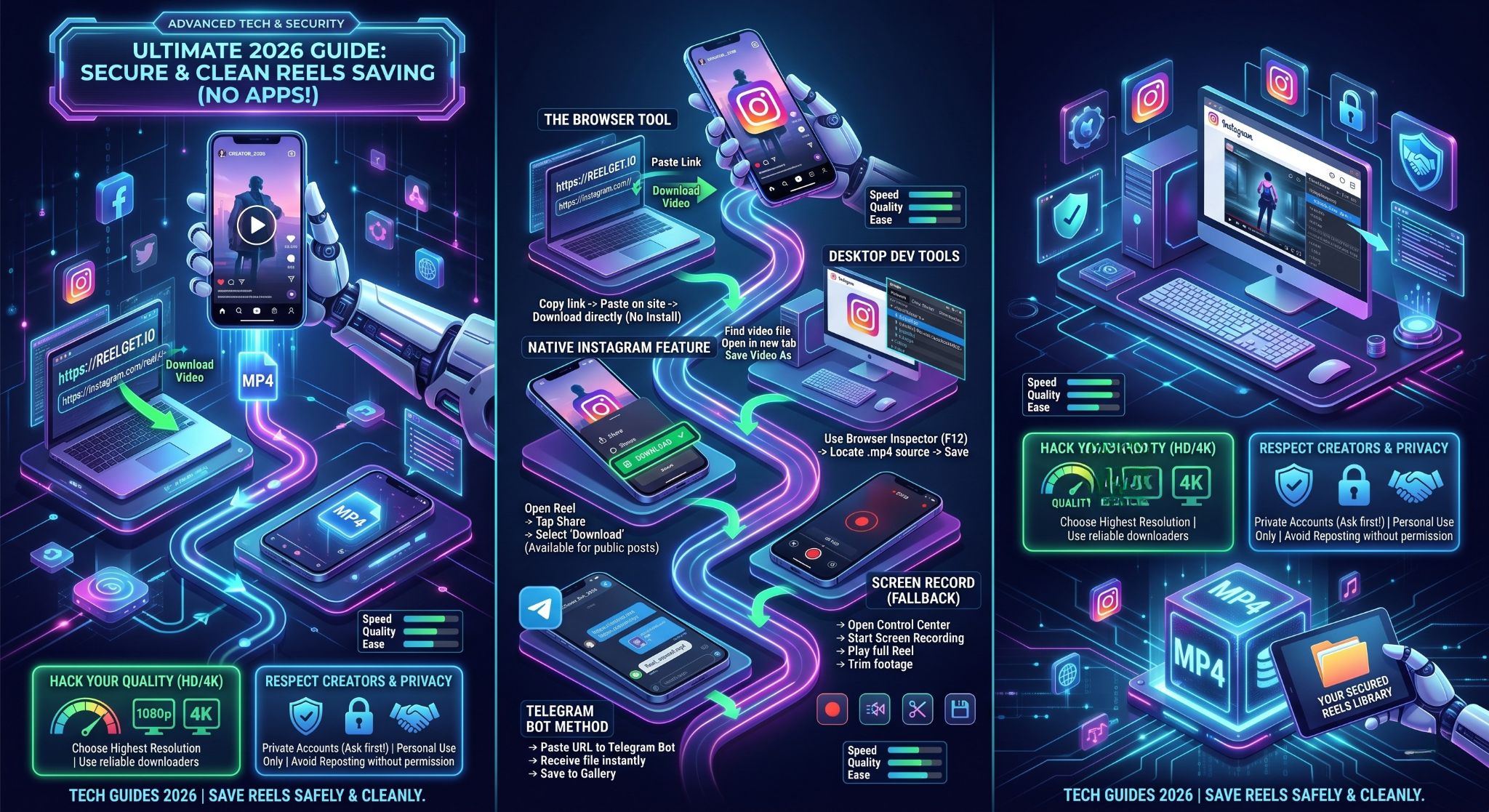
If all else fails, or if you are in a massive rush, you can always just record your screen. This is the “universal” method because if you can see it on your screen, you can record it. There is no link-copying or code-inspecting required, just a couple of taps on your phone’s control center.
|
Platform |
Built-in Tool |
Audio Source |
Best For |
|
iPhone/iOS |
Screen Record |
System Audio |
Quick Saves |
|
Android |
Screen Recorder |
Internal Sound |
Troubleshooting |
|
Windows |
Game Bar (Win+G) |
System |
Desktop Saves |
|
Mac |
Screenshot Tool |
Loopback/System |
High Res |
iOS Screen Recording Steps
Swipe down from the top right of your iPhone to open the Control Center. Tap the record icon (the circle inside a circle). After the three-second countdown, play the Reel. When it’s done, tap the red status bar at the top to stop.
Android Screen Recording Steps
Swipe down the notification shade and find the “Screen Record” tile. Make sure you set the audio to “Media” so it captures the music and not your own voice through the microphone. Start the record, play the video, and hit stop when finished.
Cleaning Up the Footage
The downside to screen recording is that it captures your whole screen, including your battery icon and the “Like” buttons. You will need to open the video in your photos app and use the “Crop” tool to trim the edges so it looks professional.
Method 5: Telegram Bots for Fast Saving
For power users, Telegram is more than just a messaging app; it is a powerful tool for automation. There are “bots” on Telegram that are specifically designed to download instagram reels in seconds. You just send the link to the bot, and it sends the video file back to you as a message.
|
Bot Name |
Response Time |
Reliability |
Cost |
|
@InstaVideoBot |
Instant |
High |
Free |
|
@SaveAsBot |
2-3 Seconds |
Very High |
Free |
|
@RegramBot |
Instant |
High |
Free |
|
@SocialDownBot |
5 Seconds |
Medium |
Free |
How to Find a Bot
Open Telegram and search for “Instagram Downloader.” You will see several options. Pick one with a lot of users and a good reputation. Tap “Start” to activate it.
Sending the Link
Go back to Instagram, copy the link of the Reel, and paste it into the chat with the Telegram bot. Send the message just like you were texting a friend.
Saving the Result
The bot will process the link and reply with the video file. Tap the three dots on the video message and select “Save to Gallery.” This is often faster than using a website because there are no ads to deal with.
Pro Tips for Higher Quality Videos
Nobody likes a blurry video. If you are downloading a Reel to use in a project or to watch on a big screen, quality matters. In 2026, many Reels are uploaded in 1080p or even higher, but a lot of downloaders default to a lower resolution to save data. You have to be intentional if you want the best possible version.
|
Video Quality |
Resolution |
File Size |
Recommended For |
|
Low |
480p |
Small |
Mobile viewing |
|
Standard |
720p |
Medium |
Social sharing |
|
High |
1080p |
Large |
Archive/Editing |
|
Ultra |
4K |
Very Large |
Professional use |
Checking Source Resolution
Some web tools give you a choice of quality before you hit download. Always look for the “HD” or “1080p” label. If the site only gives you one option and it looks grainy, try a different website that supports higher bitrates.
Avoiding Re-Compression
Every time you download and re-upload a video, it loses a bit of quality. If you are a creator, try to get the original file whenever possible. If you must download, avoid apps that “process” the video, as they often apply heavy compression that makes the colors look washed out.
Handling Downloads from Private Accounts
This is a tricky area. Most web tools cannot “see” private accounts because they don’t have permission to view them. If you try to paste a link from a private account into a downloader, it will usually give you an error message. However, if you are a follower of that account, you still have options.
|
Method |
Works for Private? |
Safety |
Difficulty |
|
Web Tools |
No |
High |
Easy |
|
Screen Record |
Yes |
High |
Easy |
|
Browser Trick |
Yes (If logged in) |
Medium |
Hard |
|
Native Button |
Usually No |
High |
Easy |
Why Privacy Matters
Private accounts exist for a reason. Always think twice before saving and sharing content from someone who has locked their profile. They likely only want their approved circle to see what they are posting.
The Screen Record Loophole
Since screen recording just captures what your eyes see, it works perfectly for private accounts. As long as you can play the video on your phone, you can record it. Just remember that some apps might notify the user if you take a screenshot or record, though Instagram currently does not do this for Reels.
Fixing Common Downloading Issues
Technology is great until it isn’t. You might run into a situation where the link won’t paste, the sound is missing, or the download just keeps failing. Usually, these are quick fixes that don’t require a degree in computer science.
|
Problem |
Likely Cause |
Quick Fix |
|
No Sound |
Multi-track audio |
Use a different web tool |
|
Link Error |
Private account |
Use screen recording |
|
Site Frozen |
Too many ads |
Refresh or use AdBlock |
|
“Invalid URL” |
Copy-paste error |
Re-copy the link |
Dealing with Missing Audio
Sometimes Instagram uses licensed music that gets stripped away when you download the video. If your download is silent, try using a downloader that specifically mentions “Audio included” or use the screen recording method to capture the sound as it plays.
Managing Storage Errors
If your download fails halfway through, check your phone’s storage. High-quality Reels can be 50MB or larger. If your phone is stuffed with photos, there might not be room for the new file. Clear some cache and try again.
The Future of Content Saving Post-2026
As we look past 2026, the way we download instagram reels will likely become even more integrated. We might see AI tools that can summarize a Reel and save only the “important” parts, or blockchain-based watermarks that track exactly where a video came from. Platforms will always try to keep you inside their “walled garden,” but users will always find ways to take their favorite content with them.
|
Trend |
Impact |
Timeline |
|
AI Summaries |
Shorter, saved clips |
2027 |
|
Better Native Tools |
Less need for websites |
Ongoing |
|
Encrypted Streams |
Harder to download |
2028 |
|
8K Video |
Massive file sizes |
2027 |
The Rise of AI Content
With more Reels being generated or enhanced by AI, the files are getting more complex. Saving these will require tools that can handle dynamic metadata and interactive elements that are starting to pop up in short-form video.
Increased Platform Restrictions
Expect Instagram to keep playing cat-and-mouse with download sites. They might change their code daily to break web tools, which is why knowing multiple methods like the browser developer trick is so valuable.
Final Thoughts
Saving your favorite videos shouldn’t be a headache. Whether you use a quick web tool, a Telegram bot, or just a simple screen recording, you have all the power to download instagram reels without ever needing to install a suspicious third-party app. By sticking to these methods, you keep your account secure, your phone fast, and your favorite memories accessible even when you are offline.
Keep in mind that while the technology makes it easy to save everything, being a responsible digital citizen is still important. Respect the creators you love by not stealing their content for your own gain. Now that you have the tools, go ahead and start building that perfect offline library of inspiration, laughter, and tutorials.
Frequently Asked Questions (FAQs)
Can I download Reels in 4K resolution?
Yes, if the original video was uploaded in 4K, some premium web tools like SnapInsta can fetch that high-resolution file. However, most Reels are natively 1080p, so downloading in 4K won’t necessarily make a 1080p video look better.
Is it illegal to download someone else’s Reel?
For personal use, it is generally considered safe. However, using that video for commercial purposes or reposting it as your own without credit is a violation of copyright law and Instagram’s terms of service.
Why does the audio disappear on some downloads?
This usually happens because the audio track is stored separately from the video track on Instagram’s servers. If a downloader is not sophisticated enough to merge them back together, you get a silent video. Switching to a more modern tool or screen recording usually fixes this.
Will Instagram ban me for downloading Reels?
Using web-based tools that don’t require a login is completely safe and won’t get you banned. Instagram has no way of knowing you used a third-party website to fetch a public video. Just avoid apps that ask for your password.
How do I download a Reel from a computer?
The easiest way on a computer is to use a web downloader site or the “Inspect Element” trick in your browser’s developer tools to find the direct MP4 link.