
Missing an important phone call is always annoying. Realizing the caller could not leave a message because your iphone voicemail not working is flat-out frustrating. Whether you are waiting for a job offer, a doctor calling with test results, or just catching up with family, a broken voice messaging system cuts you off from the world. We rely heavily on visual voicemail to screen calls and manage our lives.
When that screen goes blank or messages refuse to download, panic usually sets in. You do not need to rush to the Apple Store just yet. Most of these glitches are software conflicts or minor carrier miscommunications that you can fix right from your couch. This guide breaks down exactly what goes wrong and how to fix it fast.
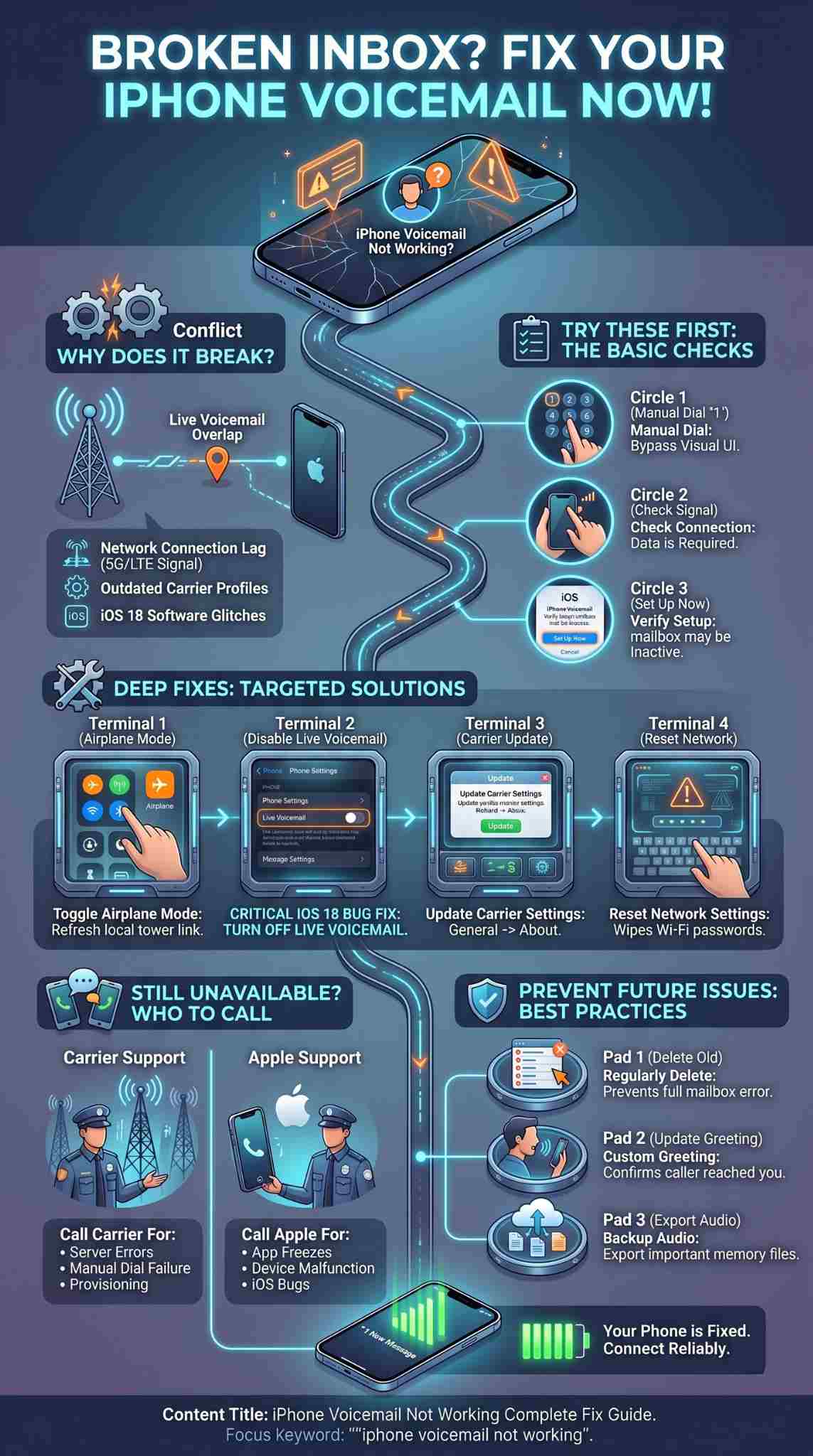
Understanding Why Your iPhone Voicemail Is Not Working
When your voice messages stop coming through, the problem almost always stems from a breakdown in communication between your device and your mobile provider. Your phone does not actually hold your unread messages right away; it downloads them securely from your carrier networks. If that connection drops, your inbox looks completely empty. We will look closely at the usual connectivity problems and how recent Apple software tweaks disrupt this process. Recognizing the underlying cause will save you hours of unnecessary troubleshooting.
|
Root Cause |
Common Symptom |
Impact Level |
Fix Approach |
|
Carrier Connection |
Voicemails fail to download |
High |
Network resets |
|
iOS Software Bug |
Phone app freezes or crashes |
Medium |
Update iOS |
|
Outdated Carrier Settings |
Visual Voicemail Unavailable error |
High |
Carrier update |
|
Live Voicemail Conflict |
Old messages disappear suddenly |
Medium |
Toggle settings |
Common Culprits Behind Voicemail Issues
Network connectivity remains the biggest offender for most messaging glitches. If you spend time in areas with patchy 5G or LTE reception, your phone will struggle to pull audio files from the server. Another major issue involves background carrier updates. Mobile networks frequently push small configuration files to your phone to keep it compatible with their towers. If a file gets corrupted during a download, your visual voicemail service is usually the first thing to break. Even a slightly dislodged SIM card can cause enough data interruption to stop messages from syncing. Additionally, having a full mailbox on the server side will reject incoming messages, making it appear as though the entire system is broken.
The Impact of iOS Updates on Voicemail
Software updates bring great new features but they also introduce unexpected bugs. Starting with iOS 17 and continuing heavily into iOS 18, Apple introduced a feature known as Live Voicemail. This feature transcribes messages in real-time on your lock screen while the caller speaks. However, it completely changes how calls get routed. Instead of sending the caller directly to your carrier server, your phone handles the message itself. This massive shift confused carrier networks across AT&T, Verizon, and T-Mobile. Many users found their older messages vanished entirely, and traditional visual voicemail stopped syncing because the phone and the carrier were fighting over who handles the call.
Immediate Checks (The Basics)
Do not jump straight into erasing your network settings or calling customer support just yet. A surprising number of voicemail problems have incredibly simple solutions. I always recommend ruling out the absolute basics before moving on to deeper system menus. This saves you time and prevents you from accidentally deleting saved Wi-Fi passwords. We will look at your cellular data, check if your inbox is genuinely active, and run a quick manual dial test. Try these quick checks first to see if your inbox refreshes.
|
Basic Check |
What It Does |
Time Required |
Ease of Use |
|
Cellular Data Test |
Ensures you have a connection to download audio |
10 seconds |
Very Easy |
|
Setup Verification |
Confirms your mailbox is active with the carrier |
1 minute |
Easy |
|
Manual Dial |
Bypasses the visual interface to check the server |
2 minutes |
Easy |
Check Your Cellular Connection
Visual voicemail relies entirely on cellular data to download audio files. It will not work properly if you are completely offline or if your cellular data is toggled off while connected to a weak Wi-Fi network. Look at the status bar at the top of your screen to ensure you have at least two bars of cellular signal. Try turning off your Wi-Fi completely in your settings app. Open the Safari browser and try to load a new website using only your cellular data. If the site loads quickly, your connection is solid. If it hangs or fails, your lack of cell service is directly preventing voicemails from loading.
Verify Your Voicemail Is Actually Set Up
If you recently bought a new phone or switched mobile providers, your mailbox might be empty because it does not technically exist yet. Open your Phone app and tap the Voicemail tab at the bottom right. If the screen displays a button that says Set Up Now, your service is inactive. Tap that button, create a new numeric password, and record a custom greeting. The system needs this initial setup to trigger the carrier to start saving your messages. Sometimes, porting your number to a new carrier wipes your old inbox entirely, requiring a fresh setup.
Call Your Voicemail Manually
Your visual voicemail app interface might be broken, but your actual inbox on the carrier server might be completely fine. You need to test this to isolate the problem. Open the Phone app, tap Keypad, and hold down the number 1 key. This dials your mobile carrier server directly. If someone has left you a message, you will hear the automated voice prompt you to listen to it. If you can hear messages this way, you know the problem is strictly related to your iPhone visual display and not your actual mobile account.
Advanced Troubleshooting: How to Fix iPhone Voicemail
If the basic checks did not resolve your issue, we need to dig into the settings menu. These steps involve resetting connections and forcing your phone to re-authenticate with your mobile provider. We have ordered these from the easiest and least invasive to the most aggressive system resets. We will go over simple toggles, force restarts, fixing iOS 18 specific bugs, and updating old carrier profiles. Work through them one by one until your messages start appearing again.
|
Troubleshooting Step |
Action Taken |
Success Rate |
Data Loss Risk |
|
Airplane Mode Toggle |
Refreshes the local tower connection |
High |
None |
|
Force Restart |
Clears temporary system memory bugs |
High |
None |
|
Disable Live Voicemail |
Resolves iOS 18 routing conflicts |
Very High |
None |
|
Network Reset |
Wipes corrupted connection profiles |
High |
Wi-Fi passwords |
1. Toggle Airplane Mode On and Off
Think of this as a quick reboot for your cellular antennas. Swipe down from the top right of your screen to open the Control Center. Tap the airplane icon so it turns orange. This cuts off all radio signals to and from your phone. Leave it on for about thirty seconds. Tap it again to turn it off. Your phone will search for the nearest cell tower and establish a brand new connection. This fresh handshake is often enough to push stuck voicemails through the network and onto your device.
2. Force Restart Your iPhone
Standard restarts are fine, but a force restart cuts the power from the battery to the logic board, instantly clearing out stubborn software glitches. Quickly press and release the volume up button. Quickly press and release the volume down button. Then press and hold the side power button. Do not let go when you see the slide to power off slider. Keep holding the button until the screen goes black and the Apple logo appears. This takes about fifteen seconds and fixes random app freezes.
3. Turn Off Live Voicemail (iOS 17 and iOS 18 Specific Fix)
This is currently the most effective fix for newer devices. Live Voicemail frequently intercepts the call before your carrier can process it, causing massive syncing failures. Open your Settings app and scroll down to Apps. Tap on Phone. Scroll down to the Live Voicemail option and tap it. Switch the toggle off. Once disabled, restart your phone. Thousands of users report that turning this off instantly restores their missing visual voicemail lists.
Read Also: Top 5 Examples of Professional Voicemail Greeting
4. Check for Carrier Settings Updates
Running old carrier files will absolutely break your synchronization. Connect to a reliable Wi-Fi network. Open Settings, tap General, and then tap About. Do not touch anything on this screen. Just wait for about twenty seconds. If your carrier has released a new update, a prompt will suddenly pop up on your screen asking you to update. Tap it and let it install. If no prompt appears after thirty seconds, your settings are already current.
5. Reset Network Settings
Sometimes your phone clings to corrupted data profiles that block incoming server requests. Resetting your network settings clears out all cellular, Bluetooth, and Wi-Fi configurations. Go to Settings, tap General, and scroll to Transfer or Reset iPhone. Tap Reset, then choose Reset Network Settings. You will need to enter your lock screen passcode. The phone will reboot automatically. You will not lose any photos or text messages, but you will have to type in your home Wi-Fi password again.
6. Turn Off Call Forwarding
If your calls are bouncing to another number, they will never reach your inbox. Sometimes an app or an accidental tap turns this routing feature on without you knowing. Open Settings, scroll down to Apps, and tap Phone. Find Call Forwarding and tap it. Ensure the toggle switch is completely grayed out. If it is green, calls are bypassing your phone completely, which explains why no one can leave a message.
7. Disable Wi-Fi Calling Temporarily
Wi-Fi calling is great for bad reception areas, but switching between a home router and a cell tower mid-call can confuse the delivery system. Open Settings, tap Cellular, and tap Wi-Fi Calling. Turn it off entirely. Ask a friend to call you and leave a test message using just your standard cellular connection. If the message appears, your Wi-Fi calling feature was causing a delay in the delivery pipeline.
8. Update Your iOS to the Latest Version
Apple monitors bug reports from users closely. If a specific iOS version ruins visual voicemail, they usually patch it in the very next release. Go to Settings, then General, and select Software Update. If you see an update waiting, download and install it immediately. Running the latest software ensures you have the newest bug fixes directly from Apple engineers, especially if you are on an early version of iOS 18.
9. Change Your Voicemail Password
Your phone uses a hidden numeric password to log into the carrier server silently and download your audio files. If this password gets out of sync, downloads stop completely. Open Settings, tap Phone, and select Change Voicemail Password. Type in a new four digit to six digit number and save it. This forces the iPhone to send a new authentication request to the network, which usually clears the backlog of missing messages.
10. Remove and Reinsert Your SIM Card
Physical SIM cards can shift slightly inside your phone if you drop it or bump it against a hard surface. This creates micro-disconnections that ruin data streams. Grab a paperclip or a SIM ejector tool. Push it firmly into the tiny hole on the right side of your phone to pop the tray open. Take the card out, wipe the gold contacts gently with a clean shirt, and put it back in. Slide the tray in and wait for the signal bars to return.
Seeing the words Visual Voicemail is Currently Unavailable on a blank white screen is a very specific type of failure. It means your phone is actively trying to reach the server but is being outright rejected by your mobile provider. This requires a specific set of troubleshooting steps aimed directly at your cellular account provisioning. We will explore why the carrier rejects the connection and exactly what you need to tell customer service to fix it.
|
Error Component |
Likely Cause |
Solution Path |
Wait Time |
|
Unavailable Screen |
Carrier account provisioning error |
Call carrier support |
15 minutes |
|
Spinning Loading Wheel |
Weak cellular data connection |
Disable Wi-Fi, test cellular |
Instant |
|
Missing Transcripts |
Apple dictation server timeout |
Force close Phone app |
Instant |
What Causes the Visual Voicemail Error?
This specific error almost always traces back to an account coding issue on the carrier side. If you recently changed your data plan, upgraded your phone, or ported your number from another company, the automated system might have dropped the visual voicemail feature from your profile. Certain business plans at carriers like AT&T do not automatically include visual voicemail codes either. Without that specific active code on your account, the carrier servers block your iPhone from accessing the visual interface completely.
Specific Fixes for Visual Voicemail
First, turn off your Wi-Fi and open the Phone app to force a cellular-only connection attempt. If the error remains, you must call your cellular provider. You need to instruct the customer service representative to remove the visual voicemail feature from your account entirely, save the changes, and then add the feature back on. This simple reprovisioning reset on their end forces a new handshake with your device and fixes the unavailable error almost every single time.
When to Contact Your Mobile Carrier or Apple Support
You have tried every toggle, reset, and update available in the settings menu. If you are still staring at an empty inbox, you have hit the limit of DIY troubleshooting. It is time to call in the professionals. The trick is knowing whether to call your mobile network provider or Apple directly. We will break down exactly who handles which part of the phone system. Calling the wrong support team will just result in you getting transferred back and forth for hours.
|
Support Channel |
When to Contact |
Type of Help Provided |
Resolution Method |
|
Mobile Carrier |
Phone does not ring, manual dial fails |
Account resets, server checks |
Remote provisioning |
|
Apple Support |
Phone app crashes, manual dial works |
Hardware diagnostics, iOS repair |
Software restore |
Carrier Responsibility
Call your cellular provider if your phone never rings and callers go straight to a busy signal. You should also call them if holding the number 1 key results in an error message or a dead line. These symptoms prove the issue is outside of your phone and lives entirely on their network. Tell the representative you need them to check your voicemail provisioning and reset your mailbox password from their computer.
Reaching Out to Apple Support
You need to contact Apple if your manual dial to the inbox works perfectly, but the Phone app constantly freezes, crashes, or fails to display the audio controls on screen. This points to an operating system failure or a hardware issue with your internal cellular modem. Apple can run remote diagnostics on your device to see if the internal antennas are failing or if a deep factory restore via a Mac or PC is required.
Best Practices for Managing iPhone Voicemail
Once everything is working again, you want to keep it that way for good. Managing your inbox properly prevents future server crashes and ensures you never run out of storage space. Treat your inbox just like your daily email. We will go over how often you should delete old audio files, why custom greetings help, and how to save your most precious messages. A little regular maintenance goes a long way in keeping the service fast and reliable.
|
Maintenance Task |
Frequency |
Benefit |
Effort Level |
|
Delete Old Messages |
Weekly |
Prevents server storage from filling up |
Very Low |
|
Update Greeting |
Yearly |
Ensures callers know they reached you |
Low |
|
Export Audio Files |
As needed |
Saves important memories to iCloud |
Medium |
Regularly Delete Old Voicemails
Your mobile carrier gives you a very limited amount of storage space for voice messages. If your mailbox fills up, callers will hear a robotic voice telling them they cannot leave a message. This makes it look like your phone is broken again when it is just full. Swipe left on old messages and delete them. Then, scroll to the bottom of the screen, tap Deleted Messages, and clear them out permanently to free up server space.
Set Up a Custom Greeting
Do not rely on the default robotic carrier greeting. If you ever need to test your system from a different phone line, a custom greeting confirms you actually dialed the right number. Open the Phone app, tap Voicemail, and tap Greeting in the top left corner. Select Custom and hit record. A personal greeting also makes you look much more professional to potential employers or clients calling your number.
Back Up Important Voicemails
Do not leave messages from deceased loved ones or important legal contacts sitting in the phone app. Carrier servers crash, and phones get lost or broken. You can save the actual audio files forever. Tap on the voicemail you want to keep. Tap the square share icon with the arrow pointing up. Choose Save to Files or email it to yourself. This pulls the audio off the carrier server and puts it safely on your iCloud drive.
Final Thoughts
Dealing with an iphone voicemail not working is incredibly stressful, especially when you use your device for important daily business communication. By understanding exactly how your phone interacts with your mobile carrier, you can bypass the frustration and get straight to the working solutions. Always remember to check your basic cellular connection first, and do not be afraid to toggle off newer Apple features like Live Voicemail if they are causing conflicts with your older carrier settings. If you follow these exact troubleshooting steps, manage your inbox space properly, and keep your software updated, you will ensure your visual voice messaging remains a reliable tool for keeping in touch with the people who matter most.
Frequently Asked Questions (FAQs)
Even with a comprehensive guide, specific quirks pop up that confuse users daily. We monitor the most unusual search trends to find the odd problems that most standard troubleshooting guides ignore. We will answer questions about VPN interference, dual SIM conflicts, weird screen time bugs, and business plan limitations. These frequently asked questions cover the edge cases that might be impacting your device right now.
|
FAQ Topic |
Common Concern |
Quick Answer |
Related Setting |
|
VPN Interference |
Do VPNs block audio downloads? |
Yes, disable VPNs to test sync. |
General Settings |
|
Screen Time Bugs |
Can limits block messages? |
Yes, check Communication Limits. |
Screen Time |
|
Carrier Plans |
Does my plan limit visual features? |
Yes, some business plans lack VVM. |
Carrier Account |
Why is my voicemail icon showing a red dot but no messages?
This is a notorious syncing glitch between your iPhone and the carrier network. The carrier has notified your phone that a message exists, triggering the red notification dot, but the phone failed to download the visual audio component. To fix this phantom dot, force close the Phone app, turn on Airplane Mode for thirty seconds, turn it off, and open the app again. If that fails, dialing into your inbox manually and listening to the audio will usually clear the stuck notification.
Did the iOS update break my voicemail?
If you recently updated to iOS 17 or iOS 18, it is highly likely that the update changed how your device operates by enabling the Live Voicemail feature by default. This feature intercepts calls locally rather than sending them to your carrier server, which creates the illusion that your traditional system is completely broken. Turning off Live Voicemail in your phone settings is usually the instant cure for this specific update-related bug.
How do I access my old voicemails that disappeared?
When Live Voicemail activates during a major software update, it often hides older messages that were stored securely on your carrier server. By disabling the Live Voicemail feature in the settings and restarting your device, the iPhone reverts to communicating directly with the mobile network. This traditional handshake typically forces the old saved audio files to populate back into your visual list within a few minutes.
Can I turn off Live Voicemail permanently?
Yes, you can absolutely turn off Live Voicemail permanently if you prefer the old system. Navigate to your Settings app, select the Apps menu, choose Phone, find Live Voicemail, and switch the toggle to the off position. Unless you manually turn it back on later or perform a total factory reset of your device, the feature will remain disabled, allowing your carrier to handle all incoming calls traditionally.
Can Screen Time limits block my voicemail?
Surprisingly, yes. Sometimes a glitch in the Screen Time settings limits background communication apps. If you or a family member enabled Communication Limits within the Screen Time menu, it can inadvertently block incoming voicemails from numbers that are not saved in your contacts list. Go to Settings, tap Screen Time, select Communication Limits, and ensure it allows communication with Everyone to see if that resolves the blockage.
Does my carrier plan affect visual voicemail availability?
Yes, absolutely. Not all cellular plans include visual voicemail by default. Some specific corporate or business advanced plans at carriers like AT&T separate standard voicemail from visual voicemail. If your company recently changed your mobile plan, they might have accidentally downgraded you to a basic voice package. You will need your account manager to contact the carrier and ensure the visual voicemail code is added back to your specific phone line.