
Have you ever tried to open a simple web page and watched your screen freeze? It is incredibly frustrating. You just want to check your email, stream a video, or finish a work project, but your browser has other plans. You are not alone in this. Millions of people deal with sluggish performance every single day. If you want to know how to make chrome faster, you have come to the right place. We are going to walk through exactly what is dragging your speed down and how to fix it right now.
The good news is that you do not need to buy a brand new computer. You just need to tweak a few things under the hood. Google has rolled out some massive updates recently, and the 2026 version of the browser includes built-in tools specifically designed to solve these exact problems. Whether it is memory hogs, outdated extensions, or just a messy cache, we will cover it all. Grab a coffee, and let us get your browser running smoothly again.
Why Does Google Chrome Slow Down Over Time?
When you first download a fresh copy of the browser, it feels incredibly snappy. Pages load in the blink of an eye, and everything works perfectly. But as weeks and months pass, things start to get sluggish. This happens because the software constantly collects data, saves files, and runs tiny background programs to make your life easier. Over time, all of this helpful data turns into digital clutter that weighs your computer down. Understanding the root causes of this lag is the first step if you want to make chrome faster.
The Problem with Memory Hoarding
Every single time you open a new tab, your computer treats it like a completely separate application. This architecture is called ~Process-per-tab~ and it is meant to keep the whole browser from crashing if one single website breaks. While this makes things stable, it demands a huge amount of Random Access Memory. If you are browsing on a laptop with limited memory, keeping twenty tabs open will absolutely crush your system performance. The computer has to juggle too much data at once, leaving very little processing power for the tab you are actually trying to look at. This creates a bottleneck that slows down your entire operating system.
Extension Bloat and Background Apps
We all love add-ons. Coupon finders, ad blockers, and grammar checkers are great tools that improve our daily online experience. However, every single add-on you install is constantly running in the background. Even if you are not actively using a tool, it is sitting there quietly eating up your processor speed. On top of that, many web apps are designed to keep running even after you close the main window. If you never audit your add-ons, you are basically forcing your computer to run a marathon with a backpack full of rocks.
|
Lag Cause |
Description |
Impact Level |
|
Tab Hoarding |
Leaving dozens of tabs open at the same time |
High |
|
Heavy Extensions |
Too many active add-ons running continuously |
High |
|
Corrupted Cache |
Storing years of temporary website files |
Medium |
|
Outdated Software |
Running an old version missing performance patches |
Medium |
|
Hardware Limits |
Using a device with low memory capacity |
High |
Essential Performance Settings to Optimize First
If you are tired of waiting for pages to load, you should start with the native tools Google built straight into the system. These features were heavily upgraded for 2026 to help users squeeze more speed out of their machines. They are incredibly easy to find and only take a few clicks to activate. You do not need to be a tech-savvy developer to use them. Flipping these switches is often the fastest way to make chrome faster without having to delete anything important.
Activate Memory Saver Mode
This is arguably the most powerful tool at your disposal right now. When you turn on this setting, the browser automatically looks for tabs you have not clicked on in a while. It puts those unused tabs into a deep sleep, completely freeing up the memory they were holding hostage. The tabs stay visible at the top of your screen, so you do not lose your place. The second you click back on a sleeping tab, it instantly wakes up and reloads. To turn this on, simply click the three dots in the top right corner, open your settings, and look for the Performance tab on the left. Toggle the switch on, and you will likely notice a massive speed boost immediately. You can even set specific websites to never go to sleep if you need them constantly active.
Turn on Energy Saver Mode
While this setting sounds like it is only for laptop battery life, it actually helps with speed too. When your device gets low on power, it naturally slows everything down to stay alive. Energy Saver kicks in to reduce heavy visual effects and background activity. You can set it to activate whenever your battery drops below twenty percent, or whenever your computer is unplugged. By limiting smooth scrolling and video frame rates, your processor does not have to work nearly as hard. This keeps your device cooler and stops the dreaded thermal throttling that makes your whole screen freeze.
|
Setting Name |
Location |
Primary Benefit |
|
Memory Saver |
Performance Menu |
Frees up unused memory from background tabs |
|
Energy Saver |
Performance Menu |
Limits background activity to save processing power |
|
Performance Alerts |
Performance Menu |
Notifies you when a specific site is causing lag |
|
Always Active Sites |
Performance Menu |
Prevents important tabs from ever going to sleep |
Managing Extensions and Open Tabs
Even with the best settings turned on, bad browsing habits will eventually slow you down. You have to take control of what you are actually asking your computer to do. Think of your browser like a physical desk. If it is covered in hundreds of papers and sticky notes, you will never be able to find what you need quickly. To truly make chrome faster, you need to establish a strict routine for managing your workspace.
How to Audit and Remove Heavy Extensions
You probably installed a dozen extensions over the last few years and forgot about half of them. It is time to clean house. Click the puzzle piece icon near your profile picture and open the management menu. Look at every single item on that list. If you do not use an add-on every single day, get rid of it. If you only need a specific tool once a month, just reinstall it when that day comes. Some add-ons are notoriously heavy, specifically those that scan every single word on a page to check your spelling or find discount codes. Removing just two or three of these heavy hitters can make a world of difference in your daily speed.
Read Also: 10 Awesome Google Chrome Extensions You Must Install
Master Tab Management for Better Speed
We are all guilty of opening a link in a new tab because we want to read it later. Before you know it, the icons are so small you cannot even read the titles. You have to break this habit. Instead of leaving a page open, save it to your bookmarks or use a dedicated reading list app. If you absolutely must keep multiple things open for a project, right-click on them and add them to a group. Grouping helps keep things organized visually, and it also helps the software manage the grouped data more efficiently. Close what you do not need, and watch your speed return instantly.
|
Management Strategy |
Action Required |
Result |
|
Extension Audit |
Remove unused or rare add-ons |
Frees up constant background CPU usage |
|
Bookmark Habit |
Save links instead of keeping tabs open |
Reduces active memory footprint |
|
Tab Grouping |
Organize related sites together |
Improves visual focus and data handling |
|
Daily Restart |
Close the whole program every night |
Clears out temporary memory leaks |
Deep Cleaning Your Browsing Data
Sometimes the simplest maintenance tasks yield the best results. Over time, your system saves tiny pieces of every website you visit. It does this so that the next time you go to that site, it loads faster because the images are already stored on your hard drive. But when this folder gets too big, it actually causes the exact opposite effect. Clearing out this old data is a vital step to make chrome faster.
Clearing Cache and Cookies Safely
Think of your cache as a digital junk drawer. It is full of old logos, broken image files, and tracking cookies from sites you only visited once five years ago. When this drawer overflows, the browser struggles to find the files it actually needs. Head into your privacy and security settings and click on clear browsing data. You want to check the boxes for cached images and files, as well as cookies and other site data. If you are experiencing serious lag, select the option to clear everything from the beginning of time. Keep in mind that doing this will sign you out of most of your accounts, so make sure you have your passwords saved somewhere safe before clicking confirm.
Resetting Chrome to Default Settings
If you have tried cleaning your files and deleting extensions, but things are still running terribly, you might need a clean slate. Sometimes third-party software changes hidden configurations without asking your permission. You can reset everything back to the way it was on the day you first installed it. Go to your settings, find the reset option on the left, and click restore settings to their original defaults. Do not panic, as this will not delete your bookmarks or your saved passwords. It simply disables all extensions, dumps all temporary data, and fixes any weird search engine redirects. It is the ultimate refresh button for a heavily bloated system.
|
Cleaning Action |
What It Deletes |
When To Do It |
|
Clear Cache |
Stored images and website layout files |
Monthly |
|
Clear Cookies |
Login data and site tracking preferences |
Every few months |
|
Clear History |
List of previously visited URLs |
Optional |
|
Full Reset |
Reverts all settings to factory default |
When major glitches or malware occur |
Advanced Browser Settings for Power Users
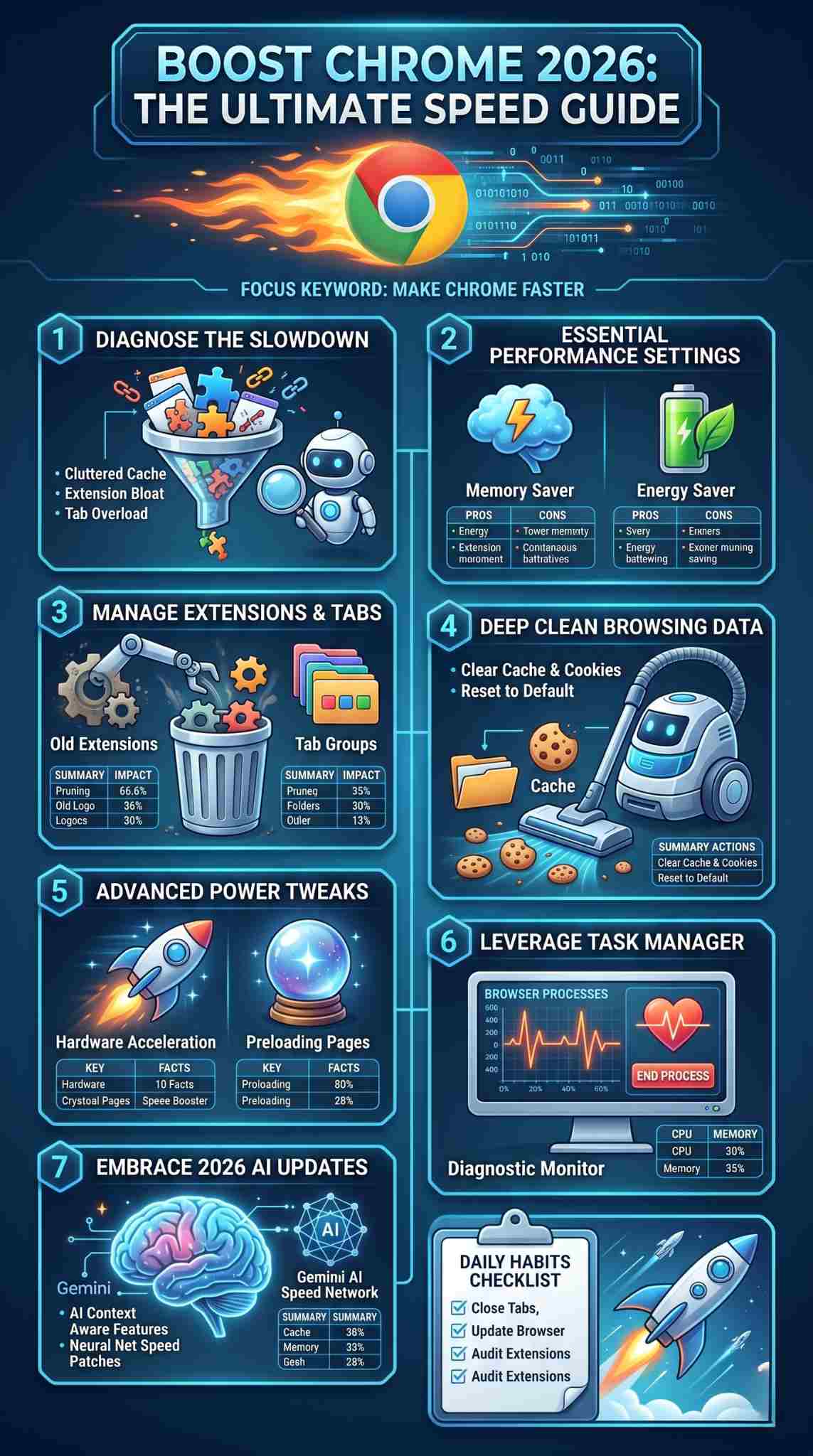
If you consider yourself a savvy user and want to squeeze every last drop of performance out of your machine, there are some deeper settings you can adjust. These tweaks change the fundamental way the software interacts with your physical hardware. You have to be a bit careful here, as the wrong setting on an older computer can cause glitches. But if you have decent hardware, these adjustments will make chrome faster than ever before.
How to Use Hardware Acceleration
Normally, your main computer processor handles everything you do online. But modern websites are heavy, packed with high-definition video and interactive animations. Hardware acceleration tells the browser to pass these heavy graphical tasks over to your dedicated graphics card. This frees up your main processor to handle standard tasks. You can find this switch in your system settings. If you have a relatively modern computer, turning this on will make scrolling and video playback buttery smooth. However, if you are using a ten-year-old laptop, you might want to leave this off to prevent sudden visual crashes.
Preload Pages for Instant Loading
This is a brilliant little feature that feels like magic when it works correctly. The software analyzes your behavior and tries to predict which link you are going to click next. It then starts loading that specific page in the background before your mouse even touches it. When you finally do click, the page appears instantly. You can activate page preloading in your privacy and security menu. It does use a little bit more internet data and memory, but the speed tradeoff is absolutely worth it if you have a solid connection.
Stop Background Apps When Chrome is Closed
Many people assume that clicking the red X in the top corner shuts the program down completely. That is not always true. By default, the software allows certain apps and extensions to keep running quietly in the background so they can send you notifications. This means your memory is being drained even when you are staring at an empty desktop. Go to your system settings and toggle off the switch that allows background apps to run when closed. This ensures that when you quit the program, it actually quits, giving you all your memory back for other tasks.
|
Advanced Feature |
Function |
Best For |
|
Hardware Acceleration |
Shifts graphics load to the GPU |
Modern computers with good graphics cards |
|
Page Preloading |
Loads predicted links in the background |
Users with fast, uncapped internet data |
|
Stop Background Apps |
Forces total shutdown on exit |
Anyone with limited system memory |
|
Secure DNS |
Uses faster servers to look up sites |
Users experiencing slow initial page loads |
Leveraging Chrome Task Manager
If your computer suddenly freezes, you do not have to restart the whole machine. Your browser actually has its very own built-in diagnostic tool. This feature is a lifesaver when you are trying to figure out exactly what is causing a massive slowdown. It gives you a real-time look at every single process running under the hood.
Finding the Heavy Hitters
You can open this tool by clicking the three dots, hovering over more tools, and selecting task manager. Or, you can just press Shift and Escape on your keyboard. A new window will pop up showing a list of every active tab, every background extension, and the core system processes. Look closely at the memory footprint column. You will easily spot the exact website or add-on that is eating up all your power. Often, it is a single video player or a poorly coded news site that is causing all the trouble.
Ending Unresponsive Processes
Once you identify the culprit in the task manager, you can stop it dead in its tracks. Just click on the row that is causing the problem and hit the end process button in the bottom right corner. The offending tab will crash and display an error face, but the rest of your browser will instantly speed back up. This is a much better solution than forcefully closing the whole program and losing your work on other tabs.
|
Task Manager Metric |
What It Means |
Ideal Status |
|
Memory Footprint |
How much RAM a specific tab is using |
Keep as low as possible |
|
CPU |
Processor power currently being used |
Should stay near zero when idle |
|
Network |
How much data is downloading right now |
High only during active streaming |
|
Process ID |
The internal tracking number for the task |
Diagnostic use only |
The Impact of 2026 Chrome Updates on Speed
The software landscape moves fast, and 2026 brought some heavy changes to how we browse the internet. Google has been aggressively integrating artificial intelligence directly into the search bar and the browsing experience. While these tools are amazing for productivity, they do come with a cost. Understanding how these updates work will help you manage your speed effectively.
AI Features and Gemini Integrations
You might have noticed new features popping up, like AI-generated summaries of articles or the ability to ask complex questions directly in the address bar. These tools, powered by the Gemini AI, are incredibly smart. However, running artificial intelligence processes requires a decent amount of processing power. If you are noticing a slight lag after a recent update, it might be due to these AI tools working in the background. If you do not use them, dig into your experimental settings and turn them off to keep things lean and fast.
Why Keeping Chrome Updated Matters
It might seem strange to keep updating your software if you are worried about it getting bloated. But running the most recent version is absolutely critical. The developers are constantly finding and fixing tiny coding errors that cause memory leaks. When you ignore that little update button in the corner, you are missing out on important speed patches. Get into the habit of restarting your program the moment you see an update is ready. The few seconds it takes to restart will save you hours of frustration later.
|
2026 Feature |
Benefit |
Potential Performance Impact |
|
Gemini AI Search |
Quick answers and summaries |
Moderate CPU usage during queries |
|
Advanced Tab Groups |
Better visual organization |
Minor memory savings |
|
Auto Tab Discarding |
Improved native memory saver |
Significant speed boost for heavy users |
|
Under-the-hood Patches |
Fixes memory leaks and bugs |
Essential for long-term stability |
Final Thoughts
Nobody should have to deal with a sluggish computer when they are trying to get things done. By taking a few minutes to audit your extensions, clear out your old data, and utilize the brilliant new performance settings, you can completely transform your daily workflow. Remember to keep things lean, close what you are not using, and let the built-in memory saver do the heavy lifting. If you follow these simple habits, you will know exactly how to make chrome faster and keep it running perfectly for years to come.
|
Final Checklist |
Action to Take Today |
|
Memory |
Turn on Memory Saver in settings |
|
Clutter |
Delete extensions you do not use daily |
|
Clean Up |
Clear your cache and old cookies |
|
Habit |
Stop leaving thirty tabs open at once |
Frequently Asked Questions (FAQs)
People constantly search for ways to improve their daily online experience. Here are some of the most common questions users ask when trying to figure out how to make chrome faster.
Why does my browser take so long to open in the morning?
This usually happens because you have too many extensions trying to boot up at the exact same time, or you have set the browser to open all your previous tabs from the night before. Change your startup settings to simply open a new blank tab, and remove any heavy add-ons you do not need.
Does using incognito mode make browsing faster?
Not directly. Incognito mode does not use less internet or processor power. However, it does disable your extensions by default. If your regular browsing is slow because of heavy add-ons, incognito mode will feel much faster simply because those add-ons are not running.
Will adding more RAM to my laptop fix the lag?
Yes, upgrading your physical memory is a guaranteed way to improve performance. The ~Process-per-tab~ architecture loves memory. If you upgrade from eight gigabytes to sixteen gigabytes, you will notice a massive difference when keeping multiple sites open.
Can antivirus software slow down my web pages?
Yes, it certainly can. Many security programs scan every single file and image as it downloads to your screen. If your security software is extremely aggressive, it will add a slight delay to every page load. Check your security settings to ensure it is running efficiently.
What is a memory leak?
A memory leak happens when a website or an extension asks your computer for memory to run a task, but fails to give that memory back when the task is finished. Over several hours, the leaked memory piles up until your computer has nothing left, causing a complete freeze. Restarting the program clears the leak.
|
FAQ Topic |
Quick Answer Summary |
|
Slow Startup |
Disable startup tabs and heavy extensions |
|
Incognito Speed |
Feels faster only because extensions are disabled |
|
Hardware Upgrades |
Adding RAM provides massive speed benefits |
|
Antivirus Lag |
Security scanning can delay page loads |
|
Memory Leaks |
Restart the browser to free up trapped memory |