
We have all been there. You are typing away on your keyboard, finally getting into a good workflow, and then your smartphone buzzes on the desk. You stop what you are doing, pick up the device, check the notification, and just like that, your concentration is broken. If you spend a significant chunk of your day switching your attention back and forth between a computer monitor and a mobile display, you already know how frustrating it is. Learning how to mirror android to pc can completely fix this problem, merging your mobile tools right into your desktop environment.
The technology behind screen sharing has improved massively over the past few years. You no longer have to rely on unstable connections or root your device just to get a decent picture on a larger monitor. Today, you have access to incredibly sophisticated tools that cater to every type of user. Whether you want to play high-speed mobile games on a bigger screen or simply reply to text messages without lifting your phone, there is a perfect solution waiting for you. In this guide, we will break down the five most effective ways to project your mobile display to your computer.
Why Mirror Your Android Screen to a PC?
Before we get into the technical setup, it helps to look at the practical, day-to-day benefits of casting your phone to your computer. People from entirely different professions use this technology to solve unique problems. Identifying exactly what you want to achieve will make it much easier to choose the right software from our list. I have found that tech savvy users often combine a few of these methods depending on whether they are at home or in the office.
|
Use Case |
Main Benefit |
Ideal User Profile |
|
Workplace Productivity |
Reply to texts and use mobile apps using a physical keyboard and mouse. |
Office workers and remote freelancers. |
|
Gaming and Media |
Experience mobile games and videos on a larger, high-definition monitor. |
Gamers and entertainment enthusiasts. |
|
Professional Presentations |
Show live app demos or mobile documents during a video conference. |
Sales teams and software developers. |
Boosting Productivity and Multitasking
For professionals and students, keeping track of messages, emails, and mobile-specific applications can easily derail a productive afternoon. By putting your phone screen directly on your computer monitor, you can interact with mobile apps using your mouse and keyboard. This setup allows you to reply to text messages quickly, keep an eye on incoming alerts, and navigate social media feeds without ever taking your hands off your primary input devices. It consolidates your entire digital life into a single focal point, which does wonders for your attention span.
Enhancing Media Consumption and Gaming
Mobile games have incredible graphics these days, but playing them on a six-inch screen does not always capture the full experience. Mirroring your screen allows you to enjoy your favorite mobile titles on a massive display. Furthermore, if you want to show your friends a video, a photo album, or a funny social media post, huddling around a tiny smartphone is uncomfortable. Casting that content to your computer monitor makes for a much better communal viewing setup.
Streamlining Presentations and Collaboration
In a professional setting, you might need to show how a new mobile application works or share a PDF that you only saved on your phone. Instead of trying to awkwardly hold your device up to a webcam or passing the phone around a conference room table, mirroring lets you project the screen directly onto your computer. You can then share your computer screen through video conferencing software like Zoom or Google Meet. This ensures everyone gets a clear, high-quality view of what you are demonstrating.
Method 1: Using Windows Built-in Wireless Display
One of the easiest ways to get your phone screen onto your computer does not require you to download any third-party applications at all. Windows 10 and Windows 11 come with a built-in feature called Wireless Display. This tool turns your computer into a wireless receiver, making it a highly convenient option for users who want a quick setup without the hassle of extra software.
|
Feature Area |
Windows Wireless Display Details |
|
Connection Protocol |
Miracast (Wi-Fi Direct) |
|
Cost |
Completely Free |
|
Setup Complexity |
Very Low |
|
Best Used For |
Quick media sharing and wireless presentations |
Understanding the Miracast Protocol
Miracast is essentially a wireless alternative to an HDMI cable. It creates a direct connection between your smartphone and your computer using Wi-Fi Direct technology. Because it creates its own dedicated network connection between the two devices, you do not technically need an active internet connection to make it work, though both devices need to have their Wi-Fi enabled. Most modern Android phones have this casting ability baked directly into their operating systems, often labeled in the settings as Smart View, Cast, or Screen Mirroring.
Step-by-Step Setup for Windows Wireless Display
To get started, you first need to make sure the Wireless Display feature is installed on your computer. Microsoft made this an optional feature in recent system updates, so you might need to add it manually.
Open your Windows Settings and click on the System menu. Look for an option titled Projecting to this PC. If you see a message saying you need to add the Wireless Display optional feature, click on the provided link, search for Wireless Display, and hit install. This process only takes a minute.
Once installed, go back to the Projecting to this PC settings page. You will see drop-down menus to configure your security preferences. You can require a PIN for pairing, which is a great idea if you are in a public space. Now, launch the Connect app on your Windows computer. Your monitor will display a blue screen indicating it is ready. Grab your phone, swipe down to open the Quick Settings panel, and tap your Cast or Smart View icon. Select your computer from the list, and your mobile screen will appear on your monitor.
Read Also: How to Transfer Data from Android to iPhone in 2026
Troubleshooting Common Connection Issues
Sometimes the connection might fail or drop for seemingly no reason. First, ensure that both your phone and your computer have their Wi-Fi turned on. Even though Miracast uses a direct connection, disabling the Wi-Fi toggle on either device breaks the process.
If your computer refuses to show up on your phone casting list, try restarting both devices. You should also check your Windows firewall settings, as a strict security profile might block incoming display requests. Finally, make sure your computer network and graphics drivers are fully updated, as outdated drivers are the most common reason Miracast connections fail.
Pros and Cons of Windows Wireless Display
The absolute biggest advantage of this method is the convenience factor. It is completely free, built directly into the operating system, and requires zero software installations on your mobile device. It is perfect for impromptu presentations.
However, the technology does have limits. Miracast connections can sometimes suffer from visual stuttering or noticeable input lag, making it a poor choice for fast-paced mobile gaming. Additionally, while you can view your screen perfectly, you cannot always control your phone using your computer mouse and keyboard through this specific method.
Method 2: Microsoft Phone Link for Seamless Integration
If you want more than just a simple screen cast and prefer a deeply integrated desktop experience, Microsoft Phone Link is arguably the most polished tool on the market. Previously known as Your Phone, this native application bridges the gap between Windows and Android, allowing the two operating systems to communicate seamlessly throughout your workday.
|
Phone Link Feature |
Compatibility Notes |
|
Basic Sync (Texts/Calls) |
Android 10.0 or later |
|
Screen Mirroring |
Select Samsung, HONOR, and ROG devices |
|
Operating System |
Windows 10 (latest updates) or Windows 11 |
|
Connection Type |
Wi-Fi (Must be on the same network) |
What Makes Phone Link Different?
Phone Link does not just mirror your screen; it pulls your phone core functionalities right into the Windows environment. Once you link the devices, you can read and reply to text messages, view your recent photos, manage mobile notifications, and even make phone calls using your computer microphone and speakers. The screen mirroring feature is treated as an advanced capability sitting inside this broader, highly useful ecosystem.
Device Compatibility and Requirements
While the basic features of Phone Link work flawlessly with almost any modern Android device, the actual screen mirroring function remains restricted to specific hardware partners. As of recently, you will need a compatible Samsung Galaxy device, an Asus ROG phone, or select HONOR devices to use the actual screen mirroring button. If you have a Google Pixel or a Motorola phone, you can still use Phone Link for messages and notifications, but the screen casting option will simply be hidden from the menu.
How to Connect Your Device via Phone Link
Setting up Phone Link involves using the app on both devices and linking them securely via your Microsoft account.
Start by searching for Phone Link in your Windows search bar and opening the application. The app will prompt you to log in with your Microsoft account credentials. Once logged in, the software will display a QR code on your monitor.
On your Android phone, download the Link to Windows app from the Google Play Store. On Samsung devices, this is built in, so just pull down your Quick Settings panel and tap the Link to Windows icon. Open the mobile app and use your phone camera to scan the QR code on your computer screen. Once synced, you will see a dashboard on your computer. If your phone supports mirroring, click the phone icon above the notification feed to launch a window displaying your live phone screen.
Pros and Cons of Microsoft Phone Link
The deep integration provided by Phone Link is unmatched for office environments. Being able to drag a photo directly from your phone gallery straight into a Word document on your PC saves an incredible amount of time. The interface is clean, professional, and visually appealing.
The major downside is the strict hardware limitation. If you do not own one of the supported smartphone brands, the screen mirroring feature is completely walled off. Additionally, the setup process requires you to grant a massive amount of personal data access to the application, which privacy-focused users might not love.
Method 3: Scrcpy for Low-Latency USB and Wireless Mirroring
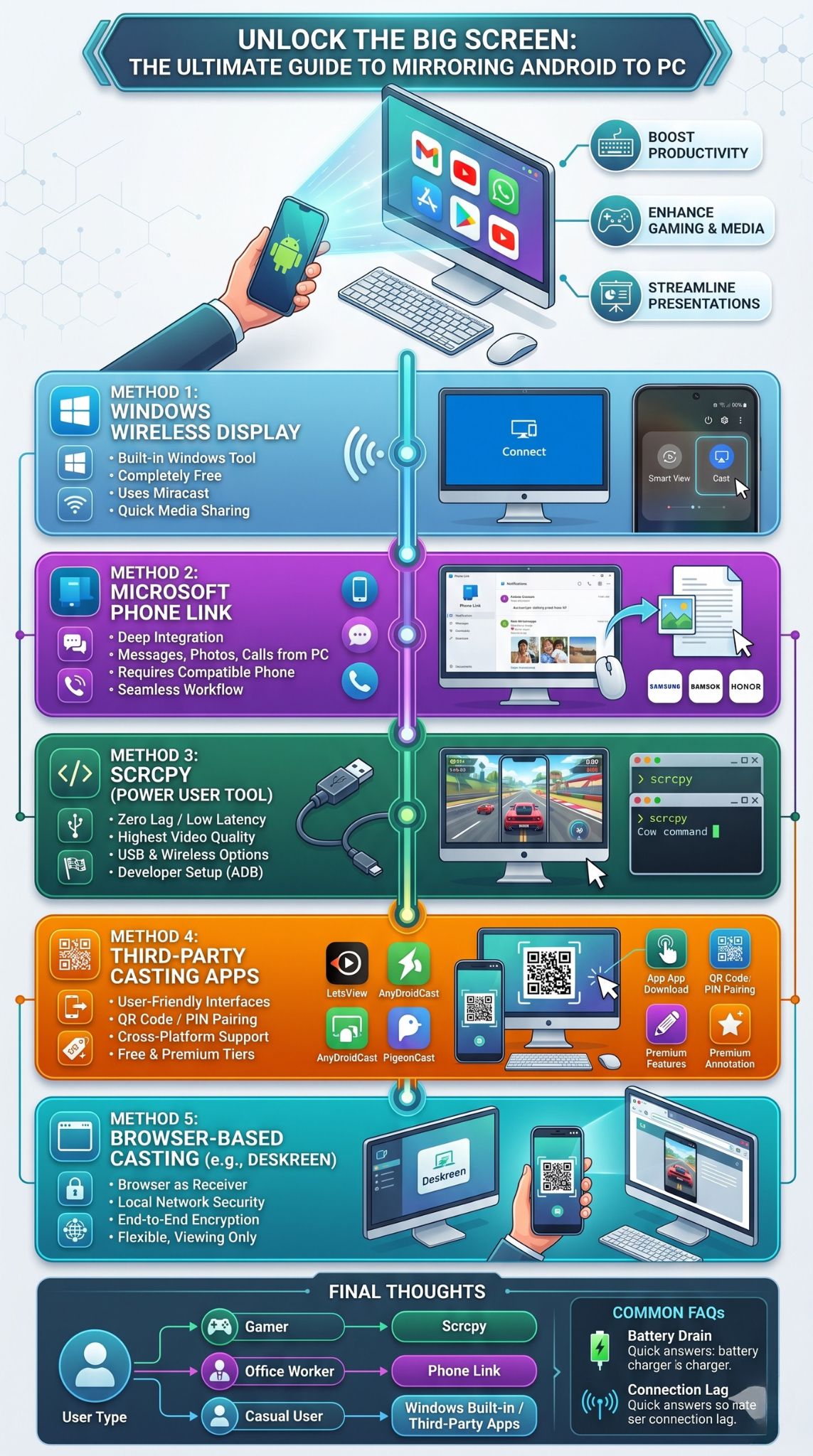
For developers, gamers, and true power users, standard wireless mirroring often falls short due to input lag and frame rate drops. This is where Scrcpy steps in. Scrcpy is a free, open-source application that provides unparalleled performance when you need to mirror android to pc without any compromises.
|
Scrcpy Setup Step |
Required Action |
|
Enable Developer Mode |
Tap Build Number 7 times in Phone Settings |
|
Allow USB Debugging |
Toggle USB Debugging on in Developer Options |
|
Connect Devices |
Plug phone into PC via high-quality USB cable |
|
Launch Software |
Run the scrcpy.exe file on your Windows PC |
Why Developers and Gamers Prefer Scrcpy
Scrcpy was built purely with speed and efficiency in mind. A tech reviewer recently noted, ~Scrcpy 4.0 makes virtual Android displays feel like desktop apps.~ It does not require you to install any client application on your phone, and it absolutely does not require root access. Instead, it operates through the Android Debug Bridge, pushing a tiny server to your device and transmitting the raw video feed back to your computer. The result is a crystal-clear image with latency so low that you can comfortably play competitive mobile games using your PC monitor.
Enabling Developer Options and USB Debugging
Because Scrcpy uses development tools, you must first unlock the hidden developer settings on your smartphone.
Open your phone Settings application and scroll down to the About Phone section. Look for the entry labeled Build Number. Tap on the Build Number seven times rapidly. You will see a small notification congratulating you on becoming a developer.
Navigate back to the main settings menu, and you will find a new section called Developer Options. Open it and scroll down until you find the toggle for USB Debugging. Turn this feature on. Your phone is now ready to communicate directly with the Scrcpy software on your computer.
Step-by-Step Setup for Scrcpy via USB
To get Scrcpy running, head over to its official GitHub repository and download the latest Windows release. Extract the downloaded ZIP file into a dedicated folder on your computer.
Connect your phone to your computer using a premium data USB cable. As soon as you plug it in, your phone will display a security prompt asking if you want to allow USB debugging from this specific computer. Check the box to always allow, and tap okay.
Open the folder where you extracted Scrcpy and double-click the scrcpy.exe file. A terminal window will briefly appear, followed immediately by a window displaying your phone screen. You can instantly start clicking and typing, and your phone will respond without any lag. The latest versions even include flex displays, allowing you to resize the Android window dynamically without getting ugly black borders.
Switching Scrcpy to Wireless Mode
While Scrcpy is famous for its wired performance, it also supports wireless connections if your home Wi-Fi network is fast and stable.
To use wireless mode, keep your phone plugged in initially. Open a command prompt inside your Scrcpy folder and run the command to enable TCP/IP connections. Next, find your phone IP address in its Wi-Fi settings. Type the connect command followed by that IP address into the terminal. Once connected, you can unplug the USB cable and run the main scrcpy command again. You now have a high-performance wireless mirror.
Pros and Cons of Scrcpy
The benefits of Scrcpy are massive. It offers the highest video quality, the absolute lowest latency, full keyboard and mouse control, clipboard sharing, and even screen recording capabilities, all for free without ads.
The downside is the technical barrier to entry. Enabling developer options, extracting files, and occasionally typing into command prompt windows can feel intimidating for casual users who just want a simple plug-and-play button.
Method 4: Third-Party Apps Like LetsView and PigeonCast
If the built-in Windows tools are failing you, and Scrcpy seems a bit too complicated for your taste, the sweet spot is often found in dedicated third-party casting applications. Programs like LetsView, AnyDroidCast, or PigeonCast offer highly visual, user-friendly interfaces designed to make mirroring completely painless.
|
App Name |
Key Selling Point |
Potential Drawback |
|
LetsView |
Completely free for basic screen mirroring |
Can experience lag on older Wi-Fi routers |
|
AnyDroidCast |
Excellent cross-platform compatibility |
Advanced features require a premium subscription |
|
AnLink |
Great visual interface for PC control |
Setup requires enabling USB debugging |
The Appeal of Dedicated Casting Applications
These applications are built to solve the fragmentation problem inherent in the mobile ecosystem. Not every phone handles Miracast well, and not everyone has a supported device for Phone Link. Third-party apps standardize the entire process by providing their own dedicated client and server software. They usually work across multiple platforms, meaning you can use the exact same app to connect your phone to a Windows PC, a Mac, or a smart television.
How to Set Up LetsView or PigeonCast
The setup process for most of these commercial applications is nearly identical. You begin by downloading the desktop application from the official website and installing it on your computer. Next, you download the companion mobile app from the Google Play Store onto your smartphone.
Ensure that both your computer and your phone are connected to the exact same Wi-Fi network. This is incredibly important, as the apps search the local network to find each other.
Open the application on your computer, and it will typically display a large QR code alongside a numeric PIN on the screen. Open the app on your phone, and you will see an option to scan a QR code or enter a PIN. Choose your preferred method, scan the screen, and accept the connection request. Once you grant the screen recording permission on your phone, the session will begin immediately.
When using third-party software, it is crucial to pay attention to their pricing models. Many of these applications offer a free version that works perfectly well for basic viewing but imposes certain software limitations.
For instance, a free tier might limit your mirroring session to ten minutes, place a permanent watermark over your video feed, or restrict the visual resolution to a lower quality. If you want to use advanced features like full remote mouse control, high-definition streaming, or direct audio forwarding, you will likely need to pay for a subscription.
Pros and Cons of Third-Party Casting Apps
The primary advantage here is total simplicity. These apps are designed with clean, colorful interfaces and straightforward connection methods that literally anyone can understand in seconds. They also frequently include built-in tools like screen annotation whiteboards, which is fantastic for educators.
The downsides include the potential subscription costs associated with unlocking high-quality features, and the fact that you must install additional background software on both your phone and your computer.
Method 5: Browser-Based Casting with Deskreen
One of the more unique and innovative ways to tackle this issue is by using a browser-based solution like Deskreen. This approach abandons the traditional app-to-app connection model entirely and instead turns your computer web browser into a dedicated video receiver.
|
Deskreen Feature |
Benefit to User |
|
Browser Receiver |
No need to install heavy client software on the phone |
|
Local Network |
Video data never leaves your home Wi-Fi router |
|
End-to-End Encryption |
Highly secure for viewing private documents |
|
Multiple Device Support |
Can cast to any device that has a modern web browser |
How Browser-Based Mirroring Works
Deskreen is a desktop application you run on your computer that generates a secure local web server. Instead of downloading a specific app on your smartphone, you simply use your phone built-in web browser, like Google Chrome or Mozilla Firefox, to access the local server created by your PC. The video feed from your phone is then transmitted over your Wi-Fi network and displayed directly inside the web browser window on your computer screen.
Setting Up Deskreen on Your Workspace
To get started, you need to download and install the Deskreen application on your Windows machine. It is an open-source tool, making it safe, transparent, and completely free to use.
Launch the Deskreen application on your PC. The interface is very minimalist and will immediately display a connection link, a local IP address, and a large QR code.
Make sure your phone is on the same Wi-Fi network as your computer. Open your phone camera app and point it at the QR code on your monitor. Your phone will recognize the code and prompt you to open a local link in your web browser.
Tap the link, and your phone browser will load a page requesting connection access. On your computer screen, you will see a security prompt asking if you want to allow the new mobile device to connect. Click allow. You can then choose to share your entire phone screen or just specific application windows.
Security and Privacy Considerations
Because Deskreen operates by setting up a local web server, you might have questions about security. The software utilizes end-to-end encryption for the data transmitted between your devices. Furthermore, because it relies strictly on your local Wi-Fi router rather than routing data through external cloud servers, your screen data never actually leaves your physical building. This makes it a highly secure option for viewing sensitive financial documents or private communications.
Pros and Cons of Deskreen
The biggest advantage of Deskreen is its incredible cross-device flexibility. Because the receiving end only requires a standard web browser, you can use it on almost any piece of hardware without worrying about strict operating system compatibility.
The downside is that it is fundamentally a passive viewing tool. Unlike Scrcpy or Phone Link, browser-based mirroring generally does not allow you to click and control your phone using your computer mouse. You still have to tap and swipe on your physical phone display to get things done.
Which Mirroring Method is Right for You?
With five highly distinct methods available, choosing the best way to mirror android to pc comes down to analyzing your specific daily routine, your hardware, and your technical comfort level.
|
User Profile |
Recommended Method |
Primary Reason |
|
Hardcore Gamers |
Scrcpy |
Provides zero latency and allows full keyboard/mouse mapping. |
|
Office Multitaskers |
Microsoft Phone Link |
Deeply integrates texts, photos, and apps into the Windows workflow. |
|
Casual Users |
LetsView or AnyDroidCast |
Simplest setup process with easy-to-scan QR codes. |
|
Privacy Advocates |
Deskreen |
Keeps all screen data strictly on the local network router. |
Best for Gamers and Power Users
If you demand absolute zero lag, high frame rates, and precise mouse and keyboard control, Scrcpy is the undisputed champion of the space. While the initial setup requires digging into developer settings, the flawless, lightning-fast performance over a standard USB connection makes it the only viable choice for competitive mobile gaming or intensive app testing.
Best for Office Workers and Multitaskers
If you spend your day typing up documents and attending virtual meetings, Microsoft Phone Link provides the smoothest, most professional workflow. Assuming you have a compatible device, having your text messages, photos, and live screen all consolidated into one native Windows window drastically reduces desk clutter and keeps you focused on your work.
Best for Quick, Casual Sharing
If you just need to show a colleague a video or put a mobile presentation on a conference room screen for five minutes, the Windows built-in Wireless Display feature is excellent. It requires no setup and no cables. For a more guided, foolproof experience across different types of networks, third-party visual apps like LetsView serve as a fantastic backup plan.
Takeaways
Bridging the gap between your mobile device and your desktop does not have to be a frustrating experience. Whether you choose the raw, open-source power of Scrcpy, the deep ecosystem integration of Microsoft Phone Link, or the simple convenience of built-in Windows tools, you now have the knowledge to mirror android to pc flawlessly. Pick the method that best aligns with your daily habits, set it up using our steps, and enjoy a much more unified, distraction-free digital workflow.
Frequently Asked Questions (FAQs)
Can I mirror my Android phone to my PC using a USB cable without the internet?
Yes, using a direct USB connection is entirely independent of your internet or Wi-Fi status. Tools like Scrcpy communicate purely through the physical data cable. This ensures a perfectly stable, high-speed, and private connection regardless of whether your home router is online or offline.
Do I need to root my Android phone to cast its screen?
No, none of the modern methods outlined in this guide require you to root your device. Native features like Miracast and Phone Link use standard operating system protocols. Advanced tools like Scrcpy simply utilize the official Android debugging interface, which is a safe, built-in feature designed by Google for developers.
Why is my wireless screen mirroring connection lagging or stuttering?
Wireless mirroring relies heavily on the overall quality and speed of your local network. If you are experiencing heavy lag, it is usually because your Wi-Fi router is too far away, there is physical wall interference, or other devices on the network are streaming 4K video. Switching your phone to a 5GHz Wi-Fi band or moving to a direct USB connection usually resolves these visual stutters entirely.
Will casting my screen drain my phone battery faster?
Yes, wireless screen mirroring requires continuous video encoding and wireless data transmission, both of which consume a fair amount of processing power. If you plan on casting for an extended period, you should keep your phone plugged into a wall charger. Alternatively, use a wired mirroring method like Scrcpy, which conveniently charges the device via the PC while it transmits data.
Is it possible to mirror my screen to a PC and control it if my phone screen is broken?
If your phone screen is physically broken but the device still turns on, you might be able to use Scrcpy to view and control it. However, this only works if you had already enabled USB Debugging in the developer settings before the screen broke, and if you had previously authorized your specific computer to connect to the phone.