
Panic usually sets in the exact moment you realize a crucial document is missing. You search your folders, check your recent items, and refresh your browser, but the file is completely gone. Losing data feels terrible, especially when it is a work project due tomorrow or a folder full of irreplaceable family photos. Take a deep breath. Cloud storage systems are designed with safety nets specifically for these situations.
If you act quickly and know where to look, you can almost always get your data back. You do not need to be a computer genius to figure this out. If you want to know how to recover google drive files, you have landed in the perfect place. I will walk you through exactly what to do, step by step, whether you are using a personal account, a shared team folder, or a corporate workspace.
Understanding Google Drive Deletion Policies
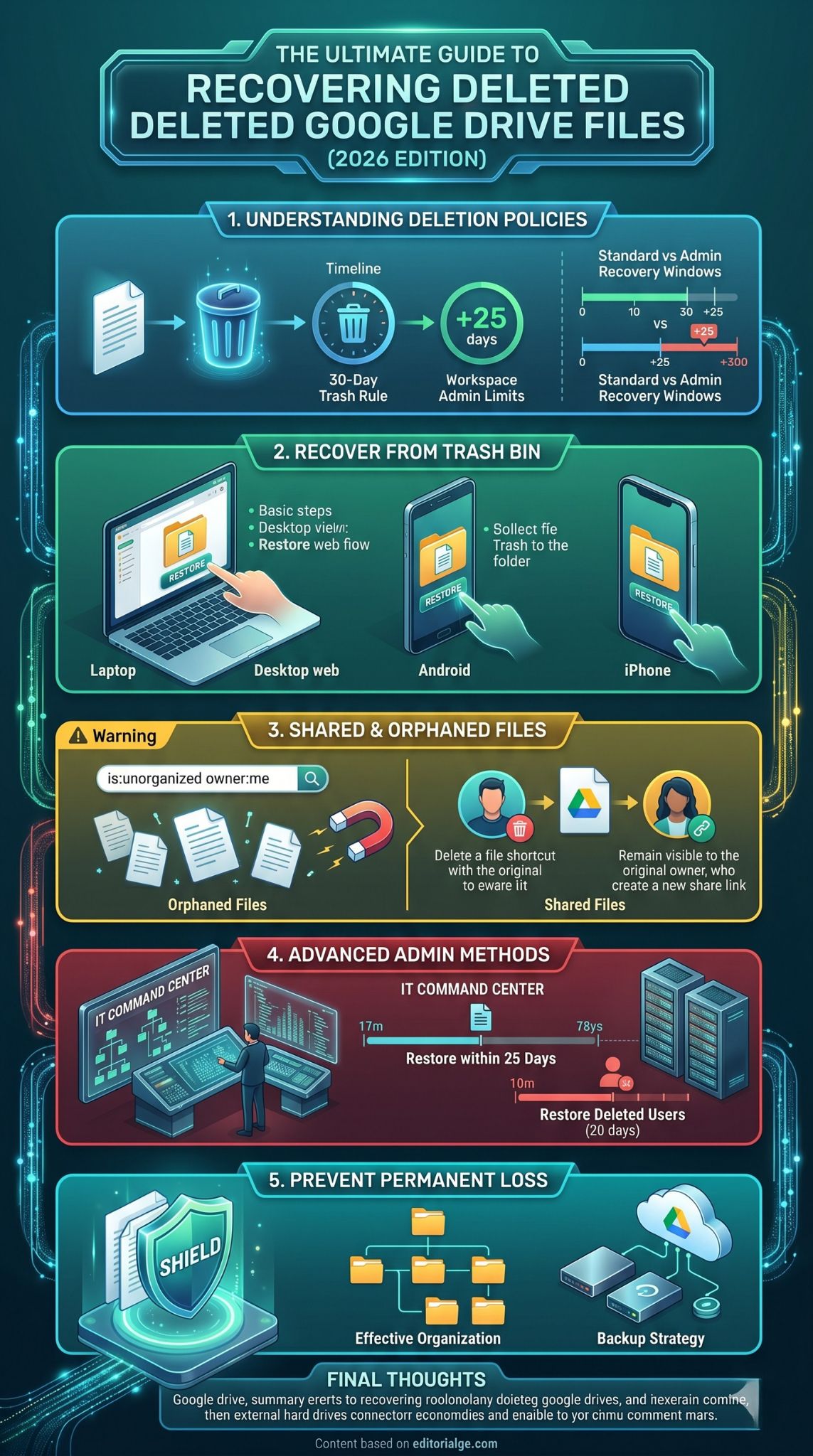
Before you start clicking buttons, you need to understand exactly how the system handles trashed items. When you press delete, the file does not instantly vanish from existence. The platform gives you a specific grace period to realize your mistake and undo the action. Knowing the exact rules and timelines of this grace period is the single most important part of getting your stuff back safely.
|
Policy Feature |
Personal Accounts |
Workspace (Business) Accounts |
Data Status After Limit |
|
Standard Trash |
30 days |
30 days |
Permanently Deleted |
|
Manual Empty Trash |
Immediate deletion |
Immediate deletion |
Unrecoverable for users |
|
Admin Recovery |
Not applicable |
25 days post-deletion |
Irretrievable |
|
User Account Restore |
Not applicable |
20 days post-deletion |
Account and data lost |
The 30-Day Trash Rule
A few years ago, deleted files would sit in your trash folder forever until you manually emptied it. That rule changed. Today, any item you send to the trash stays there for exactly 30 days. Think of it like a countdown clock. During these 30 days, the file is fully intact. You can view it, put it back in its original folder, and use it normally.
Once day 31 hits, the system automatically purges the file to free up server space. After this automatic purge happens, standard users cannot get the file back. The same rule applies if you manually go into the trash and click the empty trash button. You are skipping the 30-day wait and telling the servers to wipe the data right then and there. This is why you should never treat the trash folder as a temporary storage space.
Google Workspace Administrator Limits
If you use an email address provided by your employer or your school, you are on a Workspace account. This gives you a massive advantage when things go wrong. While you still have the same 30-day trash rule as everyone else, the company’s IT administrator has an extra safety net.
When a file drops out of a user’s trash folder, the administrator has exactly 25 days to jump into their admin console and pull it back. This means a corporate file can technically be rescued up to 55 days after the initial deletion. However, this only applies to the admin. You cannot do this yourself from your normal user dashboard. You have to submit a help ticket and ask the person who runs your company network to do it for you.
Read Also: Google Supercharges Search Engine Using Latest AI
How to Recover Files from the Google Drive Trash
The trash folder is the first place you should always check. Since your account syncs across everything you own, finding and restoring a trashed file takes only a few seconds. Whether you are sitting at your desk or riding the bus with your phone, the process is straightforward. We just need to know how to recover google drive files using the specific device you have in your hand right now.
|
Device Type |
Where to Look |
How to Restore |
|
Desktop/Laptop |
Web browser sidebar |
Right-click and choose Restore |
|
Android Phone |
App hamburger menu |
Tap three dots, select Restore |
|
iPhone/iPad |
App sidebar menu |
Tap three dots, select Restore |
Recovering Files on a Computer (Windows and Mac)
Sitting at a computer is the easiest way to handle file recovery because you have a mouse and a large screen. Open your web browser and go to your cloud storage dashboard. Look at the menu on the left side of your screen. Near the bottom of that list, you will see the Trash option. Click it.
You are now looking at everything you deleted recently. If you delete things constantly, this list might be huge. Look at the top right corner for a sort button and arrange the files by the date they were trashed. This brings the most recently deleted stuff right to the top. Once you spot your missing document, click it once to highlight it. Then, right-click the file and pick the restore option from the pop-up menu. The file will vanish from the trash and go right back to the folder where it lived before you deleted it.
Recovering Files on Android Devices
You do not need a computer to fix a mistake. Grab your Android phone and open the drive app. Look at the top left corner of the screen for three horizontal lines. Tap those lines to slide out the main menu. Halfway down that list, you will see the trash bin icon.
Tap the trash bin to open it. Scroll down until you see the file you want to save. You will notice three vertical dots sitting right next to the file name. Tap those dots. A small menu slides up from the bottom of your screen. Tap the restore button. The app will show a quick pop-up message at the bottom of your screen letting you know the file was successfully moved back to your main folders.
Recovering Files on iPhone and iPad (iOS)
The steps for Apple users are basically identical to the Android steps. Open the app on your iPhone or iPad. Find the three-line menu icon in the top left corner and give it a tap. Choose the trash option from the sidebar that appears.
Scroll through your discarded items until you find the one you need. Tap the three dots next to the file name to open the options menu. Tap the restore button. The file is immediately pulled out of the trash and placed back in its original home. Because everything syncs through the internet, you will instantly see that restored file on your computer the next time you log in.
Sharing files makes working with other people easy, but it makes deleting files incredibly confusing. The golden rule of cloud storage is that you can only permanently delete things that you actually own. If a coworker shared a spreadsheet with you and you hit delete, you did not erase the file from the servers. You just removed it from your own personal view. To successfully recover google drive files in a collaborative setting, you have to figure out who actually owns the document.
|
File Situation |
Cause |
Solution |
|
You own it, but cannot find it |
Folder owner deleted the parent folder |
Search for unorganized files |
|
Someone else owns it |
You deleted your shortcut |
Ask owner to share it again |
|
Owner deleted the file |
Original creator trashed it |
Ask owner to restore from their trash |
Finding Orphaned Files
Sometimes a file vanishes, but it is not in your trash bin. This happens constantly with shared folders. Let us say your boss creates a folder and shares it with you. You create a brand new document inside that folder. Because you created it, you own it. A week later, your boss decides to delete the entire folder.
Your boss cannot delete your document because they do not own it. But the folder holding your document is gone. Your file now has nowhere to live. It becomes an orphaned file. It is still in your account, but it is invisible because it is not attached to any folder. To find it, go to the search bar at the top of your screen. Type exactly this: is:unorganized owner:me and hit enter. This secret search command forces the system to show you every single orphaned file you own. Once you see it, just drag it into your regular My Drive area.
Requesting Access from the Original Owner
If you accidentally delete a file that someone else made, it does not go to your trash. It simply disappears from your screen. The original file is perfectly safe sitting in the creator’s account. They probably do not even know you deleted your link to it.
The only way to fix this is to talk to the person who made the file. Send them a quick message and explain that you accidentally removed yourself from the document. Ask them to share it with you again. They just need to open their sharing settings, type your email address back in, and hit send. You can also try searching your email inbox for the very first invitation link they sent you. Sometimes, clicking that old email link will force the file to show up in your account again.
Advanced Recovery Methods for Google Workspace Admins
Corporate data loss can cost a company thousands of dollars. Employees accidentally wipe out client records or maliciously delete project files before quitting. Because the stakes are so high, company network administrators get special tools to dig deep into the servers and pull data back from the dead. These methods are strictly for IT professionals managing a company domain. If you are an admin, you need to master how to recover google drive files from the backend console.
|
Admin Tool |
Maximum Timeframe |
Best Use Case |
|
User Data Restore |
25 days after trash empty |
Accidental permanent deletion |
|
Account Restore |
20 days after account deletion |
Recovering an ex-employee’s data |
|
Google Vault |
Infinite (Based on rules) |
Legal compliance and audits |
Restoring Files Within the 25-Day Window
When a worker permanently deletes a file, the IT admin has exactly 25 days to fix the mess. Log into the Google Admin console using your administrator credentials. Click on the main menu, go to Directory, and then click on Users. Find the specific employee who lost their data.
Hover your mouse over their name in the list. A button that says More options will pop up. Click it, and choose Restore data. A box will appear asking for a date range. Talk to your employee and figure out exactly when they emptied their trash. Keep this date window as tight as possible, because restoring an entire month of deleted data takes hours. Make sure the application dropdown menu is set to Drive, and hit the restore button. The files will slowly start reappearing in the employee’s folders over the next few hours.
Recovering Files from Deleted User Accounts
When someone quits, the first thing IT does is delete their email account to save money on licensing fees. But weeks later, another department might realize that the ex-employee was the only person who had a copy of a vital contract.
You cannot restore files from an account that does not exist. Your first step is to bring the user back to life. Go to the Admin console, open the Users section, and find the option for recently deleted users. You have exactly 20 days from the moment the account was deleted to restore it. Click restore on the former employee’s profile. Once the account is active again, log into it, find the contract, and transfer the ownership of the file to a current employee. Once the data is safe, you can delete the old account again. If 21 days have passed, you are completely out of luck.
Using Google Vault for Data Retrieval
Big corporations and government agencies have strict legal rules about destroying data. For these places, the standard 25-day limit is not enough. They pay extra for a tool called Google Vault. Vault works like a massive, invisible tape recorder. It copies everything everyone does and locks it away in a hidden vault that normal users cannot touch.
If your company uses Vault and has retention rules turned on, an admin can log into the Vault dashboard and search for files that were deleted months or even years ago. You can search by keywords, dates, or specific employee names. Once you find the buried file, you cannot just click a button to send it back to the user. You have to export the file out of Vault, download it to your own computer, and then email it to the employee who needs it. It takes more work, but it is an absolute lifesaver for legal teams.
Alternative Methods to Recover Google Drive Files
Sometimes the standard tools just do not work. Maybe the 30-day trash window passed, and you are using a personal account without an admin to save you. Do not give up just yet. There are a few backdoor methods you can try. These strategies do not rely on the cloud servers at all. Instead, they require you to look closely at your own computer hardware and external backups to see if a copy of the file is hiding somewhere else.
|
Alternative Method |
Where to Look |
Requirements |
|
Local Recycle Bin |
Computer desktop |
Must use the desktop sync app |
|
Google Takeout |
Downloaded zip files |
Must have requested an archive previously |
|
Recovery Software |
Computer hard drive |
File must not be overwritten by new data |
Checking Local Backups and Computer Recycle Bins
Many people install the desktop app to keep their cloud files synced directly to their computer hard drive. If you use this app, you have a massive advantage. When you delete a file on your computer, the app tells the cloud to delete it too. But your computer operates by its own rules.
Often, your operating system will throw a copy of that deleted file straight into your local Windows Recycle Bin or Mac Trash icon. Minimize all your windows and check your computer’s trash can right now. You might be surprised to find your missing cloud document sitting right there. Also, if you plug an external hard drive into your computer to run backups like Apple Time Machine, check that drive. You can easily scroll back to last week’s backup and pull the file directly off your external hard drive.
Investigating Google Takeout Archives
Google offers a tool called Takeout. It lets you download a massive zip file containing every single piece of data attached to your account. Smart users run a Takeout export every few months just to have a physical copy of their digital life.
If you are one of those people who downloaded an archive recently, you are in luck. Open your downloads folder and unzip your last Takeout archive. Dig through the folders. If you made the backup before you accidentally deleted the file, the document will be sitting right there in the folder. Just drag it from the downloaded folder and drop it back into your web browser to upload it again.
Using Third-Party Data Recovery Software
This is your absolute last resort. If you used the desktop sync app, the file physically lived on your computer’s internal hard drive. When a computer deletes a file, it does not actually scrub the data off the disk immediately. It just hides the file and marks that space as empty.
You can download third-party data recovery software to scan the raw sectors of your hard drive and piece those hidden fragments back together. You install the software, point it at your hard drive, and let it run a deep scan for a few hours. This is highly unpredictable. If you have been downloading movies or installing updates since you lost the file, your computer probably already overwrote the hidden fragments with new data. But if you lost the file today and run the software immediately, you have a decent chance of pulling the raw data back from the brink.
How to Prevent Permanent Data Loss in Google Drive
Dealing with missing data is stressful and wastes hours of your day. The smartest approach is to build a system that prevents accidental deletions from happening in the first place. By changing a few bad habits and setting up automatic safety nets, you can ensure that you never have to panic over a missing spreadsheet ever again.
|
Prevention Strategy |
Action Required |
Primary Benefit |
|
Folder Organization |
Group files logically and name clearly |
Stops accidental deletion of wrong files |
|
Permissions Check |
Restrict editing rights on shared folders |
Prevents coworkers from deleting your stuff |
|
3-2-1 Backups |
Copy data to external drives |
Ensures survival if cloud servers fail |
Organizing Your Files Effectively
A messy digital workspace leads to mistakes. If your main screen is just a giant wall of documents named untitled and document1, you are eventually going to delete the wrong one by accident. You need to treat your cloud storage like a physical filing cabinet.
Create clear, distinct folders for different projects, years, or family events. Drag your loose files into these folders. Give every single file a highly specific name so you know exactly what it is without having to open it. When your workspace is clean and organized, you rarely make mistakes. You should also click the share button on your most important folders and double-check who has access. Change your coworkers from editors to viewers if they do not actually need to change the documents. Viewers cannot delete anything.
Implementing a Regular Backup Strategy
Trusting a single company with all your important memories and business documents is a bad idea. Cloud servers are incredibly secure, but you can still get locked out of your account, or a hacker could get in and wipe everything. You need redundancy.
Follow the basic rules of data backup. Keep your files in the cloud, but also keep a copy on a physical hard drive sitting on your desk. You can automate this by using backup software that quietly copies your synced folders to an external drive every night while you sleep. If you want to be extra safe, pay a few dollars a month for a secondary cloud backup service that automatically pulls a copy of your files directly from the servers. If one system goes down, you just switch to the other one.
Final Thoughts
Losing important information is always a stressful experience, but the cloud is built with multiple safety nets to catch your mistakes. The secret is knowing exactly which safety net to check first. Whether you are fishing a document out of the 30-day trash bin, hunting down an orphaned shared file, or relying on an IT administrator to pull data back from the brink, you have plenty of options. Just remember that the clock is always ticking. As long as you act fast, you can successfully recover google drive files and get right back to work without skipping a beat. Keep your folders organized, run occasional backups, and you will never have to worry about permanent data loss again.
Frequently Asked Questions (FAQs)
What happens if I delete an orphaned file?
If you manage to locate an orphaned file using the unorganized search command and then delete it, it goes straight to your personal trash bin. It will sit there for the standard 30 days before being permanently wiped out.
Can Google Support restore my files directly if I am not an admin?
No. Customer support representatives do not have the authorization or the backend access to bypass the 30-day trash rule for personal accounts. Once the automatic purge happens, standard support channels cannot retrieve the data.
Does emptying the Android app cache delete my offline files?
Clearing the application cache on your phone removes temporary data to speed up the app, but it does not delete your actual files from the cloud servers. However, it will remove any files you specifically downloaded for offline viewing, meaning you will need an internet connection to open them again.
If I restore a folder, do all the files inside it come back too?
Yes. If you accidentally trash an entire folder that contains fifty documents, you do not have to restore them one by one. Restoring the main folder from the trash will automatically pull all fifty documents back to their proper places at the same time.