
A slow phone can ruin your whole day. You tap the camera, and it opens after the moment is gone. You type a message, and the keyboard freezes. You open Chrome, TikTok, Facebook, YouTube, or WhatsApp, and the phone acts like it needs a cup of coffee first.
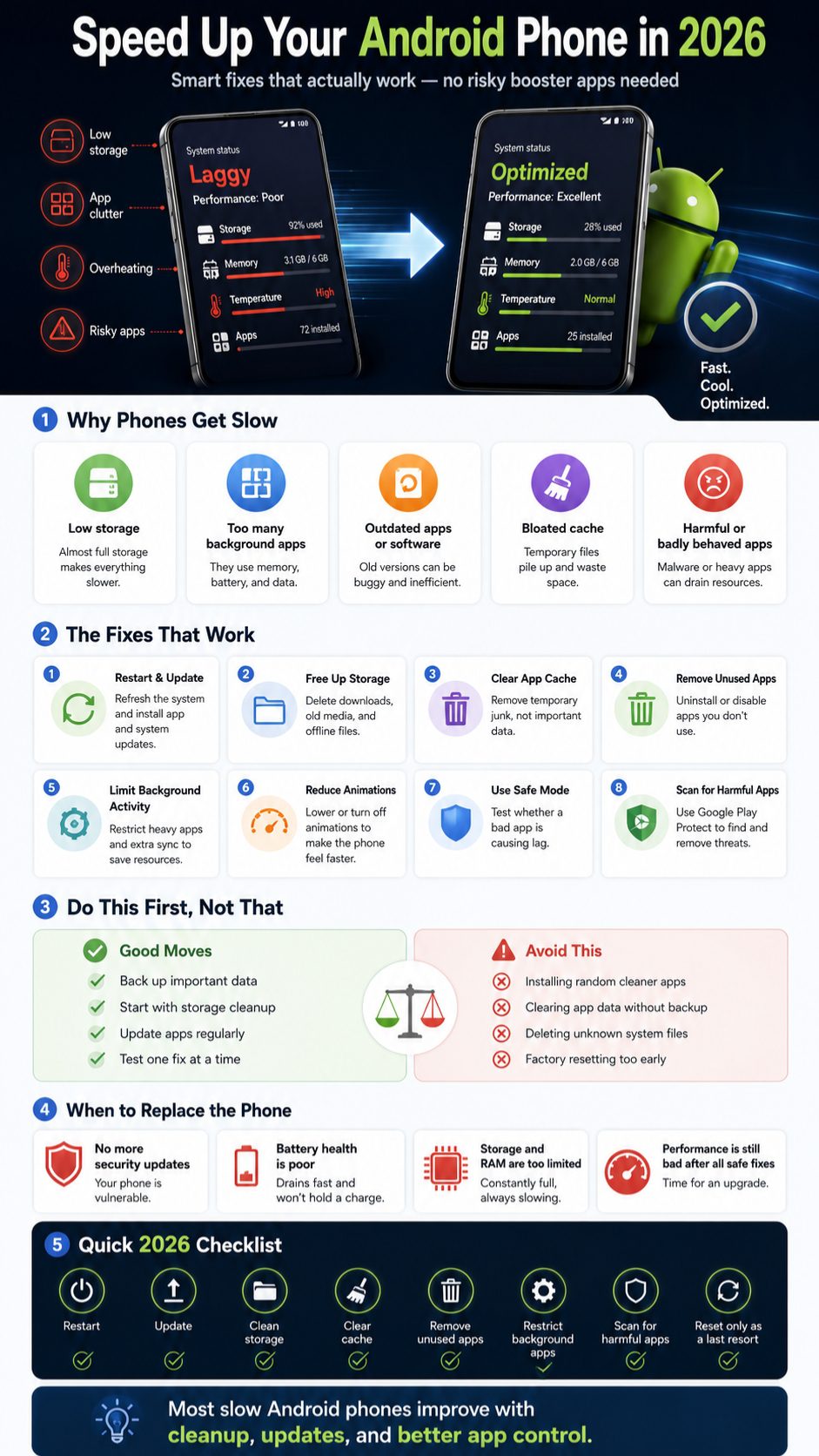
The good news is that you don’t always need a new phone. In many cases, you can speed up android phone performance with simple fixes: clean storage, update apps, clear cache, remove unused apps, stop heavy background activity, and check for harmful apps.
This guide focuses on safe Android fixes for 2026. No fake “one-tap miracle booster” advice. No risky system tricks. Just practical steps that work for Samsung, Pixel, Xiaomi, Redmi, POCO, OPPO, realme, vivo, OnePlus, Motorola, and most other Android phones.
Why Your Android Phone Gets Slow Over Time
Android phones slow down for normal reasons. Apps get bigger. Photos and videos fill storage. Background services keep running. Old cache files pile up. Some apps refresh too often, send too many notifications, or use battery even when you are not using them.
A slow phone does not always mean bad hardware. Many performance problems come from storage pressure, outdated apps, buggy updates, malware, overheating, or one badly behaving app. Google’s own Android troubleshooting advice points users toward app updates, closing unused apps, safe mode, and removing recently downloaded problem apps when a phone becomes slow.
|
Common Cause |
What It Does |
Quick Fix |
|
Low storage |
Makes apps and system tasks slower |
Delete files, move media, uninstall apps |
|
Outdated apps |
Causes bugs, crashes, and lag |
Update apps from Play Store |
|
Heavy background apps |
Uses RAM, battery, and network |
Restrict background activity |
|
Harmful apps |
Can drain resources or show pop-ups |
Run Google Play Protect scan |
Low Storage Can Slow Everything Down
Your phone needs free space to save temporary files, install updates, load apps, and manage system tasks. When storage is nearly full, even basic actions can feel slow. Camera apps may lag, downloads may fail, and app updates may get stuck.
Apps Are Bigger Than Before
Modern apps often include short videos, shopping feeds, AI features, live notifications, location tools, and background syncing. That can be hard on older phones with limited RAM or storage. A phone that felt fast three years ago may struggle with the same apps today.
One Bad App Can Drag Down the Whole Phone
Sometimes the phone itself is not the problem. A recently installed app may be using too much battery, crashing in the background, or constantly syncing data. This is why safe mode is useful, because it temporarily disables downloaded apps and helps you test whether an app is causing the slowdown.
Quick Fixes to Speed Up Android Phone Performance
Start with the easy fixes before touching advanced settings. A restart, app update, storage cleanup, and cache cleanup can solve a surprising number of slow Android problems. These steps are safe for most users and do not require technical knowledge.
Do not install random RAM booster apps first. Many of them show ads, run in the background, and close apps too aggressively. That can make your phone reload apps more often, which feels slower, not faster.
|
Fast Fix |
Time Needed |
Risk Level |
|
Restart the phone |
1–2 minutes |
Very low |
|
Update apps |
5–10 minutes |
Low |
|
Free up storage |
10–30 minutes |
Low |
|
Clear app cache |
2–5 minutes |
Low |
|
Factory reset |
30–60 minutes |
High if not backed up |
Restart Your Phone First
Restarting clears stuck processes and gives the system a fresh start. If your phone suddenly feels slow, hot, or glitchy, restart it before doing anything else. Samsung also offers auto optimization and auto restart features on some Galaxy phones through Device care.
Update Android and Your Apps
Open Settings and check for a system update. Then open Google Play Store, tap your profile icon, go to Manage apps and device, and update your apps. Google recommends checking app updates when troubleshooting a slow Android device.
Close Apps You Are Not Using
You do not need to obsessively close every app all day. Android manages memory on its own. But if a game, browser, shopping app, or social media app is frozen or using too much battery, closing it can help.
Free Up Internal Storage Before Anything Else
Storage is one of the biggest reasons Android phones become slow. If your phone has thousands of photos, forwarded videos, downloaded files, offline shows, old APK files, and unused apps, the system has less room to breathe.
Check your storage from Settings. The exact path changes by brand, but most phones have a Storage, Battery and device care, or About phone section. Google’s Android storage guide says users can delete downloaded files, move files, and clear app cache or storage from Settings.
|
Storage Area |
What to Remove |
Why It Helps |
|
Downloads |
Old PDFs, APKs, ZIP files |
Clears hidden clutter |
|
Gallery |
Duplicate videos, screenshots |
Frees large space fast |
|
Messaging apps |
Forwarded videos, voice notes |
Reduces app bloat |
|
Streaming apps |
Offline videos and music |
Frees storage safely |
Delete Files You Forgot About
Open your Downloads folder. You may find old invoices, memes, PDFs, APK installers, screen recordings, and files you needed once but never deleted. Removing these files is one of the safest ways to free space.
Clean WhatsApp, Telegram, and Messenger Media
Messaging apps can quietly become storage monsters. Forwarded videos, GIFs, voice notes, stickers, and photos build up fast. Check each app’s storage settings and remove large media files you do not need.
Move Photos and Videos Somewhere Safer
Back up photos and videos to Google Photos, a laptop, an external drive, or another trusted cloud service. After confirming the backup, remove local copies you no longer need. This can make an older phone feel lighter quickly.
Clear Cache the Right Way
Cache is not evil. Apps use cache to load faster. Chrome saves website files. YouTube saves thumbnails. Social apps save images and temporary data. The problem starts when cached data becomes too large, old, or buggy.
Clearing cache can help when one app is slow, crashing, or taking too much storage. But clearing cache every day is not needed. Google explains that clearing cache deletes temporary data, while clearing storage permanently deletes app data. That difference matters.
|
Option |
What It Deletes |
Use It When |
|
Clear cache |
Temporary app files |
App is slow or bloated |
|
Clear storage |
App data, settings, downloads |
App is broken and backed up |
|
Clear browser data |
History, cookies, cached files |
Chrome is slow or full |
|
Uninstall app |
Full app and local data |
You no longer use it |
How to Clear App Cache on Android
Go to Settings, tap Apps, choose the slow app, open Storage, then tap Clear cache. The wording may vary, but the idea is the same. Start with apps that feel slow or use too much storage.
Do Not Confuse Cache with Storage
Clear cache is usually safe. Clear storage is different. It may remove saved files, login details, app settings, offline downloads, and local data. Use clear storage only when you know what the app contains or after backing up important data.
Clear Chrome Cache If Browsing Feels Slow
If websites feel heavy, clear Chrome browsing data. Google’s Android cache guide recommends opening Chrome, going to History, selecting Clear browsing data, and choosing a time range.
Remove Unused Apps and Disable Bloatware
Unused apps are not harmless just because you ignore them. They still take storage. Some still update, send notifications, sync data, or run background services. Removing them can make your phone cleaner and easier to manage.
Go through your app drawer and be honest. If you have not opened an app in months, you probably do not need it. Games, shopping apps, food delivery apps, travel apps, photo editors, and old launchers are common clutter.
|
App Type |
What to Do |
Reason |
|
Unused apps |
Uninstall |
Frees storage |
|
Preinstalled apps |
Disable if allowed |
Reduces background clutter |
|
Old games |
Remove large files |
Saves space fast |
|
Unknown APK apps |
Delete carefully |
Reduces security risk |
Find Apps You Rarely Use
Open Play Store, go to Manage apps and device, and review installed apps. Some phones also show app usage in Settings. Sort by size or last used if your phone supports it.
Disable Apps You Cannot Uninstall
Many Android phones come with preinstalled apps. If uninstall is not available, check whether Disable is available. Disabling an app can stop it from running or appearing in the app drawer.
Read Also: How to Record iPhone Screen with Audio in 2026
Avoid Modded APKs and Unknown Apps
Apps from unknown sources can create real problems. Google Play Protect checks apps from Play Store before download and also checks devices for potentially harmful apps from other sources.
Stop Heavy Apps from Running in the Background
Some apps keep working long after you close them. They refresh feeds, track location, sync media, check notifications, and use mobile data. That can slow the phone and drain the battery.
This is where you need to be selective. Do not restrict important apps like messaging, banking alerts, calendar, ride-sharing, or work tools unless you understand the effect. Start with apps that do not need instant updates.
|
Background Setting |
Best For |
Be Careful With |
|
Battery restriction |
Games, shopping, travel apps |
Messaging apps |
|
Disable auto-sync |
Old accounts, unused services |
Email and calendar |
|
Turn off notifications |
Noisy apps |
Emergency apps |
|
Force stop |
Frozen apps |
Apps you need instantly |
Check Battery Usage by App
Go to Settings and open Battery usage. Look for apps using a large amount of battery even when you barely use them. On Samsung phones, Device care can help check battery, storage, memory, and app behavior.
Restrict Apps That Do Not Need to Refresh
Food delivery, shopping, games, travel booking, and coupon apps usually do not need to run all day. Restricting background activity for these apps can improve battery life and reduce lag.
Turn Off Extra Sync
Old email accounts, cloud folders, photo backup, notes apps, and calendar accounts may sync in the background. Turn off sync for accounts or services you no longer use.
Reduce Animations and Clean the Home Screen
Animations make Android feel smooth, but they can also make an older phone feel slower. Reducing animations will not magically upgrade your processor. Still, it can make menus, app switching, and screen transitions feel quicker.
Your home screen matters too. Live wallpapers, too many widgets, heavy launchers, and cluttered icon pages can slow the experience. A simple home screen often feels better on older hardware.
|
Setting |
What to Change |
Result |
|
Animations |
Set to 0.5x or off |
Faster screen movement |
|
Widgets |
Keep only useful ones |
Less background refresh |
|
Wallpaper |
Use static image |
Lower visual load |
|
Launcher |
Use default or light launcher |
Smoother navigation |
Use Accessibility Settings First
Some phones have a Remove animations option under Accessibility. This is the easiest method because it does not require Developer options.
Use Developer Options Carefully
Go to About phone and tap Build number several times to unlock Developer options. Then find Window animation scale, Transition animation scale, and Animator duration scale. Set them to 0.5x or off.
Remove Heavy Widgets
Weather widgets, news feeds, stock tickers, social widgets, and live calendar panels can refresh often. Keep the widgets you actually use and remove the rest.
Use Safe Mode to Find Problem Apps
Safe mode is one of the most useful tools for fixing a slow Android phone. It temporarily turns off downloaded apps. If your phone runs better in safe mode, a third-party app is probably causing the issue.
The exact safe mode steps vary by brand. Google recommends checking your manufacturer’s support site for the right method. If the slowdown disappears in safe mode, Google suggests removing recently downloaded apps one by one and restarting after each removal.
|
Safe Mode Result |
Meaning |
Next Step |
|
Phone becomes faster |
Downloaded app likely causes lag |
Remove recent apps one by one |
|
Phone stays slow |
System, storage, or hardware issue |
Try advanced fixes |
|
Only one app is slow |
App-specific problem |
Clear cache or reinstall |
|
Phone overheats |
Battery or heavy process issue |
Check battery and apps |
When to Try Safe Mode
Use safe mode if your phone became slow after installing a new app, game, launcher, keyboard, VPN, cleaner, or APK. Also try it if you see pop-ups, strange ads, or sudden overheating.
Remove Recently Installed Apps First
Start with the apps you installed right before the problem began. Remove one app, restart normally, and test the phone. Repeat until you find the problem app.
Do Not Remove Everything at Once
If you delete ten apps at once, you may not know which app caused the issue. One-by-one testing is slower, but it gives you a clearer answer.
Scan for Harmful Apps with Google Play Protect
Malware is not the most common reason for every slow phone, but it is worth checking. Harmful apps can drain battery, show ads, steal attention, or run quietly in the background. A quick scan is easy and free.
Open Google Play Store, tap your profile icon, select Play Protect, and run a scan. Google says Play Protect checks apps before download, scans devices for harmful apps from other sources, warns users, and may deactivate or remove harmful apps.
|
Warning Sign |
Possible Cause |
What to Do |
|
Random pop-ups |
Adware or bad app |
Scan and uninstall |
|
Phone heats up idle |
Background process |
Check battery usage |
|
Unknown app appears |
Unsafe install |
Remove it |
|
Battery drops fast |
App abuse or malware |
Scan with Play Protect |
Keep Play Protect Turned On
Play Protect is built into Android through Google Play services. Developers also note that it uses on-device and cloud-based protections and can scan apps on a device regardless of download source.
Review App Permissions
A flashlight app does not need your contacts. A calculator does not need location. Check permissions for apps you do not fully trust. Remove permissions that do not make sense.
Avoid “Cleaner” Apps That Ask for Too Much
Some cleaner apps request unnecessary permissions, show aggressive ads, and run constantly. Use built-in storage tools, Files by Google, or your phone brand’s official manager instead.
Fix Slow Apps One by One
Sometimes the phone is fine, but one app is the problem. Chrome may be full of tabs. TikTok or Instagram may have too much cache. The camera may lag because storage is almost full. Your keyboard may freeze because of extra languages or themes.
Fixing app-specific issues is better than resetting the whole phone. Start with the app that annoys you most. Update it, clear cache, check storage, restart the phone, and reinstall only if needed.
|
Slow App |
Likely Issue |
Best Fix |
|
Chrome |
Too much cache or tabs |
Clear browsing data |
|
Camera |
Low storage or heat |
Free space, restart |
|
Keyboard |
Cache or heavy theme |
Clear cache, update |
|
YouTube/TikTok |
Cache and network |
Clear cache, check internet |
Slow Keyboard
Update Gboard, Samsung Keyboard, or your default keyboard. Remove unused languages, turn off heavy themes, clear keyboard cache, and restart the phone.
Slow Camera
Free up storage first. Camera apps need space to save photos, process HDR, and record videos. If your phone is hot, let it cool before recording long videos.
Slow Chrome or Browser
Close unused tabs, clear cache, update Chrome, and check your internet connection. If only websites are slow but offline apps work fine, the issue may be Wi-Fi or mobile data, not the phone.
Factory Reset Only as a Last Step
A factory reset can make an old Android phone feel fresh again, but it is not the first fix. It removes your apps, settings, local files, and personal data. Use it only after backup and only when simpler fixes fail.
Before resetting, back up photos, videos, contacts, WhatsApp data, authenticator codes, downloads, documents, and important app data. Also make sure you know your Google account password.
|
Before Reset |
Why It Matters |
|
Back up media |
Prevents photo and video loss |
|
Save 2FA codes |
Avoids account lockout |
|
Check Google password |
Needed after reset |
|
Charge phone |
Prevents reset failure |
When Factory Reset Makes Sense
Try a reset if the phone is still slow after storage cleanup, updates, safe mode testing, and app cleanup. It may also help after years of app clutter or after removing suspicious apps.
How to Reset an Android Phone
The common path is Settings, System, Reset options, Erase all data. Brand names vary. Samsung, Xiaomi, OPPO, vivo, and OnePlus may place reset options in different menus.
Set Up the Phone Carefully After Reset
Do not reinstall every old app immediately. Add only the apps you use. Test performance for a day. Then bring back other apps slowly.
When It Is Time to Replace the Phone
Sometimes cleanup is not enough. If your phone has very low RAM, old storage, a weak battery, no security updates, or a damaged processor, performance may stay poor. That does not mean the steps failed. It means the hardware has reached its limit.
In 2026, many apps are heavier than before. They use more media, more background services, and more real-time features. Android 16 also continues Google’s focus on security, productivity, media, camera, and user experience improvements, but older phones may not receive every new feature or update.
|
Replace If |
Why |
|
No security updates |
Higher safety risk |
|
Battery is weak |
Lag and shutdowns may happen |
|
Very low storage |
Cleanup gives only short relief |
|
Repair cost is high |
New phone may be better value |
Your Phone No Longer Gets Updates
Security updates matter. Google publishes Android Security Bulletins for issues affecting Android devices, and phones need vendor support to receive fixes.
The Battery Is Failing
If the phone shuts down suddenly, heats up often, drains quickly, or charges slowly, battery health may be the issue. A battery replacement can help if the rest of the phone is still good.
The Hardware Is Too Limited
Phones with very low RAM and small storage can struggle with modern apps. If you constantly delete files just to install updates, replacement may be more practical.
Final Thoughts
You do not need to panic the moment your Android phone feels slow. Start with the simple stuff. Restart the phone. Update Android and apps. Free up storage. Clear cache for problem apps. Remove unused apps. Restrict heavy background activity. Scan with Play Protect. Try safe mode if the slowdown started after installing something new.
The best way to speed up android phone performance is to fix the real cause, not chase miracle apps. Some phones only need cleanup. Some need a reset. Some are simply too old for modern apps. Work through the steps calmly, protect your data first, and only replace the phone when the fixes no longer make daily use comfortable.
Frequently Asked Questions About Slow Android Phones
Why is my Android phone slow even after clearing cache?
Cache is only one part of the problem. Your phone may still have low storage, too many background apps, outdated software, weak battery health, or one badly behaving app. Try storage cleanup, app updates, safe mode, and Play Protect scan next.
Can low storage make my Android phone freeze?
Yes. When internal storage is nearly full, the phone has less room for temporary files, app updates, camera processing, and system tasks. This can cause freezing, lag, failed downloads, and slow app opening.
Is it safe to clear cache on Android?
Yes, clearing cache is usually safe because it removes temporary files. The app may load slower the first time after clearing cache. Do not tap clear storage unless you understand that it can permanently delete app data.
Do Android cleaner apps really speed up your phone?
Most users do not need them. Built-in storage tools, Play Protect, Files by Google, and brand tools like Samsung Device care are safer choices. Random cleaner apps can add ads, background activity, and more clutter.
Why is my Android phone slow after a system update?
After a big update, the phone may need time to optimize apps and background files. Update all apps, restart the phone, clear cache for problem apps, and check storage. If the phone stays slow for several days, test safe mode or contact the device maker.
Can a bad battery make Android feel slow?
Yes, poor battery health and overheating can affect real-world performance. If your phone drains fast, gets hot, or shuts down suddenly, the battery may need service.
Should I factory reset my Android phone to make it faster?
Only as a last option. A reset can help if software clutter is the issue, but it deletes local data. Back up everything important before using it.
How often should I restart my Android phone?
You do not need to restart it every few hours. Restart it when it feels slow, hot, buggy, or after major app and system updates. Some users also restart once every few days to keep things fresh.