
Your Mac always feels fine until that ugly storage warning shows up. Suddenly, you can’t install a macOS update, download a file, export a video, or even open some apps smoothly. The worst part? You may not have an external drive nearby, and buying one just to fix a storage problem may not be your first choice.
The good news is simple: you can free up mac storage without an external drive if you clean it in the right order. The trick is not to delete random files and hope for the best. That usually creates more confusion, especially when “System Data” looks huge and mysterious.
This guide walks through safe, practical steps using macOS built-in tools, iCloud options, Finder, Photos, Mail, Messages, and smart cleanup habits. It is written for regular Mac users, not only technical people. You will know what to delete, what to keep, and what to avoid touching.
Why Your Mac Storage Gets Full So Quickly
Mac storage fills up faster than most people expect. A few large videos, old app installers, duplicate downloads, iPhone backups, and photo libraries can quietly eat hundreds of gigabytes. Apple says macOS includes built-in utilities that help users find files taking up space and delete files they no longer need.
The problem is that not all storage is easy to see. You may clean your Desktop and still see almost no change. That usually means the real storage is hiding in Downloads, Photos, Messages, Mail, app support files, or local snapshots.
|
Storage source |
Why it grows |
First action |
|
Downloads |
Old installers, ZIP files, videos, PDFs |
Sort by size and delete old files |
|
Photos |
Full-resolution images and videos |
Use Optimize Mac Storage |
|
Messages |
Shared videos, GIFs, documents |
Remove large attachments |
|
|
Downloaded attachments |
Remove saved attachments carefully |
|
Apps |
Games, editors, creative tools |
Uninstall apps you do not use |
|
System Data |
Caches, logs, snapshots, app data |
Do not delete blindly |
The Hidden Storage Problem
A Mac does not only store the files you see on the Desktop. Apps also save support files, previews, backups, caches, and temporary data. Creative apps, browsers, chat apps, and email apps can build up storage quietly over time.
That is why a proper cleanup should start with checking storage categories first. If Photos takes up most space, deleting browser cache will not help much. If Downloads is full of old videos, cleaning Mail will barely move the number.
Why System Data Looks So Confusing
System Data is one of the most misunderstood Mac storage categories. It can include caches, logs, app data, temporary files, local Time Machine snapshots, and other files macOS manages. It is not one neat folder you can safely empty.
Do not randomly delete folders from Library, System, private, bin, or hidden macOS folders. You may break apps, remove settings, or cause sync problems. Start with safe cleanup areas first.
Check Your Mac Storage Before Deleting Anything
Before deleting files, check what is actually taking up space. This saves time and prevents mistakes. Apple’s Storage settings show a storage usage graphic, recommendations, and options for removing unneeded files.
On newer macOS versions, go to Apple menu > System Settings > General > Storage. Wait a few moments for the Mac to calculate storage categories. The numbers may change while macOS scans your files.
|
What to check |
What it means |
What to do |
|
Applications |
Apps installed on the Mac |
Remove unused large apps |
|
Documents |
Files, archives, videos, PDFs |
Review by size |
|
Photos |
Local Photos library |
Optimize or clean library |
|
|
Emails and attachments |
Remove old attachments |
|
Messages |
Shared media and files |
Delete large attachments |
|
iCloud Drive |
Cloud files stored locally |
Remove local downloads if needed |
|
System Data |
Caches, logs, snapshots, app data |
Handle carefully |
How To Check Storage On macOS Ventura Or Later
Open the Apple menu from the top-left corner. Choose System Settings, then click General. Open Storage and wait until the storage bar finishes calculating.
You will see categories such as Apps, Documents, Photos, Mail, Messages, and System Data. The categories can vary based on your macOS version and what apps you use.
What To Look For First
Look for the largest category first. If Documents is huge, large videos or downloads may be the issue. If Photos is huge, your photo library needs attention. If Applications is large, games or creative apps may be taking up more space than expected.
Take a screenshot of the Storage screen before cleanup. After you finish, restart the Mac and compare the numbers. This gives you a clear idea of what worked.
Use Built-In macOS Tools To Free Up Mac Storage
The safest way to free up mac storage is to start with Apple’s own storage tools. Apple says users can open System Settings > General > Storage to view recommendations and decide how to optimize storage.
These tools are useful because they show large files, old documents, storage recommendations, and categories in one place. You do not need a third-party cleaner for the first round of cleanup.
|
macOS tool |
Best for |
Use with caution? |
|
Store in iCloud |
Moving files and photos to iCloud |
Yes, deletions may sync |
|
Optimize Storage |
Removing watched media and old attachments |
Low risk |
|
Empty Trash Automatically |
Clearing Trash after 30 days |
Yes, if you restore files often |
|
Review Files |
Finding large documents |
Low risk |
|
Storage categories |
Diagnosing storage problems |
Low risk |
Store In iCloud
Store in iCloud can help save space by keeping files, photos, and messages in iCloud while storing only recent or optimized versions on your Mac. This works best if you already use iCloud and have enough cloud storage.
Be careful here. iCloud is a sync service, not a traditional external backup. If you delete a file from iCloud Drive, that deletion may sync across your devices.
Optimize Storage
Optimize Storage can remove some watched Apple TV content and keep only recent attachments when storage is needed. It is a good option for people who want macOS to handle some cleanup automatically.
It will not solve every storage problem, but it can reduce clutter without forcing you to dig through every folder manually.
Review Files
Review Files is one of the most useful options. It helps you find large documents, downloads, and files you may no longer need. Start here if you want quick results without touching system folders.
Sort files by size. Delete only what you recognize. If a file looks important, leave it alone until you confirm what it is.
Clean The Downloads Folder First
The Downloads folder is usually the easiest win. It often stores files that were useful for five minutes and forgotten for five months. App installers, ZIP files, duplicate PDFs, videos, screenshots, and exports can pile up quickly.
This section is beginner-friendly because you can clearly see most files before deleting them. It is also one of the fastest ways to recover space without changing system settings.
|
File type |
Usually safe to delete? |
Check first |
|
.dmg files |
Yes, after app install |
Make sure the app is installed |
|
.pkg files |
Yes, after installation |
Keep only if needed again |
|
.zip files |
Yes, if already extracted |
Check original contents |
|
Videos |
Sometimes |
Save important originals |
|
PDFs |
Sometimes |
Keep tax, legal, work files |
|
Screenshots |
Often |
Keep useful references |
How To Clean Downloads Safely
Open Finder and click Downloads from the sidebar. Change the view to list view, then sort by size. This brings the biggest storage wasters to the top.
Delete old installers, duplicate downloads, and files you no longer need. After moving them to Trash, review the Trash before emptying it.
Files You Can Usually Remove
Old DMG installers are often safe to delete after the app is already installed. The same goes for ZIP files that were already extracted. Temporary exports, duplicate images, and old video drafts are also good cleanup targets.
Do not rush through PDFs and documents. Some may be invoices, client files, school documents, contracts, or tax papers.
A Simple Downloads Rule
If you have not opened a file in months and it is not important, it probably does not need to live in Downloads. Move useful files to proper folders. Delete the rest after checking.
This one habit alone can keep your Mac cleaner every week.
Find And Delete Large Files On Your Mac
Large files are where the real space usually comes from. A single 4K video, virtual machine, exported project, or screen recording can take more space than hundreds of small documents.
macOS Storage settings can help users review files by category and remove unneeded items. Apple also points users to Storage settings as the place to view recommendations and remove files that take up space.
|
Search target |
Why it matters |
Example |
|
Files over 1 GB |
Biggest space recovery |
Videos, disk images, backups |
|
Files over 500 MB |
Good second pass |
Project exports, archives |
|
Old installers |
Often forgotten |
DMG, PKG, ISO |
|
Creative projects |
Can grow fast |
Final Cut, Logic, Photoshop |
|
Duplicates |
Common in Downloads |
Copy, final, final2 |
Use Finder To Search Large Files
Open Finder and press Command + F. Choose This Mac. Add a search filter for file size and search for files larger than 1 GB.
Then repeat the search for files larger than 500 MB or 100 MB. Review each file before deleting it. Do not delete files only because they are large.
Large File Types To Check
Look for .mov, .mp4, .dmg, .pkg, .zip, .rar, .iso, .psd, .ai, .fig, .logicx, and old backup files. These are common storage-heavy formats.
If you create videos, podcasts, graphics, or website assets, check your export folders. Many creators keep multiple versions of the same project without realizing it.
Best Cleanup Order For Large Files
Start with videos, app installers, ZIP archives, and duplicate exports. Then move to project files and old backups. Leave app support folders and system folders alone unless you fully understand them.
A practical rule: delete what you created or downloaded, not what macOS created.
Read Also: How to Free Up iPhone Storage Without Deleting Photos
Remove Apps You No Longer Use
Apps can take more space than their icons suggest. Games, video editors, design tools, coding tools, virtual machines, and music software can be huge. Some apps also leave support files behind after removal.
This is another safe way to free up space on Mac, especially if you have apps installed “just in case.” If you have not opened an app in a year, it may not deserve storage space.
|
App type |
Storage risk |
Cleanup tip |
|
Games |
Very high |
Remove old games first |
|
Video editors |
High |
Check libraries and render files |
|
Design apps |
Medium to high |
Remove unused versions |
|
Developer tools |
High |
Remove old simulators carefully |
|
Browsers |
Medium |
Delete unused profiles |
|
Antivirus tools |
Medium |
Use official uninstaller |
Delete Apps From The Applications Folder
Open Finder and go to Applications. Sort by size if the view allows it. Drag unused apps to Trash, then empty Trash after checking.
For Mac App Store apps, you can also use Launchpad. Click and hold an app icon, then delete it if the delete option appears.
Use Official Uninstallers For Large Apps
Some large apps include official uninstallers. This is common with Adobe apps, antivirus software, VPN tools, and some developer tools. Use the official uninstaller when available because it may remove support files more cleanly.
Do not delete random support folders manually unless you know exactly what they belong to.
Check For Duplicate Apps
Many people keep multiple browsers, old editing tools, trial apps, and duplicate utilities. Keep what you actually use. Remove the rest.
This also makes your Mac easier to manage, not just lighter on storage.
Empty Trash And Restart Your Mac
Deleting files does not fully recover space until you empty Trash. This sounds obvious, but it is one of the most common reasons people think cleanup did not work.
Apple explains that files can be moved to Trash, but they remain there until Trash is emptied.
|
Step |
Why it matters |
|
Move files to Trash |
Gives you a chance to review |
|
Open Trash |
Helps avoid accidental deletion |
|
Empty Trash |
Actually frees the space |
|
Restart Mac |
Refreshes storage calculation |
|
Check Storage again |
Confirms the result |
Why Deleting Is Not Enough
Trash is a holding area. It protects you from mistakes, but it also means the files still take up space. If you delete 20 GB of videos and do not empty Trash, your storage may not improve.
Open Trash and scan the files before emptying it. Once you empty Trash, recovering files becomes harder.
Should You Turn On Automatic Trash Emptying?
macOS can remove items from Trash after 30 days if you enable that storage recommendation. It is useful if you often forget to empty Trash.
Avoid it if you regularly recover files from Trash. In that case, manual review is safer.
Why Restarting Helps
After a big cleanup, restart your Mac. Storage numbers do not always update instantly. A restart can clear some temporary files and force macOS to refresh calculations.
This is especially useful after deleting apps, removing large files, or changing iCloud storage settings.
Optimize Photos Without Using An External Drive
Photos and videos can dominate Mac storage, especially if you use an iPhone. A few years of high-resolution photos, Live Photos, screenshots, and 4K videos can fill a MacBook quickly.
Apple says users can enable iCloud Photos and select Optimize Mac Storage in Photos settings. This keeps full-resolution originals in iCloud and stores optimized versions on the Mac when storage is needed.
|
Photos action |
Best for |
Warning |
|
Optimize Mac Storage |
Large photo libraries |
Needs iCloud storage |
|
Delete bad photos |
Manual cleanup |
Empty Recently Deleted |
|
Remove long videos |
Fast space recovery |
Save important originals |
|
Clean screenshots |
Easy cleanup |
Check useful references |
|
Merge duplicates |
Reducing clutter |
Review before deleting |
Turn On Optimize Mac Storage
Open Photos. Go to Photos > Settings > iCloud. Turn on iCloud Photos, then choose Optimize Mac Storage.
This works well for MacBook Air and MacBook Pro users with smaller internal storage. It is also useful if you take many iPhone photos and want your Mac to stay lighter.
Clean Your Photos Library Manually
Delete blurry photos, duplicate screenshots, accidental screen recordings, and long videos you no longer need. Videos usually free up more space than photos.
Do not forget Recently Deleted in Photos. Deleted photos and videos can stay there for a limited time before permanent removal, so they may still use storage until cleared.
Be Careful With iCloud Photos
iCloud Photos syncs your library. If you delete a photo from iCloud Photos, it may delete across synced devices. Make sure you understand what is synced before removing important memories.
If a photo or video matters, keep another backup before deleting it.
Clean Messages And Mail Attachments
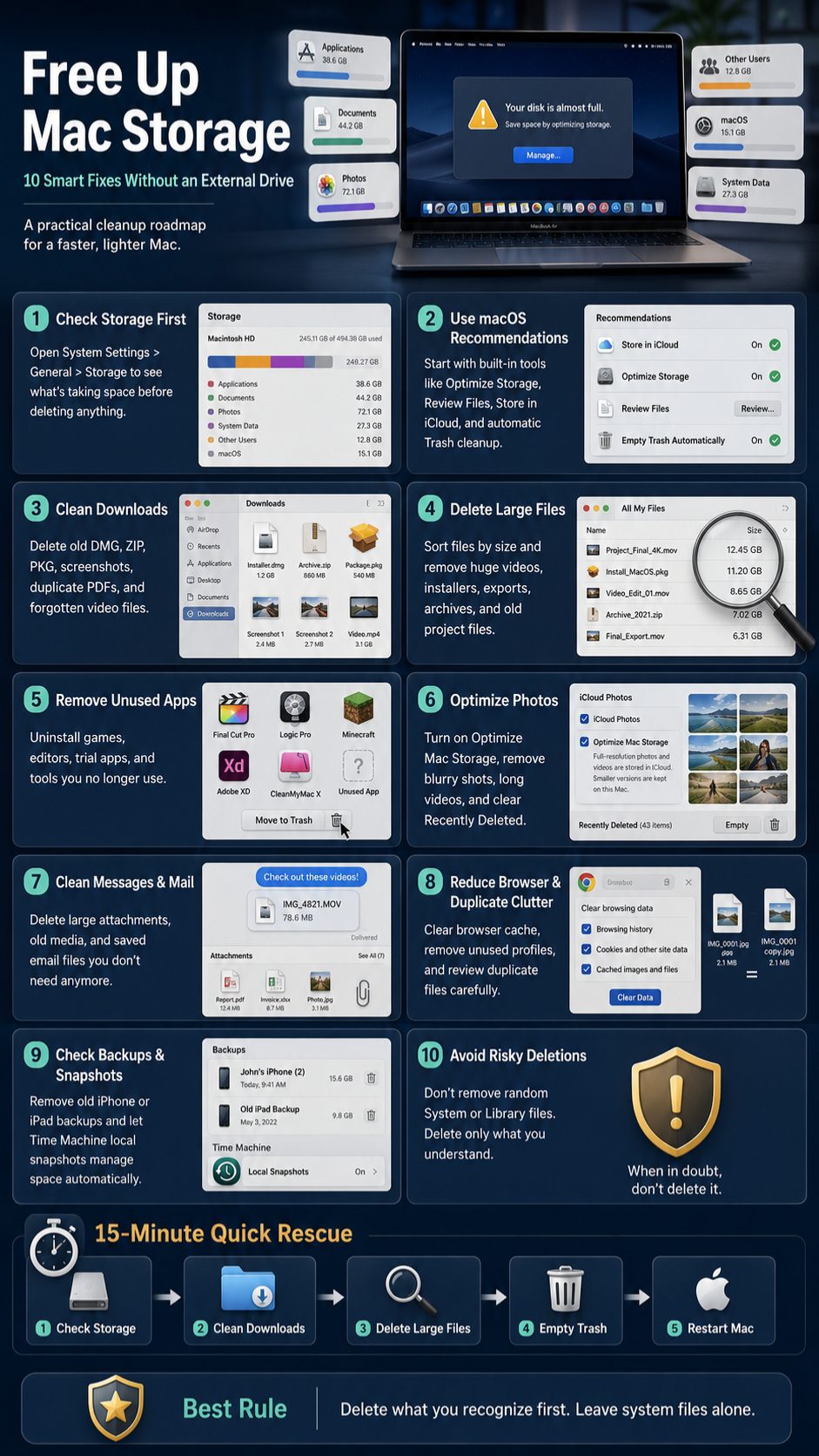
Messages and Mail can quietly grow for years. Group chats, work threads, newsletters, invoices, PDFs, memes, videos, and screenshots all add up. Many users forget that attachments are stored locally.
Apple says Mail users can choose Message > Remove Attachments, and the message remains in the mailbox. For IMAP accounts, Apple warns that attachments are deleted from the mail server and cannot be retrieved, so users should download attachments first if needed.
|
App |
Storage problem |
Best cleanup |
|
Messages |
Videos, GIFs, images, files |
Delete large attachments |
|
|
PDFs, reports, media attachments |
Remove saved attachments |
|
Group chats |
Repeated media |
Start here first |
|
Newsletters |
Image-heavy emails |
Delete old emails |
|
Work emails |
Important documents |
Save before removing |
Clean Messages Attachments
Go to System Settings > General > Storage and check if Messages appears as a category. Review large attachments and remove old files you do not need.
Start with group chats. They usually contain more repeated media, memes, screenshots, and videos than personal conversations.
Clean Mail Attachments Safely
Open Mail and search for messages with attachments. Review large emails first. If you already saved the attachment elsewhere, use Message > Remove Attachments.
Be extra careful with IMAP email accounts. If you remove an attachment from Mail, it may also be removed from the mail server. Save important files before using this option.
Do Not Delete Mail Folders From Finder
Avoid digging into Library/Mail and deleting folders manually. It can break Mail indexing or remove messages in ways you did not expect.
Use Mail’s own controls instead. They are safer and easier to understand.
Use iCloud Drive Carefully To Free Up Mac Storage
iCloud Drive can help reduce local storage, but it can also confuse people. Some iCloud files may still be downloaded locally on your Mac. Others may only live in the cloud and download when opened.
Apple says Mac storage optimization can use iCloud to make more space available automatically when needed.
|
iCloud use |
Good for |
Be careful with |
|
Desktop and Documents sync |
Access across devices |
Accidental deletion syncs |
|
Optimize Mac Storage |
Smaller local footprint |
Needs internet |
|
Cloud-only files |
Saving local space |
Offline access |
|
iCloud Photos |
Large photo libraries |
Not a separate backup |
|
Shared files |
Collaboration |
Version confusion |
Understand Local And Cloud Copies
A file in iCloud Drive may still have a local copy on your Mac. If storage is low, macOS may remove local copies and keep the file in iCloud. You can download it again when needed.
This is helpful, but it depends on internet access. Do not keep travel documents, active work files, or urgent files only in the cloud if you may need them offline.
Best Files To Keep In iCloud
Old documents, archived writing files, PDFs, spreadsheets, lightweight work files, and older screenshots are good iCloud candidates. They do not need to sit locally forever.
Large active video projects are different. They may be slow and frustrating to work with from cloud storage alone.
iCloud Is Not A Full Backup Plan
This point matters. iCloud syncs files across devices. It is not the same as a separate backup drive or full Mac backup.
If you delete something from iCloud Drive, the deletion can sync. Always think before removing files from synced folders.
Clear Browser Cache, Downloads, And Offline Data
Browsers store more than browsing history. They can keep cache files, downloads, extensions, web app data, offline pages, profiles, and cookies. Most of it is useful for speed, but it can grow over time.
Clearing browser cache will not usually recover as much space as deleting videos or old apps, but it can help when storage is tight. It can also fix website loading issues.
|
Browser item |
Storage impact |
Should you delete? |
|
Downloads |
High |
Yes, review first |
|
Cache |
Medium |
Yes, if storage is low |
|
Extensions |
Low to medium |
Remove unused ones |
|
Profiles |
Medium |
Delete unused profiles |
|
Offline data |
Medium |
Clear if not needed |
|
Cookies |
Low |
May sign you out |
Start With Browser Downloads
Most browsers save files to the Downloads folder. Clean that folder first before touching cache settings.
Look for duplicate PDFs, media files, old installers, and repeated downloads from email or websites.
Clear Cache When Needed
Cache helps websites load faster. If you clear it, some sites may load more slowly for a while. That is normal.
Clear cache when storage is very low, your browser feels bloated, or websites are behaving strangely.
Remove Unused Extensions And Profiles
Browser profiles can store separate caches, downloads, bookmarks, and extensions. If you created test profiles or old work profiles, remove the ones you no longer use.
Unused extensions may not take huge space, but they can slow browsing and clutter the browser.
Find Duplicate Files Without Breaking Anything
Duplicate files are common on Macs. You download the same file twice, export the same image again, save “final” and “final-final,” or copy folders from one place to another. Over time, this creates clutter.
A duplicate finder app can help, but automatic deletion is risky. Manual review is safer, especially for work files, Photos libraries, and project folders.
|
Duplicate location |
Common files |
Safe approach |
|
Downloads |
PDFs, ZIP files, images |
Sort by name and size |
|
Desktop |
Screenshots, exports |
Review manually |
|
Documents |
Work files |
Compare dates |
|
Pictures |
Edited images |
Keep originals |
|
Project folders |
Drafts, exports |
Keep final and source files |
|
Cloud folders |
Synced copies |
Check sync status first |
Search For Common Duplicate Names
Open Finder and search terms like copy, duplicate, final, final2, edited, export, and old. These words often reveal repeated files.
Sort results by name and size. If two files have the same size and similar names, preview both before deleting one.
Avoid Deleting Inside App Libraries
Do not open the Photos Library package and delete files manually. Do not remove random folders inside app libraries either.
Apps use internal folder structures. Manual deletion can corrupt libraries or cause missing file errors.
Use Duplicate Finder Apps Carefully
If you use a duplicate finder, choose manual review mode. Never let an app bulk-delete thousands of files without checking.
Start with safe folders like Downloads and Desktop. Avoid system folders and active project folders.
Manage iPhone Backups And Time Machine Local Snapshots
Old iPhone and iPad backups can take a lot of space. Local Time Machine snapshots can also appear as storage pressure, especially when your backup disk is not connected.
Apple says Time Machine stores local snapshots on your Mac when the backup disk is not available. These snapshots help restore files even when the backup disk is disconnected.
|
Storage item |
What it is |
Cleanup advice |
|
iPhone backup |
Local device backup |
Delete old backups carefully |
|
iPad backup |
Local tablet backup |
Keep recent useful backup |
|
Time Machine snapshot |
Local backup snapshot |
Usually let macOS manage |
|
Old device backup |
Backup for old device |
Remove if no longer needed |
|
iCloud Backup |
Cloud device backup |
Confirm before deleting local backup |
Delete Old iPhone Or iPad Backups
If you back up your iPhone or iPad to your Mac, old backups may remain after you change devices. Open Finder, select your connected device, and check Manage Backups.
Delete backups for devices you no longer own or no longer need. Keep the latest useful backup if you may need to restore a device.
Understand Time Machine Local Snapshots
Local snapshots are not random junk. They help you recover previous versions of files. Apple says Time Machine automatically removes local snapshots when space is needed or when they are older than 24 hours.
For most users, it is better to let macOS manage them instead of forcing deletion through Terminal.
Avoid Risky Terminal Cleanup
You may find Terminal commands online for deleting snapshots. They can work, but they are not the best first step for beginners.
Clean visible files first. Restart your Mac. Then check storage again.
What Not To Delete When You Free Up Mac Storage
This section may save you from a bad day. Some storage advice online is too aggressive. Deleting the wrong file can break apps, remove settings, damage libraries, or create sync issues.
When trying to free up mac storage, focus on files you recognize first. Leave unknown system files alone.
|
Do not randomly delete |
Why |
|
System folder |
Can break macOS |
|
Library folders |
May remove app data |
|
Photos Library contents |
Can corrupt Photos |
|
Mail folders in Finder |
Can damage mail data |
|
Hidden dot folders |
Often used by apps/tools |
|
Developer folders |
May break coding tools |
|
Time Machine files |
May affect backups |
Avoid Random Library Cleanup
The Library folder contains app support files, preferences, caches, containers, and other data. Some cache files can be cleared, but random deletion is a bad idea.
If you remove the wrong folder, an app may lose settings or stop working properly.
Do Not Delete Photos Library Contents Manually
Your Photos Library may look like one large file, but it is a package with many internal folders. Do not open it and delete things manually.
Use the Photos app to delete photos and videos. Then empty Recently Deleted.
Be Careful With Cleaner Apps
Some cleaner apps are useful for finding large files. Others push aggressive cleanup that may remove files you did not mean to delete.
Use built-in macOS tools first. If you use a cleaner, review every action before confirming.
Build A Monthly Mac Storage Cleanup Habit
A one-time cleanup helps, but storage fills again if your habits do not change. The best fix is a simple routine that takes a few minutes each week and a deeper pass once a month.
This keeps your Mac ready for updates, downloads, and normal work. It also reduces panic cleanup before a deadline.
|
Schedule |
Task |
Time needed |
|
Weekly |
Empty Trash |
1 minute |
|
Weekly |
Clean Downloads |
5 minutes |
|
Weekly |
Delete old screenshots |
3 minutes |
|
Monthly |
Review large files |
10 minutes |
|
Monthly |
Remove unused apps |
10 minutes |
|
Monthly |
Clean Photos, Mail, Messages |
15–30 minutes |
Weekly 10-Minute Cleanup
Empty Trash, clear old Downloads, delete useless screenshots, and remove screen recordings you no longer need. This small routine prevents clutter from becoming a storage crisis.
If you create content often, also check export folders. They are easy to forget.
Monthly 30-Minute Cleanup
Once a month, open Storage settings and review large files. Remove unused apps, clean old Mail attachments, review Messages media, and check your Photos library.
You do not need to clean everything every time. Focus on the biggest category.
Before macOS Updates
Before installing a macOS update, check your available storage. Delete old installers, empty Trash, restart your Mac, and make sure important files are backed up.
macOS updates need working room. Keeping extra space free makes updates smoother.
15-Minute Plan To Free Up Mac Storage Fast
If your Mac is almost full right now, do not overthink it. Follow a short emergency cleanup plan. The goal is to recover enough space safely, not to organize your entire digital life in one sitting.
This plan works well when you need space for an update, app install, or urgent file export.
|
Minute |
Task |
Expected result |
|
1–2 |
Check Storage settings |
Find biggest category |
|
3–6 |
Clean Downloads |
Remove obvious junk |
|
7–9 |
Delete large files |
Recover quick space |
|
10–11 |
Remove unused apps |
Free app storage |
|
12–13 |
Empty Trash |
Confirm space recovery |
|
14–15 |
Restart and recheck |
Refresh storage numbers |
Step 1: Check Storage
Go to System Settings > General > Storage. Find the biggest category. Do not guess.
If Documents is huge, go after large files. If Photos is huge, clean photos and videos. If Applications is huge, remove apps.
Step 2: Delete Obvious Junk
Open Downloads and delete old DMG, PKG, ZIP, and video files. These are often the quickest wins.
Then empty Trash after reviewing the deleted files.
Step 3: Restart And Recheck
Restart your Mac. Go back to Storage settings and check the result.
If you recovered enough space, stop there. Do deeper cleanup later when you are not in a rush.
When Storage Cleanup Is Not Enough
Sometimes cleanup helps for a few days, then the Mac fills up again. This usually happens on smaller MacBook models or with heavy workflows like video editing, music production, design, development, or large photo libraries.
A 256 GB Mac can feel tight in 2026 if you store years of photos, videos, apps, and work files locally. You can still manage it, but you need a better storage strategy.
|
Sign |
What it means |
Better option |
|
Storage fills every week |
Cleanup is not enough |
Use cloud storage or archive files |
|
macOS updates fail often |
Not enough free room |
Keep larger free space buffer |
|
Photos library is huge |
Media is the issue |
Optimize Photos |
|
Apps take too much space |
Workflow is app-heavy |
Remove unused tools |
|
System Data keeps growing |
Temporary data or snapshots |
Restart and let macOS manage |
Use Cloud Storage Wisely
iCloud Drive, Google Drive, OneDrive, and Dropbox can reduce local storage pressure. They are useful for documents, archives, and files you do not need offline all the time.
Cloud storage has a cost. It also needs reliable internet. Do not move important files to the cloud without understanding sync and backup behavior.
Keep A Free Space Buffer
Try to keep at least 15–20 GB free for everyday use. If you edit videos or work with large creative files, you may need much more.
A Mac with almost no free space can feel slow because apps and macOS need room for temporary files.
Know When You Need More Storage
If your work depends on large media files, virtual machines, or huge app libraries, internal cleanup may not be enough forever. At that point, cloud storage, network storage, or a future Mac with larger internal storage may make more sense.
The point is not to delete forever. It is to match storage habits with how you actually use your Mac.
Final Thoughts
You do not need an external drive to clean a full Mac. You just need the right order. Start with Storage settings, clean Downloads, delete large files, remove unused apps, empty Trash, and restart. Then move to Photos, Messages, Mail, iCloud Drive, old device backups, and browser data.
The safest way to free up mac storage is to delete what you understand first. Do not attack System Data or hidden folders just because they look large. macOS already manages many temporary files, caches, and local snapshots on its own.
A clean Mac is not about deleting everything. It is about keeping useful files easy to find, removing old clutter, and leaving enough free space for updates, apps, and daily work.
Frequently Asked Questions About Mac Storage Cleanup
Why does my Mac say storage is full when I deleted files already?
The files may still be in Trash. Empty Trash after reviewing the files. Storage numbers may also need time to refresh, so restart your Mac and check again.
Can I delete System Data on Mac?
You should not manually delete random System Data files. System Data can include caches, logs, temporary files, local snapshots, and app support files. Clean visible files first and let macOS manage most system storage.
Does Optimize Mac Storage delete my files?
Optimize Mac Storage can remove some local copies while keeping files in iCloud. It does not mean everything is deleted forever, but you need internet access to download cloud-only files again.
Why is my Photos library still taking space after using iCloud?
Optimize Mac Storage does not always remove every local original immediately. macOS manages space based on available storage. If your Mac has enough room, it may keep more local files.
Is it safe to delete DMG files on Mac?
Yes, in most cases, after the app has already been installed. A DMG file is usually just an installer disk image. Keep it only if you need to reinstall the app later.
Do duplicate file finder apps work on Mac?
They can help, but use them carefully. Choose manual review mode and avoid bulk-deleting files from Photos libraries, system folders, app folders, or active work projects.
Can clearing cache damage my Mac?
Clearing browser cache is usually safe. Randomly deleting system or app cache folders can cause app issues. Start with browser cache and built-in storage tools before touching hidden folders.
How often should I clean Mac storage?
A small weekly cleanup and a deeper monthly cleanup works well for most users. Heavy users who edit video, download large files, or use many apps may need to check storage more often.