
We have all experienced that sudden spike of anxiety. You pull out your phone to record a once-in-a-lifetime moment, and a grey pop-up blocks your screen: Storage Almost Full. Your immediate reaction is usually a mild panic followed by a frantic scroll through your camera roll. You start making impossible choices, deleting pictures of your pets, old vacations, or screenshots you actually need, just to make room for one new video. It is a frustrating process that ruins the user experience of an otherwise premium device.
But you do not have to sacrifice your personal memories just to make your phone work properly again. Apple includes several smart, hidden tools within iOS that help you reclaim gigabytes of space in minutes. The secret lies in understanding how modern apps hoard temporary files and how your operating system manages background data. By targeting hidden caches, old text attachments, and bloated apps, you can easily find ways to free iphone storage without ever touching your precious photos. This guide will walk you through exactly how to clean up your device, step by step, so you never see that dreaded full storage warning again.
Understanding What Takes Up Your iPhone Storage
Before you can fix your storage problem, you need to understand exactly what is eating up your space. Your phone holds massive amounts of hidden data that you never see on your home screen. Apps download cache files to load faster, operating system updates leave behind temporary installation packages, and messaging apps hoard attachments you forgot about years ago. By taking a few minutes to analyze your storage breakdown, you can create a targeted plan of attack. Let’s look at how to find exactly what is blocking your device from running smoothly.
|
Data Category |
Typical Size |
Description of Contents |
|
Operating System (iOS) |
8GB – 10GB |
The core software required to run your phone. |
|
Applications |
100MB – 3GB per app |
The base app size plus user documents and settings. |
|
App Caches |
500MB – 5GB per app |
Temporary files saved by social media and browsers. |
|
Messages |
1GB – 10GB+ |
Text history, shared images, videos, and voice notes. |
|
System Data |
2GB – 20GB+ |
Diagnostic logs, temporary caches, and system files. |
How to Check Your Current Storage Space
The very first step in your cleanup journey is to look at your current storage breakdown. Your phone provides a highly detailed list of exactly what is consuming your memory. To find this, open your Settings app, tap on General, and then tap on iPhone Storage. Give your device a few moments to calculate the data, as it has to scan your entire flash drive.
At the top of the screen, you will see a colorful bar graph. This graph visually represents your total capacity and shows you the distribution of space used by apps, media, iOS, and system data. Directly below this graph is a list of every app installed on your device. This list is organized by size, with the largest space hogs sitting right at the top. This section is your roadmap. You will likely spend most of your time here figuring out which apps need your attention.
Identifying the Main Storage Culprits
When you look at the breakdown below the storage graph, the results might surprise you. Most people assume their camera roll is the biggest problem, but other applications are usually the true offenders. Social media apps are notorious for hoarding space. Even if the app itself is small when you download it from the App Store, it stores local cache data every time you scroll through a feed or watch a short video.
Messages are another massive, hidden drain on your capacity. Every time a friend texts you a funny video, a high-resolution photo, or a voice memo, your phone saves it forever by default. Over several years, a single group chat can balloon into a massive archive of media that constantly drains your storage. Finally, you might notice a category labeled System Data at the very bottom of your app list. This category can sometimes grow to massive proportions, leaving users confused about how to safely remove it.
Proven Methods to free iphone storage Fast
Now that you know where the clutter hides, it is time to take action. You do not need to be a tech expert or a developer to clear out this digital junk. Apple gives you several built-in tools that make it incredibly easy to dump unnecessary files. With just a few simple taps in your settings menu, you can clear out gigabytes of useless background data. Here are the most effective ways to free iphone storage right now without losing anything important.
|
Cleaning Method |
Time Required |
Estimated Space Saved |
|
Offloading unused apps |
2 minutes |
1GB – 5GB |
|
Clearing Safari cache |
1 minute |
500MB – 2GB |
|
Deleting old message attachments |
5 minutes |
2GB – 10GB |
|
Reinstalling social media apps |
10 minutes |
3GB – 8GB |
|
Removing downloaded streams |
3 minutes |
1GB – 10GB |
Offload Unused Apps Automatically
One of the smartest features in iOS is the ability to offload apps. Unlike completely deleting an app, which wipes all your personal data and account settings, offloading merely removes the core application file. It keeps all of your personal documents, settings, and login data completely intact on your device.
Take a look at your home screen. You probably have dozens of apps you have not opened in months, like travel apps from last year’s vacation or games you stopped playing. By choosing to offload these apps, you reclaim the storage space they require. The app icon stays on your screen with a small cloud symbol next to it. When you need it again, just tap the icon, and it instantly redownloads and puts you right back where you left off. You can set this to happen automatically by going to Settings, tapping App Store, and toggling on Offload Unused Apps.
Read Also: How to Transfer Photos from iPhone to Mac Without Cable
Clear Safari Cache and Website Data
Every time you browse the internet, Safari saves tiny bits of data to your phone. It saves images, scripts, and cookies so that the next time you visit a website, the page loads much faster. While this is great for your browsing experience, it is terrible for your local storage capacity. If you spend a lot of time on the web, this cached data can easily grow to well over a gigabyte.
Clearing this browser data provides an instant boost to your available space. Open your Settings app and scroll down until you find Safari. Tap on it, scroll down the page, and look for the option that says Clear History and Website Data. Tapping this removes all those saved temporary files. You will likely have to log back into websites that usually remember you, but regaining that lost storage space is well worth the minor hassle.
Manage Message Attachments and Old Texts
If you have been restoring your new phones from older iCloud backups for a few years, your Messages app is likely a massive vault of forgotten data. Group chats are especially bad because multiple people constantly share images, GIFs, and videos that get saved directly to your phone’s memory. You do not need to delete the text conversations themselves to fix this issue.
Apple lets you target the heavy attachments directly. Go to Settings, tap General, and open iPhone Storage. Find Messages in the list and tap on it. You will see a breakdown of your attachments sorted by type, such as Photos, Videos, and GIFs. Tap into the Videos section, and you will see every video ever sent to you, ordered by size. Swipe left on the largest ones to delete them. To stop this from happening again, go to Settings, then Messages, and change the Keep Messages option from Forever to One Year or 30 Days.
Delete and Reinstall Heavy Social Media Apps
Apps like Instagram, TikTok, Facebook, and Snapchat cache enormous amounts of data. Unfortunately, Apple does not provide a simple button to clear the cache for third-party apps. If you look at one of these apps in your iPhone Storage menu, you will notice the Documents and Data size is often five to ten times larger than the actual App Size.
The only way to clear this bloat on an iPhone is to completely delete the app and reinstall it from the App Store. Because these are cloud-based platforms, you will not lose your profile, your friends, or your uploaded posts. Deleting the app destroys the massive, bloated cache file. When you redownload it, you only get the clean, core app. Simply log back in, and you will find you have suddenly regained several gigabytes of space.
Clear Downloaded Streaming Content
We live in an era of constant streaming, but many people still download content for offline listening or viewing. Whether it is a giant workout playlist on Spotify, several podcast episodes, or a few movies on Netflix for a long flight, these local files are massive. A single high-definition movie can consume over two gigabytes of space on its own.
Take five minutes to open your favorite streaming apps and check your downloads folders. Remove the movies you have already watched and the podcast episodes you have already finished. You can always stream them again later if you want to, but keeping them downloaded permanently is a massive waste of your phone’s storage. The iPhone Storage menu actually shows you how much downloaded media sits inside each app, making it easy to hunt down the largest files.
Tackling the Infamous System Data on iOS
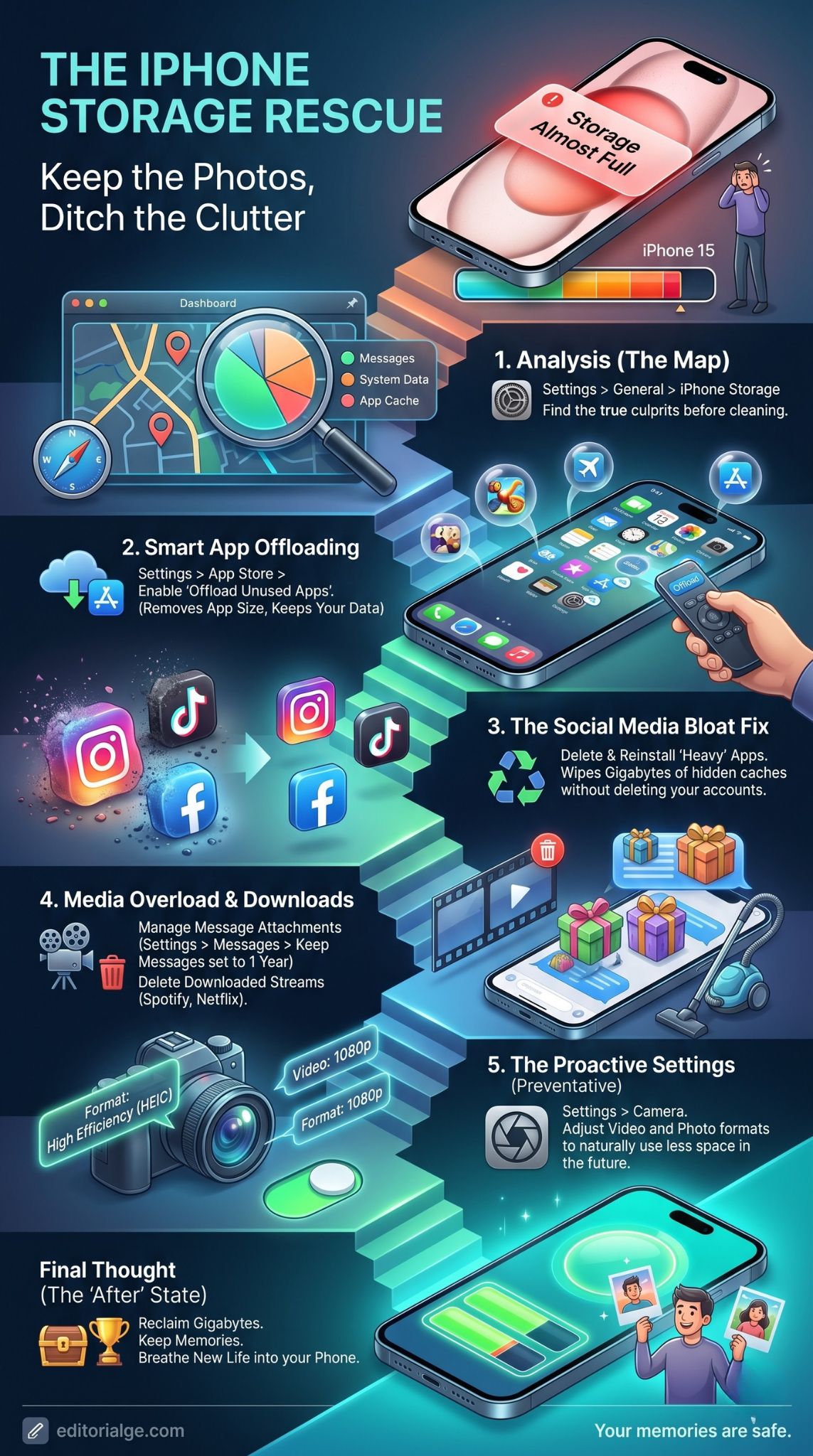
System Data is easily the most annoying part of the Apple ecosystem. It sits at the very bottom of your storage list and seems entirely impossible to manage or remove. This mysterious grey bar contains a variety of system logs, leftover update files, and temporary caches that iOS creates in the background. If you want to free iphone storage quickly, learning how to tame this specific section of your phone is absolutely mandatory.
|
System Data Element |
Purpose |
Can You Control It? |
|
Safari Caches |
Speeds up web browsing |
Yes, via Safari settings |
|
Diagnostic Logs |
Helps Apple fix software bugs |
Partially, by disabling analytics |
|
Leftover Update Files |
Used during iOS upgrades |
Yes, by deleting old updates |
|
Siri Voices & Fonts |
Accessibility and display features |
Yes, via Accessibility settings |
|
Local Keychain Data |
Stores passwords securely |
No, required by the system |
What is System Data on an iPhone?
System Data is essentially a catch-all storage category for everything that does not fit neatly into apps, media, photos, or messages. It includes temporary system files, crash logs, system fonts, local voice packs for Siri, and leftover files from previous iOS updates.
Under normal circumstances, your phone manages this data automatically. It deletes temporary files when it needs more room to download an app or save a photo. However, the system is not always perfect. Sometimes, cache files get stuck, update remnants fail to delete themselves, and this section can balloon from a normal three gigabytes to twenty or thirty gigabytes. When System Data grows out of control, you have to take manual steps to force the operating system to clean it up.
Restarting Your iPhone to Clear Temporary Caches
The absolute easiest way to force your phone to dump temporary system files is to perform a hard restart. Many people leave their smartphones on for months at a time without ever turning them completely off. During this time, memory logs, temporary location data, and short-term application caches build up quietly in the background.
By completely turning off your phone, waiting a full minute, and turning it back on, you trigger the operating system to clear out temporary files that are no longer needed for active background processes. Hold down the power button and the volume down button until the slide to power off screen appears. Slide it, wait for the screen to go pitch black, and then turn it back on. Check your storage after the phone boots up, and you might find the System Data bar has shrunk significantly.
The Backup and Restore Method for Maximum Space
If a simple restart does not fix your bloated System Data problem, you need to use the nuclear option. This method takes a bit of time, but it is guaranteed to wipe out every single piece of corrupted cache and bloated system file on your device without making you lose any personal data. You do this by backing up your phone, wiping it completely clean, and then restoring it from that exact same backup.
First, plug your phone into a computer and create a fresh, encrypted local backup using Finder on a Mac or iTunes on Windows. Encrypting the backup is crucial because it ensures all your passwords and health data are saved. Once the backup is verified, go to Settings, tap General, scroll to Transfer or Reset iPhone, and select Erase All Content and Settings. When the phone reboots to the hello screen, choose the option to restore from your computer backup. Your apps, messages, and photos will return exactly as they were, but the junk system files will be gone forever.
Utilizing Cloud Solutions Beyond Your Camera Roll
Most people only think of cloud storage when they want to back up their camera roll. But you can offload a massive amount of local files to the cloud to keep your device running smoothly. Heavy PDF documents, long voice memos, and local work files do not need to live permanently on your physical device hardware. Another great trick to free iphone storage is shifting these specific non-photo files off your local drive and onto remote servers where you can still access them easily.
|
Cloud Service |
Free Tier Limits |
Best Used For |
|
iCloud Drive |
5GB (Shared with backups) |
Native iOS app integration and seamless syncing |
|
Google Drive |
15GB |
Heavy documents, spreadsheets, and collaborative files |
|
Microsoft OneDrive |
5GB |
Office documents and Windows PC syncing |
|
Dropbox |
2GB |
Quick file sharing and third-party app backups |
Moving Files to iCloud Drive
Your iPhone comes pre-installed with the Files app, which connects directly to your iCloud Drive account. If you regularly download PDFs, word documents, or large spreadsheets to your phone from emails or Safari, they sit in your local downloads folder eating up your space.
You can open the Files app, navigate to the On My iPhone section, select all those large documents, and move them to a folder located inside iCloud Drive. Once they are moved to the cloud portion of the app, they no longer consume your physical device memory. They remain instantly accessible on your phone as long as you have an active cellular or Wi-Fi connection.
Using Third-Party Cloud Services for Documents
If you do not want to pay Apple for extra iCloud storage, you can achieve the exact same result using the free tiers of other major cloud providers like Google Drive, Dropbox, or Microsoft OneDrive. By moving your heavy work files, audio recordings, and scanned documents to these apps, you offload the storage burden from your physical device.
You can even integrate all these third-party services directly into the native iOS Files app for seamless file management. Just download the Google Drive or OneDrive app, log in, and open your native Files app. Tap the edit button in the top corner and toggle those third-party services on. Now, your local storage is reserved strictly for your essential daily apps and your cherished photos.
Optimizing Your Device Settings to Prevent Clutter
Cleaning your phone out is a great feeling, but stopping it from filling up so fast again is even better. By tweaking a few camera and system settings, you can drastically reduce the size of the new files you create. This proactive approach will help you free iphone storage over the long haul without requiring constant maintenance. Let’s adjust some default Apple settings so your phone naturally uses less space.
|
Setting to Change |
Where to Find It |
Benefit to Storage |
|
Video Resolution |
Settings > Camera > Record Video |
Drops video file size by up to 50 percent |
|
Camera Format |
Settings > Camera > Formats |
Uses High Efficiency compression for smaller files |
|
Keep Messages |
Settings > Messages > Keep Messages |
Auto-deletes texts after 30 days or 1 year |
|
Offline Maps |
Google Maps > Profile > Offline Maps |
Removes massive downloaded geographic regions |
Changing Camera and Video Recording Settings
While you do not want to delete your existing photos and videos, you can make sure that future ones take up significantly less room. High-resolution video is easily one of the biggest storage hogs on any modern smartphone. By default, newer devices often record video in 4K resolution, which looks incredibly sharp but takes up an astronomical amount of space per minute of footage.
Unless you are a professional content creator or planning to watch your videos on a massive 4K home theater system, shooting everyday clips in 1080p is more than enough quality for social media and sharing with friends. Go to Settings, tap Camera, and select Record Video. Change the setting from 4K down to 1080p HD at 30 or 60 frames per second. You should also check the Formats menu in the Camera settings and ensure High Efficiency is selected. This tells your phone to use advanced compression to make photos and videos smaller without ruining how they look.
Removing Unused Offline Maps and Voices
Navigation apps like Google Maps and Apple Maps allow you to download maps for offline use. This is a fantastic feature for road trips through rural areas with poor cellular reception. However, users often download massive geographic regions of a country and then completely forget to delete them once the trip is over. Open your navigation apps, check your offline maps settings, and delete any areas you no longer actively drive through.
Similarly, if you use accessibility features or rely heavily on Siri, your phone might have downloaded high-quality voice packs in multiple different languages. You can check this by going to Settings, tapping Accessibility, choosing Spoken Content, and looking at the Voices section. Delete any enhanced voice files or languages you do not actively use, as these audio files are surprisingly large.
Final Thoughts
Running out of digital space is annoying, but it does not have to result in a purge of your favorite memories. Before you start deleting photos of your family vacations or your dog, take a few minutes to dive into your settings. By targeting heavy text attachments, offloading unused applications, and clearing out your browser caches, you can easily reclaim the space you need. The absolute easiest way to free iphone storage is to be proactive about your system data and your camera settings. Keep your streaming downloads in check, reinstall bloated social media apps every few months, and let your operating system do the heavy lifting. You will find that keeping your phone clean is actually much easier than deciding which photos to throw away.
Frequently Asked Questions (FAQs)
Does clearing my iPhone RAM help with my storage space?
No, RAM and storage are two completely different things. RAM is short-term memory used to keep your active apps running smoothly, while storage is the hard drive space where files are permanently saved. Clearing your RAM might make your phone feel a bit faster for a few minutes, but it will not give you more room for photos or apps.
Why does my available storage space randomly go up and down?
Your operating system is constantly working in the background. It downloads small indexing files, prepares system updates, and caches data for apps like Spotlight search or Apple Music. When the phone realizes it needs more room, it will quietly delete these background caches, which is why your available space might fluctuate by a few hundred megabytes throughout the day.
Can third-party cleaning apps really free up space on an iPhone?
For the most part, no. Unlike Android, Apple uses a strict sandboxing system for its software. This means one app cannot look into the files or caches of another app. Any third-party cleaner app claiming to clear your Instagram cache or delete your system data is likely misleading you. They are only useful for finding duplicate photos or merging duplicate contacts.
Does deleting voicemails actually clear up storage space?
Yes, it does. Visual voicemails are stored locally as audio files on your device. If you have years of old voicemails sitting in your Phone app, they are taking up space. You can delete them by going to the Phone app, tapping Voicemail, swiping left to delete, and then scrolling to the bottom to clear the Deleted Messages folder entirely.
What happens if I delete an iOS update file before installing it?
If your phone automatically downloaded a new software update overnight but you have not installed it yet, it is taking up a large chunk of space. If you delete this file from your iPhone Storage menu, you simply regain the space. Your phone will continue to function normally on its current software version, and you can always download the update again later when you are ready.