
Ads in Chrome can be more than a small annoyance. Sometimes they cover the screen. Sometimes they open a new tab. Sometimes they appear as fake virus warnings. And sometimes they keep popping up from websites you do not even remember visiting.
That is why many users search for block chrome ads no extension. They want a cleaner browsing experience, but they do not want to install another browser extension. That makes sense. Extensions can slow things down, ask for extra permissions, or feel risky if you do not know the developer.
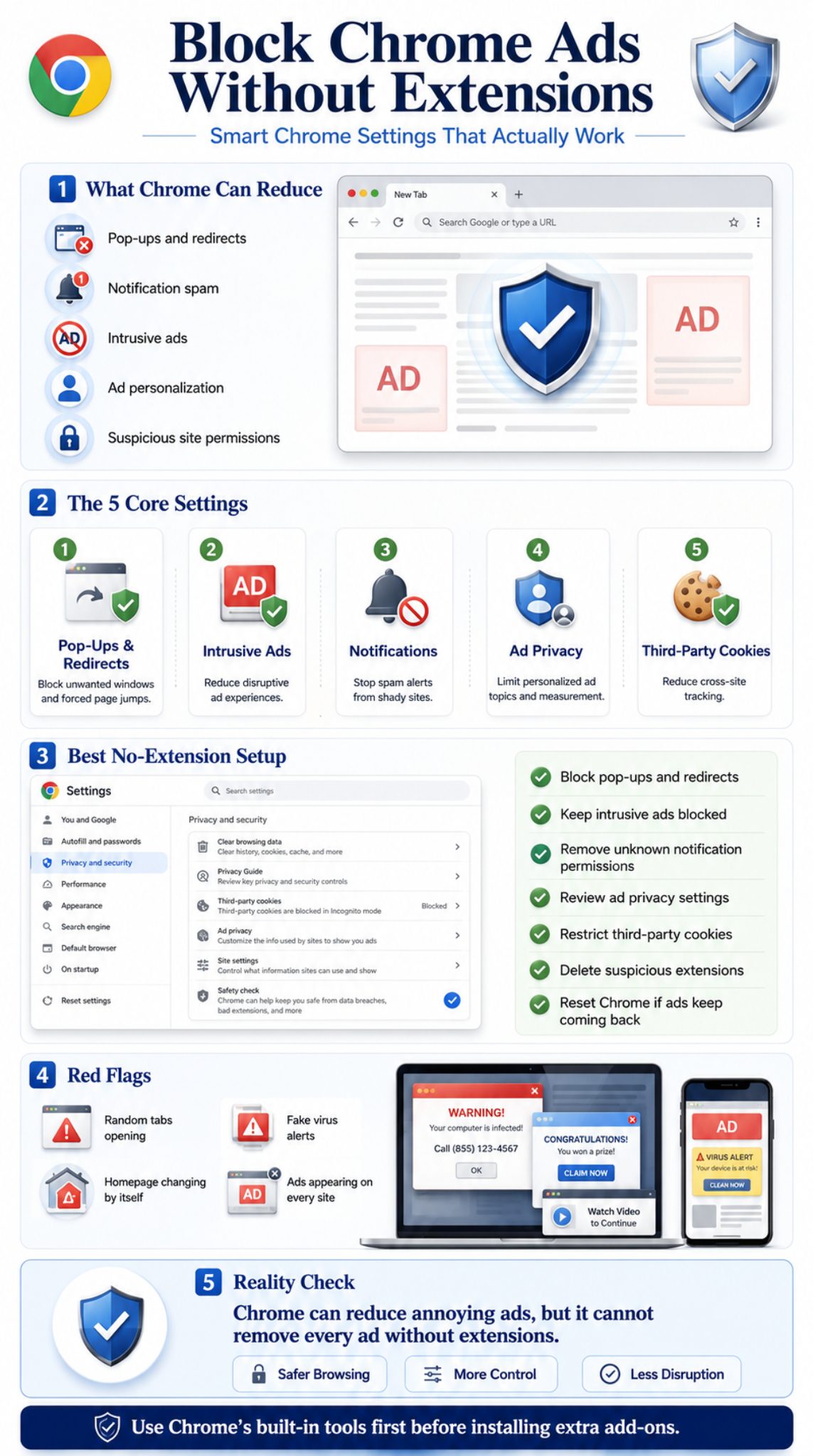
Here is the honest answer: Chrome cannot block every ad without an extension. It is not built to remove every banner, every sponsored result, or every video ad. But Chrome does include several useful settings that can block pop-ups, stop redirects, control notification ads, reduce intrusive ads, limit ad personalization, and remove suspicious site permissions.
This guide walks you through the best native Chrome settings to reduce ads without using an ad blocker extension. The goal is simple: fewer interruptions, safer browsing, and better control over what websites are allowed to do.
|
Quick Fact |
What It Means |
|
Chrome has built-in pop-up controls |
You can block unwanted pop-ups and redirects from settings |
|
Chrome can limit intrusive ads |
It targets disruptive ad behavior, not every ad |
|
Notification ads are often permission-based |
You may have allowed a site to send alerts |
|
Ad privacy settings affect personalization |
They reduce some ad targeting, not all ads |
|
Malware can cause fake ads |
Repeated pop-ups may mean unwanted software |
Can You Really Block Chrome Ads No Extension?
Yes, you can block some Chrome ads without extensions. But you need to know what kind of ad problem you are dealing with first.
Chrome has built-in controls for pop-ups, redirects, intrusive ads, notifications, cookies, and ad privacy. These settings can reduce many annoying ads. Google’s Chrome Help says Chrome blocks pop-ups by default, and users can manage pop-ups and redirects from Chrome’s site settings.
Still, this is not the same as using a full ad blocker. Chrome’s built-in tools mostly focus on bad ad behavior. That includes pop-ups, forced redirects, spam notifications, and intrusive ads from websites that break ad experience standards.
What Chrome Can Block Without Extensions
Chrome can help with the ads that behave badly. If a website keeps opening new tabs, sending unwanted alerts, or showing disruptive ad formats, Chrome settings can make a real difference.
The most useful built-in options are:
- Pop-up and redirect blocker
- Intrusive ads setting
- Notification permission control
- Ad privacy controls
- Third-party cookie settings
- Site permission reset
- Chrome reset settings
- Malware and unwanted software cleanup
What Chrome Cannot Fully Block Without Extensions
Chrome will not remove every normal ad from every website. You may still see display ads, sponsored search results, YouTube ads, shopping ads, social media ads, and native sponsored content.
That is not a bug. Many websites use ads to support free content. Chrome’s built-in ad controls are made to reduce harmful or disruptive behavior, not remove the entire ad-supported web.
|
Ad Type |
Can Chrome Block It Without Extensions? |
Best Setting |
|
Pop-up ads |
Yes |
Pop-ups and redirects |
|
Redirect ads |
Partly |
Pop-ups and redirects |
|
Notification ads |
Yes |
Site notifications |
|
Intrusive ads |
Partly |
Intrusive ads |
|
Personalized ads |
Partly |
Ad privacy |
|
Tracking ads |
Partly |
Third-party cookies |
|
YouTube video ads |
Not reliably |
Not fully available in Chrome settings |
|
Sponsored search results |
No |
Not controlled by Chrome ad settings |
Understand the Type of Chrome Ads You Are Seeing
Before changing settings, pause for a minute and identify the problem. Not all Chrome ads come from the same place.
Some ads are normal website ads. Some are pop-ups. Some are notification alerts. Some are caused by a bad website permission. And some come from adware or unwanted software on the device.
This matters because the wrong fix will waste your time. Blocking pop-ups will not stop notification ads. Blocking cookies will not remove fake virus alerts. Resetting Chrome may help if the browser keeps opening strange pages.
Common Chrome Ad Problems
If ads appear only on one website, the website may have an aggressive ad layout. If they appear everywhere, even on trusted sites, the problem may be deeper.
A common case is notification spam. A site asks you to click “Allow” to watch a video, download a file, or prove you are human. Once you allow it, that site can send notifications that look like Chrome ads.
Another case is redirect ads. You click one thing, but Chrome opens a different page. That can happen on low-quality streaming sites, download pages, coupon sites, adult sites, and fake software pages.
Signs the Problem May Be Malware
Google says unwanted software or malware may be involved if pop-up ads and new tabs will not go away, Chrome’s homepage or search engine keeps changing, unwanted extensions return, browsing redirects to unfamiliar pages, or fake virus alerts appear.
If you see those symptoms, do not only change Chrome ad settings. You should also check installed apps, remove suspicious extensions, and scan the device.
|
Symptom |
Likely Cause |
Best Fix |
|
Ads appear in the bottom-right corner |
Website notifications |
Block notification permission |
|
New tabs open by themselves |
Redirects or adware |
Block redirects and scan device |
|
Homepage changes automatically |
Browser hijacker |
Reset Chrome and remove software |
|
Ads appear on every website |
Adware or extension |
Remove suspicious apps/extensions |
|
Fake virus alerts appear |
Scam pop-up or malware |
Close tab and run security check |
|
Ads follow you across sites |
Tracking/personalization |
Adjust ad privacy and cookies |
Update Chrome Before Changing Ad Settings
Chrome settings can move slightly over time. So before you start, update Chrome. It gives you the latest security patches and keeps the settings closer to Google’s current layout.
This step is boring, but it matters. A browser that is out of date can miss safety fixes. It can also behave differently from the steps shown in current guides.
How to Update Chrome on Desktop
Open Chrome and click the three-dot menu in the top-right corner. Go to Help, then About Google Chrome. Chrome will check for updates automatically. If an update is available, install it and relaunch the browser.
After updating, go back to settings and start with pop-ups, redirects, and notifications. These three settings solve many common ad complaints.
Why Updating Helps With Ad Problems
Browser updates can improve security checks, patch known vulnerabilities, and refresh blocked-site behavior. Updates will not magically remove all ads, but they reduce the chance that old browser behavior is making the problem worse.
Also, if you use Chrome sync across devices, update Chrome on your phone and computer. A permission or setting problem can follow you if synced settings are involved.
|
Update Step |
Why It Matters |
|
Check Chrome version |
Confirms you are using current browser behavior |
|
Relaunch Chrome |
Finishes the update process |
|
Update mobile Chrome too |
Keeps settings consistent across devices |
|
Recheck permissions after update |
Old permissions may still be active |
|
Review extensions after update |
Outdated extensions can cause browsing issues |
Block Pop-Ups and Redirects in Chrome
This is the first setting most users should change. Pop-ups and redirects are two of the most common reasons people feel Chrome is full of ads.
Chrome lets users manage this from Settings, Privacy and security, Site settings, and Pop-ups and redirects. From there, you can choose the default behavior and block sites that are allowed to send pop-ups or use redirects.
How to Block Pop-Ups and Redirects on Desktop
Follow these steps:
- Open Chrome.
- Click the three-dot menu.
- Go to Settings.
- Click Privacy and security.
- Open Site settings.
- Click Pop-ups and redirects.
- Select the option that blocks sites from sending pop-ups or using redirects.
- Review allowed sites and remove anything suspicious.
Pay close attention to the allowed list. A random site in that list can keep opening pop-ups even when your default setting is strict.
Read Also: Chrome High Memory Usage: How to Fix It in 2026
How to Block Pop-Ups and Redirects on Android
On Android, open Chrome, tap the three-dot menu, go to Settings, then Site settings, then Pop-ups and redirects. Turn off pop-ups and redirects.
Some real websites use pop-ups for useful actions. Banking sites, payment gateways, university portals, and government forms may use pop-ups for login or verification. If a trusted site stops working, allow pop-ups only for that site.
|
Setting |
Recommended Choice |
Why |
|
Pop-ups and redirects |
Block by default |
Stops many unwanted ad windows |
|
Allowed sites |
Keep only trusted sites |
Prevents old spam permissions |
|
Payment or bank sites |
Allow only when needed |
Some services need pop-up windows |
|
Unknown domains |
Remove |
Reduces fake redirects |
|
Android Chrome |
Turn off pop-ups and redirects |
Stops many mobile ad jumps |
Turn On Chrome’s Intrusive Ads Protection
Chrome has a built-in setting for intrusive ads. This is useful, but it is often misunderstood.
It does not block all ads. It blocks or limits ads from websites that show intrusive ad experiences. You can usually find it under Privacy and security, Site settings, Additional content settings, and Intrusive ads.
The Better Ads Standards focus on ad experiences that users often find annoying or disruptive. These include ad formats that block content, interrupt reading, or make browsing frustrating.
How to Check Intrusive Ads Settings
On desktop:
- Open Chrome Settings.
- Click Privacy and security.
- Open Site settings.
- Scroll to Additional content settings.
- Click Intrusive ads.
- Choose the option that blocks intrusive ads.
On Android, go to Chrome Settings, then Site settings, then Intrusive ads. Keep the blocker enabled.
What Intrusive Ads Protection Can Do
This setting is best for disruptive ad behavior. Think of ads that block content, force interaction, flash aggressively, or create a poor browsing experience.
It is not made for normal ads that sit inside a page. If a website shows standard banner ads, Chrome may still show them.
|
Intrusive Ads Setting |
What It Helps With |
What It Does Not Do |
|
Blocks bad ad experiences |
Reduces annoying ad behavior |
Does not remove all ads |
|
Works site-by-site |
Targets non-compliant sites |
Does not replace ad blockers |
|
Helps on desktop/mobile |
Improves browsing comfort |
Does not block sponsored results |
|
Based on ad standards |
Focuses on disruptive formats |
Does not stop all tracking |
Stop Notification Ads From Websites
Many people think they are seeing Chrome ads when they are really seeing website notifications. These are alerts that a site is allowed to send after you clicked “Allow.”
This is one of the easiest problems to fix.
If you still get messages from a site after disabling pop-ups, you may be subscribed to that site’s notifications. You can block those notifications from Chrome’s site settings.
How to Block Notification Ads on Desktop
Follow this path:
- Open Chrome.
- Go to Settings.
- Click Privacy and security.
- Open Site settings.
- Click Notifications.
- Check the allowed list.
- Remove or block suspicious websites.
- Choose a stricter default notification setting if needed.
Look for strange domains, fake download pages, unknown news sites, coupon sites, or adult/spam domains. If you do not recognize it, block it.
How to Block Notification Ads on Android
On Android, go to the site sending notifications, tap the page information icon, open Permissions, tap Notifications, and turn them off.
Be careful with pages that say “Click Allow to continue,” “Allow to verify,” or “Allow to download.” Those prompts are often permission traps.
|
Notification Problem |
What To Check |
Fix |
|
Ads in desktop corner |
Allowed notification sites |
Block suspicious sites |
|
Phone alert ads |
Android Chrome notifications |
Turn off site notifications |
|
Fake virus alerts |
Spam notification permission |
Remove permission |
|
Alerts from unknown site |
Old allowed site |
Block or reset permission |
|
Notifications after visiting one site |
Site-specific permission |
Remove that site |
Use Chrome Ad Privacy Settings to Reduce Personalized Ads
This step will not remove ads, but it can reduce some ad personalization inside Chrome.
Chrome’s Ad privacy settings include Ad topics, Site-suggested ads, and Ad measurement. These settings control how Chrome may use browsing activity to help websites show more relevant ads.
So, if your goal is block chrome ads no extension, treat this as a privacy step, not a magic ad remover.
How to Manage Ad Topics
Go to:
Settings > Privacy and security > Ad privacy > Ad topics
From there, you can block active topics or manage topic categories. If you turn off or block topics, Chrome will share less interest-based information with participating sites.
You may still see ads. They may simply become less personalized.
How to Manage Site-Suggested Ads and Ad Measurement
Site-suggested ads allow sites to store ad suggestions based on what you may like. If you block a site from this setting, that site should no longer store ad suggestions with Chrome.
Ad measurement helps websites and advertisers measure ad performance. Turning it off may reduce ad-related measurement signals, but it will not remove ads from pages.
|
Ad Privacy Feature |
What It Does |
Recommended Action |
|
Ad topics |
Uses browsing interests for ad topics |
Block topics or turn off if preferred |
|
Site-suggested ads |
Lets sites suggest ad interests |
Block unwanted sites |
|
Ad measurement |
Helps measure ad performance |
Turn off for more privacy |
|
Personalization control |
Reduces some targeting |
Does not remove all ads |
|
Privacy benefit |
Gives more control |
Good for privacy-focused users |
Block or Restrict Third-Party Cookies
Third-party cookies are often used for cross-site tracking, ad targeting, analytics, and retargeting. Blocking them can reduce some tracking-based ads, though it will not remove ads completely.
Chrome’s cookie and tracking controls have changed over time, so users should check the current Chrome settings on their device. Incognito mode already blocks many third-party cookies by default, while normal browsing gives users separate cookie controls.
For regular browsing, you can manage cookie behavior from Chrome’s privacy settings.
How to Restrict Third-Party Cookies
Go to:
Settings > Privacy and security > Third-party cookies
Choose the option that fits your comfort level. A stricter setting can improve privacy, but it may also break parts of some websites.
If an important site stops working, add that site as an exception instead of turning everything back on.
What May Break After Blocking Cookies
Some websites depend on third-party cookies for logins, embedded tools, payment systems, chat widgets, or shopping carts. If something breaks, test the site in a normal window, reload it, or allow cookies for that specific trusted site.
Blocking cookies is not the same as blocking ads. It mainly reduces tracking and personalization.
|
Cookie Setting Result |
Possible Issue |
Practical Fix |
|
Fewer tracking signals |
Ads may be less personalized |
Keep setting enabled |
|
Login issues |
Some sites may not remember sessions |
Add trusted exception |
|
Payment page trouble |
Checkout may fail |
Allow cookies temporarily |
|
Embedded tools fail |
Video/chat may not load |
Refresh or allow site |
|
Better privacy |
Some convenience is reduced |
Use exceptions carefully |
Reset Site Permissions for Spammy Websites
Chrome lets websites ask for permissions. Over time, you may allow things you forget about. Notifications, pop-ups, redirects, camera, location, and background permissions can all affect your browsing experience.
Resetting site permissions is a clean way to take control without resetting the whole browser.
How to Reset Permission for One Website
Open the website in Chrome. Click the site information icon near the address bar. Open Site settings. Then reset permissions or manually block the permissions you do not want.
This works well when one website keeps bothering you but the rest of Chrome works fine.
Which Permissions Should You Review First
Start with notifications, pop-ups and redirects, ads, background sync, automatic downloads, and location. Most ad problems come from notifications and redirects, but automatic downloads and background activity are also worth checking on suspicious sites.
If a site feels unsafe, do not try to “fix” it with permissions. Close it and avoid it.
|
Permission |
Why It Matters |
Suggested Setting |
|
Notifications |
Can send ad alerts |
Block unless trusted |
|
Pop-ups and redirects |
Can open ad pages |
Block by default |
|
Intrusive ads |
Controls bad ad behavior |
Block |
|
Automatic downloads |
Can trigger risky files |
Block or ask |
|
Background sync |
Allows background activity |
Limit for unknown sites |
|
Location |
Can be used for targeting |
Ask or block |
Remove Suspicious Extensions Already Installed
The article is about avoiding new ad blocker extensions. But you should still check extensions already installed in Chrome.
Some unwanted ads come from shady extensions. Coupon tools, search managers, video downloaders, PDF converters, and “free” productivity tools can sometimes inject ads or redirect searches.
Unwanted Chrome extensions or toolbars that keep coming back can also be a sign of unwanted software.
How to Review Existing Chrome Extensions
Type this into your address bar:
chrome://extensions
Then review everything installed. Remove anything you do not recognize. Disable anything recently added. Restart Chrome and test again.
Do not keep an extension just because it has a nice icon or a familiar-looking name. If you never use it, remove it.
Extension Red Flags to Watch
Be extra careful with extensions that ask to read and change data on all websites. Some legitimate extensions need that permission, but shady ones can abuse it.
Also watch for extensions that change your search engine, homepage, new tab page, or shopping results.
|
Extension Type |
Risk Level |
What To Do |
|
Unknown coupon extension |
High |
Remove |
|
Search manager |
High |
Remove if not trusted |
|
PDF converter |
Medium |
Keep only trusted tools |
|
Video downloader |
Medium to high |
Review carefully |
|
Password manager |
Depends on provider |
Keep only reputable services |
|
Old unused extension |
Medium |
Remove |
Reset Chrome If Ads Keep Coming Back
If pop-ups, redirects, or strange search pages keep returning, use Chrome’s reset option. This is stronger than changing one setting.
Chrome lets users restore settings to their original defaults from the Reset settings menu. After resetting, only trusted extensions should be turned back on.
What Chrome Reset Usually Does
A Chrome reset may reset your startup page, new tab page, search engine, pinned tabs, site permissions, cookies, and extensions. It usually does not delete bookmarks, browsing history, or saved passwords, but you should still check sync and backup important data before doing it.
This is useful when settings have been changed by unwanted software or a suspicious extension.
When You Should Reset Chrome
Reset Chrome when:
- Ads come back after you block them
- Chrome opens strange pages on startup
- Your search engine changes without permission
- Unknown extensions return
- Pop-ups appear on safe websites
- Redirects happen across many sites
|
Reset Situation |
Why Reset Helps |
|
Search engine keeps changing |
Restores browser defaults |
|
Strange startup page appears |
Clears unwanted startup changes |
|
Site permissions are messy |
Resets risky permissions |
|
Extensions caused problems |
Disables extensions |
|
Pop-ups keep returning |
Removes hidden setting changes |
Scan the Device for Adware or Malware
If ads appear everywhere, Chrome may not be the real problem. Your device may have adware.
This is especially likely if ads show up on normal websites, fake virus alerts appear, or your browser keeps opening unfamiliar pages. These symptoms can point to unwanted software or malware.
Safe Cleanup Steps for Desktop
Start with installed apps. On Windows, open Settings, then Apps, then Installed apps. Remove apps you do not recognize, especially anything installed around the time the ads started.
On Mac, open Finder, go to Applications, and move unknown apps to Trash. Then restart your device, open Chrome, and test again.
Safe Cleanup Steps for Android
On Android, remove problematic apps, restart the phone, and make sure Play Protect is enabled. If the problem started after installing a new app, remove that app first.
Avoid random cleaner apps that promise to remove viruses from a pop-up. Those are often part of the problem.
|
Malware Sign |
What It Usually Means |
What To Do |
|
Ads on every website |
Device adware |
Remove suspicious apps |
|
Fake virus alerts |
Scam or malware |
Close tab, do not click |
|
Homepage changes |
Browser hijacker |
Reset Chrome |
|
Unknown apps installed |
Bundled software |
Uninstall them |
|
Search redirects |
Hijacker or extension |
Remove extensions and scan |
|
Pop-ups after downloads |
Unsafe installer |
Delete installer and scan |
Block Chrome Ads No Extension: Best Settings Combination
The best setup is not one setting. It is a combination.
For most users, the strongest no-extension setup is simple: block pop-ups, block redirects, keep intrusive ads protection on, remove notification permissions, manage ad privacy, restrict third-party cookies, remove suspicious extensions, and reset Chrome if the problem continues.
This setup gives you better browsing without relying on third-party extensions.
Recommended Chrome Settings
Use this as your core setup:
- Pop-ups and redirects: blocked
- Intrusive ads: blocked
- Notifications: blocked or ask first
- Ad topics: reviewed or turned off
- Site-suggested ads: reviewed or turned off
- Ad measurement: off if privacy matters
- Third-party cookies: restricted or blocked
- Suspicious extensions: removed
- Chrome reset: used only if problems continue
Why This Combination Works Better
Pop-up blocking stops forced windows. Notification controls stop fake alert ads. Intrusive ads protection reduces disruptive page ads. Ad privacy controls reduce interest-based ad sharing. Cookie restrictions reduce tracking. Extension review removes hidden ad sources.
Together, these settings give a cleaner Chrome experience without needing an ad blocker extension.
|
Chrome Area |
Best Setting |
Main Benefit |
|
Pop-ups and redirects |
Block |
Stops new ad windows |
|
Intrusive ads |
Block |
Reduces disruptive ad formats |
|
Notifications |
Block unknown sites |
Stops fake alert ads |
|
Ad topics |
Manage or disable |
Reduces ad personalization |
|
Site-suggested ads |
Block unwanted sites |
Limits site-based ad suggestions |
|
Third-party cookies |
Restrict |
Reduces cross-site tracking |
|
Extensions |
Remove unknown tools |
Stops injected ads |
What Chrome Cannot Block Without an Extension
This part is important. A fair guide should not promise something Chrome cannot do.
Even after all these settings, you may still see ads. Chrome is the world’s leading browser by market share, and many websites and advertisers design their ad systems around Chrome users. But Chrome’s built-in settings are not a full ad-blocking system.
Ads You May Still See
You may still see:
- YouTube video ads
- Google sponsored search results
- Shopping ads
- Display ads inside articles
- Native sponsored posts
- Social media ads
- App-based ads
- Newsletter sponsorships
- Affiliate product boxes
Those ads are usually part of the website or platform. Chrome’s native controls do not remove all of them.
Why Chrome Still Shows Normal Ads
Normal ads are not always unsafe. Many websites use ads to pay writers, editors, designers, developers, hosting bills, and reporting costs.
The real issue is not always the presence of ads. It is the behavior of ads. Pop-ups, redirects, fake alerts, auto-downloads, and notification spam are the things Chrome can help reduce.
|
Ad Format |
Will Chrome Remove It Without Extension? |
Why |
|
Standard banner ads |
Usually no |
Normal page ad |
|
Sponsored search result |
No |
Search platform ad |
|
YouTube video ad |
Not reliably |
Platform-controlled ad |
|
Pop-up ad |
Yes, often |
Covered by pop-up blocker |
|
Redirect ad |
Partly |
Covered by redirect settings |
|
Notification ad |
Yes |
Controlled by permissions |
|
Intrusive site ad |
Partly |
Covered by intrusive ads setting |
Troubleshooting: Why Ads Still Appear in Chrome
If you changed the settings and still see ads, do not panic. The cause is usually easy to narrow down.
Start by asking where the ad appears. Is it inside a webpage? In the corner of your screen? In a new tab? On every site? Only on one site? Each answer points to a different fix.
Ads Appear in the Corner of the Screen
That is usually a notification permission. Go to Chrome notification settings and block suspicious sites.
On Android, check Chrome site permissions and system notification settings. If the alert names a website, remove that site’s permission.
Chrome Opens Random Tabs
That is usually a redirect problem, bad website script, suspicious extension, or adware. Block redirects first. Then check extensions. If it continues, reset Chrome and scan the device.
Ads Appear Only on One Website
That may be the website’s ad layout. Chrome may block pop-ups or intrusive ads, but it will not remove every standard ad from that site.
Ads Appear on Every Website
That is more serious. Check extensions, installed apps, startup settings, and malware. Normal websites should not all suddenly show the same strange ads.
|
Problem |
Most Likely Cause |
Best Fix |
|
Corner alerts |
Notifications |
Block site notifications |
|
Random new tabs |
Redirects/adware |
Block redirects and scan |
|
Ads on one site |
Site ad layout |
Use stricter site permissions |
|
Ads on every site |
Malware or extension |
Remove software and reset Chrome |
|
Fake Chrome update |
Scam page |
Close tab and avoid download |
|
Search changes |
Browser hijacker |
Reset Chrome and remove extensions |
Safety Tips to Avoid Fake Ad Blocker and Virus Pop-Ups
Some of the worst Chrome ads pretend to be security warnings. They may say your device is infected, your browser is outdated, or your Chrome needs an urgent update.
Do not click them. Do not call the phone number. Do not download the suggested cleaner. Do not enter payment information.
If a program update looks suspicious, go to the official app or browser settings instead of trusting a random pop-up.
What Fake Warning Pop-Ups Look Like
Fake warnings often use scary language. They may say “Your device has 5 viruses,” “Chrome is infected,” “Your data is at risk,” or “Install this security update now.”
A real browser or operating system update will not usually appear as a random website ad.
Safe Habits That Reduce Chrome Ad Problems
Use these habits:
- Download software only from official websites.
- Avoid cracked apps and free movie download pages.
- Do not click fake “Allow” prompts.
- Keep Chrome updated.
- Review site permissions monthly.
- Remove extensions you do not use.
- Ignore fake virus alerts from websites.
- Use trusted security tools only.
|
Unsafe Prompt |
Safer Response |
|
“Click Allow to continue” |
Close the tab |
|
“Your Chrome is infected” |
Do not click |
|
“Download cleaner now” |
Avoid the download |
|
“Call this number” |
Never call |
|
“Update Chrome from this page” |
Update from Chrome settings |
|
“You won a prize” |
Leave the site |
Quick Checklist for a Cleaner Chrome Browser
This checklist is useful if you want the shortest practical version. Run through it once, and you will fix most common Chrome ad problems.
The goal is not to make the whole internet ad-free. The goal is to stop the annoying stuff: pop-ups, redirects, notification spam, fake alerts, and suspicious ad behavior.
Chrome Ads Cleanup Checklist
Complete these steps in order:
- Update Chrome.
- Block pop-ups and redirects.
- Keep intrusive ads blocked.
- Remove spam notification permissions.
- Review ad privacy settings.
- Restrict third-party cookies.
- Reset permissions for suspicious sites.
- Remove unknown extensions.
- Reset Chrome if ads keep returning.
- Scan the device for unwanted software.
Best Order to Fix the Problem
Start with the lightest fixes. Do not reset Chrome immediately if only one site is annoying you. Reset one site permission first. If ads appear everywhere, then move to extensions, device apps, reset settings, and malware cleanup.
|
Step |
Action |
Difficulty |
|
1 |
Update Chrome |
Easy |
|
2 |
Block pop-ups and redirects |
Easy |
|
3 |
Block intrusive ads |
Easy |
|
4 |
Remove notification permissions |
Easy |
|
5 |
Manage ad privacy |
Easy |
|
6 |
Restrict cookies |
Medium |
|
7 |
Remove extensions |
Medium |
|
8 |
Reset Chrome |
Medium |
|
9 |
Scan device |
Medium |
Final Thoughts
You can block chrome ads no extension, but you need realistic expectations. Chrome’s built-in settings can reduce pop-ups, redirects, notification spam, intrusive ads, personalized ad signals, and suspicious site behavior. That is enough to make browsing feel cleaner and safer for many users.
But Chrome will not remove every ad. You may still see normal display ads, sponsored search results, YouTube ads, and social media ads. Those are usually controlled by the website or platform, not by Chrome’s basic ad settings.
The best approach is to combine settings. Block pop-ups and redirects. Keep intrusive ads blocked. Remove notification permissions from spammy sites. Review ad privacy. Restrict third-party cookies if privacy matters to you. Remove suspicious extensions. Reset Chrome if the problem keeps coming back.
That gives you a solid no-extension setup without adding another tool to your browser.
Frequently Asked Questions About Blocking Chrome Ads Without Extensions
Can Chrome Block All Ads Without Extensions?
No. Chrome can block pop-ups, redirects, notification ads, and some intrusive ad behavior. It cannot remove every normal ad from every website without stronger blocking tools.
Why Do I Still See Ads After Blocking Pop-Ups?
Pop-up blocking only stops pop-ups and some redirects. If the ads are website notifications, normal display ads, or caused by adware, you need to fix those separately.
How Do I Stop Chrome Ads in the Bottom-Right Corner?
Those are usually website notifications. Open Chrome notification settings and block suspicious websites from the allowed list.
Is Chrome’s Intrusive Ads Setting the Same as an Ad Blocker?
No. It targets disruptive ad behavior from certain sites. It does not remove all ads from all websites.
Will Blocking Third-Party Cookies Stop Chrome Ads?
It may reduce tracking-based ads, but it will not remove ads completely. You may still see general ads.
Why Does Chrome Keep Opening Random Ad Tabs?
That can happen because of redirects, unsafe sites, suspicious extensions, or adware. Block redirects, remove unknown extensions, reset Chrome, and scan your device if it continues.
Can I Block YouTube Ads in Chrome Without Extensions?
Not reliably through Chrome’s built-in settings. YouTube ads are controlled by the platform, so Chrome’s pop-up and intrusive ad controls usually will not remove them.
Should I Reset Chrome to Stop Ads?
Reset Chrome if ads keep coming back, your homepage changes, your search engine changes, or suspicious permissions keep returning. Try lighter fixes first if the problem is limited to one site.
Are Notification Ads Dangerous?
Some are just annoying, but many are used for scams, fake virus warnings, shady downloads, or phishing pages. Block unknown notification permissions.
What Is the Safest No-Extension Setup for Chrome Ads?
Block pop-ups and redirects, block intrusive ads, block unknown notifications, manage ad privacy, restrict third-party cookies, remove unknown extensions, and scan for unwanted software if needed.