
Google Docs feels useless when the internet drops. That is what many people assume. But the truth is different. If you set it up before you lose connection, google docs offline can help you write, edit, and review documents without Wi-Fi.
This is useful for students, writers, remote workers, business travelers, teachers, and anyone who works from places where the internet is not always reliable. You may be on a train, in a classroom, at an airport, or just dealing with a bad home connection. In those moments, offline access can save your workday.
But there is one catch. You cannot wait until the internet is gone and then expect everything to work. Google Docs offline needs a little setup first. Once that setup is done, the experience is simple.
Google’s official help guidance says offline access on a computer requires an internet connection during setup, Chrome or Microsoft Edge, no private browsing, the Google Docs Offline extension, and enough storage on your device.
What Is Google Docs Offline?
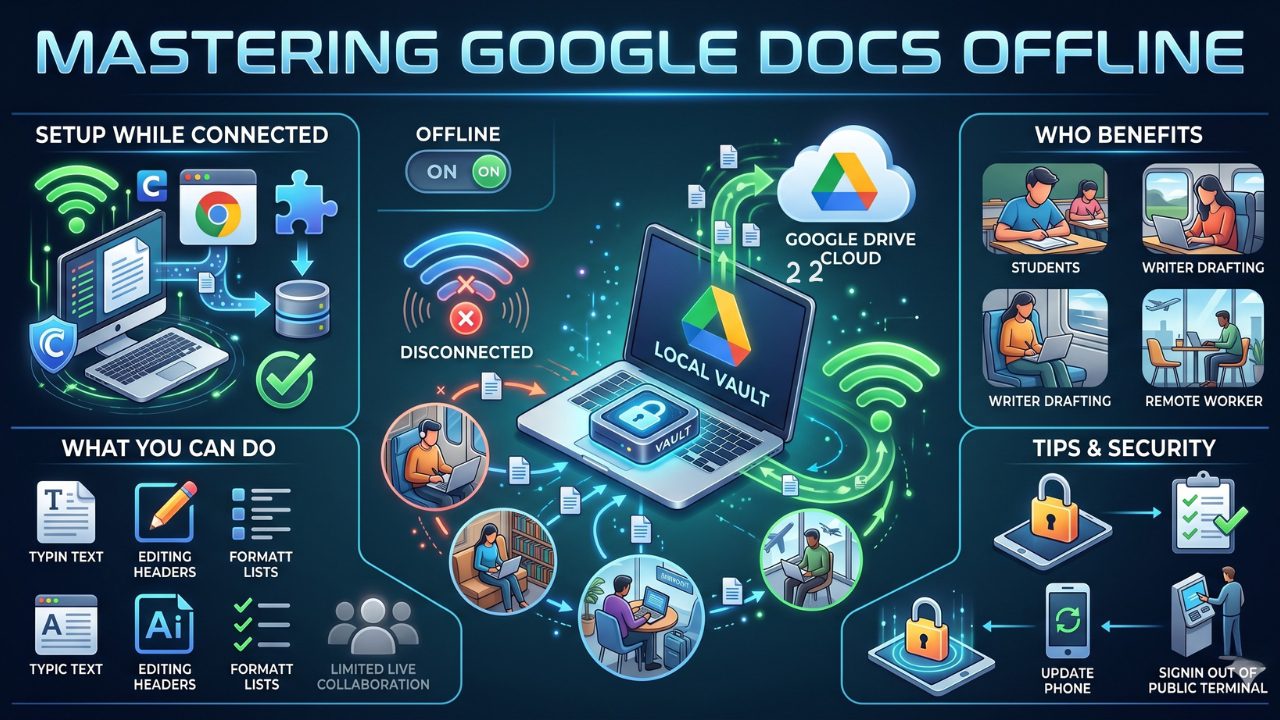
Google Docs offline is a feature that lets you create, open, and edit selected Google Docs files without an active internet connection. Your edits are saved on your device first. When you go back online, Google syncs those changes to Drive.
It is not the same as downloading a document as a Word file or PDF. Offline mode keeps your document inside the Google Docs system. That means your work can still sync back to Google Drive once your connection returns.
This feature is helpful when you want to keep writing without breaking your flow. It is also useful when you want the comfort of cloud storage but need the safety of local access.
|
Key Point |
What It Means |
|
Main use |
Edit Google Docs without internet |
|
Best for |
Writing, reviewing, light formatting, and drafting |
|
Setup needed |
Yes, before going offline |
|
Sync behavior |
Changes sync after reconnecting |
|
Main risk |
Unsynced edits if the device closes or fails too soon |
How Google Docs Offline Works
When offline access is enabled, Google saves certain files locally on your device. These may include recent files and files you manually mark as available offline.
You can then open those files without internet. Any edits you make are stored locally. Once your device reconnects, Google updates the online version in Drive.
Google also lets users check whether a document is ready for offline use from the document status area beside the file title. If the file is not ready, Google shows an explanation.
What You Can Do Offline
You can write new text, edit existing text, fix headings, adjust lists, clean up paragraphs, and review saved documents. For most writing tasks, that is enough.
Google Docs can be used to access, create, and edit documents without an internet connection when offline access is set up properly.
What You Cannot Fully Do Offline
Live collaboration is limited because other people cannot see your new changes until you reconnect. Sharing, permission changes, comments, online add-ons, and some linked content may also need internet.
So the best use of Google Docs offline is focused work. Draft, edit, review, and clean up. Save collaboration and sharing for when you are online again.
Why Google Docs Offline Is Useful
The biggest benefit is simple: your work does not stop because your internet stops. That matters more than people think.
Many users only notice offline tools when something goes wrong. A deadline is close. A train has no signal. A meeting room has weak Wi-Fi. A student needs to finish an assignment, but the internet is down.
Google Docs offline gives you a backup plan. It keeps writing and editing available, even when cloud access becomes shaky.
|
Situation |
How Offline Mode Helps |
|
Travel |
Work during flights, train rides, or long commutes |
|
Poor Wi-Fi |
Keep editing during unstable internet |
|
Schoolwork |
Finish assignments without relying on campus internet |
|
Remote work |
Prepare drafts before reconnecting with the team |
|
Content writing |
Write without browser distractions |
|
Meetings |
Open notes even when the room Wi-Fi fails |
For Students
Students can save lecture notes, assignments, essays, and research drafts for offline use. This is useful when working in libraries, classrooms, buses, or shared spaces with weak Wi-Fi.
A smart habit is to make assignment files available offline before the deadline week. That way, a sudden internet issue does not become a crisis.
For Writers and Bloggers
Writers can use offline time for deep writing. No tabs, no social media, no sudden research rabbit holes.
For blog drafts, outlines, scripts, and editorial notes, Google Docs offline works well. You can focus on the words first and handle links, images, and publishing later.
For Remote Workers
Remote workers often switch between home, cafes, coworking spaces, and travel days. Offline access gives them a safety net.
It is useful for meeting notes, project briefs, proposals, reports, and client drafts. The key is to prepare the right files before leaving a stable connection.
Google Docs Offline Requirements
Before using google docs offline, check the basics. Most problems happen because one small requirement is missing.
On desktop, Google says you need Chrome or Microsoft Edge. You also need the Google Docs Offline Chrome extension turned on. Private or incognito browsing is not supported for offline access.
You also need enough space on your device. Offline files have to live somewhere. If your laptop or phone storage is almost full, offline access may fail or behave badly.
|
Requirement |
Desktop |
Mobile |
|
Internet for setup |
Required |
Required |
|
Browser/app |
Chrome or Microsoft Edge |
Google Docs or Drive app |
|
Extension |
Required on desktop |
Not needed |
|
Storage |
Needed for offline files |
Needed for offline files |
|
Private browsing |
Not supported |
Not relevant in the same way |
|
Admin permission |
May matter for work or school accounts |
May matter for managed accounts |
Browser Requirements
Use Google Chrome or Microsoft Edge on desktop. Other browsers may work for normal online editing, but they are not the best choice for Google Docs offline setup.
Google’s help guidance lists Chrome and Microsoft Edge as the supported browsers for offline files on a computer.
Extension Requirement
Desktop users need the Google Docs Offline extension. If you use Microsoft Edge, you may be redirected to the Chrome Web Store to download the extension.
This is one of the most common reasons offline mode fails. People turn on a setting but forget the extension.
Storage Requirement
Offline files are saved on your device. If your device has very little free space, offline setup may fail or sync may become unreliable.
A good habit is to keep only important files available offline. Do not mark every old document offline unless you really need it.
Work or School Account Restrictions
If you use a Google Workspace account from work or school, your admin may control offline access. Google Workspace admins can allow users to enable offline access, and recent files may be synced and saved on trusted computers.
If you see a message saying offline sync is disabled by your administrator, you cannot fix that from your personal settings. You need to contact your organization’s admin.
How to Set Up Google Docs Offline on Desktop
The desktop setup is not difficult, but it needs to be done in the right order. Do it while your internet connection is stable.
Start with the browser. Then check the extension. Then enable offline access in Google Drive. After that, manually mark the important files you want to use without internet.
Do not skip the final test. Testing offline access before travel or a deadline can save you from a very annoying surprise.
|
Step |
What to Do |
Why It Matters |
|
1 |
Use Chrome or Microsoft Edge |
Offline access is supported there |
|
2 |
Install Google Docs Offline extension |
Required for desktop offline editing |
|
3 |
Turn on offline access in Drive |
Activates offline mode |
|
4 |
Mark key files offline |
Makes sure important docs are ready |
|
5 |
Test without Wi-Fi |
Confirms everything works |
Step 1: Use Chrome or Microsoft Edge
Open Chrome or Microsoft Edge and sign in with the right Google account. This matters if you use several accounts.
If you want offline access for another Google account, sign in to the correct Chrome or Edge profile.
Step 2: Install the Google Docs Offline Extension
Install and turn on the Google Docs Offline extension. Without it, desktop offline editing may not work properly.
After installing, check that the extension is enabled. Some users install it once, then disable it later by mistake.
Step 3: Turn On Offline Access in Google Drive
Open Google Drive. Click the settings icon. Go to Settings. Turn on the Offline setting.
You can also turn on offline access from Docs, Sheets, or Slides settings. If offline access is turned on for one of these services or Drive, the rest can also become available offline.
Step 4: Make Specific Files Available Offline
Do not rely only on recent files. If a document is important, mark it manually.
Open the Docs, Sheets, or Slides home screen. Click More on the file. Choose Available offline. A check mark should appear when the file is available offline.
Step 5: Test Before You Need It
Turn off Wi-Fi for a minute. Open the document. Make a tiny test edit. Turn Wi-Fi back on and check whether the edit syncs.
This sounds basic, but it is the best way to know if your setup is ready.
Read Also: How to Recover Deleted Google Drive Files
How to Use Google Docs Offline on Mobile
Mobile offline access is great for quick edits, reviewing notes, and writing short drafts. It is not always as comfortable as desktop editing, but it is very useful when you are away from your laptop.
On mobile, the Google Docs app and Google Drive app work together. Drive is better for finding and managing files. Docs is better for writing and editing.
|
Mobile Task |
Best App to Use |
|
Find files |
Google Drive |
|
Edit documents |
Google Docs |
|
Mark file offline |
Docs or Drive |
|
View saved offline files |
Docs, Sheets, Slides, or Drive |
|
Quick review |
Google Docs app |
How to Make Recent Files Available Offline on Android
Open the Google Docs, Sheets, or Slides app. Tap Menu. Go to Settings. Tap Make recent files available offline.
This is the usual method for making recent files available offline on Android.
How to Make a Specific File Available Offline on Android
Open the Google Docs, Sheets, or Slides app. Find the file. Tap More beside it. Tap Make available offline.
This is better than relying on recent files. For important assignments, client documents, or travel notes, choose files manually.
How to Find Offline Files on Mobile
Open the Google Docs, Sheets, or Slides app. Tap Menu. Then tap Offline. Select the file you saved.
This makes it easier to find documents when you do not have an internet connection.
Mobile Offline Tip
Open the file once before you leave a good connection. This helps you confirm the file is ready.
Also keep your app updated. Old app versions can create small problems that feel much bigger when you are already offline.
How to Edit and Save Files Without Internet
Once setup is complete, using Google Docs offline feels normal. Open the document, write, edit, and keep working.
The difference is what happens in the background. Instead of saving changes directly to the cloud, Google saves them on the device first. When the internet returns, the document syncs.
This is why patience matters. After reconnecting, give the document time to update before closing the browser, shutting down the device, or switching to another machine.
|
Offline Action |
What Happens |
|
Open a saved document |
It loads from your device |
|
Edit text |
Changes are stored locally |
|
Reconnect to internet |
Google syncs changes to Drive |
|
Open from another device too soon |
You may not see the newest version yet |
|
Check version history |
Helps confirm changes after sync |
Opening Offline Documents
On desktop, open Google Docs, Sheets, or Slides after offline access has been enabled. On mobile, go to the Offline section or open a file you already saved.
If a file does not open offline, it probably was not ready. This is why manual selection and testing are important.
Editing Offline Documents
Use offline mode for normal writing tasks. Add paragraphs, fix mistakes, adjust headings, clean up bullet points, and organize sections.
Avoid major collaboration decisions while offline. If other people are also editing the document, wait until you reconnect and check the final synced version.
Creating New Documents Offline
Google Docs can create and edit documents without an internet connection when offline access is properly set up.
Still, for critical work, it is safer to create a blank document while online before you travel. Name it clearly and mark it available offline. Then you know the file is ready.
Saving Offline Changes
Do not panic if you do not see the newest version on another device immediately. Offline changes need to sync first.
Reconnect to a stable connection. Keep the document open. Wait for the sync status to settle.
Google Docs Offline Sync: How It Works
Sync is the part users worry about most. Nobody wants to lose work after writing for two hours without internet.
The basic idea is simple. Your offline edits stay on your device. When you reconnect, Google pushes those changes back to Drive.
Problems usually happen when users close the device too quickly, edit the same file from two places, run out of storage, or work on a file that is too large.
|
Sync Issue |
Likely Cause |
Practical Fix |
|
Changes not appearing |
Sync not finished |
Keep file open and reconnect |
|
Offline sync disabled |
Admin restriction |
Contact Workspace admin |
|
Could not sync document |
Network or file issue |
Reconnect, re-enable offline, reduce file size |
|
Same file edited on two devices |
Version conflict risk |
Check version history |
|
Setup failed |
Browser, extension, or site data issue |
Recheck setup and clear site data if needed |
How to Confirm Sync Is Complete
After reconnecting, check the document status icon. You can also open the file from another device after a few minutes.
For important work, check version history. This helps confirm whether your offline edits made it into the online document.
How to Avoid Sync Problems
Avoid editing the same document offline on two devices. Also avoid asking teammates to make big changes while you are offline.
For high-stakes documents, make a copy before heavy edits. That gives you a backup if the sync becomes messy.
What to Do If Sync Fails
First, check your internet connection. Then try disabling and re-enabling offline access for the file.
If the problem continues, the document may be too large. A practical fix is to copy smaller sections into new documents and sync those separately.
Google Docs Offline Not Working: Common Fixes
This section matters because many people search for google docs offline only after something breaks.
The good news is that most problems have simple causes. Wrong browser. Missing extension. Incognito mode. Not enough storage. Wrong account. Admin restriction. File not marked offline.
Start with the basic checks before trying advanced fixes.
|
Problem |
What to Check First |
|
Offline mode missing |
Browser, extension, Drive settings |
|
File not opening |
Was it marked available offline? |
|
Sync stuck |
Network, storage, file size |
|
Admin error |
Work or school account controls |
|
Another user enabled offline |
Browser profile conflict |
|
Slow offline access |
Large file or low storage |
Check Your Browser
Use Chrome or Microsoft Edge. Do not use private or incognito browsing.
Also check whether the Google Docs Offline extension is installed and turned on. Then make sure your browser is updated.
Check the Right Google Account
If you use multiple Google accounts, offline access can get confusing.
Only one account for each browser profile can usually have offline enabled. If you need offline access for multiple accounts, create separate browser profiles and enable offline access separately.
Check Admin Restrictions
If you see “Offline sync is disabled by your administrator,” your organization has blocked it.
This is common for school or company accounts. You cannot solve it by reinstalling the extension. You need admin permission.
Check File Size
Very large files can create sync problems. If the document contains many images, charts, tables, or copied web content, it may become harder to sync.
Try making the file smaller. You can copy smaller sections into new documents and work from there.
Security and Privacy Tips for Google Docs Offline
Offline access is convenient, but it also changes where your files live. When you make a file available offline, a usable copy is stored on your device.
That is fine on your own laptop or phone. It is risky on a public computer, shared office machine, hotel computer, or borrowed device.
Recent files may be synced and saved on a user’s trusted computer when offline access is allowed.
|
Safety Tip |
Why It Matters |
|
Use trusted devices only |
Offline files are stored locally |
|
Avoid public computers |
Others may access saved data |
|
Lock your device |
Protects files if device is lost |
|
Turn off offline access when done |
Reduces local file exposure |
|
Use separate browser profiles |
Keeps accounts cleaner |
|
Keep device updated |
Helps security and app stability |
Do Not Enable Offline Access on Public Devices
This is the simplest rule. If the device is not yours, do not save your documents offline on it.
Use online access only, sign out properly, and avoid saving sensitive work.
Use a Strong Device Lock
A password, PIN, fingerprint, or face unlock gives your offline files basic protection.
For work documents, also follow your company’s device rules. Some organizations require managed devices for offline access.
Turn Off Offline Access When You No Longer Need It
If you enabled offline access for travel, a temporary project, or a shared home computer, turn it off later.
You can turn off offline access from the Docs, Sheets, or Slides home screen settings. Turning it off for one can also turn it off for the rest.
Best Productivity Tips for Google Docs Offline
The best way to use google docs offline is to treat it as part of your workflow, not as an emergency button.
Prepare files before you travel. Keep an offline writing folder. Make important documents available manually. Test them. Reconnect before sharing final work.
Offline mode is especially good for deep work. You can write without checking email every five minutes or opening twenty tabs.
|
Productivity Habit |
Benefit |
|
Create an offline folder |
Keeps important files easy to find |
|
Mark files manually |
Reduces last-minute surprises |
|
Test before travel |
Confirms setup works |
|
Keep files lightweight |
Helps loading and syncing |
|
Use offline time for drafting |
Improves focus |
|
Reconnect before sharing |
Avoids sending outdated work |
Create an Offline Work Folder
Make a folder for active work. Add documents you may need during travel, classes, meetings, or writing sessions.
This makes offline preparation faster. You do not have to search through years of files.
Keep Offline Documents Simple
Heavy documents can slow things down. If you know you will work offline, avoid adding too many images, embedded objects, copied HTML, or messy formatting.
For long articles or reports, split the project into smaller drafts. Merge later when you are online.
Use Offline Mode for Focused Drafting
Offline work is great for messy first drafts. You can write freely without checking sources every few seconds.
Mark places where you need links or facts. Add those later when you reconnect.
Sync Before Sharing
Never assume your offline edits are already online. Reconnect first. Check sync. Then share, export, publish, or send the file.
This one habit prevents many awkward mistakes.
Google Docs Offline vs Downloading a File
Some users confuse offline access with downloading a document. They are not the same.
Google Docs offline lets you keep working inside Google Docs. Downloading creates a separate file, such as a Word document or PDF.
Both methods are useful. The right choice depends on what you need.
|
Option |
Best For |
Main Limitation |
|
Google Docs offline |
Active writing and editing |
Needs setup and sync |
|
Download as Word |
Editing in Microsoft Word |
Separate file version |
|
Download as PDF |
Sharing final copy |
Not ideal for editing |
|
Make a backup copy |
High-stakes work |
Must manage versions manually |
When Offline Mode Is Better
Use offline mode when you want your work to sync back to Google Drive. It is better for active drafts, school assignments, reports, and blog content.
It also keeps your workflow familiar. You do not have to switch to another editor.
When Downloading Is Better
Download a file when you need a fixed copy. PDFs are useful for final sharing. Word files are useful when someone wants to edit outside Google Docs.
For important deadlines, you can do both. Use offline mode for editing and download a backup copy for safety.
Best Practical Setup
For serious work, prepare three things:
- A Google Docs file marked available offline
- A backup copy in Drive
- A downloaded copy if the deadline is important
This may sound extra, but it is smart when the work really matters.
Quick Checklist Before Going Offline
Before you leave Wi-Fi, do a fast check. It takes two minutes and can save hours later.
The goal is simple. Make sure your browser, app, account, document, and sync setup are ready.
This checklist is useful before flights, field work, classes, long meetings, and travel days.
|
Checklist Item |
Status |
|
Chrome or Microsoft Edge is updated |
Check before leaving |
|
Google Docs Offline extension is enabled |
Check on desktop |
|
Offline access is turned on in Drive |
Check in settings |
|
Important files are marked offline |
Do manually |
|
File opens without Wi-Fi |
Test once |
|
Device has enough storage |
Clear space if needed |
|
You are using the right Google account |
Confirm profile |
|
You know where offline files are |
Check Offline section |
|
You reconnect before sharing |
Do before sending final work |
Before a Trip
Mark your travel notes, drafts, tickets, schedules, and work documents offline. Open each important file once before leaving.
Do not assume recent files will always be enough.
Before a Deadline
Make the assignment, report, or article available offline. Create a backup copy if the work is important.
Reconnect early. Do not wait until the last minute to sync and submit.
Before a Meeting
Save meeting notes, agenda documents, client briefs, and project files offline.
If the room Wi-Fi fails, you can still open your notes and keep working.
Final Thoughts
Google Docs offline is one of those features people ignore until they badly need it. But once you set it up properly, it becomes a quiet safety net.
Use Chrome or Microsoft Edge on desktop. Install the Google Docs Offline extension. Turn on offline access in Drive. Mark important files manually. Test everything before you lose internet. Then reconnect and let your edits sync before sharing or submitting work.
The real value of google docs offline is not just editing without Wi-Fi. It is peace of mind. You can keep writing, studying, preparing, and reviewing even when your connection is unreliable.
Frequently Asked Questions About Google Docs Offline
These FAQs cover search questions that users often have after setup, syncing, or device issues.
|
Question Type |
Why It Matters |
|
Setup |
Users want to know what is required |
|
Sync |
Users fear losing work |
|
Mobile |
Many users work from phones |
|
Security |
Offline files stay on devices |
|
Troubleshooting |
Most searches happen after errors |
Can I Use Google Docs Offline Without Internet?
Yes, but only after you set it up while online. Once offline access is ready, you can open and edit available documents without internet.
Why Is Google Docs Offline Not Working?
The most common reasons are unsupported browser, missing extension, private browsing, low device storage, wrong account, or a file that was not made available offline.
Does Google Docs Offline Work on iPhone?
Yes, Google Docs offline can work through the Google Docs or Google Drive app. Make the file available offline before you lose internet.
Can I Use Google Docs Offline in Incognito Mode?
No. Private or incognito browsing should not be used for offline access on a computer.
Can I Edit Google Docs Offline on Multiple Devices?
It is better not to edit the same file offline on multiple devices. It can create confusion when changes sync later.
Will My Offline Edits Save Automatically?
Your edits are saved locally first. They sync back to Google Drive when your device reconnects to the internet.
Can I Comment While Offline?
Some commenting features may be limited without internet. For clean collaboration, add comments and resolve discussions after reconnecting.
Why Is My Work Account Blocking Offline Access?
Your school or company admin may have disabled offline access. Google Workspace admins can control offline settings for users and managed computers.
Is Google Docs Offline Safe?
It is safe on a trusted personal device. Avoid enabling it on public or shared computers because offline files are stored locally.
Can Google Sheets and Slides Work Offline Too?
Yes. Google’s offline access can also work with Docs, Sheets, and Slides when set up properly.