
An Apple Watch is supposed to make life easier. It should track your steps, show your alerts, help with workouts, and still have enough battery left by bedtime.
But that does not always happen.
Some days, the battery falls like a stone. You charge it to 100% in the morning, glance at it a few times, track one short walk, and suddenly it is already under 40%. That kind of apple watch battery drain is frustrating, especially when nothing looks different on the surface.
The cause is not always a bad battery. In many cases, it is a setting, an app, a weak signal, a recent watchOS update, or a feature that quietly uses more power than you expect. Always On Display, cellular use, GPS workouts, noisy notifications, and background apps can all add up.
The fix is usually simple. You just need to know where to look.
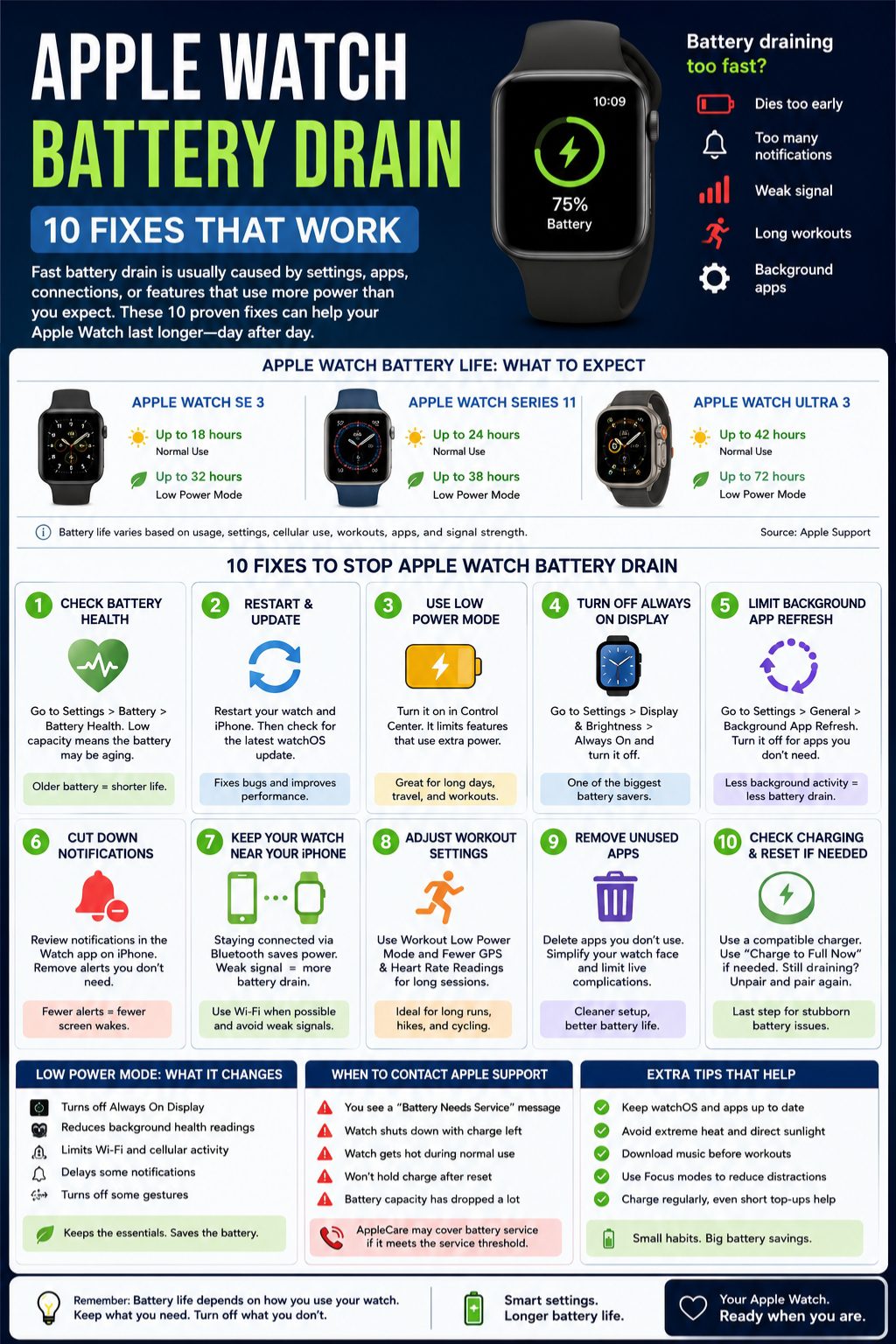
What Counts as Normal Apple Watch Battery Life?
First, let’s set the right expectation.
Not every Apple Watch lasts the same amount of time. Battery life depends on the model, battery age, display settings, cellular use, workouts, apps, and signal strength.
Apple’s newer watches also have different battery ratings. So, a Series model, an SE model, and an Ultra model will not behave the same way.
|
Apple Watch model |
Official battery estimate |
Low Power Mode estimate |
Real-world expectation |
|
Apple Watch SE 3 |
Up to 18 hours |
Up to 32 hours |
Fine for regular daily use |
|
Apple Watch Series 11 |
Up to 24 hours |
Up to 38 hours |
Better for all-day use and sleep tracking |
|
Apple Watch Ultra 3 |
Up to 42 hours |
Up to 72 hours |
Best for travel, hiking, workouts, and heavy use |
These numbers come from Apple’s own testing. Your watch may drain faster if you:
- Track long outdoor workouts
- Use cellular away from your iPhone
- Stream music or podcasts
- Keep Always On Display turned on
- Use many live complications
- Spend time in weak-signal areas
- Have an older battery
A shorter battery day does not always mean something is broken. But if your watch used to last all day and now dies in a few hours, it is time to fix it.
Apple Watch Battery Drain: 10 Fixes That Work
Start with the easy fixes first. Do not jump straight to resetting the watch. Most battery problems improve with a few smart setting changes.
|
Fix |
Best for |
Time needed |
Difficulty |
|
Check Battery Health |
Older Apple Watch models |
1 minute |
Easy |
|
Restart and update |
Sudden battery drain |
5-20 minutes |
Easy |
|
Use Low Power Mode |
Long days or travel |
30 seconds |
Easy |
|
Turn off Always On Display |
Daily battery saving |
1 minute |
Easy |
|
Limit Background App Refresh |
Idle battery drain |
2-3 minutes |
Easy |
|
Reduce notifications |
Too many alerts |
3-5 minutes |
Easy |
|
Improve connection habits |
Cellular and weak signal drain |
1 minute |
Easy |
|
Adjust workout settings |
GPS workout drain |
2 minutes |
Easy |
|
Remove unused apps |
Third-party app drain |
5 minutes |
Easy |
|
Check charging and reset |
Stubborn battery issues |
10-30 minutes |
Medium |
1. Check Battery Health First
This is the first place I would look, especially if your Apple Watch is a few years old.
Open Settings on your Apple Watch. Tap Battery, then tap Battery Health. Check the maximum capacity and look for any battery service message.
|
What you see |
What it means |
What to do |
|
High maximum capacity |
Battery is likely fine |
Try the settings fixes below |
|
Lower maximum capacity |
Battery has aged |
Expect shorter battery life |
|
Battery service message |
Battery may need replacement |
Contact Apple Support |
|
Sharp drops in the graph |
App, signal, or software issue |
Keep troubleshooting |
Apple Watch batteries use lithium-ion technology. Like every rechargeable battery, they wear down over time. That is normal.
So, if your watch is old and no setting seems to help, the battery may simply have lost too much capacity. No trick will make an aging battery behave like a new one.
Still, do not assume the worst right away. If Battery Health looks fine, move to the next fixes.
2. Restart the Watch and Install Updates
A restart sounds too simple, but it often helps.
Small software bugs can cause fast battery drain. A restart clears temporary glitches and gives the watch a fresh start.
To restart your Apple Watch:
- Press and hold the side button.
- Tap the power button.
- Slide to power off.
- Wait a few seconds.
- Hold the side button again until the Apple logo appears.
Read Also: How to Pair Apple Watch with New iPhone
Then check for updates:
- Open the Watch app on your iPhone.
- Tap My Watch.
- Tap General.
- Tap Software Update.
- Install any available update.
|
Situation |
Best move |
|
Battery drain started suddenly |
Restart the Apple Watch and iPhone |
|
Drain started after watchOS update |
Wait a few days, then check again |
|
New update is available |
Install it while the watch is charging |
|
Watch feels warm or slow |
Restart it first |
|
Watch is frozen |
Force restart only if needed |
Battery drain after an update is common. Your Apple Watch may finish background tasks for a few days after installing watchOS. During that time, battery life can feel worse than usual.
If the problem started right after an update, give it a short adjustment window. If it continues, update again if Apple releases a fix.
3. Use Low Power Mode When You Need More Time
Low Power Mode is the fastest way to slow down apple watch battery drain.
It cuts back features that use extra power. You still get the main watch experience, but the watch becomes more careful with the battery.
To turn it on:
- Press the side button to open Control Center.
- Tap the battery percentage.
- Turn on Low Power Mode.
- Choose whether to turn it on now or for 1, 2, or 3 days.
|
What Low Power Mode changes |
Why it helps |
What you give up |
|
Turns off Always On Display |
Saves screen power |
You need to raise or tap to wake |
|
Reduces background health readings |
Saves sensor power |
Fewer passive health checks |
|
Limits some Wi-Fi and cellular activity |
Saves connection power |
Some alerts may arrive later |
|
Delays some notifications |
Reduces screen wakes |
Less instant feedback |
|
Turns off some gestures |
Saves background processing |
Fewer convenience features |
Low Power Mode is perfect for:
- Long workdays
- Travel
- Outdoor events
- Power cuts
- Long workouts
- Days when you forgot your charger
I would not keep it on forever unless you really need to. If you rely on health alerts or constant background tracking, use it only when battery life matters more.
4. Turn Off Always On Display
Always On Display looks nice. It also uses power all day.
If your Apple Watch supports Always On Display and battery life is poor, turn it off for a few days and compare the difference.
To turn it off:
- Open Settings on Apple Watch.
- Tap Display & Brightness.
- Tap Always On.
- Turn it off.
|
Display setting |
Battery impact |
Better choice |
|
Always On Display on |
Higher drain |
Use when convenience matters |
|
Always On Display off |
Lower drain |
Best for longer battery life |
|
High brightness |
Higher drain |
Use outdoors only |
|
Lower brightness |
Lower drain |
Better for indoor use |
|
Long wake duration |
Higher drain |
Keep it short |
This change does not make the watch hard to use. You can still raise your wrist or tap the screen.
For many users, this is one of the most useful fixes because the display is active so often.
5. Limit Background App Refresh
Some Apple Watch apps keep working even when you are not using them. They refresh data, sync updates, and keep complications current.
That can be helpful. It can also waste battery.
To change this setting:
- Open Settings on Apple Watch.
- Tap General.
- Tap Background App Refresh.
- Turn it off fully, or turn it off for apps you rarely use.
|
App type |
Keep refresh on? |
Why |
|
Weather |
Maybe |
Useful if shown on your watch face |
|
Calendar |
Maybe |
Good for schedule changes |
|
Fitness apps |
Maybe |
Depends on your routine |
|
News apps |
Usually no |
Not always needed on the wrist |
|
Shopping apps |
No |
Rarely useful in real time |
|
Travel apps |
Only when traveling |
Useful for flights and hotel alerts |
Do not turn off everything without thinking. Keep background refresh for apps you truly use.
One important note: apps with complications on your current watch face may still refresh even when Background App Refresh is off. So, if your watch face is packed with live data, simplify it too.
6. Cut Down Unnecessary Notifications
Notifications do not seem like a big deal. But hundreds of alerts can drain battery across the day.
Every buzz can wake the screen, use haptics, trigger sound, and pull data from your iPhone or the web.
Open the Watch app on your iPhone:
- Tap My Watch.
- Tap Notifications.
- Review the app list.
- Turn off alerts you do not need on your wrist.
|
Notification source |
Keep or remove? |
Better setup |
|
Calls and important messages |
Keep |
Allow alerts |
|
Banking and security apps |
Keep |
Keep important alerts |
|
News apps |
Limit |
Send fewer alerts |
|
Shopping apps |
Remove |
Turn off |
|
Games and promotions |
Remove |
Turn off |
|
Social apps |
Limit |
Keep only important ones |
This also makes your watch feel calmer.
A watch that buzzes all day is not helpful. It is distracting. Keep the alerts that matter and cut the rest.
7. Keep Your Watch Near Your iPhone
Connection problems can quietly drain your Apple Watch battery.
Your watch works most efficiently when it stays connected to your paired iPhone through Bluetooth. When the iPhone is not nearby, the watch may switch to Wi-Fi or cellular. That uses more power, especially when the signal is weak.
|
Situation |
Battery-friendly move |
|
iPhone is nearby |
Keep Bluetooth on |
|
Away from iPhone |
Use Wi-Fi when possible |
|
Weak cellular signal |
Use Airplane Mode if you do not need connection |
|
Traveling outdoors |
Turn on Low Power Mode |
|
Streaming music |
Use downloaded audio and Bluetooth headphones |
Cellular Apple Watch models are great when you want to leave your iPhone behind. But cellular can drain the battery faster, especially in weak-signal areas.
If your apple watch battery drain gets worse while traveling, commuting, hiking, or working inside a low-signal building, the connection may be the reason.
8. Adjust Workout Settings for Long GPS Sessions
Workouts can burn through battery, especially outdoor workouts.
Running, hiking, cycling, and walking with GPS use more power than regular watch use. Add cellular, music streaming, and Bluetooth audio, and the battery drops even faster.
For longer workouts:
- Open Settings on Apple Watch.
- Tap Workout.
- Turn on Low Power Mode.
- Use Fewer GPS and Heart Rate Readings if your watch supports it.
|
Workout habit |
Battery impact |
Better setup |
|
Long outdoor GPS workout |
High |
Use workout Low Power Mode |
|
Streaming music over cellular |
High |
Download music first |
|
Using built-in speaker |
Higher |
Use AirPods or Bluetooth headphones |
|
Short indoor workout |
Lower |
Normal mode is fine |
|
Hiking in weak signal |
High |
Low Power Mode helps |
Do not use fewer GPS and heart rate readings if you need the most detailed workout data. But for long casual walks, hikes, or outdoor days, it can be a smart trade-off.
You still get useful tracking. You just reduce how often the watch checks certain data.
9. Remove Unused Apps and Simplify the Watch Face
Your Apple Watch does not need every iPhone app on your wrist.
Some apps are useful. Others sit there, refresh in the background, send alerts, and add clutter.
Open the Watch app on your iPhone and remove apps you do not use. Then check your watch face. If it is full of live complications, trim it down.
|
What to clean up |
Why it helps |
|
Unused third-party apps |
Less background activity |
|
Apps you never open |
Less clutter |
|
Live complications |
Fewer data refreshes |
|
Animated faces |
Less screen activity |
|
Duplicate alerts |
Fewer battery hits |
A simple watch face can make a real difference.
Try a clean face with time, date, weather, and one or two useful complications. That is enough for most people.
This is also a smart fix if the battery drain started after installing a new weather, fitness, golf, navigation, or health app.
10. Check Charging, Optimized Charging, and Reset as a Last Step
Sometimes the watch is not draining too fast. It simply is not charging the way you expect.
Apple Watch uses Optimized Battery Charging and Optimized Charge Limit. These features learn your routine and may stop charging before 100% to reduce battery wear.
If you need a full charge, tap the charging icon and choose Charge to Full Now.
|
Charging issue |
Possible cause |
What to do |
|
Watch stops before 100% |
Optimized Charge Limit |
Choose Charge to Full Now |
|
Watch charges slowly |
Cable, adapter, heat, or model limit |
Use a compatible charger |
|
Watch gets warm while charging |
Case, charger, or software issue |
Remove case and restart |
|
Battery still drains fast |
Software or pairing issue |
Unpair and pair again |
|
Battery warning appears |
Battery aging |
Contact Apple Support |
Do not turn off Optimized Charge Limit permanently unless you have a clear reason. Apple uses it to help reduce long-term battery wear.
If nothing else works, unpair and pair the Apple Watch again. This gives the watch a clean setup.
Use this as a last step, not your first move.
When Should You Contact Apple Support?
Most Apple Watch battery problems improve with small changes. Some do not.
You should contact Apple Support or visit an Apple service provider if the watch shows a battery service message, shuts down with charge left, overheats often, charges poorly with a proper cable, or still drains fast after a clean setup.
|
Warning sign |
What it may mean |
|
Battery Needs Service message |
Battery may need replacement |
|
Watch dies at 20-30% |
Battery health may be weak |
|
Watch gets hot during normal use |
Needs inspection |
|
Watch will not hold charge after reset |
Hardware issue possible |
|
Battery capacity has dropped heavily |
Battery is aging |
If your Apple Watch is still under AppleCare coverage, battery service may be available when the battery drops below Apple’s service threshold. Service terms can vary by country, so check your local Apple repair page.
Final Thoughts
Most apple watch battery drain problems come from everyday things: display settings, background apps, notifications, cellular use, weak signal, long workouts, software updates, or battery age.
Start with the easy fixes. Check Battery Health. Restart the watch. Update watchOS. Turn off Always On Display. Limit background refresh. Clean up noisy notifications. Use Low Power Mode when you need more time.
If the battery still drops too fast, check charging behavior and try pairing the watch again. If Battery Health shows a service message, stop guessing and get it checked.
You do not need every Apple Watch feature running all day. Keep the tools you use. Turn off the noise. That is usually enough to make the battery last longer without making the watch feel limited.
FAQs About Apple Watch Battery Drain
Why does my Apple Watch battery drain after a watchOS update?
Your Apple Watch may keep doing background tasks after an update. That can hurt battery life for a few days. Restart the watch and iPhone, keep both updated, and give it a short adjustment period.
Why does my Apple Watch drain when I am not wearing it?
It may still receive notifications, refresh apps, track background data, or look for a network. If you will not wear it for a long time, place it on the charger or turn it off.
Can my iPhone cause Apple Watch battery drain?
Yes, indirectly. If your Apple Watch keeps losing connection to your iPhone, it may use Wi-Fi or cellular more often. Keep both devices close and updated.
Does Theater Mode save Apple Watch battery?
A little. Theater Mode stops the display from waking when you raise your wrist. It does not save as much power as Low Power Mode, but it can help in meetings, movies, or overnight use.
Should I close Apple Watch apps to save battery?
Usually, no. Focus on Background App Refresh, notifications, display settings, and unused apps instead. Force-closing apps is not the best first fix.
Why does my Apple Watch battery drain overnight?
Sleep tracking, background health readings, poor signal, notifications, and apps can all play a role. Try Sleep Focus, Low Power Mode, fewer notifications, and a full charge before bed.
Why does my Apple Watch battery drain faster during travel?
Travel often means weak signal, more cellular use, more navigation, more screen checks, and more alerts. Use Wi-Fi when possible, download music before leaving, and turn on Low Power Mode.
Does Apple Watch cellular drain battery faster?
Yes. Cellular use can drain more battery than staying connected to your iPhone through Bluetooth. Weak signal makes it worse.
Is it okay to charge Apple Watch overnight?
Yes, many users do. Apple’s optimized charging features are designed to reduce battery wear by learning your charging routine. If you need 100%, use Charge to Full Now.