
TikTok gets frustrating fast when Restricted Mode is on and you don’t know why.
Your For You feed may feel too clean. Search may show fewer results. Some creators may vanish from your feed. Certain topics, sounds, hashtags, or videos may not appear at all.
So, if you’re trying to turn off tiktok restricted mode, you’re not alone. A lot of users run into this setting after an app update, a parent setup, a shared phone situation, or a passcode they forgot months ago.
The good news? The setting is easy to find once you know the current TikTok path. The bad news? You may need the passcode. And if Family Pairing controls the account, you may need the parent or guardian account to change it.
This guide gives you the updated 2026 steps. It also explains what to do when the passcode does not work, why TikTok may still hide some content, and which settings can make your feed feel restricted even after Restricted Mode is off.
How to Turn Off TikTok Restricted Mode
|
What You Need |
Details |
|
Current TikTok path |
Profile > Menu > Settings and privacy > Content preferences > Restricted Mode |
|
Passcode needed |
Yes, if Restricted Mode is already turned on |
|
Best place to change it |
TikTok mobile app |
|
Works on |
iPhone and Android |
|
Parent-controlled account |
May need changes through Family Pairing |
|
Common confusion |
Older guides still mention Digital Wellbeing |
|
Safest fix |
Use TikTok settings or Report a Problem inside the app |
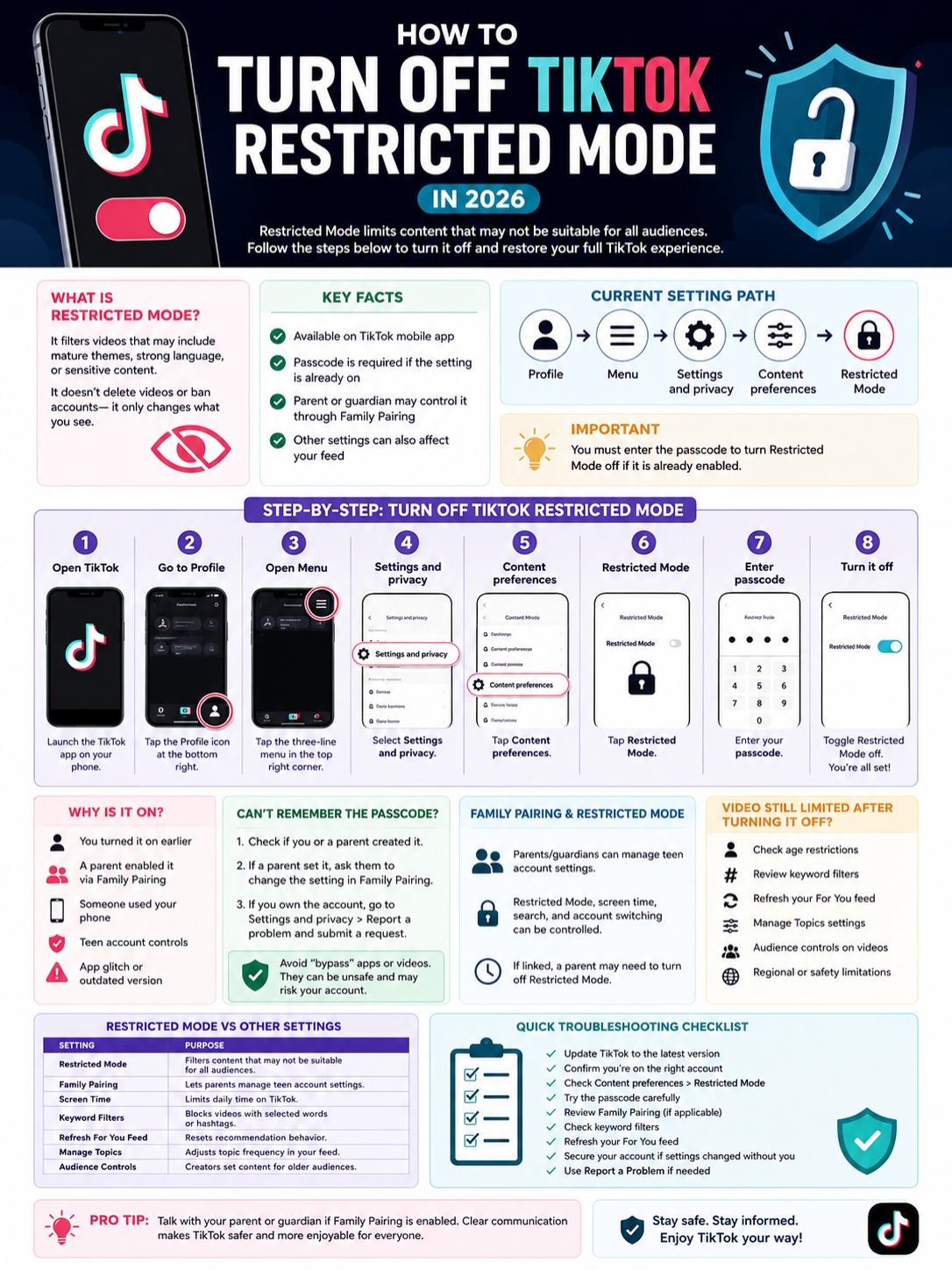
To turn off Restricted Mode on TikTok, open the app and go to your profile. Tap the menu icon. Open Settings and privacy. Then tap Content preferences and choose Restricted Mode.
Enter the passcode and turn it off.
That is the current path TikTok gives in its Help Center. Older tutorials may still send you to Digital Wellbeing, but that path is outdated for many users.
Use the TikTok mobile app first. The web version may not show every safety setting. Also, update the app before you start. TikTok changes menus often, and an old app version can make a simple fix look impossible.
How to Turn Off TikTok Restricted Mode on iPhone and Android
|
Step |
Action |
Why It Helps |
|
1 |
Open TikTok |
You need to change the setting inside the app |
|
2 |
Tap Profile |
This takes you to your account area |
|
3 |
Tap the Menu icon |
It opens account settings |
|
4 |
Tap Settings and privacy |
TikTok keeps safety controls here |
|
5 |
Tap Content preferences |
Restricted Mode now sits here |
|
6 |
Tap Restricted Mode |
You’ll see if it is on or off |
|
7 |
Enter the passcode |
TikTok uses it to protect the setting |
|
8 |
Turn it off |
Your feed should open up again |
Steps for iPhone Users
- Open TikTok on your iPhone.
- Tap Profile in the bottom-right corner.
- Tap the three-line menu in the top-right corner.
- Choose Settings and privacy.
- Tap Content preferences.
- Tap Restricted Mode.
- Enter the passcode.
- Switch Restricted Mode off.
Close TikTok and open it again if your feed still looks limited. Sometimes the change needs a quick refresh.
Steps for Android Users
- Open TikTok on your Android phone.
- Tap Profile.
- Tap the Menu button in the top-right corner.
- Choose Settings and privacy.
- Go to Content preferences.
- Tap Restricted Mode.
- Enter the passcode.
- Turn Restricted Mode off.
If the setting does not show up, update TikTok from Google Play. Then restart the app and check again.
Read Also: How to See Who Viewed Your TikTok Profile
Can You Turn It Off on TikTok Web?
Maybe, but don’t start there.
TikTok’s web version does not always show the same controls as the mobile app. If you want the cleanest route, use the TikTok app on your phone.
The mobile app gives you the best shot at finding Restricted Mode, Family Pairing, screen time settings, keyword filters, and feed controls in one place.
Why TikTok Restricted Mode May Be On
|
Possible Reason |
What It Means |
What to Do |
|
You turned it on earlier |
You may have forgotten the passcode |
Try the code or contact TikTok support |
|
A parent turned it on |
Family Pairing may control the setting |
Ask the parent account holder to review it |
|
Someone used your phone |
A shared device can cause surprise changes |
Check who has access |
|
Your account is under teen controls |
Some settings may stay limited |
Review Family Pairing and age settings |
|
The app glitched |
The setting may look stuck |
Update, restart, or clear cache |
|
You’re on the wrong account |
Different accounts have different settings |
Check your active profile |
Restricted Mode usually does not switch on by itself. Someone normally turns it on.
It might have been you. It might have been a parent. It might have been someone using your phone. If TikTok asks for a passcode, that means the app expects the person changing the setting to know the code.
Restricted Mode is not a ban. It does not mean TikTok punished your account. It does not mean your videos lost reach.
It is a viewing filter. It changes what your account can see.
Restricted Mode Filters Your Viewing Experience
Restricted Mode limits content that TikTok may not consider suitable for every audience.
That may include mature topics, strong language, suggestive themes, sensitive content, or videos TikTok does not want shown in a general viewing experience.
It does not remove videos from TikTok. It does not block every creator. It simply changes what appears for your account.
Old Guides Still Cause Confusion
This is where many users get stuck.
Older guides may say:
Profile > Settings and privacy > Digital Wellbeing > Restricted Mode
That may have worked before, but TikTok’s current support path points to:
Profile > Menu > Settings and privacy > Content preferences > Restricted Mode
So, if you can’t find Restricted Mode, don’t assume it’s gone. You may just be looking in the old place.
Turn Off TikTok Restricted Mode: Passcode Problems and Safe Fixes
|
Issue |
Smart Fix |
|
You forgot the passcode |
Check who created it first |
|
A parent set the code |
Ask them to adjust it through Family Pairing |
|
You own the account |
Use Report a Problem inside TikTok |
|
You saw “bypass” tricks online |
Avoid them |
|
TikTok keeps asking for the code |
Update the app and try again |
|
Settings changed without you |
Secure your account |
You usually need the passcode to turn off tiktok restricted mode. That is how the feature protects itself.
If anyone could turn it off without a code, the setting would not do much.
So, be careful with videos that promise a secret “no passcode” fix. Most are outdated. Some are pure clickbait. Some may send you to shady apps or fake login pages.
What If You Forgot the Passcode?
Start with a simple question: who set it?
Ask yourself:
- Did I set this code months ago?
- Did a parent or guardian set it?
- Is this a shared phone?
- Am I logged into the right TikTok account?
- Is Family Pairing turned on?
That last one matters. If Family Pairing controls the account, you may not be able to change Restricted Mode from your own device.
If you own the account and cannot remember the passcode, use TikTok support inside the app.
Go to:
Profile > Menu > Settings and privacy > Report a problem
Pick the closest issue and explain it clearly.
You can write something like:
“I own this account, but I forgot my Restricted Mode passcode and cannot turn it off.”
Keep it short. Do not send your TikTok password to anyone.
What If a Parent Set the Passcode?
If a parent or guardian controls the account through Family Pairing, they may need to turn Restricted Mode off from their TikTok account.
The parent should open TikTok, go to Family Pairing, choose the teen account, and review the content settings.
For teens, the best move is a direct conversation. Explain what you are trying to access. Ask whether the setting can be changed or adjusted.
Trying to sneak around Family Pairing often creates more problems than it solves.
Should You Delete and Reinstall TikTok?
You can reinstall TikTok if the app is buggy, but do not expect it to remove Restricted Mode.
Restricted Mode is tied to your account settings. It is not just stored inside the app on your phone.
Reinstalling may fix a menu glitch. It will not reliably remove a passcode-protected setting.
How Family Pairing Affects Restricted Mode
|
Family Pairing Control |
What It Can Do |
|
Restricted Mode |
Limit content that may not suit all audiences |
|
Screen time |
Set daily TikTok limits |
|
Account switching |
Stop teens from logging out or switching accounts in some cases |
|
Search controls |
Limit whether teens can search |
|
Privacy settings |
Help parents review teen account choices |
|
Manage Topics |
Give parents more visibility into some feed choices |
|
Safety habits |
Help families set clear TikTok boundaries |
Family Pairing is TikTok’s parental control tool.
It lets a parent or guardian link their TikTok account with a teen’s account. After that, the parent can manage certain safety and privacy settings.
Restricted Mode is one of those settings.
This is why some users cannot turn it off, even when they follow the right steps. If Family Pairing is active, the parent account may hold the control.
How to Check If Family Pairing Is Active
- Open TikTok.
- Tap Profile.
- Tap the Menu icon.
- Go to Settings and privacy.
- Look for Family Pairing.
If the account is linked to a parent or guardian, Restricted Mode may be controlled from the parent account.
Why TikTok May Block Account Switching
TikTok says Restricted Mode and daily screen time limits can stop a teen from logging out or switching accounts in the app.
That may feel annoying, but it makes sense from a safety point of view. If a teen could just switch accounts, the control would be easy to avoid.
So, if account switching feels blocked, it may not be a bug. It may be part of the Family Pairing setup.
Why TikTok Still Looks Restricted After You Turn It Off
|
Reason |
What Happens |
What to Check |
|
Age-based limits |
Some features or videos stay unavailable |
Check account age and appeal options |
|
Keyword filters |
Videos with blocked words may not show |
Review filtered keywords |
|
Feed history |
TikTok keeps showing similar content |
Refresh or retrain your For You feed |
|
Audience controls |
Some creator content is for adults only |
Make sure your age details are correct |
|
Recommendation rules |
TikTok may avoid pushing some content |
You cannot force every video into the feed |
|
Region differences |
Some features vary by country |
Check app availability in your area |
|
Family Pairing |
Parent settings may still apply |
Review linked account controls |
Turning off Restricted Mode does not mean TikTok will show everything.
TikTok uses several systems at once. Your feed depends on watch time, likes, comments, shares, searches, follows, skipped videos, language settings, location signals, hashtags, sounds, and safety rules.
So, if Restricted Mode is off but your TikTok still feels limited, check the settings below.
Check Keyword Filters
Keyword filters can quietly shape your feed.
TikTok lets you filter words, phrases, hashtags, and related terms from feeds like For You, Following, Friends, LIVE, and STEM where available.
You may have blocked a keyword months ago and forgotten about it.
Go to Content preferences and review your filtered keywords. Remove anything you no longer want to block.
This one fix can make a big difference.
Refresh Your For You Feed
If your feed feels stuck, refresh it.
TikTok lets you refresh the For You feed so recommendations can start from a cleaner point.
After that, train the feed again.
Watch videos you like. Skip videos you don’t. Follow creators you want to see. Use “Not interested” when needed. TikTok learns from what you do, not just what you set.
Review Manage Topics
TikTok also offers topic controls for the For You feed on some accounts.
These controls let you adjust how often you see certain content categories.
This does not replace Restricted Mode, but it can help you shape your feed after you turn Restricted Mode off.
Restricted Mode vs Other TikTok Settings
|
Setting |
What It Does |
Is It Restricted Mode? |
|
Restricted Mode |
Filters content that may not suit all viewers |
Yes |
|
Family Pairing |
Lets parents manage teen settings |
No |
|
Screen Time |
Limits how long someone can use TikTok |
No |
|
Keyword Filters |
Blocks content with selected words or hashtags |
No |
|
Refresh For You Feed |
Resets recommendation behavior |
No |
|
Manage Topics |
Adjusts topic frequency in the feed |
No |
|
Audience Controls |
Lets creators limit content to older viewers |
No |
|
Private Account |
Controls who can follow and view your posts |
No |
|
Comment Filters |
Helps hide unwanted comments |
No |
Restricted Mode gets blamed for almost every TikTok content issue. I get why. When videos disappear, it feels like one setting must be responsible.
But TikTok has many controls.
Some affect what you watch. Some affect who can find you. Some affect who can comment. Some apply only to teen accounts. Some come from creators. Some come from TikTok’s recommendation system.
Restricted Mode
This is the main setting covered here.
It filters content that may not fit a general audience experience. You turn it on or off through Content preferences. If it is already on, you need the passcode.
Family Pairing
Family Pairing is for parents and guardians.
It can manage teen settings, including Restricted Mode, screen time, search access, and some privacy controls.
Keyword Filters
Keyword filters are personal content blockers.
You choose words or hashtags you do not want to see. TikTok then shows less content tied to those terms.
If your feed feels too limited, check this setting.
Refresh For You Feed
This resets the starting point for your For You recommendations.
It does not turn off Restricted Mode. But it can help after you change settings and want a fresh feed.
Audience Controls
Audience controls are creator-side settings.
Some creators can limit certain content to older audiences. If your account is under 18, or TikTok believes it is, that content may stay hidden.
Troubleshooting Checklist Before You Contact TikTok
|
Check |
Why It Helps |
|
Update TikTok |
Fixes old menus and bugs |
|
Check your account |
Restricted Mode can differ by profile |
|
Open Content preferences |
This is where Restricted Mode lives |
|
Try the passcode carefully |
You need it to turn the setting off |
|
Check Family Pairing |
Parent controls may override your changes |
|
Review keyword filters |
Hidden filters may block videos |
|
Refresh your For You feed |
Helps rebuild recommendations |
|
Check account age |
Age rules may still limit content |
|
Use Report a Problem |
This is TikTok’s official support path |
Start simple.
Update TikTok. Restart your phone. Open the app again. Make sure you are logged into the right account.
Then go to Content preferences and check whether Restricted Mode is on or off.
If it is off but TikTok still feels limited, check keyword filters, Family Pairing, Manage Topics, and your For You feed.
If nothing works, use Report a Problem inside TikTok.
Secure Your Account If Settings Changed Without You
If Restricted Mode turned on and you did not do it, check your account security.
Change your password. Review logged-in devices. Remove anything you do not recognize. Turn on extra security options if they are available to you.
A random setting change may be harmless. But if you also see strange logins, changed profile details, or messages you did not send, take it seriously.
Common Mistakes to Avoid
|
Mistake |
Why It Causes Problems |
Better Move |
|
Following old Digital Wellbeing guides |
The current path may be different |
Use Content preferences |
|
Searching for passcode bypasses |
Many are unsafe or fake |
Use TikTok settings or support |
|
Ignoring Family Pairing |
Parent controls may block changes |
Check linked accounts |
|
Blaming Restricted Mode for everything |
Other settings can limit content |
Review filters, age, and feed controls |
|
Using desktop only |
Web settings may be limited |
Use the mobile app |
|
Skipping app updates |
Old app versions can hide settings |
Update TikTok first |
The biggest mistake is following old instructions.
The second is trusting “secret bypass” videos. Don’t download random apps. Don’t share your login. Don’t type your TikTok details into unofficial websites.
The safe route is boring, but it works: use TikTok settings, check Family Pairing, review content preferences, and contact TikTok through the app if needed.
Final Thoughts
|
Main Point |
What to Remember |
|
Correct 2026 path |
Content preferences > Restricted Mode |
|
Passcode required |
You usually need it to turn the setting off |
|
Family Pairing matters |
Parent-managed accounts may need parent changes |
|
Other filters still apply |
Keyword filters, age rules, and feed settings can affect videos |
|
Safe fix |
Use TikTok settings or Report a Problem |
|
Avoid |
Third-party bypass tools and fake support pages |
If you want to turn off tiktok restricted mode, start with the official app path:
Profile > Menu > Settings and privacy > Content preferences > Restricted Mode
Enter the passcode and switch it off.
If that does not solve the problem, check Family Pairing. A parent or guardian may control the setting. Then review keyword filters, Manage Topics, account age, and the For You feed refresh option.
Avoid quick bypass tricks. They can waste your time or put your account at risk.
Restricted Mode can help create a safer TikTok experience. But if you manage your own account and want broader content access, the fix is clear. Use the current menu path, handle the passcode the right way, and check the other settings that shape what you see.
FAQs About TikTok Restricted Mode
|
Question |
Short Answer |
|
Can you turn it off without a passcode? |
Usually no |
|
Is it the same as age restriction? |
No |
|
Does reinstalling TikTok remove it? |
Not reliably |
|
Can Family Pairing control it? |
Yes |
|
Can it affect search? |
Yes, it can limit visible content |
|
Why is TikTok still limited? |
Other filters or age rules may apply |
Can I turn off TikTok Restricted Mode without the passcode?
Usually, no. TikTok asks for the passcode when Restricted Mode is already active. If a parent controls the account through Family Pairing, the parent may need to change it.
Why can’t I find Restricted Mode in TikTok settings?
Use this path:
Profile > Menu > Settings and privacy > Content preferences > Restricted Mode
If it still does not appear, update TikTok and try again.
Is Restricted Mode the same as TikTok age restriction?
No. Restricted Mode is a content setting. Age restriction depends on your account age, TikTok’s safety rules, feature limits, and local requirements.
Does Restricted Mode affect TikTok search?
Yes, it can. Search results may show fewer videos or topics when Restricted Mode is active. Search can also change based on your region, language, past activity, and account settings.
Will deleting TikTok remove Restricted Mode?
Not reliably. Restricted Mode is tied to your account settings. Reinstalling the app may fix a bug, but it is not a real passcode fix.
Why does TikTok still hide content after Restricted Mode is off?
Other systems may still apply. Check keyword filters, Family Pairing, account age, Manage Topics, and your For You feed behavior.
Can parents see everything a teen watches?
Family Pairing gives parents more tools and visibility into some settings. But it is not the same as a full watch-history dashboard for every video.
Can Restricted Mode block TikTok LIVE?
It may affect parts of the viewing experience. TikTok LIVE also has its own age and safety rules, so some LIVE content may stay unavailable for younger accounts.
Can I turn off Restricted Mode for one video only?
No. Restricted Mode works at the account level. You cannot turn it off for one video and keep it on for the rest of TikTok.
What should I do if TikTok has my age wrong?
Use TikTok’s official appeal or support flow when the app gives you that option. Do not use fake documents or third-party services.