
When windows defender wont turn on, it’s easy to feel stuck. One minute your PC looks fine. The next, Windows Security shows a red warning, Real-time protection is off, or the button is greyed out.
Sometimes the fix is simple. A restart, an update, or a leftover antivirus app may be all that’s causing the problem. Other times, Windows Security itself may be broken. Malware can also mess with Defender settings, so don’t ignore the warning.
The smart move is to fix it in the right order. Start with the safe checks. Then move to updates, app repair, deeper scans, and system file repair if needed.
This guide walks you through each fix step by step. No risky shortcuts. No random registry tricks. Just practical fixes that match how Microsoft Defender works on Windows 10 and Windows 11.
Quick Fix Table: What to Try First
|
Problem |
What to Try |
Difficulty |
|
Defender shows a warning |
Restart your PC |
Easy |
|
Real-time protection is off |
Turn it on in Windows Security |
Easy |
|
Another antivirus is installed |
Check security providers |
Easy |
|
Windows Security looks broken |
Repair or reset the app |
Easy |
|
Defender updates fail |
Run Windows Update |
Easy |
|
Defender turns off again |
Run an offline scan |
Medium |
|
Services fail to start |
Check Defender services |
Medium |
|
Windows files are damaged |
Run DISM and SFC |
Medium |
Start here:
- Restart your PC.
- Open Windows Security.
- Go to Virus & threat protection.
- Click Manage providers.
- Check which antivirus app is active.
- Turn on Real-time protection if Microsoft Defender is active.
- Install all Windows updates.
- Run a quick scan.
If Defender turns on and the warning disappears, you’re done. If not, keep going.
Why Windows Defender Won’t Turn On
|
Cause |
What You May See |
What It Means |
|
Third-party antivirus |
Defender settings look limited |
Another app may control protection |
|
Broken Windows Security app |
Blank page or missing settings |
The dashboard needs repair |
|
Outdated Windows files |
Updates fail or scan won’t start |
Defender needs fresh files |
|
Real-time protection is off |
Red warning in Windows Security |
Active scanning is disabled |
|
Work or school policy |
“Managed by your organization” |
Admin rules control the setting |
|
Malware interference |
Defender turns off again |
A threat may be blocking it |
|
Corrupted system files |
Services won’t run |
Windows needs repair |
Many people still call it Windows Defender. On modern Windows, the correct name is Microsoft Defender Antivirus. The app you open from the Start menu is Windows Security.
That difference matters.
Microsoft Defender Antivirus does the scanning. Windows Security is the control panel. It shows your antivirus, firewall, app protection, account protection, device security, and protection history.
So when something breaks, you need to know what failed:
- Defender may be off.
- Windows Security may be showing the wrong status.
- Another antivirus may be in charge.
- A policy may block your changes.
- Malware may be interfering.
That’s why clicking the same switch again and again rarely helps. You need to find the cause.
Windows Defender Wont Turn On: Check Security Providers First
|
What to Check |
Where to Go |
Why It Matters |
|
Active antivirus |
Windows Security |
Shows who protects your PC |
|
Expired antivirus |
Installed apps |
May block Defender |
|
Old antivirus leftovers |
Apps and services |
Can confuse Windows Security |
|
Work or school account |
Settings > Accounts |
May enforce admin rules |
|
Real-time protection |
Virus & threat protection |
Shows if Defender is actively scanning |
This is the first real check. It tells you whether Defender should be turning on at all.
Open:
Windows Security > Virus & threat protection > Who’s protecting me? > Manage providers
Look under Antivirus.
If you see Norton, McAfee, Bitdefender, Avast, AVG, ESET, Kaspersky, Malwarebytes Premium, or another tool listed as active, Defender may not be the main antivirus. That can be normal.
Windows usually avoids running two full antivirus engines at the same time. That helps prevent conflicts, slowdowns, and scan errors.
But there’s a catch. If the third-party antivirus is expired, broken, or partly removed, Windows may still think it’s protecting your PC. In that case, Defender may stay off while your system is not properly protected.
What you should do
If you want to use Microsoft Defender only:
- Open Settings.
- Go to Apps > Installed apps.
- Find the third-party antivirus.
- Click Uninstall.
- Restart your PC.
- Open Windows Security again.
- Check Manage providers.
If Defender becomes active after the restart, turn on Real-time protection and run a quick scan.
Read Also: How to Speed Up Windows 11 Startup in 2026
Turn On Real-Time Protection
|
Setting |
Best State |
Why It Helps |
|
Real-time protection |
On |
Scans files as you open them |
|
Cloud-delivered protection |
On |
Helps catch newer threats |
|
Automatic sample submission |
On |
Helps check suspicious files |
|
Tamper Protection |
On |
Blocks unwanted security changes |
|
Controlled folder access |
Optional |
Adds ransomware protection |
Real-time protection is the switch most people notice first. If it’s off, Defender is not checking files and apps in the usual active way.
Here’s how to turn it back on:
- Click Start.
- Search for Windows Security.
- Open Virus & threat protection.
- Under Virus & threat protection settings, click Manage settings.
- Turn on Real-time protection.
- Turn on Cloud-delivered protection.
- Turn on Automatic sample submission.
- Keep Tamper Protection turned on.
Now run a quick scan.
What if it turns off again?
If the toggle turns off by itself, don’t keep clicking it. Something else is forcing it off.
The usual reasons are:
- Another antivirus is active.
- A policy controls the setting.
- Windows Security is damaged.
- Defender updates are broken.
- Malware is blocking protection.
- Defender services are not starting.
Move to the next fixes.
Remove Old or Conflicting Antivirus Software
|
Situation |
Best Fix |
|
Paid antivirus is still active |
Keep it updated or remove it |
|
Trial antivirus expired |
Uninstall it fully |
|
Antivirus was removed badly |
Use the official cleanup tool |
|
Two antivirus apps are running |
Keep one primary tool |
|
Defender stays off after uninstall |
Restart and check providers again |
This is one of the most common reasons people search for windows defender wont turn on.
A third-party antivirus can take over protection. That’s fine when it works. It’s not fine when the app expired months ago or left half its files behind.
Remove it from Windows
- Open Settings.
- Go to Apps > Installed apps.
- Search for the antivirus name.
- Click Uninstall.
- Follow the prompts.
- Restart your PC.
After restart, open:
Windows Security > Virus & threat protection > Manage providers
If Microsoft Defender Antivirus now appears as active, turn on Real-time protection.
Use the official removal tool if needed
Some antivirus programs leave drivers, services, or browser tools behind. Normal uninstall may not clear everything.
In that case, download the official removal tool from the antivirus company’s website. Don’t use random “PC cleaner” tools. Many are useless. Some are risky.
Repair or Reset Windows Security
|
Symptom |
Best Action |
|
Windows Security opens slowly |
Repair the app |
|
Virus & threat protection page is blank |
Reset the app |
|
Buttons don’t work |
Repair, then reset |
|
Settings are missing |
Check policy and app health |
|
App still fails |
Run updates, DISM, and SFC |
Sometimes Microsoft Defender is not the real problem. The Windows Security app may be broken.
You may see a blank screen. You may not find the Virus & threat protection page. Or the app may crash as soon as it opens.
Repair the app first.
Repair Windows Security
- Open Settings.
- Go to Apps > Installed apps.
- Search for Windows Security.
- Click the three-dot menu.
- Open Advanced options.
- Click Repair.
- Restart your PC.
Repair tries to fix the app without wiping its data.
Reset Windows Security
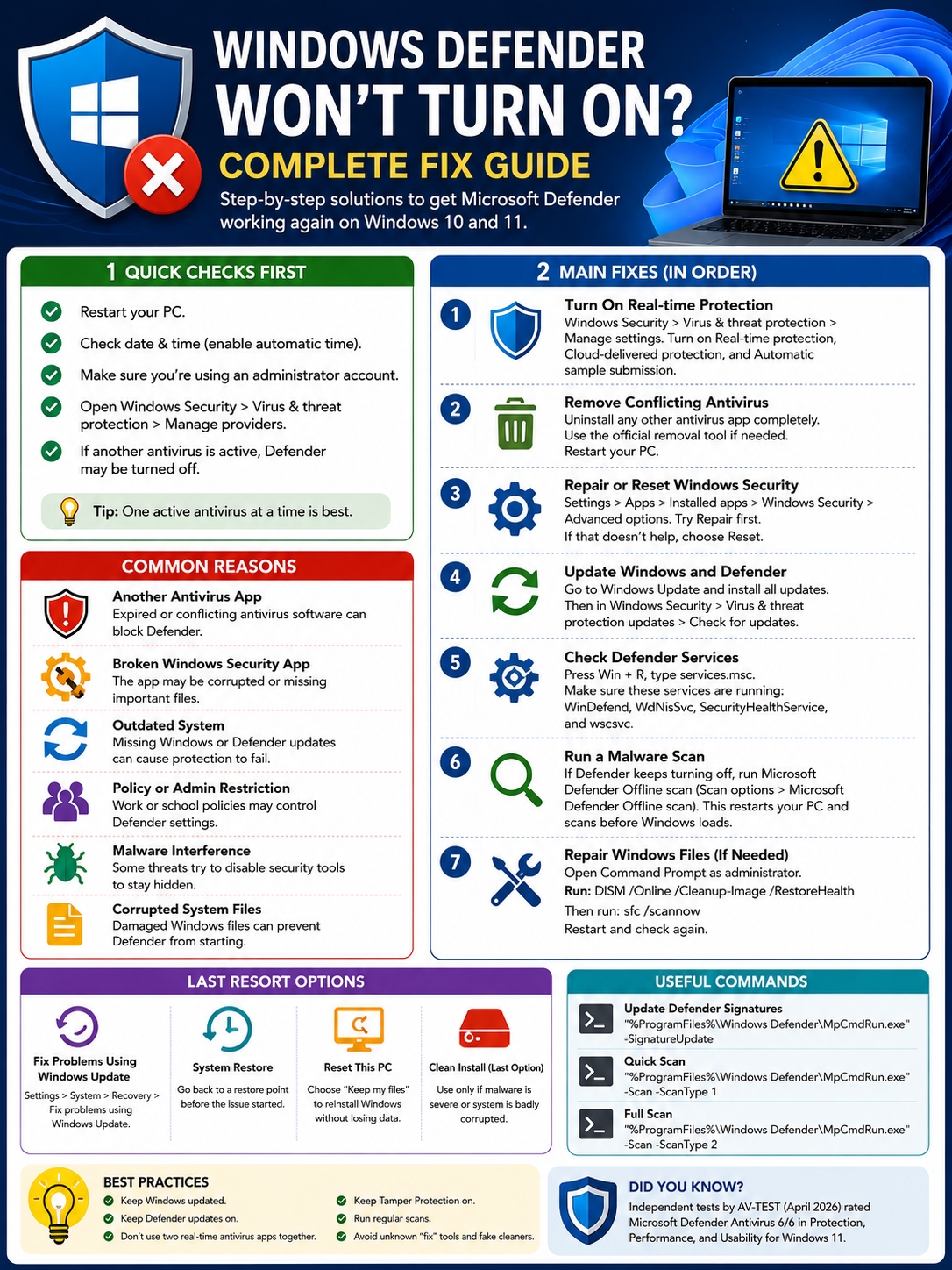
If Repair does not help, go back to the same screen and click Reset.
Resetting Windows Security does not delete your files. It clears the app’s data and gives it a fresh start.
After that, open Windows Security and check:
- Virus & threat protection
- Protection history
- Security providers
- Real-time protection
- Protection updates
If the app still looks broken, move to updates and system repair.
Update Windows and Defender
|
Update Type |
Why It Matters |
|
Windows Update |
Fixes bugs and security issues |
|
Defender security intelligence |
Helps detect current threats |
|
Defender platform updates |
Keeps the antivirus engine fresh |
|
Windows Security app updates |
Fixes app bugs |
|
Restart after updates |
Applies pending changes |
Defender needs updates to work well. If Windows Update is broken, Defender may also act strangely.
Run Windows Update first:
- Open Settings.
- Click Windows Update.
- Select Check for updates.
- Install everything available.
- Restart your PC.
If Windows Update fails, run the troubleshooter:
- Open Settings.
- Go to System.
- Click Troubleshoot.
- Open Other troubleshooters.
- Run Windows Update.
- Restart and try again.
Update Defender from Windows Security
- Open Windows Security.
- Go to Virus & threat protection.
- Find Virus & threat protection updates.
- Click Protection updates.
- Select Check for updates.
After the update, run a quick scan.
Advanced update command
Use this only if the normal update button fails.
Open Command Prompt as administrator and run:
“%ProgramFiles%\Windows Defender\MpCmdRun.exe” -SignatureUpdate
Restart your PC when it finishes.
Check Microsoft Defender Services
|
Service |
Name |
What You Want |
|
Microsoft Defender Antivirus Service |
WinDefend |
Running |
|
Defender Mini-Filter Driver |
WdFilter |
Running |
|
Defender Network Inspection Service |
WdNisSvc |
Running or ready |
|
Windows Security Service |
SecurityHealthService |
Running |
|
Security Center |
wscsvc |
Running |
If Defender services fail, Windows Security may show protection as off.
Open PowerShell as administrator and run:
Get-Service WinDefend, WdBoot, WdFilter, WdNisSvc, WdNisDrv, SecurityHealthService, wscsvc | Format-Table -Auto DisplayName, Name, StartType, Status
Look at the Status column.
Don’t worry if WdBoot shows stopped after startup. That can be normal. Pay more attention to WinDefend, WdFilter, WdNisSvc, SecurityHealthService, and wscsvc.
You can also check from the Services app:
- Press Windows + R.
- Type services.msc.
- Press Enter.
- Find Microsoft Defender Antivirus Service.
- Check if it’s running.
- Find Security Center.
- Check if it’s running.
Some Defender services are protected. Windows may not let you change them by hand. That’s normal. Don’t force random service or registry changes. Use updates, malware scans, and system repair instead.
Fix “Managed by Your Organization”
| Message | Likely Cause | What to Do |
|—|—|
| Managed by your organization | Work or school policy | Contact IT or check accounts |
| IT administrator has limited access | Device policy or app issue | Check account settings |
| Real-time protection greyed out | Policy or antivirus conflict | Check providers first |
| Registry fix does nothing | Tamper Protection blocked it | Use supported settings |
| Virus page missing | Policy or broken app | Repair Windows Security |
This message can appear even on personal PCs. It often happens when the device once had a work or school account connected.
Go to:
Settings > Accounts > Access work or school
If you see an old work or school account you no longer use, disconnect it only if you’re sure you don’t need it.
If this is a company or school laptop, stop here and contact IT. Admins may manage Defender through Microsoft Intune, Microsoft Defender for Endpoint, Configuration Manager, or Group Policy.
Avoid old registry fixes
Some old guides tell you to change Defender registry values. Be careful.
Modern Windows uses Tamper Protection to stop unwanted security changes. That means many old registry fixes either do nothing or make the problem harder to understand.
Use Windows Security, Windows Update, official Microsoft tools, or admin policy settings instead.
Run a Malware Scan If Defender Keeps Turning Off
|
Scan Type |
Best Use |
|
Quick scan |
Basic check after Defender turns on |
|
Full scan |
Deeper check across the PC |
|
Custom scan |
Scan one folder or drive |
|
Offline scan |
Find threats that hide during startup |
|
Safety Scanner |
Extra Microsoft scan tool |
Malware can try to disable antivirus protection. If Defender keeps turning off, take that seriously.
Look for these signs:
- Browser redirects
- Fake antivirus pop-ups
- Unknown startup apps
- New browser extensions
- High CPU from strange processes
- Security settings change by themselves
- Defender turns off after every restart
Run Microsoft Defender Offline scan
- Open Windows Security.
- Click Virus & threat protection.
- Select Scan options.
- Choose Microsoft Defender Antivirus Offline scan.
- Click Scan now.
- Save your work before the restart.
Your PC will restart and scan before Windows fully loads. That helps Defender catch threats that hide during normal startup.
After Windows starts again, open:
Windows Security > Protection history
Check what Defender found and what action it took.
Repair Windows Files with DISM and SFC
|
Tool |
What It Fixes |
Command |
|
DISM |
Windows image problems |
DISM /Online /Cleanup-Image /RestoreHealth |
|
SFC |
Damaged system files |
sfc /scannow |
|
Restart |
Applies repairs |
Restart PC |
|
Recheck Defender |
Confirms the result |
Open Windows Security |
If windows defender wont turn on after all the basic fixes, Windows itself may have damaged files.
Run DISM first. Then run SFC.
Step 1: Run DISM
Open Command Prompt as administrator and run:
DISM /Online /Cleanup-Image /RestoreHealth
Let it finish. Don’t close the window early.
Step 2: Run SFC
After DISM finishes, run:
sfc /scannow
SFC checks protected Windows files and repairs what it can.
Step 3: Restart and test Defender
Restart your PC.
Then open:
Windows Security > Virus & threat protection
Check whether Defender is active and Real-time protection is on.
Last Resort: Repair or Reinstall Windows
|
Option |
Keeps Personal Files? |
Use It When |
|
Fix problems using Windows Update |
Usually yes |
Windows needs repair |
|
System Restore |
Yes |
The issue started recently |
|
Reset this PC: Keep my files |
Keeps personal files |
Apps and settings are badly broken |
|
Clean install |
No, unless backed up |
Severe malware or deep corruption |
|
Professional repair |
Depends |
Work PC or sensitive data |
Use recovery only when the normal fixes fail.
Before you repair or reset Windows:
- Back up your files.
- Save important passwords.
- Sync your browser data.
- Keep your Microsoft account password ready.
- Save your BitLocker recovery key if BitLocker is on.
- Make a list of important apps.
- Plug in your laptop.
Try this order:
- Use Fix problems using Windows Update from Recovery settings.
- Try System Restore if the issue started after a recent update or app install.
- Use Reset this PC and choose Keep my files.
- Do a clean install only if the PC is badly infected or deeply corrupted.
A clean install works, but it’s a big step. Don’t use it as your first fix.
Final Thoughts
|
Key Lesson |
What to Remember |
|
Start simple |
Restart, check providers, and turn on Real-time protection |
|
Check antivirus conflicts |
Old or expired antivirus tools can block Defender |
|
Keep Windows updated |
Defender depends on fresh files |
|
Don’t trust old registry tricks |
They may fail or cause confusion |
|
Scan deeper if needed |
Use Defender Offline scan |
|
Repair Windows carefully |
Run DISM before SFC |
|
Use reset as a last resort |
Back up files first |
When windows defender wont turn on, don’t panic. Most cases have a clear cause.
Start with the basics. Check whether another antivirus is active. Turn on Real-time protection. Update Windows. Repair Windows Security if the app looks broken. Run an offline scan if Defender keeps turning off. Then repair Windows files with DISM and SFC.
Most PCs recover before you need a reset. Once Defender works again, run a quick scan and check Protection history. Keep Windows updated, leave Tamper Protection on, and don’t ignore future security warnings.
A working antivirus is not optional. It’s one of the basic safety layers every Windows PC needs.
Uncommon FAQs About Windows Defender Won’t Turn On
|
Question |
Quick Answer |
|
Can expired antivirus block Defender? |
Yes, if leftovers remain |
|
Can Tamper Protection block registry fixes? |
Yes |
|
Is Windows Security the same as Defender? |
No |
|
Can malware disable Defender? |
Yes |
|
Should I run two antivirus apps? |
Usually no |
Why does Windows Defender turn off right after I turn it on?
Another antivirus may be active. A policy may control the setting. Malware may also be blocking Defender. Check Manage providers first.
Why is Real-time protection greyed out?
A work or school policy may control it. Another antivirus may also be active. On a managed device, contact your IT admin.
Can I use Malwarebytes with Microsoft Defender?
Yes, but settings matter. If Malwarebytes Premium runs as the main real-time antivirus, Defender may not act as the main provider.
Why does Defender say “No active antivirus provider”?
Windows does not see a working antivirus tool. This can happen after a failed uninstall, expired antivirus software, broken Security Center service, or damaged Defender setup.
Does Microsoft Defender need the internet?
It can scan with existing definitions, but internet access helps a lot. Defender needs updates, cloud checks, and newer threat intelligence to work at its best.
Should I turn off Tamper Protection?
For most users, no. Keep it on. It helps stop unwanted changes to Defender settings.
Can Windows Update fix Defender?
Yes. Defender gets platform, engine, and security intelligence updates through Windows Update and Windows Security. If updates are broken, Defender may also break.
Is Microsoft Defender good enough in 2026?
For many home users, yes. It performs well when Windows is updated and all protection features are on. Paid antivirus tools may still offer extras like VPNs, identity monitoring, parental controls, and multi-device dashboards.