
A Galaxy Watch is useful only when it stays connected. When it doesn’t, everything feels broken at once.
Calls stop showing up. Notifications disappear. Samsung Health may stop syncing. The Galaxy Wearable app keeps loading. Sometimes the watch appears in Bluetooth, but setup still fails.
If your galaxy watch wont connect, don’t reset it right away. That should be your last move, not your first one.
Most connection issues come from simple problems. Bluetooth gets stuck. The watch still remembers an old phone. Galaxy Wearable needs an update. Nearby devices permission is blocked. Google Play services has missing permissions. Or the phone just doesn’t support your watch model.
This guide walks you through the fixes in the right order. Start with the quick checks. Then move to updates, permissions, clean pairing, transfer mode, cache fixes, and reset options.
What’s Actually Wrong?
Before changing settings, match your problem with the most likely cause. It helps you avoid random fixes and saves you from wiping your watch too early.
|
What You See |
Likely Cause |
First Fix to Try |
|
Watch does not show in Galaxy Wearable |
Bluetooth, permission, or compatibility issue |
Restart both devices and allow Nearby devices |
|
Watch shows in Bluetooth but won’t pair |
Old pairing data or wrong setup method |
Forget the watch in Bluetooth, then use Galaxy Wearable |
|
Pairing code appears, then fails |
App, plugin, or Bluetooth glitch |
Update Galaxy Wearable and keep devices close |
|
Watch worked before but stopped |
Temporary software issue |
Restart phone and watch |
|
New phone won’t connect |
Watch is still linked to the old phone |
Use Transfer watch to new phone |
|
iPhone won’t pair |
Newer Galaxy Watches do not support iOS |
Use a compatible Android phone |
|
LTE service stopped after reset |
eSIM or carrier profile issue |
Contact your carrier |
Galaxy Watch connection problems usually fall into three buckets.
The phone can’t find the watch. The phone finds it but can’t finish setup. Or the watch connects, then drops again.
Each one has a different fix. So don’t jump straight to factory reset. Work through the steps below.
galaxy watch wont connect: Check Compatibility First
This is the boring step, but it matters.
A Galaxy Watch will not connect properly if the phone does not support it. Newer Galaxy Watch models run Wear OS, and they need a compatible Android phone. Galaxy Watch4 and newer models do not work with iPhones.
Older models, such as Galaxy Watch, Galaxy Watch Active, Galaxy Watch Active2, and Galaxy Watch3, may support some iPhones. But the experience is limited.
Samsung phones usually work best. Many non-Samsung Android phones can connect to Galaxy Watches, but some features may not work. Things like Samsung Health Monitor, Samsung Pay, camera controls, and some advanced watch features may need a Samsung Galaxy phone.
|
Watch Model Type |
Phone Support |
Important Note |
|
Galaxy Watch8 / Watch8 Classic |
Compatible Android phone |
Requirements can vary by market |
|
Galaxy Watch7 / Watch Ultra |
Android phone with Google Mobile Services |
Best experience on Samsung phones |
|
Galaxy Watch6 / Watch6 Classic |
Compatible Android phone |
No iPhone support |
|
Galaxy Watch5 / Watch5 Pro |
Compatible Android phone |
No iPhone support |
|
Galaxy Watch4 / Watch4 Classic |
Compatible Android phone |
No iPhone support |
|
Galaxy Watch3 / Active2 / Active |
Android and limited iPhone support |
Older Tizen models |
|
Gear S2 / Gear S3 / Gear Sport |
Older Android and limited iPhone support |
Support varies |
|
Gear 1 / Gear 2 / Gear S / Gear Fit |
Limited support |
May not work with newer phones |
What to check on your phone
Check these before blaming the watch:
- Android version
- RAM requirement
- Google Mobile Services support
- Phone software version
- Galaxy Wearable app availability
- Region and carrier limits
- Whether the watch is still paired with another phone
Phones without Google Mobile Services can struggle with newer Wear OS Galaxy Watches. This can happen with some imported phones, custom ROMs, or devices that do not support Google services.
Restart the Watch and Phone
This fix sounds too easy, but it often works.
A restart refreshes Bluetooth. It also clears stuck background services and failed setup attempts. If the watch disconnected after an app crash, phone update, or battery drain, start here.
|
Restart Step |
What to Do |
Why It Helps |
|
Restart phone |
Turn it off and back on |
Refreshes Bluetooth and system services |
|
Restart watch |
Hold the Home/Power key and restart |
Clears temporary watch errors |
|
Force restart watch |
Hold Home/Power and Back until it reboots |
Helps when the watch is frozen |
|
Try pairing again |
Use Galaxy Wearable after restart |
Starts setup cleanly |
How to restart a Galaxy Watch
On most Galaxy Watch models:
- Press and hold the Home/Power key.
- Tap Power off or Restart.
- Turn the watch back on.
If the watch is frozen:
- Press and hold the Home/Power key and Back key together.
- Keep holding until the watch starts to reboot.
- Let go when the restart begins.
Read Also: Galaxy Buds Pro vs AirPods Pro 2026: Which to Buy
The exact button names can change by model. But the idea is the same: restart both devices before trying anything deeper.
Turn Bluetooth On and Keep the Devices Close
Galaxy Watch setup starts with Bluetooth. Wi-Fi and mobile data help with updates and account sync, but Bluetooth handles the first connection.
Keep the phone and watch side by side during setup. Don’t pair from another room. Walls, routers, earbuds, laptops, and other Bluetooth devices can get in the way.
|
Bluetooth Check |
What to Do |
|
Bluetooth is off |
Turn it on from phone settings |
|
Bluetooth is stuck |
Turn it off, wait 10 seconds, then turn it on |
|
Devices are far apart |
Place the watch next to the phone |
|
Too many devices nearby |
Turn off unused earbuds, speakers, or watches |
|
Old pairing is saved |
Forget the watch from Bluetooth settings |
On your phone
- Open Settings.
- Tap Connections or Connected devices.
- Tap Bluetooth.
- Turn it off.
- Wait 10 seconds.
- Turn it back on.
On your watch
- Open Settings.
- Tap Connections.
- Tap Bluetooth.
- Make sure it is on.
One important note: don’t pair the watch from Bluetooth settings alone. That can create a half-finished connection. Use the Galaxy Wearable app for the full setup.
Update Galaxy Wearable, Watch Plugin, Phone, and Watch Software
If your galaxy watch wont connect, outdated software is one of the first things to check.
Galaxy Wearable controls the whole watch experience. It handles setup, connection, watch settings, software updates, notifications, Find My Watch, app settings, and more.
If the app is outdated, pairing can fail. If the watch plugin is missing or broken, the phone may detect the watch but fail during setup.
|
What to Update |
Why It Matters |
Where to Check |
|
Galaxy Wearable app |
Manages setup and connection |
Google Play Store or Galaxy Store |
|
Watch plugin |
Supports your exact watch model |
Installed through Galaxy Wearable |
|
Phone software |
Fixes Android Bluetooth and permission bugs |
Phone Settings |
|
Watch software |
Fixes watch-side connection issues |
Galaxy Wearable or watch Settings |
|
Google Play services |
Helps Wear OS setup and sync |
Play Store or system updates |
Update Galaxy Wearable
On Android:
- Open Google Play Store.
- Search for Galaxy Wearable.
- Tap Update if available.
On Samsung phones, also check the Galaxy Store. Some Samsung apps and plugins update there instead.
Update your phone
On Samsung phones:
- Open Settings.
- Tap Software update.
- Tap Download and install.
On other Android phones, check under Settings > System > Software update.
Update the watch
If the watch still connects sometimes:
- Open Galaxy Wearable.
- Tap Watch settings.
- Tap Watch software update.
- Tap Download and install.
Charge the watch before updating. Aim for at least 30% battery. A failed update can create more problems.
Allow Nearby Devices, Location, and Google Play Services Permissions
Permissions can quietly block setup.
On newer Android phones, Galaxy Wearable needs Nearby devices permission to find Bluetooth devices. On older Android versions, Bluetooth scanning may use Location permission.
Google Play services also matters, especially for Wear OS Galaxy Watches. If key permissions are blocked, setup can freeze or fail.
|
Permission |
Why It Matters |
What Happens If Blocked |
|
Nearby devices |
Finds Bluetooth devices on newer Android versions |
Watch may not appear |
|
Location |
Helps Bluetooth scanning on older Android versions |
Pairing may fail |
|
Phone |
Supports calls and device setup |
Some features may break |
|
Contacts |
Syncs caller names and contacts |
Names may not show |
|
Calendar |
Syncs events |
Schedule may not appear |
|
SMS / Call logs |
Supports messages and call features where allowed |
Sync may be limited |
|
Google Play services permissions |
Helps Wear OS setup and account sync |
Setup may freeze |
Check Galaxy Wearable permissions
- Open Settings on your phone.
- Tap Apps.
- Tap Galaxy Wearable.
- Tap Permissions.
- Allow Nearby devices.
- Allow Location if it appears.
- Allow Phone, Contacts, Calendar, and Notifications if you need those features.
Check Google Play services permissions
- Open Settings.
- Tap Apps.
- Tap Google Play services.
- Tap Permissions.
- Open the Not allowed section.
- Allow permissions linked to device connection and setup.
You can adjust optional permissions later. For now, let the watch connect first.
Remove Old Bluetooth Pairing and Start Fresh
This step fixes a lot of stubborn pairing errors.
Sometimes your phone saves an old Galaxy Watch connection. The watch then appears in Bluetooth, but Galaxy Wearable cannot complete setup. It feels connected, but it really isn’t.
The fix is simple: forget the old Bluetooth record, restart both devices, and pair through Galaxy Wearable.
|
Step |
Correct Action |
Why It Works |
|
Remove old record |
Forget the watch from Bluetooth settings |
Clears broken pairing data |
|
Restart both devices |
Reboot phone and watch |
Refreshes the connection |
|
Open Galaxy Wearable |
Start setup from the app |
Uses Samsung’s correct setup flow |
|
Match the code |
Confirm the same code on both screens |
Prevents wrong-device pairing |
|
Install plugin |
Let Galaxy Wearable handle it |
Adds model-specific support |
Forget the watch from Bluetooth
- Open Settings.
- Tap Connections or Connected devices.
- Tap Bluetooth.
- Find your Galaxy Watch.
- Tap the gear icon or settings icon.
- Tap Unpair or Forget.
Pair again through Galaxy Wearable
- Restart the phone and watch.
- Open Galaxy Wearable.
- Tap Start or Add new device.
- Select your Galaxy Watch.
- Check the pairing code on both screens.
- Tap Confirm.
- Follow the setup steps.
Don’t skip the app. Galaxy Watch setup works best when Galaxy Wearable handles the process from start to finish.
Connecting to a New Phone? Use Transfer Watch to New Phone
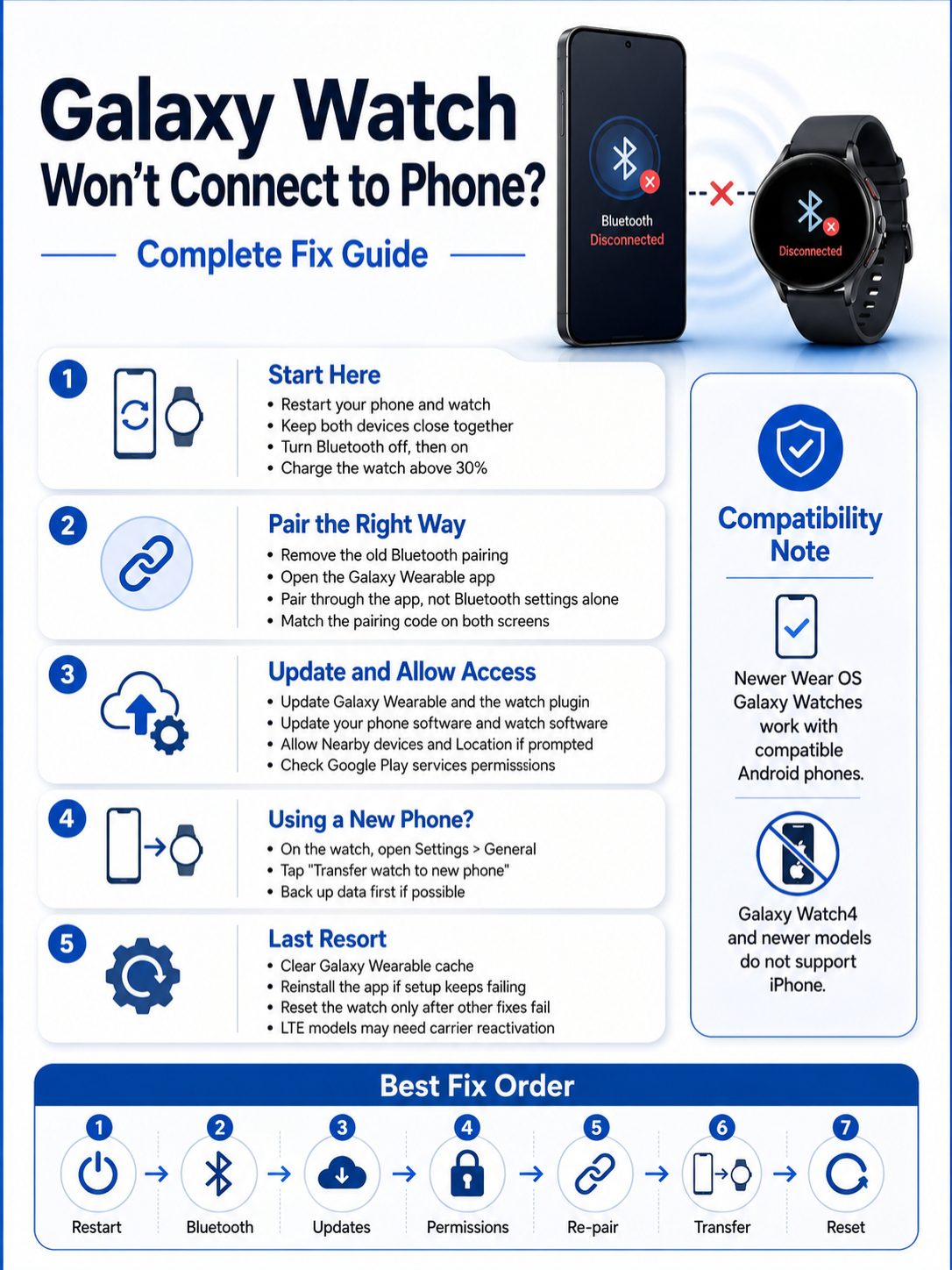
If you bought a new phone, your watch may still be tied to the old one.
Many newer Galaxy Watch models include a “Transfer watch to new phone” option. Try this before doing a full reset.
|
Situation |
Best Move |
|
You still have the old phone |
Back up the watch, then transfer |
|
You no longer have the old phone |
Start transfer from the watch if available |
|
Transfer fails |
Remove old Bluetooth records and retry |
|
Watch asks for reset |
Back up first if possible |
|
LTE watch |
Check carrier setup after transfer or reset |
How to transfer from the watch
- Swipe down from the top of the watch screen.
- Tap Settings.
- Tap General.
- Tap Transfer watch to new phone.
- Confirm the transfer.
- Open Galaxy Wearable on the new phone.
- Tap Start.
- Select your watch.
- Match the number on the phone and watch.
- Finish setup.
Back up your watch first if you can. Depending on the model and software version, moving to a new phone may reset the watch or remove some local data.
Clear Galaxy Wearable Cache or Reinstall the App
If your galaxy watch wont connect after updates, permissions, and clean pairing, the app itself may be stuck.
Start with cache. It is safer than uninstalling everything.
|
App Fix |
Data Risk |
When to Use |
|
Force stop Galaxy Wearable |
Low |
App freezes or refuses to load |
|
Clear Galaxy Wearable cache |
Low |
Setup gets stuck |
|
Clear watch plugin cache |
Low |
Specific model setup fails |
|
Reinstall Galaxy Wearable |
Medium |
Pairing keeps failing |
|
Reset watch |
High |
Last resort |
Clear Galaxy Wearable cache
- Open Settings.
- Tap Apps.
- Tap Galaxy Wearable.
- Tap Storage.
- Tap Clear cache.
Then restart the phone and try again.
Clear the watch plugin cache
Your phone may have a plugin for your watch model. It may be named Galaxy Watch6 Plugin, Galaxy Watch7 Plugin, or something similar.
- Open Settings.
- Tap Apps.
- Search for “Watch” or “Plugin.”
- Open the matching plugin.
- Tap Storage.
- Tap Clear cache.
Reinstall Galaxy Wearable
If clearing cache does not help:
- Uninstall Galaxy Wearable.
- Uninstall the watch plugin if it remains.
- Restart the phone.
- Install Galaxy Wearable again from Google Play Store or Galaxy Store.
- Pair the watch through the app.
Avoid unofficial APK sites. They can create security risks and app conflicts.
Check Battery Saver and Background Restrictions
Some Android phones are strict with battery use. They may stop Galaxy Wearable in the background. That can cause random disconnections.
This happens more often on non-Samsung Android phones, but Samsung phones can do it too when Power saving mode is on.
|
Setting |
What to Do |
|
Phone battery saver |
Turn it off during setup |
|
Watch power saving |
Turn it off during setup |
|
Galaxy Wearable battery setting |
Allow background activity |
|
Data saver |
Turn it off while setting up |
|
VPN or firewall app |
Disable it temporarily if setup fails |
Allow Galaxy Wearable to run in the background
- Open Settings.
- Tap Apps.
- Tap Galaxy Wearable.
- Tap Battery.
- Choose Unrestricted or Allow background activity if available.
Menu names vary by phone brand. The goal is simple: don’t let the phone shut down Galaxy Wearable while the watch is trying to connect.
Reset the Watch Only as a Last Resort
A factory reset can fix deep pairing problems. But it also wipes the watch.
That means you can lose local settings, downloaded watch faces, apps, Wi-Fi networks, cards, and data stored only on the watch.
Back up first if the watch can still connect.
|
Reset Method |
Use It When |
Data Risk |
|
Reset from watch settings |
Watch works but won’t pair |
High |
|
Reset from Galaxy Wearable |
Watch still connects sometimes |
High |
|
Button reset |
Watch is frozen or locked |
High |
|
Service repair |
Reset does not help |
Depends on repair |
Back up before reset
If the watch still connects:
- Open Galaxy Wearable.
- Tap Watch settings.
- Tap Accounts and backup.
- Tap Back up data.
Reset from the watch
- Open Settings on the watch.
- Tap General.
- Tap Reset.
- Confirm Reset.
After the reset, open Galaxy Wearable and set up the watch again.
LTE watch warning
If you use an LTE Galaxy Watch, resetting may remove the mobile plan from the watch.
Some carriers require a new QR code or eSIM setup after reset. If LTE stops working, contact your carrier.
Fixes for Specific Galaxy Watch Connection Problems
Some issues need a more targeted fix. Use this section if your watch connects but still acts strange.
|
Problem |
Likely Cause |
Best Fix |
|
Watch connects, then disconnects |
Battery optimization or Bluetooth instability |
Update apps and allow background activity |
|
Notifications do not show |
Notification access is off |
Turn on notifications in Galaxy Wearable |
|
Calls do not work |
Bluetooth call access or carrier issue |
Check call permissions and connection |
|
Watch has Wi-Fi but no phone link |
Bluetooth pairing issue |
Forget the watch and reconnect |
|
Setup freezes at “Finishing” |
App, permission, or update issue |
Update apps, check permissions, restart |
|
Watch not found after reset |
Bluetooth scan is blocked |
Allow Nearby devices or Location |
Watch connects but notifications do not show
Open Galaxy Wearable and go to:
Watch settings > Notifications
Make sure notifications are turned on for the apps you want.
Also check:
- Phone Do Not Disturb
- Watch Do Not Disturb
- Sleep mode
- Theater mode
- App-specific notification settings
Watch connects but calls do not work
Calls need the right Bluetooth connection and permissions.
Check:
- Bluetooth is connected
- Phone permission is allowed
- Call settings are turned on
- LTE carrier support if you use an LTE model
Setup freezes or takes too long
If setup stays stuck, don’t keep tapping randomly.
Try this order:
- Restart the phone and watch.
- Update Galaxy Wearable.
- Remove the watch from Bluetooth settings.
- Check Nearby devices and Location permissions.
- Try setup again through Galaxy Wearable.
- Reset only if everything fails.
Final Thoughts
When your galaxy watch wont connect, stay calm and work through the fixes in order.
Start with the safe stuff. Restart the watch and phone. Turn Bluetooth off and on. Keep both devices close. Update Galaxy Wearable, the watch plugin, phone software, and watch software.
Then check permissions. Nearby devices, Location, and Google Play services can make or break setup.
If that still doesn’t work, remove the old Bluetooth pairing and reconnect through Galaxy Wearable. If you changed phones, use Transfer watch to new phone before resetting.
A factory reset can help, but save it for last. That matters even more if you use an LTE Galaxy Watch or have data you do not want to lose.
Most Galaxy Watch connection problems are fixable at home. The trick is not to panic, not to skip steps, and not to reset before you’ve tried the simple fixes.
Uncommon FAQs About Galaxy Watch Connection Problems
|
Question |
Short Answer |
|
Can one Galaxy Watch connect to two phones? |
No, not at the same time |
|
Can one phone use more than one watch? |
Yes, but one watch may stay active at a time |
|
Can I pair from Bluetooth settings only? |
No, use Galaxy Wearable |
|
Does reset delete watch data? |
Yes, local data and settings are removed |
|
Does Wi-Fi replace Bluetooth? |
No, Bluetooth is still needed for phone pairing |
Can I connect one Galaxy Watch to two phones at once?
No. A Galaxy Watch connects to one main phone at a time. To use another phone, transfer the watch or reset and pair again.
Can I connect more than one Galaxy Watch to one phone?
In many cases, yes. Galaxy Wearable can add another watch. But only one watch may stay active as the main connected device at a time.
Why does my watch show in Bluetooth but not in Galaxy Wearable?
That usually means Bluetooth found the watch, but Samsung’s setup process did not finish. Forget the watch from Bluetooth settings, restart both devices, and pair through Galaxy Wearable.
Why won’t my Galaxy Watch connect to my iPhone?
Newer Wear OS Galaxy Watches do not support iPhone. Older Galaxy Watch and Gear models may support some iPhones, but features are limited.
Do I need a Samsung account?
For the best experience, yes. Wear OS Galaxy Watches may also need a Google account for Play Store, Google services, and app downloads.
Will a factory reset remove my watch faces?
It can remove downloaded watch faces and local settings. Some purchases may be recoverable through the same account, but back up first if possible.
Should I reset network settings on my phone?
Only try this if Bluetooth fails with other devices too. Resetting network settings can remove saved Wi-Fi networks and Bluetooth pairings.