
One minute everything feels fine. The next, your fan sounds like it’s ready for takeoff. Apps freeze. Chrome crawls. The laptop gets hot. You open Task Manager and there it is: CPU usage sitting at 80%, 90%, or even 100%.
Annoying? Yes. A sign your PC is dying? Not always.
In most cases, you can fix high cpu usage windows problems without reinstalling Windows or buying a new laptop. You just need to find what’s eating the processor and deal with it step by step.
That could mean closing a bad app, stopping startup junk, updating drivers, scanning for malware, reducing background activity, or repairing damaged system files.
This guide keeps things practical. No shady “PC booster” tricks. No random registry edits. Just safe Windows 11 fixes that make sense.
Windows 11 is now the main Windows version for many desktop users. StatCounter reported that Windows 11 held about 69.92% of worldwide desktop Windows version share in June 2026, while Windows 10 was at about 28.1%. So yes, more users are now running into Windows 11-specific slowdowns, update issues, driver problems, and background CPU spikes.
|
Quick Sign |
What It Usually Means |
Best First Move |
|
CPU jumps for a few seconds |
Normal app launch or background task |
Wait and watch |
|
CPU stays above 85% |
Possible CPU bottleneck |
Check Task Manager |
|
Fan runs loud at idle |
Background app, scan, update, or indexing |
Find the process |
|
CPU high after update |
Driver or update conflict |
Restart and check updates |
|
CPU high with no apps open |
Startup app, service, malware, or sync tool |
Disable startup apps and scan |
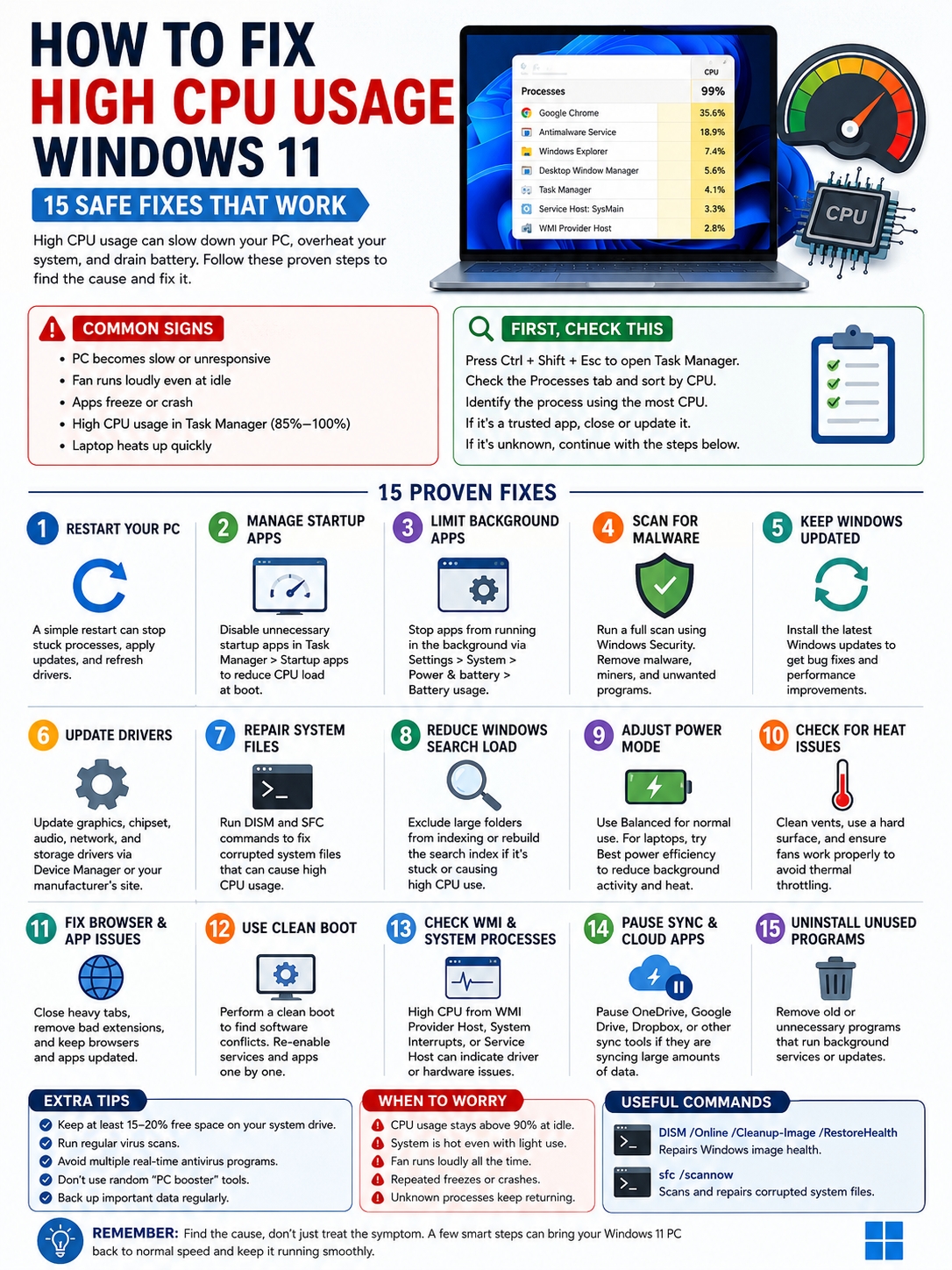
How to Fix High CPU Usage Windows: Start With Task Manager
Don’t guess. Check what’s actually using your CPU.
Press Ctrl + Shift + Esc to open Task Manager. Go to the Processes tab. Click the CPU column. This puts the heaviest process at the top.
Now watch it for a minute.
A quick spike isn’t a big deal. Opening Task Manager itself can make CPU usage jump for a few seconds. Launching a browser, opening a large file, starting a game, syncing cloud files, or installing updates can do the same.
The real problem is steady high CPU usage.
If your CPU stays above 85% for several minutes while you’re doing very little, something needs attention.
|
Task Manager Check |
What to Look For |
What to Do |
|
App name |
Browser, game, editor, launcher |
Close, update, or reinstall it |
|
Background process |
Sync, search, update, security scan |
Wait or investigate |
|
Unknown process |
Odd name or strange behavior |
Run a malware scan |
|
CPU stays high |
85–100% for several minutes |
Keep troubleshooting |
|
Short CPU spike |
Brief jump, then normal |
Usually safe to ignore |
Use Resource Monitor for a Better Look
Task Manager gives you a quick view. Resource Monitor gives you a better one.
Press Start, type resmon, and open Resource Monitor. Go to the CPU tab. Sort by Average CPU.
This helps because some processes spike and disappear fast. Average CPU shows what has been using the processor over time.
That’s useful when your PC feels slow, but Task Manager keeps changing too quickly to catch the problem.
Restart the PC Before You Try Bigger Fixes
It sounds basic, but restart first.
A proper restart can stop stuck processes, finish pending updates, reload drivers, and clear background tasks that got trapped in a loop.
Use Start > Power > Restart.
Don’t just close the lid. Don’t use Sleep. Don’t use Hibernate. Restart the machine fully.
After it boots, wait two or three minutes. Then check Task Manager again.
|
Result After Restart |
What It Means |
Next Step |
|
CPU returns to normal |
Temporary process issue |
Keep using the PC |
|
CPU high again after login |
Startup app or service issue |
Check startup apps |
|
CPU high after update |
Update or driver conflict |
Check Windows Update |
|
CPU high after opening one app |
App-specific issue |
Update or reinstall that app |
Don’t Kill Random Windows Processes
You can close normal apps like browsers, games, launchers, or editing software.
But be careful with Windows processes.
Don’t randomly end tasks named System, Service Host, Windows Audio, Windows Defender, Windows Search, or Windows Modules Installer Worker.
Ending the wrong process can break sound, search, internet, updates, or security until you restart.
Disable Startup Apps That Drag Windows Down
A lot of CPU problems start the moment you sign in.
Game launchers, cloud sync tools, printer utilities, chat apps, VPN clients, RGB control software, and update helpers often load with Windows. One or two may be fine. A dozen can slow the whole system.
Open Task Manager > Startup apps.
Look at the list. Disable anything you don’t need right away.
Keep security tools enabled. Be careful with driver-related tools if they control audio, graphics, keyboard lighting, or touchpad features.
|
Startup App Type |
Disable It? |
Notes |
|
Game launchers |
Yes |
Open them only when gaming |
|
Chat apps |
Maybe |
Keep work-critical apps only |
|
Cloud sync apps |
Maybe |
Pause if they spike CPU |
|
Printer utilities |
Usually yes |
Keep only if needed |
|
Security software |
No |
Don’t disable protection blindly |
Stop Apps From Running in the Background
Some apps keep working even after you close them.
They may sync data, send alerts, check updates, or refresh content. That’s fine for important apps. It’s wasteful for apps you barely use.
Go to Settings > System > Power & battery > Battery usage.
Check which apps are active in the background. For apps you don’t need, limit background activity where Windows allows it.
This can reduce CPU usage, fan noise, heat, and battery drain.
Scan for Malware, Miners, and Junk Apps
Malware can absolutely cause high CPU usage.
So can crypto miners, adware, browser hijackers, fake cleaners, and sketchy extensions. If your CPU stays high while the PC is idle, don’t ignore it.
Open Windows Security > Virus & threat protection.
Run a Quick scan first. If the PC still feels suspicious, run a Full scan.
Look for other warning signs too:
- Random pop-ups
- Unknown browser extensions
- New apps you didn’t install
- Search engine changes
- Fans running hard at idle
- Strange processes in Task Manager
|
Scan Type |
Best For |
When to Use |
|
Quick scan |
Common threat locations |
First check |
|
Full scan |
Deeper system check |
If CPU issue looks suspicious |
|
Custom scan |
One folder or drive |
After downloading files |
|
Offline scan |
Hard-to-remove malware |
If malware may hide while Windows runs |
Use Microsoft Defender Offline for Stubborn Threats
Some malware hides while Windows is running.
That’s where Microsoft Defender Offline can help. It restarts the PC and scans before Windows fully loads.
Use it if your PC acts infected, but normal scans don’t find anything.
Also, don’t install multiple real-time antivirus programs at the same time. They can fight each other and make CPU usage worse.
Update Windows 11 and Your Drivers
Old drivers can cause strange CPU spikes.
So can broken updates, failed updates, and hardware conflicts. That’s why updates matter.
Go to Settings > Windows Update > Check for updates.
Install available updates. Restart when Windows asks.
Then check for driver updates, especially if the issue started after connecting new hardware or installing a big Windows update.
|
Update Area |
Why It Matters |
Where to Check |
|
Windows Update |
Fixes bugs and security issues |
Settings |
|
Optional drivers |
Fixes device-specific problems |
Windows Update advanced options |
|
Graphics driver |
Helps games, video, browsers |
GPU maker or PC maker |
|
Chipset driver |
Helps CPU and power behavior |
PC maker or chip maker |
|
BIOS/UEFI |
Fixes hardware-level issues |
Manufacturer support page |
Check Device Manager
Open Device Manager.
Check these areas first:
- Display adapters
- Network adapters
- Sound, video and game controllers
- Bluetooth
- Storage controllers
- System devices
Right-click a device and choose Update driver.
Read Also: How to Use Windows 11 Snap Layouts Like a Pro
If the CPU problem started right after a driver update, open the device’s Properties, go to the Driver tab, and use Roll Back Driver if the option is available.
Avoid random driver updater tools. Many of them push junk software or install poor driver matches.
Repair Windows System Files With DISM and SFC
Sometimes Windows itself gets damaged.
That can happen after failed updates, forced shutdowns, storage problems, malware, or old system errors. When system files break, Windows services may loop in the background and keep CPU usage high.
Open Command Prompt or Terminal as administrator.
Run these commands one by one:
DISM /Online /Cleanup-Image /RestoreHealth
sfc /scannow
Let each command finish. Don’t close the window halfway through.
|
Command |
What It Does |
Use It When |
|
DISM /RestoreHealth |
Repairs Windows image health |
Before SFC |
|
sfc /scannow |
Checks and repairs system files |
After DISM |
|
Restart |
Applies repairs cleanly |
After both commands |
What If SFC Finds Problems?
If SFC says it repaired files, restart your PC. Then check CPU usage again.
If SFC says it couldn’t repair some files, run DISM and SFC again.
If the problem still stays, you may need an in-place repair install later. But don’t jump to a full reset yet. Try the safer fixes first.
Reduce Windows Search Indexing Load
Windows Search indexing helps your PC find files faster.
It builds a searchable list of files, folders, and file details. That’s useful. But it can use CPU, especially after major changes.
Indexing may spike CPU after:
- A fresh Windows install
- A big Windows update
- Moving lots of files
- Syncing OneDrive
- Adding a large Outlook mailbox
- Storing thousands of photos, PDFs, or code files
Go to Settings > Privacy & security > Searching Windows.
Review what Windows is indexing. If the index is too broad, reduce it.
|
Indexing Issue |
Why CPU Goes High |
Safer Fix |
|
Too many folders |
Windows scans too much data |
Exclude large folders |
|
New install |
Index is still building |
Let it finish |
|
Cloud sync loop |
Files keep changing |
Pause sync and test |
|
Outlook indexing |
Mailbox is being indexed |
Leave Outlook open and wait |
|
Broken index |
Search never settles |
Rebuild the index |
Don’t Disable Search Right Away
Disabling Windows Search can make search slower and less useful.
Try excluding large folders first. For example, don’t index huge backup folders, old downloads, game folders, or project folders with thousands of tiny files.
If indexing never settles, rebuild the index. Do it when you don’t need the PC for heavy work because it can take time.
Adjust Power Mode and Watch for Heat
Power mode affects speed, battery life, heat, and background activity.
Go to Settings > System > Power & battery > Power mode.
For everyday use, Balanced is usually the best pick.
If your laptop runs hot, try Best power efficiency. It can reduce background activity and lower heat.
If you’re editing video, gaming, or doing heavy work on a plugged-in desktop, Best performance may help.
|
Situation |
Best Setting to Try |
Why |
|
Laptop runs hot |
Best power efficiency |
Limits background activity |
|
Desktop feels slow |
Best performance |
Allows stronger CPU performance |
|
Normal daily use |
Balanced |
Good middle ground |
|
Battery drains fast |
More efficient mode |
Cuts background load |
|
Heavy editing or gaming |
Best performance |
Helps demanding apps |
Check for Thermal Throttling
Heat can make your PC feel slow even when CPU usage looks high.
When a CPU gets too hot, it slows itself down to protect the hardware. That’s called thermal throttling.
You may notice:
- Loud fan noise
- Hot keyboard area
- Sudden lag
- Lower game performance
- Slow exports or app launches
- CPU stuck at high usage
Try these simple fixes:
- Keep vents clear.
- Use the laptop on a hard surface.
- Don’t use it on a bed or blanket.
- Clean dust from vents.
- Make sure fans are spinning.
- Close heavy apps before gaming or editing.
Fix Browser and App-Specific CPU Spikes
Sometimes Windows is innocent. One app is the real problem.
Browsers are common offenders. Too many tabs, bad extensions, autoplay videos, web apps, and background pages can hammer the CPU.
Chrome, Edge, and other Chromium-based browsers also have their own task managers.
Press Shift + Esc inside the browser. Sort by CPU. Close the tab or extension using too much power.
|
App Type |
Common CPU Cause |
Fix |
|
Browser |
Too many tabs or extensions |
Close tabs and remove extensions |
|
Game |
Uncapped frame rate |
Set an FPS cap |
|
Video editor |
Rendering or exporting |
Normal during heavy export |
|
Teams/Zoom/Discord |
Camera effects or screen share |
Turn off effects |
|
Antivirus |
Active scan |
Schedule scans for idle time |
|
Virtual machine |
Too many assigned cores |
Reduce VM CPU allocation |
Remove Bad Extensions
Browser extensions can quietly burn CPU.
Start with:
- Coupon tools
- Video downloaders
- Unknown ad blockers
- Old extensions
- Extensions you don’t remember installing
- Anything that changes your search page
Disable them one by one. Restart the browser and test again.
Also, keep your browser updated. A browser bug can cause CPU spikes, especially after a Windows or graphics driver update.
Use Clean Boot to Find Software Conflicts
If you still can’t find the cause, try a clean boot.
A clean boot starts Windows with only essential services and startup programs. This helps you find third-party software that may be causing the CPU problem.
Here’s the basic process:
- Press Start.
- Type msconfig.
- Open System Configuration.
- Go to the Services tab.
- Check Hide all Microsoft services.
- Click Disable all.
- Open Task Manager.
- Disable startup items.
- Restart the PC.
|
Clean Boot Result |
What It Means |
Next Step |
|
CPU becomes normal |
Third-party app or service caused it |
Re-enable items in groups |
|
CPU still high |
Windows, driver, malware, or hardware issue |
Continue deeper checks |
|
CPU spikes after one item returns |
Likely culprit found |
Update or uninstall it |
Don’t Stay in Clean Boot Mode Forever
Clean boot is for testing, not daily use.
Re-enable services and startup apps in small groups. Restart after each group. When CPU usage jumps again, you’ve likely found the problem app or service.
Then update it, uninstall it, or keep it disabled.
Check WMI Provider Host, System Interrupts, and Service Host
Some CPU spikes come from Windows services.
You may see names like:
- WMI Provider Host
- Service Host
- System Interrupts
- Antimalware Service Executable
- Windows Search Indexer
- Windows Modules Installer Worker
These names can look scary, but they’re often normal.
For example, Antimalware Service Executable may use CPU during a scan. Windows Modules Installer Worker may use CPU while installing updates. Windows Search Indexer may run after big file changes.
|
Process Name |
Normal Reason |
When to Investigate |
|
WMI Provider Host |
Apps request system data |
Constant high CPU |
|
Service Host |
Windows services running |
One service stays high |
|
System Interrupts |
Hardware or driver signals |
High at idle |
|
Antimalware Service Executable |
Defender scan |
Never settles |
|
Windows Modules Installer Worker |
Windows updates |
Runs long after updates |
When WMI Provider Host Uses Too Much CPU
WMI Provider Host usually gets busy because another app keeps asking Windows for system data.
Common triggers include:
- Hardware monitoring tools
- RGB software
- System cleaners
- Driver utilities
- Business security tools
- Old monitoring apps
Restart first. Then update Windows and drivers. If the issue remains, use clean boot and remove recently installed tools.
When System Interrupts Stays High
High System Interrupts often points to a hardware or driver issue.
Try this:
- Unplug unnecessary USB devices.
- Update chipset drivers.
- Update audio drivers.
- Update network and Bluetooth drivers.
- Update graphics drivers.
- Restart after each major change.
If the problem started after connecting a new mouse, keyboard, USB hub, headset, dock, or external drive, unplug it and test again.
Final Thoughts
High CPU usage on Windows 11 looks stressful, but it usually has a clear cause.
Start simple. Open Task Manager. Find the process. Restart the PC. Disable startup junk. Stop unnecessary background apps. Scan for malware. Update Windows and drivers. Repair system files with DISM and SFC. Reduce indexing if Windows Search is the issue. Use clean boot if a third-party app is hiding in the background.
The best way to fix high cpu usage windows problems is to follow the clues.
Don’t delete random system files. Don’t disable security. Don’t trust fake cleaner apps. And don’t reset Windows before you try the safer fixes.
Find what’s using the CPU. Figure out why it’s running. Then fix the real problem.
FAQs About High CPU Usage on Windows 11
|
Question |
Short Answer |
|
Is 100% CPU always bad? |
No, short spikes are normal |
|
Should I disable Defender? |
No, scan smarter instead |
|
Can more RAM fix high CPU? |
Only if memory pressure is part of the problem |
|
Is Windows Search bad? |
No, but indexing can spike CPU |
|
Should I reset Windows? |
Only after safer fixes fail |
Why does CPU usage jump when I open Task Manager?
Task Manager needs CPU power to collect live system data. A short jump is normal.
If CPU usage drops after a few seconds, don’t worry about it.
Is 100% CPU usage dangerous?
Short 100% bursts are normal during app launches, updates, scans, exports, and games.
Constant 100% CPU at idle is different. That can cause lag, heat, loud fan noise, battery drain, and thermal throttling.
Why is Windows 11 using high CPU with no apps open?
Apps can run without visible windows.
Startup tools, sync clients, Windows Search, Defender scans, Windows Update, driver utilities, and malware can all use CPU in the background.
Does adding more RAM fix high CPU usage?
Not directly.
More RAM helps if your PC is running out of memory and using the storage drive as backup memory. But if one app is maxing out the processor, extra RAM won’t solve the root problem.
Should I disable Microsoft Defender to lower CPU usage?
No.
Turning off real-time protection is risky. Instead, schedule scans for idle hours, run a full scan when needed, and check for malware if CPU use seems strange.
Why is my CPU high after a Windows update?
Windows may still be finishing update tasks. It may also rebuild caches, index files, or update drivers.
Restart first. Then check Windows Update again. If the problem started after a driver update, try rolling back that driver.
Why is System Interrupts using high CPU?
System Interrupts usually points to hardware or driver activity.
Update chipset, audio, network, Bluetooth, storage, and graphics drivers. Also unplug non-essential USB devices and test again.
Should I use registry edits to fix CPU usage?
Avoid registry edits unless you know exactly what you’re doing.
Most high CPU issues can be fixed with safer steps: Task Manager, updates, malware scans, startup cleanup, indexing changes, clean boot, and system file repair.