
A slow Mac rarely goes bad overnight. The signs usually creep in.
Apps take longer to open. Finder pauses for no clear reason. Safari reloads tabs you opened a few minutes ago. The spinning beach ball starts showing up during simple tasks.
It’s annoying, but it doesn’t always mean your Mac is dying.
Most slowdowns come from a few common problems. Your storage may be nearly full. One app may be using too much memory or processor power. Too many programs may be opening at startup. Spotlight, iCloud, Photos, or Time Machine may also be busy in the background.
This mac running slow fix guide starts with the safest checks. There’s no need to delete system files, install a questionable cleaner, or reset everything straight away.
The goal is simple: find the cause, fix it, and stop before you create a new problem.
Why Your Mac May Be Running Slowly in 2026
Not all slow Macs behave the same way.
A Mac that struggles right after login probably has a startup problem. A Mac that slows down during video editing may be short on memory or storage. If only Safari feels sluggish, the issue may sit inside the browser rather than macOS.
As of July 13, 2026, Apple lists macOS Tahoe 26.5.2 as the latest Tahoe release. Apple still provides updates for some older versions, including Sequoia, Sonoma, and Ventura. That means menus and troubleshooting tools can look slightly different depending on your Mac.
|
Symptom |
Check First |
|
Slow startup |
Login items and background apps |
|
Beach ball during multitasking |
Memory Pressure |
|
Slow file transfers |
Storage, disk activity, or external drives |
|
Slow after an update |
Spotlight, app updates, and syncing |
|
Loud fans during light work |
CPU use, heat, or kernel_task |
|
One app feels slow |
The app, plug-ins, or extensions |
|
Online apps lag |
Wi-Fi or internet speed |
Before changing anything, pay attention to when the slowdown happens.
Does it start after opening Chrome? Does Finder freeze only when an external drive is connected? Does the Mac improve after a restart, then slow down again a few hours later?
Those clues matter.
Mac Running Slow Fix: Start With These Quick Checks
The first checks are easy and safe. They also solve more problems than many people expect.
|
Quick Check |
Why It Helps |
|
Restart the Mac |
Stops stuck processes and reloads macOS |
|
Disconnect accessories |
Helps identify a faulty device, cable, or hub |
|
Check Software Update |
Installs bug, security, and compatibility fixes |
|
Repeat the slow task |
Shows whether the issue affects one app or the whole Mac |
|
Open Activity Monitor |
Reveals CPU, memory, energy, and disk use |
1. Restart the Mac
Choose Apple Menu > Restart.
This closes running apps and services, clears the current session, and reloads the system. A restart often helps when an app has become stuck or the Mac has stayed on for several days.
After restarting, don’t open everything at once.
Repeat the task that felt slow. Then open your usual apps one by one. If the problem returns after launching a certain app, you’ve found a useful lead.
2. Disconnect Nonessential Accessories
Shut down the Mac and unplug external drives, USB hubs, card readers, printers, capture devices, and adapters.
Leave the power cable, keyboard, mouse, and main display connected if you need them.
Start the Mac again and test it.
A failing external drive can make Finder pause. A weak hub or damaged cable can also slow file access or cause repeated connection errors.
If the Mac feels normal without the accessories, reconnect them one at a time. Test after each one.
3. Install Available Updates
Open System Settings > General > Software Update.
Apple uses macOS updates to fix security problems, improve stability, and address compatibility issues. Software Update should only show versions that work with your Mac.
Save your work before updating. If you’re installing a major upgrade, back up the Mac first.
An update won’t fix every slowdown, but running an outdated version can leave known bugs in place.
Check CPU, Memory, and Disk Activity
Activity Monitor is the best place to see what your Mac is doing behind the scenes.
Open Spotlight, type Activity Monitor, and press Return. You can also find it in Applications > Utilities.
|
Tab |
What It Shows |
What to Watch |
|
CPU |
Processor use |
An app staying busy while idle |
|
Memory |
RAM and swap use |
Yellow or red Memory Pressure |
|
Energy |
Power use |
One app staying unusually high |
|
Disk |
Reads and writes |
Heavy activity with no obvious task |
|
Network |
Data use |
Large syncing or download activity |
4. Find Apps Using Too Much CPU
Click the CPU tab, then click % CPU to sort the list.
High CPU use isn’t always bad.
Video exporting, gaming, photo processing, coding, file compression, and large updates can all push the processor hard. That’s normal while the task is running.
The real warning sign is an app that stays near the top even when you aren’t doing anything demanding.
Quit the app normally. Reopen it and test again. Then check for an update.
Avoid force-quitting unfamiliar system processes just because the number looks high. Some of them handle important parts of macOS.
5. Read Memory Pressure the Right Way
Click the Memory tab and look at the Memory Pressure graph near the bottom.
Apple uses three colors:
- Green means the Mac is handling memory well.
- Yellow means memory demand is rising.
- Red means the current workload needs more memory.
This graph matters more than the amount of “free RAM.”
macOS uses spare memory for caching and other tasks, so low free memory doesn’t automatically mean there’s a problem. Memory Pressure gives you a clearer picture.
If the graph turns yellow or red, close apps you aren’t using. Cut back on browser tabs. Avoid running several large creative tools at the same time.
A brief yellow spike during a heavy task isn’t unusual. Repeated red pressure during normal work is more serious.
6. Don’t Panic About kernel_task
You may notice a process called kernel_task using a large amount of CPU.
Don’t disable or force-quit it.
Apple says kernel_task helps manage processor temperature. It may become more active when the Mac gets hot.
Close demanding apps. Move the MacBook to a hard, flat surface. Make sure vents aren’t blocked. Disconnect accessories that seem to trigger the problem.
Avoid using a MacBook on a bed, sofa, or cushion. Soft surfaces can trap heat and reduce airflow.
Free Storage Space Without Breaking Anything
A crowded startup disk can slow file handling, updates, temporary storage, and virtual memory.
Apple includes low disk space among the common causes of poor Mac performance.
Open System Settings > General > Storage.
|
Storage Area |
Safe Action |
|
Applications |
Remove large apps you no longer use |
|
Documents |
Review videos, archives, installers, and downloads |
|
Photos |
Use supported optimization or move the library correctly |
|
Mail and Messages |
Remove large attachments you don’t need |
|
iOS Files |
Delete old device backups if they’re no longer useful |
|
Trash |
Check it, then empty it |
|
System Data |
Let macOS manage it |
7. Remove Large Files First
Start with files you recognise.
Old video exports, downloaded installers, duplicate archives, unused games, and forgotten virtual machines can take up a surprising amount of space.
The Storage screen can help you find large files and unused apps.
There’s no perfect amount of free space for every Mac. A person who mainly writes documents needs less working room than someone editing 4K video.
The important point is to leave enough space for updates, temporary files, virtual memory, and your regular apps.
Don’t waste time deleting hundreds of tiny files while one forgotten video folder is using 80GB.
8. Leave System Data Alone
System Data can include logs, caches, temporary files, virtual-memory files, fonts, plug-ins, and app support files.
Its size can rise and fall.
That doesn’t mean you should open Library folders and start deleting anything with “cache” in the name.
Some files rebuild. Others belong to apps or services. Removing the wrong one can cause missing settings, login trouble, repeated downloads, or app errors.
Use macOS Storage settings and proper uninstall tools instead.
This is one area where aggressive cleanup apps often create more confusion than value.
Reduce Login Items and Background Apps
A Mac can have plenty of storage and still feel slow because too many apps launch at sign-in.
Open System Settings > General > Login Items & Extensions.
|
Item |
Keep It When |
Remove or Disable It When |
|
Cloud storage app |
You need constant syncing |
You rarely use the service |
|
Meeting software |
You receive calls all day |
You only open it for meetings |
|
Menu-bar tool |
You use it every day |
You’ve forgotten what it does |
|
Device helper |
You still use the device |
You no longer own the hardware |
|
Browser extension |
You trust and need it |
It’s outdated or causes problems |
9. Test Login Items One by One
Start with Open at Login.
Remove apps that don’t need to launch every time you sign in. Restart the Mac and see whether startup improves.
For a cleaner test, remove all nonessential login items. Then add them back one at a time.
It takes longer, but it works. When the slowdown returns, the last item you added is the likely cause.
Also review apps allowed to run in the background.
Be careful with backup tools, security software, accessibility apps, and work device-management software. Turning those off can affect important features.
Read Also: How to Use Stage Manager on Mac Effectively
Fix Slow Browsers and Outdated Apps
Sometimes macOS is fine. One app is the real problem.
That’s common with browsers, old creative software, plug-ins, and tools that haven’t been updated for newer Macs.
10. Check Safari Extensions and Website Data
Open Safari > Settings > Extensions.
Turn off extensions and test Safari again. If performance improves, switch them back on one at a time.
Remove extensions you no longer use. Update the ones you want to keep.
If only one website causes trouble, remove that site’s stored data rather than clearing everything.
Keep in mind that deleting cookies or website data may sign you out.
Browser tabs also matter. Streaming video, online editors, dashboards, maps, and web apps can use plenty of memory even when you’re not looking at them.
Close what you don’t need.
11. Replace Old Intel Apps on Apple Silicon
Older Intel apps run on Apple silicon through Rosetta.
That has helped keep old software working, but it isn’t a permanent answer.
Apple says Rosetta will remain broadly available through macOS 27. Support becomes more limited from macOS 28, mainly for some older games that rely on Intel frameworks.
Check the developer’s site for an Apple silicon or Universal version.
Do the same for plug-ins, extensions, drivers, and add-ons. One outdated component can make an otherwise modern app unstable or slow.
A proper mac running slow fix often means replacing old software, not endlessly trying to patch it.
Fix a Mac That Slowed Down After an Update
A Mac can feel busier after a major update.
Spotlight may rebuild its search index. Photos may analyse or sync the library. iCloud Drive may download files. Time Machine may start a larger backup than usual.
|
Background Task |
Where to Check |
|
Spotlight indexing |
Search with Spotlight and check progress |
|
iCloud Drive |
Look at file status in Finder |
|
iCloud Photos |
Check library status in Photos |
|
Time Machine |
Review backup status |
|
App updates |
Check the App Store and app update tools |
12. Give Spotlight Time to Finish
Spotlight indexes files so macOS can find them quickly.
Apple says indexing may take several hours, depending on the number of files.
During that time, the Mac may use more processor power and disk activity than usual.
Connect a MacBook to power and let the process run. Don’t rebuild the index just because the Mac feels busy for an hour after an update.
Rebuild Spotlight only when search results stay incomplete or wrong.
Apple’s method uses Spotlight Search Privacy. You briefly exclude a disk or folder, then add it back so macOS indexes it again.
Reindexing can also use plenty of resources, so treat it as a repair step, not routine maintenance.
Check iCloud, Photos, and Time Machine
Finder can show whether iCloud Drive files are uploading, downloading, or stored only in iCloud.
Photos also shows whether the library is still syncing.
Time Machine may take longer after a missed backup, a macOS update, or an interrupted job. Network backups are often slower than direct connections.
Don’t switch off every background service at once.
Check which one is active. Let it finish when possible.
Use Safe Mode, First Aid, and Apple Diagnostics
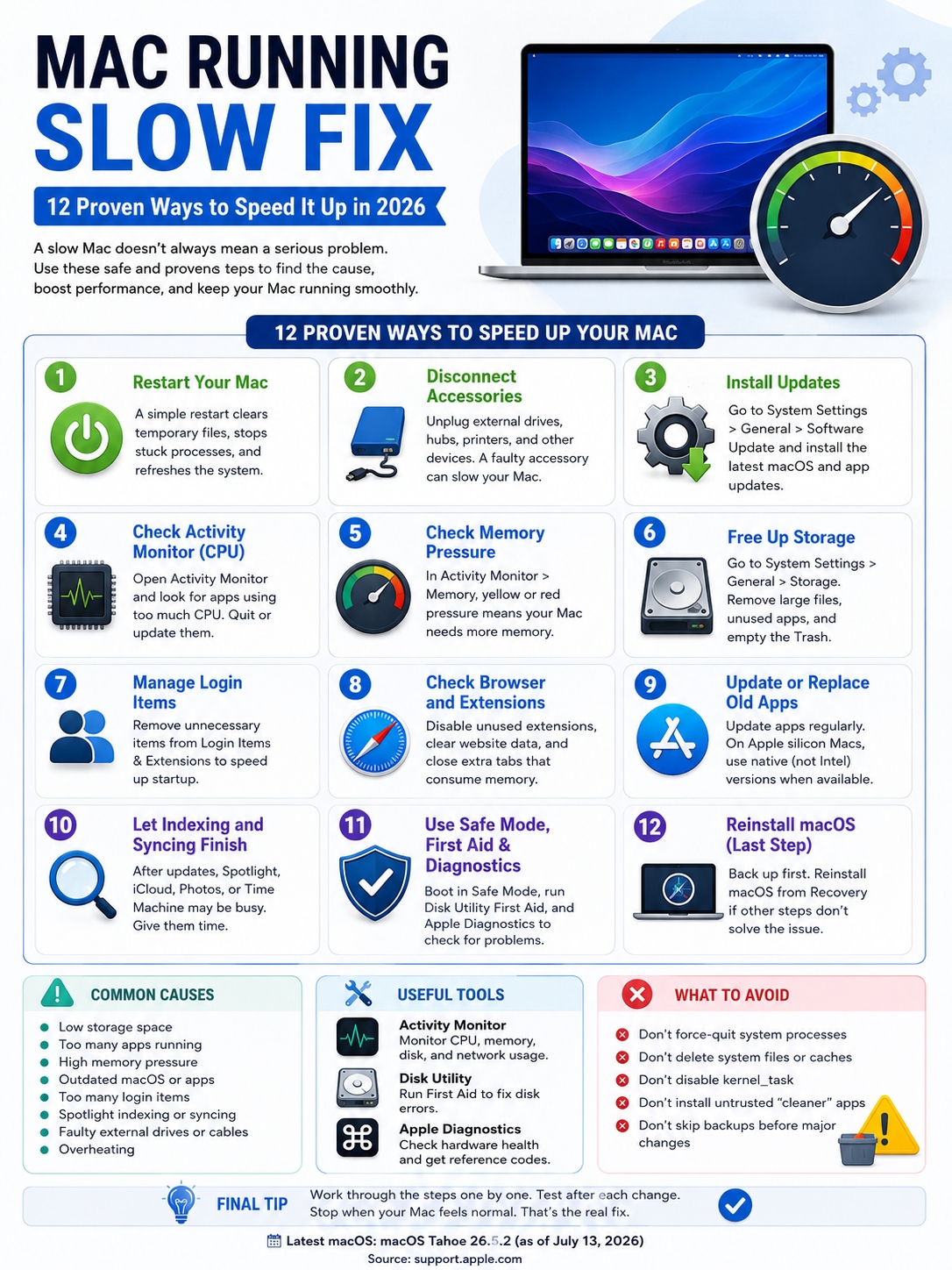
If the basic checks don’t solve the problem, move to deeper testing.
|
Tool |
What It Helps Check |
|
Safe Mode |
Startup software, extensions, fonts, and caches |
|
Disk Utility First Aid |
File-system and disk structure errors |
|
Apple Diagnostics |
Possible internal hardware trouble |
|
macOS Recovery |
Disk repair and system reinstallation |
Start Safe Mode on Apple Silicon
- Shut down the Mac.
- Hold the power button until startup options appear.
- Select the startup volume.
- Hold Shift.
- Click Continue in Safe Mode.
Start Safe Mode on an Intel Mac
Turn on or restart the Mac and immediately hold Shift.
Release the key when the login window appears.
If the Mac runs much better in Safe Mode, a login item, extension, old driver, font, plug-in, or background utility may be involved.
Safe Mode is for testing. It isn’t meant for daily use.
Run Disk Utility First Aid
Use Disk Utility when the Mac has trouble opening files, reports disk errors, freezes during file work, or behaves strangely during startup.
Open Disk Utility and choose View > Show All Devices.
Run First Aid on the relevant volumes, containers, and disk.
If Disk Utility warns that the drive may fail, stop troubleshooting and back up your files straight away.
First Aid isn’t a speed button. Running it again and again won’t make a healthy Mac faster.
Run Apple Diagnostics
On Apple silicon:
- Shut down the Mac.
- Hold the power button until startup options appear.
- Hold Command-D.
On an Intel Mac, turn it on and immediately hold D. Try Option-D if needed.
Apple Diagnostics checks for possible hardware trouble. In macOS Tahoe 26 and later, it may offer separate tests for parts such as the display, keyboard, or trackpad.
Write down any reference code it gives you.
That code can help Apple or a repair provider understand what went wrong.
Reinstall macOS Only as a Last Software Step
A normal reinstall from macOS Recovery usually keeps your apps and personal files.
Even so, create a backup first.
Reinstalling can help when system files are damaged or an update failed. It won’t solve a full drive, an outdated app, or constant red Memory Pressure.
Avoid the Erase option unless you mean to wipe the Mac.
Know When the Hardware Is the Real Limit
Software fixes can’t give an older Mac more memory, a faster processor, or support for apps that have moved on.
|
Warning Sign |
What to Do |
|
Memory Pressure stays red |
Reduce the workload or consider a newer Mac |
|
Apple Diagnostics gives a code |
Save it and arrange support |
|
Disk Utility warns of failure |
Back up immediately |
|
The Mac overheats or shuts down |
Disconnect accessories and seek diagnosis |
|
Important apps no longer support it |
Plan an upgrade |
|
Performance stays poor after reinstalling |
Investigate hardware |
Many newer Macs don’t have upgradeable memory.
That makes the amount of memory you buy more important. If your everyday workload regularly pushes Memory Pressure into red, closing apps may help, but only up to a point.
At that stage, the Mac may no longer match the work you expect it to handle.
Avoid Old or Risky Speed Tricks
A lot of Mac advice online comes from a different era.
Some tips no longer apply. Others were never useful.
|
Common Advice |
Better Option |
|
Install a RAM booster |
Check Memory Pressure |
|
Delete every cache |
Use Storage settings and proper uninstallers |
|
Disable kernel_task |
Fix heat and heavy CPU use |
|
Reset the SMC on every Mac |
Restart Apple silicon Macs |
|
Quit unknown system processes |
Identify them first |
|
Erase the Mac immediately |
Diagnose the problem step by step |
Apple silicon Macs don’t need an SMC reset. Restarting is the correct step.
SMC reset instructions apply only to certain Intel Mac problems involving power, charging, fans, battery behaviour, or hardware control.
Be wary of tools that promise to “free all RAM,” delete system files automatically, or claim that hundreds of harmless items are dangerous.
A useful repair should point to a real cause. It shouldn’t scare you into clicking a cleanup button.
Final Thoughts
The best mac running slow fix is a process, not a magic button.
Start with a restart. Disconnect accessories. Check Activity Monitor and Storage. Remove needless login items. Update apps and macOS. Give Spotlight, iCloud, Photos, and Time Machine time to finish.
If the problem stays, try Safe Mode, Disk Utility, and Apple Diagnostics.
|
Order |
What to Do |
|
1 |
Restart and disconnect accessories |
|
2 |
Install updates |
|
3 |
Check CPU, memory, and disk use |
|
4 |
Free storage safely |
|
5 |
Reduce login items and extensions |
|
6 |
Let indexing and syncing finish |
|
7 |
Test Safe Mode and First Aid |
|
8 |
Run Apple Diagnostics |
|
9 |
Back up and reinstall macOS |
|
10 |
Seek repair if hardware signs remain |
Most slow Macs have one main bottleneck.
Find it, fix it, and stop there.
That approach is safer, faster, and far more useful than letting a cleanup app make decisions for you.
Frequently Asked Questions
|
Question |
Quick Answer |
|
Can Time Machine slow a Mac? |
Yes, during large or slow backups |
|
Can an external drive slow Finder? |
Yes, especially if it’s failing or badly connected |
|
How long can Spotlight indexing take? |
Several hours in some cases |
|
Does reinstalling macOS delete files? |
A normal reinstall usually keeps them |
|
Should Apple silicon users reset the SMC? |
No |
|
Is red Memory Pressure serious? |
It means the workload needs more memory |
Why Is My Mac Fast After Restarting but Slow Again Later?
A background process may be building up resource use.
Restart the Mac. Open your normal apps one by one. Watch CPU and Memory in Activity Monitor.
When performance drops, check which process has moved to the top.
That gives you a far better clue than deleting random files.
Can Time Machine Slow Down a Mac?
Yes, for a while.
A large backup can use disk and network resources. It may take longer after a system update, an interrupted backup, or several days without access to the backup drive.
Let the backup finish when possible.
If it stays unusually slow, check the cable, drive, network, and security software.
Can an External Drive Make Finder Freeze?
It can.
Finder may wait for a slow, damaged, disconnected, or unstable drive.
Unplug the drive and test Finder again. If the problem stops, try another cable and connect the drive directly rather than through a hub.
Back up important files before testing a drive that acts unpredictably.
How Long Should Spotlight Indexing Take?
There’s no fixed answer.
Apple says it can take several hours, depending on the number of files.
A large external drive or photo library may take longer.
Wait before assuming it’s stuck. Rebuild the index only when search stays broken.
Does Reinstalling macOS Delete My Files?
A normal reinstall from macOS Recovery should keep your apps and personal files.
Back up first anyway.
Erasing the startup disk is a separate step. Don’t choose it unless you plan to wipe the Mac.
Is Yellow Memory Pressure Always Bad?
No.
A short yellow period during a demanding task can be normal.
The bigger concern is repeated yellow or red pressure during ordinary work.
Close unused apps, reduce tabs, and run the same task again. Compare the result.
Should I Reset the SMC or NVRAM?
Not as routine maintenance.
Apple silicon Macs don’t need an SMC reset.
On Intel Macs, SMC resets apply to certain power, battery, charging, and fan problems. They aren’t a general speed fix.
Use resets only when the symptoms match Apple’s advice.