
Too many open windows can make a Mac feel messier than it should. You open Safari for research, Notes for writing, Finder for files, Mail for a quick check, and suddenly your desktop looks like a pile of digital paper. That is exactly where stage manager mac can help.
Stage Manager is Apple’s built-in window organizer for macOS. It keeps the app you are using in the center and moves other recent apps to the side. The idea is simple: keep your current task visible without losing quick access to everything else.
It is not perfect for every workflow. Some Mac users still prefer Mission Control, Spaces, Split View, or plain manual window management. But when used properly, Stage Manager can make research, writing, office work, studying, and daily multitasking feel cleaner.
This guide explains how to turn it on, customize it, group apps, fix common problems, and decide whether it deserves a permanent place in your Mac workflow.
What Is Stage Manager on Mac?
Stage Manager is a macOS feature that organizes open apps and windows around your current task. The active app stays in the center of the screen, while recently used apps appear along the left side for quick access.
It works best when you think in groups. For example, you can keep Safari, Notes, and Finder together for research. Then you can keep Mail, Calendar, and Messages in another group for communication.
The feature was introduced with macOS Ventura, and it continues to be part of newer macOS versions. It is useful for users who want a cleaner desktop but do not want to work in full-screen mode all the time.
What Stage Manager Actually Does
Stage Manager does not close your apps. It simply moves inactive windows aside and keeps your current workspace visible.
You can still resize windows, overlap them, move them around, and switch apps from the Dock or Command-Tab. The difference is that Stage Manager keeps other windows organized in a side strip instead of leaving everything scattered across the desktop.
This makes it easier to return to a task without hunting through a messy stack of windows.
|
Feature |
What It Does |
Best Use |
|
Active window area |
Keeps the current app centered |
Focused work |
|
Recent apps |
Shows recent apps on the left |
Quick switching |
|
App groups |
Lets multiple apps work together |
Research, writing, design |
|
Desktop control |
Shows or hides desktop items |
Cleaner workspace |
|
Window resizing |
Allows flexible layouts |
Multi-app tasks |
How to Turn On Stage Manager on Mac
Turning on Stage Manager is simple. Apple gives you two main ways to enable it: Control Center and System Settings.
The fastest method is Control Center. This is useful when you only want Stage Manager for certain tasks and do not want it running all day.
The second method is System Settings. This is better when you want to adjust Stage Manager settings at the same time.
Turn On Stage Manager From Control Center
Click Control Center in the menu bar. Then click Stage Manager.
Once it is active, your open windows will reorganize. The current app moves to the center. Recent apps appear along the left side of the screen.
This method is best for quick use. For example, you may turn it on before writing, studying, or handling multiple documents.
Turn On Stage Manager From System Settings
Open System Settings and go to Desktop & Dock. Then scroll to Desktop & Stage Manager and turn Stage Manager on.
This area also lets you change related settings. You can control recent apps, desktop items, wallpaper click behavior, and how multiple windows from the same app appear.
Here’s a quick setup view.
|
Method |
Steps |
Best For |
|
Control Center |
Control Center > Stage Manager |
Fast on/off use |
|
System Settings |
System Settings > Desktop & Dock |
Full customization |
|
Menu bar shortcut |
Add Stage Manager to menu bar |
Frequent switching |
|
Keyboard shortcut |
Set from Keyboard settings if available |
Power users |
Best Stage Manager Mac Settings to Customize
The default setup may not feel right for everyone. Some users like seeing recent apps on the left. Others find that side list distracting.
This is where Stage Manager becomes more useful. A few settings can change how clean, fast, or flexible it feels.
To customize it, go to System Settings > Desktop & Dock, then find the Desktop & Stage Manager section.
Show Recent Apps in Stage Manager
When this option is on, recent apps stay visible on the left side. This makes switching faster.
When it is off, the side list stays hidden. You can reveal it by moving your pointer to the left edge of the screen.
Keep it on if you switch between apps often. Turn it off if you want a cleaner screen.
Show Desktop Items
This setting controls whether files, folders, screenshots, and other desktop items appear while Stage Manager is active.
Turn it on if you often drag files from the desktop into apps. Turn it off if your desktop is cluttered and distracts you.
Writers, students, and designers may prefer keeping desktop items visible. Minimalist users may prefer hiding them.
Show Windows From an Application
This setting has two choices: All at Once and One at a Time.
All at Once shows every available window from an app when you switch to it. One at a Time only shows the most recent window from that app.
Choose All at Once if you work with multiple Safari, Finder, or document windows. Choose One at a Time if you want a tighter, cleaner layout.
|
Setting |
Recommended Choice |
Why It Helps |
|
Show recent apps |
On for multitasking, off for focus |
Controls visual clutter |
|
Show desktop items |
Depends on file habits |
Helps with drag-and-drop work |
|
Show windows from app |
All at Once for heavy users |
Better for Safari and Finder |
|
Wallpaper click |
Only in Stage Manager on Click |
Reduces accidental changes |
|
Menu bar shortcut |
On if used daily |
Faster access |
How to Use Stage Manager on Mac for App Groups
The real value of stage manager mac is app grouping. Without groups, it may feel like a simple app switcher. With groups, it becomes a practical workspace tool.
A group can include two or more apps that belong to the same task. For example, a blogger may keep WordPress, Safari, Notes, and Finder together.
When you switch away from that group, Stage Manager remembers it. When you return, the same apps come back to the center.
How to Create an App Group
Open your main app first. Then drag another app from the left-side Stage Manager strip into the center area.
You can resize both windows and place them where they make sense. For example, keep Safari on the left and Notes on the right.
Repeat the same process if you want to add another app. Just avoid adding too many windows, or the group will become messy.
How to Remove an App From a Group
Drag the app window back to the left side of the screen. Stage Manager removes it from the active group and places it with recent apps.
This is useful when an app no longer belongs to the task. For example, if you opened Mail during a writing session, you can remove it after replying.
Small groups usually work better than crowded groups. Two to four apps are enough for most tasks.
|
Workflow |
Suggested Group |
Why It Works |
|
Writing |
Safari, Notes, Pages or WordPress |
Keeps research and draft together |
|
Studying |
PDF reader, Notes, Calendar |
Keeps study material organized |
|
Design |
Finder, Preview, design app |
Keeps assets close |
|
Office work |
Mail, Calendar, browser |
Keeps communication separate |
|
Coding |
Code editor, Terminal, browser |
Good for lighter development tasks |
Practical Stage Manager Workflows for Daily Use
Stage Manager works best when you use it with intention. Do not throw every app into one group and expect a clean workspace.
Instead, build task-based groups. This makes switching smoother and reduces the urge to constantly search for windows.
The best setup depends on what you do on your Mac. A writer, designer, student, and office worker will not need the same layout.
Read Also: macOS Bluetooth Not Working: 9 Solutions
For Writers and Bloggers
A useful writing setup includes a browser, notes app, editor, and Finder window. Keep the browser and editor visible together, then use Finder for images or documents.
This reduces back-and-forth switching. You can research, write, check references, and manage files from one workspace.
If you write in WordPress, keep WordPress in the center and use Notes or Google Docs beside it for rough ideas.
For Students
Students can use Stage Manager to separate study subjects. One group can hold a PDF reader, Notes, and Safari. Another group can hold Calendar, Reminders, and Mail.
This keeps study time and admin tasks separate. It also helps avoid opening social apps inside a study workspace.
For long reading sessions, Split View may still work better. But Stage Manager is useful when several supporting apps are needed.
For Designers and Creators
A designer can group a design tool, Finder, Preview, and a browser reference page. This makes it easier to move between assets and visual references.
Stage Manager is not a replacement for a large monitor or a polished design workspace. But it helps when working on smaller screens, especially MacBooks.
Creators editing images, thumbnails, or social graphics may find it useful for keeping folders and previews nearby.
|
User Type |
Best Stage Manager Setup |
Main Benefit |
|
Blogger |
Browser, editor, Notes, Finder |
Faster research and drafting |
|
Student |
PDF, Notes, Safari |
Cleaner study sessions |
|
Designer |
Design app, Finder, Preview |
Easier asset handling |
|
Office worker |
Mail, Calendar, browser |
Better task separation |
|
Developer |
Editor, Terminal, docs |
Useful for light coding |
Stage Manager vs Mission Control, Split View, and Spaces
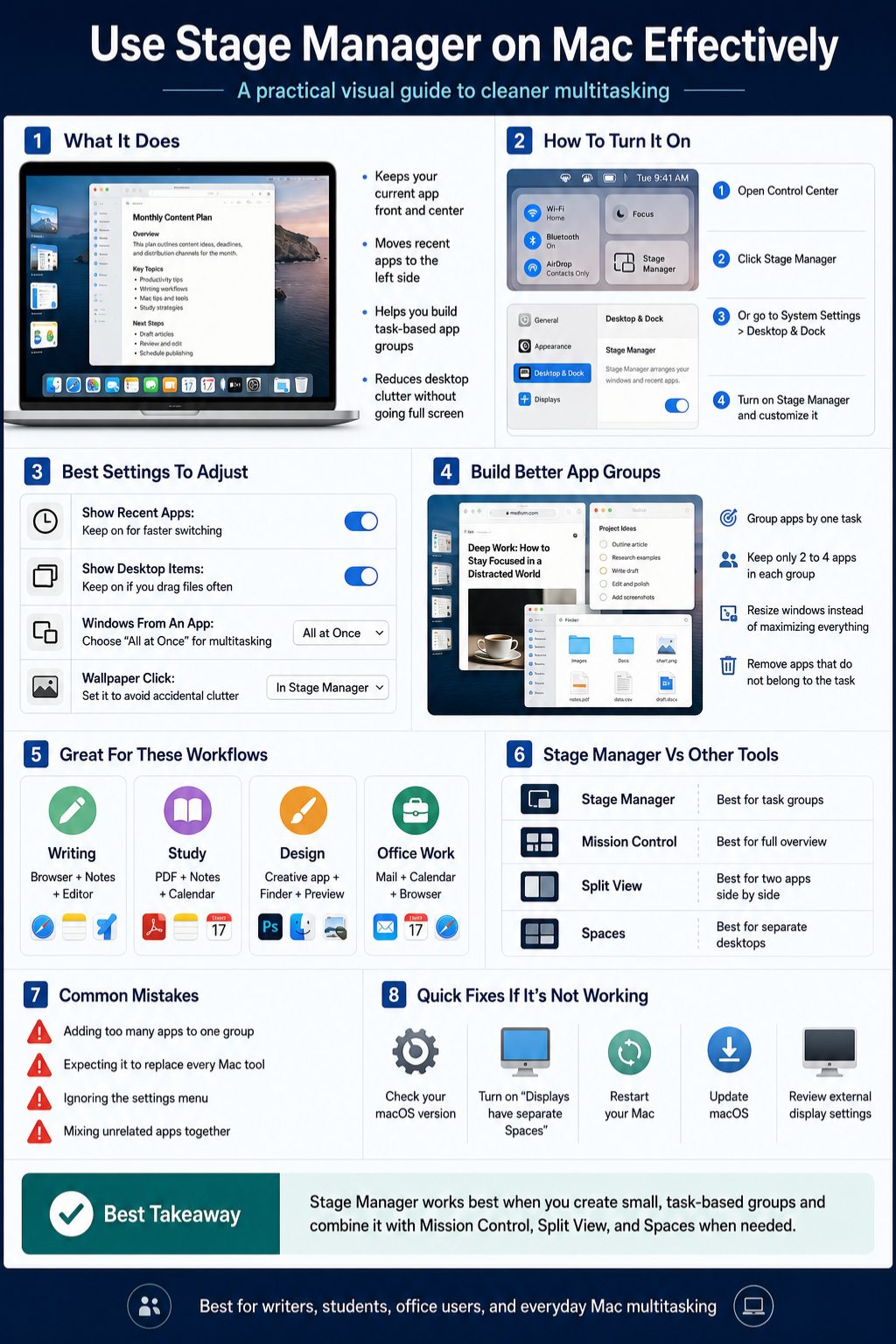
Stage Manager is not the only window tool on a Mac. macOS already includes Mission Control, Split View, Spaces, full-screen mode, and window tiling.
The smartest approach is not to choose only one. Use Stage Manager where it fits, and use other tools when they are better.
This matters because many users dislike Stage Manager when they expect it to replace everything.
Stage Manager vs Mission Control
Mission Control shows your open windows and desktop spaces in a wider overview. It is best when you need to find a buried window fast.
Stage Manager is better for keeping one task active and placing other tasks aside. It does not give the same full overview as Mission Control.
Use both together. Mission Control helps you see the big picture. Stage Manager helps you stay inside one task.
Stage Manager vs Split View
Split View is best when you need two apps side by side. For example, Safari on one side and Notes on the other.
Stage Manager is more flexible because it can handle groups and quick switching. It also allows overlapping and custom window sizes.
Use Split View for two-app focus. Use Stage Manager for multi-app workflows.
Stage Manager vs Spaces
Spaces are separate desktops. They are useful when you want to divide big areas of work, such as work, personal, school, and creative projects.
Stage Manager works inside a desktop. It organizes windows within that space.
Use Spaces for broad separation. Use Stage Manager for task-level organization.
|
Tool |
Best For |
Limitation |
|
Stage Manager |
Task groups and quick switching |
Can feel cramped with many apps |
|
Mission Control |
Finding open windows |
Not a focused workspace |
|
Split View |
Two apps side by side |
Less flexible |
|
Spaces |
Separate desktops |
Can become confusing if overused |
|
Full-screen mode |
One-app focus |
Hides supporting apps |
Common Mistakes When Using Stage Manager Mac
Many people try Stage Manager once, feel confused, and turn it off. Usually, the problem is not the feature itself. It is how it is used.
Stage Manager needs a little structure. It works better when you build small, clear groups instead of letting every app pile up.
This is especially true on smaller MacBook screens. A crowded Stage Manager setup can feel worse than a normal desktop.
Opening Too Many Apps in One Group
The biggest mistake is adding too many apps to one group. When five or six windows overlap, Stage Manager loses its advantage.
Keep each group focused. A writing group should not include Mail, Messages, Spotify, Photos, and three browsers.
The cleaner the group, the more useful Stage Manager becomes.
Expecting It to Replace Every Mac Tool
Stage Manager is not better than Mission Control in every situation. It is not always better than Split View either.
Use it for task switching and app grouping. Use Mission Control for overview. Use Split View when two apps are enough.
A mixed approach feels more natural than forcing Stage Manager into every workflow.
Ignoring the Settings
Some users leave the default settings unchanged and assume the feature is bad. In many cases, turning off recent apps or changing desktop item behavior makes it much better.
Spend a few minutes in Desktop & Dock settings. Small changes can make Stage Manager feel less distracting.
|
Mistake |
Better Approach |
|
Adding too many apps |
Keep groups small |
|
Using it for every task |
Use it only where helpful |
|
Ignoring settings |
Customize recent apps and desktop items |
|
Mixing unrelated apps |
Group by task |
|
Replacing Mission Control fully |
Use both tools together |
Stage Manager Not Working on Mac: Fixes to Try
If Stage Manager does not appear or refuses to turn on, start with the basics. Most issues come from settings, macOS compatibility, or display behavior.
First, check your macOS version. Stage Manager came with macOS Ventura, so older macOS versions will not show the feature.
Then check Desktop & Dock settings. Apple notes that “Displays have separate Spaces” may need to be turned on if Stage Manager cannot be enabled.
Check Your macOS Version
Click the Apple menu and choose About This Mac. Check which macOS version is installed.
If your Mac supports a newer macOS version, update it through System Settings. Always back up important files before a major software update.
A supported Mac running a current macOS version should show Stage Manager in Control Center and Desktop & Dock settings.
Turn On Displays Have Separate Spaces
Open System Settings, go to Desktop & Dock, and look for the Mission Control section. Turn on Displays have separate Spaces.
This can help when Stage Manager is unavailable or behaves oddly with multiple monitors.
After changing the setting, restart the Mac if needed.
Restart and Update Your Mac
A restart can fix temporary macOS interface glitches. It is simple, but it often works.
If the issue continues, check for macOS updates. Apple regularly fixes bugs and improves system behavior through updates.
Also test Stage Manager with fewer apps open. Sometimes the problem is not Stage Manager itself, but a cluttered or overloaded session.
|
Problem |
Possible Fix |
|
Stage Manager missing |
Check macOS version |
|
Cannot turn it on |
Enable Displays have separate Spaces |
|
Recent apps hidden |
Move pointer to the left edge |
|
Desktop files missing |
Change desktop items setting |
|
External display issues |
Review display and Spaces settings |
Is Stage Manager Worth Using?
Stage Manager is worth trying if you often lose track of windows. It is especially helpful when you work with small sets of related apps.
The feature is less useful if you already have a strong workflow built around Spaces, Mission Control, and external monitors.
The best way to judge it is to test it for a few real tasks, not just turn it on for five minutes.
When Stage Manager Makes Sense
Use Stage Manager when you need one main task in front of you and a few supporting apps nearby.
It works well for writing, research, studying, light design work, office tasks, and general multitasking.
MacBook users may appreciate it more than desktop users because screen space is limited.
When You May Want to Skip It
Skip Stage Manager if you prefer full manual control over every window. It may also feel unnecessary if you use several large monitors.
Developers, video editors, and power users may prefer Spaces or custom window management tools.
That does not make Stage Manager bad. It just means it is not the best answer for every Mac workflow.
Best Way to Test It
Use Stage Manager for one week. Build three groups: one for deep work, one for communication, and one for browsing or research.
Then decide whether it saves time or adds friction.
Do not judge it by the default setup alone. Customize it first.
|
Best For |
Not Ideal For |
|
Writers and bloggers |
Heavy multi-monitor workflows |
|
Students |
Users who hate automatic window movement |
|
Office workers |
Full-screen-only users |
|
Light creators |
Complex editing timelines |
|
MacBook users |
Users already happy with Spaces |
Quick Tips for Better Mac Window Management
Stage Manager becomes more powerful when you use it with other macOS tools. Do not treat it as a separate island.
The Dock, Command-Tab, Mission Control, Split View, Spaces, and window tiling can all support your workflow.
A clean Mac setup usually comes from combining tools, not relying on one feature.
Keep Communication Apps Separate
Mail, Messages, Slack, and Teams can interrupt deep work. Keep them in their own Stage Manager group.
This lets you check messages when needed without letting them sit beside your writing, research, or design work.
It also makes it easier to mentally separate communication from focused work.
Use Command-Tab With Stage Manager
You can still use Command-Tab to switch apps. Stage Manager does not remove normal Mac shortcuts.
This is helpful when the side list is hidden. It also keeps your hands on the keyboard while moving between tasks.
Keyboard users may find Stage Manager more useful after combining it with existing shortcuts.
Use Split View When Two Apps Are Enough
Do not use Stage Manager for simple two-app work if Split View feels cleaner.
For example, reading a PDF beside Notes may work better in Split View.
Stage Manager is better when you have more than two related apps or need to switch between app groups.
|
Tip |
Why It Helps |
|
Keep groups small |
Prevents clutter |
|
Use Command-Tab |
Faster switching |
|
Hide recent apps |
Cleaner screen |
|
Separate messages |
Fewer distractions |
|
Use Split View when needed |
Better two-app focus |
|
Use Spaces for big projects |
Cleaner separation |
Final Thoughts
Stage Manager is not a magic productivity feature. It will not fix bad work habits, endless notifications, or a desktop full of random screenshots. But it can make your Mac feel calmer when you use it with a clear system.
The best way to use stage manager mac is to build small task-based groups. Keep writing apps together. Keep communication apps separate. Keep research tools in their own space. Then adjust recent apps, desktop items, and window behavior until the setup feels natural.
Some users will love it. Some will turn it off after a week and go back to Mission Control or Spaces. Both choices are fine.
If your Mac desktop often feels crowded, Stage Manager is worth testing. Use it for real work, not just as a feature demo. After a few days, you will know whether it helps you focus or simply adds another layer to your workflow.
FAQs About Stage Manager Mac
These questions cover practical issues that many users search for after trying Stage Manager.
Can Stage Manager slow down my Mac?
Most supported Macs should handle Stage Manager normally. But performance can depend on your Mac model, number of open apps, external monitors, and overall system load. If your Mac feels slow, close unused apps and restart before blaming Stage Manager.
Why do my desktop files disappear in Stage Manager?
This usually happens because desktop items are hidden while Stage Manager is active. Go to System Settings > Desktop & Dock and adjust the Show Items options. You can choose whether desktop items appear normally or stay hidden for a cleaner workspace.
Can I use Stage Manager with multiple monitors?
Yes, but behavior can depend on your display settings. If Stage Manager is not working correctly, check Desktop & Dock settings and make sure Displays have separate Spaces is turned on. Restarting after changing display settings may also help.
Is Stage Manager better for MacBook users?
Often, yes. MacBook users have limited screen space, so Stage Manager can make window switching cleaner. On larger external monitors, some users may prefer manual window layouts, Spaces, or third-party window managers.
Can I turn off the left-side recent apps list?
Yes. Go to Desktop & Dock settings and turn off Show recent apps in Stage Manager. The list will stay hidden, but you can reveal it by moving the pointer to the left edge of the screen.
Does Stage Manager replace Mission Control?
No. Stage Manager and Mission Control do different jobs. Stage Manager helps organize active tasks. Mission Control gives a broader view of open windows and desktop spaces.
Why does Stage Manager feel confusing at first?
It changes how windows appear, so it can feel strange for a few days. The easiest way to learn it is to build small groups for real tasks. Avoid opening every app at once.