
Not every old Instagram post deserves to be deleted.
Maybe it no longer fits your profile. Perhaps a promotion has ended, a product has been discontinued, or you’ve simply changed your mind about a photo. Deleting it can feel too final, especially when the post already has likes, comments, or personal meaning.
That’s where Instagram Archive comes in.
When you archive Instagram posts, they disappear from your profile and become hidden from everyone else. Instagram doesn’t erase them. It stores them privately inside your account, along with their existing likes and comments.
You can bring an archived post back whenever you want.
Instagram first launched Archive in 2017 as a less permanent alternative to deleting posts. The platform later added bulk content controls through Your activity, making it easier to hide several posts at once.
The feature is useful, but Instagram doesn’t always make it easy to find. Feed posts, Stories, Live videos, deleted content, and tagged posts all have different controls.
Here’s how everything works.
What Happens When You Archive an Instagram Post?
Archiving hides a post. It doesn’t delete it.
The post disappears from your profile, and other Instagram users can no longer open or view it. You remain the only person who can see it inside your Archive.
Instagram keeps the post’s likes and comments attached. If you restore it later, you won’t need to upload it again or start over with zero engagement.
|
Feature |
What Happens After Archiving |
|
Profile visibility |
The post disappears from your profile |
|
Follower access |
Followers and other users can’t see it |
|
Likes |
Existing likes stay attached |
|
Comments |
Existing comments stay attached |
|
Ownership |
The post remains in your account |
|
Restoration |
You can show it on your profile again |
|
Re-upload needed |
No |
|
Expiration date |
Instagram doesn’t list one for archived feed posts |
Think of Archive as a private storage area inside Instagram. It’s useful, but it isn’t a proper backup.
If you lose access to your account, the archived content remains tied to that account. Businesses, creators, and anyone storing important memories should download a separate copy through Accounts Center.
My rule is simple: if there’s even a small chance you’ll want the post again, archive it instead of deleting it.
How to Archive Instagram Posts on Android or iPhone
You can archive an individual post directly from your Instagram profile.
The process works for standard photos, videos, and carousel posts. The buttons may move slightly after an app update, but the basic path usually stays the same.
Follow these steps:
- Open the Instagram app.
- Tap your profile picture in the bottom-right corner.
- Open the post you want to hide.
- Tap the three-dot button in the top-right corner.
- Select Archive.
The post should disappear from your profile right away.
|
Step |
What to Do |
What Happens |
|
1 |
Open your profile |
You’ll see your published posts |
|
2 |
Choose a post |
Instagram opens the post |
|
3 |
Tap the three dots |
The post menu appears |
|
4 |
Tap Archive |
Instagram hides the post |
|
5 |
Check your profile |
The post should no longer be visible |
You may not see a separate confirmation message. Check your profile grid afterward to make sure you archived the correct post.
What Happens When You Archive a Carousel?
Instagram treats a carousel as one post.
If a carousel contains ten photos or videos, archiving it hides all ten. You can’t use the Archive button to hide only one slide.
That’s worth checking before you tap. One outdated image may not be a good reason to hide the rest of the carousel.
If one slide is causing the problem, check whether Instagram gives you the option to edit the carousel instead. Available editing controls can vary depending on the post and app version.
Can You Archive an Instagram Reel?
Yes. Instagram includes an Archive option for published reels.
Open the reel from your profile, tap its options menu, and look for Archive. On some app versions, the option may sit inside a Manage menu rather than appearing immediately.
Reel menus often look different from standard post menus, so don’t assume the feature is missing just because you can’t see it at first glance.
How to Archive Multiple Instagram Posts at Once
Archiving one post takes seconds. Archiving fifty posts one by one is another story.
Instagram’s Your activity section lets you select several posts and archive them together. This is the faster option when you’re cleaning up an old campaign, changing your profile style, or hiding content from a certain period.
Read Also: How to Turn Off Read Receipts on Instagram DMs
Bulk Archive Posts in the Instagram App
- Open Instagram and go to your profile.
- Tap the three-line menu in the top-right corner.
- Select Your activity.
- Tap Photos and videos.
- Select Posts.
- Tap Select in the top-right corner.
- Choose the posts you want to hide.
- Tap Archive at the bottom.
- Confirm your choice.
Instagram may also let you sort or filter posts by date before selecting them. That can save a lot of scrolling when you’re looking for content from a specific month, year, event, or campaign.
|
Bulk Tool |
What It Does |
|
Select |
Lets you choose several posts |
|
Sort and filter |
Narrows posts by the available criteria |
|
Archive |
Hides every selected post |
|
Delete |
Moves selected posts toward permanent deletion |
|
Cancel |
Leaves without making changes |
Take a moment to review the selected thumbnails before confirming. Bulk controls are convenient, but they also make it easy to hide the wrong content.
Can You Bulk Archive Posts on a Computer?
Instagram’s desktop options are a little inconsistent.
The standard single-post Archive workflow is mainly designed for the mobile app. However, Instagram’s Your activity tools may allow bulk archiving through Instagram.com.
Try this path:
- Open Instagram.com and sign in.
- Click More.
- Select Your activity.
- Open Photos and videos.
- Choose Posts.
- Click Select.
- Mark the posts you want to hide.
- Click Archive.
Instagram often tests different layouts, so the exact wording or placement may differ from one account to another.
For the most reliable experience, use the mobile app.
How to Find Archived Instagram Posts
Archived posts don’t appear in your normal profile grid. You need to open the private Archive section.
Instagram may place this section directly in your profile menu or inside Your activity, depending on your current app version.
Use this path:
- Open Instagram.
- Go to your profile.
- Tap the three-line menu.
- Select Your activity.
- Find Removed and archived content.
- Tap Archived.
- Tap the archive selector at the top.
- Choose Posts archive.
|
Archive Section |
What You’ll Find |
|
Posts archive |
Archived feed posts and supported content |
|
Stories archive |
Stories Instagram saved after posting |
|
Live archive |
Eligible past Live broadcasts |
|
Recently Deleted |
Deleted content waiting for permanent removal |
A common mistake is opening Archive and assuming the feed posts have disappeared because the screen shows old Stories.
Instagram often opens Stories archive first. Tap the label at the top and switch to Posts archive.
Your hidden feed posts should appear there.
How the Stories Archive Works
Stories use a separate archive system.
Instagram can automatically save Stories after their 24-hour public period ends. You can turn this setting off, but disabling it means future Stories may not be stored there.
You can also archive an active Story before the full 24 hours have passed.
This is different from archiving a feed post. Feed posts stay public until you manually hide them. Stories disappear automatically unless you add them to Highlights or keep them in your private archive.
How to Unarchive an Instagram Post
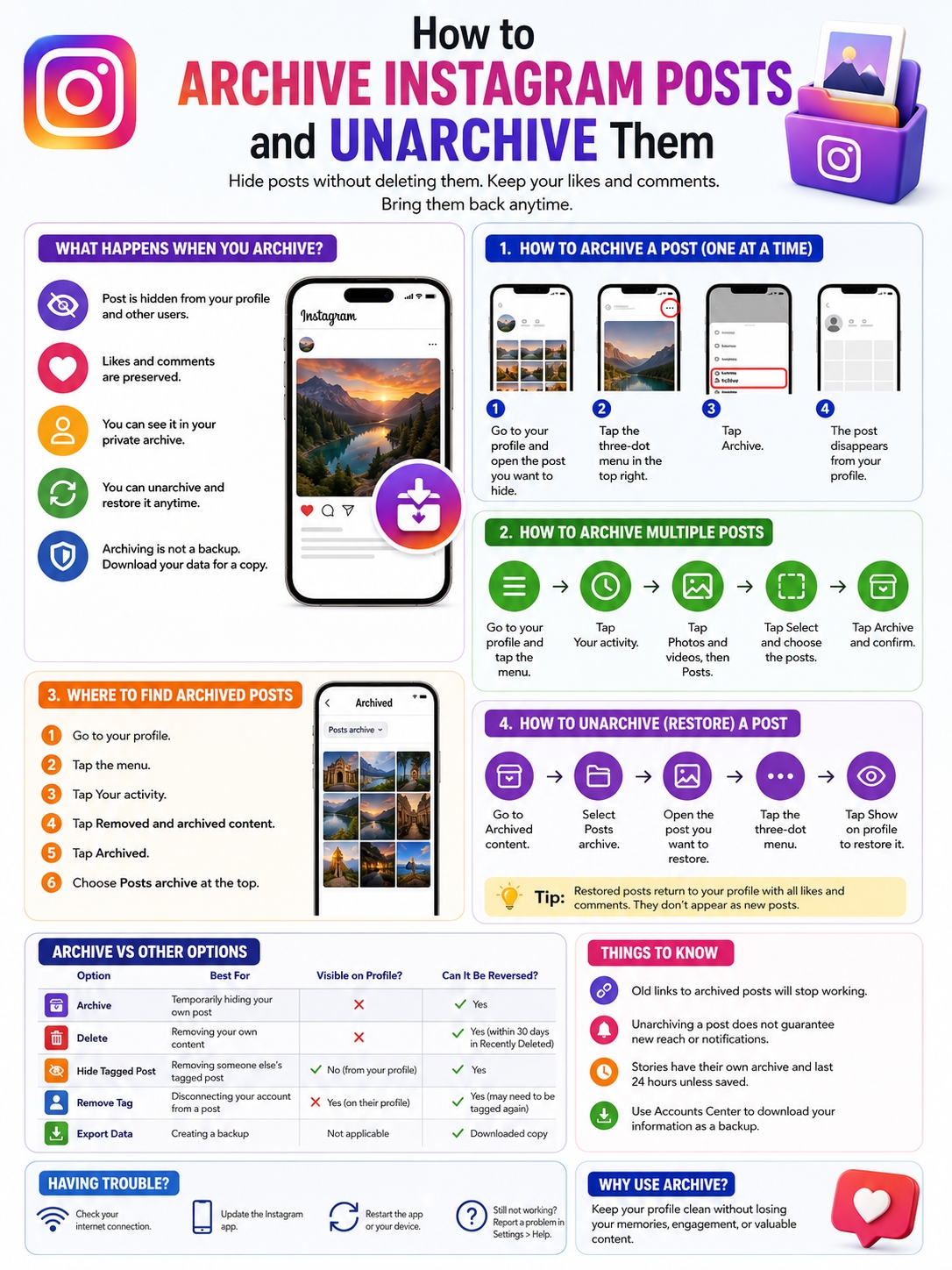
Instagram may not show a button labelled “Unarchive.”
For feed posts, the option is usually called Show on profile.
Follow these steps:
- Go to your Instagram profile.
- Tap the three-line menu.
- Open Your activity.
- Tap Archived.
- Switch to Posts archive.
- Open the post you want to restore.
- Tap the three-dot button.
- Select Show on profile.
- Confirm the action if asked.
|
Step |
What It Does |
|
Open Archived |
Shows content hidden from your profile |
|
Choose Posts archive |
Filters out Stories and Live videos |
|
Open a post |
Displays its controls |
|
Tap the three dots |
Opens the management menu |
|
Select Show on profile |
Restores the post |
|
Check your profile |
Confirms that it’s visible again |
After restoring the post, refresh your profile and look for it in your grid.
Don’t expect Instagram to treat it like a brand-new post. Meta confirms that the post returns to your profile, but it doesn’t promise new Feed reach, fresh notifications, or a boost in engagement.
If you want followers to see the content again, sharing it to your Story or publishing a new version may work better.
What Instagram Confirms and What It Doesn’t
A lot of online guides make confident claims about what happens after a post is restored. Some are based on common user experience rather than official Instagram documentation.
That difference matters.
Instagram clearly confirms that archiving hides a post and preserves its likes and comments. It also confirms that archived posts can be restored.
Other details are less certain.
|
Question |
What We Can Reliably Say |
|
Are likes preserved? |
Yes |
|
Are comments preserved? |
Yes |
|
Can followers see an archived post? |
No |
|
Can you restore it? |
Yes |
|
Will it appear as a new post? |
Instagram doesn’t promise this |
|
Will followers get a notification? |
Instagram doesn’t officially say |
|
Will tagged users be notified? |
Instagram doesn’t officially say |
|
Will it return to the same grid position? |
Instagram doesn’t formally guarantee it |
|
Can several posts be archived together? |
Yes |
|
Can several posts be restored together? |
Not consistently documented |
In practice, restored posts often appear in their original place on a profile. Still, businesses shouldn’t build a campaign around behavior Instagram hasn’t guaranteed.
Platform features change. What works today may look different after the next update.
Archive vs Delete vs Hide From Profile
Instagram has several ways to remove content from view. They don’t all do the same thing.
Archive applies to posts you published and may want back.
Delete removes your content and sends eligible posts to Recently Deleted for a limited period.
Hide from profile applies to posts published by someone else that you were tagged in.
|
Option |
Best Use |
Can You Reverse It? |
|
Archive |
Temporarily hide your own post |
Yes |
|
Delete |
Remove your own content |
Usually, while it remains in Recently Deleted |
|
Hide tagged post |
Remove a tagged post from your profile |
Usually |
|
Remove tag |
Disconnect your account from another post |
The owner may need to tag you again |
|
Export content |
Create a separate backup |
Not applicable |
Deleted content usually moves to Recently Deleted before Instagram removes it permanently.
Most eligible posts stay there for 30 days. Stories that aren’t stored in Stories Archive may be permanently deleted sooner, sometimes after 24 hours.
During the recovery window, you can restore the deleted content or remove it permanently.
Archive is still the safer choice when you haven’t made up your mind.
Can You Archive Someone Else’s Post?
No.
You can only archive content published from your own account.
If another person tagged you in a post, you can hide that post from your profile or remove your tag. The original post will stay on the publisher’s account unless they delete or archive it.
When Archiving Makes More Sense Than Deleting
Archive is useful when the content still has some value.
A business may want to hide an expired offer but keep its comments and campaign history. A creator may remove older posts while changing the look of a profile. Someone using a personal account may want a photo out of public view without erasing the memory.
|
Situation |
Better Option |
Why |
|
Expired promotion |
Archive |
Keeps the post and engagement |
|
Temporary profile redesign |
Archive |
You can restore it later |
|
Outdated caption |
Edit it |
The post may still be useful |
|
Discontinued product |
Archive or update |
Customers may still need the information |
|
Accidental upload |
Delete |
It probably shouldn’t remain in the account |
|
Personal memory |
Archive |
Keeps it private |
|
Business record |
Export a copy |
Archive isn’t a separate backup |
|
Harmful or unsafe content |
Delete |
Permanent removal may be appropriate |
Before archiving a business post, check where it’s being used.
Customers may still reach it through old direct messages, saved posts, search results, blog links, or embedded pages. Hiding it can break those paths.
Also check whether the post contains instructions, product details, warranty information, or answers your support team still relies on.
A cleaner Instagram grid is useful. Confusing your customers isn’t.
Why Instagram Archive Isn’t Working
Instagram changes its menus often, and not every account gets the same interface at the same time.
A missing button doesn’t always mean the feature has disappeared.
The first thing to check is the archive category. You may be looking at Stories Archive instead of Posts Archive.
|
Problem |
Possible Cause |
What to Do |
|
Your post seems missing |
The wrong archive is open |
Switch to Posts archive |
|
Archive isn’t in the menu |
The app is outdated or you opened the wrong menu |
Update Instagram and try again |
|
Bulk archiving fails |
Weak connection or a temporary bug |
Select fewer posts and retry |
|
Archive won’t load |
App or network issue |
Restart Instagram and your phone |
|
Restored post isn’t visible |
Your profile hasn’t refreshed |
Refresh the page or sign in again |
|
Menu labels look different |
Instagram is testing another layout |
Follow the closest matching options |
|
Nothing works |
The app may have a bug |
Report the problem to Instagram |
Try these fixes in order:
- Make sure the post belongs to your account.
- Confirm that you selected Posts archive.
- Test your Wi-Fi or mobile data.
- Close and reopen Instagram.
- Update the app.
- Restart your phone.
- Sign out and sign back in.
- Reinstall Instagram.
- Report the problem through the Help menu.
Instagram recommends using the latest version of the app before sending a technical report.
Final Thoughts
Instagram Archive gives you a useful middle ground between keeping a post public and deleting it forever.
Use the three-dot menu when you need to hide one post. Use Your activity when you want to clean up several posts at once. To bring something back, open Posts archive and choose Show on profile.
|
What You Want to Do |
Best Choice |
|
Hide a post for now |
Archive |
|
Hide several posts |
Use bulk controls in Your activity |
|
Restore a hidden post |
Select Show on profile |
|
Remove content permanently |
Delete |
|
Hide a tagged post |
Hide it from your profile |
|
Keep a separate copy |
Export your Instagram information |
When you archive Instagram posts, Instagram keeps their likes and comments while removing them from public view. That makes Archive a smart choice for old campaigns, personal memories, profile redesigns, and posts you’re not ready to delete.
Just keep your expectations realistic. Archive reliably hides and preserves content. It doesn’t guarantee new reach, fresh notifications, a specific grid position, or automatic restoration.
Frequently Asked Questions
|
Question |
Quick Answer |
|
Can people see an archived post? |
No |
|
Do likes and comments disappear? |
No |
|
Can you archive several posts together? |
Yes |
|
Can archived posts be restored? |
Yes |
|
Can reels be archived? |
Yes |
|
Is Archive a proper backup? |
No |
Can Someone Open an Archived Post Through an Old Link?
Instagram says archived posts are hidden from other users. An old Instagram link should no longer show the post normally while it remains archived.
Archiving won’t remove screenshots, downloaded copies, copied captions, or content that someone saved elsewhere before you hid it.
Does Archiving Remove Likes and Comments?
No.
Instagram keeps the existing likes and comments attached to an archived post. They should still be there when you restore it.
Can I Archive a Post Right After Publishing It?
Yes.
Instagram doesn’t list a waiting period. Once the post is live and the options menu is available, you can archive it.
Someone may still have seen the post before you hid it, especially if it appeared in their Feed immediately after publishing.
Will Followers Know When I Unarchive a Post?
Instagram doesn’t clearly state whether followers receive a notification when you restore an archived post.
It’s safer to treat this as undocumented behavior. Don’t assume Instagram will notify everyone, and don’t depend on complete silence either.
Can I Schedule a Post to Unarchive Automatically?
Instagram’s current tools require you to restore an archived post manually through Show on profile.
There isn’t a widely documented native option that automatically restores archived feed posts on a chosen date.
Can I Unarchive Several Posts at Once?
Instagram officially supports bulk archiving, but bulk restoration isn’t consistently documented.
You may need to open each archived post and select Show on profile one at a time.
Are Archived Posts a Safe Backup?
No.
The posts still live inside your Instagram account. If the account is hacked, disabled, or lost, Archive won’t give you an independent copy.
Download important content through Accounts Center and save it somewhere you control.
Can I Archive Instagram Stories?
Yes, but Stories work differently.
Instagram can automatically save Stories to Stories Archive after they expire. You can also archive an active Story before its 24-hour public period ends.