
A smartwatch can do a lot for something strapped to your wrist. It tracks workouts, shows messages, handles calls, plays music, monitors sleep, and can even navigate without your phone.
All of that comes with one obvious catch: battery life.
A watch that starts the morning at 100% and reaches the danger zone before dinner quickly becomes frustrating. Thankfully, you don’t have to switch off every useful feature to fix the problem.
The best smartwatch battery life tips focus on a few heavy power users: the screen, GPS, cellular data, background apps, music streaming, and continuous sensors. Tweak those first, and you can often gain meaningful extra runtime without making your watch feel stripped down.
Why Smartwatch Battery Life Varies So Much
Battery claims can be confusing.
One watch promises a day. Another says several days. Garmin models can sometimes stretch much longer. Those numbers aren’t directly comparable because the watches don’t run the same hardware or software.
Current manufacturer figures show just how wide the gap can be.
|
Smartwatch |
Manufacturer-rated battery life |
|
Apple Watch Series 11 |
Up to 24 hours; up to 38 hours in Low Power Mode |
|
Apple Watch Ultra 3 |
Up to 42 hours; up to 72 hours in Low Power Mode |
|
Pixel Watch 4, 41 mm |
Up to 30 hours with always-on display; up to 48 hours in Battery Saver |
|
Pixel Watch 4, 45 mm |
Up to 40 hours with always-on display; up to 72 hours in Battery Saver |
|
Fitbit Sense 2 / Versa 4 |
6+ days under normal use; up to 3 days with always-on display |
|
Garmin fēnix 8 AMOLED, 47 mm |
Up to 16 days with gesture wake; up to 7 days with always-on display |
These are controlled estimates, not guarantees.
Your watch may last less if you spend hours using GPS, stream music over LTE, receive constant notifications, keep the screen bright, or track several health metrics around the clock.
Poor mobile signal can also hurt battery life because the watch may spend more time trying to stay connected.
That’s why comparing your own watch against someone else’s isn’t always useful. Compare it against your normal routine instead.
Smartwatch Battery Life Tips That Actually Make a Difference
You can find endless battery-saving tricks online. Some barely move the needle.
Start with the settings that affect the hardware doing the most work.
|
Setting |
Likely battery impact |
Trade-off |
|
Always-on display |
High |
You’ll need to raise or tap the watch |
|
Brightness |
Medium to high |
Screen may be harder to see outdoors |
|
Screen timeout |
Medium |
Display switches off sooner |
|
Wrist wake |
Medium |
Less instant access |
|
Battery Saver |
High |
Some functions become limited |
|
LTE |
High when used heavily |
Less independence from your phone |
|
GPS |
High during workouts |
Lower tracking accuracy in some modes |
|
Streaming music |
Medium to high |
Requires offline downloads instead |
|
Notifications |
Medium |
Fewer alerts on your wrist |
|
Background apps |
Medium |
Some data refreshes more slowly |
|
Health sensors |
Varies |
Less continuous health data |
|
Animated watch faces |
Low to medium |
Simpler appearance |
1. Turn Off the Always-On Display
This is one of the first settings I’d test.
An always-on display looks great, especially when you want to glance at the time without moving your wrist. But keeping even part of an OLED screen active all day costs battery.
Fitbit’s own estimates make the difference easy to see. Sense 2 and Versa 4 can last six days or more under normal use, but that drops to around three days with always-on display enabled.
Garmin shows a similar gap. Its 47 mm fēnix 8 AMOLED is rated for up to 16 days with gesture wake, compared with about seven days when the screen stays always on.
You don’t have to disable it forever. Try gesture wake for two or three days and see whether you actually miss it.
2. Lower the Screen Brightness
A smartwatch screen doesn’t need to glow at full brightness indoors.
Turn brightness down until the display still feels comfortable. Automatic brightness also works well on many watches.
This change is easy to overlook because the screen only stays on for short periods. But if you check your watch 100 times a day, those little bursts add up.
Read More: How to Set Up a New Smartwatch in 2026: Full Guide
3. Shorten the Screen Timeout
Some watches stay lit long after you’ve finished reading the time or checking a notification.
A shorter timeout fixes that.
Google recommends reducing screen timeout on Pixel Watch, and similar options exist across Fitbit, Garmin, Samsung, and other platforms.
Ten or fifteen seconds is usually enough for a quick glance.
4. Stop Accidental Screen Wake-Ups
Raise-to-wake sounds harmless until you notice how often your arms move.
Typing, cooking, driving, cleaning, and exercising can all wake a watch unnecessarily.
If your screen seems to light up constantly, turn off Tilt-to-wake or the equivalent setting for a day and see what happens.
You can still tap the display when you need it.
5. Use Battery Saver Before You Reach 5%
Many people treat Battery Saver like an emergency button. There’s no reason to wait that long.
If you’re leaving home for a 12-hour day and already know you won’t see a charger, switch it on early.
Apple’s Low Power Mode reduces features such as always-on display and some background health measurements.
Pixel Watch Battery Saver also cuts background activity and turns off always-on display. Google’s current figures say the 45 mm Pixel Watch 4 can reach up to 72 hours in Battery Saver, compared with up to 40 hours in its normal always-on configuration.
Samsung’s Power saving mode goes further by limiting things such as background network activity, Wi-Fi, brightness, processor use, and wake gestures.
Use these modes when endurance matters more than having everything running at full power.
6. Let Your Phone Handle Connectivity
If your smartwatch has LTE, it’s tempting to leave it connected all the time.
But cellular independence comes at a cost.
When your phone is already in your pocket, Bluetooth is usually the more sensible connection. Google recommends using Automatic LTE mode on Pixel Watch so cellular kicks in when Bluetooth or Wi-Fi isn’t available.
Garmin gives similar advice on supported LTE models.
So don’t switch Bluetooth off just because you’ve heard radios drain battery. Doing that on a cellular watch may actually push it toward a more power-hungry connection.
7. Watch Your GPS Use
GPS is one of the biggest battery drains during outdoor exercise.
Google estimates around 8 to 10 hours of continuous GPS use on Pixel Watch. Fitbit lists around five hours for some Charge models and up to 12 hours for certain Sense and Versa watches.
Garmin goes further by offering several satellite modes.
On a 47 mm fēnix 8 AMOLED, Garmin rates:
- GPS-only use at up to 47 hours
- All satellite systems at up to 38 hours
- All satellite systems plus multi-band at up to 35 hours
- Satellite tracking with music at up to 10 hours
That last number tells the story.
A short run won’t usually cause trouble. A day-long hike, cycling trip, or endurance event can.
If your watch offers several GPS modes, don’t automatically choose the most accurate one. Pick the level you actually need.
8. Download Music Instead of Streaming It
Streaming music from your wrist can pile several battery drains on top of each other.
You may have:
- GPS running
- Bluetooth headphones connected
- LTE or Wi-Fi active
- Music decoding
- Heart-rate monitoring
- Screen updates
That’s a lot for a tiny battery.
Google recommends downloading music to Pixel Watch rather than streaming when battery life matters.
If you have enough storage, offline playlists are the better option for workouts.
9. Cut the Notification Noise
Your watch doesn’t need to buzz every time an app has something to say.
One notification uses very little power. Hundreds of them throughout the day are another matter.
Each alert may trigger wireless communication, vibration, processing, and a screen wake.
Go through your notification settings and ask one simple question: do I genuinely need this on my wrist?
Keep things like:
- Calls
- Important messages
- Calendar reminders
- Banking alerts
- Security notifications
Move low-priority shopping alerts, social likes, game updates, and promotional emails back to your phone.
Your battery will thank you, and your wrist will probably feel calmer too.
10. Limit Background Apps
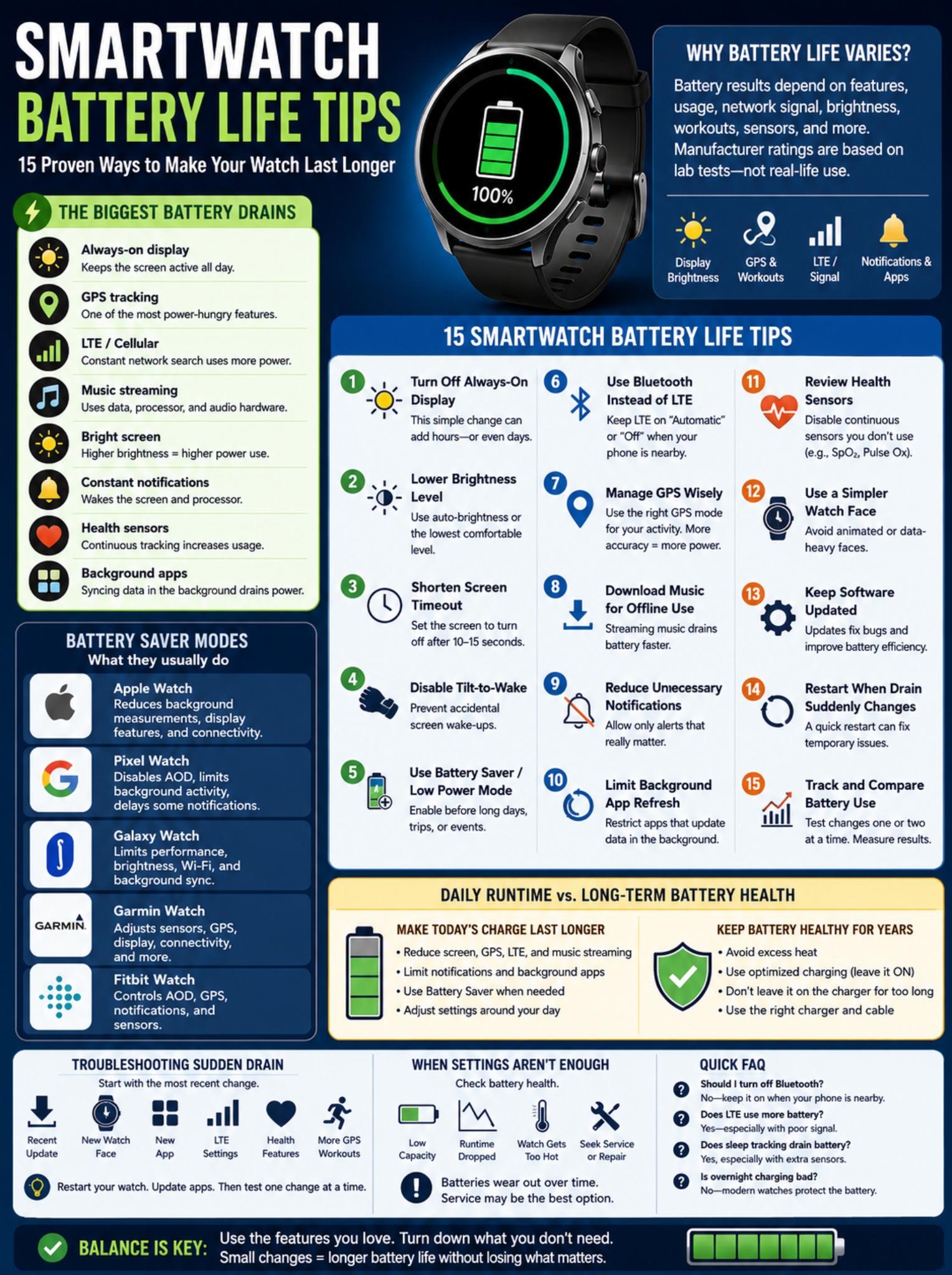
Apps can keep working even when you aren’t looking at them.
Apple Watch lets you disable Background App Refresh globally or for individual apps. There’s one catch: Apple notes that complications on your current watch face can continue updating even if you’ve disabled background refresh for that app.
That means your watch face matters too.
A face loaded with weather, stocks, activity rings, timers, calendar data, and third-party complications may be doing more work than you realize.
If battery life has slipped, try a cleaner face for a few days.
11. Review the Health Sensors You Actually Use
Health tracking is one of the strongest reasons to wear a smartwatch. Don’t shut everything down just to squeeze out another hour.
Instead, look at optional features.
For example, Garmin says all-day or overnight Pulse Ox tracking reduces battery life. Fitbit also warns that SpO2 tracking can mean more frequent charging.
If you check your oxygen data regularly, keep it on.
If you turned it on six months ago and haven’t looked at it since, you may be spending battery on information you don’t use.
12. Try a Simpler Watch Face
Animated watch faces are fun. They’re also busier.
Fitbit warns that animated faces may need more frequent charging. Garmin recommends faces that don’t update every second when you want longer battery life.
A simple digital or analog face with one or two useful complications may save some power while also making the watch easier to read.
Don’t expect miracles here, but it’s an easy change.
13. Keep the Software Updated
Battery drain isn’t always caused by your settings.
Sometimes an app or system bug is responsible.
Samsung recommends keeping Galaxy Watch apps and software updated because software problems can cause excessive power use.
Apple also notes that battery life can temporarily look worse immediately after a watchOS update because background tasks may continue for a while.
So if battery life drops sharply right after an update, don’t panic and factory-reset everything.
Give the watch some time, restart it, make sure apps are updated, and then see whether the problem continues.
14. Restart the Watch When Something Feels Wrong
If your watch normally ends the day at 40% but suddenly reaches 10% by lunchtime, something has changed.
A simple restart is worth trying.
Then think back:
- Did you install an app?
- Change your watch face?
- Enable LTE?
- Start using always-on display?
- Add a new health sensor?
- Increase GPS workouts?
- Start streaming music?
- Install a system update?
Start with the newest change rather than randomly disabling everything.
15. Measure Battery Life Instead of Guessing
Watching the percentage drop can make battery problems feel worse than they are.
Use a simple test instead.
Charge the watch fully and note:
- When you unplugged it
- How long you exercised
- Whether GPS was active
- Whether you used LTE
- Whether you streamed music
- Whether always-on display was enabled
- How much battery remained before bed
Change one or two settings the next day and repeat the same routine.
You’ll quickly see which setting makes a real difference.
Brand-Specific Battery Settings Worth Knowing
Every company gives its power-saving tools slightly different names, but the ideas are similar.
|
Platform |
Useful battery tools |
What you give up |
|
Apple Watch |
Low Power Mode, Background App Refresh controls |
Some display, wireless, health, and background features |
|
Pixel Watch |
Battery Saver, AOD control, Tilt-to-wake, LTE Automatic |
Fewer background updates and display features |
|
Galaxy Watch |
Power saving, Watch only |
Smart functions and connectivity |
|
Garmin |
Battery Saver, Activity Power Modes |
GPS accuracy, sensors, connectivity, or music |
|
Fitbit |
AOD, screen wake, GPS, SpO2, notification controls |
Some continuous features |
Apple Watch
Apple Watch Series 11 is rated for up to 24 hours of normal use and up to 38 hours in Low Power Mode.
Apple Watch Ultra 3 pushes that to up to 42 hours normally and up to 72 hours in Low Power Mode.
Those numbers come from Apple’s own testing and include a specific mix of time checks, notifications, workouts, apps, Bluetooth, cellular use, and sleep tracking. Your result can be different.
For longer outdoor workouts, compatible Apple Watch models can also reduce GPS and heart-rate readings while Low Power Mode is active.
That’s useful when finishing the activity matters more than collecting maximum data.
Google Pixel Watch
Google gives Pixel Watch owners several practical controls.
You can:
- Turn off always-on display
- Turn off Tilt-to-wake
- Shorten the screen timeout
- Put LTE into Automatic mode
- Use Battery Saver
- Download music before workouts
Pixel Watch 4 also supports Adaptive Charging, which is designed to reduce the amount of time the battery spends sitting fully charged.
Google’s Battery Defender can also pause charging after unusually long periods on the charger.
Samsung Galaxy Watch
Samsung’s current Power saving mode can disable always-on display, Wi-Fi, and wake gestures while limiting background network activity, syncing, processor performance, location use, screen brightness, and timeout.
Some Galaxy Watch models also offer Watch only mode.
That setting basically turns the smartwatch into a traditional watch. It’s extreme, but useful if you only need the time and want the battery to stretch as far as possible.
Garmin and Fitbit
Garmin gives users some of the deepest battery controls.
On compatible watches, you can build power modes around individual activities and adjust GPS, display behavior, phone connection, Wi-Fi, sensors, Pulse Ox, music, and other features.
Fitbit keeps things simpler.
Its own guidance focuses on the features most people can adjust quickly: always-on display, GPS, screen wake, brightness, notifications, SpO2, and animated clock faces.
Daily Battery Life and Long-Term Battery Health Aren’t the Same Thing
There’s an important difference between making today’s charge last longer and keeping the battery healthy for several years.
|
Goal |
What helps |
|
Longer runtime today |
Reduce display, GPS, LTE, and background activity |
|
Slower battery aging |
Avoid excess heat and use charging protection |
|
More battery for a long day |
Charge fully when needed |
|
Better performance from an older watch |
Check battery health and service options |
Smartwatch batteries use lithium-ion chemistry. They slowly lose capacity as they age. That’s normal.
You can’t stop that process completely, but you can avoid making it worse unnecessarily.
Keep the Watch Away From Excess Heat
Heat is one of the bigger long-term battery enemies.
Samsung warns that exposing a Galaxy Watch to extreme temperatures can reduce battery life and damage the device.
Apple also adjusts charging behavior when temperatures become too high or too low.
This matches broader lithium-ion battery research: high temperatures speed up battery degradation.
So don’t leave your watch charging under blankets, inside a hot car, or anywhere heat can’t escape.
Leave Smart Charging Features On
Modern watches can handle much of the charging management for you.
Apple’s Optimized Battery Charging learns your routine and can delay charging beyond around 80% when it expects the watch to remain plugged in.
Supported Apple Watch models also offer Optimized Charge Limit.
Pixel Watch 4 has Adaptive Charging for a similar reason.
For most people, leaving these features enabled makes more sense than manually watching the battery percentage all day.
Don’t Obsess Over the 20–80 Rule
You’ve probably seen advice saying you should never let a lithium-ion battery fall below 20% or charge above 80%.
There’s some science behind avoiding prolonged high charge levels, but treating 20% and 80% as hard rules isn’t practical for a smartwatch.
If you’re travelling tomorrow and need every hour of battery life, charge it to 100%.
Focus on the habits that matter more:
- Avoid unnecessary heat
- Keep optimized charging enabled
- Don’t leave the watch plugged in for unusually long periods without a reason
- Use a compatible charger
- Charge when it fits your routine
The watch is there to be used.
How to Troubleshoot Sudden Smartwatch Battery Drain
Sudden battery drain and gradual battery aging are different problems.
|
What you notice |
What to check |
|
Drain began after an update |
Background update tasks or software bug |
|
Drain started after a new watch face |
Animation or active complications |
|
Battery crashes during workouts |
GPS, music, LTE, display |
|
Drain gets worse away from your phone |
Cellular connection or poor signal |
|
Battery fell after enabling health tracking |
Continuous sensors |
|
Runtime has declined slowly over years |
Battery aging |
If the problem appeared overnight, start by looking for something that changed overnight.
Don’t switch off ten features at once.
You’ll never know which one caused the problem.
Apple says some tasks can continue running after a watchOS update and temporarily affect battery life. Samsung also recommends keeping apps and watch software current when investigating abnormal drain.
Galaxy Watch users with supported Wear OS models can run battery checks through Samsung Members.
One detail is worth clearing up for Pixel Watch owners: Google’s support-agent Diagnostics feature isn’t a general troubleshooting tool for every Pixel Watch. Google’s current documentation says that specific feature is available for Pixel Watch 2.
When Settings Won’t Fix the Battery
There comes a point when optimization stops helping.
Rechargeable batteries wear out.
|
Warning sign |
What to do |
|
Runtime has slowly dropped over several years |
Check battery health |
|
Watch loses charge even with light use |
Rule out software problems |
|
Battery-health warning appears |
Look at service options |
|
Battery dies even in power-saving mode |
Consider battery service or replacement |
|
Watch gets unusually hot while charging |
Stop charging and inspect the device |
Apple Watch includes a Battery Health screen that shows maximum battery capacity compared with when the battery was new.
Samsung offers battery diagnostics for supported Galaxy Watch models.
Fitbit also notes that devices may need charging more frequently after hundreds of charge cycles.
If the hardware battery is worn, turning off every smart feature isn’t really a solution. At that stage, service or replacement makes more sense.
Final Thoughts
The best smartwatch battery life tips are usually the simplest ones.
Start with the screen. Then look at GPS, LTE, streaming, notifications, background apps, and optional sensors. Those are the areas most likely to make a noticeable difference.
You don’t need to cripple the watch.
Keep the features you use. Turn down the ones you don’t.
Use Battery Saver before long trips instead of waiting until the battery is nearly dead. Download music before a run. Let Bluetooth handle connectivity when your phone is nearby. Use a less demanding GPS mode when extreme accuracy isn’t necessary.
And if the battery has been getting worse for years, don’t expect settings to reverse normal aging.
A few smart changes can stretch each charge. But the goal isn’t to make your smartwatch use no power. It’s to make sure the battery lasts long enough for the features you actually bought it to use.
Frequently Asked Questions About Smartwatch Battery Life
Should I Turn Off Bluetooth to Save Battery?
Usually, no.
If your watch normally communicates with your phone over Bluetooth, turning Bluetooth off may force a cellular model to depend more heavily on LTE or another connection.
That can use more power, not less.
Why Does My Watch Drain Faster When I Leave My Phone at Home?
A cellular smartwatch may have to take over the connection itself.
That means more LTE activity, especially if mobile signal is weak.
Google specifically recommends Automatic LTE mode on Pixel Watch when battery life is a concern.
Does Sleep Tracking Drain the Battery?
Yes, though the amount varies.
Sleep tracking may use movement sensors, heart rate, temperature, blood oxygen, or other measurements depending on the watch.
Garmin confirms that overnight Pulse Ox reduces battery life between charges.
Should I Turn Off Heart-Rate Monitoring?
Not just to save a little battery.
Heart-rate data powers a lot of useful workout, fitness, recovery, and health features.
Look at optional measurements you don’t use before switching off one of the watch’s core sensors.
Can a Watch Face Really Affect Battery Life?
Yes.
Animated faces and complications that update every second or pull fresh data regularly can consume more power than a simple face.
The difference may be modest, but it’s easy to test.
Why Does My Battery Drop So Fast During Music Workouts?
Because you’re asking the watch to do several demanding jobs at once.
A typical music workout may involve GPS, heart-rate tracking, Bluetooth headphones, display activity, music playback, and LTE or Wi-Fi.
Garmin’s own battery estimates show how sharply music can reduce runtime during satellite tracking.
Downloading music instead of streaming removes one part of that load.
Is Charging a Smartwatch Overnight Bad?
Not automatically.
Modern smartwatches include charging systems designed to protect the battery.
Apple uses Optimized Battery Charging, while Pixel Watch 4 supports Adaptive Charging.
The bigger thing to avoid is excessive heat.