
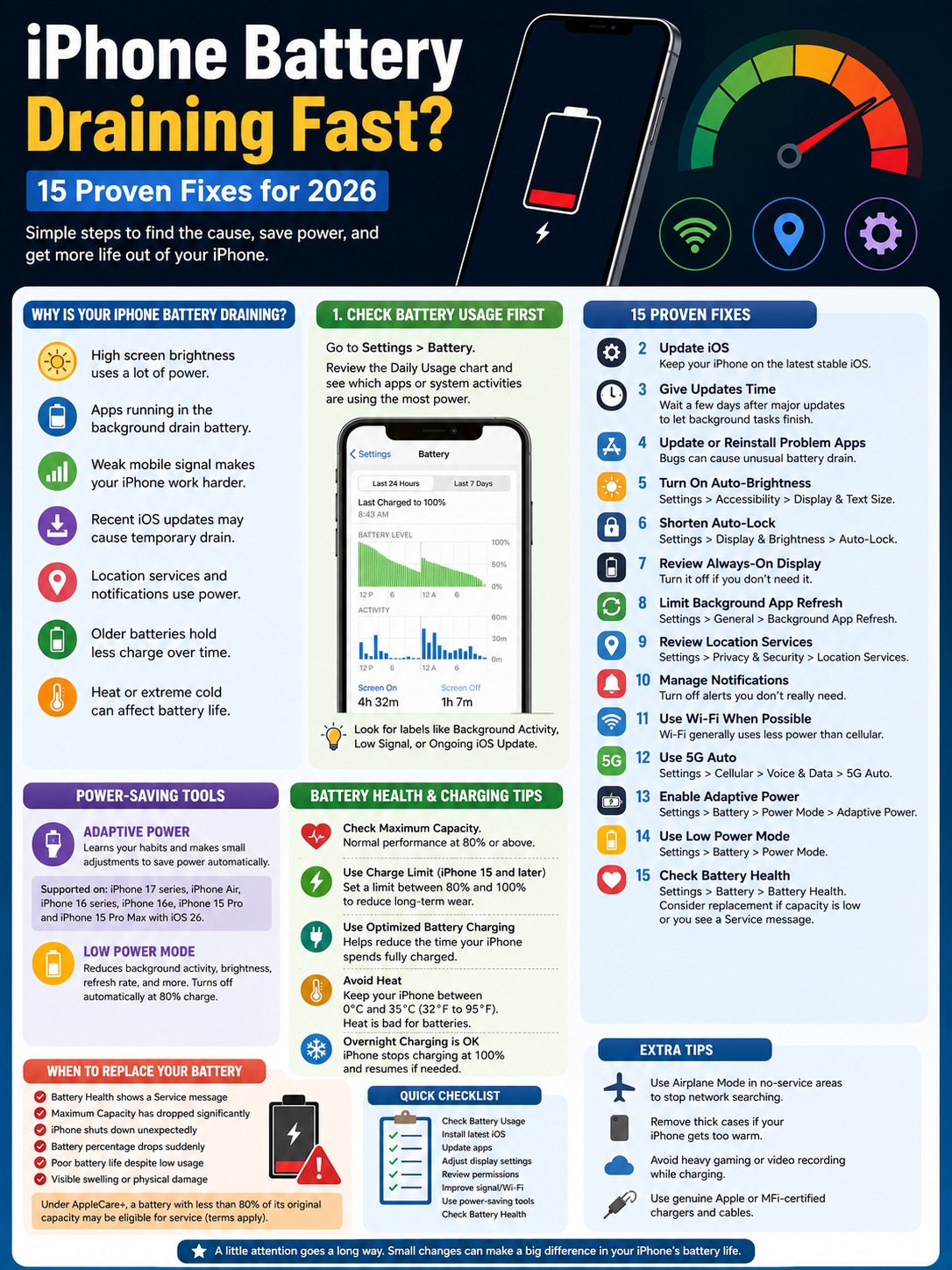
Your iPhone was fully charged when you left home. By lunch, it’s already close to 40%. You haven’t been gaming, filming videos, or using Maps for hours. So where did the battery go?
An iPhone battery draining fast doesn’t always point to a damaged battery. Sometimes the cause is much simpler. The screen may be too bright. A social app may be running in the background. Your phone may be struggling with a weak mobile signal. It may also still be processing files after an iOS update.
The mistake many people make is changing every setting at once. That makes it harder to find the real problem.
Start with the Battery page. iOS 26 shows how today’s usage compares with the previous seven days. It also highlights apps, background tasks, weak signals, unfinished setup work, and other activity that may be using more power than usual.
Once you know what’s causing the drain, the fix is often straightforward.
Why Is Your iPhone Battery Draining So Fast?
Battery drain usually comes down to one of three things: heavy use, background activity, or an aging battery.
Some apps naturally need more power. Navigation, video calls, gaming, camera recording, mobile hotspots, and high-resolution streaming can empty a battery quickly. That doesn’t mean something is wrong.
Unexpected drain is different. It often starts after:
- An iOS or app update
- A change in mobile coverage
- A new app installation
- A location permission change
- Heavy background syncing
- Longer screen-on time
- Exposure to very hot or cold conditions
Battery age matters too. Every iPhone uses a lithium-ion battery. These batteries slowly lose capacity as they age. A battery that once lasted all day may only hold enough power for several hours after years of regular use.
Settings can reduce power use. They can’t restore capacity that the battery has already lost.
|
Possible Cause |
What You May Notice |
What to Check First |
|
High screen usage |
The display dominates battery activity |
Brightness and Auto-Lock |
|
Background activity |
Apps use power while off-screen |
Background App Refresh |
|
Weak mobile signal |
Low Signal or No Mobile Coverage appears |
Wi-Fi, 5G Auto, Airplane Mode |
|
Recent update |
Drain and warmth begin after installing iOS |
Ongoing update activity |
|
Location tracking |
Maps, weather, delivery, or fitness apps rank high |
Location Services |
|
Aging battery |
Short runtime or unexpected shutdowns |
Battery Health |
|
Heat |
Charging slows or the screen dims |
Temperature and charging setup |
iPhone Battery Draining Fast? Check Battery Usage First
Before switching off features you actually use, open:
Settings > Battery
This is where the investigation should begin.
On iOS 26, the Daily Usage chart compares today’s battery use with your average over the previous seven days. Tap View All Battery Usage to review battery and activity information covering the last eight days.
Look for anything that feels out of place.
A streaming app using 35% after several hours of video is understandable. A shopping app using 35% in the background is not.
You may also see labels explaining why an app or system process used power.
1. Read the Battery Labels
Common labels include:
- Background Activity: The app worked while it wasn’t open on screen.
- Notifications: Alerts repeatedly woke the phone or activated the display.
- Low Signal: The phone used more power to hold a weak cellular connection.
- No Mobile Coverage: The phone kept searching for a network.
- Ongoing iOS Update: Update-related work is still running.
- Ongoing Device Setup: Apps, photos, files, or account data are still syncing.
- Connected to Charger: The activity happened while the phone was plugged in.
Don’t focus only on the percentage. Check how long the app stayed active and whether that use matches what you actually did.
|
Battery Label |
What It Means |
What to Do |
|
Background Activity |
The app ran while off-screen |
Review refresh and location permissions |
|
Notifications |
Alerts repeatedly woke the device |
Turn off low-value alerts |
|
Low Signal |
Cellular connection required extra power |
Use Wi-Fi or move to stronger coverage |
|
No Mobile Coverage |
The phone kept searching for service |
Use Airplane Mode in dead zones |
|
Ongoing iOS Update |
Update tasks are still running |
Wait a few days and check again |
|
Ongoing Device Setup |
Syncing or restoration is unfinished |
Keep the phone charging on Wi-Fi |
Update iOS and Deal With Problem Apps
Old software can contain bugs. New software can also cause temporary drain while the phone finishes background work.
The key is knowing the difference.
2. Install the Latest Stable iOS Version
Go to:
Settings > General > Software Update
As of July 17, 2026, Apple lists iOS 26.5.2 as the latest stable iOS release for iPhone 11 and later. Apple continues to provide separate security updates for some older models that can’t run iOS 26.
Install the latest stable version offered to your device. Avoid beta software on your main phone when battery life and reliability matter.
Beta releases are unfinished by design. They may contain bugs, logging tools, or background processes that use more power than a public release.
3. Wait After a Major Update
Battery life can dip for a few days after installing iOS.
The phone may still be:
- Indexing files
- Analyzing photos
- Rebuilding search data
- Restoring apps
- Syncing iCloud content
- Completing system setup
This work can also make the phone feel warmer than usual.
Check the Battery page for an Ongoing iOS Update message. When it appears, leave the phone connected to Wi-Fi and charge it overnight. Then judge battery life after two or three normal days, not immediately after the update.
4. Update or Reinstall a Misbehaving App
Open the App Store and update any app showing unusually high usage.
If the problem continues:
- Restart the iPhone.
- Use the phone normally for another day.
- Check Battery Usage again.
- Remove and reinstall the app if it still looks abnormal.
Make sure important app data is backed up before deleting anything.
There’s no need to force-close every app several times a day. Suspended apps usually aren’t actively consuming system resources. Close an app when it freezes, stops responding, or clearly shows unexplained activity.
|
Action |
When It Makes Sense |
What It May Fix |
|
Update iOS |
The phone runs an older stable version |
System bugs and security issues |
|
Wait after updating |
Drain started immediately after installation |
Temporary indexing and syncing |
|
Update an app |
One app dominates Battery Usage |
App-specific bugs |
|
Restart the phone |
Drain appears suddenly |
Stuck background processes |
|
Reinstall an app |
One app stays abnormal |
Corrupted local app data |
Cut Screen Power Without Making the Phone Miserable to Use
The display is often one of the biggest battery users. You don’t need to make the screen painfully dim, though. A few sensible changes are usually enough.
5. Turn On Auto-Brightness
Go to:
Settings > Accessibility > Display & Text Size > Auto-Brightness
Auto-Brightness adjusts the screen based on the light around you. It keeps the display from staying unnecessarily bright indoors while still raising brightness when you step outside.
You can still make manual adjustments from Control Center.
6. Shorten Auto-Lock
Go to:
Settings > Display & Brightness > Auto-Lock
Choose 30 seconds or one minute if that fits your routine.
A screen that stays on while the phone sits on a desk wastes power for no good reason. This is especially common when Auto-Lock has been set to Never.
7. Test the Phone Without Always-On Display
On supported iPhones, go to:
Settings > Display & Brightness > Always On Display
Always-On Display already turns off in several situations. For example, it switches off when the phone is face down, covered, in Sleep Focus, or using Low Power Mode.
Even so, turning it off for a few days is worth trying when standby or overnight battery drain is the main complaint.
|
Display Setting |
Better Battery Choice |
Trade-Off |
|
Brightness |
Use Auto-Brightness |
Brightness changes automatically |
|
Auto-Lock |
Set 30 seconds or 1 minute |
The phone locks sooner |
|
Always-On Display |
Turn it off if you don’t need it |
Lock Screen details won’t stay visible |
|
Lock Screen alerts |
Keep only important alerts |
Fewer updates appear immediately |
|
ProMotion refresh rate |
Low Power Mode can limit it to 60Hz |
Scrolling feels slightly less fluid |
Control Background Activity, Location, and Notifications
Modern apps ask for a lot of access. Some of it is useful. Some of it is unnecessary.
You don’t need to shut everything down. Just remove permissions that don’t make sense.
Read Al
8. Limit Background App Refresh
Open:
Settings > General > Background App Refresh
You can turn it off completely, allow it only over Wi-Fi, or manage each app separately.
Keep it enabled for apps that genuinely need fresh information, such as messaging or cloud-syncing tools. Turn it off for games, stores, and apps you rarely open.
When the Battery page shows heavy Background Activity, this is one of the first settings to review.
Read Also: How to Back Up iPhone Without iCloud
9. Review Location Access
Go to:
Settings > Privacy & Security > Location Services
Check each app. Ask a simple question: does this app really need to know where I am all the time?
A navigation app may need location access during a trip. A food delivery app may need it while you place an order. A shopping or entertainment app usually doesn’t need constant access.
Choose the narrowest permission that still lets the app work:
- Never
- Ask Next Time
- While Using the App
- Always
You can also turn off Precise Location for apps that only need your general area.
10. Reduce Unnecessary Notifications
Open:
Settings > Notifications
A single alert uses very little battery. Hundreds of alerts can wake the phone, light the screen, play sounds, and trigger vibrations throughout the day.
Keep immediate notifications for:
- Calls and messages
- Banking
- Security alerts
- Work apps
- Travel updates
- Deliveries you’re actively tracking
Turn off or silence promotional alerts from games, shops, streaming apps, and services you rarely use.
|
Permission |
Keep It For |
Limit It For |
|
Background App Refresh |
Messaging and cloud sync |
Games and rarely used apps |
|
Always Location |
Continuous navigation or tracking |
Shopping and entertainment |
|
Precise Location |
Maps, transport, deliveries |
General weather or local content |
|
Lock Screen alerts |
Calls, messages, security |
Promotions and recommendations |
|
Sounds and vibration |
Urgent communication |
Low-priority updates |
Improve Wi-Fi, Cellular, and 5G Efficiency
A weak signal can drain the battery even when the phone is sitting idle.
The mobile modem keeps working to find or hold a usable connection. That extra work adds up, especially in lifts, basements, rural areas, large buildings, or crowded events.
11. Use Strong Wi-Fi When It’s Available
Wi-Fi generally uses less power than cellular data, especially for streaming, large downloads, backups, and app updates.
Use trusted Wi-Fi at home or work. But don’t stay connected to a network that barely works. An unstable connection can make the phone jump between Wi-Fi and cellular data.
12. Use 5G Auto Instead of 5G On
On supported models, open:
Settings > Cellular > Cellular Data Options > Voice & Data > 5G Auto
5G Auto uses Apple’s Smart Data mode. The phone switches to LTE when 5G doesn’t offer a useful speed benefit.
That usually gives you a better balance between speed and battery life.
When you know there’ll be no mobile service for a long time, turn on Airplane Mode. Otherwise, the phone may keep searching for a network in the background.
|
Network Situation |
Best Setting |
Why |
|
Strong home or office Wi-Fi |
Use Wi-Fi |
Usually uses less power than cellular |
|
Good 5G coverage |
Use 5G Auto |
Balances speed and battery life |
|
Weak 5G coverage |
Let the phone switch to LTE |
Reduces unnecessary modem activity |
|
No service |
Turn on Airplane Mode |
Stops repeated network searches |
|
Unusable public Wi-Fi |
Disconnect |
Prevents constant reconnection attempts |
Use Adaptive Power and Low Power Mode Properly
iOS 26 offers two different battery-saving tools. They sound similar, but they don’t behave the same way.
13. Turn On Adaptive Power
Adaptive Power watches for days when your phone is using more energy than usual. It can make small changes to brightness, performance, and background activity. It may also turn on Low Power Mode when the battery reaches 20%.
It needs at least seven days to learn your charging habits.
Adaptive Power supports:
- iPhone 17
- iPhone 17 Pro
- iPhone 17 Pro Max
- iPhone Air
- iPhone 16
- iPhone 16 Plus
- iPhone 16 Pro
- iPhone 16 Pro Max
- iPhone 16e
- iPhone 15 Pro
- iPhone 15 Pro Max
Go to:
Settings > Battery > Power Mode > Adaptive Power
It’s enabled by default on the iPhone 17 range and iPhone Air. On earlier supported models, you may need to switch it on yourself.
14. Use Low Power Mode When You Need Results Now
Low Power Mode takes stronger action.
It can:
- Lower screen brightness
- Limit ProMotion displays to 60Hz
- Set Auto-Lock to 30 seconds
- Pause Background App Refresh
- Pause iCloud Photos syncing
- Stop automatic downloads
- Reduce email fetching
On iPhone 15 and later, open:
Settings > Battery > Power Mode
On iPhone 14 and earlier, Low Power Mode appears directly under Settings > Battery.
It normally turns off after the battery reaches 80% or higher.
|
Feature |
Adaptive Power |
Low Power Mode |
|
Main Purpose |
Manages heavier-than-usual days |
Saves power immediately |
|
Changes |
Small and automatic |
Broader and more noticeable |
|
Background Activity |
Reduced when needed |
More aggressively limited |
|
Display |
May lower brightness slightly |
Lowers brightness and may limit refresh rate |
|
Best Use |
Daily automatic management |
Travel, emergencies, or low battery |
Check Battery Health, Charging, and Temperature
Battery life and battery health aren’t the same thing.
Battery life means how long the phone lasts between charges. Battery health describes the physical condition of the battery itself.
You can improve daily battery life with settings. You can’t reverse chemical aging.
15. Check Maximum Capacity
For iPhone 15 and later, go to:
Settings > Battery > Battery Health
For iPhone 14 and earlier, go to:
Settings > Battery > Battery Health & Charging
Maximum Capacity compares the battery’s current capacity with what it could hold when new.
Apple’s design targets are:
|
iPhone Generation |
Battery Design Target |
|
iPhone 14 and earlier |
80% capacity after 500 complete charge cycles |
|
iPhone 15 and later |
80% capacity after 1,000 complete charge cycles |
These are design targets under ideal conditions, not guarantees. Heat, charging habits, software use, and normal wear all affect the final result.
An 85% reading doesn’t automatically mean the battery needs replacing. Look at the full picture:
- Does the phone still last through your normal day?
- Does it shut down unexpectedly?
- Does Battery Health show a Service message?
- Does the percentage fall suddenly?
- Does performance drop sharply at low charge levels?
Use Charge Limit Carefully
On iPhone 15 and later, open:
Settings > Battery > Charging
You can choose a limit between 80% and 100% in 5% steps.
A lower limit may reduce long-term wear because the battery spends less time fully charged. But it also gives you less power for the day.
People who stay near a charger may prefer 80% or 85%. People who need the longest possible runtime may be better off using 100% with Optimized Battery Charging.
Don’t Obsess Over Overnight Charging
Charging overnight is generally safe.
The iPhone stops charging when it reaches full capacity and resumes later if the level drops. Optimized Battery Charging can also delay charging beyond 80% until closer to the time you usually unplug the phone.
Heat is the bigger concern.
Apple designs the iPhone for use in ambient temperatures from 0°C to 35°C. Very hot conditions can permanently reduce battery lifespan. Cold can temporarily reduce performance, but the battery usually returns to normal after the phone warms up.
Avoid:
- Leaving the phone in a parked car
- Charging in direct sunlight
- Gaming heavily while charging
- Recording long videos while charging
- Covering a hot phone
- Using a damaged cable or charger
When the phone gets too warm, iOS may slow charging, dim the display, reduce performance, or pause charging altogether.
When Battery Replacement Makes More Sense
Settings can only do so much.
A battery replacement may be the practical answer when:
- Battery Health shows a Service message
- Maximum Capacity has dropped significantly
- The phone shuts down unexpectedly
- Battery percentage changes suddenly
- Normal use becomes difficult
- The phone drains quickly with little recorded activity
- The battery is physically damaged or swollen
The 80% figure is useful, but it isn’t an automatic diagnosis. Some people manage comfortably below 80%. Others struggle before reaching it because their daily use is more demanding.
Under applicable AppleCare terms, a battery below 80% of its original capacity may qualify for service. Coverage depends on the plan, device, and country.
Don’t attempt to remove or puncture an iPhone battery yourself. A damaged lithium-ion battery can overheat, catch fire, or cause injury.
|
Warning Sign |
What It May Mean |
What to Do |
|
Service message |
Battery condition has degraded |
Arrange a professional assessment |
|
Unexpected shutdowns |
Battery may struggle under peak load |
Check Battery Health |
|
Fast drain with little activity |
Software, signal, or hardware issue |
Review Battery Usage first |
|
Sudden percentage drops |
Battery readings or capacity may be unstable |
Restart and seek service if it continues |
|
Swelling or physical damage |
Possible safety risk |
Stop using the phone and get help |
|
Unknown battery warning |
The replacement part may not be verified |
Contact a trained repair provider |
Final Thoughts
When your iPhone battery draining fast problem appears, don’t start by switching off everything.
Open Settings > Battery and look for the clue. It may be one app, a weak signal, high screen use, unfinished update work, or a battery that has simply aged.
Fix the biggest problem first. Then use the phone normally and check the results.
Adaptive Power can help with everyday battery management. Low Power Mode works better when you need immediate savings. Charging limits may reduce long-term wear, but they won’t repair an old battery.
When Battery Health shows a Service warning, the phone starts shutting down, or normal use becomes difficult, battery replacement is usually more useful than another round of setting changes.
|
Final Check |
Where to Find It |
|
Find heavy apps |
Settings > Battery |
|
Install the latest iOS |
Settings > General > Software Update |
|
Reduce screen use |
Settings > Display & Brightness |
|
Limit background activity |
Settings > General > Background App Refresh |
|
Review location access |
Settings > Privacy & Security > Location Services |
|
Improve mobile efficiency |
Settings > Cellular > Voice & Data |
|
Turn on power-saving tools |
Settings > Battery > Power Mode |
|
Check battery condition |
Settings > Battery > Battery Health |
Frequently Asked Questions
Is 85% Battery Health Bad?
Not necessarily.
It means the battery holds less energy than it did when new, but it may still work perfectly well for your routine. Pay more attention to real-world runtime, shutdowns, performance, and Service warnings.
Why Can’t I Find Adaptive Power?
Adaptive Power requires iOS 26 and a supported iPhone. It also needs at least seven days to learn your charging habits.
Older models won’t show the setting.
Does Closing Every App Save Battery?
Usually not.
Suspended apps aren’t normally using active system resources. Close an app when it freezes, behaves strangely, or shows unexplained background activity.
Does Wireless Charging Damage the Battery?
Wireless charging can create more warmth than wired charging. Mild warmth is normal.
If the phone gets too hot, iOS may slow or pause charging until it cools down. Keep the charger away from direct sunlight and avoid demanding apps while charging.
Why Does My Battery Drain Faster in Cold Weather?
Cold temperatures can temporarily reduce battery performance. The phone may lose charge faster or shut down sooner than expected.
Performance should return to normal after the device warms back up.