
Reading an online article should be simple. Yet many websites bury the text under pop-ups, autoplay videos, floating menus, newsletter forms, and oversized ads.
Reader Mode clears away much of that clutter. It pulls out the main article and places it in a clean, easy-to-read layout. Most browsers also let you change the font, text size, spacing, page width, and background color.
The steps to enable reader mode browser settings vary by browser. Chrome calls it Reading mode. Firefox uses Reader View. Safari calls it Reader. Microsoft Edge offers Reading mode, while Brave uses the name Speedreader.
There’s one catch: Reader Mode doesn’t work on every page. Your browser must first recognize the page as an article. That’s why the Reader icon may appear on a news story but not on a homepage, social feed, checkout page, or interactive map.
This guide covers the major desktop and mobile browsers, explains where to find the feature, and shows what to try when the button is missing.
What Reader Mode Actually Does
Reader Mode creates a cleaner version of the page you’re already viewing. It usually keeps the headline, body text, links, and useful images while removing menus, advertisements, pop-ups, and other distractions.
It doesn’t change the original website. Close Reader Mode, and the normal page returns.
|
Feature |
What It Does |
|
Cleaner layout |
Places the article in a simple reading column |
|
Fewer distractions |
Hides many menus, ads, pop-ups, and sidebars |
|
Font controls |
Changes the typeface and text size |
|
Spacing controls |
Adjusts line height, letter spacing, and page width |
|
Reading themes |
Offers light, dark, sepia, or high-contrast backgrounds |
|
Text-to-speech |
Reads the article aloud in supported browsers |
|
Temporary view |
Leaves the original webpage untouched |
|
Page detection |
Appears only when the browser finds readable content |
Reader Mode works best on:
- News articles
- Blog posts
- Tutorials
- Interviews
- Essays
- Long-form reviews
- Reference pages
- Text-heavy reports
It often won’t work on:
- Search results
- Social media feeds
- Store pages
- Payment forms
- Login screens
- Interactive maps
- Image galleries
- Video pages
- Dashboards
- Web apps
A simple rule of thumb helps: if the page contains one clear article, Reader Mode will probably work. If the page is built around buttons, forms, videos, or constantly changing content, it may not.
Enable Reader Mode Browser Tools on Desktop
Most desktop browsers place Reader Mode in the address bar, page menu, or right-click menu.
|
Browser |
Feature Name |
Fastest Way to Open It |
|
Google Chrome |
Reading mode |
Right-click and choose Open in reading mode |
|
Microsoft Edge |
Reading mode |
Click the address-bar icon or press F9 |
|
Mozilla Firefox |
Reader View |
Click the Reader View icon |
|
Apple Safari |
Reader |
Open the Page menu and choose Show Reader |
|
Brave |
Speedreader |
Click the Reader icon |
|
Vivaldi |
Reader View |
Click the Reader View icon |
Google Chrome
Chrome offers a built-in Reading mode on desktop. It can fill the screen or sit in a side panel beside the original webpage.
To open it:
- Open an article in Chrome.
- Right-click an empty part of the page.
- Choose Open in reading mode.
You can also use:
Three-dot menu > More tools > Reading mode
On supported pages, Chrome may show a Reading mode icon in the address bar.
Once it opens, you can adjust:
- Font style
- Font size
- Text color
- Background theme
- Line spacing
- Letter spacing
- Link visibility
- Image visibility
- Reading voice
- Playback speed
- Word or sentence highlighting
The side-panel layout is useful when you still need to see charts, images, or links on the original page. The full-screen version works better when you want fewer distractions.
Chrome also lets you pin Reading mode to the toolbar, which saves a few clicks if you use it often.
Microsoft Edge
Microsoft Edge calls the feature Reading mode. Some older guides still use the name Immersive Reader, so don’t be surprised if you see both terms.
First, make sure the button is available:
- Open the three-dot menu.
- Select Settings.
- Go to Appearance > Toolbar.
- Turn on Reading mode.
Next, open a supported article and click the Reading mode icon in the address bar. You can also press F9.
Edge has another useful trick. You can open only part of a page in Reading mode:
- Highlight the text you want.
- Right-click the selection.
- Choose Open selection in Reading mode.
This works well when a page contains useful text but doesn’t qualify as a full article.
Edge includes:
- Read Aloud
- Font controls
- Page themes
- Adjustable column width
- Text translation
- Line highlighting
- Reading preferences
Its built-in translation tool supports dozens of languages. Some newer summary and explanation tools use Copilot, so availability may depend on your device, browser version, account, language, or region.
Mozilla Firefox
Firefox has one of the simplest Reader View setups.
Open an article and look for the Reader View icon in the address bar. Click it to enter the cleaner layout. Click it again to return to the original page.
You can also open it from:
View > Enter Reader View
Firefox gives you plenty of control over the page. You can change:
- Text size
- Font style
- Font weight
- Content width
- Line spacing
- Background theme
Available themes may include Light, Dark, Sepia, Contrast, Gray, and automatic system-based options.
Reader View can remove advertisements, background images, videos, buttons, and menus. That’s useful for reading, but it can also hide something important. Return to the original page when you need to check a chart, image caption, video, or interactive graphic.
Safari on Mac
Safari Reader works on article-style pages.
To use it:
- Open an article in Safari.
- Click the Page menu in the Smart Search field.
- Choose Show Reader.
To leave Reader, open the same menu and choose Hide Reader. Pressing Escape may also close it.
Safari lets you change the:
- Font
- Text size
- Background color
- Page zoom
It remembers your last Reader settings, so you don’t have to rebuild the layout each time.
Longer articles may also show a table of contents or short summary. Some summary tools rely on Apple Intelligence, which means they may not appear on every Mac, language, or region.
You can also tell Safari to open articles from a certain website in Reader automatically:
- Open Safari > Settings.
- Click Websites.
- Select Reader.
- Turn it on for the website you want.
Brave Speedreader
Brave calls its tool Speedreader.
When Brave recognizes an article, a Reader icon appears in the address bar. Click it to reload the page in a simpler format.
Brave says Speedreader handles readable content before the page finishes loading. This can cut down on unnecessary page elements and reduce the amount of data loaded.
Speedreader lets you:
- Change the font
- Adjust the zoom level
- Switch background colors
- Enable it for one website
- Enable it across supported websites
- Return to the original page
To turn the feature on or off, go to:
Menu > Settings > Appearance > Speedreader
The icon won’t appear on every page. Brave must first identify the page as readable article content.
Vivaldi
Vivaldi includes Reader View on supported pages.
Open a long-form article and click the Reader View icon on the right side of the address bar.
You can also open it with:
- Quick Commands
- A custom keyboard shortcut
- A mouse gesture
- A customized browser menu
Vivaldi offers controls for:
- Font family
- Font size
- Line height
- Column width
- Color scheme
- Vertical text direction
It may also show an estimated reading time below the headline.
If the Reader View icon doesn’t appear, the page probably doesn’t contain enough suitable article text.
Read Also: How to Clear Browser Cache Without Losing Logins
How to Enable Reader Mode on Android
Reader Mode can make an even bigger difference on a phone. Small screens leave little space for the actual article once a site adds sticky menus, banners, and pop-ups.
|
Android Browser |
How to Open Reader Mode |
|
Chrome |
Three-dot menu > Show Reading mode |
|
Firefox |
Tap the Reader View icon |
|
Vivaldi |
Enable Reader View, then tap the page icon |
|
Brave |
Tap the Speedreader icon when available |
Chrome on Android
To enable reader mode browser settings in Chrome for Android:
- Open an article.
- Tap the three-dot menu.
- Select Show Reading mode.
A reading panel appears at the bottom. Pull it upward to customize the page.
You can change:
- Font style
- Text size
- Background color
Chrome usually offers light, sepia, and dark backgrounds.
If Chrome can’t simplify the page, it will tell you that Reading mode isn’t available.
Chrome also has a separate Listen to this page tool. It reads supported pages aloud, but it doesn’t always open the full Reading mode layout.
Firefox on Android
Firefox shows a Reader View icon when it recognizes an article.
Tap the icon to open Reader View. Tap it again, or use the Android Back button, to return to the normal page.
To customize the layout:
- Open Reader View.
- Tap the three-dot menu.
- Choose Customize reader view.
- Select your font, text size, and background.
Firefox may remove images, videos, advertisements, and menus. Check the original page when those elements add context.
Vivaldi on Android
You may need to turn Reader View on first:
- Open Settings.
- Go to Content Settings > Accessibility.
- Turn on Reader view for web pages.
Open a supported article and tap the Reader View icon in the address bar.
Vivaldi lets you change the font, text size, and page theme. You can also use Find in Page while Reader View is open, which helps when you’re looking for a specific term in a long report.
How to Enable Reader Mode on iPhone and iPad
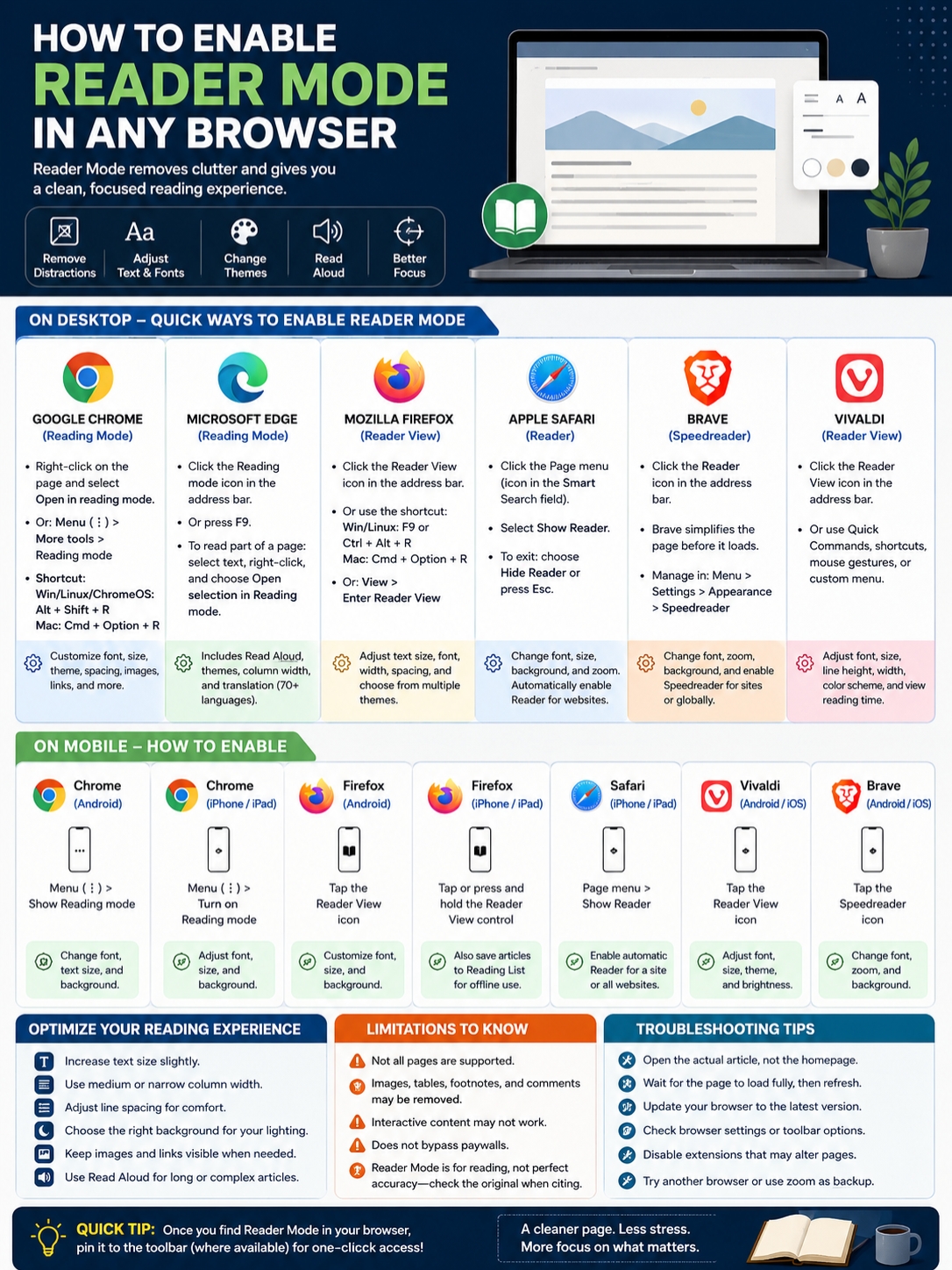
Reader controls on iPhone and iPad usually appear in the address bar or browser menu.
|
Browser |
How to Open Reader Mode |
|
Chrome |
Three-dot menu > Turn on Reading mode |
|
Safari |
Page menu > Show Reader |
|
Firefox |
Tap or press and hold the Reader View control |
|
Vivaldi |
Tap the Reader View icon |
Chrome on iPhone and iPad
To turn on Reading mode:
- Open an article.
- Tap the three-dot menu.
- Choose Turn on Reading mode.
To leave it, open the menu again and choose Turn off Reading mode.
You can adjust the font, font size, and background color.
If Chrome can’t process the page, it may show a “Reading mode failed” message.
Safari on iPhone and iPad
To open Safari Reader:
- Visit an article.
- Tap the Page menu in the address bar.
- Tap Show Reader.
To return to the full webpage, open the menu again and select Hide Reader.
Safari can also open Reader automatically.
For one website:
- Open an article from that website.
- Tap the Page menu.
- Open the website options.
- Turn on Use Reader Automatically.
For all supported websites, go to:
Settings > Apps > Safari > Reader > All Websites
Safari will still show the normal page when it can’t detect a suitable article.
Firefox on iPhone and iPad
Firefox displays a Reader View control on supported pages.
Tap it to open the cleaner layout. In some versions, you may see a summary button instead. Press and hold that button to access Reader View.
Firefox can also:
- Change the page appearance
- Save an article to the Reading List
- Download saved articles for offline reading
- Return to the normal page
As with other browsers, Reader View may remove images, videos, menus, and ads.
Vivaldi on iPhone and iPad
Open a long article and tap the Reader View icon in the address bar.
You can change:
- Background color
- Screen brightness
- Font style
- Text size
To hide the Reader View option, go to:
Settings > Content Settings
Make Reader Mode More Comfortable
The default settings won’t suit everyone. A few small changes can make long reading sessions much easier.
|
Setting |
Good Starting Point |
Why It Helps |
|
Text size |
One or two levels above default |
Makes text clearer without constant zooming |
|
Column width |
Medium or narrow |
Stops lines from stretching too far |
|
Line spacing |
Slightly above default |
Makes each line easier to follow |
|
Font style |
Choose the clearest option |
Serif and sans-serif fonts suit different readers |
|
Background |
Match it to your lighting |
Reduces glare and harsh contrast |
|
Images |
Keep them on for guides |
Preserves charts, screenshots, and examples |
|
Read Aloud speed |
Start slightly slower |
Helps with technical or unfamiliar topics |
|
Links |
Keep them visible for research |
Makes checking sources easier |
Dark mode isn’t automatically better. Some people read more comfortably with dark text on a light or sepia background, especially during the day.
A medium-width column often works better than a very wide one. Long lines force your eyes to travel farther and make it harder to find the next line.
For research, tutorials, and technical articles, keep images and links visible. A cleaner page isn’t helpful if it removes the chart or screenshot you need.
Why the Reader Mode Button Is Missing
A missing button doesn’t always point to a browser problem. In most cases, the browser simply doesn’t see the page as an article.
|
Possible Cause |
What to Try |
|
You’re on a homepage |
Open the full article |
|
The page hasn’t loaded |
Wait a moment and refresh |
|
The page is interactive |
Use browser zoom instead |
|
Your browser is outdated |
Install the latest update |
|
Reader Mode is disabled |
Check browser settings |
|
An extension changed the page |
Disable it temporarily |
|
Content sits inside an embedded frame |
Open the original source |
|
The page needs a login |
Sign in first |
|
Reader Mode removed useful content |
Return to the normal view |
|
You opened a PDF |
Use the PDF viewer’s controls |
Try these steps:
- Open the article itself, not the website’s homepage.
- Wait for the page to finish loading.
- Refresh the page.
- Check both the address bar and browser menu.
- Update your browser.
- Temporarily disable extensions that change page layouts.
- Test another article.
- Try the same page in a different browser.
Avoid old tutorials that tell you to enable experimental browser flags. Reader tools have moved and changed over the years. An old flag may no longer exist or may not work the same way.
Reader Mode Isn’t an Ad Blocker
Reader Mode, ad blockers, Reading Lists, zoom controls, and screen readers do different jobs.
|
Tool |
Main Purpose |
Cleans Up the Layout |
Saves the Page |
|
Reader Mode |
Creates a cleaner reading view |
Yes |
Usually no |
|
Ad blocker |
Blocks or hides ads |
Sometimes |
No |
|
Reading List |
Saves a page for later |
No |
Yes |
|
Browser zoom |
Enlarges the full page |
No |
No |
|
Read Aloud |
Turns text into speech |
Sometimes |
No |
|
Print view |
Prepares a page for printing |
Sometimes |
Only if saved |
|
Screen reader |
Provides spoken navigation |
No |
No |
Reader Mode may hide visible ads, but it isn’t a full privacy tool. The original page may already have loaded cookies, scripts, and external resources before the cleaner view appears.
Brave Speedreader works a little differently because it can simplify supported pages before they finish loading. Even so, Speedreader and Brave’s privacy protections remain separate features.
A Reading List also isn’t the same as Reader Mode. One saves the page. The other changes how the page looks.
Reader Mode can make text easier to read, but it doesn’t replace a screen reader or operating-system accessibility service.
What Reader Mode Can Miss
Reader Mode doesn’t always copy a page perfectly.
|
Limitation |
Why It Matters |
|
Images may disappear |
You could lose charts or screenshots |
|
Tables may break |
Rows and columns may shift |
|
Interactive charts may vanish |
Important data can go missing |
|
Footnotes may be removed |
Sources and qualifications can disappear |
|
Update notices may be hidden |
You might miss a correction |
|
Comments are removed |
Reader discussion disappears |
|
Forms may stop working |
Reader Mode isn’t built for input |
|
Paywalls remain |
It doesn’t create subscriber access |
|
Formatting changes |
Callout boxes and emphasis may be lost |
Before quoting or citing an article, return to the original page and check:
- Author name
- Publication date
- Updated date
- Corrections
- Footnotes
- Source links
- Image captions
- Tables
- Interactive graphics
Reader Mode works well as a reading aid. It shouldn’t replace the original page when accuracy matters.
Final Thoughts
The quickest way to enable reader mode browser tools is to open a full article and check the address bar, page menu, browser menu, or right-click menu.
Chrome offers full-screen and side-panel reading layouts. Edge adds Read Aloud, translation, and selection-based reading. Firefox provides strong font and theme controls. Safari supports automatic Reader settings. Brave Speedreader simplifies supported articles early in the loading process, while Vivaldi offers flexible display controls.
Reader Mode won’t appear on every page. It works best when the browser can identify one clear article. It may also remove images, tables, footnotes, or interactive content.
Start with a medium-width column, slightly larger text, and a background that suits your room lighting. Keep links and images visible when you need to check sources or follow visual instructions.
Once you know where the button is, Reader Mode can turn a crowded webpage into something calm, focused, and much easier to read.
Frequently Asked Questions
Can Reader Mode Open Every Website?
No. It works best on pages with one clear block of article text. It usually won’t open on social feeds, search pages, payment forms, dashboards, video sites, or interactive tools.
Can Reader Mode Bypass a Paywall?
No. Reader Mode only reformats content your browser can already access. It doesn’t replace a subscription or unlock restricted articles.
Use a publisher subscription, library account, institutional login, or another authorized access method.
Why Does Reader Mode Remove Images?
The browser tries to separate useful article images from advertisements, logos, banners, and decorative graphics. It doesn’t always get that decision right.
Return to the normal page if an image, chart, or screenshot affects the meaning of the article.
Does Reader Mode Work in Private Browsing?
It can work on compatible pages. However, private windows may handle logins, extensions, permissions, and saved settings differently.
Reader Mode also doesn’t make you anonymous. It only changes the page layout.
Can Reader Mode Open Automatically?
Safari can open Reader automatically for one website or all compatible websites. Brave can also turn Speedreader on for a selected website or across supported sites.
Other browsers may require you to start the feature manually.
Can Reader Mode Translate an Article?
Microsoft Edge includes translation inside Reading mode. Other browsers may require you to translate the normal webpage before opening Reader Mode.
Can I Save a Reader Mode Page as a PDF?
Usually, yes.
- Open the page in Reader Mode.
- Press Ctrl + P on Windows or Command + P on Mac.
- Choose Save as PDF.
- Check the preview.
- Save the file.
The PDF may not keep every image, link, or page break exactly as shown.