
One minute, everything works. The next, images refuse to load. A login page keeps spinning. Your WordPress dashboard looks strange. A checkout button stops responding. Or a site keeps showing old content even after you refresh it again and again.
Most people hear the same advice: “Clear your browser cache.”
That sounds easy. But then comes the real worry.
Will it log me out of every account? Will it delete my saved passwords? Will I lose autofill details, passkeys, shopping carts, or two-factor login sessions?
Here’s the simple answer: you can clear cache keep logins if you choose the right settings.
The trick is knowing what to delete and what to leave alone. Cache is usually safe to clear. Cookies, site data, passwords, and autofill are the risky parts.
This guide walks you through the safe way to clear browser cache in Chrome, Microsoft Edge, Firefox, Safari, Android, and iPhone without wiping your logins.
What Browser Cache Really Does
|
Browser item |
What it stores |
Should you delete it? |
Login risk |
|
Cached images and files |
Images, scripts, styles, fonts, and page files |
Yes |
Low |
|
Cookies |
Login sessions, site preferences, tracking data |
Not if you want to stay logged in |
High |
|
Site data |
App data, local storage, offline files |
Be careful |
Medium to high |
|
Saved passwords/passkeys |
Login credentials |
No |
Very high |
|
Autofill data |
Names, addresses, cards, and form entries |
Usually no |
Medium |
|
Site settings |
Camera, location, pop-up, and notification permissions |
Usually no |
Low to medium |
Browser cache is a storage space on your device.
When you visit a website, your browser saves some files from that site. These files may include logos, photos, layout files, scripts, fonts, and other page parts.
The next time you visit, your browser can load those saved files instead of downloading everything again. That makes pages open faster.
But cache can also cause problems.
A website may update its design, but your browser may still load an old layout file. A web app may update its code, but your browser may keep using an outdated script. That can break buttons, menus, images, forms, and login pages.
Clearing cache forces your browser to download fresh files.
That often fixes:
- Broken page layouts
- Missing images
- Old website versions
- Login pages that will not load
- Buttons that do not respond
- Web apps that freeze after an update
But here’s the part many people miss: cache is not the same as cookies.
Cookies often keep you signed in. Site data can also store important web app information. Saved passwords are another separate item.
So, clearing cache is fine. Clearing everything is where the trouble starts.
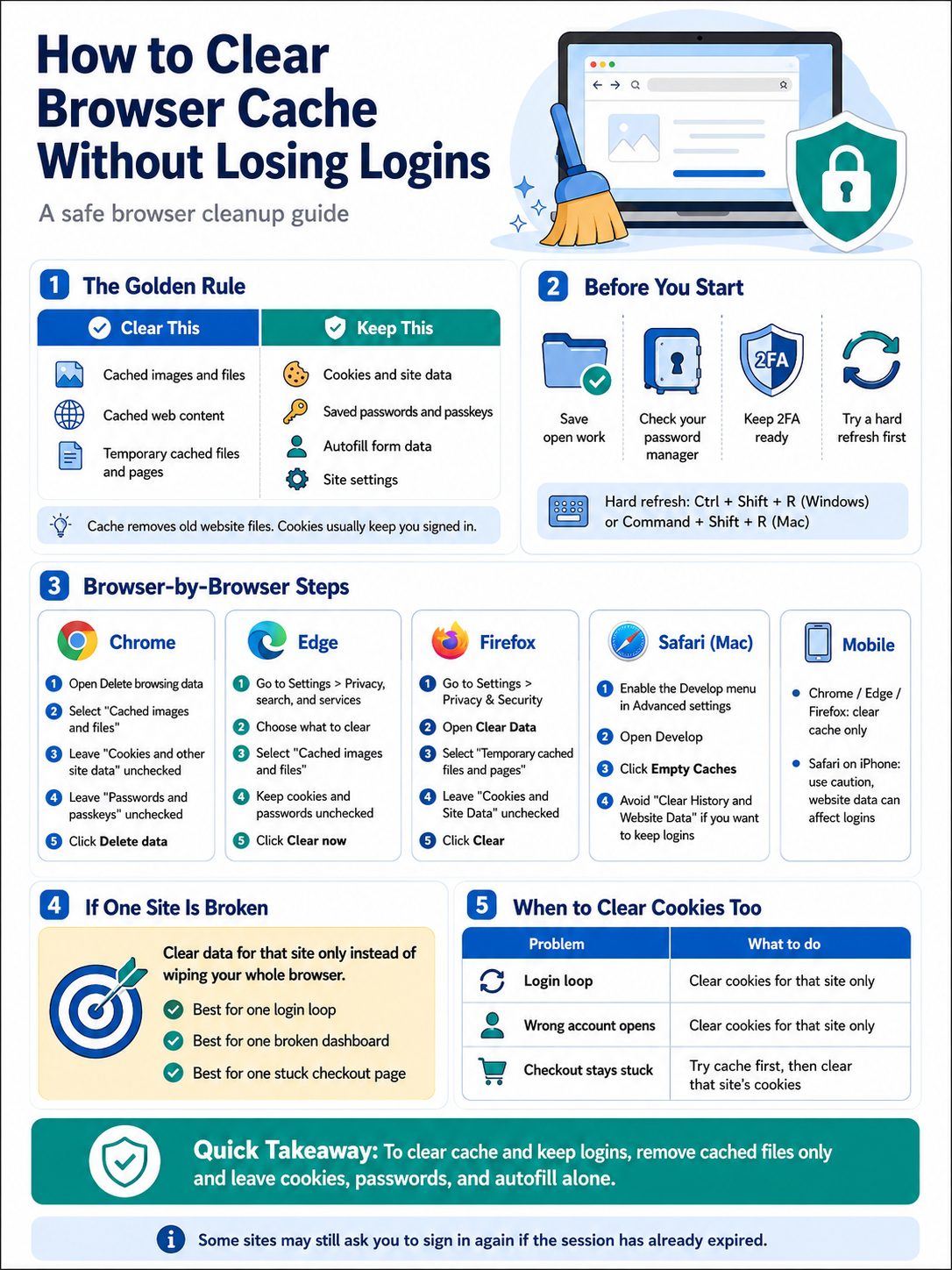
Clear Cache Keep Logins: The One Rule That Matters
|
Your goal |
Select this |
Do not select this |
|
Fix a broken website |
Cached images and files |
Cookies and site data |
|
Stay logged in |
Cache only |
Passwords, passkeys, cookies |
|
Free browser space |
Cached files |
Autofill and saved passwords |
|
Reset one broken site |
Site-specific data only if needed |
All cookies for all sites |
|
Improve privacy |
Cookies and site data |
Expect some logouts |
If you remember one thing from this guide, remember this:
Clear cached files only.
That’s the safest way to clear cache keep logins without creating a new headache.
Look for options like:
- Cached images and files
- Cached web content
- Temporary cached files and pages
- Cache
Leave these unchecked:
- Cookies and other site data
- Website data
- Site data
- Passwords
- Passkeys
- Autofill form data
- Payment methods
- Site settings
- Hosted app data
Most accidental logouts happen because users tick too many boxes. They think they’re clearing cache, but they also delete cookies and site data. That removes login sessions from many websites.
If your goal is only to fix a broken page, start small. Clear cache first. Restart the browser. Then test the site again.
Only move to cookies or site data if cache clearing does not fix the issue.
Before You Clear Anything, Do This First
|
Quick check |
Why it helps |
Time needed |
|
Save open work |
Pages may reload after cleanup |
30 seconds |
|
Check password access |
Prevents account lockout |
1 minute |
|
Confirm 2FA access |
Some sites may ask again |
1 minute |
|
Try a hard refresh |
May fix the page without deleting data |
10 seconds |
|
Use one-site cleanup first |
Avoids wiping all sessions |
1–2 minutes |
Don’t rush into the browser settings screen.
First, save anything important. If you’re writing a long form, editing an article, working in a CMS, filling out a checkout page, or using a dashboard, save your work. Better yet, copy the text somewhere safe.
Next, check your password manager. Make sure you can access your important logins. This matters most for:
- Banking
- Social media
- Work tools
- WordPress
- Hosting accounts
- Google, Apple, and Microsoft accounts
Also check your two-factor authentication method. Some sites may ask you to verify again after a browser cleanup, even if you didn’t delete passwords.
Then try a hard refresh.
On Windows or Linux, press:
Ctrl + F5 or Ctrl + Shift + R
On Mac, try:
Command + Shift + R
A hard refresh tells your browser to reload the current page without using old cached files. It’s fast, simple, and often enough.
If the page works after a hard refresh, you don’t need to clear anything else.
How to Clear Cache in Chrome Without Losing Logins
|
Chrome option |
Select it? |
Why |
|
Cached images and files |
Yes |
Clears old page files |
|
Cookies and other site data |
No |
Can sign you out |
|
Passwords and passkeys |
No |
Keeps login credentials safe |
|
Autofill form data |
No |
Keeps forms, names, cards, and addresses |
|
Site settings |
No |
Keeps permissions intact |
Chrome is the most-used browser in the world, so this is where many people start.
The good thing is that Chrome separates cache from cookies, passwords, passkeys, and autofill. That makes it easier to clean only what you need.
Chrome on Desktop
Follow these steps:
- Open Chrome.
- Click the three-dot menu in the top-right corner.
- Click Delete browsing data.
- Choose a time range.
- Select Cached images and files.
- Uncheck Cookies and other site data.
- Uncheck Passwords and passkeys.
- Uncheck Autofill form data.
- Click Delete data.
- Restart Chrome.
Read Also: How to Recover Closed Tabs in Any Browser
Start with Last 24 hours or Last 7 days if the issue is recent.
Choose All time only if the problem has been around for a while. Even then, keep only the cache option selected.
This is the safe way to clear cache keep logins in Chrome.
Chrome Shortcut
Use this shortcut to open the clear data screen faster:
- Windows/Linux: Ctrl + Shift + Delete
- Mac: Command + Shift + Delete
Just don’t click too fast. Check every box before deleting anything.
Fix One Website in Chrome
If only one site is acting weird, don’t clear your whole browser.
You can remove stored data for one website from Chrome’s site settings. This may sign you out of that one site, but it should not affect every other account.
Use this when:
- One web app keeps crashing
- One login page loops
- One dashboard shows old content
- One checkout page keeps failing
Targeted cleanup is cleaner and safer.
How to Clear Cache in Microsoft Edge Without Losing Logins
|
Edge option |
Select it? |
Login impact |
|
Cached images and files |
Yes |
Low risk |
|
Cookies and other site data |
No |
Can sign you out |
|
Passwords |
No |
Keeps saved passwords |
|
Autofill form data |
No |
Keeps form details |
|
Site permissions |
No |
Keeps browser permissions |
Microsoft Edge uses Chromium technology, so its cache settings feel a lot like Chrome.
The same rule applies: select cache only.
Edge on Desktop
- Open Microsoft Edge.
- Click the three-dot menu.
- Go to Settings.
- Open Privacy, search, and services.
- Find Clear browsing data.
- Click Choose what to clear.
- Pick your time range.
- Select Cached images and files.
- Uncheck Cookies and other site data.
- Uncheck Passwords.
- Uncheck Autofill form data.
- Click Clear now.
You can also press Ctrl + Shift + Delete to open the clear data screen quickly.
One extra tip: check your sync settings.
If Edge sync is turned on, some data changes may move across your signed-in devices. So don’t delete anything sensitive unless you know what it will affect.
How to Clear Cache in Firefox Without Losing Logins
|
Firefox option |
Select it? |
Why |
|
Temporary cached files and pages |
Yes |
Clears cache safely |
|
Cookies and site data |
No |
Can remove login status |
|
History |
Optional |
Not needed for cache issues |
|
Saved passwords |
No |
Keeps credentials |
|
Site settings |
No |
Keeps permissions |
Firefox uses different wording, but the idea is the same.
Look for Temporary cached files and pages or Cached Web Content. That is the cache option.
Firefox on Desktop
- Open Firefox.
- Click the menu button.
- Select Settings.
- Open Privacy & Security.
- Find Cookies and Site Data or Browsing Data.
- Click Clear Data.
- Select Temporary cached files and pages.
- Uncheck Cookies and Site Data.
- Click Clear.
- Restart Firefox.
If Firefox shows a larger list of browsing data, read it carefully. Do not select cookies, saved passwords, or site settings unless you want a deeper reset.
Fix One Website in Firefox
Firefox lets you manage site data for specific websites.
This helps when one site keeps failing, but everything else works fine. Removing data for one site may sign you out of that site, but it saves you from logging back into every account.
That’s a fair trade when one website is the problem.
How to Clear Cache in Safari Without Losing Logins
|
Safari action |
Safe for logins? |
Best use |
|
Empty Caches on Mac |
Usually yes |
Best desktop Safari fix |
|
Clear History and Website Data |
No |
Full cleanup, may affect logins |
|
Remove All Website Data on iPhone |
No |
Can remove login-related data |
|
Delete one site’s data |
Sometimes |
Useful for one broken site |
|
Private browsing |
Not a cache cleanup |
Good for testing |
Safari needs more care than Chrome, Edge, or Firefox.
Some Safari cleanup options combine history, cache, cookies, and website data. That means you can lose logins if you choose the wrong button.
Safari on Mac
The safest cache-only method is through the Develop menu.
First, turn it on:
- Open Safari.
- Click Safari in the menu bar.
- Open Settings.
- Go to Advanced.
- Turn on the option to show web developer features or the Develop menu.
Then clear cache:
- Click Develop in the menu bar.
- Click Empty Caches.
- Restart Safari.
This is the best Safari method when you want fresh website files without clearing cookies and sessions.
Safari on iPhone
Be careful on iPhone.
The common option Clear History and Website Data can remove more than cache. It may affect cookies, browsing history, and site data.
Also be careful with Remove All Website Data under Safari’s advanced settings. Website data can include information websites use to keep you signed in.
Try these first:
- Close Safari and reopen it.
- Restart your iPhone.
- Update iOS if needed.
- Open the site in a private tab.
- Test the site in another browser.
Only remove website data if you’re ready to sign in again.
Mobile Browser Steps for Android and iPhone
|
Browser |
Safer option |
Avoid |
|
Chrome Android |
Cached images and files |
Cookies, passwords, autofill |
|
Chrome iPhone |
Cache option if shown |
Cookies and saved passwords |
|
Edge mobile |
Cached images and files |
Cookies and passwords |
|
Firefox mobile |
Cached files/images |
Cookies and site data |
|
Safari iPhone |
Avoid full website data removal if keeping logins |
Clear History and Website Data |
Mobile browsers make this a little harder because settings are often buried.
Still, the rule stays the same: cache only.
Chrome on Android
- Open Chrome.
- Tap the three-dot menu.
- Tap Delete browsing data.
- Choose a time range.
- Select Cached images and files.
- Leave cookies, passwords, and autofill unchecked.
- Tap Delete data.
Edge on Android or iPhone
- Open Edge.
- Tap the menu button.
- Open Settings.
- Tap Privacy and security.
- Tap Clear browsing data.
- Select cache only.
- Keep cookies and passwords unchecked.
- Clear the selected data.
Firefox Mobile
Open Firefox settings and look for browsing data controls.
Select the cache option only. Do not select cookies, site data, saved logins, or history unless you want a deeper cleanup.
When You Should Clear Cookies Too
|
Problem |
Try cache first? |
Clear cookies too? |
|
Page looks broken |
Yes |
Usually no |
|
Old design keeps loading |
Yes |
No |
|
Login loop repeats |
Yes |
Maybe |
|
Wrong account keeps opening |
No |
Yes, for that site |
|
Checkout page is stuck |
Yes |
Maybe |
|
Privacy cleanup |
No |
Yes |
|
Shared computer use |
No |
Yes |
Sometimes cache is not the problem.
If a site keeps opening the wrong account, cookies may be causing it. If a checkout page keeps failing, site data may be corrupted. If a login loop keeps sending you back to the same screen, cookies may need a reset.
But don’t delete all cookies right away.
Use this order:
- Clear cache only.
- Restart your browser.
- Test the website.
- If the issue remains, clear cookies for that one website.
- Sign back into that website.
- Leave every other site alone.
This keeps the mess small.
You may lose one login, not twenty.
Why You May Still Get Logged Out
|
Reason |
What likely happened |
What to do |
|
You selected cookies |
Login session was removed |
Sign in again |
|
You deleted site data |
Web app storage was reset |
Sign in again |
|
Session expired |
The website ended your login |
Complete login or 2FA |
|
Browser sync changed data |
Data changed across devices |
Check sync settings |
|
Security policy changed |
Site forced a fresh login |
Verify your identity |
|
Extension conflict |
Add-on blocked scripts or cookies |
Disable extensions and test |
Clearing cache only should not wipe saved passwords or most active sessions.
But some logouts can still happen.
A bank may expire your session after a short time. A work app may force a new login after a browser update. A website may ask for two-factor authentication after a VPN change, new location, password change, or security alert.
Extensions can also break things.
Ad blockers, privacy tools, coupon extensions, script blockers, and security add-ons may block files or cookies a site needs.
If a website still fails after clearing cache, try this:
- Open it in a private window.
- Disable extensions for that site.
- Try another browser.
- Clear cookies for that site only.
- Restart the device.
Don’t jump straight to “delete everything.” That should be the last step, not the first.
Privacy and Password Safety Tips
|
Tip |
Why it matters |
|
Use a password manager |
Keeps strong, unique passwords easy to access |
|
Turn on two-factor authentication |
Adds another layer of protection |
|
Keep passkeys backed up |
Helps prevent lockouts |
|
Avoid saving passwords on shared devices |
Reduces account risk |
|
Sign out on public computers |
Cache cleanup is not enough |
|
Keep browsers updated |
Fixes bugs and security issues |
Clearing cache is not a full privacy plan.
It fixes browser problems. That’s it.
If you use weak or repeated passwords, clearing cache will not protect your accounts. Use a password manager and create a different password for every important login.
Turn on two-factor authentication for:
- Banking
- Social media
- Cloud storage
- Work accounts
- Hosting accounts
- Online stores with saved payment cards
On a shared computer, don’t rely on cache cleanup. Sign out properly. Close the browser. Never save passwords.
Also keep your browser updated. Updates fix security bugs, performance issues, and site compatibility problems.
Quick Cheat Sheet
|
Browser |
Fast path |
Select |
Avoid |
|
Chrome |
Menu > Delete browsing data |
Cached images and files |
Cookies, passwords, passkeys |
|
Edge |
Settings > Privacy > Clear browsing data |
Cached images and files |
Cookies, passwords |
|
Firefox |
Settings > Privacy & Security > Clear Data |
Temporary cached files/pages |
Cookies and site data |
|
Safari Mac |
Develop > Empty Caches |
Empty Caches |
Clear History and Website Data |
|
Safari iPhone |
Use caution |
Site-specific data only if needed |
Remove All Website Data |
Here’s the quick version.
To clear cache keep logins, select only the cache option. Leave cookies, site data, saved passwords, passkeys, autofill, and site settings alone.
That one choice prevents most accidental logouts.
Final Thoughts
|
Main point |
Best action |
|
A site looks broken |
Clear cached images and files |
|
You want to stay signed in |
Do not delete cookies or site data |
|
You want to keep passwords |
Do not select passwords or passkeys |
|
One site is broken |
Try site-specific cleanup |
|
The issue remains |
Clear cookies for that site only |
You don’t need to wipe your whole browser to fix one bad page.
The safest method is simple: clear cache keep logins by choosing cached files only. Leave cookies, site data, passwords, passkeys, autofill, and site settings alone.
Start small. Clear cache. Restart the browser. Test the site.
If it still fails, clear cookies or site data for that one website only. That way, you fix the problem without logging yourself out of every account you use.
Browser cleanup should make life easier, not harder.
Uncommon FAQs About Clearing Cache Without Losing Logins
|
Question |
Short answer |
|
Does clearing cache delete passkeys? |
Not if you clear cache only |
|
Does DNS cache affect logins? |
No |
|
Does incognito clear normal cache? |
No |
|
Can an extension break logins? |
Yes |
|
Should I clear cache daily? |
Usually no |
Does clearing cache delete saved passwords?
No. Cache and saved passwords are separate. Your saved passwords stay safe as long as you do not select password-related options.
Does clearing cache delete passkeys?
Not when you clear cache only. Still, do not select passwords, passkeys, credentials, or sign-in data.
Usually no. But it can remove active login sessions.
That means your browser may still remember your password, but websites may ask you to sign in again.
Can I clear cache for one website only?
Yes, many browsers let you remove data for one website.
This is useful when one site is broken but the rest of your browser works fine.
Does private browsing clear my normal browser cache?
No. Private or incognito mode creates a temporary browsing session. It does not clean the saved cache from your normal browser profile.
Why did a website ask for 2FA after clearing cache?
The site may have expired your session, noticed a location change, detected a VPN, or required fresh verification for security.
Is it bad to clear cache often?
Not really. But you do not need to do it every day.
Cache helps pages load faster. Clear it when a website breaks, looks outdated, or uses too much storage.
What should I do on a work laptop?
Follow your company’s IT rules.
Work browsers may use device trust, sync, single sign-on, or managed security settings. Clearing the wrong data may affect work apps.