
A song ends right when you’re getting into it. A workout clip stops before you finish the move. A tutorial moves too fast, and you need to watch the same step again.
You could keep hitting replay. But YouTube already has a built-in loop option that does the job for you.
Once it’s turned on, the video restarts automatically every time it ends.
The only problem is finding the setting. On mobile, it sits inside the player menu. On desktop, it appears when you right-click the video.
This guide shows you how to loop YouTube video playback on Android, iPhone, iPad, Windows, Mac, Linux, and Chromebook. It also explains playlist looping, Shorts playback, background play, offline viewing, and what to do when the loop option doesn’t work.
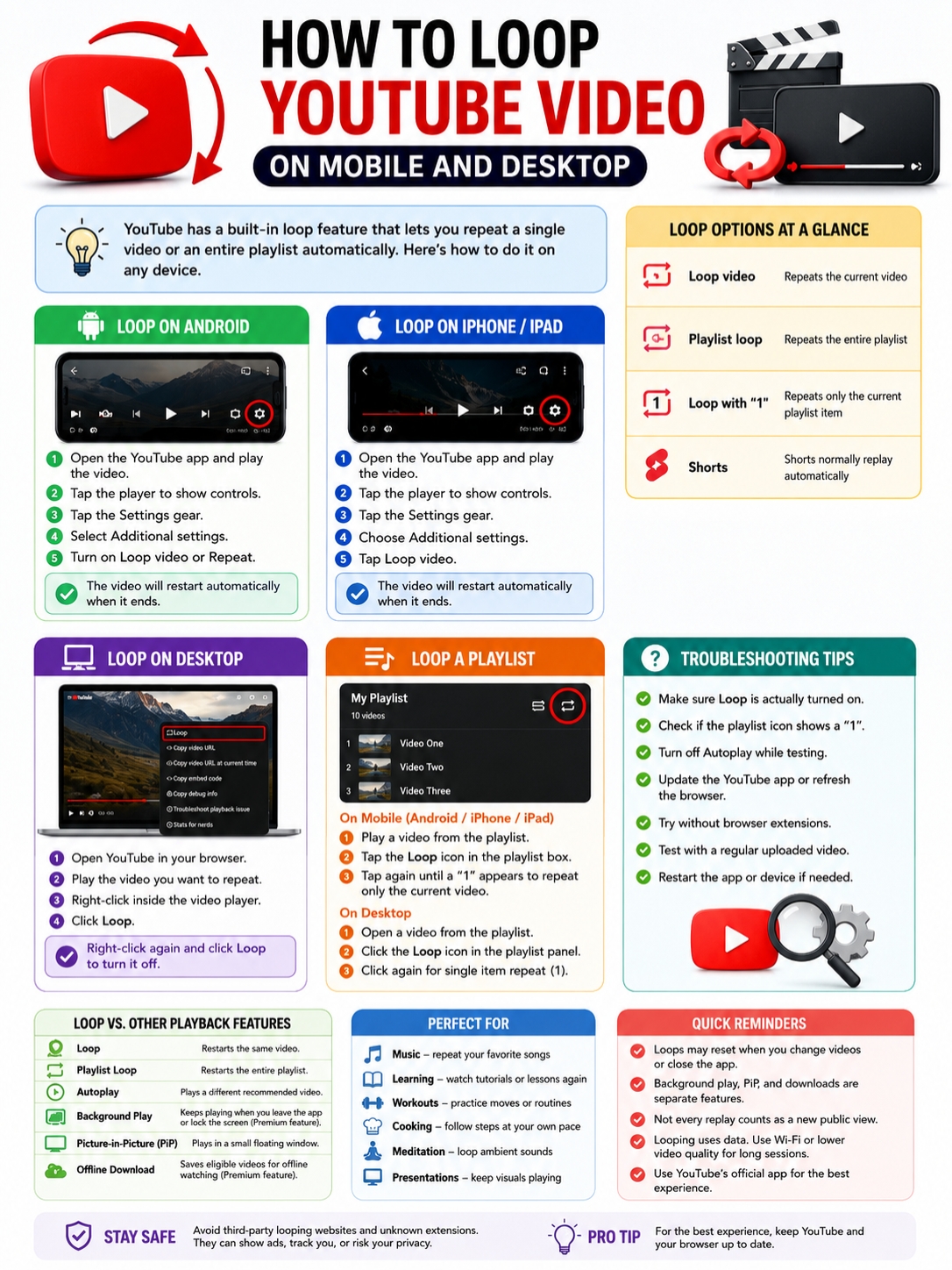
YouTube Loop Options at a Glance
YouTube gives you two main ways to repeat content.
The first repeats one video. The second repeats an entire playlist.
There’s also a single-track playlist option. When the playlist loop icon shows a small 1, YouTube keeps replaying the current video instead of moving through the rest of the list.
|
Device or playback type |
Where to find the control |
What it repeats |
|
Android app |
Settings > Additional settings > Loop video or Repeat |
Current video |
|
iPhone or iPad app |
Settings > Additional settings > Loop video |
Current video |
|
Desktop browser |
Right-click the video > Loop |
Current video |
|
Mobile playlist |
Loop icon in the playlist box |
Full playlist |
|
Playlist icon with “1” |
Tap the Loop icon again |
Current playlist item |
|
YouTube Shorts |
Usually replays automatically |
Current Short |
You don’t need a browser extension, a third-party app, or a separate looping website. YouTube’s own player already includes the controls most people need.
How to Loop YouTube Video on Android
The Android app makes looping fairly simple, though the setting isn’t visible until you open the player menu.
Depending on your app version, the option may appear as Loop video or Repeat.
|
Step |
What to do |
|
1 |
Open the YouTube app |
|
2 |
Play the video |
|
3 |
Tap the player |
|
4 |
Tap the Settings gear |
|
5 |
Open Additional settings |
|
6 |
Turn on Loop video or Repeat |
Steps in the Android App
- Open the YouTube app on your Android phone or tablet.
- Find the video you want to repeat.
- Start playing it.
- Tap once inside the video player to show the controls.
- Tap the Settings gear.
- Choose Additional settings.
- Tap Loop video or switch on Repeat.
That’s it. The video should restart as soon as it reaches the end.
You won’t need to press replay or touch the screen again.
Can You Turn On Loop in Full-Screen Mode?
Yes.
The controls may disappear after a few seconds, but they’re still there. Tap the screen once to bring them back, open the Settings menu, and look for the loop option.
If the menu feels cramped in full-screen mode, return to portrait view and turn it on there.
Does Loop Stay On After You Change Videos?
Not always.
YouTube may reset the setting when you open another video, close the app, or start a new viewing session.
If the next video moves on instead of restarting, open the settings and turn the loop back on.
How to Loop a YouTube Video on iPhone or iPad
The steps on iPhone and iPad are almost the same as Android.
You’ll find the control inside the player’s additional settings.
|
Step |
What to tap |
|
Open the video |
Play a regular YouTube video |
|
Show controls |
Tap inside the player |
|
Open settings |
Tap the gear icon |
|
Find the option |
Select Additional settings |
|
Start looping |
Tap Loop video |
Steps in the YouTube App
- Open the YouTube app on your iPhone or iPad.
- Play the video you want to repeat.
- Tap the video player once.
- Tap the Settings gear.
- Select Additional settings.
- Tap Loop video.
The video will now restart every time it finishes.
What If You Can’t Find Additional Settings?
First, make sure you opened the full video page.
YouTube sometimes plays previews directly in the Home feed. Those previews don’t show every playback control.
Try the following:
- Tap the video title or thumbnail to open the full watch page.
- Tap the player once to reveal hidden buttons.
- Turn the phone back to portrait mode.
- Close and reopen the video.
- Update YouTube through the App Store.
- Restart the app.
YouTube changes its interface from time to time, so a button may move even when the feature itself stays the same.
Can a Loop Keep Playing in Picture-in-Picture?
Sometimes, but the two features aren’t the same.
Picture-in-Picture, or PiP, puts the video in a small floating window while you use another app. Looping controls what happens when the video ends.
PiP availability can depend on your country, device, account, subscription, and the type of video you’re watching.
Music content may also have stricter Premium requirements than ordinary videos.
For the best chance of keeping the loop active, turn it on before entering PiP mode.
Read Also: How to Recover Deleted YouTube Videos
How to Loop a YouTube Video on Desktop
Looping on desktop is quicker than it is on mobile.
You don’t need to open the Settings menu. The option appears when you right-click the video itself.
|
Computer |
How to open the menu |
|
Windows PC |
Right-click inside the video |
|
Mac with mouse |
Right-click inside the video |
|
Mac with trackpad |
Two-finger click or Control-click |
|
Chromebook |
Two-finger click on the touchpad |
|
Linux computer |
Right-click inside the player |
Steps for Windows, Mac, Linux, and Chromebook
- Open YouTube in your browser.
- Play the video you want to repeat.
- Right-click directly inside the video player.
- Click Loop.
The video will now restart whenever it ends.
To check whether the setting is active, right-click the player again. You should see a check mark beside Loop.
How to Stop the Loop
Stopping it takes the same steps.
- Right-click inside the player.
- Click Loop again.
The check mark will disappear, and the video will return to normal playback.
What If the Wrong Menu Opens?
This usually happens when you click outside the actual video frame.
You may see your browser’s normal menu instead of YouTube’s player menu.
Try these fixes:
- Click near the center of the moving video.
- Wait until any ad finishes.
- Exit full-screen mode.
- Refresh the page.
- Open the video in a private browsing window.
- Disable extensions that change YouTube’s layout or playback controls.
- Try another browser.
YouTube doesn’t offer a standard keyboard shortcut for turning Loop on or off. You’ll need to use the right-click menu.
How to Repeat a YouTube Playlist
A playlist loop works differently from a normal video loop.
Instead of replaying one video, YouTube can play every item in the list and then return to the beginning.
|
Playlist icon state |
What happens |
|
Loop icon off |
Playlist plays normally |
|
Loop icon on |
Full playlist repeats |
|
Loop icon with “1” |
Current video repeats |
|
Shuffle and Loop on |
Playlist continues in a mixed order |
Loop a Playlist on Android, iPhone, or iPad
- Open the YouTube app.
- Play a video from a playlist.
- Find the playlist box below the player.
- Tap the Loop icon once.
The full playlist will repeat after the final video.
To repeat only the current video, tap the Loop icon again. A small 1 should appear inside the icon.
That number matters. It means YouTube will keep replaying one item instead of moving through the entire playlist.
Loop a Playlist on Desktop
- Open a video that belongs to a playlist.
- Find the playlist panel beside the video.
- Click the Loop icon.
The playlist will return to the first item after the final video ends.
Video Loop vs. Playlist Loop
It’s easy to mix these up.
Imagine a playlist with ten songs.
- Video Loop repeats the song currently playing.
- Playlist Loop plays all ten songs and then starts again.
- Playlist Loop with “1” repeats only the selected song.
- Shuffle plus Loop keeps the playlist going in a mixed order.
If YouTube keeps replaying the wrong thing, check both the player setting and the playlist icon.
Can You Loop YouTube Shorts?
YouTube Shorts usually replay automatically.
If you leave one Short open, it normally starts again after it ends. You don’t need to turn on the standard Loop video setting.
|
What you do |
What happens |
|
Leave the Short open |
It usually replays |
|
Swipe up |
Moves to another Short |
|
Exit the Shorts feed |
Stops the current viewing session |
|
Open it in the regular player |
Controls may change |
Shorts use a different viewing format from standard YouTube videos.
Their analytics also work differently, especially when YouTube separates general views from engaged views. So repeated playback shouldn’t be treated as a simple way to boost meaningful view counts.
Can You Loop YouTube in a Mobile Browser?
You can watch YouTube in a mobile browser, but the official app gives you the most reliable loop controls.
YouTube doesn’t provide a separate, clearly documented single-video looping process for every mobile browser.
|
Method |
Best choice? |
|
Official YouTube app |
Yes |
|
Standard mobile website |
May not show the same loop menu |
|
Request Desktop Site |
Can work, but touch controls vary |
|
Third-party looping website |
Usually unnecessary |
|
Unknown browser extension |
Best avoided |
Some browsers let you request the desktop version of YouTube. That may expose desktop-style controls, but touch gestures don’t always behave like a real mouse right-click.
In practice, the app is easier.
Why You Should Be Careful with Third-Party Looping Sites
A third-party site may ask you to paste a YouTube link into its own player.
That adds another layer you don’t really need.
Possible problems include:
- Pop-up ads
- Tracking scripts
- Fake download buttons
- Notification requests
- Broken embeds
- Poor privacy practices
- Low-quality playback
- Requests for unnecessary permissions
Never enter your Google password on an unofficial looping website.
For full-video and playlist repeats, YouTube’s own tools are enough.
Loop, Autoplay, Background Play, and PiP Aren’t the Same
These features sound similar, but they handle different parts of playback.
|
Feature |
What it does |
|
Loop |
Restarts the same video |
|
Playlist Loop |
Repeats the whole playlist |
|
Autoplay |
Starts a different video |
|
Background Play |
Keeps audio or video playing when you leave the app or lock the screen |
|
Picture-in-Picture |
Places the video in a floating window |
|
Offline Download |
Saves eligible videos for playback inside YouTube |
Background Playback
Looping doesn’t automatically make a video play with the screen off.
Background playback is a separate feature. It usually depends on your account, subscription, location, and the type of content you’re watching.
YouTube Premium users can usually choose whether videos always play in the background, never do, or only do so with headphones or an external audio device.
If the loop stops after you lock your phone, check your background playback settings.
Picture-in-Picture
PiP lets the video float over another app.
It doesn’t guarantee that playback will continue after you lock the screen.
Music videos and some other content may also need Premium for PiP, depending on where you live and which device you use.
Offline Playback
YouTube Premium can let eligible users download videos for offline viewing.
Those downloads stay inside the YouTube app or supported browser environment. They don’t normally appear as standard video files in your gallery.
Downloading and looping are separate actions. You may still need to turn on Loop after opening the downloaded video.
Why YouTube Loop May Not Work
Most problems come from one of four things: the option is hidden, the playlist is in the wrong repeat mode, the app is outdated, or a browser extension is interfering.
|
Problem |
Likely reason |
What to try |
|
Loop option is missing |
You’re not on the full watch page |
Open the complete video |
|
Video moves to another recommendation |
Loop isn’t active |
Turn it on again |
|
One playlist item repeats forever |
Loop icon shows “1” |
Change the playlist loop mode |
|
Full playlist stops |
Playlist Loop is off |
Tap the Loop icon |
|
Desktop menu won’t appear |
You clicked outside the video |
Right-click the video frame |
|
Playback stops when the screen locks |
Background play is unavailable |
Check account and playback settings |
|
Menu looks different |
App interface changed |
Update YouTube |
|
Loop fails in one browser |
An extension may be interfering |
Try private mode or another browser |
Check Whether Loop Is Really On
On desktop, right-click the player and look for a check mark beside Loop.
On mobile, return to Settings > Additional settings and confirm that Loop video or Repeat is enabled.
Check for the Small “1”
If a playlist keeps repeating only one video, look at the Loop icon.
A small 1 means single-item repeat is active.
Tap the icon again if you want the full playlist to continue.
Turn Off Autoplay While Testing
Autoplay and Loop don’t do the same thing.
Loop restarts the current video. Autoplay chooses another one.
Turning Autoplay off can make it easier to see whether the loop is working properly.
Update and Restart YouTube
Open Google Play or the App Store and check for updates.
Then close YouTube completely and reopen it.
A simple restart often fixes a missing menu or temporary player glitch.
Test Without Browser Extensions
Extensions can change how YouTube looks and behaves.
Ad blockers, playback tools, script managers, speed controls, and layout customizers may interfere with the right-click menu.
Try the same video in a private window. If the loop works there, one of your extensions is probably causing the issue.
Try a Normal Uploaded Video
Live streams, premieres, purchased content, embeds, and special player formats may behave differently.
Test the feature with a regular public video on YouTube’s main watch page.
If that works, the original video or viewing environment is likely the problem.
Practical Reasons to Loop YouTube Video Playback
Looping isn’t just for songs.
It can help whenever you need to watch or hear the same material several times.
|
Use case |
Why it helps |
|
Music |
Repeats a song or instrumental |
|
Language learning |
Replays pronunciation and listening examples |
|
Instrument practice |
Repeats backing tracks and demonstrations |
|
Exercise |
Restarts short routines or movement drills |
|
Software tutorials |
Replays steps while you follow along |
|
Cooking |
Repeats a technique while your hands are busy |
|
Meditation |
Keeps ambient audio or breathing guidance playing |
|
Events |
Runs visual content continuously |
Language Practice
A short clip can help you hear pronunciation, stress, rhythm, and sentence flow.
Loop the video, slow it down if needed, and repeat the words aloud.
For longer lessons, a playlist or chaptered video may work better than repeating the whole thing.
Music Practice
Looping works well for backing tracks, warmups, full songs, and performance demonstrations.
The standard YouTube loop option repeats the entire video. It doesn’t let you select a custom start and end point.
For one difficult section, you’ll need to drag the progress bar back manually or use trusted music-practice software with A–B looping.
Workouts
A loop can help when you’re learning a stretch, dance step, yoga pose, or lifting movement.
Just be careful with videos that include timed rest periods. An endless loop can make it easy to lose track of sets or overdo the exercise.
Events and Public Displays
You may want to repeat a video on a reception screen, product display, event backdrop, or waiting-room monitor.
Test everything before the event.
Ads, weak internet, sign-in prompts, browser sleep settings, and playback restrictions can interrupt the loop. You should also make sure you have permission to show the content in a public or commercial space.
Final Thoughts
You don’t need extra software to loop YouTube video playback.
On Android, iPhone, and iPad, open the player settings, choose Additional settings, and turn on Loop video or Repeat.
On desktop, right-click the video and select Loop.
For playlists, use the loop icon in the playlist panel. When a small 1 appears, YouTube will repeat only the current item.
The main thing to remember is that Loop, Autoplay, Picture-in-Picture, background playback, and downloads are separate tools.
Once you know which setting controls what, repeating a song, lesson, workout, or tutorial takes only a few taps.
Frequently Asked Questions
|
Question |
Quick answer |
|
Does every replay count as a new view? |
YouTube doesn’t guarantee that |
|
Can you loop only part of a video? |
Not with the standard Loop control |
|
Is Premium needed for Loop? |
Usually no |
|
Can Loop continue with the screen off? |
Only if background play is available |
|
Does looping use data? |
Yes, streamed playback may keep using data |
|
Can embedded videos loop? |
It depends on the website and player setup |
Does Looping a YouTube Video Increase Its View Count?
YouTube doesn’t promise that every replay will count as a separate public view.
The platform checks traffic quality and may remove activity it considers invalid or artificial.
Use Loop for convenience, not as a view-boosting trick.
Can I Loop Only Part of a YouTube Video?
Not with YouTube’s normal Loop setting.
It repeats the full video from beginning to end.
You can use the progress bar, open a timestamped link, use video chapters, or choose trusted software with A–B repeat controls.
Do I Need YouTube Premium to Loop a Video?
No. YouTube’s basic video and playlist loop controls don’t normally require Premium.
Premium may still be needed for background playback, downloads, ad-free viewing, and some Picture-in-Picture features.
Can the Loop Continue After I Lock My Phone?
Only if background playback is available and enabled.
Loop controls what happens when the video ends. Background Play controls whether the video keeps running after you leave the app or switch off the screen.