
Apps take forever to open. The keyboard pauses halfway through a sentence. The camera misses the shot. Even switching between screens starts to feel like hard work.
That doesn’t always mean you need a new phone.
Low storage, outdated apps, background activity, heat, software bugs, and worn hardware can all drag performance down. In many cases, you can speed up slow Android phones with a few practical fixes.
You don’t need a so-called booster app. You don’t need to clear every cache file. And you don’t need to reset the phone before checking the basics.
The steps below follow current guidance from Google, Android Developers, and Samsung. Menu names can vary across Pixel, Samsung Galaxy, Motorola, Xiaomi, OnePlus, Oppo, Vivo, and other Android phones.
First, Work Out What’s Actually Slow
Don’t start deleting files at random.
First, look at where the slowdown happens.
Does the whole phone lag? Or does one app keep freezing? Do videos buffer while everything else feels fine? Does the phone slow down only when it gets hot?
Those clues can save you a lot of time.
Ask yourself:
- Does the whole phone feel slow?
- Did the problem begin after an update?
- Did you install a new app recently?
- Is the storage almost full?
- Does the phone lag while charging?
- Do apps reload every time you switch back to them?
- Is the problem limited to websites or streaming?
|
Symptom |
Likely cause |
First check |
|
Every screen feels slow |
Low storage, software trouble, or aging hardware |
Restart and check storage |
|
One app freezes |
App bug, damaged cache, or compatibility issue |
Update the app |
|
Videos buffer but menus feel fast |
Weak Wi-Fi or mobile data |
Try another connection |
|
Phone slows down when hot |
Heat protection |
Stop heavy tasks and let it cool |
|
Apps keep reloading |
Limited memory or strict battery controls |
Reduce multitasking |
|
Slowdown started after installing an app |
Problem app |
Uninstall it or try Safe Mode |
Start with a restart.
That sounds obvious, but it still works surprisingly often. A restart can stop a frozen app or stuck system process. Google also puts restarting near the top of its official troubleshooting advice for slow Android devices.
Use the phone for a few minutes after it starts again. If the lag comes back, keep going.
Speed Up Slow Android by Freeing Storage
Storage is one of the first things worth checking.
Google warns that Android phones can start running into problems when less than 10% of their storage remains free. That doesn’t mean every phone slows down at exactly the same point, but it’s a useful warning line.
Open:
Settings > Storage
Look for the biggest space users first.
Videos, games, offline music, downloaded shows, messaging attachments, and duplicate files often take up far more room than expected.
|
Storage category |
What to do |
Check before deleting |
|
Photos and videos |
Back up or move unwanted files |
Make sure the backup finished |
|
Downloads |
Remove old documents, installers, and media |
Open unfamiliar files first |
|
Streaming downloads |
Delete watched shows and offline playlists |
Check inside each app |
|
Large games |
Uninstall games you no longer play |
Save game progress |
|
Messaging media |
Remove old videos and repeated attachments |
Protect important chats |
|
Unused apps |
Uninstall or archive them |
Check whether data is backed up |
Delete Offline Content Inside the App
Downloaded content doesn’t always show up clearly in a file manager.
Open apps such as YouTube, Netflix, Spotify, podcast players, map apps, and video services. Then remove offline files from their download sections.
That’s usually cleaner than deleting the whole app.
It also helps you avoid wiping settings, saved logins, or local preferences you still need.
Archive Apps You Rarely Use
On supported phones, Android can archive an app instead of removing it completely.
Archiving removes most of the app itself but keeps its icon and user data. That makes it easier to bring the app back later.
The feature depends on your Android version, device, and app store. Some manual archiving options require Android 15 or later.
A typical path looks like this:
Settings > Apps > Select an app > Archive
You can usually restore the app by tapping its faded icon.
Install Android and App Updates
Updates matter more than many people think.
They can fix crashes, battery drain, compatibility issues, security problems, and poor performance. If your phone became slower after an update, a later patch may fix it.
Android 17 officially launched on June 16, 2026 and first rolled out to supported Pixel devices. That doesn’t mean every Android phone can install it. Updates still depend on the phone maker, model, carrier, and region.
|
Update type |
Where to check |
Why it matters |
|
Android version |
Settings > System > Software update |
Fixes system bugs |
|
Security update |
Settings > About phone > Android version |
Patches security risks |
|
Google Play system update |
Settings > About phone > Android version |
Updates key Android parts |
|
App updates |
Play Store > Profile > Manage apps and device |
Fixes app bugs and crashes |
|
Manufacturer update |
Brand-specific update menu |
May improve battery, modem, camera, or stability |
Before installing a major update, connect to Wi-Fi and charge the phone well. Google currently recommends at least 75% charge before starting the update process.
To update your apps:
- Open the Google Play Store.
- Tap your profile picture.
- Choose Manage apps and device.
- Review pending updates.
- Tap Update all, or update apps one by one.
Google says current app versions can improve security and stability.
Avoid beta or developer-preview software on your main phone unless you know exactly what you’re signing up for. Early builds can bring crashes, battery drain, and broken apps.
Read Also: How to Fix Android Not Connecting to WiFi
Remove Apps That Cause Trouble
One bad app can make the whole phone feel slower.
Some apps keep syncing in the background. Others constantly check location, download files, show overlays, or run through accessibility services.
The goal isn’t to shut down everything. It’s to find the apps using more power and attention than they should.
|
App behaviour |
What to do |
|
You haven’t used it for months |
Uninstall or archive it |
|
It became unstable after an update |
Update, clear cache, or reinstall |
|
It uses lots of battery in the background |
Restrict background use |
|
It shows ads outside the app |
Remove it and scan with Play Protect |
|
It asks for strange permissions |
Revoke access or uninstall it |
|
It came preinstalled and can’t be removed |
Disable it only if it’s clearly optional |
Android can manage unused apps by removing permissions, stopping background work, deleting temporary files, or archiving eligible apps.
Check Battery Use
Open a menu similar to:
Settings > Battery > Battery usage
Look for apps that use a lot of power even though you barely open them.
Don’t panic if a game, camera app, or navigation app appears near the top. Those apps naturally use more power.
The real warning sign is a basic app using a large amount of battery in the background.
Restricting background use may help, but it can also delay notifications, uploads, messages, and location updates.
Be careful with:
- Alarm apps
- Navigation apps
- Health and medical apps
- Work apps
- Accessibility services
- Messaging apps
Test the setting before leaving it restricted.
Stop Clearing Every Recent App
You don’t need to swipe away every app every few minutes.
Android already manages memory in the background. Google says leaving apps in the recent-apps screen doesn’t automatically cause the phone to run out of memory or battery.
Close an app when:
- It freezes.
- It keeps playing media.
- It’s doing something you want to stop.
- You’re testing whether it causes a problem.
Constantly closing everything can make apps reload from scratch, which may feel slower rather than faster.
Clear Cache Only When It Makes Sense
Cache files aren’t automatically bad.
Apps use them to load pages, images, and other content faster. Clearing every cache file every day can create more work because apps have to rebuild them.
Clear an app’s cache when it:
- Keeps crashing
- Freezes often
- Shows outdated content
- Uses far more space than expected
- Stops loading correctly
|
Option |
What it does |
Main risk |
|
Force stop |
Ends the app for now |
It may restart later |
|
Clear cache |
Removes temporary files |
The app may open slowly once |
|
Clear storage or data |
Erases local app data |
Settings, logins, and downloads may disappear |
|
Reinstall |
Removes and downloads the app again |
Unsynced data may be lost |
A common path is:
Settings > Apps > Select the app > Storage and cache > Clear cache
Google makes a clear distinction here. Clear cache removes temporary files. Clear storage removes the app’s local data.
Be extra careful with:
- Authenticator apps
- Password managers
- Messaging apps
- Voice recorders
- Offline notes
- Games without cloud saves
- Banking apps
Always check that important data is backed up before clearing storage or reinstalling.
Reduce Visual and Background Clutter
A few small changes can make an older phone feel quicker.
They won’t turn weak hardware into a flagship phone, but they can reduce unnecessary work.
|
Change |
Possible benefit |
Possible downside |
|
Remove unused widgets |
Fewer home-screen updates |
Less information at a glance |
|
Replace live wallpaper |
Less animation |
Simpler appearance |
|
Turn off unused account sync |
Less background activity |
Slower updates |
|
Reduce animation speed |
Faster-feeling menus |
Less smooth movement |
|
Disable automatic downloads |
Saves space and data |
Files won’t be ready offline |
|
Cut unnecessary notifications |
Fewer interruptions |
You may miss minor alerts |
Shorten Animation Speed
Animations can make a phone feel slower, even when the hardware isn’t struggling.
Some phones have a Remove animations option in Accessibility settings.
You can also shorten animations through Developer options.
Here’s the common route:
- Open Settings > About phone.
- Find Build number.
- Tap it seven times.
- Enter your PIN if asked.
- Open System > Developer options.
- Find the animation-scale settings.
- Change each setting from 1x to 0.5x.
Look for:
- Window animation scale
- Transition animation scale
- Animator duration scale
Android’s developer documentation confirms that tapping Build number seven times usually unlocks Developer options. It also explains that the menu includes animation controls.
This won’t add RAM or processor power. It simply makes transitions finish faster.
Don’t change random Developer options. Many of them exist for app testing, not everyday use.
Test the Phone in Safe Mode
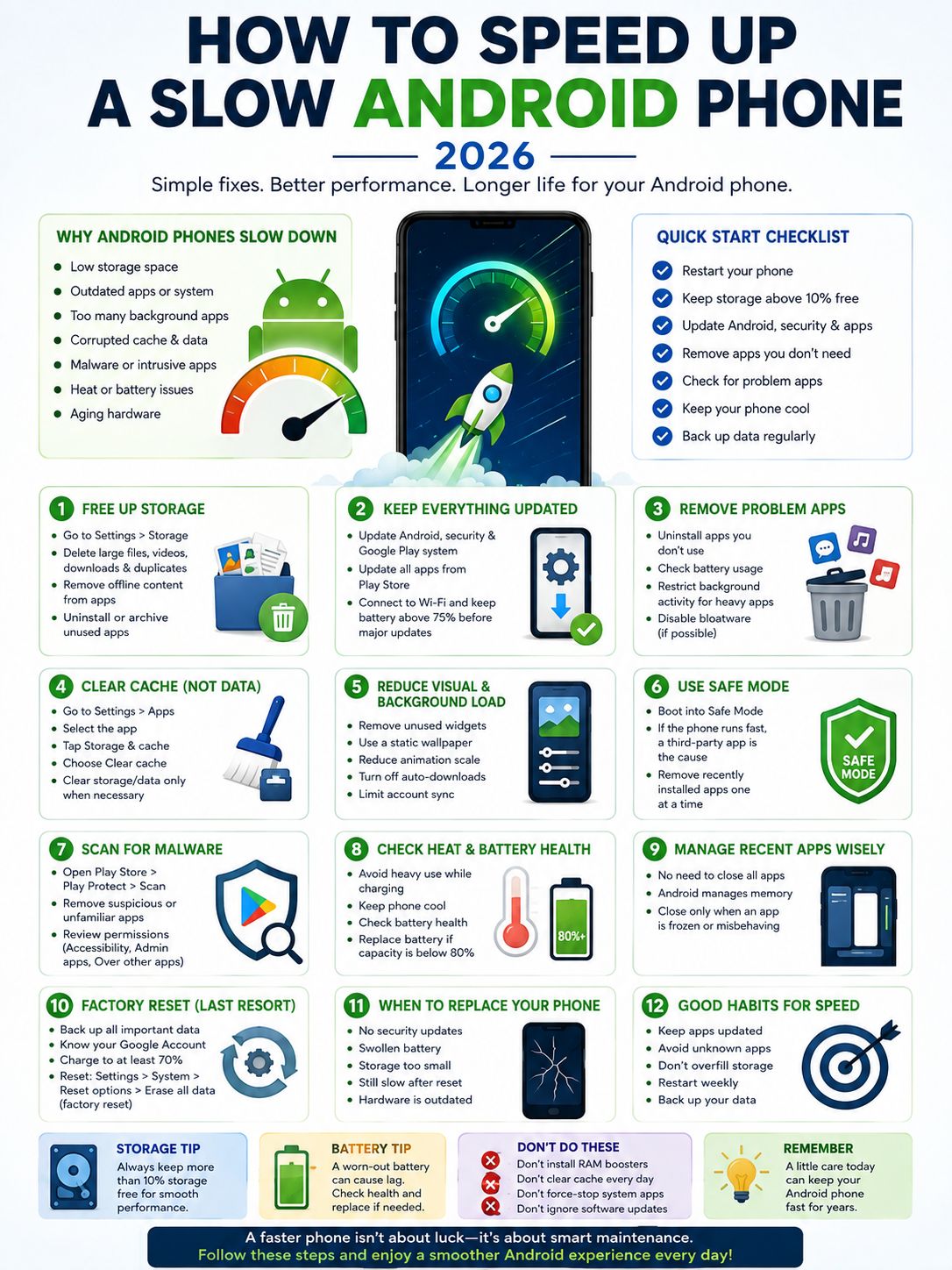
Safe Mode helps you find out whether a downloaded app is causing the slowdown.
It temporarily disables most third-party apps.
|
Safe Mode result |
What it probably means |
|
The phone feels much faster |
A downloaded app is likely responsible |
|
Crashes stop |
A third-party app may be unstable |
|
Battery life improves |
An app may be running too much in the background |
|
Nothing changes |
The issue may involve the system, heat, storage, or hardware |
The Safe Mode process varies by brand.
On many phones, you can press and hold the on-screen Power off option until a Safe Mode message appears. Check your phone maker’s support page if that doesn’t work.
Google suggests removing recently installed apps one at a time. Restart normally after each removal and see whether the problem returns.
Start with:
- Cleaner apps
- RAM boosters
- Free VPN apps
- Custom launchers
- APK-installed apps
- Unknown keyboards
- Battery optimizer apps
- Apps with accessibility access
- Apps allowed to appear over other apps
Remove one app at a time. That makes it easier to spot the real culprit.
Check for Harmful or Intrusive Apps
Malware isn’t the most common reason for a slow Android phone, but it happens.
Take it seriously if you notice pop-ups, redirects, unfamiliar apps, unusual battery drain, or settings that changed without your input.
|
Warning sign |
What to check |
|
Ads appear outside normal apps |
Recently installed apps |
|
Browser keeps redirecting |
Site permissions and suspicious apps |
|
Unknown apps appear |
Installation sources and account security |
|
Battery or data use jumps |
App usage |
|
An app won’t uninstall |
Device administrator access |
|
Accessibility settings changed |
Unknown apps with access |
Run a Play Protect scan:
- Open the Google Play Store.
- Tap your profile picture.
- Select Play Protect.
- Tap Scan.
Google Play Protect checks installed apps, including some apps downloaded outside Google Play. It can warn you, disable an app, or remove harmful software.
Also review:
- Install unknown apps
- Accessibility access
- Device administrator apps
- Display over other apps
- Notification access
- VPN settings
- Usage access
Powerful permissions should match what the app actually does.
A flashlight app, for example, shouldn’t need accessibility access or permission to install unknown apps.
Check Heat and Battery Health
Heat can slow a phone down quickly.
When the device gets too hot, it may reduce performance to protect the battery and internal parts.
Gaming, video recording, navigation, weak mobile reception, direct sunlight, and fast charging can all raise the temperature.
If the phone feels hot:
- Stop heavy apps.
- Unplug the charger.
- Move the phone out of sunlight.
- Remove a thick case.
- Let it cool at room temperature.
Don’t put it in a fridge or freezer. Sudden temperature changes can cause condensation.
|
Hardware issue |
Common sign |
What to do |
|
Overheating |
Lag during games or charging |
Stop heavy use and cool the phone |
|
Aging battery |
Fast drain or sudden shutdowns |
Run battery diagnostics |
|
Limited RAM |
Apps reload often |
Reduce multitasking |
|
Failing storage |
Slow file access or corrupted files |
Back up data and seek repair |
|
Old processor |
Modern apps stay slow |
Consider replacement |
|
Swollen battery |
Back cover or screen starts lifting |
Stop using the phone |
On Pixel 8a and newer models, Google provides a Battery health screen that can show Normal or Reduced status. Google suggests considering replacement when capacity drops below 80%.
Samsung users can check battery and device condition through the Samsung Members app.
A new battery can help if the old one can’t deliver steady power. It won’t fix a weak processor or low memory.
Use a Factory Reset Only at the End
A factory reset wipes the phone.
It removes accounts, apps, settings, downloads, and local files. It can fix deep software problems, but it can’t upgrade old hardware.
|
Before resetting |
Why it matters |
|
Back up photos and videos |
Local files will be erased |
|
Confirm your Google password |
You may need it during setup |
|
Save recovery codes |
Authenticator access may be lost |
|
Export unsynced notes and messages |
Some apps don’t back up everything |
|
Check banking and wallet access |
You may need to verify again |
|
Charge the phone to at least 70% |
Avoid interruption |
|
Connect to Wi-Fi or mobile data |
Sign-in is required after reset |
Google says a factory reset erases all phone data and removes installed apps. It also recommends backing up first, charging the phone to at least 70%, and knowing your Google Account details. If you recently changed your Google password, wait 24 hours before resetting.
After the reset:
- Finish the basic setup.
- Install system updates.
- Test the phone before restoring every app.
- Add only essential apps at first.
- Watch for the point where performance drops again.
If the phone feels fine until one app returns, you’ve probably found the problem.
Know When the Phone Has Reached Its Limit
Software cleanup can only do so much.
An older or entry-level phone may still struggle with new apps, even after a reset.
|
Situation |
Best next step |
|
Battery is worn but the phone still feels usable |
Replace the battery |
|
Only one app runs badly |
Replace or avoid the app |
|
Security updates have ended |
Consider a newer phone |
|
Storage is too small for daily use |
Move to a higher-capacity model |
|
Basic tasks remain slow after a reset |
Hardware is likely the limit |
|
Battery is swollen |
Stop using the phone and get it repaired |
A replacement makes sense when:
- Essential apps no longer support the phone
- Security updates have ended
- Repairs cost too much
- Storage is always full
- The phone remains slow after a clean setup
- Battery or hardware problems keep returning
When buying a replacement, don’t focus only on the camera.
Look for:
- Long security support
- Enough internal storage
- Enough physical RAM
- Good battery service options
- A capable processor
- Reliable local repair support
Those things usually matter more over time than flashy launch-day features.
Final Thoughts
The best way to speed up slow Android phones is to stop guessing and check the basics in order.
Restart the phone. Free up storage. Install updates. Remove apps you don’t use. Clear cache only when one app is causing trouble. Try Safe Mode if the slowdown started after installing something new.
Skip the miracle cleaner apps. Stop force-closing everything. Those shortcuts rarely fix the real issue.
A factory reset should come near the end, not the beginning.
And if a clean, updated phone still struggles with calls, messages, browsing, and simple apps, the hardware has probably reached its limit.
Frequently Asked Questions
Why is my Android phone slow even with free storage?
Storage is only one part of the picture. Heat, buggy apps, low RAM, battery problems, old hardware, or software bugs can also slow the phone down.
Can a microSD card make Android slower?
Yes. A slow, damaged, or fake card can delay access to photos, videos, and app files. Remove the card temporarily and test the phone again.
Does virtual RAM improve speed?
Sometimes, but not by much. Virtual RAM uses storage, which is slower than real memory. It may help keep a few more apps open, but it won’t fix a slow processor.
Why does my phone lag while charging?
Charging creates heat. Gaming, recording video, or using navigation at the same time adds even more. The phone may slow itself down until it cools.
Should I clear all app caches regularly?
No. Cache usually helps apps load faster. Clear it only when one app is crashing, showing old content, or using too much space.
Will a RAM cleaner make my phone faster?
Usually not. Android already manages memory. Cleaner apps can add more ads, notifications, and background activity.