
Screen recording on Android sounds simple enough. Tap a button, record the screen, and you’re done.
Then you play the video back and realize there’s no sound.
That’s the part that catches people out.
If you want to screen record Android with audio, most newer phones can do it without installing another app. You can usually record the sound coming from the phone, your voice through the microphone, or both at once.
The exact controls depend on your phone. Pixel and Samsung handle things a little differently, and other brands may use different labels for the same settings.
There are also a few limits worth knowing. Some apps block screen capture. Others don’t allow their audio to be recorded. Calls can have extra restrictions too.
Here’s how to get it right without wasting time on a silent 20-minute recording.
Can Android Screen Record With Audio?
Yes.
Android’s built-in screen recorder can capture audio on supported phones. Before recording, you’ll normally get a choice to turn audio on and decide what kind of sound you want.
On Google Pixel phones, you can record device audio, microphone audio, or both. Samsung Galaxy phones use slightly different wording: None, Media, and Media and mic.
|
Audio option |
What it captures |
Best use |
|
Device audio / Media |
Sound playing on the phone |
Games, app demos, tutorials |
|
Microphone |
Your voice and nearby sound |
Narration |
|
Device audio + microphone |
App sound and your voice |
Tutorials and gameplay commentary |
|
No audio |
Video only |
Silent walkthroughs |
The main thing to remember is this: turning on device audio doesn’t mean Android can record every sound from every app.
Apps can place limits on audio capture. That’s why a game may record perfectly while another app stays silent.
How to Screen Record Android With Audio
You don’t need a complicated setup.
On most current Android phones, the recorder lives in Quick Settings.
|
Step |
What to do |
|
1 |
Open Quick Settings |
|
2 |
Tap Screen record |
|
3 |
Choose an audio source |
|
4 |
Pick full-screen or app recording |
|
5 |
Start recording |
|
6 |
Stop from the notification or toolbar |
1. Open Quick Settings
Swipe down from the top of the screen.
You may need to swipe down again to open the full Quick Settings panel.
Look for Screen record or Screen recorder.
Can’t see it? Open the Quick Settings editor. On many phones, you can drag the Screen record tile into the active panel.
2. Tap Screen Record
Once you find it, tap the tile.
Don’t rush straight into recording.
Take a second to check the sound options first. That’s where most recording mistakes happen.
3. Choose the right audio source
You may see labels such as:
- Device audio
- Media
- System sound
- Microphone
- Media and mic
- Device audio and microphone
- No sound
Want to capture game or app sound? Choose Device audio or Media.
Want to talk while recording? Turn on Microphone.
Want both? Pick the combined option if your phone supports it.
On Pixel, you can enable device audio and microphone recording together. Samsung calls its combined setting Media and mic.
4. Choose what you want to record
Some phones now let you choose between:
- One app
- The whole screen
Pixel supports both on current software.
Single-app recording is especially useful if you’re creating a tutorial. It can keep notifications and other parts of the phone interface out of the final recording.
Use full-screen capture if you need to jump between apps.
5. Start recording
Tap Start or Start recording.
You’ll normally see a short countdown.
Once it finishes, Android starts capturing the screen.
6. Stop the recording
When you’re done, swipe down and tap the recording notification.
On Samsung, you can also stop recording from the floating toolbar.
The finished video will save to your phone.
Which Audio Setting Should You Use?
This sounds obvious, but choosing the wrong audio source is probably the most common reason screen recordings come out wrong.
|
What you’re recording |
Best audio setting |
|
Gameplay |
Device audio |
|
App tutorial |
Device audio + microphone |
|
Spoken walkthrough |
Microphone |
|
Game commentary |
Device audio + microphone |
|
Visual instructions only |
No audio |
|
Clean app sound without room noise |
Device audio |
Device audio
Use device audio when you want the sound coming directly from the phone.
That includes things like:
- Game sound effects
- In-app audio
- Music inside an editing app
- Tutorial sound
- Supported video playback
This usually gives you cleaner sound because it doesn’t pick up fans, traffic, people talking, or other room noise.
But Android doesn’t treat all app audio the same way.
Some apps allow playback capture. Others limit it. A few block it entirely.
So if device audio works in one app and fails in another, your recorder may not be the problem.
Microphone audio
Use the microphone when you want to explain what you’re doing.
For cleaner voice audio:
- Record in a quiet room.
- Keep your fingers away from the microphone.
- Don’t let your case cover the mic.
- Speak at a steady distance.
- Make a short test first.
That last one matters.
A 10-second sample is much easier to redo than a full tutorial.
Read Also: How to Set Default Apps on Android in 2026
Device audio plus microphone
This is the best option for most tutorials.
Viewers hear what’s happening in the app and your explanation at the same time.
Pixel supports device audio and microphone recording together. Samsung offers the same idea through Media and mic.
Before starting a long recording, check the balance.
Sometimes the app audio is much louder than your voice.
Google Pixel vs Samsung Galaxy Screen Recording
Pixel and Galaxy phones both have built-in screen recorders, but the menus aren’t identical.
That’s why instructions written for “Android” can sometimes feel slightly wrong on your phone.
|
Feature |
Google Pixel |
Samsung Galaxy |
|
Built-in screen recorder |
Yes |
Yes on supported models |
|
Device audio |
Yes |
Media |
|
Microphone |
Yes |
Media and mic |
|
Single-app capture |
Yes |
Depends on software/model |
|
Full-screen capture |
Yes |
Yes |
|
Touch indicators |
Yes |
Yes |
|
Selfie camera overlay |
Available |
Available on supported models |
|
Resolution controls |
Limited in Google’s help page |
1080p, 720p, 480p on supported devices |
Google Pixel
On Pixel:
- Swipe down twice.
- Tap Screen record.
- Pick your audio settings.
- Choose one app or the whole screen.
- Start recording.
Current Pixel software can also add your selfie camera to the recording.
That’s handy for walkthroughs, lessons, presentations, or gameplay commentary.
Pixel saves screen recordings in Google Photos. You’ll usually find them under:
Photos → Collections → On this device → Movies
Samsung Galaxy
Samsung uses a similar process.
Swipe down, tap Screen recorder, then choose:
- None
- Media
- Media and mic
On supported Galaxy models, Samsung also lets you adjust things such as:
- Video quality
- Selfie camera size
- Touch indicators
- Save location
Samsung currently lists 1080p, 720p, and 480p as available quality options on supported devices.
Some newer Galaxy software also supports selected-area recording, so you don’t always need to capture the entire screen.
Why Does My Android Screen Recording Have No Sound?
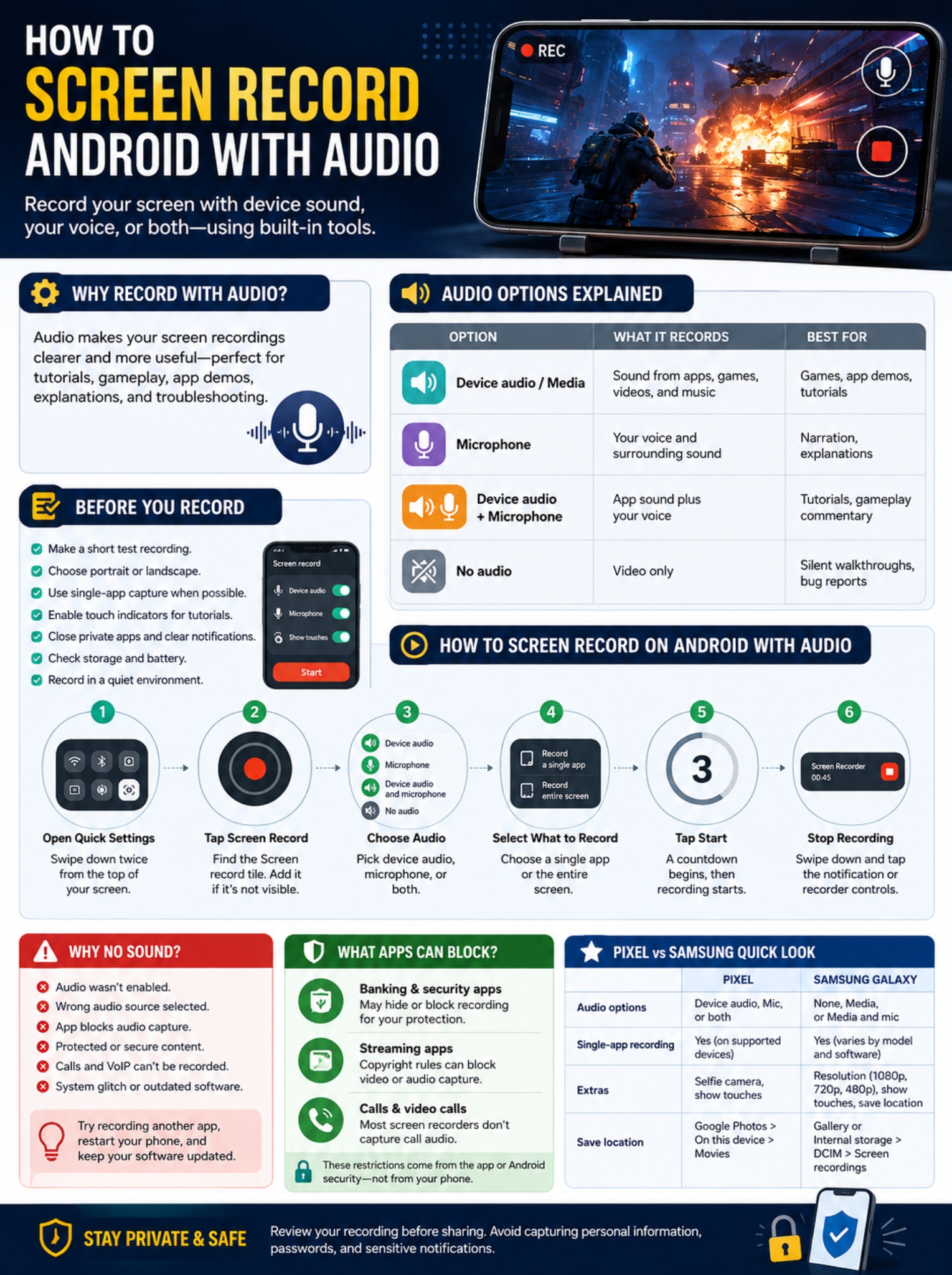
You’ve recorded the video. The picture looks fine.
The audio is gone.
There are a few common reasons.
|
Problem |
What may be happening |
What to try |
|
No sound at all |
Audio wasn’t turned on |
Check recorder settings |
|
No app sound |
Wrong audio source |
Choose Device audio or Media |
|
No voice |
Microphone wasn’t enabled |
Turn on mic |
|
One app stays silent |
App may restrict capture |
Test another app |
|
Part of the screen is black |
Protected content |
App may block capture |
|
Calls have no audio |
Call recording is restricted |
Use supported call-recording tools |
|
Recording suddenly stops |
Screen locked or system interrupted capture |
Keep screen active |
Check the audio setting first
Open the recorder again.
Make sure you selected the right source.
If you chose Microphone, you may not get clean internal app audio.
If you chose Device audio, your voice won’t be included unless the mic is also enabled.
Try recording another app
This is one of the quickest troubleshooting tests.
Open another normal app or game and make a short recording.
If the sound works there, the original app may be limiting audio capture.
That’s an important distinction because installing another recorder may not fix it.
Restart the phone
If recording used to work and suddenly doesn’t, restart the phone.
It’s basic advice, but temporary Android glitches can affect recording, audio routing, or permissions.
Also check for system updates.
Why Do Some Apps Show a Black Screen?
Some apps intentionally block screenshots and screen recording.
Banking apps, password managers, and other apps that handle sensitive information may use Android’s secure-screen protections.
In those cases, the recording may show:
- A black area
- A blank screen
- Hidden content
That doesn’t mean the recorder is broken.
The app is doing it on purpose.
Copyright-protected video can behave in a similar way. Some streaming services may allow the interface to appear while blocking the actual video.
Can Android Record Call Audio?
Don’t count on it.
Calls have stricter privacy rules than normal media playback.
Samsung specifically says its Screen recorder doesn’t record:
- Phone calls
- VoIP calls
- Video calls
Other Android brands may behave differently, but screen recording isn’t a reliable universal way to record calls.
If you need to record a call, use a supported call-recording feature where available and follow local consent laws.
How to Make Android Screen Recordings Look Better
Recording itself is easy.
Getting a clean result takes another minute of preparation.
|
Before recording |
Why it helps |
|
Make a short test clip |
Confirms sound and video |
|
Choose portrait or landscape |
Avoids awkward rotation |
|
Use single-app capture |
Keeps notifications out |
|
Turn on touch indicators |
Makes tutorials easier to follow |
|
Close private apps |
Protects personal information |
|
Check free storage |
Helps with longer recordings |
|
Use a quiet room |
Improves microphone audio |
Make a test recording
This is the one step I’d never skip.
Record 10 seconds.
Play it back.
Check three things:
- Can you hear the app?
- Can you hear your voice?
- Is one much louder than the other?
If something’s wrong, fix it before doing the real recording.
Pick the right screen orientation
Use portrait for things like:
- Settings
- Messaging apps
- Social media
- Phone tutorials
Use landscape for:
- Games
- Full-screen video
- Wide apps
- Presentations
Try to avoid rotating the phone halfway through unless you really need to.
Show your taps
Touch indicators make tutorials much easier to follow.
Instead of viewers guessing where you tapped, they can see it on screen.
Pixel and Samsung both support touch indicators in their recording tools.
Use single-app recording when you can
If your phone supports it, this is one of the nicest improvements Android has added.
Single-app capture can keep things like notifications and system UI out of the video.
That means fewer accidental message previews and a cleaner tutorial.
Check for private information
Before recording, look at what’s open on your phone.
Watch for:
- Message previews
- Email addresses
- Personal photos
- Usernames
- Browser tabs
- Account details
- Passwords
Review the finished video before you upload or send it anywhere.
Why Did Screen Recording Stop When I Locked My Phone?
On newer Android software, locking the screen can stop an active capture session.
Android 15 QPR1 and later can automatically end MediaProjection when the screen locks.
So if you press the power button and your recording ends, that may be normal.
Keep the phone unlocked until you’re done.
Do You Need a Third-Party Screen Recorder?
Most people don’t.
If your phone already includes Screen record and it captures the sound you need, stick with it.
It’s simpler and avoids giving another app access to everything on your display.
|
Situation |
Built-in recorder |
Third-party app |
|
Basic screen recording |
Best choice |
Usually unnecessary |
|
Internal audio |
Often supported |
Depends on Android rules |
|
Microphone narration |
Supported |
Supported by many apps |
|
Extra overlays |
Limited |
Often better |
|
Older phone |
May be missing |
Can help |
|
Protected content |
May be blocked |
Usually still blocked |
A third-party recorder can still make sense if:
- Your phone doesn’t have a recorder.
- You want extra overlays.
- You need editing tools.
- You want more control over recording settings.
Just don’t assume another app can bypass Android’s security rules.
If an app blocks its audio or protects its screen, another recorder may hit the same wall.
And remember what you’re giving that recorder access to. Choose apps from trusted developers and check permissions before using them.
Final Thoughts
The easiest way to screen record Android with audio is usually the recorder already built into your phone.
Start in Quick Settings. Pick the right sound source. Decide whether you want one app or the full screen. Then record a short test before doing anything important.
For most tutorials, use device audio and microphone together.
For gameplay without commentary, device audio is enough.
If a recording comes back silent, don’t immediately install another app. Check the audio source first. Then test another app. Android’s capture rules may be the real reason one recording works and another doesn’t.
And if you’re about to record something long, test it first.
Ten seconds of checking can save you from doing the whole thing twice.
Frequently Asked Questions
Why can’t I find Screen Record in Quick Settings?
Open the Quick Settings editor first.
The tile may simply be hidden.
If it’s still missing, your phone model or software version may not support a built-in recorder.
Can I record only one app without showing notifications?
Yes, on supported Android versions.
Pixel currently supports single-app recording.
Android’s app-sharing system can keep notifications, the status bar, and other system UI outside the recording.
Can a work phone block screen recording?
Yes.
Company-managed Android phones can have screen capture disabled through device-management policies.
If the feature is missing or blocked on a work device, your employer’s settings may be responsible.
Why does internal audio work in one game but not another?
Because apps can use different audio-capture policies.
One game may allow playback capture while another may restrict it.
That’s normal Android behavior.
Can a third-party recorder capture blocked audio?
Sometimes another recorder may behave differently, but there’s no guaranteed workaround.
If the source app blocks playback capture, another app may run into the same restriction.
Can Samsung Screen Recorder record WhatsApp or Meet call audio?
Samsung says its Screen recorder doesn’t record phone calls, VoIP calls, or video calls.
So don’t rely on it for call recording.
Where are Android screen recordings saved?
It depends on the phone.
On Pixel, recordings usually appear in:
Google Photos → Collections → On this device → Movies
On Samsung, you’ll normally find them in Gallery or in the Screen recordings folder inside internal storage.