
Installing a new browser or messaging app takes seconds. Getting Android to use it every time can be a little less clear.
You may install Firefox, only to watch links keep opening in Chrome. A PDF might launch in Google Drive when you’d rather use Adobe Acrobat. You may even change your browser, then tap a YouTube link and land in the YouTube app anyway.
That’s because Android handles defaults in more than one place.
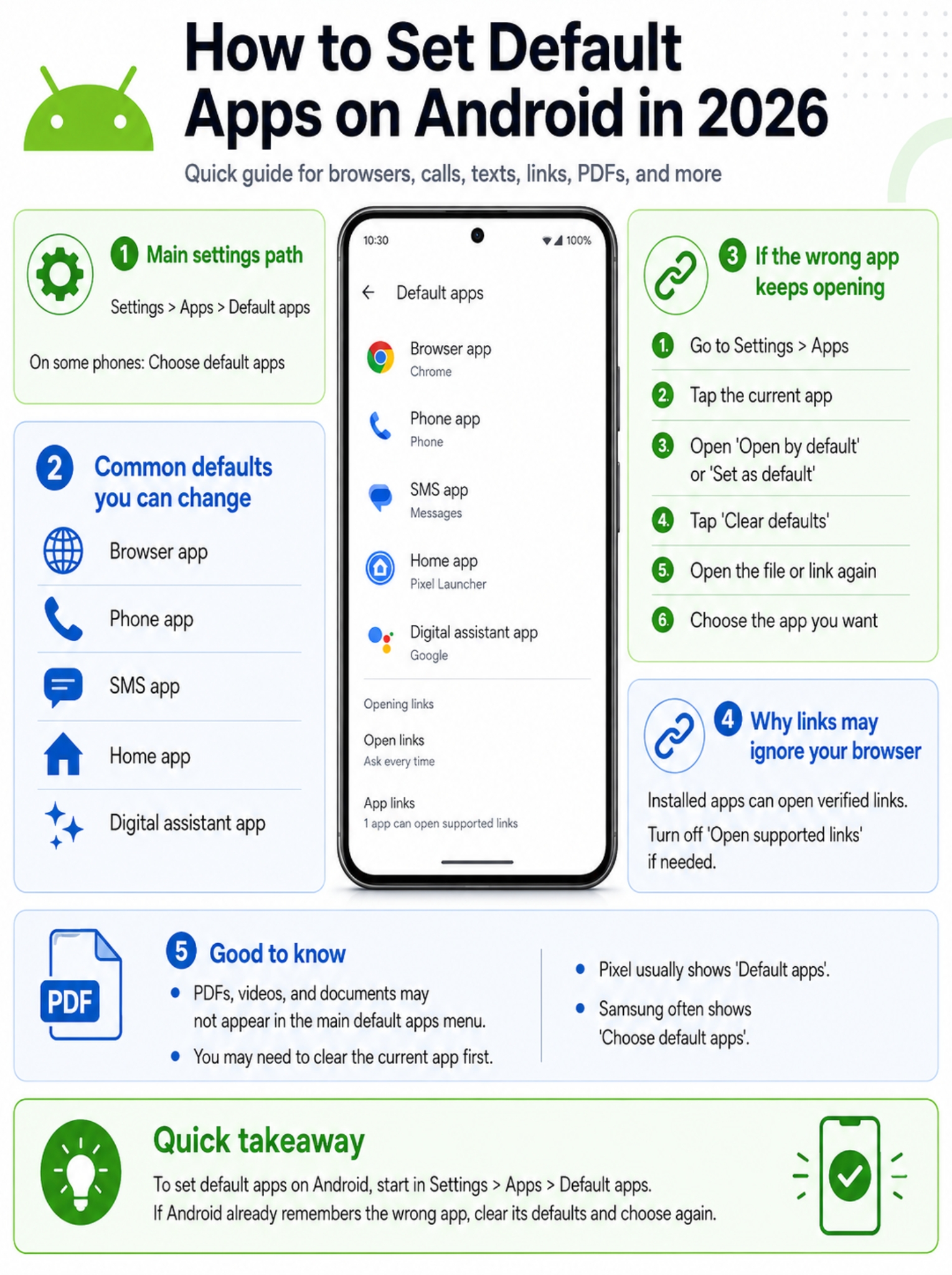
Common choices, such as your browser, phone app, SMS app, home launcher, and digital assistant, sit inside one main menu. Files and website links often use separate app settings.
To set default apps Android users need to know three basic things:
- Where the main Default apps menu lives.
- How to clear an app that Android already remembers.
- How app links can override your browser choice.
Once you know those three, the whole system makes a lot more sense.
What Is a Default App on Android?
A default app is the app Android opens automatically for a certain task.
Your browser opens web pages. Your SMS app handles texts. Your phone app manages calls. Your launcher controls the home screen and app drawer.
Android treats some of these as official system roles. That includes browsers, dialers, messaging apps, home launchers, and assistants. An app has to support the right role before Android will show it as an option.
Other actions work more casually. When you open a PDF, video, image, or document, Android may ask which app you want to use. If you tap Always, it remembers that choice.
|
Default app type |
What it handles |
Common examples |
|
Browser app |
Normal web links |
Chrome, Firefox, Edge, Brave |
|
Phone app |
Calls and dialing |
Phone by Google, Samsung Phone |
|
SMS app |
SMS and MMS |
Google Messages, Samsung Messages |
|
Home app |
Home screen and app drawer |
Pixel Launcher, One UI Home, Nova Launcher |
|
Digital assistant |
Assistant requests |
Gemini or another supported assistant |
|
App links |
Website links tied to installed apps |
YouTube, Reddit, shopping apps |
|
File handlers |
PDFs, videos, documents, and audio |
Acrobat, VLC, Microsoft 365 |
The exact list changes from phone to phone. Your Android version, brand, region, carrier, installed apps, and work settings can all affect what appears.
How to Set Default Apps Android Uses
For most people, the main Default apps menu is the best place to start.
Standard Android steps
- Open Settings.
- Tap Apps.
- Tap Default apps or Choose default apps.
- Pick the category you want to change.
- Select your preferred app.
On Google Pixel phones, the path is usually:
Settings > Apps > Default apps
On Samsung Galaxy phones, you’ll often see:
Settings > Apps > Choose default apps
Example: Change your default browser
Let’s say you want Firefox instead of Chrome.
- Install Firefox.
- Open it once.
- Go to Settings.
- Tap Apps.
- Open Default apps.
- Tap Browser app.
- Choose Firefox.
That’s it. You normally don’t need to restart your phone.
Open a regular web link to test it. If the wrong app still opens, the problem may be a saved link setting rather than your browser choice. We’ll cover that shortly.
|
Step |
What to do |
Why it helps |
|
Install the new app |
Download it from a trusted store |
Android needs another eligible option |
|
Open it once |
Complete the first setup |
Some apps don’t fully register until opened |
|
Go to Default apps |
Open the Apps section in Settings |
This is where Android stores major defaults |
|
Pick a category |
Browser, phone, SMS, home, or assistant |
Each one works separately |
|
Select the app |
Tap the app you prefer |
Android saves the new choice |
Which Default Apps Can You Change?
Android doesn’t give you one giant list for every type of app.
You’ll usually find these common categories:
- Browser app
- Phone app
- SMS app
- Home app
- Digital assistant app
Some phones may also show options for caller ID, spam protection, wallet apps, or opening links.
What often confuses people is what’s missing.
You may not see a separate setting for maps, PDFs, music, videos, email, or the camera. That doesn’t always mean you’re stuck. It usually means Android handles that action through an app chooser or an individual app setting.
|
Category |
Usually shown in Default apps? |
What to know |
|
Browser |
Yes |
Available on most Android phones |
|
Phone app |
Usually |
The app must support calling features |
|
SMS app |
Yes |
Only one app can hold the main SMS role |
|
Home launcher |
Yes |
Usually listed as Home app |
|
Digital assistant |
Usually |
Depends on the apps installed |
|
Wallet |
Sometimes |
Region and phone support matter |
|
Maps |
Often no |
Usually controlled through links |
|
PDF reader |
Often no |
You may need to clear the old app |
|
Camera |
Often no |
Shortcuts may still use the built-in camera |
|
Music player |
Often no |
Depends on the file and app |
For files and less common actions, the usual fix is simple: clear the current app’s default and open the item again.
How to Clear an Existing Default App
Android often remembers your choice after you tap Always.
That’s useful until you pick the wrong app.
For example, maybe you opened a PDF and chose Google Drive. Now every PDF goes there, and Android no longer asks what you want to use.
You can undo that choice.
Clear a saved default
- Open Settings.
- Tap Apps.
- Choose the app that currently opens the file or link.
- Tap Open by default or Set as default.
- Tap Clear default preferences or Clear defaults.
- Open the file or link again.
- Pick a different app.
- Tap Always if you want Android to remember it.
Read Also: How to Fix Android Phone Charging Slowly
Example: Change the PDF app
- Find out which app opens your PDFs now.
- Go to Settings > Apps.
- Open that app’s settings.
- Tap Open by default or Set as default.
- Clear the saved default.
- Open a PDF again.
- Choose your preferred PDF reader.
- Tap Always.
|
Option |
What it means |
|
Always |
Use this app every time |
|
Just once |
Use it only this time |
|
Clear defaults |
Remove the saved choice |
|
Open by default |
Manage links and saved actions |
|
Set as default |
Samsung’s common label for similar settings |
One thing can trip you up here: some apps use their own built-in viewer.
A file manager may preview a PDF inside the app. A messaging app may open a link in its own browser. In those cases, Android never gets the chance to ask which app you prefer.
Try opening the file from another place, such as:
- The Files app
- Your Downloads folder
- An email attachment
- A different file manager
You can also look inside the app for options such as Open externally, Use external app, or Open links in browser.
How to Change Default Apps on Samsung Galaxy
Samsung uses Android’s default-app system, but the labels can look a little different.
Change a default app on Samsung
- Open Settings.
- Tap Apps.
- Tap Choose default apps.
- Pick a category.
- Select the app you want.
For example, to change the SMS app:
Settings > Apps > Choose default apps > SMS app
Clear a default on Samsung
- Open Settings > Apps.
- Choose the app that currently handles the task.
- Tap Set as default.
- Tap Clear defaults, if it appears.
- Try opening the file or link again.
|
Task |
Common Samsung path |
|
Change browser |
Settings > Apps > Choose default apps > Browser app |
|
Change SMS app |
Settings > Apps > Choose default apps > SMS app |
|
Change phone app |
Settings > Apps > Choose default apps > Phone app |
|
Change launcher |
Settings > Apps > Choose default apps > Home app |
|
Clear a saved choice |
Settings > Apps > App name > Set as default |
Older Galaxy phones may place Default apps inside the three-dot menu on the Apps screen.
If you can’t find it, use the search bar in Settings and type:
- Default apps
- Browser app
- SMS app
- Opening links
That’s usually faster than digging through menus.
How to Change Default Apps on Google Pixel
Pixel phones use Google’s cleaner Android layout, so the path is usually straightforward.
Change a default app on Pixel
- Open Settings.
- Tap Apps.
- Tap Default apps.
- Choose a category.
- Select the app you want.
Clear a default on Pixel
- Go to Settings > Apps.
- Pick the current app.
- Tap Open by default.
- Tap Clear default preferences.
|
Pixel setting |
What it controls |
|
Browser app |
Normal website links |
|
Home app |
Home screen and app drawer |
|
Phone app |
Calls and dialing |
|
SMS app |
Text and multimedia messages |
|
Digital assistant app |
Assistant requests |
|
Opening links |
Website links claimed by installed apps |
If a category isn’t there, Android probably doesn’t offer a central setting for it. Clear the app’s saved preference instead.
Why Links Still Open in Apps Instead of Your Browser
This is one of the most common Android headaches.
You change the default browser, tap a link, and an app still opens.
That happens because Android uses App Links.
App Links connect certain website addresses to installed apps. A YouTube URL may open in YouTube. A Reddit URL may open in Reddit. A shopping link may jump into the retailer’s app.
Your browser setting can still be correct. The app-link rule simply takes priority for that website.
Stop an app from opening its links
- Open Settings.
- Tap Apps.
- Choose the app.
- Tap Open by default or Set as default.
- Turn off Open supported links, or choose a more restricted option.
Some phones also let you control individual website addresses.
|
Link setting |
What happens |
|
Open in this app |
Matching links open in the app |
|
Ask every time |
Android may show a choice |
|
Don’t open in this app |
Links usually stay in the browser |
|
Supported web addresses |
Lets you control specific domains |
The wording changes by phone brand. Look for terms such as:
- Open supported links
- Opening links
- Supported web addresses
- Set as default
If one website keeps ignoring your browser, this is the first place I’d check.
How to Change PDF, Video, Audio, and Document Apps
Files work a little differently from browsers and SMS apps.
PDF readers, video players, music apps, and office tools often don’t appear in the main Default apps menu. Android simply looks for apps that can handle the file and asks you to choose.
General steps
- Find the app that currently opens the file.
- Open that app’s settings.
- Tap Open by default or Set as default.
- Clear its defaults.
- Open the file again.
- Choose another compatible app.
- Tap Always, if Android gives you that option.
|
File type |
Apps that may open it |
What can get in the way |
|
|
Acrobat, Drive, Microsoft 365 |
Built-in file preview |
|
MP4 video |
VLC, Photos, gallery app |
Gallery app opens it internally |
|
MP3 audio |
VLC, music player |
Streaming app may not support local files |
|
DOCX |
Microsoft 365, Google Docs |
Cloud preview opens first |
|
Images |
Photos, gallery, editor apps |
Viewing and editing may use different apps |
|
ZIP files |
Files app or archive tool |
File manager may extract it itself |
Your preferred app won’t appear unless it supports that exact file type or action.
A music streaming app, for example, may not be able to open local MP3 files. A photo editor may appear for editing an image but not for viewing one.
The source of the file matters too. A PDF opened from Chrome may behave differently from the same PDF opened from Gmail or a file manager.
How to Change the Default Launcher
The launcher controls your home screen, app drawer, icons, folders, widgets, and gestures.
Popular options include Nova Launcher, Niagara Launcher, Microsoft Launcher, and Smart Launcher.
Set a new launcher
- Install the launcher.
- Open Settings.
- Go to Apps > Default apps.
- Tap Home app.
- Choose the launcher.
On Samsung phones, the built-in launcher is usually called One UI Home.
On Pixel phones, it’s called Pixel Launcher.
|
Launcher feature |
What changes |
|
Home screen |
Icon and folder layout |
|
App drawer |
App sorting and search |
|
Gestures |
Swipe and tap actions |
|
Widgets |
Placement and appearance |
|
Icon packs |
Custom icon designs |
Changing the launcher won’t delete your apps or personal files.
Your layout may look different, though. Each launcher saves its own home-screen setup, so you may need to arrange your icons and widgets again.
How to Change the Default Digital Assistant
Android lets compatible apps take over the digital assistant role.
Depending on your phone, you may see Gemini, Google Assistant, a manufacturer assistant, or another supported app.
Change the assistant
- Open Settings.
- Tap Apps.
- Open Default apps.
- Tap Digital assistant app.
- Choose your preferred assistant.
|
Setting |
What it controls |
|
Digital assistant app |
Which assistant handles system requests |
|
Voice activation |
Whether a wake phrase starts it |
|
Power-button shortcut |
Whether holding the button launches it |
|
Screen context |
Whether it can use on-screen information |
Changing the assistant app may not turn off the old assistant’s shortcuts.
You may still need to disable:
- Voice activation
- Lock-screen access
- Headphone controls
- Power-button gestures
- Screen-reading permissions
So if the old assistant keeps showing up, check those settings too.
Why Your Preferred App Doesn’t Appear
Android only lists apps that support the job you’re trying to assign.
A browser has to identify itself as a browser. An SMS app has to support the SMS role. A launcher has to register as a home app. A PDF reader has to support PDF files.
If the app is missing, try these fixes.
|
Problem |
Likely reason |
What to try |
|
App isn’t listed |
It doesn’t support that role |
Check the app’s features |
|
New app is missing |
It hasn’t fully registered |
Open it once and restart |
|
Option is greyed out |
Work or school policy |
Contact the administrator |
|
Old app keeps opening |
Link setting is still active |
Turn off supported links |
|
File chooser never appears |
Built-in viewer is taking over |
Open the file elsewhere |
|
Only one app appears |
No other compatible app is installed |
Install another supported app |
Also check for updates.
An old app may not work properly with a newer Android release. Update both Android and the app, then try again.
How to Reset All App Preferences
If several defaults stop working, Android may let you reset app preferences.
On many Samsung phones, the path is:
Settings > Apps > three-dot menu > Reset app preferences
This may reset:
- Default apps
- Disabled apps
- Notification settings
- Background restrictions
- Some permission choices
- Other app-level settings
It does not normally delete your personal files.
|
Reset option |
What it affects |
Deletes personal files? |
|
Clear one app’s defaults |
One saved app choice |
No |
|
Reset app preferences |
Several app settings |
No |
|
Clear app storage |
Local data for one app |
It can |
|
Factory reset |
The whole phone |
Yes |
Use this only when smaller fixes don’t work.
Clearing one app’s default is far less disruptive than resetting every app preference.
And don’t confuse this with a factory reset. A factory reset wipes the phone and removes stored data.
Common Problems and Quick Fixes
Most default-app issues come from one of four things:
- A saved app choice
- A verified app link
- A built-in viewer
- A work or school policy
|
Problem |
Quick fix |
|
Links open in the wrong browser |
Change the Browser app setting |
|
One website opens in an app |
Turn off Open supported links |
|
PDFs open in the wrong reader |
Clear the current PDF app’s defaults |
|
Android never asks which app to use |
Clear the existing app preference |
|
Preferred app is missing |
Check compatibility and update it |
|
Default keeps changing back |
Check work policies or manufacturer settings |
|
Default menu is hard to find |
Search Settings for “default apps” |
|
Several defaults are broken |
Reset app preferences |
Restart the phone
A restart usually isn’t needed, but it can help after you install, update, disable, or re-enable an app.
Update your apps
Open Google Play and install pending updates.
App developers often fix problems with links, file support, and default roles through updates.
Check the app’s own settings
Some apps ignore Android’s normal chooser because they open content inside the app.
Look for options such as:
- Open links externally
- Use in-app browser
- Open documents in app
- Default viewer
- Play videos internally
- Ask before opening links
Check for a work profile
A company or school may lock certain settings.
If an option is greyed out or changes back by itself, device policy may be responsible.
Privacy and Security Tips
A default app may handle a lot of personal information.
Your SMS app can read messages. Your dialer may access call logs and contacts. Your browser sees your browsing activity. Your assistant may process voice requests and on-screen content.
Choose carefully.
|
App type |
What it may access |
What to check |
|
Browser |
History, downloads, passwords |
Privacy policy and security updates |
|
SMS app |
Messages and verification codes |
Developer identity and permissions |
|
Phone app |
Calls and contacts |
Data use and spam features |
|
Assistant |
Voice, account data, screen content |
Privacy and activation settings |
|
Launcher |
App use and home-screen activity |
Permissions and reputation |
|
Document reader |
Local and cloud files |
Upload behavior and account needs |
Stick with trusted developers and app stores.
A simple launcher or PDF reader shouldn’t need access to your microphone, contacts, messages, and location unless it has a clear reason.
Review the permissions before making any app your default.
Frequently Asked Questions
Can I use different browsers for different websites?
Android normally uses one general default browser. It doesn’t include a built-in rule system for sending one website to Chrome and another to Firefox.
Installed apps can still open their own verified links.
Why does YouTube still open after I change my browser?
The YouTube app probably has permission to open supported links.
Go to YouTube’s app settings, tap Open by default, and turn off Open supported links.
Can I choose a default app for one file extension?
Sometimes, but Android doesn’t offer a desktop-style list of every file extension.
It depends on which apps support that file and whether Android shows an app chooser.
Why is my app missing from the Default apps list?
The app may not support that role.
Update it, open it once, and check again. If it still doesn’t appear, Android probably can’t use it for that job.
Does clearing defaults erase app data?
No.
It only removes the saved opening choice. It won’t normally delete accounts, messages, files, or downloads.
Can two apps be the default SMS app?
No.
Android gives the main SMS role to one app at a time.
Final Thoughts
Android’s default-app system looks confusing at first because everything isn’t stored in one place.
Start with Settings > Apps > Default apps for your browser, phone, SMS app, launcher, and assistant.
For PDFs, videos, audio files, and documents, clear the old app’s saved preference and open the file again.
For links that keep jumping into installed apps, check Open supported links.
That’s really the whole system:
- Change the main app role.
- Clear an old saved choice.
- Control app-link behavior.
Once you know where those settings live, it’s easy to set default apps Android uses for your browser, calls, messages, files, links, assistant, and home screen.