
Your Android phone feels fine when you launch a game. Ten minutes later, the back is hot, the screen looks dimmer, and your once-smooth frame rate starts falling apart.
Sound familiar?
A warm phone during Genshin Impact, Call of Duty Mobile, PUBG Mobile, Wuthering Waves, or another demanding game isn’t unusual. These games push several parts of the phone at once. The processor is working hard. The graphics chip is drawing complex scenes. The screen may be running at 90Hz or 120Hz. Wi-Fi or mobile data stays active. The battery is feeding the whole system.
Things become a problem when the heat starts affecting how the phone works.
That’s when android overheating gaming turns from a warm-handset issue into a performance issue. You may notice lower FPS, a dimmer display, slower charging, apps closing, temperature warnings, or even an automatic shutdown.
Android phones are designed to protect themselves when they get too hot. Google’s Android gaming documentation says phones can only hold peak performance for a limited time before thermal throttling kicks in. When heat builds up, the phone may reduce performance to keep temperatures under control.
Samsung describes the same kind of behavior. A hot Galaxy phone may dim the screen, slow down, pause charging, close apps, or shut itself off.
So don’t aim for an ice-cold phone. That’s unrealistic during serious gaming. The real goal is simple: keep the workload low enough that the phone can stay fast without constantly fighting its own heat.
Why Android Phones Get Hot While Gaming
Games ask a lot from a phone.
The CPU handles physics, game logic, networking, AI-controlled characters, and other calculations. The GPU draws everything you see on screen. The display keeps refreshing. Online games keep the modem active. High brightness adds even more power use.
All of that power turns into heat.
Android’s Thermal API documentation says sustained performance depends on the workload, recent phone activity, room temperature, and the device’s cooling design. Two Android phones running the same game can heat up very differently because their internal layouts and cooling systems aren’t the same.
Research into mobile thermal performance shows the same pattern. Heavy processor use raises power consumption and surface temperature. Once the phone reaches its thermal limits, it starts trading speed for lower heat.
|
Source of heat |
What’s happening |
What you may notice |
|
CPU load |
Game logic and calculations run constantly |
Heat, stutter in busy scenes |
|
GPU load |
Graphics are rendered every frame |
Hot back panel, FPS drops |
|
High FPS |
More frames must be produced every second |
Higher power use |
|
High refresh rate |
Display updates more often |
Extra battery drain |
|
High brightness |
Screen uses more power |
More overall heat |
|
Charging |
Battery charging creates additional heat |
Faster temperature rise |
|
Weak mobile signal |
Modem works harder |
Extra battery use and heat |
|
Hot surroundings |
Phone can’t lose heat as easily |
Throttling starts sooner |
Samsung also lists intensive gaming, weak signal, charging, direct sunlight, several apps running at once, and software updates among the things that can make a Galaxy phone hotter.
A warm phone isn’t automatically overheating
This is where a lot of bad advice starts.
A gaming phone can feel noticeably warm and still be working normally. Heat alone doesn’t tell you much.
Pay attention to what the phone actually does.
Warning signs include:
- repeated overheating alerts
- a sudden and severe FPS drop
- forced screen dimming
- charging stopping on its own
- apps closing unexpectedly
- automatic shutdowns
- heat that remains uncomfortable even after you stop gaming
Samsung says warmth during demanding activities such as gaming can be normal. Problems start when the phone begins taking protective action or stays excessively hot.
Also, don’t trust claims that every Android phone becomes dangerous at exactly 42°C, 45°C, or some other fixed number. Android devices use different sensors, different cooling systems, and different thermal limits. Google specifically notes that thermal behavior varies by device.
Read Also: How to Screen Record on Android With Audio
Android Overheating Gaming: Try These Fixes First
If your phone gets too hot while gaming, don’t start by installing a “cooling” app.
Start with the things that actually reduce power use.
|
Fix |
Why it helps |
Priority |
|
Lower the FPS cap |
Reduces CPU and GPU workload |
High |
|
Lower a few heavy graphics settings |
Makes rendering easier |
High |
|
Stop charging while the phone is hot |
Removes extra charging heat |
High |
|
Reduce brightness |
Cuts display power use |
High |
|
Lower refresh rate when it isn’t needed |
Reduces display workload |
Medium to high |
|
Close unusually heavy background apps |
Stops wasted processing |
Medium |
|
Move out of direct sunlight |
Makes cooling easier |
High |
|
Remove a thick case while cooling |
Helps heat escape |
Medium |
|
Update Android and the game |
Can fix bugs and poor optimization |
Medium |
Samsung recommends many of the same steps. Its current support pages suggest lowering brightness, reducing refresh rate, closing power-hungry background apps, unplugging the charger when the phone is hot, and keeping apps and software up to date.
Xiaomi’s advice is similar. It recommends lowering game image quality, reducing background activity, avoiding direct sunlight, and not charging the phone while running a heavy game if heat is becoming a problem.
One tip from experience: don’t change everything at once.
Lower one or two settings. Play the same game for about the same amount of time. Then see what changed. You’ll quickly learn whether the real problem is FPS, graphics quality, charging, or something else.
Lower FPS Before You Destroy the Graphics Quality
FPS is one of the first settings I’d change.
If a game runs at 120 FPS, the phone may need to prepare up to twice as many frames as it would at 60 FPS. That doesn’t mean the phone uses exactly twice as much power, but the workload can rise sharply.
Google’s own thermal guidance recommends reducing frame rate when a game is getting close to thermal limits.
Try these steps:
- 120 FPS → 90 or 60 FPS
- 90 FPS → 60 FPS
- 60 FPS → 45 or 30 FPS on older or weaker phones
Only after that should you start cutting graphics quality.
Some of the biggest performance-heavy settings are:
- shadows
- reflections
- render resolution
- anti-aliasing
- volumetric effects
- particle effects
- post-processing
- draw distance
You probably don’t need to push every option down to Low.
|
Change |
Heat-saving potential |
What you give up |
|
120 FPS to 60 FPS |
High |
Less fluid motion |
|
Ultra to High graphics |
Medium |
Small visual downgrade |
|
Lower render resolution |
High |
Softer image |
|
Lower shadow quality |
Medium |
Simpler lighting |
|
Reduce effects |
Medium |
Fewer visual effects |
|
Lower brightness |
Low to medium |
Dimmer screen |
Here’s the trade-off that matters most: stable performance usually beats peak performance.
A phone that holds 60 FPS for an hour will often feel better than one that hits 120 FPS for five minutes, overheats, and then spends the rest of the session bouncing between 45 and 70 FPS.
Google’s Android guidance also points out that display refresh rate and game frame rate aren’t the same thing. If your game is producing 60 FPS while the screen is refreshing at 120Hz, those extra display refreshes may use more power without showing you extra game frames.
That doesn’t mean 120Hz is bad. It just means you don’t always need it.
Stop Adding Charging Heat to Gaming Heat
Gaming while plugged in isn’t automatically harmful.
But it can make an already hot phone hotter.
Google says Pixel phones naturally warm while charging and advises users to avoid overheating because excess heat can hurt battery performance and battery health over time.
Samsung gives similar advice. If a Galaxy phone gets hot while charging, Samsung recommends unplugging it, closing apps, letting it cool, and charging again later.
So if android overheating gaming keeps happening, try charging before you play instead of fast-charging through an entire session.
|
Situation |
Better option |
|
Phone overheats while fast-charging and gaming |
Charge first, play later |
|
Phone is already very hot |
Unplug it and stop playing |
|
Wireless charging during a heavy game |
Avoid it if heat becomes excessive |
|
Damaged cable or charger |
Replace it with a compatible one |
|
Charging on a bed or sofa |
Move the phone to a hard surface |
|
Supported Galaxy phone |
Try Pause USB PD Charging When Gaming |
Samsung’s Pause USB PD Charging feature can help
Some Galaxy phones have a useful option called Pause USB PD Charging When Gaming.
When supported, the feature pauses normal battery charging during gameplay and uses external power for the phone instead. Samsung says this can reduce heat and battery wear during demanding games.
Samsung’s current documentation says the feature needs:
- a compatible Galaxy phone
- a game running
- a 25W or higher USB PD charger
- PPS support
- more than 20% battery
Support depends on the phone and software version.
So don’t expect the option on every Android device.
Don’t Ignore Brightness, Refresh Rate, Signal, and Background Apps
Sometimes the game isn’t doing all the damage.
Imagine playing at maximum brightness while your phone records the screen, downloads an update, syncs cloud files, uses 5G with weak reception, and keeps five social apps active in the background.
That’s a lot of work happening at once.
Samsung specifically says poor signal can contribute to heat. It also recommends closing unnecessary background apps and switching off features you aren’t using.
You don’t need to shut down every radio on your phone. Just remove the stuff you don’t actually need.
If your cellular signal is poor and reliable Wi-Fi is available, try Wi-Fi instead. Research on commercial 5G smartphones has shown that sustained high-power cellular activity can contribute to thermal limits, though the effect varies by network and device.
|
Setting or condition |
What to do |
|
Brightness |
Bring it down from maximum |
|
Refresh rate |
Match it sensibly to the game |
|
Background apps |
Check for unusual battery drain |
|
App updates |
Finish them before gaming |
|
Hotspot |
Turn it off when you don’t need it |
|
GPS |
Disable it if the game doesn’t use it |
|
Weak cellular signal |
Use stable Wi-Fi when practical |
Pixel users can check:
Settings > Battery > Battery usage
Google recommends using this page to spot apps that are using more power than expected.
Use Your Phone’s Gaming Tools Before Installing Booster Apps
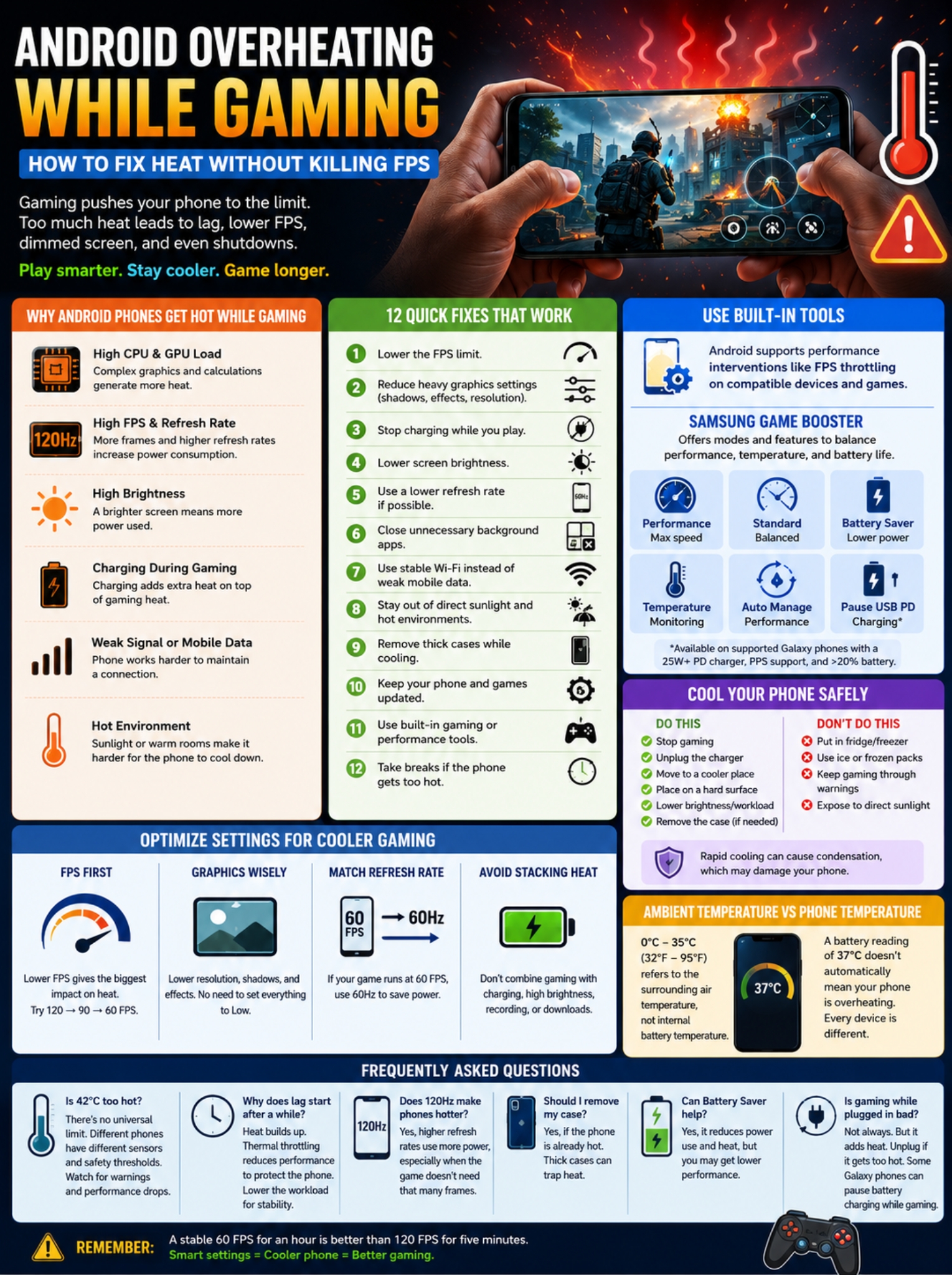
A lot of Android phones already have useful gaming controls.
Use those before downloading some random app that promises to “cool your CPU” or “boost RAM.”
Android supports game modes and interventions such as FPS throttling on compatible devices and games. Google says FPS throttling can help keep frame rates steadier while reducing battery use.
Samsung’s Game Booster goes further.
Depending on your Galaxy phone, you may see options such as:
- Performance
- Standard
- Battery Saver
- temperature monitoring
- automatic performance management
- Pause USB PD Charging When Gaming
|
Setting |
What it does |
|
Performance |
Pushes gaming performance higher |
|
Standard |
Balances performance and battery use |
|
Battery Saver |
Reduces power use |
|
Temperature monitoring |
Watches device heat |
|
Auto manage performance |
Adjusts speed as heat rises |
|
Pause USB PD Charging |
Reduces battery charging heat on supported phones |
Samsung says Game Booster can automatically adjust frame speed when the phone becomes too hot.
On recent versions, the menu is generally found around:
Gaming Hub > More > Game Booster > Game optimization
The exact wording can change by phone and software version.
I’d trust those built-in tools before a third-party “cooling app.” An app can’t magically change the phone’s physical cooling system. At best, it can reduce workload by closing things or changing settings you could already control yourself.
Cool an Overheated Android Phone the Right Way
If your phone throws a temperature warning, stop playing.
Don’t try to “push through one more match.”
Google tells Pixel owners to unplug an overheated phone, move it somewhere cooler, and avoid using it until the temperature comes down.
Samsung says much the same thing.
|
Cooling method |
Good idea? |
|
Stop gaming |
Yes |
|
Unplug the charger |
Yes |
|
Move into shade |
Yes |
|
Put the phone in a cooler room |
Yes |
|
Remove a thick case temporarily |
Yes, if heat is trapped |
|
Lower brightness and workload |
Yes |
|
Put it in the fridge |
No |
|
Put it in the freezer |
No |
|
Keep gaming through the warning |
No |
Samsung also suggests taking off the case if the phone is struggling to cool and reducing screen brightness.
And skip the ice-pack trick.
Putting a hot phone in a fridge or freezer can create condensation, which may introduce moisture into the device. Rapid cooling isn’t worth that risk.
Don’t mix up room temperature and phone temperature
You’ll often see 0°C to 35°C, or 32°F to 95°F, mentioned in phone safety guidance.
That figure usually refers to the surrounding air temperature, not the battery sensor inside the phone.
Samsung uses that approximate range for normal ambient operation, and Google provides similar environmental guidance for Pixel devices.
So if an app says your battery is 37°C, that doesn’t automatically mean the phone is overheating.
Internal battery temperature, CPU temperature, surface temperature, and room temperature are different things.
What to Do When the Overheating Keeps Coming Back
If one demanding game gets your phone hot, the game settings are the obvious place to start.
If the phone gets hot while doing almost nothing, that’s different.
|
Symptom |
What to check |
|
Only one game causes heat |
Game update, FPS, graphics |
|
Every heavy game runs hot |
Performance mode, case, room temperature |
|
Phone heats while idle |
Background apps and battery use |
|
Problem started after software changes |
Updates and restart |
|
Charging keeps stopping |
Charger, cable, heat, battery |
|
Phone shuts down often |
Battery or hardware problem |
|
Back cover starts lifting |
Possible battery swelling |
Google recommends checking battery usage, restarting the phone, updating Android, and updating apps when investigating unusual battery behavior.
Pixel 6 and newer phones also have Battery Diagnostics:
Settings > Battery > Battery diagnostics
One of the available checks is Phone is very warm.
Pay close attention to physical battery changes.
If the back of the phone starts separating, the battery appears swollen, the phone repeatedly shuts itself down, or it stays too hot to handle even after you stop using it, stop treating the issue as a gaming tweak.
That’s repair territory.
Final Thoughts
You don’t need a dozen apps, a freezer, or some mysterious “CPU cleaner” to solve most android overheating gaming problems.
Start with the basics.
Lower the FPS. Turn down the settings that hit the GPU hardest. Don’t run maximum brightness unless you need it. Stop fast-charging through a long gaming session if the phone is already getting hot. Use built-in gaming controls. Keep the phone out of direct sunlight.
Then watch what happens.
|
Best first move |
Why it works |
|
Lower FPS |
Cuts sustained processing load |
|
Reduce heavy graphics settings |
Gives the GPU breathing room |
|
Match refresh rate to game FPS |
Avoids wasted display power |
|
Stop charging when the phone is too hot |
Removes extra heat |
|
Lower brightness |
Reduces display power |
|
Close unnecessary background apps |
Stops wasted workload |
|
Keep the phone out of direct sun |
Helps it cool naturally |
|
Respect thermal warnings |
Lets built-in protection do its job |
Android’s thermal guidance comes back to one simple idea: a phone can’t hold peak performance forever. When heat starts building, reducing frame rate, resolution, or graphics workload can help it stay stable for longer.
Samsung and Xiaomi give much the same advice from the user side. Reduce unnecessary workload. Avoid stacking gaming with extra heat. Let the phone cool when it needs to.
That’s really the whole game.
A steady 60 FPS for an hour beats 120 FPS for five minutes followed by a dim screen, stutter, and a phone that feels like a hand warmer.
FAQs About Android Overheating While Gaming
|
Question |
Quick answer |
|
Is 42°C automatically dangerous? |
No universal Android limit exists |
|
Does 120Hz make phones hotter? |
It can increase power use |
|
Why does lag start after 15 minutes? |
Thermal throttling may be kicking in |
|
Should I take the case off? |
It may help if heat is trapped |
|
Can Battery Saver help? |
Yes, but performance may drop |
|
Is gaming while plugged in always bad? |
No, but it can add heat |
Is 42°C or 45°C too hot for every Android phone?
No.
There isn’t one magic temperature that applies to every Android device.
Different phones use different sensors, thermal systems, chipsets, cooling designs, and safety limits. Android itself warns developers that thermal behavior varies between devices.
Watch for system warnings and obvious performance changes instead of obsessing over one number from a third-party temperature app.
Why does my game run perfectly at first and lag 15 minutes later?
Heat may be the reason.
A phone can often run its CPU and GPU at high speeds for a short period. Once heat builds up, the system may lower performance to protect the hardware.
This is why long-session testing matters. A benchmark that runs for two minutes doesn’t always tell you how a phone will behave after half an hour of gaming.
Can a 120Hz screen make my phone hotter?
It can use more power.
Higher refresh rates increase display power consumption, especially when the screen refreshes faster than the game actually needs.
If your game tops out at 60 FPS, testing a 60Hz display mode makes sense when you’re trying to reduce heat.
Should I remove my phone case while gaming?
You don’t need to do it every time.
But if the phone is already hot and the case is thick, taking it off temporarily may help the phone release heat more easily.
Can Battery Saver reduce gaming heat?
It can.
Battery-saving modes usually reduce some combination of processor speed, background activity, frame rate, or visual performance. Less power use generally means less heat.
The downside is obvious: your game may run slower.
Samsung’s Game Booster includes a Battery Saver mode specifically for users who want lower power use rather than maximum performance.
Is gaming while plugged in always harmful?
No.
The problem isn’t the cable itself. It’s the extra heat that charging can add while the phone is already under heavy load.
If your phone stays cool enough and doesn’t show warnings, gaming while connected isn’t automatically a problem.
If it starts heating badly, unplug it.
Supported Galaxy phones have an extra advantage because Pause USB PD Charging When Gaming can reduce battery charging heat while the game is running.