
If your Echo Dot suddenly stops responding or refuses to connect to Wi-Fi, it can feel frustrating. Most of the time, though, you don’t need anything complicated. A quick reset often brings it back to normal.
To reset Alexa Echo Dot, you just need to know the right method for your device. It depends on the model and what you’re trying to fix. Sometimes a simple restart works. Other times, a full factory reset is the only real fix, especially if you’re selling the device or starting fresh.
In this guide, I’ll walk you through everything in simple steps. No jargon. No confusion. Just clear instructions that actually work.
How Do You Reset Alexa Echo Dot?
Most Echo Dot models reset by holding a specific button or button combination until the light changes. Once it turns orange, the device is ready to set up again in the Alexa app.
Older models use a small reset hole. Newer ones rely on the Action button.
Here’s the simple breakdown:
- Restart fixes small glitches
- Reset puts the device back into setup mode
- Factory reset wipes everything clean
If you’re unsure, always try a restart first. It’s faster and safer.
Restart vs Reset vs Factory Reset
These three get mixed up a lot, but they’re not the same.
Restart
A restart is the easiest fix. It simply refreshes the system without touching your settings.
Use it when Alexa feels slow, stuck, or unresponsive. Just unplug it for a few seconds and plug it back in. That’s it.
Reset
A reset pushes the device back into setup mode. You’ll need the Alexa app afterward to reconnect it to Wi-Fi and your Amazon account.
This is helpful when:
- Wi-Fi has changed
- The app can’t find the device
- Setup keeps failing
Factory Reset
This is the full wipe. Everything stored on the device is removed.
Use it when:
- You’re selling or gifting it
- Nothing else is working
- You want a completely fresh setup
Quick Comparison
|
Type |
What it does |
When to use |
|
Restart |
Refreshes system |
Minor issues |
|
Reset |
Setup mode |
Connection problems |
|
Factory Reset |
Clears everything |
Selling or major issues |
Before You Reset Alexa Echo Dot
Before you press anything, check a few simple things. You might not even need a reset.
Check the basics
Make sure the power cable is secure. A loose plug can make the device look broken when it isn’t.
Try restarting first
Unplug it, wait 10 seconds, and plug it back in. This alone fixes a surprising number of problems.
Check your Wi-Fi
If your internet is down, the Echo Dot won’t respond properly. Resetting won’t fix that.
Move it closer to the router
Walls and distance matter more than people think. Weak signals often cause connection issues.
Make sure the Alexa app is working
Update it if needed. A buggy app can stop setup from working properly.
Know your model
This matters more than anything. The reset steps are slightly different depending on the generation.
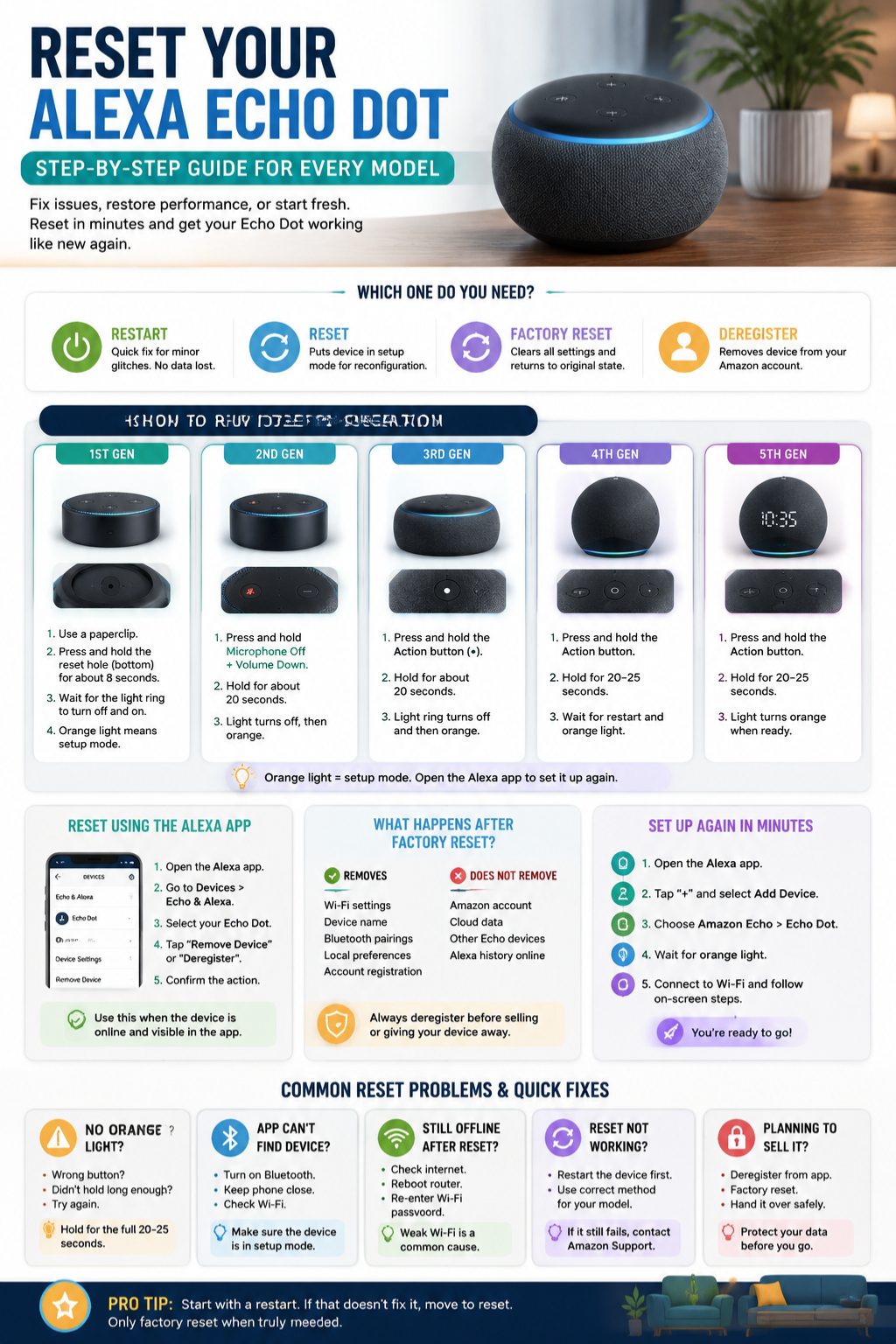
How to Reset Alexa Echo Dot by Generation
This is where most people get confused, so I’ll keep it simple.
Echo Dot 1st Generation
This model has a small reset hole underneath.
- Plug in the device
- Use a paperclip to press the reset hole
- Hold for about 8 seconds
- Wait for the light to restart
- Set it up again in the Alexa app
Read Also: AirPods Not Connecting to iPhone: 8 Quick Fixes
Echo Dot 2nd Generation
- Press and hold Microphone Off + Volume Down
- Hold for about 20 seconds
- Wait for the light to turn orange
That orange light means it’s ready to set up again.
Echo Dot 3rd Generation
- Press and hold the Action button (dot icon)
- Hold for around 20 seconds
- Wait for the light to reset and turn orange
Echo Dot 4th and 5th Generation
These are the newer spherical models.
- Press and hold the Action button
- Hold for 20–25 seconds
- Wait for restart and orange light
Once the orange light appears, you’re good to go.
Echo Dot with Clock
Same process as the matching generation. The clock display doesn’t change anything.
How to Reset Alexa Echo Dot Using the App
If you don’t want to use buttons, the Alexa app can help.
- Open Alexa app
- Go to Devices
- Select Echo & Alexa
- Choose your Echo Dot
- Tap Remove or Deregister
That removes it from your Amazon account.
When this method works best
- You still see the device in the app
- You’re preparing it for someone else
- You want remote control
When it doesn’t help
- Device is offline
- App can’t detect it
- Setup is completely stuck
Setting Up Echo Dot After Reset
Once you reset, you’ll need to set it up again.
What you need
- Alexa app
- Amazon account login
- Wi-Fi password
- Power connection
Setup steps
- Open Alexa app
- Tap Add Device
- Select Echo Dot
- Wait for orange light
- Connect to Wi-Fi
Once that’s done, your Echo Dot is ready again.
Reset Echo Dot Wi-Fi Without Full Reset
Sometimes you don’t need a full reset at all.
Just update Wi-Fi in the Alexa app:
- Go to device settings
- Select Wi-Fi
- Enter new password
If it still won’t connect, then do a reset.
Deregister Echo Dot Before Selling
If you’re giving away or selling your Echo Dot, don’t skip this step.
Deregistering:
- Removes your Amazon account
- Prevents setup issues
- Protects your personal data
After that, you can safely factory reset the device.
What Happens After Factory Reset
A factory reset clears everything stored locally on the Echo Dot.
It removes:
- Wi-Fi settings
- Device name
- Bluetooth connections
But it doesn’t:
- Delete your Amazon account
- Affect your cloud data
- Remove Alexa history online
Common Problems When Resetting
No orange light
Usually means the button wasn’t held long enough or the wrong button was used.
Alexa app can’t find device
Check Bluetooth, Wi-Fi, and distance. Keep your phone close.
Still offline after reset
This is usually a router or password issue, not the Echo Dot.
Reset not working at all
Try restarting first, then repeat the correct steps.
When You Should Reset Echo Dot
Reset when:
- Wi-Fi changed
- Device is stuck
- Setup keeps failing
- You’re selling it
Don’t reset when:
- Internet is down
- Volume is low
- Alexa is just temporarily slow
FAQs About Resetting Alexa Echo Dot
1. How do I reset Alexa Echo Dot without using the app?
You can reset most Echo Dot models using physical buttons on the device. Depending on the generation, you may need to press the Action button or a button combination for 20–25 seconds until the light turns orange. After that, you’ll need the Alexa app to complete setup.
This usually happens when the wrong button is pressed, the hold time is too short, or the device hasn’t fully powered on. A weak power adapter can also stop the reset process from working properly.
3. How do I know if my Echo Dot has been reset successfully?
When the reset works, the light ring turns off and then turns orange. That orange light means the device is now in setup mode and ready to connect again.
4. Will resetting Echo Dot delete my Amazon account or Alexa data?
No, resetting only affects the device itself. Your Amazon account, cloud Alexa history, and app data remain safe. However, local settings on the Echo Dot will be erased.
5. What should I do if my Echo Dot is stuck on a blue or red light?
A blue light usually means Alexa is processing a command, while a red light means the microphone is turned off. This does not require a reset. Just check the microphone button or wait for processing to finish.
6. Can I reset Echo Dot Wi-Fi without doing a factory reset?
Yes. In many cases, you can update Wi-Fi settings directly from the Alexa app without resetting the device. A full reset is only needed if the device cannot connect at all.
7. Do I need to deregister Echo Dot before selling it?
Yes, it’s strongly recommended. Deregistering removes your Amazon account from the device and prevents setup issues for the next user. You should also perform a factory reset for complete cleanup.
8. How long does it take to reset an Echo Dot?
The reset process itself takes about 20–25 seconds depending on the model. However, full setup after reset may take a few minutes depending on your Wi-Fi speed.
9. Why is my Echo Dot not going into setup mode?
This usually happens due to incorrect reset steps, weak Wi-Fi signals, or the device not completing the reset cycle. Make sure you see the orange light before trying to set it up again.
10. What is the difference between orange light and blue light on Echo Dot?
Orange light means the device is in setup mode and ready to connect. Blue light means Alexa is active or processing a request. They indicate completely different states.
Final Thoughts
To reset Alexa Echo Dot, don’t rush into a factory reset. Start with a restart. That alone fixes many issues.
If that doesn’t work, follow the correct method for your model. Once you see the orange light and reconnect through the Alexa app, everything usually falls back into place.
Most problems with Echo Dot aren’t serious. They just need the right reset at the right time.
FAQs About Resetting Alexa Echo Dot
1. How do I reset Alexa Echo Dot without using the app?
You can reset most Echo Dot models using physical buttons on the device. Depending on the generation, you may need to press the Action button or a button combination for 20–25 seconds until the light turns orange. After that, you’ll need the Alexa app to complete setup.
This usually happens when the wrong button is pressed, the hold time is too short, or the device hasn’t fully powered on. A weak power adapter can also stop the reset process from working properly.
3. How do I know if my Echo Dot has been reset successfully?
When the reset works, the light ring turns off and then turns orange. That orange light means the device is now in setup mode and ready to connect again.
4. Will resetting Echo Dot delete my Amazon account or Alexa data?
No, resetting only affects the device itself. Your Amazon account, cloud Alexa history, and app data remain safe. However, local settings on the Echo Dot will be erased.
5. What should I do if my Echo Dot is stuck on a blue or red light?
A blue light usually means Alexa is processing a command, while a red light means the microphone is turned off. This does not require a reset. Just check the microphone button or wait for processing to finish.
6. Can I reset Echo Dot Wi-Fi without doing a factory reset?
Yes. In many cases, you can update Wi-Fi settings directly from the Alexa app without resetting the device. A full reset is only needed if the device cannot connect at all.
7. Do I need to deregister Echo Dot before selling it?
Yes, it’s strongly recommended. Deregistering removes your Amazon account from the device and prevents setup issues for the next user. You should also perform a factory reset for complete cleanup.
8. How long does it take to reset an Echo Dot?
The reset process itself takes about 20–25 seconds depending on the model. However, full setup after reset may take a few minutes depending on your Wi-Fi speed.
9. Why is my Echo Dot not going into setup mode?
This usually happens due to incorrect reset steps, weak Wi-Fi signals, or the device not completing the reset cycle. Make sure you see the orange light before trying to set it up again.
10. What is the difference between orange light and blue light on Echo Dot?
Orange light means the device is in setup mode and ready to connect. Blue light means Alexa is active or processing a request. They indicate completely different states.