
The iphone earpiece not working issue always shows up at the worst time. You pick up a call, hold the phone to your ear, and suddenly… nothing. Or worse, the sound is there but it’s so low or muffled that you keep asking people to repeat themselves.
Most of the time, the phone isn’t broken. It just feels that way. In real use, this problem usually comes down to something simple like dust in the receiver, Bluetooth still connected, low call volume, or a small iOS glitch.
Apple’s own guidance supports this too. The receiver area is sensitive and can easily get blocked. Audio can also route to other devices without you noticing.
Let’s walk through the fixes in a simple, real-world way so you can get your calls back to normal without stress.
Why iPhone Earpiece Not Working Happens
When the iphone earpiece not working issue appears, it usually means the sound isn’t reaching your ear the right way. Either the receiver is blocked, the audio is going somewhere else, or the system is acting up for a moment.
Sometimes it’s as simple as Bluetooth being connected to AirPods or a car. Other times, the receiver grille has collected dust or lint over time. And yes, iOS can also glitch after updates or app switching.
If speakerphone works but normal ear listening doesn’t, the issue is almost always local to the earpiece or audio routing.
What usually causes it
|
Problem |
What you notice |
|
Dust in receiver |
Sound feels weak or muffled |
|
Bluetooth connected |
No sound in earpiece |
|
Low call volume |
You can barely hear |
|
iOS glitch |
Sound stops randomly |
|
Hardware issue |
No sound at all |
Common Signs Something Is Wrong
This problem doesn’t always start with total silence. It creeps in.
Maybe calls start sounding a bit distant. Or you only notice it when you switch between speaker and normal mode. That’s usually when people first realize something is off.
You can only hear on speaker
This is the clearest warning sign. If speaker works fine but the earpiece doesn’t, the issue is almost always in the receiver, Bluetooth routing, or blockage.
The voice sounds far away
If people sound like they’re talking through a wall, the receiver is likely blocked or partially clogged.
Read Also: How to Speed Up Slow iPhone in 2026: Top 12 Tips
Sound keeps cutting
This usually points to signal issues, software hiccups, or audio switching between devices.
Quick breakdown
|
Symptom |
Likely reason |
|
Speaker only works |
Routing or receiver issue |
|
Low sound |
Dust or volume |
|
Crackling |
Signal or hardware |
|
Random cutouts |
Software glitch |
First Step: Make Sure It’s Really the Earpiece
Before jumping to conclusions, do a quick check. A lot of people think they have an iphone earpiece not working issue when it’s actually just volume or Bluetooth.
Make a normal call and hold the phone to your ear. Now press the volume up button while the call is active. This step alone fixes more cases than people expect.
Then switch to speaker mode. If speaker works fine, the problem is likely isolated to the receiver or audio routing.
Simple checks
|
Test |
What it tells you |
|
Normal call |
Earpiece function |
|
Speaker mode |
Bottom speaker check |
|
FaceTime call |
App vs system issue |
|
Bluetooth off |
Routing issue check |
Why This Happens in the First Place
There are a few real reasons behind iphone earpiece not working, and most of them are pretty simple.
The receiver sits at the top of the phone and is exposed. Dust, lint, and oil from pockets build up slowly. You don’t notice it until sound starts fading.
Bluetooth is another silent culprit. Your phone might still be connected to AirPods or a car system without you realizing it.
And then there’s software. iOS sometimes misbehaves for a short time, especially after updates or when switching audio between apps.
Main causes
|
Cause |
What’s going on |
|
Dust buildup |
Blocks sound |
|
Bluetooth |
Sends audio elsewhere |
|
Low volume |
Simple setting issue |
|
iOS bug |
Temporary glitch |
|
Hardware |
Physical failure |
Fixes That Actually Work
Now let’s get into the real fixes. If your iphone earpiece not working issue is software or blockage related, these steps usually solve it quickly.
Turn up call volume properly
This sounds basic, but it matters. Call volume only works during a live call. Press the volume up button while the call is active, not before.
Remove case and screen protector
A slightly misaligned protector can block the receiver without you noticing. Take it off and test a call.
Clean the receiver gently
Apple recommends a soft, dry brush. Nothing wet. Nothing sharp.
Just:
- Turn off the phone
- Gently brush the top speaker area
- Wipe with a clean dry cloth
- Test again
Turn off Bluetooth
Go to Control Center and switch Bluetooth off. This forces audio back to your phone.
Fix summary
|
Fix |
Effort |
Result |
|
Increase volume |
Easy |
Immediate |
|
Remove case |
Easy |
Often fixes it |
|
Clean receiver |
Medium |
Very effective |
|
Disable Bluetooth |
Easy |
Very effective |
|
Restart phone |
Easy |
Helps often |
Software Fixes You Should Try
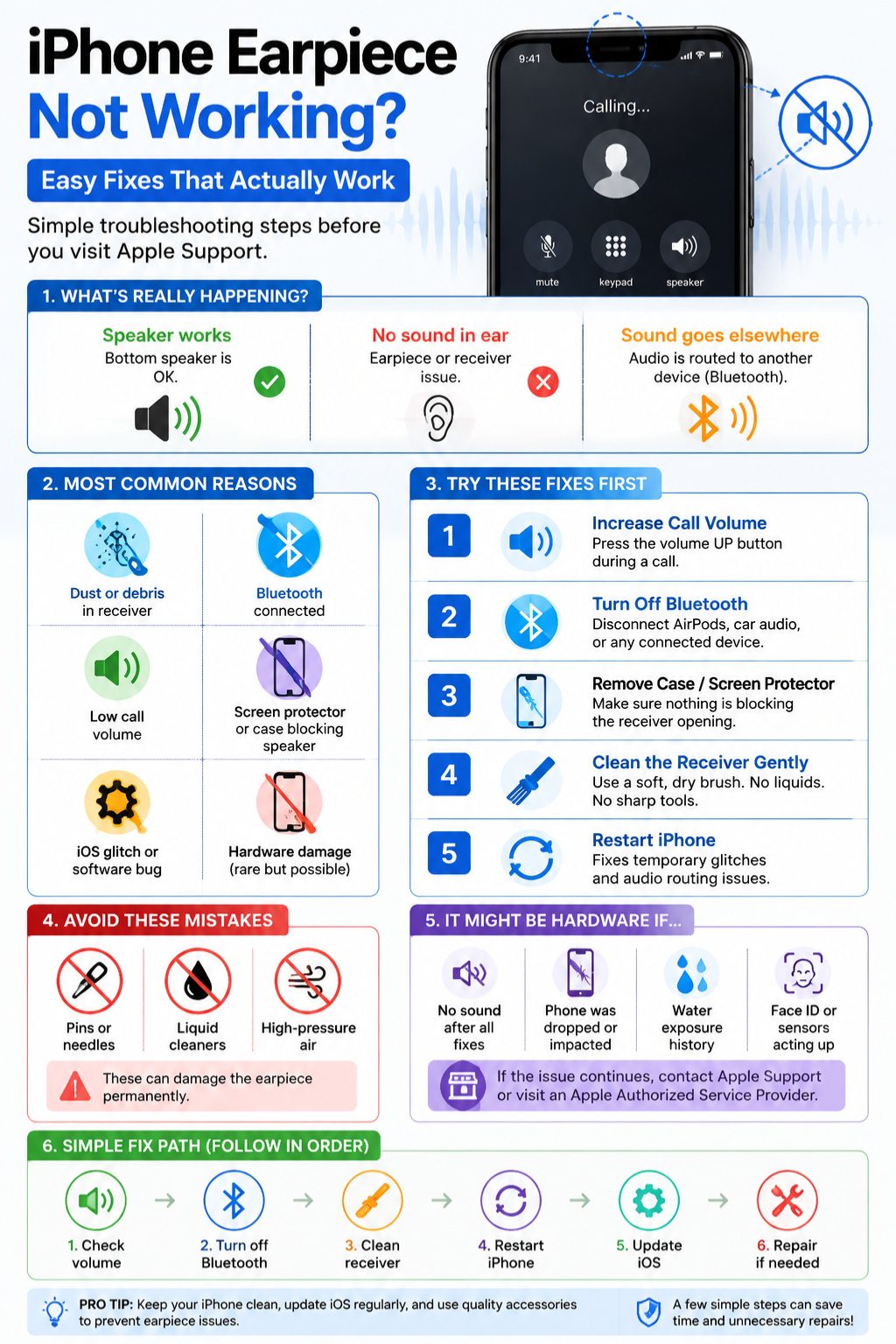
If things still don’t work, your iphone earpiece not working issue may be software-related.
Restarting your phone clears temporary bugs that mess with audio routing. It’s simple but surprisingly effective.
Updating iOS is also important. Apple regularly fixes call and audio issues in updates.
If nothing else works, resetting settings can help bring audio behavior back to normal.
Software fixes
|
Fix |
Why it helps |
|
Restart |
Clears glitches |
|
Update iOS |
Fixes known bugs |
|
Reset settings |
Restores audio system |
When It Might Be Hardware
If nothing changes after all fixes, then the iphone earpiece not working problem may be physical.
Drops, water exposure, or long-term wear can damage the receiver. In these cases, speakerphone still works but the top earpiece stays silent.
Sometimes Face ID or sensors near the top also act strange, which is another warning sign.
Warning signs
|
Sign |
Meaning |
|
No sound at all |
Possible damage |
|
Water exposure |
Internal corrosion |
|
Drop damage |
Loose parts |
|
Sensor issues |
Shared hardware problem |
iPhone 12 Users Should Know This
Some iPhone 12 and 12 Pro devices had a known receiver issue that Apple officially acknowledged through a service program.
If your iphone earpiece not working issue is on these models, it’s worth checking eligibility with Apple.
Not every device is affected, but it’s something worth ruling out.
What You Should Avoid Doing
A lot of damage happens during “DIY fixes.”
Don’t use pins or needles. That can permanently damage the mesh.
Avoid liquid cleaners. Even a small amount can enter the speaker area.
And don’t blast air pressure into the receiver. It often makes things worse, not better.
Avoid this
|
Action |
Risk |
|
Sharp tools |
Permanent damage |
|
Liquid sprays |
Internal moisture |
|
High-pressure air |
Pushes dust inside |
Repair or Replace?
If your iphone earpiece not working issue survives all troubleshooting, it’s time to think about repair.
Check your warranty or AppleCare first. For newer phones, repair usually makes sense. For older ones, replacement can sometimes be the smarter choice.
Always back up your data before handing the phone in.
How to Prevent This Problem
A few small habits can keep this issue from coming back.
Clean the receiver lightly every few weeks. Keep your phone away from dusty pockets. Use properly aligned screen protectors.
And don’t ignore software updates.
Prevention tips
|
Habit |
Benefit |
|
Light cleaning |
Prevents buildup |
|
Good protector |
Better sound clarity |
|
Updates |
Fewer bugs |
|
Safe storage |
Less dust exposure |
Final Thoughts
The iphone earpiece not working issue looks serious, but in real life, it’s usually something simple. Dust, Bluetooth, low volume, or a small software glitch are the most common reasons.
Start with the easy fixes. Clean it. Check volume. Turn off Bluetooth. Restart the phone.
Most of the time, that’s enough.
If nothing changes after all that, then yes, it might be time for a repair. But in many cases, you’ll get it working again without ever stepping into a service center.
FAQs
Why can I only hear calls on speaker?
Usually the earpiece is blocked, misrouted, or not receiving sound properly.
Why is the sound so low?
Dust, low volume, or a blocked receiver is usually the reason.
Can Bluetooth cause this?
Yes. Your phone may send sound to AirPods or a car system.
Does silent mode affect calls?
No. It only affects alerts.
How do I clean it safely?
Use a dry soft brush only. No liquids, no sharp tools.
When should I go to Apple?
If nothing works after all basic fixes or if there was damage involved.