
Excel formulas not calculating is one of those tiny problems that can ruin a whole report. You type the formula, press Enter, and expect a clean answer. Instead, Excel shows the formula as text, keeps an old number, returns an error, or simply refuses to update.
The good news? Most of the time, the formula is not broken. Excel is usually stuck in manual calculation mode, the cell is formatted as text, Show Formulas is turned on, or a circular reference is blocking the result.
This guide keeps things practical. No heavy jargon. No random button-clicking. You’ll learn the real reasons Excel formulas stop working and how to fix them step by step. Whether you use Excel for budgets, invoices, dashboards, schoolwork, accounting, or data reports, these fixes will help you get your spreadsheet back under control.
Why Excel Formulas Not Calculating Happens
When formulas stop working, people often blame the formula first. Sometimes that is true, but not always. Excel has several settings that control how and when formulas calculate. A small change in one workbook can affect how your numbers behave.
Microsoft explains that Excel can calculate automatically, manually, or automatically except for data tables. In manual mode, formulas update only when you recalculate them, such as by pressing F9.
|
Common Cause |
What You See |
Quick Fix |
|
Manual calculation mode |
Formula result does not update |
Set Calculation Options to Automatic |
|
Text cell format |
Formula appears as text |
Change format to General and re-enter formula |
|
Show Formulas mode |
All formulas show instead of results |
Press Ctrl + ` |
|
Circular reference |
Warning, zero, or old result |
Find and remove circular reference |
|
Broken reference |
#REF! error |
Repair deleted or moved cell references |
|
Imported data issue |
SUM or lookup gives wrong result |
Convert text numbers to real numbers |
Manual Calculation Is the Most Common Reason
Manual calculation mode is useful for very large workbooks. It stops Excel from recalculating every time you change a cell. That saves time in heavy files, but it also creates confusion.
If someone sends you a workbook that was saved in Manual mode, your formulas may not update. You may change A1, but B1 still shows the old result. That does not always mean your formula is wrong.
Text Formatting Can Fool Excel
A formula must be read as a formula, not plain text. If the cell is formatted as Text, Excel may display the formula instead of calculating it.
Microsoft notes that when a formula cell is formatted as text, you may need to change the format and re-enter the formula to show the calculated value.
Formula Errors Need a Different Fix
Errors like #VALUE!, #REF!, #NAME?, #DIV/0!, and #N/A are not the same as formulas not calculating. They mean Excel tried to calculate the formula but found a problem. The fix depends on the error type.
Check Calculation Mode First
Start here before editing formulas. It is fast, safe, and often solves the issue in under a minute. If Excel calculation is set to Manual, formulas can stay frozen until you force a recalculation. This is why a spreadsheet may work fine one day and act strange the next.
Microsoft says Automatic is the default calculation setting. It recalculates dependent formulas whenever you change a value, formula, or name. Manual mode turns off automatic recalculation and updates formulas only when you manually recalculate.
|
Setting |
Best For |
Risk |
|
Automatic |
Normal workbooks, daily reports, small files |
Can slow down huge files |
|
Automatic except for data tables |
Large models with data tables |
Data tables need manual refresh |
|
Manual |
Very large or complex workbooks |
Easy to forget recalculation |
|
Recalculate before saving |
Shared files and final reports |
Save time may increase |
How to Turn Automatic Calculation Back On
Go to the Formulas tab. Click Calculation Options. Select Automatic.
You can also use this route:
- Click File.
- Select Options.
- Choose Formulas.
- Under Workbook Calculation, select Automatic.
- Click OK.
- Press F9 once to refresh the workbook.
When Manual Mode Makes Sense
Manual mode is not bad. It is helpful when a workbook has thousands of formulas, volatile functions, external links, or large data tables. The problem starts when users forget it is turned on.
If your file is small or medium-sized, keep Automatic on. If your file is large, use Manual only when you understand the tradeoff.
Calculation settings can travel with files. If you receive a workbook from a coworker, client, or downloaded template, check calculation mode before changing formulas. This one check can save a lot of unnecessary editing.
Use Excel Recalculation Shortcuts
Sometimes Excel just needs a push. Recalculation shortcuts are useful when a workbook is in Manual mode, a formula result looks outdated, or a linked workbook has not refreshed properly. They are also helpful when you are not ready to change the workbook’s calculation setting yet.
Microsoft lists F9 for recalculating all open workbooks and Shift + F9 for recalculating only the active worksheet.
|
Shortcut |
What It Does |
When to Use It |
|
F9 |
Recalculates changed formulas in all open workbooks |
Quick full refresh |
|
Shift + F9 |
Recalculates the active worksheet |
One-sheet check |
|
Ctrl + Alt + F9 |
Forces a wider recalculation |
Stubborn formula results |
|
Ctrl + Alt + Shift + F9 |
Rebuilds calculation dependencies |
Complex workbook issues |
Press F9 for a Fast Refresh
If formulas are not updating, press F9 first. This recalculates formulas that changed since the last calculation and any formulas that depend on them.
This is the fastest test. If the formula updates after F9, your workbook is likely in Manual mode or needs a refresh.
Use Shift + F9 for One Sheet
If your workbook has many sheets, Shift + F9 is cleaner. It recalculates only the active worksheet. Use this when you are testing one report page, one budget sheet, or one dashboard tab.
Use Stronger Recalculation Only When Needed
Ctrl + Alt + F9 and Ctrl + Alt + Shift + F9 are stronger options. They are useful when Excel’s calculation chain seems stuck. Do not start with them for every small issue. Use them when normal recalculation does not work.
Fix Formulas Showing as Text
This is one of the most annoying Excel problems. You type =SUM(A1:A10), but instead of showing a result, Excel displays the formula itself. It feels like Excel suddenly forgot how formulas work.
In most cases, this happens for two reasons. Either Show Formulas mode is turned on, or the cell is formatted as Text. Microsoft confirms that formulas in Excel always begin with an equal sign, and the result appears in the cell after you press Enter.
|
Symptom |
Likely Cause |
Fix |
|
Many cells show formulas |
Show Formulas mode is on |
Press Ctrl + ` |
|
One cell shows formula |
Cell is formatted as Text |
Change to General and re-enter |
|
Formula starts with space |
Excel reads it as text |
Remove the space |
|
Formula starts with apostrophe |
Excel treats it as text |
Remove the apostrophe |
|
Formula is inside quotes |
Formula is text |
Remove quotes |
Turn Off Show Formulas Mode
Press Ctrl + ` on your keyboard. This shortcut switches between showing formulas and showing results.
You can also go to:
- Formulas tab.
- Formula Auditing group.
- Click Show Formulas.
- Check if the results return.
Change Text Format to General
Select the affected cell. Go to Home. Open the Number Format dropdown. Choose General. Then press F2 and Enter.
That last step matters. Changing the format alone may not update the formula. You often need to re-enter the formula so Excel reads it properly.
Remove Apostrophes and Spaces
Look at the formula bar. If you see an apostrophe before the equal sign, remove it. If there is a space before =, remove that too.
Wrong examples:
- ‘=A1+B1
- =A1+B1
- “=A1+B1”
Correct example:
- =A1+B1
Fix Formula Errors Before Blaming Excel
If Excel shows an error, the formula is calculating. It is just calculating into a problem. That is different from a formula not updating. Your job is to understand the error message and fix the cause.
Microsoft lists common formula errors such as #VALUE!, #REF!, #NUM!, #N/A, #DIV/0!, #NAME?, and #NULL!. It also notes that #VALUE! can come from incorrect formatting or unsupported data types, while #REF! can appear when a formula refers to deleted or replaced cells.
|
Error |
Meaning |
Common Fix |
|
#VALUE! |
Wrong data type or bad argument |
Check text, numbers, dates, and spaces |
|
#REF! |
Broken or deleted reference |
Restore or correct the cell reference |
|
#NAME? |
Misspelled function or unknown name |
Check spelling and named ranges |
|
#DIV/0! |
Dividing by zero or blank cell |
Fix denominator or use IFERROR |
|
#N/A |
Lookup value not found |
Check lookup value and range |
|
#NUM! |
Invalid number issue |
Review formula limits or inputs |
|
#NULL! |
Incorrect range intersection |
Check spaces, commas, and colons |
Use Error Checking
Go to the Formulas tab and choose Error Checking. Excel will highlight formula problems and suggest what might be wrong.
This is useful for beginners because Excel gives hints. It will not fix every issue, but it can point you in the right direction.
Read Also: 4 Client-Centric Approaches for Accounting Firms to Excel
Use Evaluate Formula
For long formulas, use Evaluate Formula. This tool lets you move through the formula step by step.
Use it for:
- Nested IF formulas.
- XLOOKUP or VLOOKUP.
- INDEX MATCH.
- SUMIFS and COUNTIFS.
- Financial models.
- Date formulas.
Check Formula Syntax
Excel follows an order of calculation. Microsoft explains that formulas calculate from left to right according to operator precedence, and parentheses can change the order.
So =5+2*3 gives a different result from =(5+2)*3. If your formula calculates but gives the wrong answer, check your parentheses before assuming Excel is broken.
Convert Text Numbers Into Real Numbers
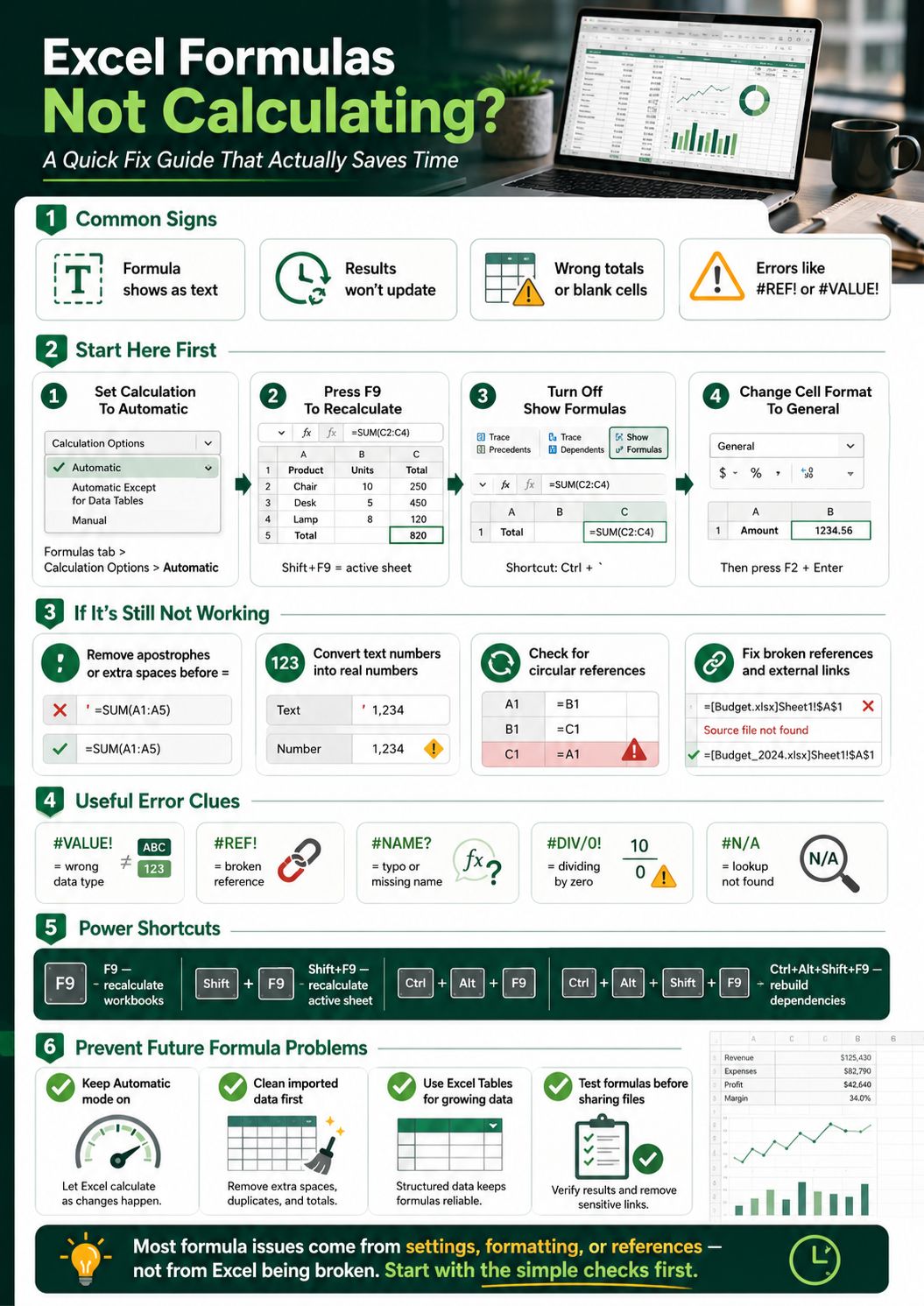
This problem is sneaky. The numbers look normal, but Excel treats them as text. Then SUM may ignore them, lookup formulas may fail, and date formulas may act weird.
This often happens when data comes from CSV files, web pages, accounting software, CRMs, payment tools, or copied reports. Excel may show a small green triangle in the cell, but not always.
|
Problem |
What Happens |
Fix |
|
Numbers stored as text |
SUM gives wrong total |
Convert to Number |
|
Extra spaces |
Lookup fails |
Use TRIM |
|
Hidden characters |
Formula does not match data |
Use CLEAN |
|
Dates stored as text |
Date math fails |
Reformat and re-enter dates |
|
Currency signs imported as text |
Calculations fail |
Remove symbols or use VALUE |
|
Mixed number formats |
Filters and formulas behave oddly |
Standardize the column |
Use Convert to Number
If Excel shows a warning icon, click it and choose Convert to Number. This is the easiest fix when it appears.
After converting, recalculate the worksheet. Your SUM, AVERAGE, and lookup formulas may start working right away.
Use Paste Special Multiply
Type 1 in an empty cell. Copy it. Select the text-number range. Use Paste Special, then Multiply.
This forces Excel to treat the values as numbers. It works well for long imported columns.
Use Helper Formulas for Dirty Data
Use helper formulas when the data is messy:
- =VALUE(A1) converts text numbers.
- =TRIM(A1) removes extra spaces.
- =CLEAN(A1) removes non-printing characters.
- =DATEVALUE(A1) converts text dates when Excel recognizes the date format.
After the helper formula works, copy the results and paste them as values.
Find and Fix Circular References
A circular reference happens when a formula refers to itself. It may be direct or indirect. Direct means the formula points to its own cell. Indirect means the formula depends on another formula that eventually points back to it.
Microsoft gives a simple example: a formula in D3 that uses D3 in its own calculation breaks because it is trying to calculate itself.
|
Circular Reference Type |
Example |
What to Do |
|
Direct |
Formula in A1 uses A1 |
Move formula or change range |
|
Indirect |
A1 depends on B1, B1 depends on A1 |
Trace precedents and dependents |
|
Accidental SUM range |
=SUM(A1:A10) in A10 |
Exclude the formula cell |
|
Intentional model loop |
Financial model iteration |
Enable iterative calculation carefully |
|
Hidden circular issue |
Warning but no visible cell |
Use Error Checking |
How to Find Circular References
Go to the Formulas tab. Click the arrow next to Error Checking. Hover over Circular References. Select the listed cell.
Review the formula carefully. Check whether the formula cell is included in its own range.
Check the Status Bar
Excel may show Circular References in the lower-left status bar. If the circular reference is on the active sheet, Excel may show a cell address. If it is on another sheet, it may only show the warning text.
Be Careful With Iterative Calculation
Some advanced financial models use circular references on purpose. But most regular spreadsheets should not.
Microsoft says that if iterative calculation is enabled without changing settings, Excel stops after 100 iterations or when the change is less than 0.001, whichever happens first.
Do not enable iterative calculation just to hide a warning. Fix the circular reference unless you know the model needs it.
Check References, Links, and Copied Formulas
Sometimes formulas calculate, but they calculate the wrong thing. This usually happens when references move, rows get deleted, columns shift, or a formula is copied without locking the right cell.
Excel uses references like A1, B2, or Sheet2!A1 to know where to pull data from. Microsoft explains that references tell Excel where to look for values, and references to other workbooks are called links or external references.
|
Issue |
Example |
Fix |
|
Deleted cell reference |
#REF! |
Restore or rewrite the reference |
|
Wrong copied formula |
Formula points to wrong row |
Check relative references |
|
Missing absolute reference |
A1 changes when copied |
Use $A$1 where needed |
|
Renamed sheet |
Formula breaks |
Update sheet reference |
|
External file moved |
Linked formula fails |
Update source link |
|
Named range deleted |
#NAME? |
Recreate or correct named range |
Understand Relative and Absolute References
A1 changes when copied. $A$1 stays locked. A$1 locks the row. $A1 locks the column.
If you copy formulas across rows or columns, this matters a lot. Many “Excel formulas not working” cases are really copied-reference problems.
Check External Links
If your formula pulls data from another workbook, make sure the source file still exists. If it was renamed, moved, or stored in a cloud folder that has not synced, the formula may not update correctly.
Go to Data and check Workbook Links or Edit Links if available. Update the source only if you trust the linked file.
Use Excel Tables for Growing Data
If your data keeps growing, use an Excel Table instead of a fixed range. A formula like =SUM(B2:B100) will miss new rows after B100. A table can expand as you add new records.
Troubleshoot Excel for the Web, Mac, and Large Workbooks
Excel does not look exactly the same everywhere. Windows, Mac, and Excel for the web share many formula rules, but menus, shortcuts, file support, and advanced tools can differ.
Microsoft says Excel for the web looks similar to the desktop app, but some file formats are not supported and some features may work differently. It also notes that calculations and calculation settings work in a browser window in a similar way to desktop Excel.
|
Platform |
Common Issue |
Best Fix |
|
Excel for Windows |
Manual calculation or add-ins |
Check Formulas and Options |
|
Excel for Mac |
Shortcut/menu differences |
Use ribbon settings if shortcut fails |
|
Excel for the web |
Browser, file, or feature limits |
Open in desktop Excel |
|
Shared workbook |
Other users changed data |
Check version history |
|
Large workbook |
Slow recalculation |
Use Manual mode carefully |
|
Macro workbook |
VBA changes settings |
Test with macros disabled |
Excel for the Web Limitations
Excel for the web supports many formulas, but the desktop app still has deeper tools. Microsoft states that Excel for the web can view external references but cannot create them, and advanced analysis tools like Power Pivot are only available in the desktop app.
If formulas behave strangely online, open the file in desktop Excel and test again.
Browser Issues Can Also Interfere
For Excel online, try simple fixes first:
- Refresh the browser.
- Reopen the file.
- Clear browser cache.
- Try another browser.
- Open the workbook in desktop Excel.
- Save a copy and test formulas again.
Large Workbooks Need Cleaner Formula Design
Large files with thousands of formulas, volatile functions, links, and data tables can feel slow. Use fewer volatile functions where possible. Avoid full-column formulas when a smaller range works. Split heavy models into cleaner sheets.
Repair the Workbook If Nothing Else Works
If formulas work in a new workbook but not in the old one, the workbook may have deeper damage. This is less common, but it happens. Large files, old templates, broken links, add-ins, macros, and repeated copy-paste history can make a workbook unstable.
Microsoft says the Open and Repair command may recover a workbook after a file corruption error. The recommended route is File > Open > Browse, then choose the file and use the arrow next to Open to select Open and Repair.
|
Repair Step |
Why It Helps |
Risk Level |
|
Save a backup |
Protects original file |
Low |
|
Open in Safe Mode |
Tests add-in conflicts |
Low |
|
Disable add-ins |
Finds add-in interference |
Low |
|
Copy sheets to new workbook |
Removes hidden corruption |
Medium |
|
Save as new .xlsx |
Rebuilds file structure |
Medium |
|
Open and Repair |
Attempts file recovery |
Medium |
|
Review macros |
Finds VBA setting changes |
Medium |
Start With a Backup
Always save a copy before repairing or rebuilding a workbook. If you break links, remove formulas, or lose formatting, you can return to the original.
Test Add-ins and Macros
Open Excel in Safe Mode and test the file. If formulas work there, an add-in may be causing trouble.
If the workbook uses macros, check whether VBA is changing calculation mode. Some macros switch Excel to Manual calculation for speed and forget to switch it back.
Move Clean Sheets Into a New Workbook
If one workbook is stubborn, create a fresh workbook. Copy one sheet at a time. Test formulas after each copy. This helps you find whether one sheet, one link, or one formula group is causing the issue.
Best Practices to Prevent Formula Problems
Fixing the issue is good. Preventing it is better. Most Excel formula problems come from messy data, unclear references, workbook settings, and rushed edits.
A clean spreadsheet is easier to trust. It also saves time when someone else opens the file later. Think of this as basic spreadsheet hygiene.
|
Best Practice |
Why It Helps |
|
Keep calculation on Automatic |
Prevents frozen results |
|
Use Excel Tables |
Expands ranges automatically |
|
Clean imported data first |
Avoids text-number issues |
|
Use named ranges carefully |
Makes formulas easier to read |
|
Avoid unnecessary volatile formulas |
Improves performance |
|
Document key formulas |
Helps future users |
|
Test before sharing |
Catches broken links and errors |
|
Keep backup versions |
Protects against bad edits |
Build Formulas in Small Steps
Do not build a giant formula in one shot. Test each part first. Then combine them.
This is especially useful for IF, XLOOKUP, INDEX MATCH, SUMIFS, FILTER, and date formulas.
Keep Inputs Separate From Calculations
Put raw data, assumptions, and final reports in separate areas. This makes it easier to see what changed and why a result moved.
For business files, add a small notes sheet. Include calculation mode, source files, refresh steps, and the purpose of key formulas.
Clean Data Before Writing Formulas
Do not build formulas on dirty data. Clean number formats, date formats, spaces, and duplicates first.
Imported data causes many formula problems. A few minutes of cleanup can save hours of troubleshooting later.
Final Thoughts
When excel formulas not calculating becomes the problem, start with the simple checks. Look at calculation mode. Press F9. Turn off Show Formulas. Change Text format to General. Remove hidden apostrophes or spaces.
Most formula issues come from small settings, not broken spreadsheets. If the easy fixes do not work, move deeper. Check formula errors, circular references, external links, copied references, browser limitations, and workbook damage.
The best habit is to troubleshoot in order. Do not rewrite formulas before checking settings. Do not break links before saving a backup. Do not enable iterative calculation just to hide a circular reference warning. A calm, step-by-step check usually gets Excel working again faster than random fixes.
FAQs About Excel Formulas Not Calculating
These FAQs cover less obvious questions that users often search after the basic fixes fail.
|
Question Type |
Best For |
|
Same result after copying formula |
Reference lock problem |
|
Formula works in one file only |
Workbook setting issue |
|
Formula updates after double-click |
Text format issue |
|
Protected sheet issue |
Locked cells or permissions |
|
Slow formulas |
Large workbook or volatile functions |
Why does my copied formula show the same result in every row?
This often happens when calculation mode is Manual or when the formula uses locked references incorrectly. Press F9 first. Then check whether your formula uses $ signs in the wrong place.
Why does my formula work in one workbook but not another?
The two workbooks may have different calculation settings, named ranges, links, or formats. Check Calculation Options, cell format, workbook links, and any macros.
Why does my formula calculate only after I double-click the cell?
The cell was probably formatted as Text before the formula was entered. Change the cell format to General, press F2, and then press Enter.
Can a protected sheet stop formulas from calculating?
Protection usually stops editing, not calculation. But if you cannot edit formula cells, linked cells, or source ranges, you may need permission to change the sheet.
Why is Excel showing an old result after I changed the input?
Manual calculation mode is the most likely cause. Set calculation to Automatic or press F9 to refresh the workbook.
Why does my SUM formula ignore some numbers?
Some numbers may be stored as text. Convert them to real numbers, remove extra spaces, and check whether the formula range includes all rows.
Can add-ins stop Excel formulas from calculating?
Yes, some add-ins can affect workbook behavior, performance, or calculation flow. Open Excel in Safe Mode and test the workbook without add-ins.
Why are formulas slow in my workbook?
Large datasets, volatile functions, external links, array formulas, and too many full-column references can slow calculation. Clean the workbook and reduce unnecessary formulas.