
Your smartwatch says it’s connected. Your phone agrees. Yet yesterday’s workout is still missing, notifications have stopped, or the companion app hasn’t updated in hours.
It’s a frustrating problem because “connected” doesn’t always mean “syncing.”
If your smartwatch not syncing problem started out of nowhere, resist the urge to reset everything. In many cases, the watch itself is fine. The trouble is somewhere between Bluetooth, the companion app, phone permissions, background activity, your internet connection, or the account linked to the watch.
The trick is figuring out which part has stopped working.
|
What you’re seeing |
Check first |
|
Phone can’t find the watch |
Bluetooth and pairing mode |
|
Bluetooth says connected, app says disconnected |
Companion app |
|
Notifications arrive but workouts don’t |
Health-data syncing |
|
Sync works only with the app open |
Background activity |
|
Trouble started after changing phones |
Watch transfer or old pairing |
|
Trouble started after an update |
App, watch, or phone software |
Smartwatch Not Syncing? Work Out What’s Actually Broken
“Not syncing” can mean several things.
Your phone may not see the watch at all. The watch may appear in Bluetooth settings but remain disconnected inside its companion app. Or the watch may receive calls and messages normally while steps, sleep records, and workouts refuse to update.
Those aren’t the same problem.
Samsung, for example, expects Galaxy Watch users to check the connection inside Galaxy Wearable, not just in the phone’s Bluetooth menu. Garmin also handles supported watch pairing through Garmin Connect.
Before changing settings, check four things:
- Look at the connection symbol on the watch.
- Open the watch’s official companion app.
- Check Bluetooth on the phone.
- See whether the missing data appears anywhere else.
That last check can save a lot of unnecessary troubleshooting.
If your workout appears in Garmin Connect but not in another fitness app, your watch has probably synced successfully. The problem is farther down the chain.
|
Symptom |
Likely problem |
|
Watch doesn’t appear anywhere |
Pairing or Bluetooth |
|
Bluetooth sees it, app doesn’t |
Companion-app pairing |
|
App shows old information |
Sync or account issue |
|
Official app is current, third-party app isn’t |
Data-sharing connection |
|
Calls work but alerts don’t |
Notification permissions |
1. Start With Bluetooth, Distance, and Airplane Mode
Bluetooth is the obvious place to start, and for good reason.
Keep your phone and watch close together. Make sure Bluetooth is switched on. Check that Airplane Mode isn’t active on either device.
Apple recommends these basic checks when an Apple Watch loses its iPhone connection. Samsung gives similar advice for Galaxy Watch users.
Next, switch Bluetooth off on your phone, wait a moment, and turn it back on.
For Fitbit devices using Google Health, Google includes this step in its current sync troubleshooting guidance.
Read Also: How to Set Up a New Smartwatch in 2026: Full Guide
Don’t Pair Every Watch Through the Bluetooth Menu
This catches people surprisingly often.
A smartwatch may appear in your phone’s Bluetooth list, but that doesn’t mean setup is complete.
Different brands want you to use different apps:
- Samsung Galaxy Watch: Galaxy Wearable
- Google Pixel Watch: Google Pixel Watch app
- Garmin: Garmin Connect
- Fitbit: Google Health
So if your phone sees the watch but the app doesn’t, stop repeatedly tapping the device in Bluetooth settings. Open the official app and follow its pairing process instead.
|
Quick check |
What to do |
|
Bluetooth |
Make sure it’s on |
|
Airplane Mode |
Turn it off while testing |
|
Distance |
Keep phone and watch nearby |
|
Companion app |
Confirm the watch appears there |
|
Bluetooth menu pairing |
Use only if the manufacturer tells you to |
2. Restart Both Devices
It’s basic, but it works often enough to deserve an early spot on the list.
Bluetooth services, watch apps, and background processes can get stuck. Restarting both devices clears many temporary problems without deleting your settings or fitness history.
Apple, Google, and Garmin all recommend restarting devices during connection troubleshooting.
Try this order:
- Close the smartwatch app.
- Restart your phone.
- Restart your watch.
- Let both devices finish booting.
- Unlock the phone.
- Open the companion app.
- Try syncing again.
Don’t jump from one failed sync attempt straight to a factory reset. A restart takes minutes. A reset can mean rebuilding the whole watch.
|
Action |
Risk of losing data |
When to try |
|
Reopen the app |
None |
First |
|
Toggle Bluetooth |
None |
First |
|
Restart phone |
None |
Early |
|
Restart watch |
Usually none |
Early |
|
Remove pairing |
Setup required again |
Later |
|
Factory reset |
Can erase watch data |
Last |
3. Check App Permissions
A smartwatch not syncing even though Bluetooth looks fine often points to a permission problem.
On newer Android phones, the companion app may need Nearby Devices permission to find and communicate with the watch.
Google’s current guidance says Android 12 and later use Nearby Devices for Bluetooth discovery with Fitbit devices. Basic Bluetooth syncing doesn’t require GPS location tracking on these Android versions, although location access may still be needed for features such as connected GPS or weather.
Depending on your watch, other permissions may include:
- Notifications
- Physical activity
- Health data
- Contacts
- Phone
- Calendar
- Location
Samsung also advises Galaxy Watch users to check permissions for Galaxy Wearable and any required watch plug-in.
The key is not to turn on everything blindly. Check which feature has stopped working.
If calls work but app alerts don’t, look at notification permissions. If the watch connects but workouts never appear, health-data permissions make more sense.
|
Permission |
What may stop working |
|
Nearby Devices/Bluetooth |
Device discovery and connection |
|
Notifications |
App alerts, texts, calls |
|
Physical activity |
Fitness information |
|
Health data |
Health-data sharing |
|
Location |
Weather, connected GPS, some setup functions |
|
Contacts/Phone |
Calling and contact features |
4. Check Background Activity and Battery Restrictions
Here’s a useful clue: Does the watch sync as soon as you open its app?
If yes, the phone may be putting the app to sleep in the background.
This is especially common on Android, where phone makers can add aggressive battery-saving settings on top of Android’s standard controls.
Google says Google Health needs background operation for features such as automatic Fitbit syncing, connected GPS, notifications, and firmware updates. Its Android guidance recommends checking background data and battery restrictions if syncing isn’t working correctly.
Look for settings similar to:
Settings → Apps → [companion app] → Battery
and
Settings → Apps → [companion app] → Mobile data
Menu names vary between Samsung, Pixel, Xiaomi, OnePlus, Oppo, and other Android phones.
You don’t need to turn off battery optimization across the whole phone. If background restrictions are clearly causing the problem, adjust them for the smartwatch app.
|
What happens |
What to check |
|
Sync works only when app is open |
Background app access |
|
Automatic sync stops overnight |
Battery-saving settings |
|
Notifications stop after a while |
App sleep restrictions |
|
Updates won’t download |
Background data and internet access |
5. Update the Watch, Phone, and App
A smartwatch depends on three pieces of software working together:
- the phone operating system;
- the smartwatch software;
- the companion app.
If one falls too far behind, syncing can break.
Google’s Pixel Watch troubleshooting instructions recommend updating the phone, Pixel Watch app, and watch software before moving to a reset. Google gives similar advice for Fitbit devices.
Check for updates if the problem started after:
- an Android or iOS update;
- a smartwatch update;
- reinstalling the companion app;
- buying a new phone;
- bringing an older watch back into use.
Compatibility matters too.
Apple publishes compatibility requirements for each Apple Watch generation because newer watchOS versions and newer Apple Watch models may require newer iPhones and iOS versions.
Samsung also publishes compatibility guidance for Galaxy Watch models.
|
Check |
Why it matters |
|
Phone software |
Controls Bluetooth and permissions |
|
Watch software |
Handles watch-side communication |
|
Companion app |
Manages pairing and data transfer |
|
Device compatibility |
Some phone-watch combinations aren’t supported |
6. Check Your Internet Connection and Account
Bluetooth isn’t always enough.
Some watches transfer information to the phone first, then upload it to a cloud account. That means a weak or blocked internet connection can leave data sitting in limbo.
Google says Google Health needs internet access to complete Fitbit synchronization.
Check Wi-Fi or mobile data if the companion app keeps spinning, displays old information, or refuses to finish syncing.
Then check the account.
This matters after:
- reinstalling the app;
- switching phones;
- restoring a backup;
- signing into a different Google, Samsung, Garmin, or Apple account.
You may discover that the data isn’t gone at all. You’re simply looking at another account.
Fitbit Users: The App Name Has Changed
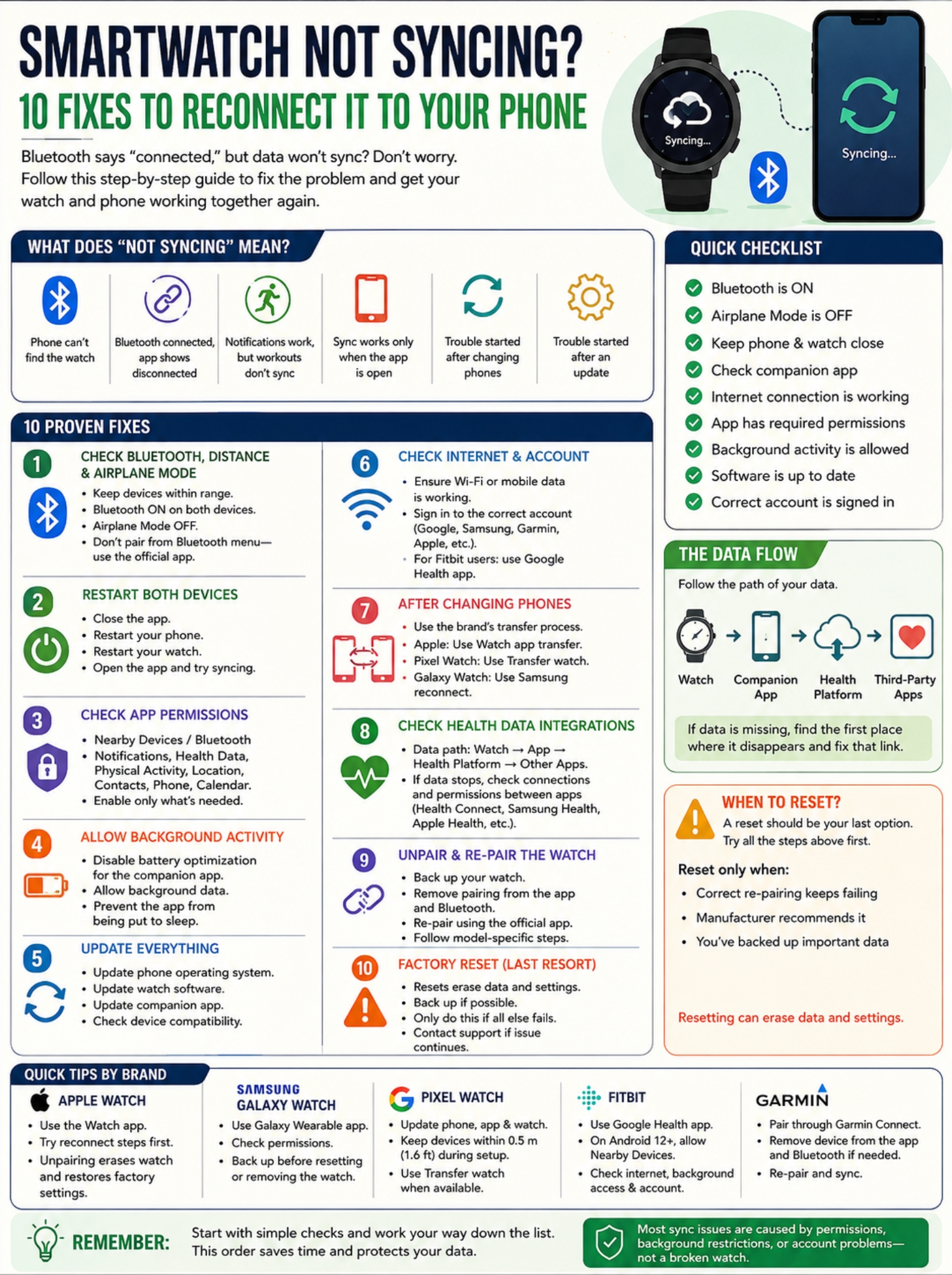
Older troubleshooting guides often tell Fitbit users to open the Fitbit app.
Google’s current support documentation now refers to the Google Health app for Fitbit devices. If the menus on your phone don’t match older instructions, that’s one reason why.
|
Problem |
What to check |
|
Sync never finishes |
Internet connection |
|
Old fitness history disappears |
Account |
|
Watch looks like a new device |
Device-account link |
|
App interface doesn’t match old guides |
Current Google Health instructions |
7. Fix Sync Problems After Changing Phones
A new phone can make a perfectly good smartwatch look broken.
The reason is simple: your watch may still be linked to the old device.
Don’t treat the watch like a pair of wireless headphones and simply connect it from the Bluetooth screen. Use the manufacturer’s transfer process.
Apple Watch
Apple provides a dedicated process for moving an existing Apple Watch to a new iPhone. Depending on how the phone was transferred or restored, the Watch app may continue setup or ask you to unpair and pair again.
Pixel Watch
Google offers a Transfer watch feature on supported Pixel Watch setups.
You can start it from:
Settings → System → Transfer watch
Google also allows the process to begin through the Pixel Watch app on the previous phone in supported cases.
That means a factory reset isn’t always necessary when changing phones.
Samsung Galaxy Watch
Samsung also provides a reconnect or transfer flow for supported Galaxy Watch models. The exact behavior can vary by watch generation and software version, so backing up first is sensible.
|
Watch |
Better approach when changing phones |
|
Apple Watch |
Use Apple’s transfer/pairing process |
|
Pixel Watch |
Use Transfer watch when available |
|
Galaxy Watch |
Use Samsung’s reconnect process |
|
Garmin |
Re-pair through Garmin Connect when needed |
|
Fitbit |
Sign into Google Health on the new phone |
8. Bluetooth Works, but Health Data Doesn’t? Follow the Data
This is where people often troubleshoot the wrong thing.
Your watch can remain connected to your phone while fitness information fails to reach another app.
The data path may look something like this:
Watch → manufacturer’s app → health platform → third-party app
Suppose your workout appears in Garmin Connect but not in another fitness service.
The watch has already done its part.
Resetting it probably won’t help. Instead, check the connection between Garmin Connect and the service that’s missing the activity.
The same logic applies to Health Connect and Samsung Health.
Google Health can share supported information through Health Connect when the right permissions are enabled. Samsung Health also has controls for connected apps and data permissions.
Find the first place where the information disappears.
|
Where you see the workout |
What to troubleshoot |
|
Watch only |
Watch-to-phone sync |
|
Manufacturer’s app only |
Health-platform connection |
|
Health platform only |
Third-party app permissions |
|
Some metrics transfer |
Metric-specific permissions or support |
9. Unpair and Re-Pair the Watch
If Bluetooth, software, permissions, account access, and background settings all look right, it may be time to rebuild the connection.
Just don’t treat unpairing as a harmless Bluetooth toggle.
For Apple Watch, unpairing erases the watch and returns it to factory settings as part of the process.
Samsung also places resetting later in its troubleshooting flow and recommends backing up watch data first.
Garmin may require you to remove the device from Garmin Connect and clear the saved Bluetooth relationship before pairing it again.
Before you unpair:
- Sync any data that still transfers.
- Back up the watch if possible.
- Make sure you know your account password.
- Charge both devices.
- Follow the instructions for your exact watch model.
|
Before unpairing |
Why |
|
Sync recent activity |
Protect unsynced workouts |
|
Make a backup |
Preserve supported settings |
|
Check passwords |
You’ll probably need to sign in again |
|
Charge watch and phone |
Avoid interrupted setup |
|
Read model-specific instructions |
Pairing steps vary by brand |
10. Save the Factory Reset for Last
A factory reset can fix stubborn problems. It can also erase the very data you’re trying to recover.
That’s why it belongs at the end of the list.
Google warns that resetting a Pixel Watch removes apps, settings, and watch data. Samsung advises users to back up their Galaxy Watch before resetting it. Apple Watch unpairing also erases the watch.
Before resetting, make sure you’ve already tried:
- Checking Bluetooth and Airplane Mode.
- Restarting the phone and watch.
- Checking app permissions.
- Fixing background restrictions.
- Checking internet access.
- Updating all three devices/apps.
- Confirming the correct account.
- Checking compatibility.
- Following the proper transfer or re-pairing process.
If a freshly reset watch still can’t connect to a compatible phone, stop repeating the reset. At that point, model-specific support makes more sense.
|
Situation |
Reset now? |
|
Haven’t restarted yet |
No |
|
App permission is blocked |
No |
|
Important workout hasn’t synced |
Not yet |
|
Correct re-pairing keeps failing |
Maybe |
|
Manufacturer recommends a reset |
Reasonable |
|
Reset still doesn’t fix pairing |
Contact support |
Quick Fixes by Smartwatch Brand
Most watches use the same basic Bluetooth technology, but their setup processes differ enough that brand-specific instructions matter.
|
Ecosystem |
Where to troubleshoot first |
|
Apple Watch |
Apple Watch app on iPhone |
|
Samsung Galaxy Watch |
Galaxy Wearable |
|
Google Pixel Watch |
Google Pixel Watch app |
|
Fitbit |
Google Health |
|
Garmin |
Garmin Connect |
Apple Watch
Start with Bluetooth, Wi-Fi, Airplane Mode, proximity, and a restart. Apple recommends unpairing and pairing again only after the simpler reconnection steps fail.
Samsung Galaxy Watch
Check Galaxy Wearable, not just the Bluetooth menu. Review the app’s permissions before removing the watch or resetting it.
Google Pixel Watch
Update the phone, Pixel Watch app, and watch software. Keep the watch and phone close during setup. Google’s Fast Pair troubleshooting guidance uses a distance of about 0.5 meter, or 1.6 feet, during the relevant setup process.
Fitbit
Use Google’s current Google Health instructions. On Android 12 or later, make sure Nearby Devices permission is available for Bluetooth discovery. Also check internet access, background activity, and your Google account.
Garmin
Pair through Garmin Connect. If pairing becomes corrupted, Garmin’s troubleshooting may involve removing the device from Garmin Connect and clearing the phone’s old Bluetooth record before pairing again.
Final Thoughts
A smartwatch not syncing doesn’t automatically mean the watch is faulty.
Start with the simple things: Bluetooth, distance, Airplane Mode, and a restart. If those don’t help, check the companion app, permissions, background access, internet connection, software updates, and account.
If you recently changed phones, use the brand’s transfer process rather than forcing a fresh Bluetooth connection.
And if your watch is connected but health data is missing, follow the data. Find out whether the problem sits between the watch and its app or between the app and another health service.
Unpairing should come later. A factory reset should come last.
That order saves time, protects your data, and gives you a much better chance of fixing the actual cause instead of wiping a watch that only needed one setting changed.
|
Best troubleshooting order |
Action |
|
1 |
Identify what’s failing |
|
2 |
Check Bluetooth, distance, and Airplane Mode |
|
3 |
Restart both devices |
|
4 |
Check app permissions |
|
5 |
Check background and battery settings |
|
6 |
Verify internet access and account |
|
7 |
Update phone, watch, and app |
|
8 |
Use the correct transfer or re-pairing process |
|
9 |
Check health-data integrations |
|
10 |
Reset only when the earlier steps fail |
FAQs About Smartwatch Sync Problems
Why does my smartwatch sync only when I open the app?
Your phone may be stopping the companion app from running in the background.
Check background activity, battery optimization, and background-data settings. On Android, the exact controls depend on your phone manufacturer.
Why do notifications work but steps and workouts don’t sync?
Notifications and fitness data don’t always travel through the same part of the system.
Open the manufacturer’s fitness app first. If your activity is there, check Health Connect, Samsung Health, Apple Health, or whichever third-party service should receive the information.
Can a cellular smartwatch sync without Bluetooth?
Sometimes.
For example, Google says Pixel Watch can use Bluetooth, LTE, or Wi-Fi for parts of the Fitbit synchronization process.
That doesn’t mean every LTE smartwatch behaves the same way. Remote syncing depends on the watch, carrier setup, apps, account, and network.
Why won’t my Fitbit sync when another phone is nearby?
The Fitbit device may still be connected or paired with the other phone.
Google recommends checking for another nearby phone or tablet that still has a Bluetooth relationship with the Fitbit device and removing it when it interferes with the device you actually want to use.